Required & Validation Attributes
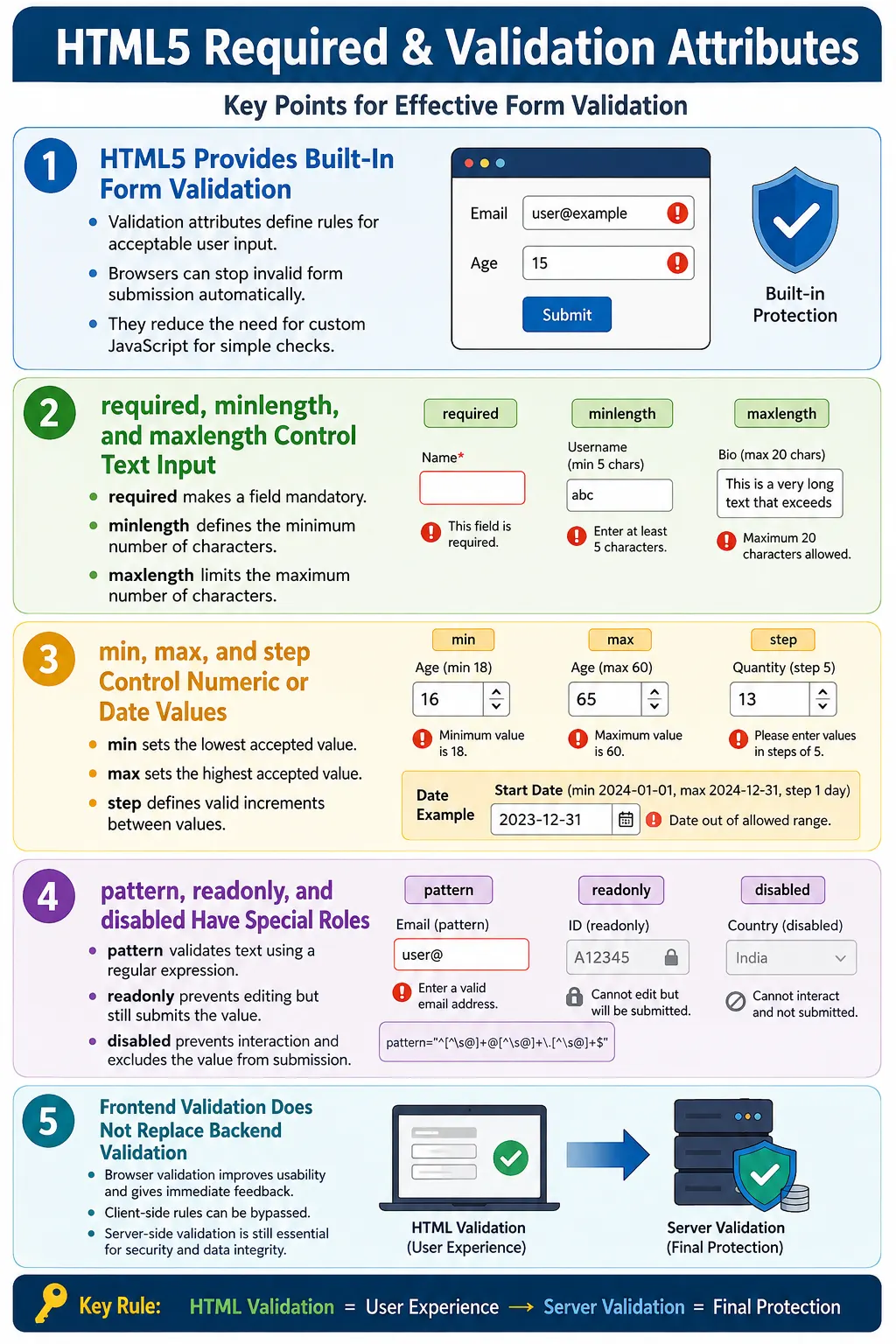
Introduction
HTML forms are useful only when they collect data in a reliable and meaningful way. A form may look correct on the page, but if users can submit empty names, invalid email addresses, impossible ages, weak passwords, or incorrectly formatted values, the application still receives poor data. This is why validation is such an important part of form design. Validation helps confirm that the data entered by the user satisfies the basic rules expected by the form.
HTML5 introduced several built-in validation attributes that allow browsers to check common input rules before a form is submitted. These attributes reduce the need for custom JavaScript for simple checks and improve the user experience by giving immediate feedback. They are commonly used in login forms, registration forms, contact forms, checkout pages, job applications, online surveys, feedback forms, account settings screens, and admin dashboards.
Validation attributes are not a replacement for backend validation. They are a frontend usability feature. They help honest users correct mistakes quickly, but they cannot secure an application by themselves because client-side validation can be bypassed. A complete application should use HTML validation for user experience and server-side validation for security, data integrity, and business rule enforcement.
What Are Validation Attributes?
Validation attributes are attributes added to HTML form controls to define rules for acceptable input. The browser reads these rules when the user submits the form. If a field violates a validation rule, the browser blocks the submission and displays a validation message.
<input type="email" required>In this example, the browser checks two things. First, it checks whether the field is empty because the required attribute is present. Second, it checks whether the entered value is a valid email address because the input type is email. If either check fails, the form is not submitted.
The important idea is that the browser can understand the expected data better when the markup is specific. A plain text field tells the browser very little. A field with type="email", required, minlength, or pattern gives the browser enough information to perform useful validation automatically.
Why Validation Attributes Are Needed
Without validation, the user can type anything and submit the form. The server receives the request, checks the data, rejects it, and sends an error response. This works technically, but it creates a slower and less friendly experience. Users may wait for a page reload or API response only to discover that a field was empty or incorrectly formatted.
With browser validation, the user gets immediate feedback before the request is sent. The form can stop submission when a required field is empty, an email address is malformed, a password is too short, a number is outside an allowed range, or a custom pattern is not matched. This keeps simple input mistakes close to the user and reduces unnecessary requests to the server.
User enters data
    |
Browser validates
    |
Invalid value?
    |
Show message and prevent submission
This flow improves usability because users can fix basic mistakes immediately. It also improves consistency because validation rules are declared directly in the HTML instead of being scattered across custom scripts for every simple field.
Common Validation Attributes
HTML provides several attributes that cover the most common validation needs. Some attributes apply to text inputs, some apply to numeric or date inputs, and some affect whether the field can be edited or submitted.
| Attribute | Purpose |
|---|---|
required | Makes a field mandatory |
minlength | Defines minimum number of characters |
maxlength | Defines maximum number of characters |
min | Defines minimum numeric or date value |
max | Defines maximum numeric or date value |
step | Defines valid increments for numeric or date values |
pattern | Validates text using a regular expression |
readonly | Prevents editing while still submitting the value |
disabled | Prevents editing and excludes the value from submission |
Each attribute solves a specific problem. When used together correctly, they make forms easier to use and easier to test.
The Required Attribute
The required attribute makes a form field mandatory. If the user tries to submit the form without filling the field, the browser stops the submission and displays a validation message.
<input type="text" required>The required attribute can be used with many form controls, including text inputs, email inputs, password inputs, number inputs, checkboxes, radio buttons, select elements, and textareas. It is one of the most commonly used validation attributes because many forms contain fields that cannot be optional.
<form>
  <label for="name">Name</label>
  <input id="name" type="text" required>

  <button type="submit">Submit</button>
</form>
If the name field is empty, the browser prevents the form from submitting. This helps avoid incomplete records and gives the user a clear signal that the field must be completed.
Minlength Attribute
The minlength attribute defines the minimum number of characters required for a text-based input. It is commonly used for usernames, passwords, comments, search terms, and other fields where very short values are not useful.
<input type="text" minlength="5">In this example, a value such as JohnD is valid because it contains five characters. A value such as Tom is invalid because it contains only three characters. The browser checks this rule during form submission.
minlength is especially useful for password fields. It does not guarantee password strength, but it can enforce a basic minimum length before stronger backend or JavaScript password checks are applied.
Maxlength Attribute
The maxlength attribute defines the maximum number of characters allowed in a text-based field. In many browsers, once the user reaches the maximum length, additional typing is prevented.
<input type="text" maxlength="10">This is useful when the application expects a fixed or limited length. Examples include usernames, short codes, coupon codes, one-line comments, identification values, and database fields with a maximum size.
One common mistake is using maxlength with <input type="number"> and expecting it to limit numeric digits. For numeric ranges, use min and max. If the requirement is to limit the number of digits exactly, a text input with a pattern may be more appropriate depending on the data.
Min and Max Attributes
The min and max attributes define the lowest and highest acceptable values for numeric and date-based inputs. They are commonly used for age, quantity, price, rating, appointment date, date of birth, experience years, and range controls.
<input type="number" min="18">Here, the value must be 18 or greater. A value such as 25 is valid, while 15 is invalid.
<input type="number" max="100">Here, the value must be 100 or lower. A value such as 90 is valid, while 150 is invalid.
These attributes can also be used with date inputs.
<input type="date" min="2026-01-01" max="2026-12-31">This tells the browser that only dates within the year 2026 are acceptable. Date support and native UI may vary between browsers, but the semantic rule remains clear in the markup.
Step Attribute
The step attribute defines the allowed interval between values. It is commonly used with number, range, date, time, and related input types. It helps control which increments are valid.
<input type="number" min="0" max="100" step="10">With this rule, valid values include 0, 10, 20, 30, and so on. A value such as 25 does not match the step interval and may be considered invalid.
The step attribute is useful for quantities, scores, pricing increments, time slots, percentage values, and slider controls. It gives the browser a clear rule for valid increments instead of accepting every possible number.
Pattern Attribute
The pattern attribute validates a text value using a regular expression. It is used when the browser's built-in input types are not specific enough for the required format.
<input type="text" pattern="[A-Za-z]{3,}">This pattern requires at least three alphabetic characters. A value such as John is valid, while 12 is invalid. Patterns are useful for custom formats such as usernames, PIN codes, postal codes, product codes, employee IDs, and phone number formats.
<input
  type="text"
  pattern="[0-9]{6}"
  title="Enter a 6-digit PIN">
The title attribute is often used with pattern to provide a helpful explanation. Without a clear hint, users may not understand why their value is rejected. Regular expressions can become complex, so beginners should focus on simple patterns first and avoid writing patterns that are difficult to maintain.
Readonly Attribute
The readonly attribute prevents users from modifying a field, but the value is still included when the form is submitted. This is useful for values that should be visible and submitted but not edited by the user.
<input type="text" value="India" readonly>A read-only field is visible, usually focusable, and included in form submission. It is commonly used for generated IDs, prefilled account information, calculated values, or fields controlled by another part of the application.
Disabled Attribute
The disabled attribute disables a form control completely. A disabled field cannot receive focus, cannot be edited, and is not submitted with the form.
<input type="text" disabled>This is useful when a field is not currently available, when a choice depends on another selection, or when the application needs to show unavailable options without allowing interaction. The key point is that disabled values are not sent during form submission.
Readonly vs Disabled
readonly and disabled look similar at first because both prevent direct editing, but they behave differently during form submission.
| Feature | Readonly | Disabled |
|---|---|---|
| Editable | No | No |
| Submitted with form | Yes | No |
| Can usually receive focus | Yes | No |
| Typical use | Display fixed submitted values | Unavailable controls |
Choose readonly when the value is part of the submission but should not be changed. Choose disabled when the control is unavailable and should not participate in submission.
Validation Workflow
When a user submits a form, the browser checks the constraints defined by the form controls. It checks whether required fields are filled, whether text length satisfies minimum and maximum rules, whether numeric or date values fall inside allowed ranges, whether step intervals are respected, and whether patterns match.
User enters data
    |
Click submit
    |
Browser checks constraints
    |
Any rule fails?
    |
Show validation message
    |
Stop submission
If all rules pass, the form is submitted. If any rule fails, the browser keeps the user on the page and displays a validation message. The exact wording of the message varies by browser and language settings. Common messages include "Please fill out this field," "Please enter a valid email address," and "Value must be greater than or equal to 18."
Using Multiple Validation Attributes
Real form controls often need more than one validation rule. A password field, for example, may be required and may need a minimum and maximum length.
<input
  type="password"
  required
  minlength="8"
  maxlength="20">
The browser checks all applicable rules before submitting the form. If the field is empty, the required rule fails. If it contains fewer than eight characters, the minimum length rule fails. If it contains more than twenty characters, the maximum length rule fails.
Combining attributes keeps the validation rules close to the field they control. This makes the form easier to read, easier to maintain, and easier to test.
Complete Example
The following registration form combines several validation attributes in one practical example.
<form>
  <label for="email">Email</label>
  <input id="email" type="email" required>

  <label for="password">Password</label>
  <input
    id="password"
    type="password"
    required
    minlength="8"
    maxlength="20">

  <label for="age">Age</label>
  <input id="age" type="number" min="18" max="60">

  <label for="username">Username</label>
  <input
    id="username"
    type="text"
    pattern="[A-Za-z]{3,15}"
    required
    title="Use 3 to 15 alphabetic characters">

  <button type="submit">Register</button>
</form>
This form checks that the email is present and has an email-like format, that the password is present and within the accepted length range, that the age is within the allowed range, and that the username matches the required pattern. The browser performs these checks before submitting the form.
Browser Behavior
When validation succeeds, all rules pass and the form is submitted. When validation fails, the browser shows a message and keeps the user on the page. The browser may also focus the first invalid field, highlight it, or expose its invalid state through CSS pseudo-classes such as :invalid and :valid.
Browser behavior is helpful, but not identical everywhere. Validation messages, styling, date picker interfaces, and numeric controls can vary between Chrome, Edge, Firefox, Safari, and mobile browsers. Because of this, production testing should verify validation behavior in the browsers and devices that matter to the target users.
Disabling Browser Validation
HTML also provides ways to disable browser validation. The novalidate attribute can be added to the form element.
<form novalidate>
  <input type="email" required>
  <button type="submit">Submit</button>
</form>
When novalidate is present, the browser does not block submission using built-in validation rules. This may be useful when an application uses a custom validation system, but it should not be used casually because it removes helpful browser checks.
A submit button can also bypass validation using formnovalidate.
<button type="submit" formnovalidate>Save Draft</button>This is useful when one button submits a completed form and another button saves a draft that does not require all required fields to be complete.
Common Mistakes
A common mistake is forgetting required fields. An email field without required may validate the email format only when a value is entered, but it may still allow the form to be submitted when left empty.
<input type="email">If the email is mandatory, the better markup is:
<input type="email" required>Another mistake is using maxlength on number inputs to control numeric range. For number inputs, use min and max. If the exact digit count matters, consider whether the value is truly a number or an identifier.
Developers also sometimes assume HTML validation is enough. It is not. Users can disable JavaScript, edit HTML in the browser, remove attributes, submit requests through tools, or call APIs directly. Server-side validation is always required.
Another issue is using complex pattern values without helpful messages. If a pattern rejects a value, users need to know what format is expected. Pair patterns with clear labels, helper text, or a useful title value.
Accessibility Considerations
Validation should help all users, including users of screen readers, keyboard navigation, zoom tools, and assistive technologies. A required field should be visually clear and programmatically understandable. Always use a proper <label> connected to the control.
<label for="email">Email</label>
<input id="email" type="email" required>
Do not rely only on color to show that a field is invalid. Provide readable instructions and clear messages. If the application uses custom validation, make sure error messages are associated with the relevant fields and are accessible to assistive technologies.
Native browser validation provides basic support, but teams should still test forms with keyboard navigation and screen readers when accessibility matters. A form that validates correctly but cannot be understood or navigated easily is still a poor form.
Real-World Example
A SoftwareTips4U registration form may use validation attributes to catch simple mistakes before submission.
<form>
  <label for="name">Name</label>
  <input id="name" type="text" required minlength="3">

  <label for="email">Email</label>
  <input id="email" type="email" required>

  <label for="password">Password</label>
  <input id="password" type="password" required minlength="8">

  <label for="age">Age</label>
  <input id="age" type="number" min="18" max="100">

  <button type="submit">Create Account</button>
</form>
This simple markup improves the experience significantly. The browser can stop empty names, invalid emails, short passwords, and ages outside the expected range before the form reaches the server.
Selenium Perspective
Automation testers often verify validation attributes and browser validation behavior. Selenium can read attributes directly from form controls.
WebElement email =
driver.findElement(By.id("email"));

System.out.println(
email.getAttribute("required"));
The same approach can be used to verify values such as maxlength.
String max =
driver.findElement(By.id("username"))
      .getAttribute("maxlength");
Automation tests can also submit invalid data and verify whether the form remains on the page. For deeper checks, JavaScript can be used through Selenium to call browser validation APIs such as checkValidity().
Boolean valid = (Boolean) js.executeScript(
    "return arguments[0].checkValidity();",
    emailElement
);
Automation testers commonly verify required field behavior, validation messages, min and max restrictions, pattern validation, read-only state, disabled state, and whether invalid forms prevent submission.
Quick Reference Table
| Attribute | Best Use |
|---|---|
required | Mandatory fields |
minlength | Minimum text length |
maxlength | Maximum text length |
min | Lowest allowed number or date |
max | Highest allowed number or date |
step | Allowed numeric or date increments |
pattern | Custom text format validation |
readonly | Visible fixed values that are submitted |
disabled | Unavailable values that are not submitted |
Common Interview Questions
What does the required attribute do? It makes a field mandatory before form submission.
What is the difference between minlength and maxlength? minlength specifies the minimum number of characters required, while maxlength limits the maximum number of characters allowed.
What is the purpose of the pattern attribute? It validates user input against a regular expression.
What is the difference between readonly and disabled? A read-only field cannot be edited but is submitted with the form. A disabled field cannot be edited and is not submitted.
Does HTML5 validation replace server-side validation? No. Server-side validation is always required because client-side validation can be bypassed.
Interview-Ready Answer
HTML5 validation attributes provide built-in client-side validation for form controls. The required attribute makes fields mandatory, minlength and maxlength control text length, min, max, and step validate numeric or date values, and pattern validates custom formats using regular expressions. The readonly attribute prevents editing while still submitting the value, while disabled prevents editing and excludes the field from form submission. These attributes improve usability, but server-side validation remains essential for security and data integrity.
One-Line Insight
HTML5 validation catches common input errors in the browser, but the server must always perform the final validation.