Real-World Menu HTML
Introduction
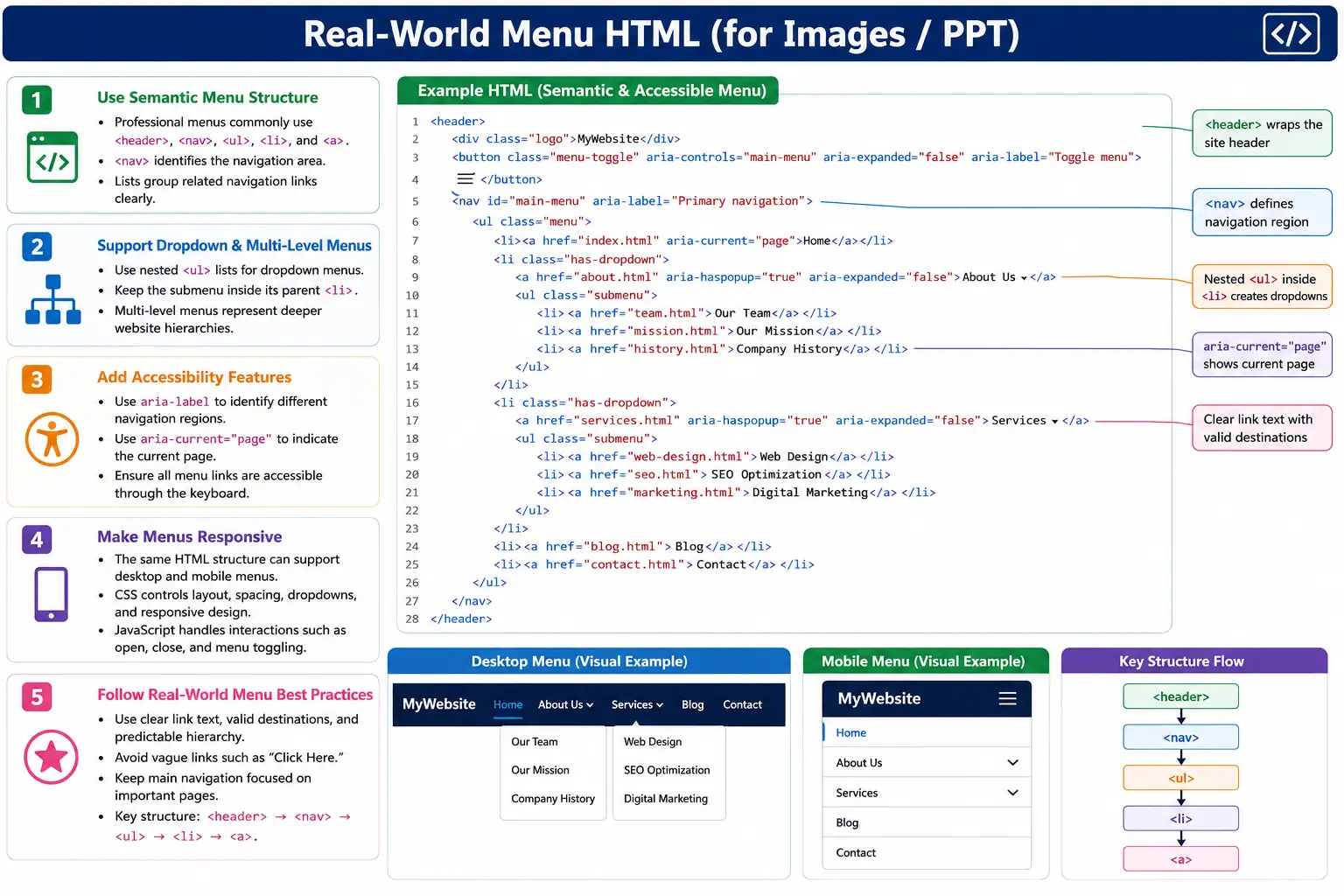
In real-world websites, menus are much more than a few links placed together. A professional navigation menu typically includes a logo, main navigation links, dropdown menus, multi-level navigation, call-to-action buttons, mobile menu support, accessibility features, and semantic HTML structure. The visual result may look simple, but the underlying HTML must be carefully organized.
Modern websites commonly build menus using <header>, <nav>, <ul>, <li>, and <a>. These elements provide structure, accessibility, and SEO benefits. The header identifies the top area of the page, the navigation element identifies a navigation landmark, the list groups related menu items, the list items represent each menu entry, and the anchor elements provide actual navigation destinations.
CSS and JavaScript are often used to make menus responsive, animated, sticky, collapsible, or dropdown-based. However, the HTML foundation remains important. A menu that starts with clean semantic HTML is easier to style, easier to test, easier for search engines to crawl, and easier for assistive technologies to explain to users.
Basic Real-World Menu Structure
A basic real-world menu usually starts inside a header and contains a navigation region.
<header>
  <nav>
    <ul>
      <li>
        <a href="index.html">Home</a>
      </li>
      <li>
        <a href="courses.html">Courses</a>
      </li>
      <li>
        <a href="blog.html">Blog</a>
      </li>
      <li>
        <a href="contact.html">Contact</a>
      </li>
    </ul>
  </nav>
</header>
The structure can be understood as:
Header
   │
   Nav
   │
   Menu Items
This structure is simple, but it is already professional because it uses the correct semantic elements. The browser can identify the header, the navigation area, the grouped menu items, and the destination links.
Typical Website Header Layout
Most websites place a logo on the left, navigation links in the middle, and sometimes a login or call-to-action button on the right.
+------------------------------------------------+
| LOGO | Home | Courses | Blog | Contact | Login |
+------------------------------------------------+
The HTML foundation can look like this:
<header>
  <div class="logo">
    <a href="index.html">
      SoftwareTips4U
    </a>
  </div>

  <nav>
    <ul>
      <li><a href="index.html">Home</a></li>
      <li><a href="courses.html">Courses</a></li>
      <li><a href="blog.html">Blog</a></li>
      <li><a href="contact.html">Contact</a></li>
    </ul>
  </nav>
</header>
The logo is also a link because users commonly expect the site name or logo to return to the homepage. The navigation menu remains a list because it is a group of related navigation choices.
Professional Navigation Structure
A professional menu should identify the navigation region clearly. Adding aria-label is helpful when a page has more than one navigation region.
<header>
  <nav aria-label="Main Navigation">
    <ul>
      <li>
        <a href="index.html">Home</a>
      </li>
      <li>
        <a href="courses.html">Courses</a>
      </li>
      <li>
        <a href="tutorials.html">Tutorials</a>
      </li>
      <li>
        <a href="contact.html">Contact</a>
      </li>
    </ul>
  </nav>
</header>
The accessibility benefit is that screen readers can recognize a navigation landmark and identify it as the main navigation. This is especially useful when the same page also has breadcrumb navigation, footer navigation, and sidebar navigation.
Menu With Active Page
Real websites often highlight the current page. The visual highlight may come from CSS, but the semantic indication can come from aria-current="page".
<nav>
  <ul>
    <li>
      <a href="index.html">Home</a>
    </li>
    <li>
      <a href="courses.html"
         aria-current="page">
         Courses
      </a>
    </li>
    <li>
      <a href="blog.html">Blog</a>
    </li>
  </ul>
</nav>
This means Courses is the current page. Assistive technologies can announce that state, and CSS can target the current page link for visual styling.
Real-World Dropdown Menu
Dropdown menus are built with nested lists. The parent item contains another list that represents the submenu.
<nav>
  <ul>
    <li>
      <a href="index.html">Home</a>
    </li>
    <li>
      <a href="#">Courses</a>
      <ul>
        <li>
          <a href="html.html">HTML</a>
        </li>
        <li>
          <a href="css.html">CSS</a>
        </li>
        <li>
          <a href="javascript.html">JavaScript</a>
        </li>
      </ul>
    </li>
    <li>
      <a href="contact.html">Contact</a>
    </li>
  </ul>
</nav>
The dropdown hierarchy is:
Courses
 │
 ├── HTML
 ├── CSS
 └── JavaScript
The nested list must stay inside the Courses list item. CSS can hide and show the submenu, but HTML provides the actual hierarchy.
Multi-Level Menu
Large websites sometimes need multi-level menus. A Courses item may contain Frontend and Backend, and each of those may contain more links.
<nav>
  <ul>
    <li>
      Courses
      <ul>
        <li>
          Frontend
          <ul>
            <li>
              <a href="html.html">HTML</a>
            </li>
            <li>
              <a href="css.html">CSS</a>
            </li>
          </ul>
        </li>
        <li>
          Backend
          <ul>
            <li>
              <a href="java.html">Java</a>
            </li>
            <li>
              <a href="python.html">Python</a>
            </li>
          </ul>
        </li>
      </ul>
    </li>
  </ul>
</nav>
The structure is:
Courses
 │
 ├── Frontend
 │      ├── HTML
 │      └── CSS
 │
 └── Backend
        ├── Java
        └── Python
Multi-level menus should be used carefully. They can become hard to navigate, especially on mobile devices. When the hierarchy is deep, consider simplifying categories or using a mega menu layout.
Sidebar Menu Example
Admin dashboards commonly use sidebar navigation. Sidebar menus are often placed inside <aside> because they support the main page content.
<aside>
  <nav>
    <ul>
      <li>
        <a href="#">Dashboard</a>
      </li>
      <li>
        <a href="#">Users</a>
      </li>
      <li>
        <a href="#">Reports</a>
      </li>
      <li>
        <a href="#">Settings</a>
      </li>
    </ul>
  </nav>
</aside>
The visual output is often a vertical list:
Dashboard
Users
Reports
Settings
This pattern is common in internal tools, admin panels, reporting systems, and learning platforms.
Documentation Site Menu
Documentation sites and knowledge bases often use nested menus because each topic contains several subtopics.
<nav>
  <ul>
    <li>
      HTML
      <ul>
        <li>
          <a href="#">Introduction</a>
        </li>
        <li>
          <a href="#">Forms</a>
        </li>
        <li>
          <a href="#">Tables</a>
        </li>
      </ul>
    </li>
  </ul>
</nav>
This structure is common in documentation sites, learning platforms, and knowledge bases because users often need to move between related lessons or reference pages.
E-Commerce Menu Example
E-commerce websites use menus to expose product categories, promotions, support areas, and account pages.
<nav>
  <ul>
    <li>
      Products
      <ul>
        <li>
          <a href="#">Laptops</a>
        </li>
        <li>
          <a href="#">Mobiles</a>
        </li>
        <li>
          <a href="#">Accessories</a>
        </li>
      </ul>
    </li>
    <li>
      <a href="#">Offers</a>
    </li>
    <li>
      <a href="#">Support</a>
    </li>
  </ul>
</nav>
The menu helps users reach product groups quickly and helps search engines understand product category relationships.
Mega Menu Structure
Large sites often use mega menus. A mega menu displays many categories at once, usually in columns or panels.
Products
 │
 ├── Electronics
 ├── Clothing
 ├── Books
 ├── Sports
 └── Accessories
The HTML foundation still uses nested lists.
<ul>
  <li>
    Products
    <ul>
      <li>Electronics</li>
      <li>Clothing</li>
      <li>Books</li>
      <li>Sports</li>
      <li>Accessories</li>
    </ul>
  </li>
</ul>
CSS creates the large dropdown layout. HTML remains responsible for the hierarchy and grouping.
Breadcrumb Navigation Example
Real websites often include breadcrumbs to show the user's current location. Because breadcrumb order matters, an ordered list is commonly used.
<nav aria-label="breadcrumb">
  <ol>
    <li>
      <a href="index.html">Home</a>
    </li>
    <li>
      <a href="courses.html">Courses</a>
    </li>
    <li>
      HTML
    </li>
  </ol>
</nav>
The output is:
Home > Courses > HTMLThis helps users understand location and gives search engines another clue about site hierarchy.
Footer Menu Example
Footer menus usually contain supporting links such as privacy policy, terms of service, contact, about, sitemap, and support pages.
<footer>
  <nav>
    <ul>
      <li>
        <a href="privacy.html">
          Privacy Policy
        </a>
      </li>
      <li>
        <a href="terms.html">
          Terms of Service
        </a>
      </li>
      <li>
        <a href="contact.html">
          Contact
        </a>
      </li>
    </ul>
  </nav>
</footer>
Footer menus improve user trust and make important policy or contact links easy to find.
Mobile Menu Structure
Mobile menus often use the same HTML structure as desktop menus. A button is added to open or close the menu on small screens.
<header>
  <button>
    Menu
  </button>

  <nav>
    <ul>
      <li><a href="#">Home</a></li>
      <li><a href="#">Courses</a></li>
      <li><a href="#">Blog</a></li>
      <li><a href="#">Contact</a></li>
    </ul>
  </nav>
</header>
CSS and JavaScript later convert this into a responsive menu. The underlying structure remains a list of navigation links.
Accessibility-Friendly Menu
An accessibility-friendly menu uses a navigation landmark, clear link text, and current page indication where appropriate.
<nav aria-label="Main Navigation">
  <ul>
    <li>
      <a href="index.html">
        Home
      </a>
    </li>
    <li>
      <a href="courses.html"
         aria-current="page">
        Courses
      </a>
    </li>
  </ul>
</nav>
This provides a navigation landmark, a clear menu structure, and a current page indication. Keyboard users should also be able to reach every link in a logical order.
SEO-Friendly Menu
SEO-friendly menus use descriptive link text and direct links to important pages.
<nav>
  <ul>
    <li>
      <a href="html-course.html">
        HTML Course
      </a>
    </li>
    <li>
      <a href="css-course.html">
        CSS Course
      </a>
    </li>
  </ul>
</nav>
Search engines can understand site structure, important pages, and content relationships. Descriptive anchor text also helps users know where links lead before they click.
Real-World SoftwareTips4U Menu
A SoftwareTips4U-style menu might include a logo, courses dropdown, blog, and contact links.
<header>
  <div class="logo">
    <a href="index.html">
      SoftwareTips4U
    </a>
  </div>

  <nav aria-label="Main Navigation">
    <ul>
      <li>
        <a href="index.html">Home</a>
      </li>
      <li>
        <a href="#">Courses</a>
        <ul>
          <li><a href="html.html">HTML</a></li>
          <li><a href="css.html">CSS</a></li>
          <li><a href="javascript.html">JavaScript</a></li>
          <li><a href="selenium.html">Selenium</a></li>
        </ul>
      </li>
      <li>
        <a href="blog.html">Blog</a>
      </li>
      <li>
        <a href="contact.html">Contact</a>
      </li>
    </ul>
  </nav>
</header>
This structure is flexible. CSS can make it horizontal on desktop and collapsible on mobile. JavaScript can add dropdown behavior. The HTML remains meaningful.
CSS and JavaScript Role in Real Menus
In real projects, HTML creates the structure, CSS creates the presentation, and JavaScript adds interaction when needed. HTML should not be skipped just because the menu will eventually become animated or responsive. The list and navigation structure should be correct first, because CSS and JavaScript depend on that structure.
CSS commonly handles layout, spacing, colors, hover states, active states, dropdown positioning, and responsive breakpoints. JavaScript commonly handles mobile open and close behavior, keyboard-friendly dropdown toggles, and state changes such as expanded or collapsed menus. A menu button should clearly control the menu, and when JavaScript is used, the implementation should preserve keyboard access and focus order.
This separation makes menus easier to maintain. If the design changes from a horizontal navigation bar to a mobile drawer, the same list-based HTML can often remain in place. Developers can update CSS and JavaScript without rewriting the semantic foundation.
Real-World Menu Best Practices
A real-world menu should use clear link text, valid destinations, predictable hierarchy, and accessible state indicators. Avoid vague links such as Click Here. Prefer labels such as HTML Course, Contact, Pricing, Documentation, or Login. Users should know where a link leads before selecting it.
Dropdown menus should not rely only on mouse hover. Keyboard users must be able to reach parent items and submenu links. Mobile users must be able to open and close the menu without losing their place. If a page is currently active, use visual styling and consider aria-current="page" so assistive technologies can identify it too.
Keep menus focused. A main menu should expose the most important areas, not every page on the website. For large sites, use grouped dropdowns, footer links, sidebars, search, or sitemap pages to support deeper navigation. Good menus guide users without overwhelming them.
Common Mistakes
A common mistake is using generic containers instead of semantic menu structure.
<div>
  <a href="#">Home</a>
  <a href="#">Courses</a>
</div>
A better version uses navigation and list elements.
<nav>
  <ul>
    <li>
      <a href="#">Home</a>
    </li>
    <li>
      <a href="#">Courses</a>
    </li>
  </ul>
</nav>
Another mistake is missing the navigation landmark. A plain list may group items, but <nav> identifies the group as navigation. Incorrect dropdown structure is also common. The child list must be inside the parent <li>.
<li>
  Courses
  <ul>
    <li>HTML</li>
  </ul>
</li>
Generic link text is another issue. A link that says Click Here gives little context. A link that says HTML Course is clearer for users, screen readers, and search engines.
Selenium Perspective
From a Selenium automation perspective, menus can be located through the <nav> element.
WebElement nav =
driver.findElement(
  By.tagName("nav")
);
All menu links can be collected with the a tag.
List<WebElement> links =
driver.findElements(
  By.tagName("a")
);
A loop can print menu items.
for(WebElement link : links)
{
    System.out.println(
        link.getText()
    );
}
Automation can verify that all expected menu links are present, dropdown links are visible when opened, current page links use expected attributes, and mobile menu behavior works correctly.
Comparison Table
| Element | Purpose |
|---|---|
| <header> | Header area |
| <nav> | Navigation landmark |
| <ul> | Menu container |
| <li> | Menu item |
| <a> | Navigation link |
| Nested <ul> | Dropdown menu |
Common Interview Questions
A common interview question is: which HTML elements are commonly used for menus? The answer is <nav>, <ul>, <li>, and <a>.
Another question is why lists are used for navigation menus. Menus are collections of related navigation items, so list structure is semantically appropriate. Interviewers may also ask how dropdown menus are created. The answer is using nested lists.
They may ask what aria-current="page" is used for. It identifies the current page. They may ask why <nav> is used. It provides semantic navigation structure for accessibility and SEO.
Interview-Ready Answer
Real-world HTML menus are typically built using <nav>, <ul>, <li>, and <a> elements. Nested lists create dropdown and multi-level menus, while semantic elements such as <nav> and accessibility attributes like aria-current="page" improve usability, accessibility, and SEO. Modern websites use the same HTML structure and rely on CSS and JavaScript to create advanced menu behaviors.
Key Takeaway
Every professional website menu, from simple navigation bars to complex mega menus, starts with a well-structured HTML list. The visual design may vary, but the foundation remains consistent: navigation region, grouped list, list items, and links.
Use semantic elements first, then apply CSS and JavaScript to create the desired behavior. This keeps menus accessible, crawlable, testable, and maintainable across desktop and mobile experiences.
One-Line Insight
Every professional website menu, from simple navigation bars to complex mega menus, starts with a well-structured HTML list.