Reading Legacy HTML Code
Introduction
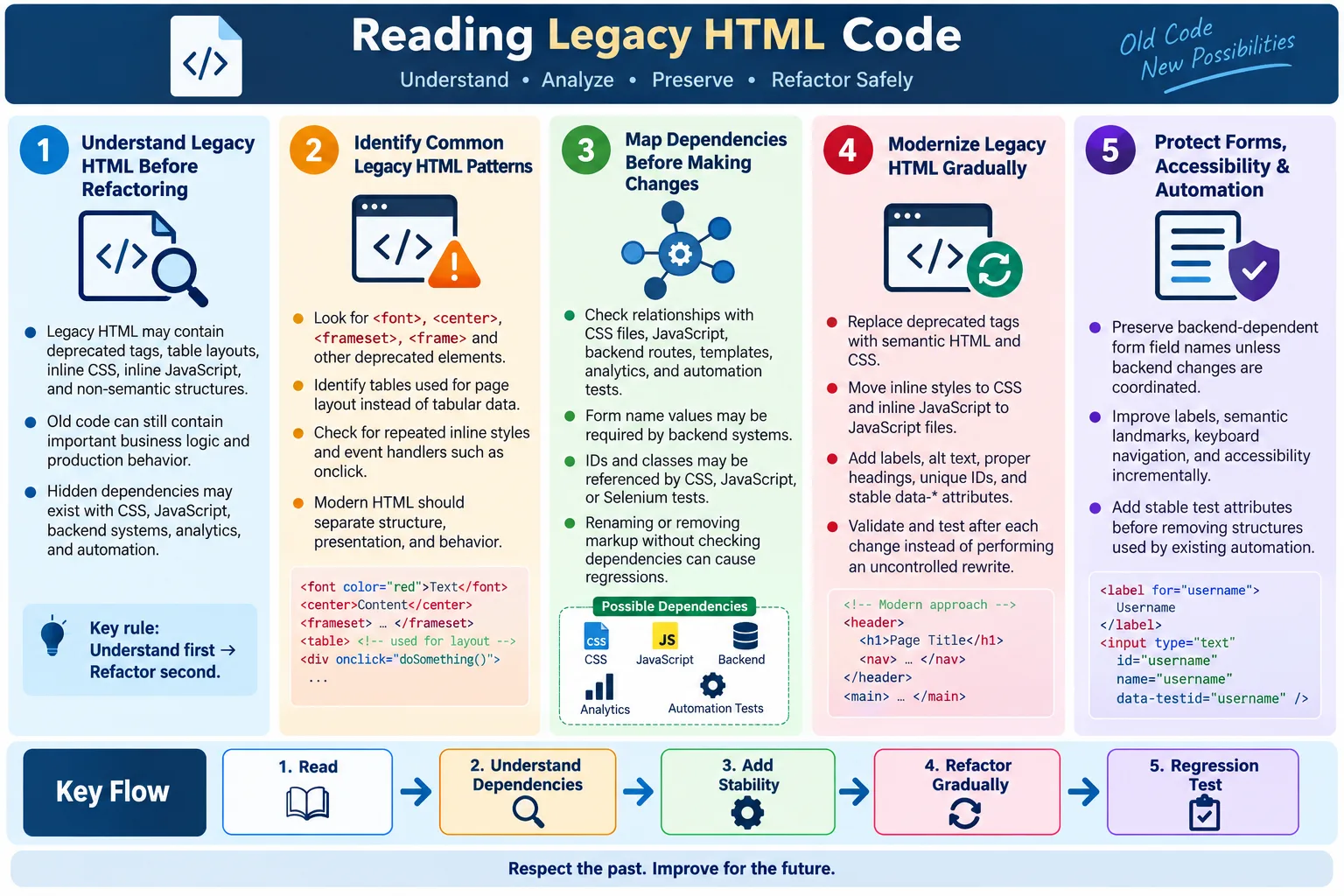
Reading legacy HTML code means understanding older HTML written with outdated practices, deprecated tags, table-based layouts, inline styles, mixed JavaScript, and non-semantic structures. Legacy HTML may still work in modern browsers, but it is often harder to maintain, test, optimize, secure, and automate. The challenge is not only reading old tags. The real challenge is understanding why the code was written that way, what hidden dependencies exist, and how to modernize it without breaking behavior.
Most software teams eventually face legacy HTML. A company may have old marketing pages, internal admin tools, server-rendered templates, old JSP or ASP.NET pages, CMS-generated markup, email templates, or applications built before semantic HTML and responsive design became common. These pages may contain layout tables, <font> tags, inline event handlers, duplicated IDs, missing labels, and deeply nested containers.
The safest rule is simple: understand first, refactor second. Do not rewrite legacy HTML immediately just because it looks old. Old code often contains hidden behavior, backend dependencies, third-party scripts, analytics hooks, CSS assumptions, and automation locators. A careful reader identifies structure, dependencies, risks, and modernization opportunities before making changes.
What Is Legacy HTML?
Legacy HTML refers to old HTML code written before modern standards and best practices became common. It may have been written for older browsers, older design approaches, or older frameworks. In many cases, the code was reasonable for its time, but it no longer matches current expectations for semantic structure, accessibility, responsive design, or automation.
<table>used for layout<font>and<center>tags- Inline CSS
- Inline JavaScript
- Too many nested
<div>elements - Missing semantic elements
- Missing accessibility attributes
- Duplicate IDs
- Poor naming conventions
Legacy HTML is not automatically bad code. It may represent years of business logic and production behavior. But it usually needs careful handling because modern tools and users expect cleaner structure. The goal is to read it with respect for its history while identifying where modernization will improve quality.
Example of Legacy HTML
A common legacy pattern is using HTML tags to control appearance directly. Older code may use <center> for alignment and <font> for color and size.
<center>
  <font color="red" size="5">
    Welcome
  </font>
</center>
A modern version separates structure from presentation. The HTML describes the content, and CSS controls the visual design.
<h1 class="page-title">
  Welcome
</h1>
.page-title {
color: red;
text-align: center;
font-size: 32px;
}The modern version is easier to maintain because visual changes can happen in CSS. It is also more semantic because the content is clearly a heading, not just centered red text.
Common Legacy Pattern: Table-Based Layouts
Before CSS layout systems matured, developers often used tables to create page layouts. A table might contain a menu in one cell and the main content in another. This worked visually, but it mixed layout with tabular structure and created accessibility and maintenance problems.
<table>
  <tr>
    <td>Menu</td>
    <td>Main Content</td>
  </tr>
</table>
A modern version uses semantic regions and CSS layout:
<nav>Menu</nav>

<main>Main Content</main>
Use tables for real tabular data, not page layout. When reading legacy code, do not immediately remove every table. First ask whether the table represents data or layout. Data tables may be valid. Layout tables should usually be replaced with semantic structure and CSS Flexbox or Grid during modernization.
Common Legacy Pattern: Deprecated Tags
Legacy HTML often contains deprecated tags. These tags may still render in browsers for backward compatibility, but they are no longer recommended. Common examples include <font>, <center>, <big>, <strike>, <tt>, <frameset>, and <frame>.
<font><center><big><strike><tt><frameset><frame>
Modern HTML uses semantic elements and CSS. When reading old code, identify these tags and note what visual or structural role they are playing. Then choose the right replacement. Sometimes the replacement is CSS. Sometimes it is a semantic element such as <del>, <abbr>, or <code>.
Common Legacy Pattern: Inline Styles
Inline styles place presentation directly on HTML elements. This makes pages hard to maintain because the same style may be repeated across many elements and files. It also makes redesigns expensive.
<p style="color:blue;font-size:20px;">
  HTML Tutorial
</p>
A better approach uses a meaningful class and moves styling into CSS.
<p class="tutorial-title">
  HTML Tutorial
</p>
When reading legacy HTML, inline styles reveal design decisions that may not exist in a stylesheet. Before removing them, understand whether they are accidental one-off styles or necessary overrides. During modernization, move repeated styles into classes and preserve visual behavior through CSS.
Common Legacy Pattern: Inline JavaScript
Inline JavaScript mixes behavior directly into HTML. Older pages often use attributes such as onclick, onchange, or onmouseover. These handlers may call functions from old scripts and may be tightly coupled to backend-generated markup.
<button onclick="saveData()">
  Save
</button>
A modern version separates behavior from structure:
<button id="saveButton">
  Save
</button>
document
.getElementById("saveButton")
.addEventListener("click", saveData);Do not remove inline handlers casually. First find where the function is defined, what data it depends on, and whether other scripts expect that handler. Legacy behavior may be fragile but business-critical.
How to Read Legacy HTML
Reading legacy HTML should be deliberate. Start by identifying the page structure, main content area, navigation, forms, tables, scripts, inline styles, repeated patterns, and deprecated tags. Do not rewrite immediately. First understand what the code is doing and why it may have been written that way.
- Page structure
- Main content area
- Navigation
- Forms
- Tables
- Scripts
- Inline styles
- Repeated patterns
- Deprecated tags
Legacy code is often layered. The HTML may depend on old CSS. The CSS may depend on specific table cells or class names. JavaScript may depend on element names, IDs, or document order. Backend code may depend on form field names. Automation tests may depend on old locators. Reading means mapping these relationships.
Reading Workflow
A simple workflow helps prevent accidental breakage. Start with the file, identify the broad structure, find the main content, inspect forms and links, inspect styles and scripts, identify deprecated patterns, and then plan refactoring.
Open HTML
  ?
Identify Structure
  ?
Find Main Content
  ?
Check Forms and Links
  ?
Inspect Styles and Scripts
  ?
Find Deprecated Patterns
  ?
Plan Refactoring
This order matters. If you start refactoring before understanding dependencies, you may break behavior that is not obvious from the markup alone. Legacy HTML often contains hidden contracts with CSS, JavaScript, backend routes, analytics, and tests.
Check Document Structure
Older pages may have missing or invalid document structure. Check whether the file includes a doctype, root <html> element, <head>, and <body>. Also check whether the page declares language, charset, viewport, title, and metadata.
<!DOCTYPE html>
<html>
<head>
<body>
Some old pages may use outdated doctypes or no doctype at all. Missing doctype can trigger quirks mode in browsers. Missing viewport can hurt mobile rendering. Missing charset can create text encoding problems. Document structure is the foundation of modernization.
Check Forms Carefully
Legacy forms often contain hidden dependencies. They may use field names that backend code expects. They may rely on old JavaScript validation. They may submit to legacy routes. They may miss labels or use tables for layout. Do not change form field names casually.
- Action
- Method
- Name
- ID
- Type
- Labels
- Validation
When modernizing forms, preserve backend contracts unless you are coordinating backend changes. Add labels and accessibility improvements carefully. If automation uses existing field attributes, coordinate locator changes with the testing team.
Check Tables Carefully
Tables need careful interpretation. Ask whether the table is used for real data or only for layout. Real data tables may need proper headers, captions, and accessible relationships. Layout tables should usually be replaced with semantic regions and CSS layout.
When replacing layout tables, check visual impact. Old CSS may depend on table cell widths, nested tables, or inline attributes. Removing a layout table can change spacing, alignment, and responsive behavior. Modernization should include visual testing across important screen sizes.
Check JavaScript Dependencies
Legacy HTML may depend on old scripts such as jQuery, old plugins, global functions, inline event handlers, or scripts loaded in a specific order. A page may appear simple while relying on hidden JavaScript behavior.
<script src="jquery.js"></script>Before removing scripts, search for function calls, event handlers, plugin usage, and global variables. Check the browser console. Use DevTools to inspect event listeners. Removing a script too quickly can break menus, validation, form submission, modals, analytics, or old widgets.
Check Accessibility Issues
Legacy HTML commonly has accessibility problems. These may include missing alt text, missing labels, poor headings, no landmarks, color-only messages, keyboard issues, and inaccessible custom widgets. Many older pages were created before accessibility became a standard part of development workflows.
- Missing alt
- Missing labels
- Poor headings
- No landmarks
- Color-only messages
- Keyboard issues
Modernization should improve accessibility, not only visual appearance. Add labels, improve heading hierarchy, use semantic landmarks, provide alt text, and test keyboard navigation. Accessibility fixes are often some of the highest-value legacy improvements.
Automation Testing Impact
Legacy HTML can create serious automation problems. It may have no stable IDs, duplicate IDs, dynamic names, deep nesting, table-based layout, hidden elements, inline scripts that change the DOM, and poor accessibility attributes. These issues often force testers to use fragile XPath.
- No stable IDs
- Duplicate IDs
- Dynamic names
- Deep nesting
- Table-based layout
- Hidden elements
- Inline scripts changing DOM
- Poor accessibility attributes
When reading legacy HTML as a tester, identify stable attributes first. If no stable locator exists, request a safe improvement such as a data-testid. Do not build long absolute XPath locators unless there is no alternative and the risk is understood.
Selenium Example
A legacy form input may have only a name attribute:
<input type="text" name="user">A Selenium locator may use that name:
driver.findElement(By.name("user"));If no stable attribute exists, a modernization request may add a test-friendly attribute without breaking backend behavior:
<input
  type="text"
  name="user"
  data-testid="username-input">
This improves automation while preserving the form field name that backend code may depend on. Good modernization respects existing contracts and adds stability gradually.
Read Before Refactoring
The most dangerous legacy-code mistake is rewriting everything before understanding behavior. Legacy HTML often contains business rules hidden in markup, field names, scripts, CSS selectors, analytics attributes, and old plugins. A quick cleanup can break production behavior.
Before refactoring, answer practical questions. What does the page do? Which user workflows depend on it? Which forms submit data? Which scripts run? Which CSS files style it? Which tests cover it? Which backend routes receive data? Which users depend on the page? This context determines how aggressive modernization can be.
Modernization Strategy
Modernize legacy HTML gradually. Replace deprecated tags with semantic HTML and CSS. Move inline styles to CSS files. Move inline JavaScript to JavaScript files. Add labels and alt text. Fix duplicate IDs. Improve heading hierarchy. Add stable data attributes for testing. Validate HTML after changes.
- Replace deprecated tags with semantic HTML and CSS.
- Move inline styles to CSS files.
- Move inline JavaScript to JS files.
- Add labels and alt text.
- Fix duplicate IDs.
- Improve heading hierarchy.
- Add stable
data-*attributes for testing. - Validate HTML after changes.
Gradual refactoring reduces risk. It allows the team to test each change, compare behavior, and avoid breaking hidden dependencies. Modernization should be planned, not rushed.
Common Mistakes
Common mistakes include rewriting everything without understanding behavior, removing old scripts too quickly, changing form field names that backend systems depend on, replacing layout tables without checking visual impact, ignoring accessibility during modernization, and breaking automation locators during cleanup.
- Rewriting everything without understanding behavior
- Removing old scripts too quickly
- Changing form field names that backend depends on
- Replacing layout tables without checking visual impact
- Ignoring accessibility during modernization
- Breaking automation locators during cleanup
These mistakes happen when teams treat legacy HTML as only ugly markup. It may be ugly, but it may also be carrying important behavior. Respect the dependencies, then improve the code.
Use Tools While Reading
Tools make legacy reading easier. Browser DevTools shows the live DOM, styles, event listeners, console errors, and network requests. Validators and linters identify invalid markup. Accessibility tools reveal missing labels, missing alt text, heading problems, and ARIA issues. Search tools help find repeated patterns and dependencies across files.
| Tool | Use |
|---|---|
| DevTools Elements | Inspect rendered DOM and styles |
| Console | Find JavaScript errors |
| Network | Check scripts, CSS, images, and API calls |
| Validator | Find invalid HTML |
| Accessibility tools | Find accessibility issues |
| Search tools | Trace dependencies and repeated patterns |
Reading Legacy CSS Connections
Legacy HTML is often tightly connected to legacy CSS. A class name may look meaningless, but old CSS may depend on it. A table cell may have a width that controls the entire page layout. An inline style may override a stylesheet rule. Before renaming or removing classes, search the CSS and JavaScript for references.
Some old pages use presentational class names such as redText, leftBox, or bigHeader. Modernization should move toward purpose-based names, but renaming should be coordinated with stylesheet updates and regression testing.
Reading Legacy Backend Dependencies
Server-rendered legacy HTML often contains backend dependencies. Form field names may map to server parameters. Hidden inputs may carry tokens or state. Element IDs may be generated from database values. Links may include old route patterns. Before changing markup, understand what the backend expects.
Changing name="user" to name="username" may look cleaner, but it can break form submission if the backend expects user. Modernization is safest when frontend and backend contracts are documented or tested.
Reading Legacy Accessibility Debt
Accessibility debt is common in old HTML. A page may have no landmarks, no proper headings, form controls without labels, images without alt text, clickable divs, keyboard traps, and color-only messages. When reading legacy code, document these issues separately from visual cleanup.
Accessibility modernization can often be incremental. Add labels first. Improve heading order. Add alt text. Replace fake buttons with real buttons. Add landmarks. Test keyboard navigation. These changes can significantly improve usability without requiring a full redesign.
Reading Legacy Code for Risk
Not all legacy code has equal risk. A public checkout form is higher risk than an old internal static page. A shared template used by hundreds of pages is higher risk than a one-off page. A page with payment, login, or personal data is higher risk than a brochure page. Prioritize reading and modernization based on user impact and business importance.
Risk-based reading helps teams avoid wasting time. Some legacy pages should be modernized immediately. Others can be documented and improved when touched. The key is to make deliberate decisions rather than random cleanup.
Read the Rendered DOM, Not Only the File
Legacy HTML should be read in two forms: the source file and the rendered DOM. The source file shows what was written. The rendered DOM shows what the browser actually created after parsing, repairing invalid markup, and running JavaScript. These two views can differ significantly in old pages.
Use View Source to see the original response, then use the Elements panel in DevTools to inspect the live DOM. If JavaScript modifies the page, the live DOM may contain elements that do not exist in the original source. If the HTML has invalid nesting, the browser may move elements or close tags automatically. Automation tools interact with the live DOM, so testers must understand the rendered structure.
This is especially important when legacy pages use document writes, old jQuery plugins, frames, server-side includes, or scripts that generate markup after page load. Reading only the file can miss the real UI structure.
Identify Repeated Patterns
Legacy pages often contain repeated structures copied across many files. A navigation menu, old footer, product card, form row, table block, or message area may appear with small differences. Before modernizing one instance, check whether the same pattern appears elsewhere.
Repeated patterns are modernization opportunities. If the same old table-based card appears on many pages, it may be worth creating a reusable modern component. If the same inline style appears repeatedly, it may become a CSS class. If the same form field structure appears across pages, it may become a reusable form pattern with labels and test IDs.
However, repeated patterns can also hide inconsistencies. One copy may have a required field. Another copy may have a different backend name. Another may have a special script. Always compare before assuming all copies behave the same.
Map Dependencies Before Changes
Legacy HTML rarely exists alone. It may be connected to CSS files, JavaScript files, backend controllers, server templates, image folders, analytics tags, automation tests, and user workflows. Before changing markup, map the dependencies.
Search for IDs, class names, form field names, JavaScript function names, and data attributes across the project. A class may be used by CSS and JavaScript. An ID may be used by Selenium tests. A form field name may be used by backend code. A link may be tracked by analytics. Removing or renaming these without checking dependencies can break behavior.
This dependency mapping is the difference between safe modernization and accidental regression. In legacy work, the visible code is only part of the system.
Understand Old Browser Assumptions
Some legacy HTML was written for older browsers or old corporate environments. The code may include unusual wrappers, conditional comments, old doctypes, layout tables, image spacers, or browser-specific workarounds. These patterns may look strange today, but they may have existed to solve real compatibility problems at the time.
Before removing old compatibility code, check the current browser support policy. If the organization no longer supports the old browser, the workaround may be removable. If a legacy embedded browser or old enterprise environment is still required, the workaround may still matter. Do not guess.
Modernization should align with actual supported environments. Removing old code is good only when the system no longer needs it and tests confirm the replacement works.
Read Comments with Caution
Legacy HTML may contain comments that explain old decisions, mark temporary changes, or preserve commented-out code. Comments can be useful, but they may also be outdated. A comment that was accurate years ago may no longer describe the current behavior.
Read comments as clues, not as guaranteed truth. If a comment says a script is required for a browser that is no longer supported, verify. If a comment says a section is temporary, check whether it has been temporary for years. If large blocks of old HTML are commented out, use version control or project history to decide whether they can be removed.
Also check comments for sensitive information. Old pages sometimes contain internal notes, old credentials, server paths, or business details. These should not remain in public HTML source.
Modernizing Without Breaking Visual Design
Legacy modernization should preserve user-facing behavior unless the goal is a redesign. Replacing <font> tags, moving inline styles, or changing table layouts can alter visual output. Before making changes, capture screenshots or use visual comparison. After making changes, compare important pages at desktop and mobile sizes.
When replacing layout tables, recreate the layout with CSS Grid or Flexbox carefully. Old spacing may come from cell padding, borders, widths, or nested tables. A modern layout should preserve the intended visual hierarchy while removing old structural misuse.
Visual preservation is not always required, but differences should be intentional. A modernization task should not accidentally change brand layout, form alignment, or important content placement.
Modernizing Without Breaking Forms
Forms are one of the highest-risk areas in legacy HTML. The backend may depend on exact name values. JavaScript validation may depend on IDs. Analytics may track submit buttons. Automation may locate fields by old attributes. Users may rely on specific browser behaviors.
When modernizing forms, preserve field names unless backend changes are planned. Add labels by connecting them to existing IDs or add IDs carefully if missing. Change input types only after checking validation impact. For example, changing a text input to email may introduce browser validation that blocks submissions previously allowed.
After form modernization, test positive, negative, and boundary scenarios. Confirm that submitted payloads still match backend expectations. This is a practical area where HTML changes can break business workflows.
Modernizing Without Breaking Automation
Legacy automation may rely on weak locators because the old HTML did not provide better options. Tests may use names, text, table positions, CSS classes, or long XPath expressions. Modernization can break these tests unless locator strategy is coordinated.
The best approach is to add stable attributes before removing old structures. For example, add data-testid to important controls, update automation to use those locators, and then refactor the surrounding markup. This creates a bridge between old tests and modern HTML.
Automation teams should be included in legacy modernization. They can identify fragile locators, high-risk pages, and workflows that need regression coverage. Clean HTML and stable locators reduce future test maintenance.
Modernizing Accessibility Incrementally
Legacy accessibility issues can be extensive, so teams should prioritize practical improvements. Start with high-impact basics: labels for form fields, alt text for meaningful images, heading hierarchy, keyboard navigation, focus visibility, and semantic landmarks.
These improvements often do not require a full redesign. Adding labels, replacing clickable divs with buttons, improving link text, and adding landmarks can significantly improve usability. More complex widgets may need deeper redesign, but basic HTML fixes are a strong starting point.
Use accessibility tools to identify issues, but also test manually. Keyboard navigation and screen reader behavior require human judgment. Legacy modernization is a good opportunity to improve access for real users.
Document What You Learn
When reading legacy HTML, document important findings. Note which scripts are required, which forms depend on backend names, which tables are layout tables, which pages share templates, which automation locators are fragile, and which accessibility issues are common. This documentation helps future developers avoid rediscovering the same facts.
Documentation does not need to be huge. A short modernization note, checklist, or technical debt ticket can be enough. The goal is to turn hidden knowledge into shared knowledge. Legacy systems are risky partly because knowledge is scattered or lost. Documentation reduces that risk.
Use Small Pull Requests
Large rewrites are risky in legacy HTML. A safer approach is to use small pull requests with focused goals. One change might replace deprecated tags in a single template. Another might add labels to a form. Another might add stable test attributes. Another might move repeated inline styles into a CSS class.
Small changes are easier to review, test, and roll back. They also make it easier to identify which change caused a regression. In legacy code, confidence grows through incremental improvement.
If a full rewrite is necessary, it should be treated as a larger project with requirements, test coverage, accessibility review, visual comparison, and stakeholder approval.
Legacy HTML Review Checklist
A checklist helps you read legacy HTML consistently. It keeps attention on structure, dependencies, accessibility, automation, and modernization risk.
- Does the page have a modern doctype and valid document structure?
- Are tables used for data or layout?
- Are deprecated tags present?
- Are inline styles repeated?
- Are inline event handlers used?
- Do forms have labels and stable field names?
- Are IDs unique?
- Are scripts and CSS dependencies understood?
- Are accessibility issues documented?
- Are automation locators at risk?
- Can changes be made incrementally?
Real-World Reading Example
Imagine a legacy login page built with a table layout. The username field has name="user" but no ID. The password field has an inline validation handler. The submit button is located by automation using an XPath based on table rows. The page also uses a <font> tag for the title.
A careless rewrite might replace the table, rename the field to username, remove the inline handler, and break both backend login and automation. A careful modernization would first document the field names, add labels and IDs, add stable data-testid attributes, update tests, preserve backend field names, move styling to CSS, and then gradually replace the table layout.
This example shows why reading matters. Legacy code may be unattractive, but it often contains contracts that must be preserved until the team intentionally changes them.
Interview-Ready Answer
Reading legacy HTML code means carefully understanding older markup that may use deprecated tags, inline styles, inline JavaScript, table-based layouts, missing semantic elements, and weak accessibility practices. The best approach is to first identify the page structure, forms, links, scripts, styles, repeated patterns, and dependencies before refactoring. Legacy HTML should be modernized gradually by replacing deprecated tags, separating CSS and JavaScript, improving accessibility, validating markup, and adding stable locators for automation.
A strong reader does not immediately rewrite old HTML. They inspect behavior, preserve backend contracts, protect automation stability, test visual impact, and modernize safely.
One-Line Insight
Legacy HTML should be understood first, then modernized carefully because old code often contains hidden dependencies.