Radio vs Checkbox
Introduction
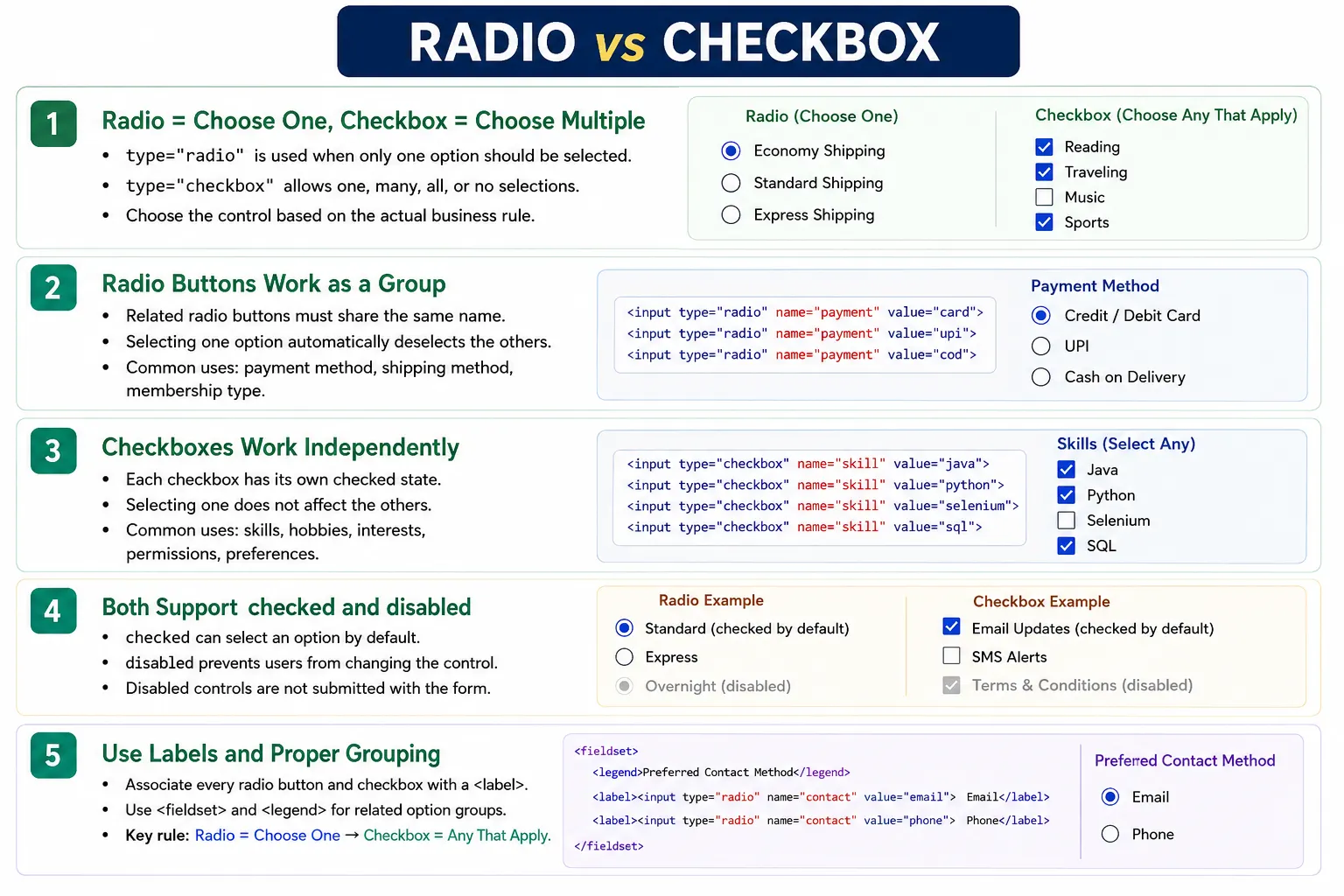
Radio buttons and checkboxes are HTML form controls used to let users select options. They may look similar because both appear as small selectable controls beside labels, but they solve different selection problems. Radio buttons are used when the user must select only one option from a group. Checkboxes are used when the user may select one option, many options, all options, or no options.
The key difference is simple: radio buttons are for "choose one" questions, while checkboxes are for "choose any that apply" questions. Choosing the correct control improves usability, accessibility, data accuracy, form validation, and automation reliability. Choosing the wrong control can lead to invalid user choices, confusing forms, and incorrect submitted data.
For example, a gender field, payment method, shipping method, or membership type usually expects one selected answer, so radio buttons are appropriate. A skills field, hobbies field, notification preferences field, or interest selection usually allows multiple answers, so checkboxes are appropriate.
Why Two Different Controls Are Needed
Different situations require different selection behavior. Some questions allow only one valid answer. Other questions allow several valid answers. HTML provides radio buttons and checkboxes so the form can match the real-world decision being asked.
Gender
  ↓
Choose One
  ↓
Radio Buttons

Skills
  ↓
Choose Multiple
  ↓
Checkboxes
If a form asks the user to select one payment method, allowing multiple choices would be incorrect. If a form asks the user to select all programming skills they know, allowing only one choice would be too restrictive. The control should guide the user toward valid input before the form is submitted.
What Is a Radio Button?
A radio button is used when only one option should be selected from a group. Radio buttons are created using type="radio".
<input type="radio">A radio group may appear like this:
○ Male
○ Female
○ Other
The user can select only one option from the group when the related radio buttons share the same name attribute. Selecting a new option automatically deselects the previously selected option.
What Is a Checkbox?
A checkbox allows independent selection. It is created using type="checkbox".
<input type="checkbox">A checkbox group may appear like this:
☑ HTML
☑ CSS
☐ JavaScript
The user may choose one option, many options, all options, or none. Each checkbox has its own checked state. Selecting one checkbox does not automatically deselect another checkbox.
Radio Button Example
The following form shows a radio group for gender selection. Each radio button has the same name value, so the browser treats them as one group.
<form>
    <label>
        <input type="radio" name="gender" value="male">
        Male
    </label>

    <label>
        <input type="radio" name="gender" value="female">
        Female
    </label>

    <label>
        <input type="radio" name="gender" value="other">
        Other
    </label>
</form>
The browser output is a group of radio buttons.
○ Male
○ Female
○ Other
Selecting one option automatically deselects the others because they share the same name value.
Checkbox Example
The following form shows checkboxes for selecting skills. Users may select multiple skills because each checkbox works independently.
<form>
    <label>
        <input type="checkbox" name="skills" value="html">
        HTML
    </label>

    <label>
        <input type="checkbox" name="skills" value="css">
        CSS
    </label>

    <label>
        <input type="checkbox" name="skills" value="javascript">
        JavaScript
    </label>
</form>
The browser output is a set of independent boxes.
☐ HTML
☐ CSS
☐ JavaScript
The user can check HTML and CSS together, or select all three, or leave all unchecked depending on the form rules.
How Radio Buttons Work
Radio buttons work through mutual exclusivity inside a group. When one option is selected, the browser automatically removes selection from the other radio buttons in the same group.
Select Male
  ↓
Male Selected
  ↓
Select Female
  ↓
Male Deselected
  ↓
Female Selected
This behavior is useful when only one answer is valid. It prevents users from selecting conflicting options such as two different payment methods in the same payment group.
How Checkboxes Work
Checkboxes work independently. Selecting one checkbox does not affect the selected state of other checkboxes.
Select HTML
  ↓
HTML Checked
  ↓
Select CSS
  ↓
HTML Still Checked
  ↓
CSS Checked
This behavior is useful when several answers can be valid at the same time. Skills, hobbies, interests, permissions, and subscription preferences commonly use checkboxes.
Importance of the name Attribute
Radio buttons become a group only when they share the same name attribute. This is one of the most important rules for radio buttons.
<input type="radio" name="gender">
<input type="radio" name="gender">
Because both inputs share name="gender", only one can be selected at a time.
If related radio buttons use different names, the browser treats them as separate groups.
<input type="radio" name="male">
<input type="radio" name="female">
In this incorrect example, both can be selected because they are not in the same group. This is a common defect in forms.
Checkbox Names
Checkboxes do not behave like radio buttons. Multiple checkboxes may share the same name, and all checked values can be submitted with the form.
<input type="checkbox" name="skills" value="html">
<input type="checkbox" name="skills" value="css">
If both checkboxes are selected, the submitted form data includes multiple values for the same name. This is useful when the server expects a list of selected values.
Real-World Radio Examples
Radio buttons are appropriate when the user must choose one option from a group. Common examples include gender, payment method, shipping method, language selection, membership type, delivery option, account type, and subscription plan.
○ Credit Card
○ PayPal
○ Cash
Only one payment method can be chosen for a single transaction, so radio buttons are the correct choice.
Real-World Checkbox Examples
Checkboxes are appropriate when multiple selections are allowed. Common examples include skills, hobbies, newsletter subscriptions, interests, permissions, notification preferences, product filters, and terms agreement.
☑ HTML
☑ CSS
☐ JavaScript
☑ Selenium
A user may have multiple skills, so checkboxes are better than radio buttons. A single checkbox can also be used for a yes/no confirmation such as "I agree to the terms and conditions."
Default Selection
Both radio buttons and checkboxes can be selected by default using the checked attribute.
<input type="radio" checked><input type="checkbox" checked>Default selection should be used carefully. It can save time when there is a common or recommended option, but it should not mislead users into accepting something unintentionally, especially in consent or payment-related forms.
Disabled Controls
Both controls can be disabled using the disabled attribute.
<input type="radio" disabled><input type="checkbox" disabled>Disabled controls cannot be changed by the user and are not submitted with the form. This matters during testing because a disabled checked value may appear selected visually but may not be submitted.
Accessibility Best Practices
Radio buttons and checkboxes should always be associated with labels. Labels make controls easier to click and help screen readers announce the option text correctly.
<label>
    <input type="radio" name="gender" value="male">
    Male
</label>
Another valid approach is to use id and for.
<input type="radio" id="male" name="gender" value="male">
<label for="male">Male</label>
For groups of related controls, <fieldset> and <legend> can improve accessibility by giving the group a clear question or title.
Browser Submission
Radio buttons submit one selected value for the group. If the selected gender is female, the submitted data contains one value for gender.
Radio:
Gender
  ↓
Female
  ↓
One Value Sent
Checkboxes can submit multiple values for the same name.
Checkbox:
Skills
  ↓
HTML
CSS
  ↓
Multiple Values Sent
If a checkbox is not checked, it is usually not submitted with the form. This behavior is important for backend processing.
Browser Workflow
Radio buttons and checkboxes have different interaction workflows. Radio buttons deselect other options in the same group when one option is clicked.
Radio:
Click Option
  ↓
Deselect Others
  ↓
One Selection
Checkboxes simply toggle their own checked state.
Checkbox:
Click Checkbox
  ↓
Toggle Checked State
  ↓
Independent Selection
Common Mistakes
A common mistake is using checkboxes for single-choice questions.
☑ Male
☑ Female
This allows invalid multiple selection. Radio buttons should be used when only one option can be valid.
Another mistake is using radio buttons for multiple-choice questions.
○ HTML
○ CSS
○ JavaScript
If users need to select several skills, radio buttons are the wrong choice. Checkboxes should be used instead.
A frequent radio-button defect is using different name values for related options. If related radio buttons do not share the same name, users may select more than one option. Missing labels are also common and reduce accessibility and usability.
Real-World Example
The following registration form uses radio buttons for gender and checkboxes for skills.
<form>
    <p>Gender</p>

    <label>
        <input type="radio" name="gender" value="male">
        Male
    </label>

    <label>
        <input type="radio" name="gender" value="female">
        Female
    </label>

    <p>Skills</p>

    <label>
        <input type="checkbox" name="skills" value="html">
        HTML
    </label>

    <label>
        <input type="checkbox" name="skills" value="css">
        CSS
    </label>

    <label>
        <input type="checkbox" name="skills" value="javascript">
        JavaScript
    </label>

    <button type="submit">Submit</button>
</form>
This form uses each control according to its purpose. Gender is a single-choice group, while skills allow multiple selections.
Selenium Perspective
Automation testers frequently validate radio buttons and checkboxes because selection behavior is important in real forms. A radio button can be selected by clicking it.
driver.findElement(By.id("male")).click();A checkbox can also be clicked.
driver.findElement(By.id("html")).click();The selected state can be verified using isSelected.
WebElement option =
driver.findElement(By.id("html"));

System.out.println(option.isSelected());
Automation testers commonly verify correct option selection, default checked state, disabled state, mutual exclusivity of radio buttons, multiple checkbox selection, submitted values, and validation behavior when required selections are missing.
Comparison Table
| Feature | Radio Button | Checkbox |
|---|---|---|
| Input Type | radio |
checkbox |
| Selection | One option | One, many, or none |
| Grouping | Same name required | Independent, even with same name |
| Common Uses | Gender, payment method, shipping | Skills, hobbies, interests, subscriptions |
| Multiple Selection | No | Yes |
| Default Selection | checked |
checked |
Common Interview Questions
What is the main difference between radio buttons and checkboxes? Radio buttons allow only one selection within a group, while checkboxes allow multiple independent selections.
Why do radio buttons need the same name attribute? The shared name groups them together, ensuring that selecting one automatically deselects the others.
Can multiple checkboxes have the same name? Yes. Multiple checked values for the same name can be submitted with the form.
Which control should be used for gender selection? Radio buttons are usually used because only one option should be selected.
Which control should be used for selecting programming skills? Checkboxes should be used because users may have multiple skills.
Which attribute selects a control by default? The checked attribute selects a radio button or checkbox by default.
Validation Considerations
Radio buttons and checkboxes often need validation rules. A radio group may require one selected option before the form can be submitted. For example, a payment form may require the user to choose exactly one payment method. If all related radio buttons share the same name attribute and one of them is marked as required, the browser can enforce that one option in the group must be selected.
Checkbox validation depends on the business rule. A terms and conditions checkbox may require exactly one confirmation. A skills section may allow zero, one, or many selections. A preferences section may require at least one choice. HTML can handle simple required checkbox validation, but more advanced rules such as "select at least two skills" usually require JavaScript or server-side validation.
Server-side validation is still necessary. Users can bypass client-side validation, modify HTML, or send requests manually. The server must verify that submitted radio and checkbox values are valid for the business rule.
Grouping Related Options
For accessibility and readability, related radio buttons and checkboxes should be visually and semantically grouped. A group should have a clear question or heading. For example, "Payment Method" should describe a radio group, and "Select Your Skills" should describe a checkbox group.
HTML provides <fieldset> and <legend> for grouping related controls. The fieldset wraps the controls, and the legend provides the group label. This is especially helpful for screen reader users because each option is announced in the context of the group question.
<fieldset>
    <legend>Payment Method</legend>

    <label>
        <input type="radio" name="payment" value="card">
        Credit Card
    </label>

    <label>
        <input type="radio" name="payment" value="paypal">
        PayPal
    </label>
</fieldset>
This structure is clearer than placing unrelated inputs on the page without context. Good grouping makes forms easier to understand, easier to test, and easier to maintain.
Testing Scenarios
For radio buttons, testers should verify that selecting one option deselects the others in the same group. They should also verify default selection, required validation, disabled options, submitted value, and whether each visible label clicks the correct control.
For checkboxes, testers should verify that multiple options can be selected, unchecked boxes are not submitted unexpectedly, required checkboxes behave correctly, disabled checkboxes cannot be changed, and checked values are sent correctly. If a checkbox group has business rules, such as minimum or maximum selections, those rules should be tested with positive and negative scenarios.
These controls look simple, but they often appear in important workflows such as registration, checkout, settings, subscriptions, permissions, and consent forms. Small defects in selection controls can lead to incorrect user data or invalid business decisions.
Interview-Ready Answer
Radio buttons, created with type="radio", are used when the user must choose exactly one option from a group. To work correctly, all related radio buttons must share the same name attribute. Checkboxes, created with type="checkbox", allow users to select multiple independent options, making them suitable for choices such as skills, interests, permissions, or subscriptions. Both controls can use the checked attribute for default selection and should always be associated with labels for better accessibility.
One-Line Insight
Use radio buttons for choose-one questions and checkboxes for choose-any-that-apply questions.