Purpose of HTML Forms
Introduction
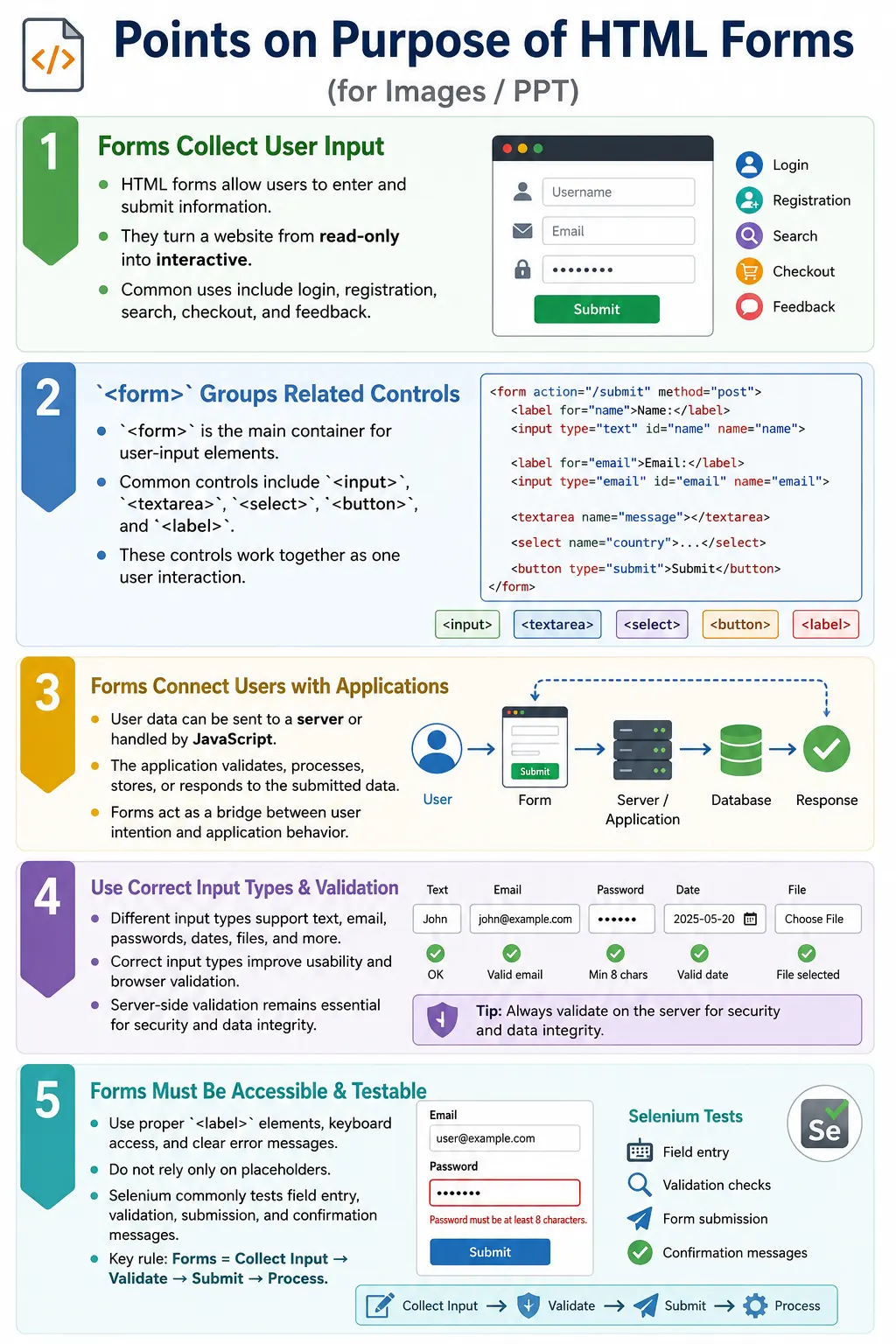
HTML forms are one of the most important features of HTML because they allow users to enter information and send it for processing. Without forms, a website could display articles, images, videos, product details, and reports, but users would not be able to log in, register, search, purchase, comment, apply, subscribe, or submit feedback. Forms transform a website from a read-only document into an interactive application.
A form provides a structured way to collect user data. The data may be sent to a server, processed by a client-side JavaScript application, stored in a database, validated by an API, or used to update the page without a full reload. Almost every modern web application depends on forms in some way, whether the form is large and complex or as small as a single search box.
Examples of forms are everywhere: login pages, registration forms, contact forms, search boxes, online shopping checkout, banking applications, job applications, feedback forms, hospital appointment systems, airline ticket booking pages, and college admission portals. Whenever a website asks users to provide information, choose an option, upload a file, or submit a request, HTML forms are usually involved.
What Is an HTML Form?
An HTML form is a container that groups one or more input elements together to collect user data. The main element is <form>. Inside it, developers place controls such as <input>, <textarea>, <select>, <option>, <button>, <label>, <fieldset>, and <legend>.
<form>
    <input type="text">
    <input type="password">
    <button>Login</button>
</form>
The <form> element acts as the container, while the controls inside it allow users to enter or select information. A text input may collect a name. A password input may collect a password. A dropdown may collect a country or course selection. A button may submit the form or trigger an action.
The form gives the browser a meaningful structure. It says that these controls belong together and are part of one user action. For example, a login form groups username, password, and login button into a single interaction.
Why Are HTML Forms Needed?
Imagine a website without forms. Users could read articles, view products, watch videos, and browse information. However, they could not respond to the website. They could not log in, register, search, purchase products, submit feedback, upload files, or update their profile.
Website
  ↓
Displays Information
  ↓
User Cannot Respond
Forms solve this limitation by allowing users to send information back to the application. They make websites interactive. A search box lets users ask for specific information. A login form lets users access an account. A checkout form lets users place an order. A feedback form lets users communicate with a business.
This is why forms are central to web applications. They are the bridge between user intention and application behavior. Without forms, most modern services would not function as interactive systems.
Real-World Examples
Almost every major website contains forms. Google Search uses a form to collect search keywords. Facebook and Gmail use forms for login and registration. Amazon uses forms during checkout to collect shipping, payment, and contact information. Online banking portals use forms for authentication, fund transfers, beneficiary management, and service requests. Airline websites use forms for flight search and ticket booking. Hospital appointment systems use forms to collect patient details and appointment preferences.
These examples show that forms are not limited to simple text boxes. Forms are used whenever a user action requires structured input. The input may be simple, such as a search term, or complex, such as a complete job application with personal details, education history, file uploads, and declarations.
Basic Form Example
A simple form can collect a user's name and submit it.
<form>
    <label>Name</label>
    <input type="text">
    <button>Submit</button>
</form>
This example contains a label, a text input, and a button. The label describes what the input is for. The input allows the user to type a value. The button allows the user to submit or trigger an action. Even this small form demonstrates the core purpose of forms: collect data from the user in a structured way.
Browser Workflow
When a user interacts with a form, the browser displays the form controls, accepts user input, collects the entered data, and submits it when the user triggers submission. The submitted data may go to a server or be handled by JavaScript.
User Opens Page
    ↓
Browser Displays Form
    ↓
User Enters Information
    ↓
Clicks Submit
    ↓
Form Data Sent
    ↓
Server Processes Data
    ↓
Response Returned
This workflow is the foundation of many web features. The browser handles the user-facing part, while the server or client-side application processes the submitted data and returns a response.
What Kind of Data Can Forms Collect?
Forms can collect almost any type of information. Common examples include name, email, password, phone number, address, age, date of birth, gender, country, comments, search keywords, payment details, file uploads, preferences, ratings, and agreement confirmations.
HTML provides different input types to support different kinds of data. For example, type="email" is better for email addresses than a plain text input because browsers can provide email-specific validation and mobile keyboards. type="password" hides sensitive text. type="date" can show a date picker in supporting browsers. Choosing the correct input type improves usability and validation.
Common Form Controls
HTML forms can contain many different controls. Each control has a purpose, and choosing the correct control improves both usability and code meaning.
| Element | Purpose |
|---|---|
<input> |
Single-line input |
<textarea> |
Multi-line text |
<select> |
Drop-down list |
<option> |
Drop-down option |
<button> |
Performs an action such as submitting or resetting |
<label> |
Describes a form control |
<fieldset> |
Groups related controls |
<legend> |
Provides a title for a fieldset |
These elements work together to create meaningful, usable forms. A professional form is not just a collection of inputs. It is a structured interaction.
Example: Login Form
A login form collects credentials and submits them for authentication.
<form>
    <label>Username</label>
    <input type="text">

    <label>Password</label>
    <input type="password">

    <button>Login</button>
</form>
The workflow is simple. The user enters a username, enters a password, clicks Login, and the server validates the credentials. If the details are correct, the user is authenticated. If not, the application shows an error message.
Example: Registration Form
A registration form collects new user information and sends it for account creation.
<form>
    <input type="text" placeholder="Name">
    <input type="email" placeholder="Email">
    <input type="password" placeholder="Password">
    <button>Register</button>
</form>
After validation, the server may store the submitted information in a database. Registration forms often require strong validation because incorrect or incomplete data can create account problems later.
Example: Search Form
A search form usually contains a search input and a button.
<form>
    <input type="search" placeholder="Search">
    <button>Search</button>
</form>
The entered search term is sent to a search engine or application backend for processing. Search forms are often small, but they are one of the most used form types on the web.
Example: Contact Form
A contact form allows users to send questions, feedback, or support requests.
<form>
    <input type="text" placeholder="Name">
    <input type="email" placeholder="Email">
    <textarea></textarea>
    <button>Send</button>
</form>
Contact forms usually collect a name, email address, and message. They may also include subject fields, categories, file uploads, or consent checkboxes.
Client-Server Communication
Forms play a key role in client-server communication. The user fills the form in the browser. The browser sends the form data to a server. The server validates the data, may store or retrieve information from a database, and then returns a response to the browser.
User
  ↓
Fill Form
  ↓
Browser
  ↓
Server
  ↓
Database
  ↓
Response
  ↓
Browser
The form acts as the bridge between the user and the backend system. In a banking application, a fund transfer form may collect account number, amount, remarks, and authentication details. The server then processes the transaction securely.
Form Submission Process
The form submission process usually follows a sequence. First, the user types or selects data. Next, the browser collects the values. When the user clicks the submit button, the data is sent for processing. The server or application validates the request and returns a response.
Step 1: User Types Data
    ↓
Step 2: Browser Collects Data
    ↓
Step 3: Submit Button Clicked
    ↓
Step 4: Data Sent to Server
    ↓
Step 5: Server Processes Request
    ↓
Step 6: Response Returned
This flow may look simple, but real applications add validation, security checks, database operations, email notifications, file handling, and error handling.
Forms in Modern Web Applications
Modern applications use forms for user authentication, customer registration, profile updates, product orders, payment processing, file uploads, surveys, customer support, newsletter subscriptions, and administrative workflows. Forms are central to user interaction because they allow users to create, update, search, filter, and submit data.
In single page applications, forms may not reload the page. Instead, JavaScript handles validation and sends data asynchronously using APIs. Frameworks such as React, Angular, and Vue commonly use this approach.
User Fills Form
    ↓
JavaScript Validates
    ↓
AJAX / Fetch API
    ↓
Server
    ↓
Update Page Without Reload
Even when JavaScript handles the interaction, HTML form concepts still matter. Good labels, proper input types, validation, accessibility, and meaningful buttons remain important.
Forms and Validation
Validation ensures that submitted data is accurate, complete, and safe enough to process. For example, an email field may be required, a password may need a minimum length, a phone number may need a valid format, and a required checkbox may need to be selected before submission.
Email Required
    ↓
Password Length
    ↓
Phone Number Format
    ↓
Submit
Validation can happen in the browser, in JavaScript, on the server, or in all three places. Client-side validation improves user experience by giving quick feedback. Server-side validation is essential for security and data integrity because client-side checks can be bypassed.
Accessibility Benefits
Accessible forms are easier for everyone to use. They should include proper <label> elements, logical tab order, clear instructions, helpful error messages, and keyboard accessibility. Labels are especially important because they tell users what each input is for and help assistive technologies connect text with controls.
Placeholders should not replace labels. A placeholder disappears when users type and may not be announced reliably in all contexts. A visible label is clearer and more accessible. Error messages should explain what went wrong and how users can fix the problem.
SEO Considerations
Forms themselves do not directly improve SEO in the same way content pages do, but they should still use semantic HTML. Descriptive labels, meaningful button text, and accessible structure improve usability and overall page quality. A form with clear text is better than one that relies only on icons or placeholders.
Search engines may not submit forms like users do, but they can still evaluate page structure and user experience signals. A well-built form supports a better website experience.
Common Mistakes
One mistake is using forms for layout. A form should collect user input, not organize page structure. Layout should be handled by semantic HTML and CSS.
<form>
    <div>Layout Only</div>
</form>
Another common mistake is missing labels.
<input type="text">A better version includes a label.
<label>Name</label>
<input type="text">
Using incorrect input types is also a common issue. An email field should use type="email", not just type="text". Appropriate input types enable built-in browser validation and better mobile keyboards.
<input type="email">Forgetting validation can lead to empty submissions, invalid data, security issues, and poor user experience. Important fields should always be validated.
Real-World Example
A course registration form collects student details and course selection.
<form>
    <label>Student Name</label>
    <input type="text">

    <label>Email</label>
    <input type="email">

    <label>Course</label>
    <select>
        <option>HTML</option>
        <option>CSS</option>
    </select>

    <button>Register</button>
</form>
This form collects user information and sends it for processing. A real application may also validate the name, verify email format, check seat availability, store registration data, and show a confirmation message.
Selenium Perspective
Forms are among the most frequently automated features in Selenium. Automation testers verify that form fields are visible, data can be entered, validation works, submission succeeds, and success or error messages appear as expected.
An input field can be located by name.
WebElement username =
driver.findElement(By.name("username"));
Text can be entered using sendKeys.
username.sendKeys("John");A submit button can be located and clicked.
WebElement button =
driver.findElement(By.tagName("button"));

button.click();
Automation testers commonly verify required fields, invalid email errors, password rules, dropdown selection, checkbox behavior, radio button selection, file upload controls, form submission, and confirmation messages. Forms are critical test areas because they directly affect user workflows.
Comparison Table
| Without Forms | With Forms |
|---|---|
| Read-only website | Interactive website |
| No user input | Collects user data |
| Static content | Dynamic user interaction |
| No registration | User accounts |
| No login | Authentication |
| No search | Search functionality |
Common Interview Questions
What is the purpose of an HTML form? The purpose of an HTML form is to collect user input and submit it for processing by a server or client-side application.
Which tag creates a form? The <form> tag creates an HTML form.
What types of data can forms collect? Forms can collect text, passwords, email addresses, phone numbers, dates, files, selections, comments, search terms, payment details, and many other kinds of input.
Are forms used only for server communication? No. Modern applications often process forms using JavaScript and send data asynchronously through APIs without reloading the page.
Why are forms important? Forms make websites interactive by allowing users to provide information, perform actions, and communicate with applications.
Interview-Ready Answer
The primary purpose of an HTML form is to collect user input and submit it for processing. The <form> element groups related controls such as text fields, password fields, email inputs, dropdowns, text areas, checkboxes, radio buttons, and buttons. Forms enable users to perform actions like logging in, registering, searching, placing orders, submitting feedback, uploading files, and updating information. In modern web applications, forms may submit data directly to a server or use JavaScript to send data asynchronously through APIs.
One-Line Insight
HTML forms transform a website from a passive source of information into an interactive application where users can enter, submit, and update data.