Placeholder vs Label
Introduction
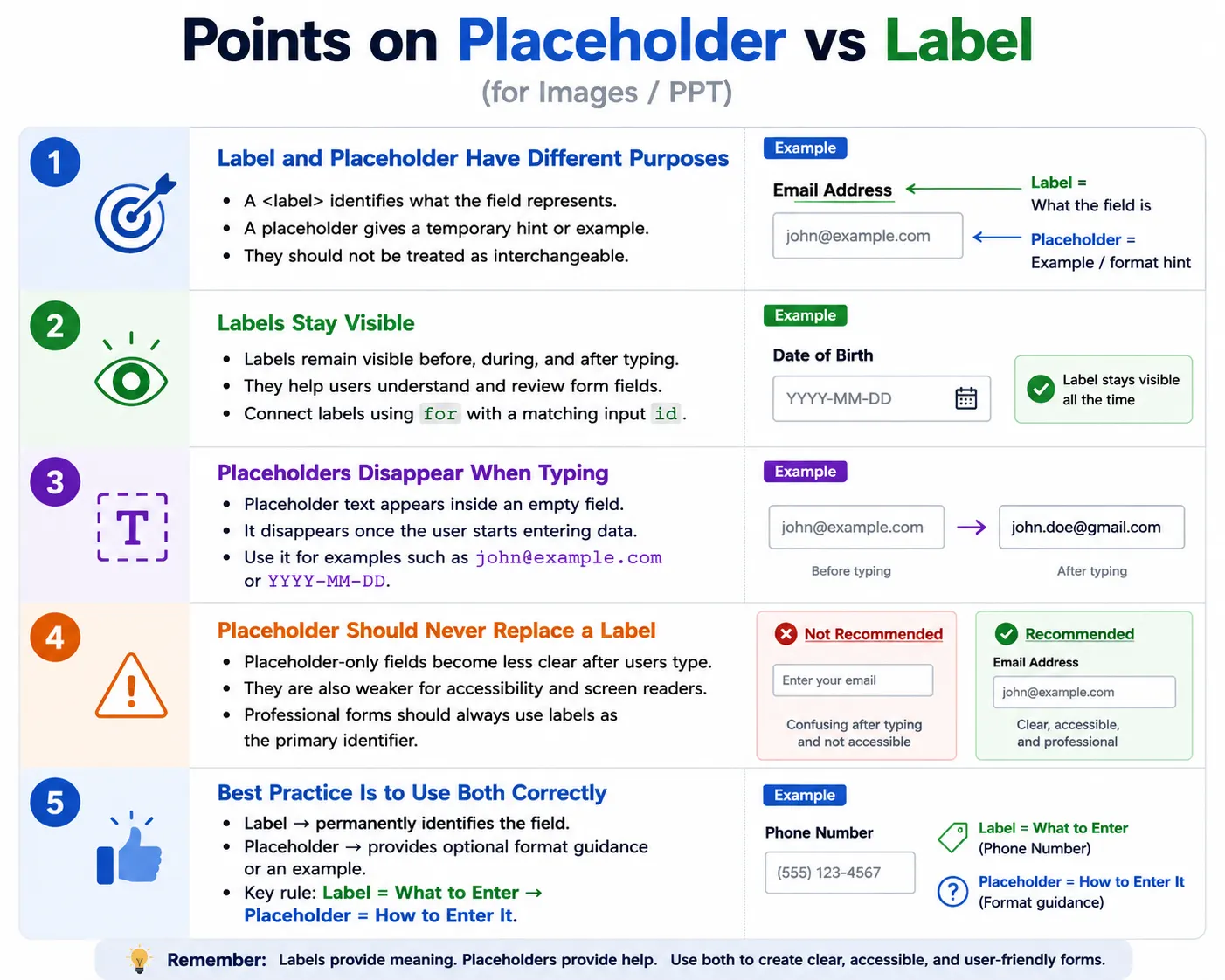
placeholder and <label> are both used to provide information about form fields, but they serve completely different purposes. A label identifies the field. A placeholder gives a temporary hint or example inside the field. Because both appear near the input control, beginners often confuse them and sometimes use a placeholder instead of a label. That is a serious mistake in professional HTML form design.
Forms are one of the most important interaction points in a website or application. Login forms, registration forms, checkout forms, contact forms, search forms, profile forms, and job application forms all depend on users understanding what each field is asking for. If the field is not clearly identified, users may enter the wrong information, hesitate, abandon the form, or make avoidable mistakes.
Understanding the difference between labels and placeholders is essential for accessibility, user experience, form usability, professional web development, automation testing, and HTML interview questions. A well-built form should use labels as the primary field identifiers and placeholders only as supporting hints or examples.
What Is a Label?
A label identifies what information the user should enter into a form field. It gives the field a name that remains visible while the user reads the form, focuses the field, types a value, reviews the form, and submits the data.
<label for="email">Email Address</label>
<input type="email" id="email">
In the browser, the user sees the label text near the input field.
Email Address
____________________
The important point is that the label remains visible at all times. Even after the user types an email address, the label is still present. This makes the form easier to understand and review.
The best practice is to connect the label to the input by using the for attribute on the label and the matching id attribute on the input. This association improves accessibility and also makes the label clickable in many browsers. When the user clicks the label text, focus moves to the related input field.
What Is a Placeholder?
A placeholder displays a short hint or example inside the input field before the user enters data. It is defined using the placeholder attribute.
<input type="email" placeholder="Enter your email">In the browser, the hint appears inside the empty input field.
____________________
Enter your email
The placeholder disappears as soon as the user starts typing. This behavior is useful for hints, examples, or formatting guidance, but it is not suitable as the only field description. Once the user types a value, the placeholder is gone, and the field may no longer clearly communicate what it represents.
A placeholder should be short and optional. It should help the user understand how to enter the value, not replace the field name itself.
Purpose of Labels
Labels answer the question: what information does this field collect? If the label says "Email Address," the user knows the field expects an email address. If the label says "Password," the user knows the field expects a password. If the label says "Phone Number," the user knows the field expects a phone number.
Email Address
____________________
The field is clearly identified. This identification remains available even after the user enters a value. That matters when users review a form before submitting it, return to a field after making an error, or navigate with assistive technology.
Labels also make forms easier for screen reader users. A properly associated label gives the form control an accessible name. Without an accessible name, the screen reader may announce only a generic control such as "edit text," leaving the user unsure what information is expected.
Purpose of Placeholders
Placeholders answer a different question: how should the value look? A placeholder can show an example format, a sample value, or a short hint.
<input type="email" placeholder="john@example.com">This placeholder does not identify the field as permanently as a label does. Instead, it gives an example of the expected email format. The user can see that a complete email address is expected, not just a username.
Placeholders are helpful when the field format may not be obvious. A date field may use placeholder="YYYY-MM-DD". A phone field may use placeholder="9876543210". A name field may use placeholder="John Smith". These hints reduce confusion, especially for first-time users.
Visual Difference
The visual difference between a label and a placeholder is simple but important. A label appears outside the field and stays visible. A placeholder appears inside the field and disappears when the user types.
Label:

Email
____________________

Placeholder:

____________________
Enter Email
After typing, the placeholder disappears.
john@example.comAt that point, if there is no label, the user may no longer see what the field represents. In a short form with one field, this may seem harmless. In a long registration, checkout, loan, insurance, or job application form, it can create real confusion.
Using Only a Placeholder
Using only a placeholder is a common beginner mistake.
<input type="email" placeholder="Enter email">At first, the field appears understandable because the placeholder text is visible. But after the user types the email address, the placeholder disappears.
john@example.comThe user no longer sees the description of the field. If the user returns to review the form later, the purpose may be less clear. If the field contains an error, the user may need to infer what the field is based only on the entered value.
This approach is also weaker for accessibility. A placeholder may not provide the same reliable accessible name that a properly associated label provides. For professional forms, a placeholder should never be the only way to identify a field.
Using Only a Label
Using only a label is usually acceptable because the field is always identified.
<label for="email">Email</label>
<input type="email" id="email">
The user can always see that the field is for email. The form remains understandable before typing, during typing, and after typing. This is much better than using a placeholder alone.
However, a label alone may not provide format guidance. If the required format is obvious, this is fine. If the field expects a specific format, a placeholder or visible helper text can provide additional guidance.
Best Practice: Use Both Together
The best practice is to use labels and placeholders together, with each doing its proper job. The label identifies the field, and the placeholder provides an example or hint.
<label for="email">Email Address</label>
<input
  type="email"
  id="email"
  placeholder="john@example.com">
In the browser, the user sees both the permanent label and the temporary example.
Email Address
____________________
john@example.com
This gives the user the best of both worlds. The field remains clearly identified, and the placeholder shows the expected format. When the user starts typing, the placeholder disappears, but the label remains visible.
Why Labels Are Important
Labels are important because they stay visible, improve accessibility, help screen readers, increase the clickable area, and improve form usability. A label is not just visible text. It is a semantic relationship between the field and its description.
When the label is connected using for and id, assistive technologies can announce the field correctly. A screen reader can say "Email Address, edit text" instead of only saying "edit text." That difference is critical for users who cannot rely on visual layout.
Labels also help users with motor difficulties. Clicking the label can focus the associated input, making the interactive area larger and easier to use. This is especially helpful for checkboxes and radio buttons, where the actual control may be small.
Why Placeholders Are Helpful
Placeholders are helpful because they show sample input, suggest the expected format, reduce user confusion, and improve first-time usability. A placeholder such as john@example.com can be more useful than a vague instruction because it shows the exact shape of the value.
For example, a phone number field may accept numbers without spaces. A placeholder can show 9876543210. A date field may expect a particular format. A placeholder can show YYYY-MM-DD. A name field may show John Smith.
The key is that placeholders are supplementary. They should support the label, not replace it. Essential information should remain visible outside the field whenever possible.
Accessibility Impact
Accessibility is one of the strongest reasons labels matter. With a proper label, a screen reader can announce the field clearly.
Email Address
Edit Text
Without a proper label, a screen reader may announce only:
Edit TextThe user may not know what information is expected. Even if a placeholder is present, relying on it is not as robust as using a proper label. Accessibility support for placeholders has improved in modern browsers and assistive technologies, but placeholders are still not a replacement for labels.
Low contrast is another issue. Browsers often display placeholder text in a lighter color. This can make the text harder to read, especially for users with low vision. Because placeholders disappear and may have weaker contrast, they should not contain essential instructions.
Browser Workflow
With a label, the workflow is stable. The page loads, the label is visible, the user types, and the label remains visible.
Page loads
    |
Label visible
    |
User types
    |
Label still visible
With a placeholder, the workflow is temporary. The page loads, the placeholder is visible, the user types, and the placeholder disappears.
Page loads
    |
Placeholder visible
    |
User types
    |
Placeholder disappears
This is why labels are reliable identifiers and placeholders are temporary hints.
Mobile User Experience
Mobile users benefit strongly from visible labels. Mobile screens are small, virtual keyboards cover part of the screen, and users may move through forms one field at a time. If the field relies only on placeholder text, the user may forget the field purpose after typing begins.
Email
john@example.com
In this example, the label remains visible while the user types. The user can review the entered value with confidence. Without a label, the field may show only the typed value, and the context may be less obvious.
This problem becomes worse in long forms, especially when users scroll, switch apps, return later, or correct validation errors. Persistent labels make forms easier to complete on mobile devices.
Good and Bad Examples
A good form field uses a permanent label and an optional placeholder hint.
<label for="username">Username</label>
<input
  type="text"
  id="username"
  placeholder="Enter your username">
A weak field uses only a placeholder.
<input type="text" placeholder="Username">The second example has no permanent field label. It may look clean at first, but it is less accessible and less usable. Clean visual design should not come at the cost of clarity.
Placeholder Examples
Placeholders are best used for short examples. A name field may use placeholder="John Smith". An email field may use placeholder="john@example.com". A phone field may use placeholder="9876543210". A date field may use placeholder="YYYY-MM-DD".
These examples are useful because they show users the expected format. They should not contain long instructions or critical rules. If the password must have a minimum of eight characters, uppercase letters, numbers, and symbols, that instruction should be visible near the field, not hidden only inside a placeholder that disappears.
Real-World Example
A registration form should use labels to identify fields and placeholders to provide examples.
<form>
  <label for="fullname">Full Name</label>
  <input
    type="text"
    id="fullname"
    placeholder="John Smith"
    required>

  <br><br>

  <label for="email">Email Address</label>
  <input
    type="email"
    id="email"
    placeholder="john@example.com"
    required>

  <br><br>

  <label for="password">Password</label>
  <input
    type="password"
    id="password"
    placeholder="Minimum 8 characters"
    required>

  <button type="submit">Register</button>
</form>
Each field has a permanent label and a helpful placeholder. The label tells the user what information the field collects. The placeholder gives a short example or hint. When the user types, the placeholder disappears, but the label remains visible.
Common Mistakes
The most common mistake is using a placeholder instead of a label.
<input placeholder="Email">This field may appear understandable when empty, but users lose the field description after typing. It is weaker for accessibility and can confuse users during review or error correction.
Another mistake is writing long placeholder text.
<input placeholder="Please enter your official company email address here">Placeholder text should be short and helpful. Long instructions are hard to read inside a field and disappear when the user types. Important instructions should be placed outside the input as visible helper text.
Low contrast placeholder text is another common issue. Browsers often render placeholders in a lighter color, so they may be difficult to read. Do not rely on placeholders for essential information.
Accessibility Best Practices
Always use labels. Use placeholders only for hints or examples. Keep placeholder text short. Associate labels with controls using for and id. Ensure important instructions remain visible if they are needed to complete the field correctly.
<label for="email">Email Address</label>
<input
  id="email"
  type="email"
  placeholder="john@example.com">
This structure is simple, readable, accessible, and testable. It gives the browser and assistive technologies clear relationships between field names and controls.
For custom form designs, avoid hiding labels visually unless there is a strong reason and the label remains available to assistive technologies. Floating labels can work when implemented carefully, but they should not behave like disappearing placeholders.
Selenium Perspective
Automation testers often verify label text, placeholder text, and the correct association between labels and inputs. Selenium can read placeholder text using getAttribute().
WebElement email =
driver.findElement(By.id("email"));

String placeholder =
email.getAttribute("placeholder");

System.out.println(placeholder);
Label text can be located using the for attribute.
WebElement label =
driver.findElement(
    By.xpath("//label[@for='email']")
);

System.out.println(label.getText());
Automation testers commonly verify that every important input has a visible label, that the label text matches the expected field purpose, that placeholder text is short and helpful, and that the label is correctly associated with the input. Accessibility-focused tests may also check whether form controls have accessible names.
Comparison Table
| Feature | Label | Placeholder |
|---|---|---|
| Purpose | Identifies the field | Provides a hint or example |
| Visibility | Always visible | Disappears after typing |
| Accessibility | Excellent | Limited; should not replace labels |
| Screen reader support | Strong | Inconsistent compared to labels |
| Typical use | Email Address | john@example.com |
Common Interview Questions
What is the difference between a label and a placeholder? A label identifies the purpose of the field, while a placeholder provides a temporary hint or example inside the field.
Does a placeholder replace a label? No. Placeholders disappear when users type and are not a substitute for labels.
Why are labels important? Labels improve accessibility, usability, screen reader support, and form clarity. They remain visible while users interact with the form.
When should placeholders be used? Placeholders should be used for examples, formatting hints, or short guidance, not as the primary field description.
Which one is better for accessibility? Labels are better and should always be used for form fields.
Interview-Ready Answer
A <label> identifies the purpose of a form field and remains visible at all times, improving accessibility and usability. A placeholder displays a temporary hint or example inside the input field and disappears when the user begins typing. Placeholders should only provide guidance or formatting examples and should never replace labels because labels are essential for screen readers, keyboard navigation, and a clear user experience.
One-Line Insight
A label tells users what to enter, while a placeholder shows how to enter it.