Pattern Attribute
Introduction
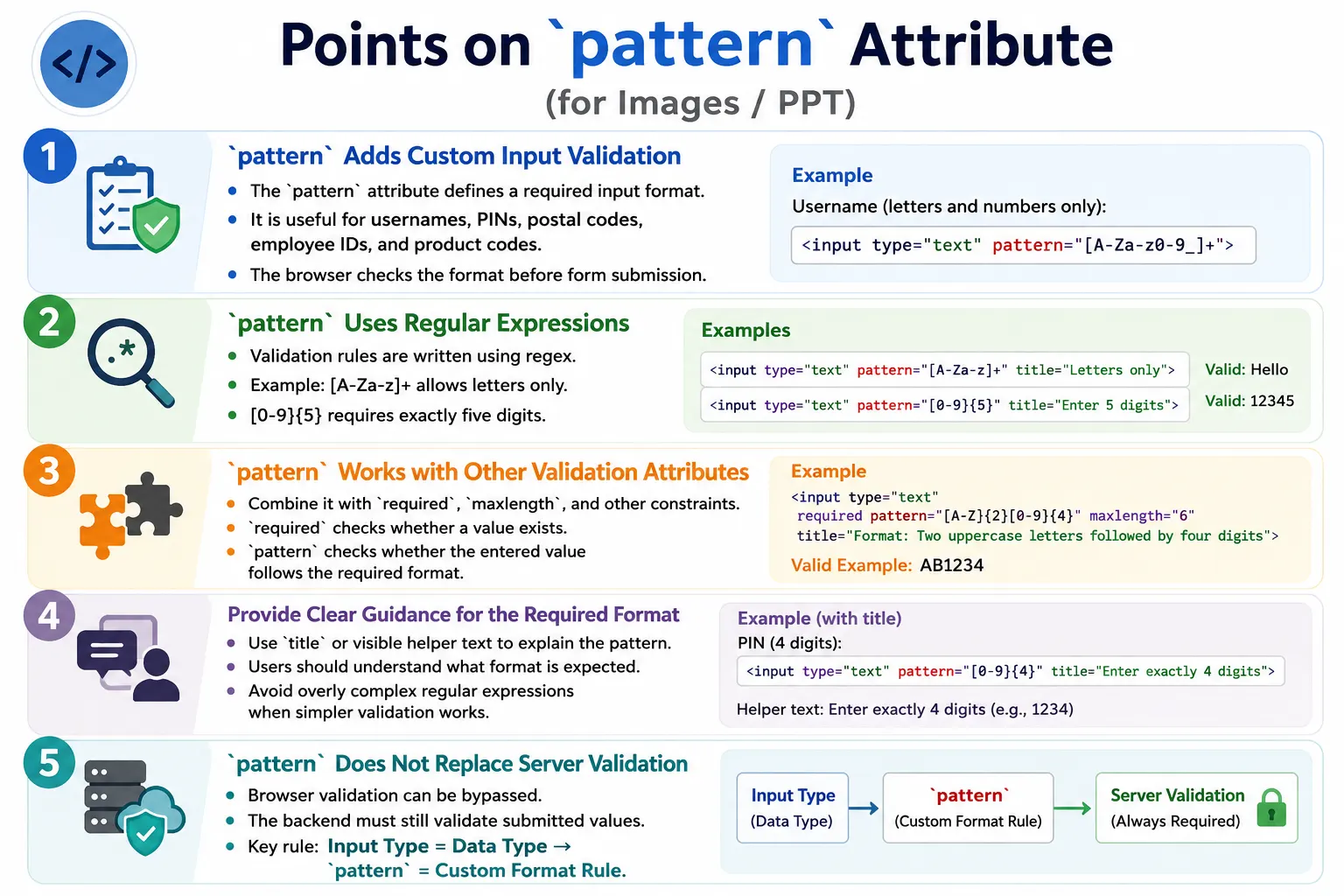
The pattern attribute is an HTML5 validation attribute used to ensure that user input follows a specific format before a form is submitted. It is especially useful when the expected value is more specific than a normal text field but does not have a dedicated HTML input type. Usernames, PIN numbers, employee IDs, postal codes, product codes, membership numbers, and custom business identifiers are common examples where the pattern attribute can help.
The attribute works by using a regular expression, often called regex, to define the allowed pattern for the input value. When the user submits the form, the browser automatically compares the entered value against the pattern. If the value does not match, the browser prevents form submission and displays a validation error. This makes the pattern attribute a powerful client-side validation tool.
At the same time, the pattern attribute should be used carefully. It improves usability by catching common mistakes early, but it does not replace server-side validation. Users can bypass browser validation, modify HTML, disable constraints, or send requests directly to the server. For that reason, the browser can provide a helpful first check, but the backend must always perform the final validation.
What Is the Pattern Attribute?
The pattern attribute specifies a regular expression that the input value must match. It is added directly to an input element.
<input type="text" pattern="regular-expression">For example, the following input accepts only alphabetic characters.
<input type="text" pattern="[A-Za-z]+">The expression [A-Za-z]+ means one or more uppercase or lowercase English letters. A value such as John is valid, but a value such as John123 is invalid because it contains numbers.
The pattern does not change the visible appearance of the input field. It changes the validation rule associated with the field. The user still sees a normal input box, but the browser knows that the entered value must follow the pattern when the form is submitted.
Why the Pattern Attribute Is Needed
Without validation, a browser accepts almost any text typed into a normal text field. If a username field expects letters only, the user can still type John@123 unless the page includes validation. The server may reject the value later, but the user only learns about the problem after submitting the form.
With the pattern attribute, the expected format is declared directly in HTML. The browser checks the format before submission and stops invalid values early. This creates a faster and clearer experience for users.
User enters value
    |
Browser checks pattern
    |
Value matches?
    |
Yes: submit form
No: show validation error
This is useful because many validation rules are format-based. A PIN might require exactly four digits. An employee ID might require three uppercase letters followed by four numbers. A product code might require two letters followed by six digits. The pattern attribute allows these rules to be expressed in the markup itself.
How Pattern Validation Works
When a form is submitted, the browser reads the value entered in the input field. It then reads the regular expression in the pattern attribute and compares the two. If the value satisfies the expression, the field passes pattern validation. If the value does not satisfy the expression, the field fails validation.
The browser only performs this check during constraint validation, usually when the form is submitted. It does not necessarily reject every keystroke as the user types. This distinction matters because a user may temporarily type a value that is incomplete while filling the field. The final validation happens when submission is attempted.
<form>
  <label for="username">Username</label>
  <input id="username" type="text" pattern="[A-Za-z]+" required>
  <button type="submit">Submit</button>
</form>
In this example, John is valid, while John123 is invalid. Because the field is also marked required, an empty value is not allowed either. The two attributes work together: required checks whether a value exists, and pattern checks whether that value follows the expected format.
Pattern Uses Regular Expressions
The pattern attribute uses regular expressions. A regular expression is a compact language for describing text patterns. It can specify allowed characters, required length, repeated groups, alternatives, and more.
<input type="text" pattern="[0-9]+">The expression [0-9]+ means one or more digits from 0 to 9. It accepts 12345 but rejects 12AB. The square brackets define a character set, and the plus sign means one or more of those characters.
Beginners do not need to master every regex feature immediately. The most useful starting point is understanding simple character groups and length rules. For many form fields, simple patterns are enough and are easier to maintain than long, complex expressions.
Common Pattern Examples
One of the simplest examples is a letters-only field.
<input type="text" pattern="[A-Za-z]+">This accepts values such as John and rejects values such as John123. It is suitable for simple alphabetic names or codes, but real names can contain spaces, hyphens, apostrophes, and non-English characters, so use it only when the business rule truly requires letters only.
A numbers-only field can be written like this:
<input type="text" pattern="[0-9]+">This accepts 12345 and rejects 12AB. It is useful for identifiers made of digits, such as PINs or postal codes. If the value is used for calculation, type="number" may be more appropriate. If the value is an identifier, type="text" with a pattern is often better because identifiers may have leading zeros.
Exactly five digits can be required using curly braces.
<input type="text" pattern="[0-9]{5}">This accepts 60007 and rejects 6000. The {5} means exactly five occurrences of the preceding character set.
Three to ten letters can be expressed like this:
<input type="text" pattern="[A-Za-z]{3,10}">This accepts Michael and rejects Al. The {3,10} means at least three and at most ten characters from the specified character set.
Letters and numbers can be allowed together using this pattern:
<input type="text" pattern="[A-Za-z0-9]+">This accepts User123 and rejects User_123 because the underscore is not included in the allowed character set.
Simple PIN Example
A four-digit PIN is a clear example of pattern validation. It should contain exactly four digits, no letters, no spaces, and no extra symbols.
<input type="password" pattern="[0-9]{4}">The value 1234 is valid because it contains exactly four digits. The value 12345 is invalid because it contains five digits. The value 12AB is invalid because it contains letters.
Using type="password" hides the value visually, while the pattern controls the format. For sensitive values such as PINs, server-side validation and security controls are still required.
Combining Pattern with Other Attributes
The pattern attribute is often combined with other validation attributes. For example, a username field may be mandatory, may need a specific format, and may have a maximum length.
<input
  type="text"
  required
  pattern="[A-Za-z]{3,15}"
  maxlength="15">
In this case, the browser checks that the field is not empty, that the value contains only letters, and that the value does not exceed fifteen characters. The pattern already includes the length rule from three to fifteen characters, while maxlength also prevents typing beyond the limit in many browsers. Combining rules can make the behavior clearer for users and easier to test.
When combining validation attributes, make sure the rules do not contradict each other. For example, a maxlength of 10 combined with a pattern that requires fifteen characters would create a field that cannot be completed successfully.
Title Attribute with Pattern
The title attribute can provide helpful guidance when pattern validation fails. Many browsers include the title text in the validation message or use it as additional information.
<input
  type="text"
  pattern="[A-Za-z]{3,15}"
  title="Enter 3 to 15 letters only">
Without a helpful message, users may not understand why their input was rejected. A browser might say that the value does not match the required format, but that does not tell the user what the required format is. The title attribute gives users a readable explanation.
For best results, do not rely only on title. Visible helper text near the input is often better because it is available before the user makes a mistake. A good form tells users what is expected before validation fails.
Browser Validation
Consider a postal code field that requires exactly five digits.
<input type="text" pattern="[0-9]{5}" required>If the user enters 123 and submits the form, validation fails. The browser prevents form submission because the value does not match exactly five digits. If the user enters 60007, validation passes.
User types
    |
Browser reads pattern
    |
Compare input
    |
Valid?
    |
Yes: submit
No: show error
The wording and visual style of the validation error depend on the browser. Chrome, Edge, Firefox, Safari, desktop browsers, and mobile browsers may display messages differently. This is why QA testing should include the browser and device combinations that matter for the application.
Real-World Examples
A username field often allows letters and numbers within a specific length range.
<input type="text" pattern="[A-Za-z0-9]{5,15}">This accepts usernames between five and fifteen characters and allows only letters and numbers. It rejects spaces, underscores, special characters, and values that are too short or too long.
An employee ID may follow a business-specific format such as three uppercase letters followed by four digits.
<input type="text" pattern="[A-Z]{3}[0-9]{4}">A value such as ABC1234 is valid. A value such as AB12345 is invalid because the first part does not contain exactly three uppercase letters.
A postal code can be represented as exactly five digits.
<input type="text" pattern="[0-9]{5}">This accepts 60007 and rejects values that are shorter, longer, or contain letters.
A product code may require two uppercase letters followed by six digits.
<input type="text" pattern="[A-Z]{2}[0-9]{6}">A value such as AB123456 matches this rule. This kind of format validation is common in inventory systems, enterprise applications, and internal admin tools.
Pattern vs Input Type
HTML input types and the pattern attribute solve related but different problems. An input type tells the browser what kind of data the field expects. A pattern defines a custom format rule.
<input type="email">The browser already validates whether the value looks like an email address. If the requirement is simply "enter an email address," the email input type may be enough. But if the application accepts only company email addresses, a pattern can add an extra rule.
<input
  type="email"
  pattern=".+@company\.com">
This accepts only email addresses ending with @company.com. The email type validates the general email format, and the pattern adds a domain restriction. This combination is useful when the browser's built-in validation is not specific enough for the business rule.
Use input types first when they match the data. Add pattern only when a custom format is needed.
Common Mistakes
A very common mistake is using pattern without required and expecting an empty field to fail. If the field is optional and left empty, the browser does not report a pattern mismatch. Pattern validation applies when the field contains a value.
<input pattern="[A-Za-z]+">If this field must be completed, add required.
<input pattern="[A-Za-z]+" required>Another mistake is writing overly complex regular expressions. A very long regex may technically work, but it can become difficult for developers, testers, and future maintainers to understand. Keep patterns as simple as practical, and move complex validation to application logic when needed.
Developers also sometimes use pattern for number inputs when min, max, and step would be clearer. The pattern attribute is intended for text-based input types. For numeric ranges, prefer proper numeric attributes with type="number".
Forgetting the title attribute or visible helper text is another common problem. If users do not understand the expected format, validation becomes frustrating instead of helpful.
Complete Example
The following example shows a username field that accepts only letters and numbers between five and fifteen characters.
<form>
  <label for="username">Username</label>
  <input
    id="username"
    type="text"
    pattern="[A-Za-z0-9]{5,15}"
    title="5 to 15 letters or numbers"
    required>

  <br><br>

  <button type="submit">Submit</button>
</form>
This form communicates the rule to the browser and gives the user a useful message if validation fails. A value such as User123 passes. A value such as Us fails because it is too short. A value such as User_123 fails because the underscore is not allowed.
Accessibility and Usability
Pattern validation should be understandable to all users. A form should not simply reject input with a vague message. It should explain the expected format clearly before or during validation. Use labels, helper text, and meaningful error messages.
For example, a field labeled "Employee ID" should also explain the expected format if the pattern is strict. A helper sentence such as "Use three uppercase letters followed by four digits, for example ABC1234" is much clearer than expecting users to guess the format.
Do not rely only on color to communicate invalid input. Users with low vision, color blindness, or assistive technology may miss color-only indicators. Validation should be visible, readable, and programmatically available when custom error handling is used.
Selenium Perspective
Automation testers often verify both the presence of the pattern attribute and the behavior caused by it. Selenium can locate the field, enter values, read attributes, and submit the form.
WebElement username =
driver.findElement(By.id("username"));
A valid value can be entered like this:
username.sendKeys("John123");The pattern attribute can be read directly.
String pattern =
username.getAttribute("pattern");

System.out.println(pattern);
Automation testers commonly verify the pattern attribute value, accepted and rejected input, validation behavior, error messages, and form submission behavior with valid and invalid values. They may also use JavaScript execution to call browser validation APIs such as checkValidity() when needed.
Boolean isValid = (Boolean) js.executeScript(
    "return arguments[0].checkValidity();",
    username
);
For a strong test suite, include positive cases that match the pattern, negative cases that violate the pattern, empty field behavior, boundary length values, and special character checks.
Common Interview Questions
What is the purpose of the pattern attribute? It validates user input against a regular expression before form submission.
What does the pattern attribute use internally? It uses a regular expression, also called regex.
Does pattern work without required? Yes, but only when the field contains a value. If the field is optional and left empty, the browser does not perform pattern mismatch validation.
Can pattern be used with type="email"? Yes. It can apply additional restrictions beyond the browser's built-in email validation, such as requiring a specific email domain.
Should pattern replace server-side validation? No. Server-side validation is always required because client-side validation can be bypassed.
Common Pattern Examples Table
| Pattern | Accepts |
|---|---|
[A-Za-z]+ | Letters only |
[0-9]+ | Numbers only |
[0-9]{5} | Exactly five digits |
[A-Za-z]{3,10} | Three to ten letters |
[A-Za-z0-9]+ | Letters and numbers |
[A-Z]{3}[0-9]{4} | Three uppercase letters followed by four digits |
Interview-Ready Answer
The pattern attribute is an HTML5 validation feature that uses a regular expression to define the format that user input must follow. If the entered value does not match the specified pattern, the browser prevents form submission and displays a validation error. It is commonly used to validate usernames, PINs, postal codes, employee IDs, product codes, and custom formats. The pattern attribute improves client-side validation, but it must always be complemented with server-side validation for security and data integrity.
One-Line Insight
The pattern attribute lets you define your own input rules using regular expressions, enabling browser-based validation before the form is submitted.