Navigation Menus with HTML
Introduction
A navigation menu is a collection of links that helps users move between pages or sections of a website. Navigation is one of the most important parts of web design because it determines how easily users can find information. A website may have excellent content, but if users cannot move through it clearly, the experience becomes frustrating. Good navigation gives users a roadmap. It tells them where they are, what sections exist, and where they can go next.
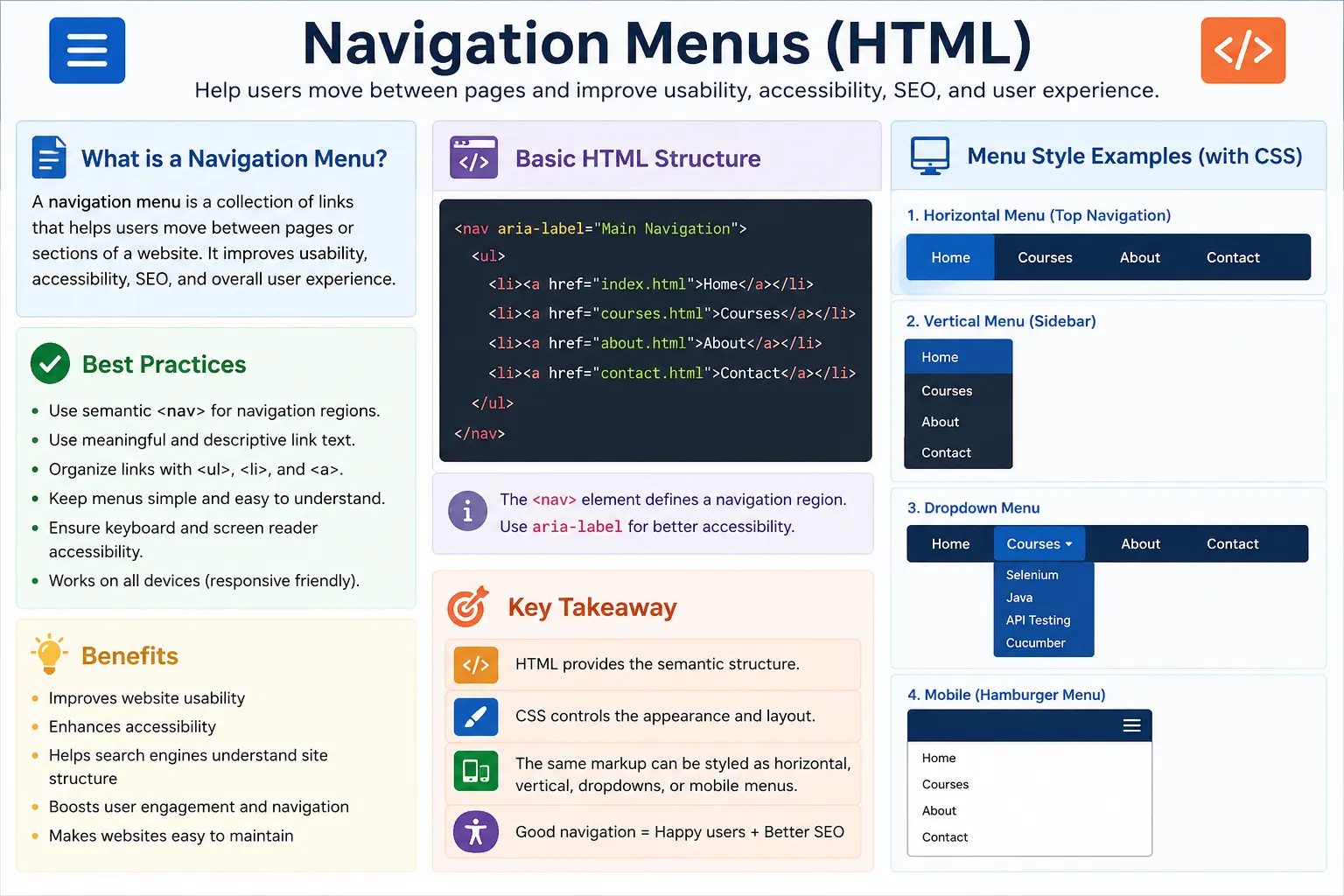
HTML provides the semantic <nav> element specifically for navigation menus. This element does not create a visual menu by itself. Instead, it gives meaning to a section of links. Browsers, screen readers, search engines, developers, and testing tools can recognize that the content inside <nav> is intended for navigation.
A professional navigation menu is usually built with a combination of semantic elements. The <nav> element identifies the navigation region, <ul> represents the list of menu items, <li> represents each menu item, and <a> creates the actual clickable links. CSS is then used to control the visual layout, such as horizontal menus, vertical sidebars, dropdowns, spacing, colors, and hover effects.
What Is a Navigation Menu?
A navigation menu is a group of hyperlinks used for website navigation. A simple menu may include links such as Home, Courses, Blog, About, and Contact. Each item links to a different page or a different section. The menu helps users understand the website structure and quickly reach the information they need.
Home
Courses
Blog
About
Contact
In HTML, those visible menu labels are usually anchor links. The menu itself should be grouped inside a navigation container so the document structure is meaningful.
Why Navigation Menus Are Important
Without navigation, users must guess where content exists. They may land on a homepage and have no clear path to courses, contact details, blog posts, pricing, documentation, or support. This increases confusion and makes users leave the page sooner.
With navigation, users can move through the website easily. A clear navigation menu improves user experience, supports accessibility, makes website exploration easier, and helps search engines understand site structure. It also creates consistency. When the same menu appears across pages, users learn the site's pattern and can move confidently.
Navigation is not only a design feature. It is a structural feature. It reflects the information architecture of the website. A strong navigation menu shows what the website considers important.
The <nav> Element
HTML5 introduced the <nav> element to represent a section containing navigation links. The element should be used for major navigation areas, such as the main menu, sidebar menu, table of contents, footer navigation, or page section navigation.
<nav>
  <a href="index.html">Home</a>
  <a href="courses.html">Courses</a>
  <a href="contact.html">Contact</a>
</nav>
This markup tells the browser that these links form a navigation section. The output may appear as simple inline links without CSS, but the semantic meaning is already correct.
Why Use <nav> Instead of <div>?
A <div> is a generic container. It does not describe the purpose of its content. A navigation menu can technically be placed inside a <div>, but that loses semantic meaning.
<!-- Less meaningful -->
<div>
  <a href="home.html">Home</a>
</div>
A better version uses <nav>.
<!-- Better -->
<nav>
  <a href="home.html">Home</a>
</nav>
The difference matters because <nav> provides semantic meaning. Screen readers can expose it as a navigation landmark. Search engines can understand the area as navigation. Developers reading the code immediately know its purpose. A generic <div> cannot communicate that meaning by itself.
Basic Navigation Menu
A basic navigation menu can be made with only the <nav> element and anchor tags.
<nav>
  <a href="index.html">Home</a>
  <a href="about.html">About</a>
  <a href="courses.html">Courses</a>
  <a href="contact.html">Contact</a>
</nav>
Without CSS, the output may appear as links in a row: Home About Courses Contact. This is valid HTML, but larger menus usually benefit from list structure because menu items form a logical collection.
Navigation Using Lists
The most common professional approach is to build navigation with <nav>, <ul>, <li>, and <a>. This structure represents the menu as a list of navigation items.
<nav>
  <ul>
    <li><a href="index.html">Home</a></li>
    <li><a href="about.html">About</a></li>
    <li><a href="courses.html">Courses</a></li>
    <li><a href="contact.html">Contact</a></li>
  </ul>
</nav>
This structure is clear because the menu is truly a list. Each menu item is represented by <li>, and each item contains a link. Screen readers can announce the list and the number of items, which helps users understand the navigation group.
Why Use Lists?
Navigation items form a logical collection. A menu with Home, Courses, Blog, and Contact is not random text. It is a set of related options. A list naturally expresses that relationship.
Menu Item 1
Menu Item 2
Menu Item 3
In HTML, this maps well to <ul> and <li>. The default browser rendering may show bullets, but CSS can remove them. The semantic structure remains useful even when the visual bullets are hidden.
Navigation Menu Structure
A well-structured menu often follows this pattern:
nav
 │
 └── ul
      │
      ├── li
      │    └── a
      │
      ├── li
      │    └── a
      │
      └── li
           └── a
This hierarchy is easy to read and easy to style. It also scales well when adding more items or dropdown submenus later.
<nav>
  <ul>
    <li><a href="home.html">Home</a></li>
    <li><a href="blog.html">Blog</a></li>
    <li><a href="services.html">Services</a></li>
  </ul>
</nav>
Internal Page Navigation Menu
An internal page navigation menu links to pages within the same website. This is the most common navigation type on websites.
<nav>
  <a href="index.html">Home</a>
  <a href="courses.html">Courses</a>
  <a href="blog.html">Blog</a>
</nav>
Internal menus help users move between primary site areas. They should use descriptive labels that match the destination. A link labeled Courses should go to a courses page or section.
External Navigation Menu
Some navigation menus link to external websites. This is common in resource pages, developer profiles, community pages, or documentation sections.
<nav>
  <a href="https://github.com">GitHub</a>
  <a href="https://stackoverflow.com">Stack Overflow</a>
</nav>
If external links open in a new tab with target="_blank", remember to include rel="noopener noreferrer" for security and privacy.
Section Navigation Menu
A section navigation menu is used for long pages. Instead of linking to separate pages, the menu links to sections within the same page using anchor IDs.
<nav>
  <a href="#intro">Introduction</a>
  <a href="#forms">Forms</a>
  <a href="#tables">Tables</a>
</nav>

<h2 id="intro">Introduction</h2>
<h2 id="forms">Forms</h2>
<h2 id="tables">Tables</h2>
This pattern is common in documentation, long tutorials, FAQs, and single-page sites. It lets users jump directly to the section they need.
Navigation Menu with Logo
Many websites place a logo or site name beside the navigation menu. This is usually done inside a header.
<header>
  <h1>SoftwareTips4U</h1>

  <nav>
    <a href="index.html">Home</a>
    <a href="courses.html">Courses</a>
    <a href="contact.html">Contact</a>
  </nav>
</header>
This is a common website pattern. The header identifies the site, and the navigation gives users paths to key pages.
Header Navigation
Most websites place primary navigation inside the <header>. The header often contains branding, navigation, search, account links, or a call-to-action.
<header>
  <nav>
    <a href="index.html">Home</a>
    <a href="courses.html">Courses</a>
    <a href="contact.html">Contact</a>
  </nav>
</header>
This placement is predictable. Users expect primary navigation near the top of the page.
Footer Navigation
Footer navigation appears at the bottom of a webpage. It often includes links such as About, Privacy Policy, Terms, Contact, Sitemap, Careers, or Support. Footer navigation usually supports secondary tasks rather than the main browsing flow.
<footer>
  <nav>
    <a href="about.html">About</a>
    <a href="privacy.html">Privacy</a>
    <a href="terms.html">Terms</a>
  </nav>
</footer>
Using <nav> in the footer is acceptable when the links form a navigation section. A page can have multiple <nav> elements.
Can a Page Have Multiple <nav> Elements?
Yes, a page can have multiple <nav> elements. For example, a site may have primary navigation in the header, a table of contents inside an article, and footer navigation at the bottom. Each navigation section should have a clear purpose.
When there are multiple navigation landmarks, accessibility can improve if they are labeled clearly. For example, a developer may use aria-label="Main navigation" or aria-label="Footer navigation" when needed.
<nav aria-label="Main navigation">
  ...
</nav>

<nav aria-label="Footer navigation">
  ...
</nav>
Browser Rendering
Without CSS, a list-based navigation menu may appear as a bulleted list.
• Home
• Courses
• Blog
• Contact
With CSS, the same HTML can become a horizontal menu bar.
Home | Courses | Blog | ContactThe important idea is that HTML provides the structure, while CSS provides the appearance. Do not damage semantic structure just to achieve a visual style.
Navigation and CSS
CSS is used to remove bullets, align items horizontally, add spacing, set colors, control hover states, and create responsive layouts. For example, bullets can be removed from the list.
nav ul {
  list-style: none;
}
Additional CSS can use flexbox to create a horizontal menu.
nav ul {
  display: flex;
  gap: 16px;
  list-style: none;
  padding: 0;
}
The HTML remains semantic while CSS handles the design. This separation makes the menu easier to maintain and adapt for mobile screens.
Accessibility Considerations
The <nav> element improves accessibility because screen readers can recognize it as a navigation landmark. Users can jump directly to navigation sections instead of listening through the entire page.
Good navigation also uses descriptive link text. A menu item should clearly describe its destination. About Us is better than Read More. Courses is better than Click Here. If there are multiple navigation regions, labels can help users distinguish them.
<nav aria-label="Course navigation">
  <ul>
    <li><a href="#intro">Introduction</a></li>
    <li><a href="#setup">Setup</a></li>
  </ul>
</nav>
Keyboard accessibility is also important. Links should be reachable with the Tab key, and focus styles should remain visible. CSS should not remove focus outlines without providing a clear replacement.
SEO Considerations
Navigation menus help search engines discover important pages and understand site structure. Clear anchor text gives context about linked pages. A link labeled HTML Course is more meaningful than a link labeled Read More.
Good navigation also helps distribute internal linking across the site. Important pages should be reachable through clear navigation paths. However, too many menu items can dilute clarity. Menus should prioritize the most useful and important destinations.
Real-World Example
A complete header navigation example combines branding, a semantic navigation region, a list, menu items, and links.
<header>
  <h1>SoftwareTips4U</h1>

  <nav>
    <ul>
      <li><a href="index.html">Home</a></li>
      <li><a href="courses.html">Courses</a></li>
      <li><a href="blog.html">Blog</a></li>
      <li><a href="contact.html">Contact</a></li>
    </ul>
  </nav>
</header>
Without CSS, this may render as a vertical list. With CSS, it can become a polished horizontal menu, a mobile menu, or a sidebar. The semantic HTML does not need to change.
Common Mistakes
A common mistake is using <div> instead of <nav> for major navigation. A <div> may work visually, but it does not provide navigation meaning.
<!-- Less meaningful -->
<div>
  Links
</div>
A better version uses <nav>.
<nav>
  Links
</nav>
Another mistake is missing list structure when the navigation is clearly a list of items. A menu should not be plain text placed inside <nav>. Use a list when the items form a collection.
Generic link text is also a mistake. A menu item should not say Read More if it links to About. Use About Us. Finally, avoid placing too many items in the main menu. A menu with twenty or more links can become cluttered and difficult to scan.
Selenium Perspective
From a Selenium automation perspective, semantic navigation is easy to locate and validate. A test can find the navigation element by tag name.
WebElement nav =
driver.findElement(By.tagName("nav"));
Menu links can be collected and checked.
List<WebElement> links =
driver.findElements(By.tagName("a"));
A test can print or validate navigation item text.
for (WebElement link : links) {
  System.out.println(link.getText());
}
In real projects, tests usually scope link searches inside the navigation element so that unrelated page links are not included. This makes tests more accurate.
Comparison Table
| Element | Purpose |
|---|---|
<nav> | Navigation section |
<ul> | Navigation list |
<li> | Menu item |
<a> | Navigation link |
Common Interview Questions
A common interview question is: what is the purpose of the <nav> element? The answer is that it represents a section of a page containing navigation links.
Another common question is: why is <nav> preferred over <div>? The answer is that <nav> provides semantic meaning, while <div> is only a generic container.
Interviewers may also ask whether a page can have multiple <nav> elements. Yes, a page can have multiple navigation regions, such as main navigation, article navigation, and footer navigation. They may ask which elements are commonly used inside navigation. The answer is <ul>, <li>, and <a>.
Another likely question is how <nav> improves accessibility. It helps screen readers recognize navigation landmarks, allowing users to move directly to navigation sections.
Interview-Ready Answer
The <nav> element is used to define a section of a webpage that contains navigation links. Navigation menus are typically built using <nav>, <ul>, <li>, and <a> elements. This structure provides semantic meaning, improves accessibility, supports SEO, and creates a clear user navigation experience.
Key Takeaway
A navigation menu is the roadmap of a website. It helps users move between pages, sections, and important resources. HTML should define the structure and meaning of the menu, while CSS should handle the appearance.
Use <nav> for important navigation regions, use lists when menu items form a collection, write descriptive link text, keep menus focused, and preserve keyboard and screen reader accessibility.
One-Line Insight
A navigation menu is the roadmap of a website, and the <nav> element is the semantic container that defines it.