<nav> Element
Introduction
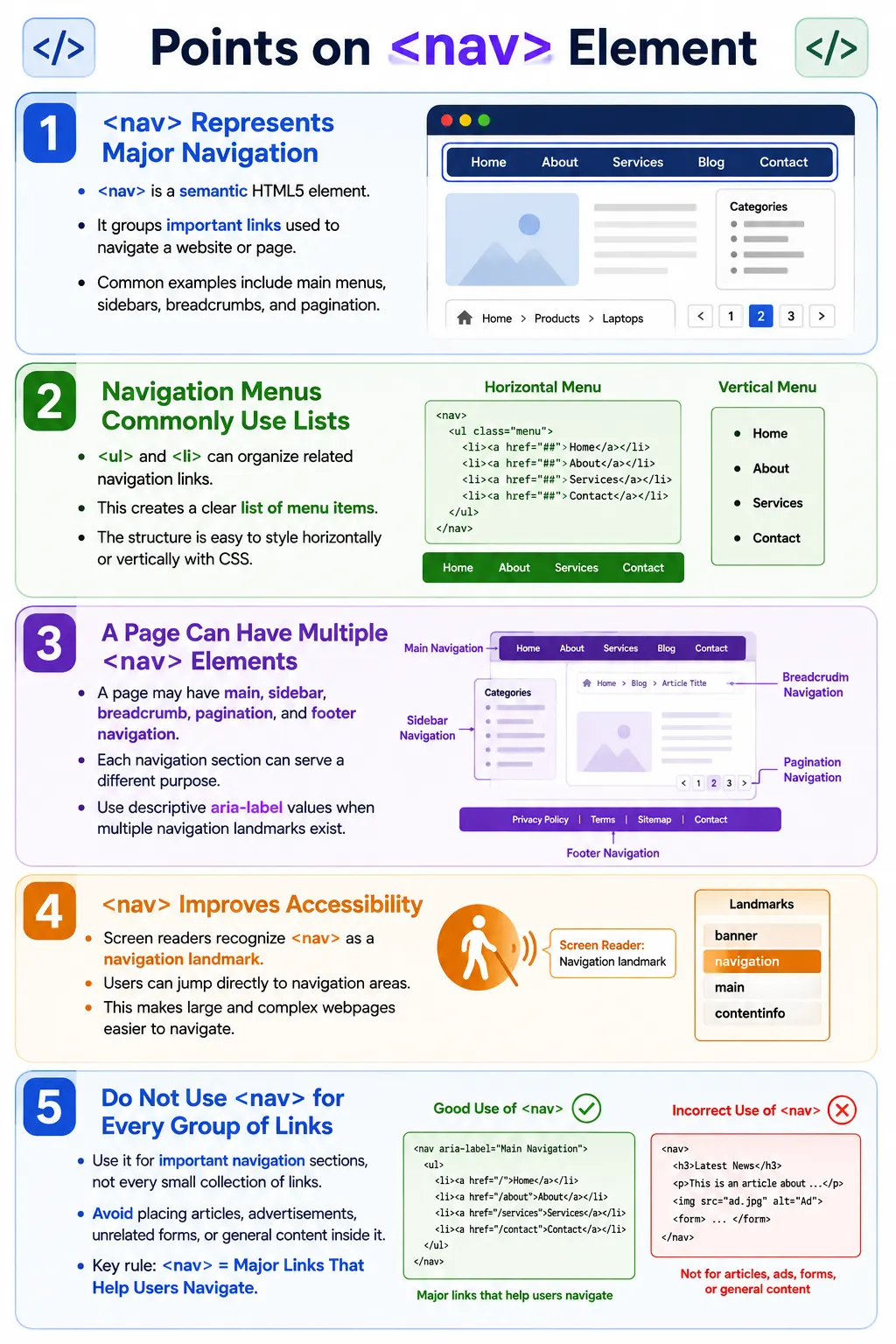
The <nav> element is a semantic HTML5 element used to define a section of a webpage that contains major navigation links. It helps users, browsers, search engines, and assistive technologies identify the primary navigation areas of a website. When used correctly, it makes the structure of a page clearer and makes navigation easier to understand.
Navigation is one of the most important parts of a website. Users rely on navigation to move between pages, explore course categories, open tutorials, reach contact pages, browse sections, move through pagination, or understand where they are inside a site. The <nav> element gives this important group of links a clear semantic role.
Typical navigation includes a main menu, sidebar navigation, table of contents, breadcrumb navigation, and pagination links. However, the <nav> element should be used only for important navigation sections. It should not wrap every small group of links on a page.
What Is the Nav Element?
The <nav> element represents a section whose primary purpose is navigation. Its syntax is simple.
<nav>
  ...
</nav>
Because it is semantic, it tells browsers and assistive technologies that the links inside this region help users navigate the website or the current page. It is more meaningful than a generic container because the element name itself describes the purpose of the content.
The content inside <nav> is usually a set of links. These links may point to site pages, major sections, course topics, breadcrumb ancestors, pagination pages, or table-of-contents headings.
Why Use Nav?
Before HTML5, navigation menus were usually created using generic <div> elements.
<div class="menu">
  ...
</div>
This can work visually, but the HTML itself does not clearly indicate that the section is for navigation. The meaning depends on a class name that may exist mainly for styling.
Using <nav> makes the purpose immediately clear.
<nav>
  ...
</nav>
Developers can understand the structure faster. Screen readers can announce the region as navigation. Search engines can recognize that the links are part of the site structure. The page becomes easier to interpret because the HTML carries meaning, not just layout.
Typical Content Inside Nav
A navigation section often contains links such as Home, About, Courses, Blog, Contact, Login, and Register. In a learning website, navigation might include Java, HTML, CSS, Selenium, API Testing, Git, SQL, and other course links.
Home
Courses
Tutorials
Contact
The links should represent meaningful navigation paths. A <nav> section is not meant for unrelated advertisements, random images, article content, or general layout blocks.
Basic Example
A simple navigation area can be created using the <nav> element and anchor tags.
<nav>
  <a href="index.html">Home</a>
  <a href="courses.html">Courses</a>
  <a href="contact.html">Contact</a>
</nav>
In the browser, users see the links and can click them to move around the website.
Home
Courses
Contact
This example is valid. For full menus, however, it is often better to use a list structure inside the nav element.
Navigation Using Lists
Navigation menus are commonly built using unordered lists. A menu is naturally a list of links, so <ul> and <li> provide a clear semantic structure.
<nav>
  <ul>
    <li><a href="index.html">Home</a></li>
    <li><a href="courses.html">Courses</a></li>
    <li><a href="contact.html">Contact</a></li>
  </ul>
</nav>
This structure tells the browser and assistive technologies that the navigation menu is a list of related links. It is also easy to style horizontally or vertically using CSS.
Browser Structure
When the browser reads a navigation section, it recognizes the <nav> element as a navigation landmark.
Navigation
  |
Home
Courses
Contact
This landmark can be exposed to assistive technologies, allowing users to jump directly to navigation rather than reading through the whole page from the top.
Main Website Navigation
The most common use of <nav> is the primary website navigation inside a header.
<header>
  <h1>SoftwareTips4U</h1>

  <nav>
    <ul>
      <li><a href="#">Home</a></li>
      <li><a href="#">Java</a></li>
      <li><a href="#">HTML</a></li>
      <li><a href="#">CSS</a></li>
    </ul>
  </nav>
</header>
This structure is clear. The header introduces the site, and the nav element contains the primary menu. Users can quickly access major sections of the website.
Multiple Navigation Sections
A webpage may contain multiple navigation areas. For example, a page can have header navigation, sidebar navigation, breadcrumb navigation, pagination navigation, and footer navigation.
Header navigation
  |
Sidebar navigation
  |
Footer navigation
Each navigation section serves a different purpose. When multiple <nav> elements exist, descriptive accessible labels are useful so screen reader users can distinguish them.
Breadcrumb Navigation
Breadcrumb navigation helps users understand where they are within a site hierarchy. It is commonly wrapped in a <nav> element with an accessible label.
<nav aria-label="Breadcrumb">
  <a href="index.html">Home</a>
  >
  <a href="courses.html">Courses</a>
  >
  HTML
</nav>
This tells assistive technologies that the navigation is specifically a breadcrumb trail. The label helps users understand the purpose of this navigation landmark.
Pagination Navigation
Pagination is another valid use of <nav>. It helps users move between pages of content.
<nav aria-label="Pagination">
  <a href="#">Previous</a>
  <a href="#">1</a>
  <a href="#">2</a>
  <a href="#">Next</a>
</nav>
Because pagination controls are navigation links, wrapping them in <nav> gives them a meaningful landmark. The aria-label explains that this is pagination, not the main menu.
Sidebar Navigation
Course pages, documentation sites, and dashboards often use sidebar navigation. This can be placed inside an <aside> if the sidebar is supplementary to the main content.
<aside>
  <nav>
    <ul>
      <li><a href="#">HTML</a></li>
      <li><a href="#">CSS</a></li>
      <li><a href="#">JavaScript</a></li>
    </ul>
  </nav>
</aside>
This navigation is specific to the sidebar. It may represent a course outline, table of contents, related topics, or section links.
What Should Not Be Inside Nav?
The <nav> element should primarily contain navigation links. Avoid placing advertisements, full articles, unrelated images, large unrelated forms, or general page content inside it.
A navigation element should help users move through a site or page. If the content does not serve a navigation purpose, another element is likely more appropriate.
Browser Workflow
When the browser reads the HTML, it identifies the <nav> element as a navigation landmark and renders the links inside it.
Read HTML
  |
<nav>
  |
Identify navigation landmark
  |
Render links
This semantic information helps assistive technologies and improves document structure without requiring extra JavaScript.
Accessibility Benefits
Screen readers recognize <nav> as a navigation landmark. Users can quickly jump to navigation sections instead of reading through every element on the page.
Navigation
  |
Home
Courses
Contact
This is particularly helpful on large websites with headers, sidebars, article content, related links, and footer areas. Meaningful navigation landmarks make the page easier to move through.
SEO Benefits
Search engines use page structure to understand how content is organized. Links inside <nav> are understood as part of the site's navigation structure. This helps search engines interpret the page layout and relationship between important pages more effectively.
Semantic navigation alone does not guarantee ranking improvements, but it supports clearer structure, better crawl understanding, and better maintainability.
ARIA with Navigation
When multiple navigation sections exist, provide descriptive labels so assistive technologies can distinguish between them.
<nav aria-label="Main Navigation">
  ...
</nav>
Another example is footer navigation:
<nav aria-label="Footer Navigation">
  ...
</nav>
Labels are especially useful when a page contains main navigation, breadcrumb navigation, pagination, and footer navigation. Without labels, screen reader users may hear several navigation landmarks without knowing which one is which.
Styling Navigation
The <nav> element can be styled with CSS like any other element.
nav {
  background: navy;
  padding: 10px;
}

nav a {
  color: white;
  margin-right: 15px;
  text-decoration: none;
}
Navigation can be styled horizontally, vertically, as a sidebar, as a dropdown, as tabs, or as responsive mobile menus. Styling changes appearance, but the semantic purpose remains navigation.
Real-World Example
A SoftwareTips4U main menu can use <nav> with an accessible label and an unordered list.
<header>
  <h1>SoftwareTips4U</h1>

  <nav aria-label="Main Navigation">
    <ul>
      <li><a href="#">Home</a></li>
      <li><a href="#">HTML</a></li>
      <li><a href="#">CSS</a></li>
      <li><a href="#">Java</a></li>
      <li><a href="#">Selenium</a></li>
      <li><a href="#">API Testing</a></li>
      <li><a href="#">Contact</a></li>
    </ul>
  </nav>
</header>
This structure clearly identifies the main menu. It is semantic, accessible, and easy for developers and testers to understand.
Common Mistakes
A common mistake is using a generic <div> instead of <nav>.
<div class="menu">
  ...
</div>
A better version is:
<nav>
  ...
</nav>
Another mistake is wrapping every small group of links in <nav>. A couple of miscellaneous links such as Privacy Policy and Terms do not always need a navigation landmark unless they represent an important navigation section.
Menus are also sometimes written as a flat group of anchor tags. This is valid, but for full menus a list structure is generally better because it provides clearer grouping.
If multiple <nav> elements are present, missing accessible labels can also create confusion. Use aria-label values such as "Main Navigation," "Breadcrumb," "Pagination," or "Footer Navigation."
Complete Example
The following complete document shows a semantic page structure with header, navigation, main content, and footer.
<!DOCTYPE html>
<html>
<head>
  <title>SoftwareTips4U</title>
</head>
<body>
  <header>
    <h1>SoftwareTips4U</h1>

    <nav aria-label="Main Navigation">
      <ul>
        <li><a href="#">Home</a></li>
        <li><a href="#">Courses</a></li>
        <li><a href="#">Tutorials</a></li>
        <li><a href="#">About</a></li>
        <li><a href="#">Contact</a></li>
      </ul>
    </nav>
  </header>

  <main>
    <h2>Latest Tutorials</h2>
    <p>Welcome to SoftwareTips4U.</p>
  </main>

  <footer>
    <p>© 2026 SoftwareTips4U</p>
  </footer>
</body>
</html>
This page is easy to understand because each region has a clear semantic role. The navigation is not just a styled block; it is identified as the main navigation landmark.
Selenium Perspective
Selenium can locate navigation areas using the tag name.
WebElement nav =
driver.findElement(
    By.tagName("nav"));
All menu links inside navigation can be located with a CSS selector.
List<WebElement> links =
driver.findElements(
    By.cssSelector("nav a"));
A specific menu item can be clicked using link text.
driver.findElement(
    By.linkText("Courses"))
    .click();
Automation testers commonly verify navigation visibility, menu items, link destinations, responsive menus, keyboard accessibility, breadcrumb navigation, and pagination behavior.
Comparison Table
<nav> |
<div> |
|---|---|
| Semantic navigation landmark | Generic container |
| Identifies major navigation | No inherent meaning |
| Improves accessibility | No semantic benefit by itself |
| Helps search engines understand site structure | Used mainly for layout or grouping |
Common Interview Questions
What is the purpose of the <nav> element? It defines a section containing major navigation links.
Can a page contain multiple <nav> elements? Yes. A page can have main navigation, sidebar navigation, breadcrumb navigation, and footer navigation.
Should every group of links be placed inside <nav>? No. Use <nav> only for major navigation sections.
Why are lists commonly used inside <nav>? Lists provide a logical, semantic structure for navigation menus and improve accessibility.
Why use aria-label on <nav>? It helps distinguish multiple navigation landmarks for screen reader users.
Interview-Ready Answer
The <nav> element is a semantic HTML5 element used to define a section of a webpage that contains major navigation links. It helps browsers, search engines, and assistive technologies identify the site's navigation areas. A page may contain multiple <nav> elements for different purposes, such as the main menu, sidebar navigation, breadcrumbs, or pagination. Navigation menus are commonly built using unordered lists inside <nav> to provide a clear and accessible structure.
One-Line Insight
<nav> tells browsers and users, "These links help you move around the website."