Mobile-First HTML
Introduction
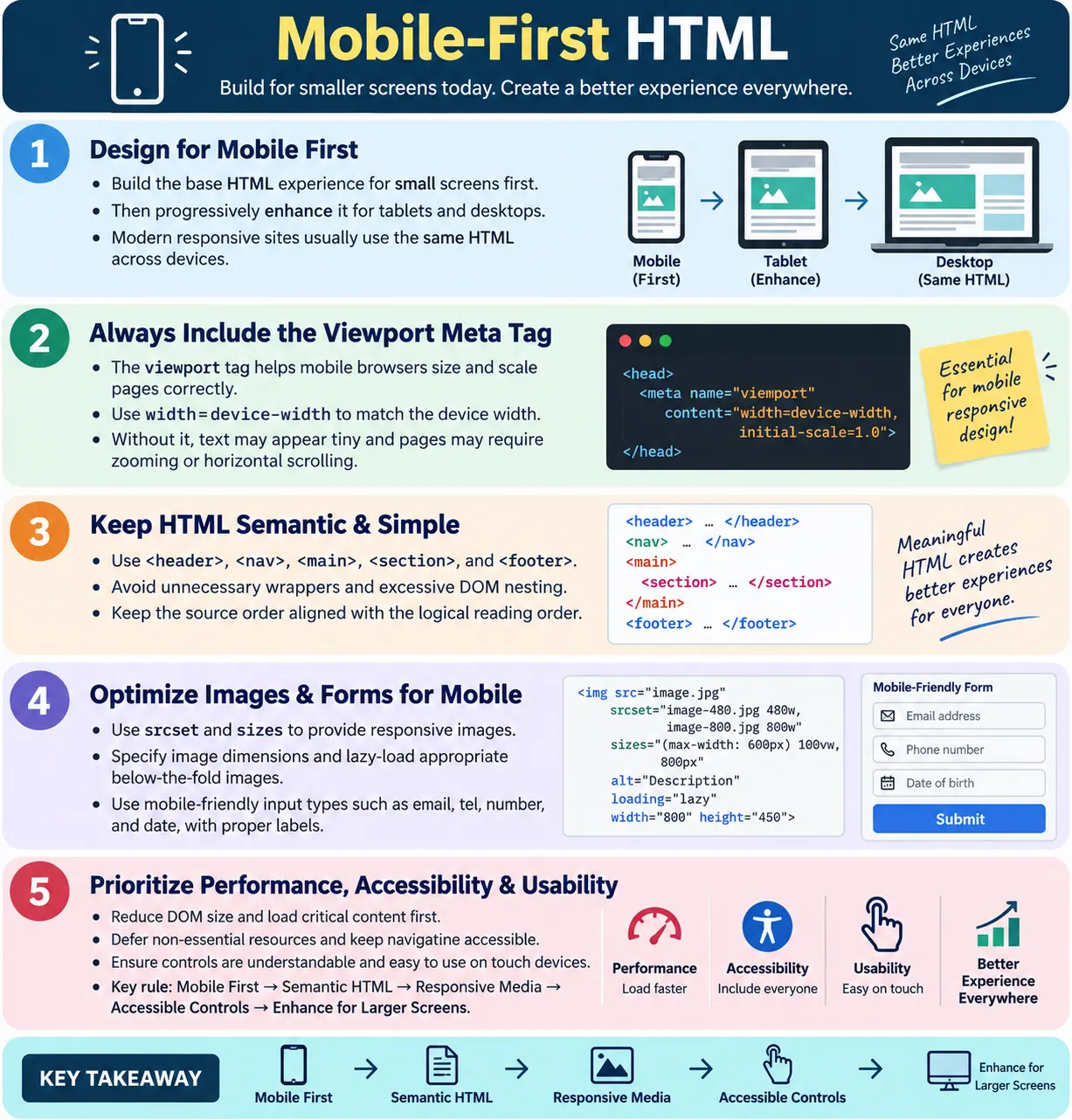
Mobile-First HTML is the practice of designing and structuring HTML with mobile devices as the primary target, then progressively enhancing the experience for larger screens such as tablets and desktops. The idea is not that desktop users are ignored. The idea is that the base experience should work well on the smallest and most constrained screens first. Once that foundation is solid, CSS and JavaScript can enhance layout, spacing, navigation, media, and interactions for larger screens.
Mobile-first thinking matters because many users browse websites using phones. Mobile devices often have smaller screens, touch input, variable network quality, limited processing power, and different browser behavior compared with desktop computers. A page that looks acceptable on a large monitor can become frustrating on a phone if the HTML structure is cluttered, images are too large, forms use wrong input types, touch targets are small, or the viewport is misconfigured.
The HTML structure should prioritize simple layout, fast loading, semantic elements, accessibility, responsive design, and performance. Although CSS handles most responsive behavior, HTML plays a critical role by providing a clean, semantic, and responsive foundation. CSS can adapt presentation, but it cannot fully fix poor document structure. Mobile-first HTML gives the browser, search engines, assistive technologies, and users a clear starting point.
What Is Mobile-First HTML?
Mobile-First HTML means creating HTML that works well on small screens before adding enhancements for larger devices. The same HTML usually serves all devices. Instead of creating a separate mobile website with different markup, modern responsive websites use one semantic document and adapt it with CSS media queries, flexible layouts, responsive images, and progressive enhancement.
Design for Mobile
  ↓
Create Clean HTML
  ↓
Apply Responsive CSS
  ↓
Enhance for Tablets
  ↓
Enhance for Desktop
This workflow keeps the base experience focused. On a small screen, content should be readable, navigation should be usable, forms should be easy to complete, and the page should load quickly. Larger screens can then receive wider layouts, multi-column sections, richer navigation, larger imagery, and optional enhancements. The HTML remains the common foundation.
Mobile-first HTML is also a design discipline. It forces teams to decide what content matters most. Small screens do not have room for clutter. A mobile-first page needs clear headings, concise sections, logical source order, accessible controls, and efficient media. These qualities usually improve the desktop experience as well.
Why Mobile-First?
Today, most users browse websites using mobile devices. A website that fails on mobile fails for a large part of its audience. Mobile-first development improves user experience because it starts from the most constrained environment. If the page works well on mobile, it can usually scale up to desktop more gracefully than a desktop-heavy design can shrink down to mobile.
- Better user experience
- Faster loading
- Simpler layouts
- Improved accessibility
- Better maintainability
- Stronger performance discipline
Search engines also primarily use the mobile version of webpages for indexing, a process known as mobile-first indexing. This means the mobile experience is not a secondary concern for SEO. If important content is hidden, broken, inaccessible, or poorly structured on mobile, the page may not communicate its value as effectively as it should.
Mobile-first also improves maintainability. Designing for desktop first often produces complex layouts that later need fixes for mobile. Designing for mobile first encourages simpler structure, fewer assumptions, and cleaner content hierarchy. The result is often easier to maintain across all devices.
Basic Mobile-First HTML Structure
A mobile-first document begins with standard, clean HTML. It includes the correct doctype, language attribute, character encoding, viewport meta tag, page title, semantic body structure, and readable content. This basic structure works across different screen sizes and gives CSS a reliable foundation.
<!DOCTYPE html>
<html lang="en">
<head>
  <meta charset="UTF-8">
  <meta
    name="viewport"
    content="width=device-width, initial-scale=1.0">
  <title>HTML Course</title>
</head>
<body>
  <header>
    <h1>HTML Course</h1>
  </header>
  <main>
    <p>Learn HTML from beginner to advanced.</p>
  </main>
</body>
</html>
This structure does not assume a desktop layout. It places the main heading and content in a simple order that works well on small screens. CSS can later make the desktop view wider, add columns, reposition navigation, or adjust spacing. The HTML itself remains understandable and accessible.
Viewport Meta Tag
One of the most important mobile HTML elements is the viewport meta tag. Without it, mobile browsers may render the page using a wider virtual layout viewport and then scale the page down. This often makes text tiny and forces users to zoom or scroll horizontally. The viewport tag tells mobile browsers how to size and scale the page.
<meta
  name="viewport"
  content="width=device-width, initial-scale=1.0">
This tag tells mobile browsers to match the page width to the device width and display content at the correct initial zoom level. It is a small line of HTML with a large impact. Almost every responsive page should include it.
The viewport tag does not make a poor layout responsive by itself. It enables the page to behave correctly on mobile devices, but the rest of the HTML and CSS must still be designed well. Think of it as a required foundation for responsive behavior, not the entire solution.
Use Semantic HTML
Semantic HTML is especially important in mobile-first development because small screens need clarity. Elements such as <header>, <nav>, <main>, <section>, and <footer> describe the purpose of each area. This helps browsers, assistive technologies, search engines, and developers understand the page structure.
Good:

<header>
<nav>
<main>
<section>
<footer>

Instead of:

<div>
<div>
<div>
Semantic HTML improves accessibility, SEO, and maintainability. Screen reader users can navigate landmarks. Search engines can understand content hierarchy. Developers can identify page regions quickly. CSS can target meaningful structures without relying on endless generic wrappers.
Mobile-first does not mean minimal meaning. It means strong meaning with efficient structure. A mobile-friendly page should use fewer unnecessary wrappers but preserve the elements that communicate purpose.
Keep HTML Simple
Simple HTML is easier to maintain and generally performs better. Mobile devices can be less powerful than desktop machines, so unnecessary elements and deep nesting can have a bigger impact. A clean DOM helps the browser parse, style, layout, and paint the page more efficiently.
Bad:

<div>
  <div>
    <div>
      <p>HTML</p>
    </div>
  </div>
</div>

Better:

<section>
  <p>HTML</p>
</section>
Every wrapper should have a reason. If a container controls layout, groups content semantically, or supports a needed behavior, it may be justified. If it exists only because a template was copied or a previous layout required it, it may be removable. Mobile-first HTML benefits from structural discipline.
Simple source order also matters. On mobile, content usually appears in a single column. The source order should match the logical reading order. Do not rely on CSS to visually rearrange critical content in ways that make keyboard navigation or screen reader order confusing.
Responsive Images
Images are one of the biggest performance concerns on mobile. A desktop-sized image served to a phone wastes bandwidth and slows rendering. Responsive image techniques allow the browser to choose the most appropriate image for the device and layout. HTML provides srcset and sizes for this purpose.
<img
  src="course-800.webp"
  srcset="course-400.webp 400w,
          course-800.webp 800w,
          course-1200.webp 1200w"
  sizes="100vw"
  alt="HTML Course">
In this example, the browser can choose from multiple image widths. A small phone may download the 400-pixel image, while a larger device may download a larger version. This saves bandwidth and improves load time. The browser makes the decision based on viewport size, pixel density, and the sizes hint.
Responsive images are especially important for hero images, course thumbnails, product images, blog illustrations, and gallery content. They help the same HTML serve different devices efficiently.
Image Dimensions
Specifying image width and height helps reduce layout shifts. When the browser knows the image dimensions, it can reserve the correct space before the image finishes downloading. Without dimensions, content may jump when the image loads, especially on mobile where layout width is narrow and visual shifts are more noticeable.
<img
  src="course.webp"
  width="800"
  height="400"
  alt="HTML Course">
Image dimensions do not prevent responsive scaling. CSS can still make the image fit the available container. The attributes give the browser the aspect ratio so it can preserve space. This improves visual stability and supports better Core Web Vitals, especially Cumulative Layout Shift.
Lazy Loading
Images below the fold can be lazy-loaded. Lazy loading delays downloading images until they are close to the viewport. This reduces initial network usage and helps the first visible content load faster. Native HTML lazy loading is simple to use.
<img
  src="lesson.webp"
  loading="lazy"
  alt="Lesson">
Avoid lazy-loading the hero image because it is visible immediately and often contributes to Largest Contentful Paint. The hero image should usually load eagerly. Lazy loading is best for images lower on the page, related content thumbnails, galleries, and secondary sections.
Lazy-loaded images still need meaningful alt text and correct dimensions. Lazy loading changes when an image loads, not whether it needs to be accessible or optimized.
Mobile-Friendly Forms
Forms are one of the places where HTML directly improves mobile usability. Appropriate input types allow mobile browsers to display optimized keyboards and controls. For example, an email field should use type="email" instead of a generic text input. A phone field should use type="tel". A date field can use type="date" where appropriate.
<input type="email">

<input type="tel">

<input type="number">

<input type="date">
Correct input types reduce user effort. The email keyboard may show the @ symbol more easily. The telephone keyboard may show digits. Date inputs may show a date picker. These small improvements matter on touch devices because typing is slower and more error-prone than on a physical keyboard.
Mobile-friendly forms should also use sensible field order, clear labels, helpful validation messages, and buttons that are easy to tap. HTML provides the foundation for all of these behaviors.
Accessible Labels
Always associate labels with form fields. Labels improve usability on both desktop and mobile devices. On touch screens, tapping a label can focus the associated input. For screen reader users, labels describe what each field means. Without labels, forms become harder to understand and complete.
<label for="email">
  Email
</label>

<input
  id="email"
  type="email">
The for attribute on the label should match the id of the input. This creates an explicit connection. Placeholder text is not a replacement for a label because it disappears when users type and may not be announced consistently as the field name.
Labels are part of mobile-first quality because mobile forms must be easy to use under constrained conditions. Users may be outdoors, multitasking, using one hand, or relying on assistive technology. Clear labels reduce friction.
Buttons and Touch Targets
Buttons should have meaningful text. A button labeled Enroll Now is clearer than a vague label such as Click. Mobile users need controls that are easy to understand and easy to tap. HTML provides the button element and accessible text; CSS handles size, spacing, and visual treatment.
<button>
  Enroll Now
</button>
Large, clearly labeled buttons are easier to use on touch devices. Links and buttons should not be packed too closely together. While the exact dimensions are handled in CSS, HTML should use the correct interactive elements. Use <button> for actions and <a> for navigation. This distinction helps accessibility and behavior.
Navigation
Mobile navigation should be simple. A navigation menu may collapse visually on small screens, but the HTML should still be semantic and accessible. A common structure uses <nav>, a list, and links. CSS and JavaScript can then adapt the presentation for mobile.
<nav>
  <ul>
    <li>
      <a href="/html">HTML</a>
    </li>
    <li>
      <a href="/css">CSS</a>
    </li>
  </ul>
</nav>
Responsive navigation behavior is typically handled with CSS and JavaScript. The HTML should provide a logical list of links, meaningful labels, and a clear navigation region. If a menu is collapsible, the button that opens it should be accessible and should communicate its state using appropriate attributes where needed.
Mobile navigation should not hide important links in a way that keyboard users or screen readers cannot access. The visual design may change, but the underlying structure should remain usable.
Performance
Mobile-first HTML should minimize unnecessary elements, reduce DOM size, optimize images, load critical content first, and defer non-essential resources. Mobile performance is affected by network speed, device power, browser behavior, and page complexity. Clean HTML helps reduce the initial work the browser must do.
- Minimize unnecessary elements
- Reduce DOM size
- Optimize images
- Load critical content first
- Defer non-essential resources
- Use responsive media
The HTML document should expose important content early. The main heading, intro text, navigation, and primary action should not depend on a large script bundle before appearing. Non-critical images, widgets, and below-the-fold content can load later. This improves perceived speed.
Browser Workflow
The browser workflow starts with HTML. A mobile browser downloads the HTML, parses it, applies responsive CSS, and renders the page. The HTML provides the structure that CSS adapts for different screens. If the structure is clean, CSS can adapt it more easily. If the structure is bloated or poorly ordered, responsive CSS becomes harder and performance can suffer.
Mobile Browser
  ↓
Download HTML
  ↓
Parse HTML
  ↓
Apply Responsive CSS
  ↓
Render Page
This workflow shows why HTML matters even though CSS handles layout. The browser cannot apply responsive layout to a meaningful document if the document itself is disorganized. Mobile-first HTML gives the browser a good structure from the start.
SEO Benefits
Mobile-first HTML supports SEO by providing semantic structure, supporting mobile-first indexing, improving accessibility, enhancing page performance, and improving Core Web Vitals. Search engines primarily use the mobile version of content for indexing, so mobile quality affects how well the page communicates its topic and value.
- Providing semantic structure
- Supporting mobile-first indexing
- Improving accessibility
- Enhancing page performance
- Improving Core Web Vitals
A page with clean headings, readable text, accessible links, meaningful images, and fast rendering gives search engines clearer signals. Mobile-first HTML also helps avoid problems such as hidden important content, inaccessible navigation, and oversized media that slows mobile users.
Accessibility Benefits
Mobile-friendly HTML should include semantic elements, labels, alt text, keyboard accessibility, and proper heading hierarchy. Accessibility improvements benefit users across all devices. A user with a screen reader, keyboard, switch device, voice control, or touch screen needs clear structure and predictable controls.
- Semantic elements
- Labels
- Alt text
- Keyboard accessibility
- Proper heading hierarchy
Accessibility is not separate from mobile-first design. Many mobile usability improvements overlap with accessibility: clear labels, large controls, logical order, meaningful headings, and simple navigation. When HTML is semantic and accessible, the page works better for more users.
Best Practices
Mobile-first HTML follows a set of practical habits. Include the viewport meta tag. Use semantic HTML. Keep the DOM simple. Optimize images. Use responsive images. Specify image dimensions. Use proper input types. Add labels to forms. Lazy-load below-the-fold images. Prioritize critical content. These practices create a strong base for responsive CSS and JavaScript enhancements.
- Include the viewport meta tag
- Use semantic HTML
- Keep the DOM simple
- Optimize images
- Use responsive images
- Specify image dimensions
- Use proper input types
- Add labels to forms
- Lazy-load below-the-fold images
- Prioritize critical content
These practices are most effective when used together. A viewport tag helps scaling. Semantic HTML helps structure. Responsive images help performance. Labels help forms. Lazy loading helps the first render. Mobile-first quality comes from the combination.
Planning Mobile-First Content Order
Mobile-first HTML should begin with content order. On a small screen, users usually read from top to bottom in a single column. The HTML source order should therefore follow the natural order of understanding: page header, navigation, main heading, introduction, primary content, supporting sections, and footer. This order helps visual users, keyboard users, screen reader users, and search engines. It also reduces the need for CSS tricks that visually reorder content in confusing ways.
A common desktop-first mistake is placing decorative or secondary content before the main content because it looks good in a wide layout. On mobile, that same order can force users to scroll past banners, sidebars, ads, or large menus before reaching the reason they opened the page. Mobile-first planning asks what the user needs first. The most important content should appear early in the HTML and early in the visual flow.
For a tutorial page, the first content should usually include the article title, short introduction, and the first meaningful explanation. For a product page, it may include the product name, image, price, key action, and essential details. For a form page, it may include a clear heading, instructions, and the form fields. Secondary links, recommendations, comments, and footer content can appear later. This structure improves both usability and performance because the browser can render meaningful content earlier.
Testing Mobile-First HTML
Testing mobile-first HTML requires more than shrinking the browser once. Developers and testers should check several viewport widths, including small phones, large phones, tablets, and desktop screens. The goal is to confirm that the same HTML remains readable, usable, and accessible as the layout changes. Important content should not disappear. Forms should remain usable. Navigation should remain reachable. Images should scale without causing horizontal scrolling.
Browser developer tools are useful for quick checks, but real device testing is also valuable. A resized desktop browser does not perfectly represent touch input, mobile browser UI, network conditions, pixel density, or device performance. At minimum, teams should test with common mobile viewport sizes and verify touch-friendly behavior. For important workflows, testing on actual phones gives better confidence.
Testing should include orientation changes, zoom behavior, keyboard focus order, form entry, menu interaction, image loading, and page speed. If users zoom in, text should remain readable and layout should not break. If a virtual keyboard opens, form fields should remain visible. If navigation collapses into a menu, it should open, close, and expose links correctly. Mobile-first HTML is successful only when the page works under realistic mobile conditions.
Common Mistakes
A missing viewport meta tag is one of the most common mobile mistakes. Without it, the page may not display correctly on mobile devices. Text can appear too small, and users may need to zoom or scroll horizontally. Another common mistake is serving unnecessarily large images to mobile users. Responsive images should be used where appropriate.
Bad:

<head>
  <title>Course</title>
</head>
Excessive DOM size is another problem. Too many nested elements increase rendering work, especially on lower-powered mobile devices. Wrong input types also hurt usability. An email field should not use a generic text input when type="email" can provide a better keyboard. Tiny touch targets are another major issue because small buttons and links are difficult to tap accurately.
Another mistake is treating mobile as an afterthought. If a page is designed only for desktop first, mobile fixes often become a patchwork of overrides. A mobile-first approach keeps the base simpler and reduces the need for complicated corrections.
Selenium Perspective
Automation testers commonly verify mobile viewport behavior, responsive layouts, mobile navigation, mobile form input types, lazy-loaded images, and correct rendering on different screen sizes. Selenium can resize the browser window to simulate common mobile viewports and verify that important content remains visible and usable.
driver.manage().window().setSize(
  new Dimension(390, 844));
This simulates a mobile-sized browser window for responsive testing. Testers can then check whether the main heading is visible, forms use correct input types, navigation opens and closes correctly, buttons are clickable, and lazy-loaded images appear after scrolling. Real device testing is still valuable because browser behavior, touch input, and device performance can differ from a resized desktop browser.
Common Interview Questions
What is Mobile-First HTML? Mobile-First HTML is the practice of structuring HTML for mobile devices first, then enhancing the experience for larger screens.
Why is the viewport meta tag important? It tells mobile browsers how to scale and size the webpage correctly.
Does HTML alone make a page responsive? No. HTML provides the structure, while CSS using techniques such as media queries, Flexbox, and Grid is primarily responsible for adapting layouts to different screen sizes.
Why use semantic HTML in mobile-first development? Semantic HTML improves accessibility, SEO, and maintainability while providing a clear document structure.
Should mobile pages have different HTML? Usually, no. Modern responsive websites typically use the same HTML across all devices, with CSS and JavaScript adapting presentation and interactions.
How does Mobile-First HTML improve SEO? It supports mobile-first indexing, improves accessibility, enhances performance, and provides a better user experience.
Comparison Table
| Mobile-First HTML | Traditional Desktop-First HTML |
|---|---|
| Designed for small screens first | Designed for large screens first |
| Uses viewport meta tag | May overlook mobile optimization |
| Simple HTML structure | Often more complex layouts |
| Optimized for touch devices | Optimized primarily for mouse interaction |
| Supports mobile-first indexing | May require more adaptation for mobile |
Interview-Ready Answer
Mobile-First HTML is the practice of creating clean, semantic HTML that is optimized for mobile devices before enhancing the experience for larger screens. It includes using the viewport meta tag, semantic HTML elements, responsive images, appropriate form input types, accessible labels, optimized DOM structure, and lazy loading for non-critical content. While CSS handles most responsive layout behavior, Mobile-First HTML provides the semantic and performance-focused foundation that supports responsive design, accessibility, Core Web Vitals, and mobile-first indexing by search engines.
A strong answer should also mention that modern responsive sites usually use the same HTML for all devices. The HTML should be logical, accessible, and lightweight, while CSS and JavaScript adapt presentation and behavior. Mobile-first does not mean mobile-only. It means the base experience works well on small screens and progressively improves on larger screens.
One-Line Insight
Mobile-First HTML builds a lightweight, semantic foundation that works perfectly on small screens and scales gracefully to larger devices.