Menu Structures Using Lists
Introduction
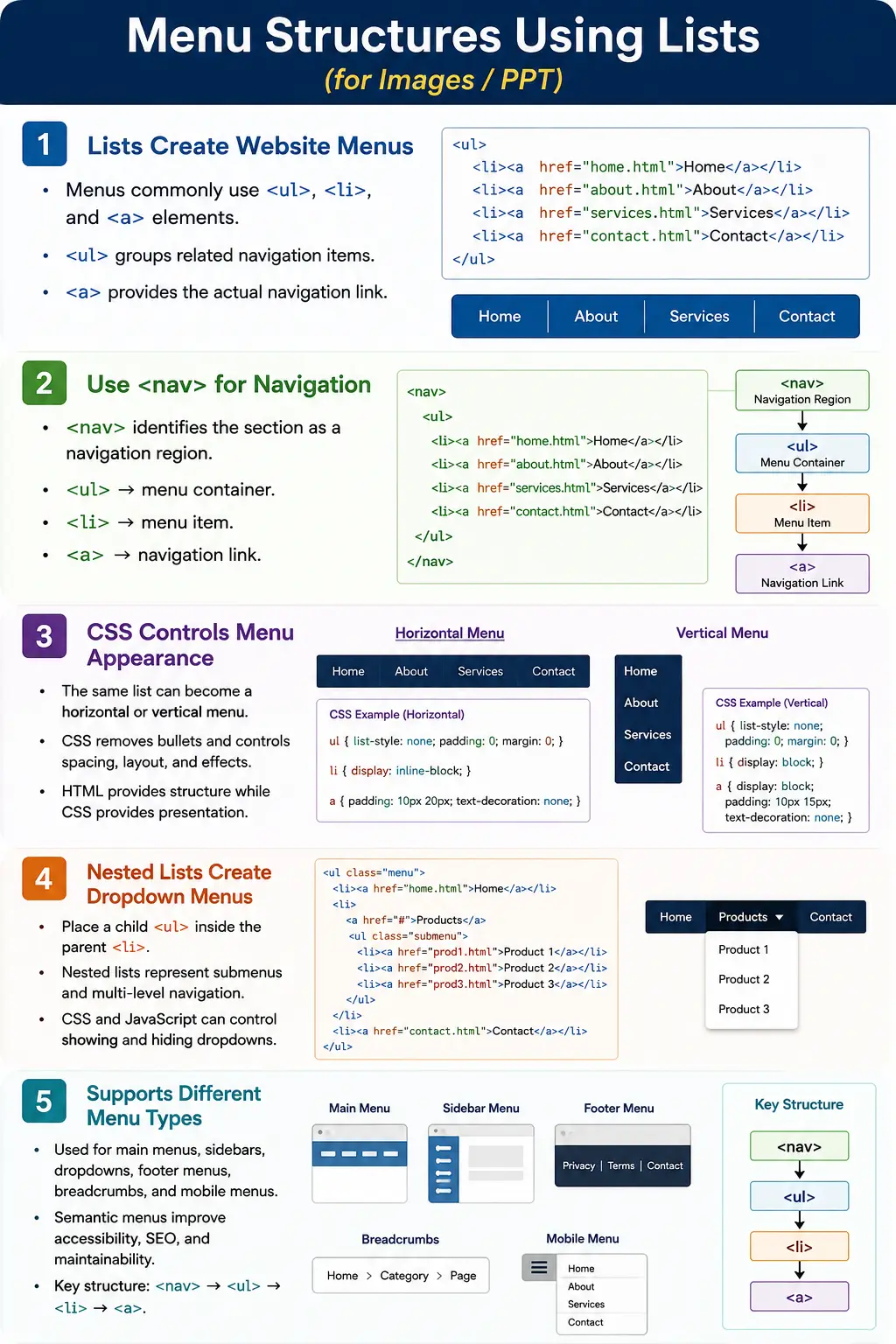
One of the most common uses of HTML lists is creating website menus and navigation systems. Professional websites typically build menus using <ul>, <li>, and <a> elements, usually wrapped inside a <nav> element, instead of placing links directly inside generic <div> containers.
This approach provides better semantics, better accessibility, better SEO, easier styling with CSS, and a consistent navigation structure. A menu is not just a row of clickable words. It is a collection of related navigation items. HTML lists describe that collection clearly, and CSS can then transform the list into a horizontal menu, vertical sidebar, dropdown menu, footer menu, mobile menu, or mega menu.
Understanding menu structures using lists is important because navigation is one of the most repeated patterns on the web. Users depend on menus to move through websites. Search engines use menus to discover important pages. Screen readers use semantic navigation regions and list structures to explain menus to users. A well-built menu is therefore not only a visual component. It is part of the website's structure.
Why Lists Are Used for Menus
A menu is essentially a collection of related navigation items. For example:
Home
Courses
Blog
Contact
These items belong together because they are all navigation choices. Since they form a related group, HTML lists are the ideal semantic structure. An unordered list is commonly used because most menus are not step-by-step sequences. Home does not have to be clicked before Courses, and Blog does not have to be clicked before Contact.
The list communicates grouping. The links inside each list item provide navigation. The <nav> element communicates that the group is a navigation region. Together, these elements create a strong structure that browsers, assistive technologies, search engines, and developers can understand.
Basic Menu Structure
A basic menu uses a <ul> as the menu container. Each <li> represents one menu item. Each <a> represents the navigation link.
<ul>
  <li>
    <a href="index.html">Home</a>
  </li>
  <li>
    <a href="courses.html">Courses</a>
  </li>
  <li>
    <a href="blog.html">Blog</a>
  </li>
  <li>
    <a href="contact.html">Contact</a>
  </li>
</ul>
Without CSS, the browser displays this as a normal bulleted list.
• Home
• Courses
• Blog
• Contact
The default output may not look like a modern website menu, but the structure is correct. CSS is responsible for removing bullets, controlling spacing, arranging items horizontally or vertically, and applying colors or hover effects.
Menu Structure Hierarchy
The hierarchy of a menu built with lists is simple and predictable.
ul
 │
 ├── li
 │     └── a
 │
 ├── li
 │     └── a
 │
 ├── li
 │     └── a
 │
 └── li
       └── a
Each menu item is a list item that contains a link. This pattern is easy to read, easy to style, and easy to extend. If a new page is added, a new <li> can be added. If a dropdown is needed, a nested <ul> can be placed inside the parent <li>.
Professional Navigation Structure
Menus are usually wrapped inside <nav>. The <nav> element tells browsers and assistive technologies that this section contains navigation links.
<nav>
  <ul>
    <li><a href="index.html">Home</a></li>
    <li><a href="courses.html">Courses</a></li>
    <li><a href="blog.html">Blog</a></li>
    <li><a href="contact.html">Contact</a></li>
  </ul>
</nav>
The <nav> element improves accessibility, SEO, and semantic structure. It identifies the block as a navigation region rather than a generic group of links. A page can have more than one navigation region, such as main navigation, breadcrumb navigation, footer navigation, and sidebar navigation.
How Browsers Interpret Menus
When a browser reads this structure:
<nav>
  <ul>
    <li><a href="home.html">Home</a></li>
  </ul>
</nav>
It can understand the structure as:
Navigation Region
    ↓
Contains List
    ↓
Contains Links
This is much richer than a generic <div> containing several anchors. It communicates the purpose of the links, their grouping, and their role in the page.
Horizontal Navigation Menu
A horizontal navigation menu often begins with the same semantic HTML structure.
<nav>
  <ul>
    <li><a href="#">Home</a></li>
    <li><a href="#">Courses</a></li>
    <li><a href="#">Blog</a></li>
    <li><a href="#">Contact</a></li>
  </ul>
</nav>
The default output is a vertical bulleted list.
• Home
• Courses
• Blog
• Contact
CSS can remove bullets and display list items inline.
ul {
    list-style: none;
}

li {
    display: inline-block;
    margin-right: 20px;
}
The visual output becomes:
Home Courses Blog ContactThe important point is that CSS changed the appearance, but the HTML remains a semantic list of navigation links.
Vertical Navigation Menu
A vertical navigation menu can use the same HTML structure. The difference is styling. Vertical menus are common in sidebars, admin panels, dashboard layouts, documentation sites, and course navigation panels.
<ul>
  <li><a href="#">Home</a></li>
  <li><a href="#">Courses</a></li>
  <li><a href="#">Blog</a></li>
</ul>
The output may be styled as:
Home
Courses
Blog
A vertical menu is often easier to scan when there are many items. Documentation and tutorial websites frequently use vertical menus because users need to move between many lessons in one topic.
Sidebar Menu Example
Sidebar menus are often placed inside an <aside> element when they support the main content.
<aside>
  <nav>
    <ul>
      <li><a href="#">Dashboard</a></li>
      <li><a href="#">Reports</a></li>
      <li><a href="#">Users</a></li>
      <li><a href="#">Settings</a></li>
    </ul>
  </nav>
</aside>
This structure is common in admin applications. The <aside> identifies supporting content, the <nav> identifies navigation, the <ul> groups items, the <li> elements define menu entries, and the <a> elements perform navigation.
Dropdown Menu Structure
Dropdown menus are created using nested lists. The parent menu item contains a child list that represents the submenu.
<ul>
  <li>
    Courses
    <ul>
      <li><a href="#">HTML</a></li>
      <li><a href="#">CSS</a></li>
      <li><a href="#">JavaScript</a></li>
    </ul>
  </li>
</ul>
The hierarchy is:
Courses
 │
 ├── HTML
 ├── CSS
 └── JavaScript
The nested list must be placed inside the parent <li>. CSS and JavaScript can later hide or show the submenu, but the relationship is already represented in HTML.
Multi-Level Menu
Some menus need more than one nested level. A Courses menu may contain Frontend, and Frontend may contain HTML and CSS.
<ul>
  <li>
    Courses
    <ul>
      <li>
        Frontend
        <ul>
          <li>HTML</li>
          <li>CSS</li>
        </ul>
      </li>
    </ul>
  </li>
</ul>
The hierarchy is:
Courses
 │
 └── Frontend
       │
       ├── HTML
       └── CSS
Multi-level menus should be used carefully. They are useful for large sites, but too many levels can make navigation difficult, especially on mobile devices.
Mega Menu Structure
Large websites often use mega menus. A mega menu groups many related links under one parent. E-commerce sites, learning platforms, and enterprise portals commonly use this pattern.
Products
 │
 ├── Laptops
 ├── Tablets
 ├── Phones
 └── Accessories
The HTML can still begin with nested lists.
<ul>
  <li>
    Products
    <ul>
      <li>Laptops</li>
      <li>Tablets</li>
      <li>Phones</li>
      <li>Accessories</li>
    </ul>
  </li>
</ul>
CSS can later arrange the submenu into columns, cards, or panels. The semantic foundation remains a list of related navigation items.
Footer Menu Structure
Menus also appear in footers. Footer menus often link to privacy policy, terms, contact, about, support, sitemap, or social pages.
<footer>
  <ul>
    <li>
      <a href="privacy.html">
        Privacy Policy
      </a>
    </li>
    <li>
      <a href="terms.html">
        Terms of Service
      </a>
    </li>
    <li>
      <a href="contact.html">
        Contact
      </a>
    </li>
  </ul>
</footer>
A footer menu may not always need a separate <nav>, but when the links form navigation, adding a navigation landmark can be appropriate.
Breadcrumb Menus Using Lists
Breadcrumbs are another navigation structure often built with lists. Because breadcrumb order matters, an ordered list is commonly used.
<nav aria-label="breadcrumb">
  <ol>
    <li>
      <a href="index.html">Home</a>
    </li>
    <li>
      <a href="courses.html">Courses</a>
    </li>
    <li>HTML</li>
  </ol>
</nav>
The output is conceptually:
Home > Courses > HTMLThe list structure communicates a path from parent pages to the current page. The aria-label identifies the navigation region as a breadcrumb.
Mobile Menu Structure
Mobile menus often begin with the same list structure as desktop menus.
<nav>
  <ul>
    <li>Home</li>
    <li>Courses</li>
    <li>Blog</li>
    <li>Contact</li>
  </ul>
</nav>
CSS and JavaScript may later convert this into a hamburger menu.
☰ MenuThe underlying structure remains a list. This matters because the menu is still a group of navigation choices even when it is collapsed behind a button on small screens.
Accessibility Benefits
Screen readers recognize a structure such as <nav>, <ul>, and <li> as a navigation region containing a list of links. A screen reader may announce:
Navigation Region
List With 4 Items
Home
Courses
Blog
Contact
This gives users context. They know they are inside navigation, and they know how many menu items exist. If the menu is written as disconnected <div> elements, that structure is weakened.
SEO Benefits
Search engines use menus to discover important pages, understand website hierarchy, and identify content relationships. A menu like this communicates a simple site structure:
Home
 │
 ├── Courses
 ├── Blog
 └── Contact
Clear navigation helps crawlers reach important pages. It also helps search engines understand which pages are central to the site. Semantic menu structure supports discoverability and content organization.
Why Not Use Divs?
A menu built only with <div> elements may visually work, but it provides less meaning.
<div>
  <a href="#">Home</a>
  <a href="#">Courses</a>
  <a href="#">Blog</a>
</div>
Semantically, this is just a generic container. A better version is:
<nav>
  <ul>
    <li><a href="#">Home</a></li>
    <li><a href="#">Courses</a></li>
    <li><a href="#">Blog</a></li>
  </ul>
</nav>
This means a navigation menu containing related items. The visual design can be identical, but the semantic quality is better.
Common Menu Pattern
Professional websites often place the main navigation inside the page header.
<header>
  <nav>
    <ul>
      <li><a href="#">Home</a></li>
      <li><a href="#">Products</a></li>
      <li><a href="#">Services</a></li>
      <li><a href="#">Contact</a></li>
    </ul>
  </nav>
</header>
This pattern is simple, semantic, and widely understood. It forms the foundation of countless websites.
Best Practices for Menu Lists
A good menu list should be simple, predictable, and meaningful. Use short link text, keep the main navigation focused on important pages, and avoid filling the top menu with every page on the website. If a menu has many related links, group them under clear parent items and use nested lists only where hierarchy is real.
Menu links should also have real href values. A navigation item should not be an empty link unless it is intentionally controlled by accessible JavaScript behavior. For dropdown menus, make sure users can access submenu items with keyboard navigation, not only with mouse hover. On mobile screens, keep tap targets large enough and spacing clear enough so users do not accidentally select the wrong menu item.
Common Mistakes
A common mistake is using <div> elements instead of lists.
<div>
  <a href="#">Home</a>
  <a href="#">About</a>
</div>
A better version uses list structure.
<ul>
  <li><a href="#">Home</a></li>
  <li><a href="#">About</a></li>
</ul>
Another mistake is missing the <nav> element for important navigation.
<ul>
  <li>Home</li>
</ul>
A better version identifies the region as navigation.
<nav>
  <ul>
    <li>Home</li>
  </ul>
</nav>
Nested lists are sometimes placed outside the parent item.
<li>Courses</li>
<ul>
  <li>HTML</li>
</ul>
The correct structure keeps the child menu inside the parent <li>.
<li>
  Courses
  <ul>
    <li>HTML</li>
  </ul>
</li>
Another mistake is removing semantics completely and using plain blocks such as <div>Home</div> and <div>Courses</div>. This removes navigation meaning and list grouping.
Real-World Example
A realistic website header might look like this:
<header>
  <nav>
    <ul>
      <li><a href="index.html">Home</a></li>
      <li><a href="html.html">HTML</a></li>
      <li><a href="css.html">CSS</a></li>
      <li><a href="javascript.html">JavaScript</a></li>
      <li><a href="contact.html">Contact</a></li>
    </ul>
  </nav>
</header>
This is the foundation of countless websites. CSS may make it horizontal, fixed, responsive, colorful, compact, or animated, but the underlying structure remains clear.
Selenium Perspective
From a Selenium automation perspective, menus can be located through the <nav> element.
WebElement nav =
driver.findElement(
  By.tagName("nav")
);
Menu links can be collected using the a tag.
List<WebElement> links =
driver.findElements(
  By.tagName("a")
);
A simple loop can print the menu text.
for(WebElement link : links)
{
    System.out.println(
        link.getText()
    );
}
Automation can verify that expected menu items are present, links point to correct URLs, dropdown items appear under the correct parent, and navigation works across desktop and mobile layouts.
Comparison Table
| Structure | Purpose |
|---|---|
| <nav> | Navigation region |
| <ul> | Menu container |
| <li> | Menu item |
| <a> | Navigation link |
| Nested <ul> | Dropdown submenu |
Common Interview Questions
A common interview question is: why are lists used for menus? The answer is that menus are collections of related navigation items.
Another common question is which HTML element should contain a navigation menu. The answer is <nav>. Interviewers may also ask which list type is commonly used for menus. The answer is <ul>, because most menu items are grouped without requiring a strict sequence.
They may ask how dropdown menus are created. The answer is by using nested lists. They may ask why only <div> elements should not be used. Lists provide semantic meaning, accessibility benefits, and better SEO.
Interview-Ready Answer
HTML menus are typically built using a combination of <nav>, <ul>, <li>, and <a> elements. Lists are used because menus represent groups of related navigation items. Nested lists enable dropdown and multi-level menus, while the <nav> element provides semantic meaning for accessibility tools and search engines.
Key Takeaway
A website menu is fundamentally a structured list of navigation links. The list groups related items, the links provide destinations, and the <nav> element identifies the section as navigation. CSS controls the visual layout, but HTML provides the meaning.
Use list-based menu structures for main navigation, sidebars, dropdowns, mega menus, footer menus, breadcrumbs, and mobile menus. This creates navigation that is easier to style, easier to test, easier to crawl, and easier for assistive technologies to understand.
One-Line Insight
A website menu is fundamentally a structured list of navigation links, which is why professional navigation systems are built using HTML lists.