Media Controls & Attributes
Introduction
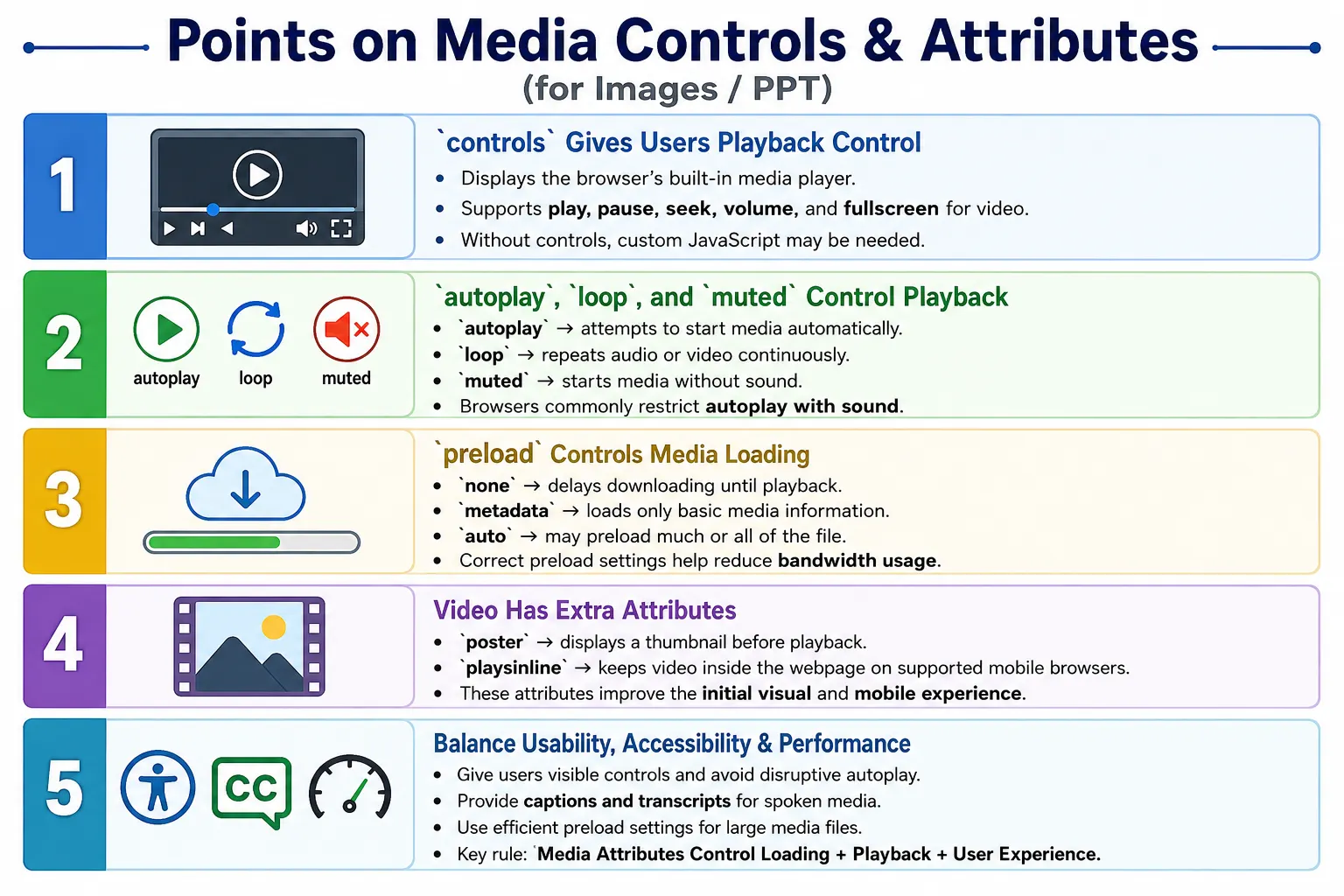
HTML5 introduced the <audio> and <video> elements so browsers could play media without depending on external plugins. These elements are powerful on their own, but their real behavior is controlled through attributes. Media attributes determine how audio and video are loaded, displayed, played, repeated, muted, and presented to users.
Understanding media controls and attributes is essential for building modern, accessible, and high-performance web applications. A media element is not just a file embedded into a page. It is an interactive experience. Users need to play, pause, seek, adjust volume, read captions, and control playback in a predictable way. Developers need to balance usability, accessibility, bandwidth, browser restrictions, and mobile behavior.
The same media file can behave very differently depending on the attributes used. A video with controls and a poster image feels intentional and user-friendly. A video with autoplay and sound can feel disruptive and may be blocked by the browser. A large video with preload="auto" can waste bandwidth, while preload="metadata" can provide a better balance.
What Are Media Controls?
Media controls are the user interface elements that allow users to interact with audio or video. They are provided by the browser when the controls attribute is present. The exact design varies across browsers, but the basic purpose is consistent.
Typical media controls include play, pause, seek forward and backward, progress bar, volume control, mute, playback speed in some browsers, fullscreen for video, and picture-in-picture for supported video players.
<video controls>
    <source src="movie.mp4"
            type="video/mp4">
</video>
The browser output is a built-in player interface. Users do not need custom JavaScript just to play or pause the media. The browser provides a standard experience that works with mouse, keyboard, touch, and assistive technologies.
Media Attributes Overview
Both audio and video support several shared attributes. Video also supports some attributes that do not apply to audio, such as poster and playsinline. The most common attributes are summarized below.
| Attribute | Audio | Video | Purpose |
|---|---|---|---|
controls |
Yes | Yes | Displays built-in controls |
autoplay |
Yes | Yes | Starts playback automatically |
loop |
Yes | Yes | Repeats media continuously |
muted |
Yes | Yes | Starts media muted |
preload |
Yes | Yes | Controls preloading behavior |
src |
Yes | Yes | Specifies media source |
poster |
No | Yes | Displays thumbnail before playback |
playsinline |
No | Yes | Plays video inline on mobile devices |
The controls Attribute
The controls attribute displays the browser's default media player controls. It is usually the most important attribute for user-facing media because it gives users the ability to start, pause, seek, and adjust playback.
<audio controls>
    <source src="song.mp3"
            type="audio/mpeg">
</audio>
<video controls>
<source src="movie.mp4"
type="video/mp4">
</video>When the browser finds a media element with controls, it displays a player interface. The workflow is simple:
Media Found
    ↓
Display Player
    ↓
Show Controls
    ↓
User Can Play
Without controls, the media file may exist in the page, but users may not be able to interact with it unless custom JavaScript provides controls.
<video>
    <source src="movie.mp4">
</video>
Video Exists
↓
No Buttons
↓
User Cannot PlayFor most educational pages, course pages, podcast pages, and tutorials, visible controls are the correct choice.
The autoplay Attribute
The autoplay attribute attempts to start playback automatically when the page loads.
<video autoplay>
    <source src="intro.mp4">
</video>
The browser behavior can be summarized as follows:
Page Loads
    ↓
Video Loads
    ↓
Attempt Automatic Playback
Modern browsers usually block autoplay with sound. This is intentional because unexpected audio can annoy users, interrupt screen readers, and create a poor experience. Autoplay generally works only when the media is muted or after the user has interacted with the page.
<video autoplay muted>
    <source src="intro.mp4">
</video>
Autoplay should be used carefully. It can be useful for muted background videos, but it is usually not appropriate for lectures, tutorials, podcasts, or important spoken content.
The loop Attribute
The loop attribute restarts media automatically after it finishes. It applies to both audio and video.
<audio controls loop>
    <source src="rain.mp3">
</audio>
Play
↓
End
↓
Restart
↓
Repeat ForeverCommon uses include background music, ambient sounds, meditation audio, short animated demonstration videos, and visual background loops. For long instructional content, looping is usually unnecessary and may confuse users.
The muted Attribute
The muted attribute starts playback with audio muted. It is supported by both audio and video elements.
<video controls muted>
    <source src="promo.mp4">
</video>
Muted is useful for autoplay videos, landing pages, advertisements, and background videos. Since browsers often allow muted autoplay more readily than autoplay with sound, muted is commonly combined with autoplay.
However, muted should not be used as a way to hide important audio. If audio contains essential spoken content, users should be given clear controls and context so they can choose when to listen.
The preload Attribute
The preload attribute controls how much media the browser should download before playback begins. It is important for performance because audio and video files can be large.
The possible values are none, metadata, and auto. These values communicate loading intent to the browser, although browsers may still make final decisions based on conditions.
<audio preload="none">
    <source src="lecture.mp3">
</audio>
With preload="none", the browser downloads nothing until the user starts playback.
Page Loads
    ↓
No Audio Download
    ↓
User Clicks Play
    ↓
Download Starts
<video preload="metadata">
<source src="movie.mp4">
</video>With preload="metadata", the browser downloads only basic information such as duration, dimensions, and metadata. This is often the best default for large videos because it gives useful player information without downloading the full file.
<video preload="auto">
    <source src="movie.mp4">
</video>
With preload="auto", the browser may download much or all of the media before playback. This can improve playback readiness but may waste bandwidth if the user never plays the media.
The src Attribute
The src attribute specifies the media file. It can be used directly on the audio or video element.
<audio src="music.mp3"
       controls>
</audio>
<video src="movie.mp4"
controls>
</video>Although this is valid, using <source> elements is generally preferred because they allow multiple formats and MIME types. Multiple sources help the browser choose a supported file.
The poster Attribute
The poster attribute applies only to video. It displays an image before playback starts. This image acts as a video thumbnail and improves the first visual state of the video player.
<video controls
       poster="thumbnail.jpg">
    <source src="course.mp4">
</video>
Page Loads
↓
Display Thumbnail
↓
User Clicks Play
↓
Video StartsWithout a poster image, the video player may show a blank area or a random first frame. A good poster image helps users understand what the video is about and makes the page feel more polished.
The playsinline Attribute
The playsinline attribute applies to video. On some mobile browsers, video playback may automatically enter fullscreen. The playsinline attribute tells supported browsers to keep the video inside the webpage layout.
<video controls
       playsinline>
    <source src="lesson.mp4">
</video>
Play Video
↓
Remain Inside Web Page
↓
No Automatic FullscreenThis is useful for embedded videos, responsive layouts, short previews, and pages where the video should remain part of the surrounding content.
Using Multiple Attributes Together
Media attributes are often used together. A good video element may include controls, a poster image, metadata preloading, and inline playback on mobile.
<video
controls
poster="course.jpg"
preload="metadata"
playsinline>
    <source src="html-course.mp4"
            type="video/mp4">
</video>
This creates a user-friendly video player with visible controls, a thumbnail, efficient metadata loading, and mobile-friendly inline playback.
Complete Audio Example
A complete audio example should include controls, preload behavior, a source with MIME type, and fallback text.
<audio
controls
loop
preload="metadata">
    <source src="music.mp3"
            type="audio/mpeg">

    Your browser does not support audio.
</audio>
This example gives users controls, repeats the audio, downloads only metadata before playback, and provides fallback text for unsupported browsers.
Complete Video Example
A complete video example can include controls, a poster, metadata preloading, inline playback, a source, and fallback text.
<video
controls
poster="thumbnail.jpg"
preload="metadata"
playsinline>
    <source src="tutorial.mp4"
            type="video/mp4">

    Your browser does not support HTML5 video.
</video>
This markup is suitable for many course, tutorial, and documentation pages. It gives the browser enough information to present the media well while avoiding unnecessary loading.
Browser Loading Workflow
A browser handles media by first parsing the HTML, finding the media element, reading its attributes, and deciding how much data to load. If metadata preloading is used, the browser downloads only enough information to show duration and basic media details. When the user presses play, the browser downloads or buffers the remaining media and starts playback.
HTML Parser
    ↓
Media Element Found
    ↓
Read Attributes
    ↓
Download Metadata
    ↓
Display Controls
    ↓
User Presses Play
    ↓
Download Remaining Media
    ↓
Playback Starts
This workflow shows why attributes matter. The same media file can consume very little bandwidth on page load or a large amount of bandwidth depending on preload and autoplay choices.
Accessibility Considerations
Good media experiences should include visible playback controls, captions, transcripts for spoken content, keyboard accessibility, and avoidance of autoplay with sound. Media should be controllable by the user. Unexpected sound can be disruptive, especially for users relying on screen readers or users in quiet environments.
<video controls>
    <source src="lesson.mp4">

    <track
    src="lesson.vtt"
    kind="captions"
    srclang="en"
    label="English">
</video>
Captions help users who are deaf or hard of hearing, users watching without sound, and users who prefer reading along. Transcripts make spoken content searchable, skimmable, and accessible outside the media player.
Performance Considerations
Media files can be large, so performance decisions matter. A large video can slow down the page if it is preloaded aggressively. Recommended practices include using preload="metadata" for large videos, avoiding autoplay on bandwidth-sensitive pages, compressing media files, using modern formats such as MP4 or WebM, and lazy-loading embedded videos when appropriate.
For a page with many videos, preload="none" or preload="metadata" is usually safer than preload="auto". For a single short video that users are very likely to play, more aggressive preloading may be acceptable. The right choice depends on page purpose, file size, and user expectations.
Common Mistakes
One common mistake is forgetting controls.
<video>
    <source src="course.mp4">
</video>
Without controls, no user controls are available unless custom JavaScript handles playback. Another mistake is using autoplay with sound.
<video autoplay>
    <source src="intro.mp4">
</video>
Many browsers block this, and users often dislike it. A better version for autoplay scenarios is:
<video autoplay muted>Missing poster images can make video players look blank before playback. Preloading large videos with preload="auto" can waste bandwidth, especially for long training videos. A safer choice is often preload="metadata".
Real-World Example
A SoftwareTips4U course page might include an HTML course introduction video with native controls, a poster image, metadata preloading, inline playback, captions, and fallback text.
<h2>HTML Course Introduction</h2>

<video
controls
poster="html-course.jpg"
preload="metadata"
playsinline>
    <source src="html-intro.mp4"
            type="video/mp4">

    <track
    src="html-en.vtt"
    kind="captions"
    srclang="en"
    label="English">

    Your browser does not support HTML5 video.
</video>
This example provides native controls, a poster image, metadata preloading, captions, and mobile-friendly inline playback. It is a practical pattern for course pages and educational content.
Selenium Perspective
From a Selenium testing perspective, media attributes can be validated by locating the audio or video element and reading its attributes. Automation teams often check whether controls are present, poster images are configured, preload behavior is correct, captions are available, and required attributes exist.
WebElement video =
driver.findElement(By.tagName("video"));
Controls can be checked like this:
String controls =
video.getAttribute("controls");
Other attributes can be checked similarly:
String poster =
video.getAttribute("poster");

String preload =
video.getAttribute("preload");

String muted =
video.getAttribute("muted");
Automated tests can also verify the presence of <track> elements for captions. Actual playback testing may require additional browser-specific support, but HTML attribute validation is straightforward and valuable.
Common Interview Questions
A common interview question is: what does the controls attribute do? It displays the browser's built-in media player controls. Another question is: why is autoplay often combined with muted? Most modern browsers block autoplay with sound, so muting the media allows autoplay in many cases.
What is the purpose of the poster attribute? It displays a thumbnail image before video playback begins. Which preload value downloads only metadata? The answer is preload="metadata". What does playsinline do? It prevents supported mobile browsers from automatically switching to fullscreen playback. Which attribute repeats media automatically? The answer is loop.
Comparison Table
| Attribute | Purpose | Audio | Video |
|---|---|---|---|
controls |
Shows playback controls | Yes | Yes |
autoplay |
Starts playback automatically | Yes | Yes |
loop |
Repeats media | Yes | Yes |
muted |
Starts muted | Yes | Yes |
preload |
Controls preloading | Yes | Yes |
poster |
Shows thumbnail before playback | No | Yes |
playsinline |
Keeps playback inline on mobile | No | Yes |
Interview-Ready Answer
HTML5 media elements, such as <audio> and <video>, provide built-in playback capabilities that are controlled through attributes such as controls, autoplay, loop, muted, and preload. The <video> element also supports poster for preview images and playsinline for mobile playback. Choosing the right combination of these attributes improves usability, accessibility, and performance.
Key Takeaway
Media attributes define how audio and video behave. They control whether users see playback controls, whether media starts automatically, whether it repeats, whether it starts muted, how much data is loaded before playback, and how video is presented on mobile devices.
A good media implementation gives users control, avoids disruptive autoplay, includes captions and transcripts where needed, uses efficient preload settings, and provides a polished video preview through the poster attribute.
One-Line Insight
Media attributes define how audio and video behave, from when they load to how users interact with them, making them essential for creating fast, accessible, and user-friendly multimedia experiences.