Local Storage vs Session Storage
Introduction
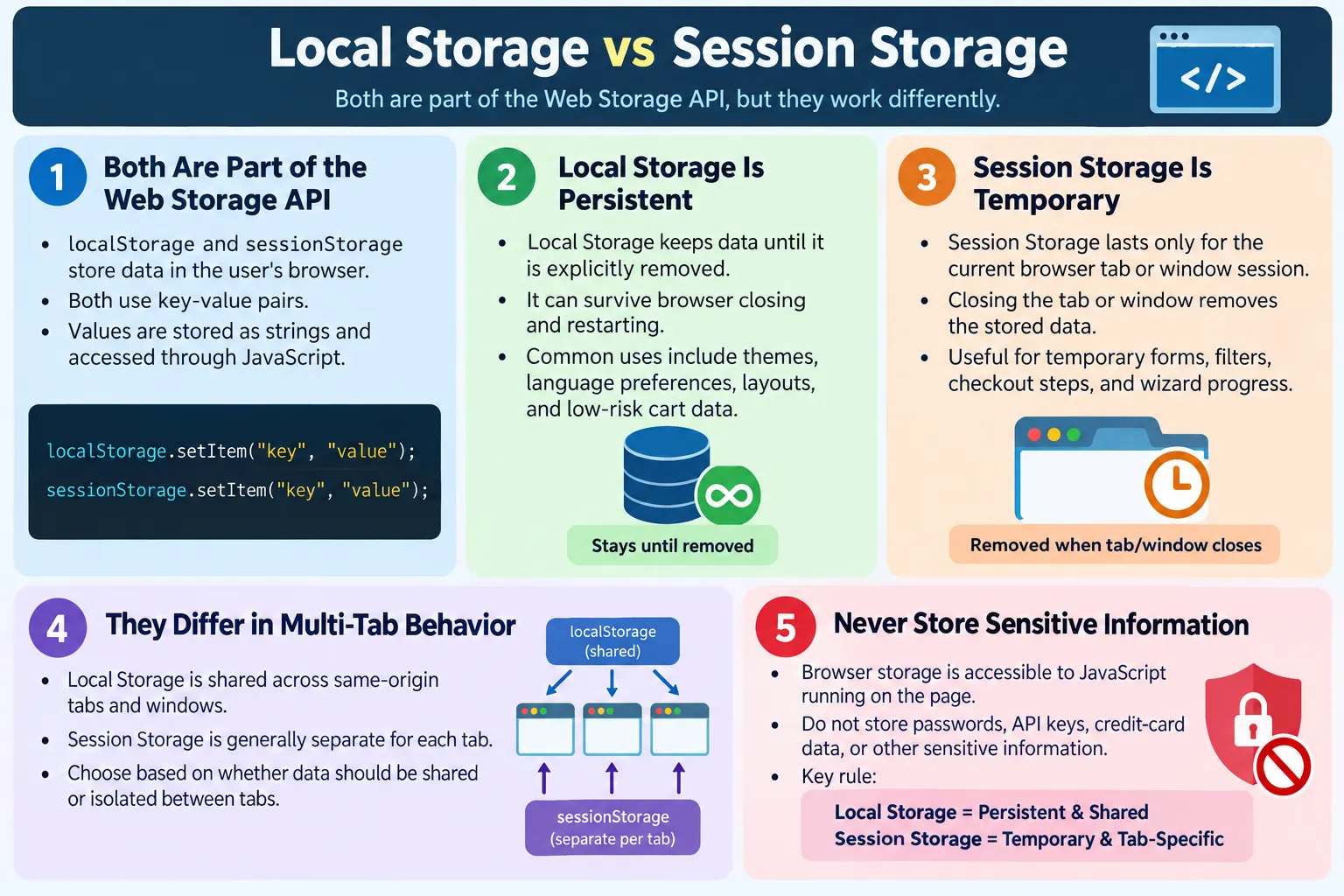
Local Storage and Session Storage are part of the Web Storage API introduced in HTML5. They allow web applications to store data directly in the user's browser without sending that data to the server on every request. Both mechanisms store data as key-value pairs, and both are accessed through JavaScript, but they differ mainly in how long the data is retained and how it is shared between browser tabs or windows.
Web Storage is commonly used for saving user preferences, remembering theme settings, storing shopping cart data, saving temporary form data, maintaining UI state, keeping wizard progress, and improving the user experience across page reloads. It is simple to use, widely supported, and more suitable than cookies for many client-side storage needs.
Understanding the difference between Local Storage and Session Storage is important for developers, testers, and automation engineers. Choosing the wrong storage type can lead to data disappearing too early, persisting longer than expected, leaking between tabs, or creating avoidable security risks. The right choice depends on whether the data should survive browser restarts and whether it should be shared across tabs of the same origin.
What Is Web Storage?
The Web Storage API provides two main browser storage mechanisms: Local Storage and Session Storage. Both allow JavaScript to store information in the browser as string-based key-value pairs.
Web Storage
  ↓
Local Storage
  ↓
Session Storage
Both are available through global browser objects: localStorage and sessionStorage. These objects provide simple methods such as setItem(), getItem(), removeItem(), and clear(). The API is intentionally simple, which makes it easy to learn and easy to use for common client-side data tasks.
Web Storage belongs to the browser and is scoped by origin. Origin means the combination of protocol, domain, and port. For example, https://example.com and http://example.com are different origins because the protocol differs. A site cannot directly read another site's Local Storage or Session Storage.
Why Is Web Storage Needed?
Before HTML5 Web Storage, developers often used cookies to store small amounts of client-side data. Cookies still have important uses, especially for server-related data such as session identifiers, but they are not ideal for every client-side storage need.
Cookies have several limitations. They are sent to the server with every HTTP request for the matching domain and path, which can add unnecessary request overhead when the data is only needed by JavaScript on the client side. Cookies also have limited storage size, commonly around a few kilobytes per cookie. They require careful configuration for security attributes such as HttpOnly, Secure, and SameSite.
HTML5 introduced Web Storage to solve common client-side storage problems. If a site needs to remember a theme, selected layout, temporary wizard state, or non-sensitive UI preference, Web Storage is usually more convenient than cookies. The data is not automatically sent with every request, and the storage capacity is typically larger than cookies.
What Is Local Storage?
Local Storage stores data in the browser until it is explicitly removed. The data remains available even after the user closes the browser, restarts the computer, and returns to the website later. This makes Local Storage suitable for preferences and client-side state that should persist across visits.
Save Theme
  ↓
Close Browser
  ↓
Open Tomorrow
  ↓
Theme Still Available
For example, if a user chooses dark mode on a website, Local Storage can remember that preference. When the user visits again next week, JavaScript can read the stored value and apply the same theme automatically.
Local Storage is shared across tabs and windows for the same origin. If a user opens the same website in two tabs, both tabs can read the same Local Storage values. This sharing is useful for persistent preferences, but it also means developers should be careful when multiple tabs can update the same value.
What Is Session Storage?
Session Storage stores data only for the current browser tab or window session. The data is removed when that tab or window is closed. It does not survive a new tab session in the same way Local Storage does.
Login Form
  ↓
Store Temporary Data
  ↓
Close Tab
  ↓
Data Deleted
Session Storage is useful for temporary data that should not persist after the user closes the tab. Examples include multi-step form progress, temporary filters, checkout steps, page state, and unsaved input that should last during the current tab session only.
Each browser tab gets its own Session Storage area. If the same site is opened in two separate tabs, each tab usually has separate session storage. This is one of the most important differences between Local Storage and Session Storage.
Browser Workflow
The browser workflow is straightforward. A user visits a website. JavaScript saves data using Local Storage or Session Storage. Later, JavaScript retrieves the data and uses it to update the page or restore state.
User Visits Website
  ↓
JavaScript Saves Data
  ↓
Local Storage
  OR
Session Storage
The browser stores this data locally for the origin. It is not part of the HTML document itself, and it is not automatically displayed to users. Developers and testers can inspect storage values through browser developer tools.
Local Storage Example
Local Storage is accessed through the localStorage object. To store data, use setItem().
localStorage.setItem(
  "theme",
  "dark"
);
To retrieve the data, use getItem().
localStorage.getItem(
  "theme"
);
The output is:
darkThis is a typical Local Storage use case. The website stores the selected theme once, and later page loads can retrieve it. If the user closes the browser and comes back later, the value is still available unless it was removed, the user cleared site data, or browser privacy settings removed it.
Session Storage Example
Session Storage uses a similar API through the sessionStorage object.
sessionStorage.setItem(
  "user",
  "John"
);
The value can be retrieved with getItem().
sessionStorage.getItem(
  "user"
);
The output is:
JohnThe value remains available while the current tab session is active. Once the tab is closed, the stored value is removed. This makes Session Storage a good fit for temporary, tab-specific state.
Data Lifetime
The biggest difference between Local Storage and Session Storage is data lifetime. Local Storage is long-term browser storage. It remains until explicitly removed by code, the user, browser settings, or storage cleanup. Session Storage is temporary. It lasts only for the current tab or window session.
Local Storage

Save Data
  ↓
Close Browser
  ↓
Open Again
  ↓
Data Exists
Session Storage
Save Data
↓
Close Tab
↓
Open New Tab
↓
Data RemovedUse Local Storage when the data should remain available across visits. Use Session Storage when the data should disappear after the current tab session ends.
Storage Scope
Local Storage is shared among tabs and windows for the same origin. If Tab 1 saves theme="dark", Tab 2 on the same origin can read that value.
Tab 1
  ↓
Tab 2
  ↓
Same Data
Session Storage is different. Each tab gets its own storage area. Tab 1 and Tab 2 do not automatically share the same Session Storage values.
Tab 1
  ↓
Separate Data

Tab 2
  ↓
Separate Data
This difference affects application behavior. If a checkout wizard uses Session Storage, opening the checkout in two tabs can keep separate progress states. If it uses Local Storage, changes in one tab may affect the other tab.
Common Uses of Local Storage
Local Storage is commonly used for dark or light theme preferences, language preferences, shopping cart data, recently viewed items, layout settings, selected dashboard preferences, and other non-sensitive data that should remain available later.
Theme
  ↓
Dark Mode
  ↓
Remember Forever
For example, if a user selects Tamil as a preferred language, Local Storage can remember that choice. If a user changes a dashboard layout, Local Storage can restore the layout on the next visit. If a shopping cart is designed to persist for anonymous users, Local Storage may be used to store cart item IDs or temporary cart state.
Local Storage should not be used for sensitive information. It is better for preferences and low-risk client-side data.
Common Uses of Session Storage
Session Storage is commonly used for multi-step forms, temporary filters, current wizard progress, current page state, temporary checkout progress, unsaved form data, and short-lived UI state that should disappear when the tab closes.
Checkout
  ↓
Current Step
  ↓
Remove After Closing Tab
For example, a user filling a multi-step form may move between steps. Session Storage can remember the current step and some temporary values during that tab session. If the user closes the tab, the temporary data is cleared. This behavior matches the short-lived nature of the task.
Updating Data
Updating data is the same as setting data again with the same key. The old value is replaced with the new value.
localStorage.setItem(
  "theme",
  "light"
);
If theme previously stored dark, it now stores light. The same approach works with Session Storage.
sessionStorage.setItem(
  "step",
  "Payment"
);
Because values are stored as strings, developers should be careful when updating numeric or boolean values. The stored value may look like a number, but it is retrieved as a string.
Removing Data
To remove one item from Local Storage, use removeItem().
localStorage.removeItem(
  "theme"
);
To clear all Local Storage values for the origin, use clear().
localStorage.clear();Session Storage provides the same methods.
sessionStorage.removeItem(
  "user"
);

sessionStorage.clear();
Use clear() carefully because it removes all stored values for that storage area. In larger applications, removing a specific key is usually safer than clearing everything.
Storage Format
Both Local Storage and Session Storage save data as strings. If you store a number, it is converted to a string.
localStorage.setItem(
  "age",
  25
);
The stored value is:
"25"Objects must be converted to JSON strings before storage.
const user = {
  name: "John",
  age: 25
};

localStorage.setItem(
  "user",
  JSON.stringify(user)
);
To retrieve the object, parse the stored JSON string.
const user =
JSON.parse(
  localStorage.getItem("user")
);
This pattern is common, but developers should handle missing or invalid values carefully. If the key does not exist, getItem() returns null. Calling JSON.parse() on unexpected values can cause errors if not handled properly.
Local Storage vs Cookies
Local Storage and cookies are both browser storage mechanisms, but they solve different problems. Local Storage is not sent with every HTTP request. Cookies are sent with matching requests unless configured otherwise by path, domain, and related settings. Local Storage typically provides much larger capacity than cookies, while cookies are much smaller.
| Local Storage | Cookies |
|---|---|
| Not sent with every HTTP request | Sent with every matching HTTP request |
| Larger storage capacity, typically several MB | Much smaller, around 4 KB per cookie |
| JavaScript access | JavaScript and/or server access depending on settings |
| Better for client-side data | Better for server-related data such as session identifiers |
Cookies are still important. Secure, HttpOnly cookies are often used for authentication sessions because JavaScript cannot read HttpOnly cookies. Local Storage should not be treated as a direct replacement for secure cookie-based authentication.
Security Considerations
Never store sensitive information such as passwords, credit card numbers, API keys, private personal data, or authentication tokens unless you fully understand the security tradeoffs. Browser storage can be accessed by JavaScript running on the page. If the page has a Cross-Site Scripting vulnerability, malicious JavaScript may be able to read stored data.
Use browser storage only for non-sensitive client-side data. Theme preferences, selected language, temporary UI state, and low-risk display preferences are reasonable use cases. Credentials and secrets are not.
localStorage.setItem(
  "password",
  "Admin123"
);
This is a bad practice. Sensitive information should never be stored in Local Storage or Session Storage. Security design should be handled carefully with proper server-side controls, secure cookies where appropriate, and protection against XSS.
Real-World Example: Remember Website Theme
A common Local Storage example is remembering a website theme.
localStorage.setItem(
  "theme",
  "dark"
);
On the next visit, the site can retrieve the value.
const theme =
localStorage.getItem(
  "theme"
);
If the stored value is dark, the website can apply dark mode automatically. This is a good Local Storage use case because the preference is non-sensitive and should persist across visits.
Real-World Example: Temporary Checkout Progress
Session Storage is useful for temporary checkout or wizard progress.
sessionStorage.setItem(
  "step",
  "Payment"
);
If the user refreshes the current tab, the page can restore the step. If the user closes the tab, the data disappears. This matches the temporary nature of checkout progress in many applications.
The key design question is whether the data should be available tomorrow. If yes, Local Storage may be appropriate. If no, Session Storage may be better.
Common Mistakes
A common mistake is storing passwords or other sensitive values in Local Storage.
localStorage.setItem(
  "password",
  "Admin123"
);
This is unsafe because browser storage is visible to JavaScript. Another mistake is forgetting that Session Storage is temporary. Data disappears when the browser tab or window is closed.
Developers also forget that everything is stored as strings. Objects must be converted using JSON.stringify() and restored using JSON.parse(). Another mistake is assuming storage is shared across different websites. Storage is isolated by origin, so one website cannot directly read another website's Local Storage or Session Storage.
Handling Missing Values
When reading from storage, the requested key may not exist. In that case, getItem() returns null. Applications should handle this case gracefully.
const theme =
localStorage.getItem("theme");

if (theme) {
  applyTheme(theme);
} else {
  applyTheme("light");
}
This pattern prevents errors and gives the application a default behavior. Storage should be treated as optional client-side state, not as guaranteed truth. Users can clear storage, browsers can restrict storage, and privacy modes may behave differently.
Storage Events
Local Storage changes can trigger a storage event in other tabs of the same origin. This can help synchronize state across tabs. For example, if one tab updates a theme value, another tab can react to that change.
window.addEventListener(
  "storage",
  function(event) {
    console.log(event.key);
    console.log(event.newValue);
  }
);
This is mostly useful with Local Storage because it is shared across tabs. Session Storage is tab-specific, so the synchronization story is different. Developers should test multi-tab behavior carefully when storage changes can affect visible UI.
Choosing Between Local Storage and Session Storage
The decision is usually based on lifetime and scope. If the value should survive browser restarts and be shared across same-origin tabs, use Local Storage. If the value should last only for the current tab session and remain separate between tabs, use Session Storage.
Use Local Storage for long-term preferences such as theme, language, recently viewed items, and low-risk cart state. Use Session Storage for temporary form data, wizard progress, temporary filters, and tab-specific UI state. Use cookies when the server must receive the value with requests or when secure HttpOnly server-managed session behavior is required.
If the data is sensitive, reconsider browser storage entirely. The safest client-side data is data that does not matter if a user or script can inspect it.
Storage Lifetime in Real Projects
In real projects, storage lifetime should match user expectations. If a user chooses a dark theme, they usually expect the site to remember that preference later. Local Storage fits that expectation. If a user is halfway through a temporary checkout flow and closes the tab, the application may reasonably discard that tab-specific progress. Session Storage fits that expectation.
Problems happen when storage lifetime and user expectations do not match. If theme settings are stored in Session Storage, the preference disappears too quickly. The user may need to select the theme again every time they open the site. If temporary form state is stored in Local Storage, stale data may reappear days later when the user no longer expects it. That can create confusion, especially for checkout, registration, or support forms.
A useful design question is: "Would the user be surprised if this value exists tomorrow?" If the answer is no, Local Storage may be suitable. If the answer is yes, Session Storage or in-memory state may be safer. Another question is: "Should another tab see this value?" If yes, Local Storage may fit. If no, Session Storage may fit better.
Storage Quotas and Limits
Web Storage usually provides more capacity than cookies, commonly several megabytes per origin, but it is not unlimited. Exact limits can vary by browser, device, private browsing mode, storage pressure, and user settings. Applications should not assume that storage writes will always succeed.
If the browser storage quota is exceeded, writing data can fail. For small preferences and UI state, this is rarely a problem. For large data, cached API responses, images, or big JSON objects, Web Storage is not the best tool. IndexedDB is usually more appropriate for larger structured client-side storage.
Developers should keep Local Storage and Session Storage lightweight. Store IDs, short preferences, compact state values, and small serialized objects. Avoid storing large arrays, full product catalogs, large logs, or binary data. Browser storage should make the user experience smoother, not become a hidden database that is hard to manage.
Private Browsing and User Clearing
Browser storage can be affected by private browsing modes, privacy settings, browser extensions, and user actions. A user may clear site data manually. A browser may restrict storage in some contexts. An organization policy may limit persistent storage. Developers should not treat browser storage as guaranteed permanent storage.
This is especially important for Local Storage. Although Local Storage is persistent by design, it can still be removed. Users can clear browsing data. Some browsers may clear data under storage pressure. Privacy tools may delete it automatically. Applications should handle missing values gracefully and rebuild defaults when needed.
Session Storage is temporary by design, so developers should expect it to disappear. If losing the data would cause serious user harm, the data should probably be saved to a server or another more reliable system with proper user consent and security controls.
Multi-Tab Behavior
Multi-tab behavior is one of the most practical differences between Local Storage and Session Storage. Local Storage is shared across same-origin tabs, so one tab can affect another. If a user changes the theme in Tab 1, Tab 2 can read the same theme value. This is useful for preferences, but it can cause surprises for workflow-specific data.
Imagine a user opens the same checkout process in two tabs. If the application stores the current checkout step in Local Storage, Tab 1 and Tab 2 may overwrite each other. The user may move to the payment step in one tab and unexpectedly see the other tab change behavior. Session Storage avoids this problem because each tab has its own storage.
For shared preferences, Local Storage is usually right. For independent tab workflows, Session Storage is usually safer. This distinction is not only technical; it affects real user experience.
Web Storage and Application State
Local Storage and Session Storage are often used with application state, but they should not replace all state management. In a small page, reading and writing directly from storage may be enough. In a larger application, storage should usually be treated as persistence for selected state, not the source of all truth.
For example, a React, Angular, Vue, or plain JavaScript application may keep current UI state in memory while the page is active. It may write selected values to Local Storage only when they need to survive reloads. When the page loads again, the application can read storage once and initialize state. This is cleaner than constantly reading from storage for every UI decision.
Storage access is synchronous, meaning it runs on the main thread. For small values this is fine. For large or frequent operations, it can become a performance and design concern. Keeping storage usage small and intentional is better than using it as a general-purpose data layer.
Error Handling and Defensive Coding
Storage operations are simple, but production code should still be defensive. Values may be missing, malformed, outdated, or manually modified. Users can edit Local Storage through developer tools. Old versions of an application may have stored values in a different format. A newer version of the application should not crash because a stored value is unexpected.
function getStoredUser() {
  try {
    const value =
      localStorage.getItem("user");

    return value
      ? JSON.parse(value)
      : null;
  } catch (error) {
    localStorage.removeItem("user");
    return null;
  }
}
This pattern handles missing or invalid JSON safely. If the stored value is corrupted, the application removes it and falls back to a safe default. Defensive coding prevents storage problems from breaking the entire page.
Versioning Stored Data
When applications store structured data, the format may change over time. A value stored six months ago may not match the current version of the application. Versioning can help. The stored object can include a version number, or the key name can include a version suffix.
const settings = {
  version: 2,
  theme: "dark",
  language: "en"
};

localStorage.setItem(
  "settings",
  JSON.stringify(settings)
);
When reading the value, the application can check the version and migrate or reset old data. This is useful for preferences, dashboards, form drafts, and cached client-side state. Without versioning, old stored values can create hard-to-reproduce bugs.
When Not to Use Web Storage
Do not use Web Storage for passwords, access tokens, refresh tokens, credit card numbers, sensitive personal information, or private data that should not be exposed to JavaScript. Do not use it for large databases, large files, or complex offline-first storage. Do not rely on it as the only copy of important business data.
If the server needs the value on every request, cookies may be more appropriate. If the data is large and structured, IndexedDB may be more appropriate. If the data is only needed while the page is open and does not need to survive reloads, in-memory JavaScript state may be enough.
The right storage choice depends on lifetime, sensitivity, size, scope, and who needs to access the data. Local Storage and Session Storage are useful tools, but they are not universal solutions.
Practical Decision Checklist
Before using Local Storage or Session Storage, ask whether the data is sensitive. If it is sensitive, do not store it in browser storage. Ask whether the data should survive browser restarts. If yes, Local Storage may fit. Ask whether the data should be isolated to one tab. If yes, Session Storage may fit. Ask whether the data is large or complex. If yes, consider another storage option.
Ask whether the application can recover if the value is missing. It should be able to. Ask whether the stored value has a clear owner and cleanup strategy. Old keys should not accumulate forever without purpose. Ask whether automated tests clear storage between runs. Persistent browser storage can create test pollution if not managed carefully.
Selenium Perspective
Automation testers often verify Local Storage values, Session Storage values, persistence across page refreshes, data removal after closing a session, and application behavior based on stored values. Selenium can access browser storage by executing JavaScript in the browser context.
JavascriptExecutor js =
(JavascriptExecutor) driver;

String theme =
(String) js.executeScript(
    "return localStorage.getItem('theme');");

System.out.println(theme);
Session Storage can be read similarly.
String user =
(String) js.executeScript(
    "return sessionStorage.getItem('user');");
Tests can also set storage values before loading a page, remove values to test default behavior, or clear storage between tests to avoid cross-test contamination. Storage cleanup is important because persistent Local Storage can cause tests to pass or fail depending on leftover data from previous test runs.
Testing Checklist
When testing Local Storage, verify that data persists after page refresh, browser restart, and opening another tab of the same origin when that behavior is expected. Verify that removal actions actually delete the correct keys. Check default behavior when no value exists. Confirm that clearing browser site data resets the experience safely.
When testing Session Storage, verify that data remains available during the current tab session and is removed after the tab or window closes. Confirm that another tab does not unexpectedly share the same session data. Test refresh behavior because Session Storage usually survives refresh in the same tab.
For both storage types, verify that no sensitive information is stored, objects are serialized and parsed correctly, invalid stored values are handled safely, and tests clean up storage between runs.
Comparison Table
| Feature | Local Storage | Session Storage |
|---|---|---|
| Lifetime | Until removed | Until the tab or window is closed |
| Shared Across Tabs for Same Origin | Yes | No |
| Survives Browser Restart | Yes | No |
| Storage Format | Key-value strings | Key-value strings |
| Typical Use | User preferences, themes, carts | Temporary form data, wizard progress |
Common Interview Questions
What is Local Storage? It stores data in the browser until it is explicitly removed.
What is Session Storage? It stores data only for the current browser tab or window session.
What is the main difference between Local Storage and Session Storage? Local Storage persists across browser restarts and is shared across tabs of the same origin, while Session Storage exists only for the current tab and is cleared when that tab or window is closed.
Do both store data as key-value pairs? Yes. Both store values as key-value pairs, and the values are strings.
Can Local Storage store JavaScript objects directly? No. Objects must be converted using JSON.stringify() before storage and restored with JSON.parse().
Should sensitive information be stored in Local Storage? No. Sensitive data should not be stored in browser storage because it may be exposed through JavaScript if the page is compromised.
Interview-Ready Answer
Local Storage and Session Storage are part of the HTML5 Web Storage API and store data as key-value pairs in the browser. Local Storage persists until explicitly removed and is shared across tabs and windows of the same origin. Session Storage is limited to the current browser tab or window and is automatically cleared when that session ends. Both store values as strings and are commonly used for client-side state management, but sensitive information should not be stored in either because browser storage is accessible to JavaScript running on the page.
One-Line Insight
Use Local Storage for long-term browser data and Session Storage for temporary, tab-specific data.