Lists for Forms and Data
Introduction
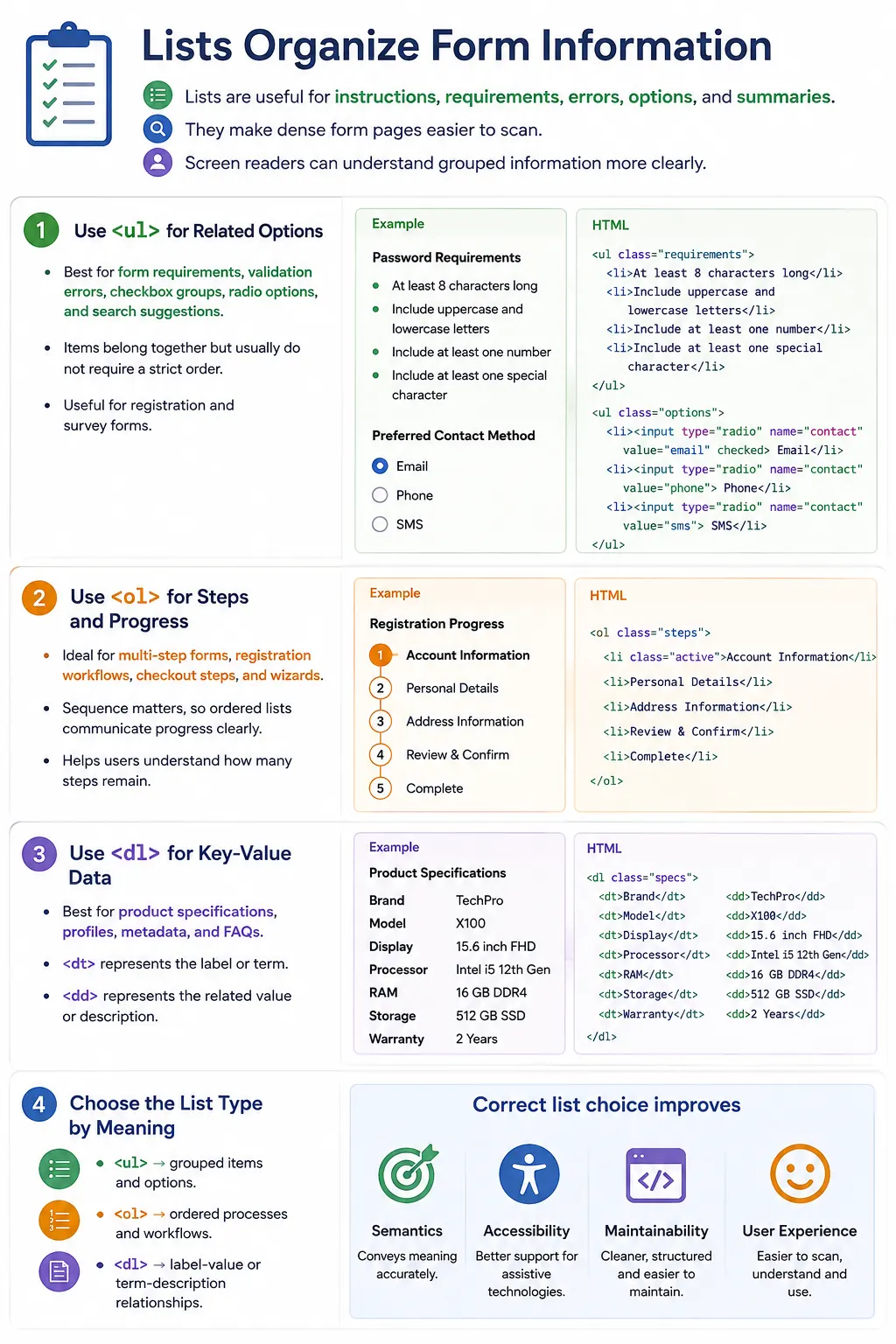
Lists are not only used for navigation menus and content grouping. In real-world applications, lists are frequently used alongside forms and data presentation to organize information, improve usability, and provide semantic structure. A form rarely exists alone. It often includes instructions, requirements, validation messages, option groups, progress steps, summaries, and supporting data. Lists are a natural way to represent many of these patterns.
Common use cases include form instructions, validation error messages, checkbox groups, radio button groups, feature lists, search suggestions, data summaries, product specifications, survey options, and user-generated content. Each of these patterns benefits from structure. Users can scan the content more quickly, screen readers can announce grouped information, and developers can maintain the markup more consistently.
The key is choosing the right list type. Unordered lists are useful when items belong together but do not need a strict order. Ordered lists are useful when steps or workflow sequence matters. Description lists are useful for key-value information such as specifications, profile details, metadata, and FAQs. When the correct list type is used, form and data content becomes more meaningful.
Why Use Lists with Forms and Data?
Forms often contain related pieces of information. For example, a registration form may show requirements before the user creates an account.
Registration Requirements

• Valid Email
• Password
• Phone Number
These items form a logical group. HTML lists provide semantic structure for such content. Instead of presenting requirements as unrelated paragraphs, a list tells the browser and assistive technologies that the items belong together.
This matters because form pages can be dense. Users may need to understand instructions, complete fields, read errors, select options, and review data. Lists help reduce confusion by grouping related information into clear blocks.
Form Instructions Using Lists
Password rules and form requirements are often better as lists than paragraphs. Instead of this:
<p>Password must be 8 characters.</p>
<p>Must contain a number.</p>
<p>Must contain a symbol.</p>
Use an unordered list:
<ul>
  <li>At least 8 characters</li>
  <li>At least one number</li>
  <li>At least one special character</li>
</ul>
The output is easy to scan:
• At least 8 characters
• At least one number
• At least one special character
Users can quickly understand the requirements before typing. Screen readers can announce the list and item count, giving users a better sense of how many requirements must be satisfied.
Registration Form Example
A registration form can use a list to show account creation rules before the form fields.
<h2>Create Account</h2>

<ul>
  <li>Valid email address required</li>
  <li>Password minimum 8 characters</li>
  <li>Phone number optional</li>
</ul>

<form>
  <input type="email">
  <input type="password">
</form>
The instructions and the form are separate but related. The list provides guidance, while the form collects input. This pattern is common in registration, checkout, login, and profile pages.
Error Messages Using Lists
Validation errors are commonly displayed as lists because a form can fail for multiple reasons at once.
<ul>
  <li>Email is required</li>
  <li>Password is too short</li>
  <li>Phone number is invalid</li>
</ul>
The output is:
• Email is required
• Password is too short
• Phone number is invalid
Lists work well for errors because users can quickly identify multiple problems at once rather than reading separate paragraphs. The grouped structure also helps screen reader users understand that the messages are part of one validation summary.
Login Error Example
A login form may display a small error summary when submitted with invalid data.
<div class="errors">
  <ul>
    <li>Invalid username</li>
    <li>Invalid password</li>
  </ul>
</div>
In a real application, this error block might be placed near the top of the form and styled with a warning color. The list structure remains useful because it communicates that multiple errors belong to one validation group.
Checkbox Groups
Checkboxes often represent a list of options. Each option can be placed inside a list item, and each input should be associated with a label.
<ul>
  <li>
    <label>
      <input type="checkbox">
      HTML
    </label>
  </li>
  <li>
    <label>
      <input type="checkbox">
      CSS
    </label>
  </li>
  <li>
    <label>
      <input type="checkbox">
      JavaScript
    </label>
  </li>
</ul>
The output is a group of selectable options:
[ ] HTML
[ ] CSS
[ ] JavaScript
Each option is a list item, which makes the grouping clear. This is useful for surveys, preferences, skills, interests, and settings pages.
Radio Button Groups
Radio buttons also represent grouped options, but users usually choose only one option from the group. A list can structure those options cleanly.
<ul>
  <li>
    <label>
      <input type="radio" name="level">
      Beginner
    </label>
  </li>
  <li>
    <label>
      <input type="radio" name="level">
      Intermediate
    </label>
  </li>
  <li>
    <label>
      <input type="radio" name="level">
      Advanced
    </label>
  </li>
</ul>
The visual output is:
( ) Beginner
( ) Intermediate
( ) Advanced
For full accessibility, related radio buttons are often placed inside a <fieldset> with a <legend>. The list can still organize the individual choices inside that group.
Survey Form Example
Survey forms frequently use lists for option groups. A technology survey may ask which technologies the user knows.
<h3>Technologies Known</h3>

<ul>
  <li><input type="checkbox"> HTML</li>
  <li><input type="checkbox"> CSS</li>
  <li><input type="checkbox"> JavaScript</li>
  <li><input type="checkbox"> React</li>
</ul>
In a production form, each checkbox should have a proper label. The list still gives the group a clean visual and semantic structure.
Feature Lists in Forms
Forms are often preceded by feature lists. For example, a premium subscription page may show benefits before the purchase form.
<h3>Premium Features</h3>

<ul>
  <li>Unlimited Downloads</li>
  <li>Priority Support</li>
  <li>Certificate Access</li>
</ul>
This pattern helps users understand what they are signing up for. Since the features are related but not sequential, an unordered list is appropriate.
Search Suggestions Using Lists
Search engines and website search boxes often display suggestions using lists.
<ul>
  <li>HTML Tutorial</li>
  <li>HTML Forms</li>
  <li>HTML Tables</li>
</ul>
The output may appear without bullets after CSS styling:
HTML Tutorial
HTML Forms
HTML Tables
Autocomplete data is frequently generated dynamically with JavaScript.
<ul>
  <li>Java</li>
  <li>JavaScript</li>
  <li>JUnit</li>
</ul>
The list structure makes the suggestions easier to style, navigate, and test.
Data Summary Lists
Short data summaries can also use lists when the items are related facts.
<h3>Order Summary</h3>

<ul>
  <li>Product: Laptop</li>
  <li>Quantity: 2</li>
  <li>Total: $2000</li>
</ul>
This is acceptable for simple summaries, but when the data is clearly key-value based, a description list may be even more semantic.
Product Specifications Using Description Lists
Description lists are excellent for data because they represent labels and values.
<dl>
  <dt>Processor</dt>
  <dd>Intel Core i7</dd>

  <dt>RAM</dt>
  <dd>16 GB</dd>

  <dt>Storage</dt>
  <dd>512 GB SSD</dd>
</dl>
The output is conceptually:
Processor
    Intel Core i7

RAM
    16 GB

Storage
    512 GB SSD
This structure is more meaningful than a generic list because each term is directly connected to its value.
User Profile Data
User profile pages often display key-value information. A description list fits this pattern well.
<dl>
  <dt>Name</dt>
  <dd>John Smith</dd>

  <dt>Email</dt>
  <dd>john@example.com</dd>

  <dt>Country</dt>
  <dd>USA</dd>
</dl>
This approach is useful for account pages, profile summaries, admin panels, and CRM views.
FAQ Forms
Description lists also work well for FAQ content because questions and answers form term-description relationships.
<dl>
  <dt>
    What is HTML?
  </dt>
  <dd>
    HTML is a markup language.
  </dd>

  <dt>
    What is CSS?
  </dt>
  <dd>
    CSS styles web pages.
  </dd>
</dl>
This structure can be used near support forms or help pages to answer common user questions before submission.
Multi-Step Form Progress
Ordered lists are ideal for process tracking because sequence matters. A checkout or registration flow may show the user's progress.
<ol>
  <li>Personal Information</li>
  <li>Address Details</li>
  <li>Payment Information</li>
  <li>Confirmation</li>
</ol>
The output is:
1. Personal Information
2. Address Details
3. Payment Information
4. Confirmation
The order is meaningful because users move through the form step by step.
Wizard Form Example
Wizard forms also use ordered lists to show progress.
<ol>
  <li>Account Setup</li>
  <li>Profile Setup</li>
  <li>Verification</li>
  <li>Complete</li>
</ol>
This communicates process order clearly and helps users understand how many steps remain.
Data Categories Using Nested Lists
Nested lists can represent data categories and subcategories.
<ul>
  <li>
    Frontend
    <ul>
      <li>HTML</li>
      <li>CSS</li>
      <li>JavaScript</li>
    </ul>
  </li>
  <li>
    Backend
    <ul>
      <li>Java</li>
      <li>Python</li>
    </ul>
  </li>
</ul>
The output shows hierarchy:
• Frontend
   ○ HTML
   ○ CSS
   ○ JavaScript

• Backend
   ○ Java
   ○ Python
Accessibility Benefits
Lists help screen readers understand grouped information, related options, and form structure. For example:
<ul>
  <li>HTML</li>
  <li>CSS</li>
</ul>
A screen reader can announce a list with two items. This is especially useful for validation errors because users can understand that multiple issues must be fixed.
<ul>
  <li>Email required</li>
  <li>Password required</li>
</ul>
The list structure makes multiple errors easier to understand than disconnected text.
SEO Benefits
Lists help search engines understand features, specifications, FAQs, steps, and requirements. For example:
<ul>
  <li>Video Tutorials</li>
  <li>Practice Exercises</li>
  <li>Certificates</li>
</ul>
This indicates related feature data. Search engines do not need bullets, but they benefit from clear HTML structure that shows how content is grouped.
When to Use Each List Type
Use an unordered list for features, options, requirements, error messages, checkbox groups, and suggestions. These items are related, but their order usually does not change the meaning.
Use an ordered list for steps, processes, form progress, instructions, and workflows. These items represent sequence, and changing the order could change the meaning.
Use a description list for specifications, definitions, user profiles, metadata, FAQs, and key-value data. These patterns connect terms or labels with details or values.
Common Mistakes
A common mistake is using paragraphs for requirements.
<p>Must be 8 characters</p>
<p>Must contain a number</p>
A better version is:
<ul>
  <li>Must be 8 characters</li>
  <li>Must contain a number</li>
</ul>
Another mistake is using tables for simple key-value data when a description list is more appropriate.
<table>
  <tr>
    <td>RAM</td>
    <td>16 GB</td>
  </tr>
</table>
A better version is:
<dl>
  <dt>RAM</dt>
  <dd>16 GB</dd>
</dl>
Using ordered lists when sequence does not matter is another common issue. If HTML and CSS are simply options, use <ul> instead of <ol>.
Real-World Example
A course registration page may combine all three list types.
<h2>Requirements</h2>

<ul>
  <li>Basic Computer Knowledge</li>
  <li>Email Address</li>
  <li>Internet Access</li>
</ul>

<h2>Registration Steps</h2>

<ol>
  <li>Create Account</li>
  <li>Select Course</li>
  <li>Make Payment</li>
  <li>Start Learning</li>
</ol>

<h2>Course Information</h2>

<dl>
  <dt>Duration</dt>
  <dd>30 Days</dd>

  <dt>Level</dt>
  <dd>Beginner</dd>
</dl>
The requirements use an unordered list, the registration workflow uses an ordered list, and the course information uses a description list. Each list type matches the meaning of the content.
Selenium Perspective
From a Selenium perspective, form and data lists can be validated by locating list items, terms, and values.
List<WebElement> items =
driver.findElements(
  By.tagName("li")
);
Description data can be checked with dt and dd elements.
List<WebElement> terms =
driver.findElements(
  By.tagName("dt")
);

List<WebElement> values =
driver.findElements(
  By.tagName("dd")
);
Process steps can be verified by locating list items inside an ordered list. Automation can confirm that required options, errors, or specifications appear correctly.
Comparison Table
| Use Case | Recommended List |
|---|---|
| Requirements | <ul> |
| Error Messages | <ul> |
| Checkbox Options | <ul> |
| Radio Groups | <ul> |
| Process Steps | <ol> |
| Registration Workflow | <ol> |
| Product Specs | <dl> |
| FAQs | <dl> |
| User Profile Data | <dl> |
Common Interview Questions
A common interview question is: which list type is best for form requirements? The answer is <ul>. Requirements are related items, but their order usually does not matter.
Another question is which list type is best for multi-step forms. The answer is <ol> because the steps happen in sequence. For product specifications, <dl> is the best choice because specifications are key-value data.
Interviewers may also ask why lists are useful for error messages. Lists group multiple errors into a structured, accessible format. They may ask whether lists can contain form controls. Yes. Checkboxes, radio buttons, and inputs can be placed inside list items when that structure matches the content.
Interview-Ready Answer
Lists are widely used in forms and data presentation. Unordered lists are ideal for requirements, options, and validation messages; ordered lists are used for workflows and multi-step processes; and description lists are best for specifications, FAQs, metadata, and key-value information. Using the correct list type improves semantics, accessibility, maintainability, and user experience.
Key Takeaway
Forms and data pages become easier to understand when related information is structured properly. Lists help users scan requirements, read validation errors, choose options, follow process steps, and understand specifications. They also help assistive technologies communicate grouping and relationships.
The right list type transforms raw form and data content into structured, accessible, and meaningful information. Use <ul> for grouped items, <ol> for ordered steps, and <dl> for key-value relationships.
One-Line Insight
The right list type transforms raw form and data content into structured, accessible, and meaningful information.