Label & Accessibility
Introduction
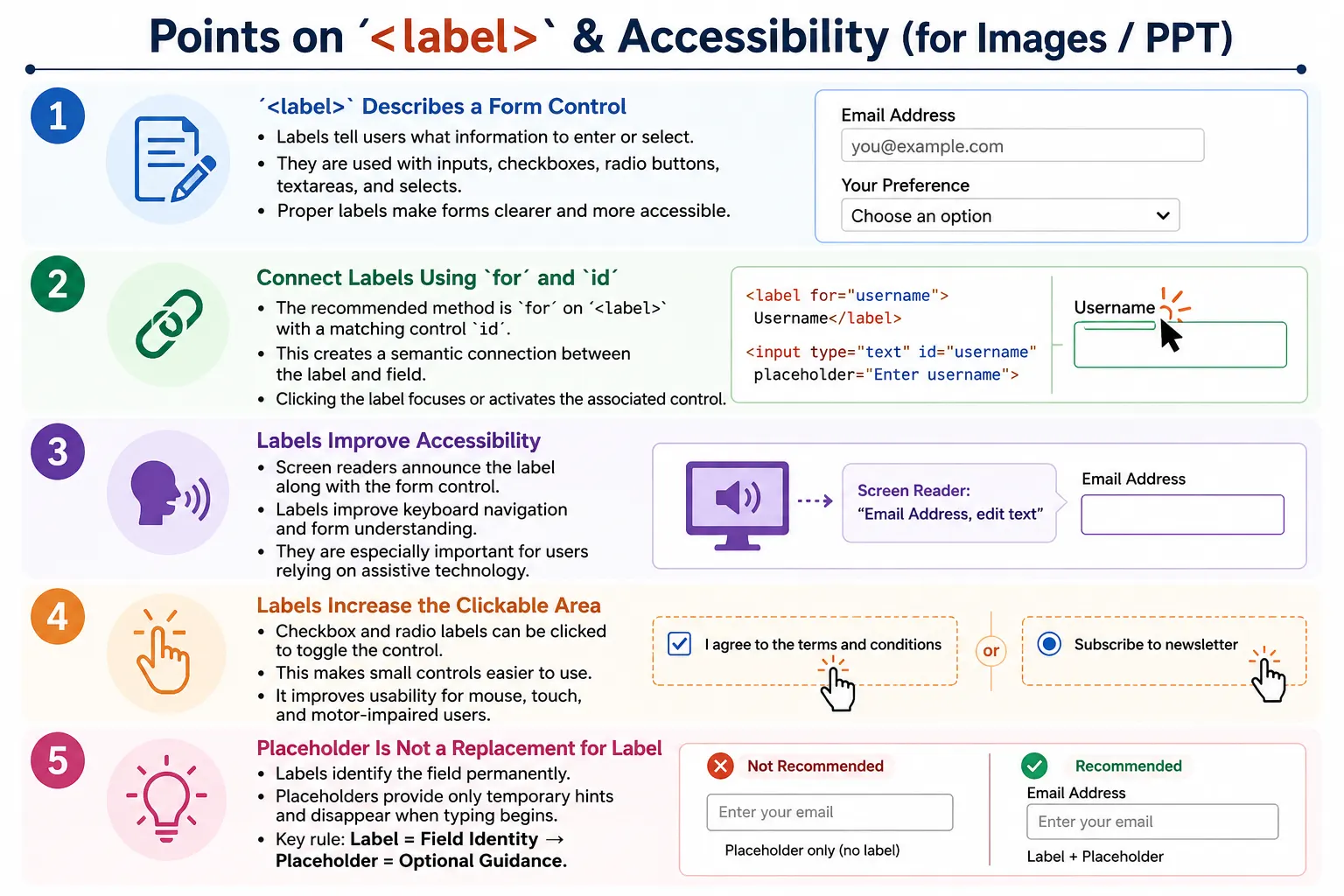
The <label> element is used to provide a text description for a form control such as an input field, checkbox, radio button, textarea, or select box. A form may appear to work without labels, but a form without proper labels is harder to understand, harder to use, and often inaccessible for screen reader users.
Labels are one of the simplest and most important accessibility features in HTML forms. They tell users what each field represents. They help screen readers announce the purpose of controls. They enlarge the clickable area for checkboxes and radio buttons. They also make forms easier to navigate, especially on mobile devices and for keyboard users.
In modern web development, every form control should have an associated label whenever possible. A visible label is not just a design detail. It is part of the meaning and usability of the form.
What Is a label?
A <label> identifies the purpose of a form control. It tells users what information should be entered or selected.
<label>Username</label>
<input type="text">
The browser displays the text label near the field.
Username
____________________
Without the label, users may see only an empty field. They may not know whether the field expects a username, email address, phone number, password, or something else.
Why Labels Are Needed
Without labels, a form can become confusing very quickly. A user may see multiple empty fields but have no clear idea what each field represents.
____________________
____________________
____________________
With labels, the purpose of each field becomes clear.
Username
____________________

Password
____________________
This clarity helps all users, not only users with disabilities. Clear labels reduce mistakes, speed up form completion, and make the interface feel more trustworthy.
Benefits of Labels
Labels provide clear field descriptions, better accessibility, larger clickable areas, improved mobile usability, better screen reader support, and easier form navigation. They also help QA engineers and developers understand the expected purpose of each field.
For checkboxes and radio buttons, labels are especially helpful because users can click the label text instead of clicking only the small control. This makes forms easier to use on touch screens and for users with motor difficulties.
Basic Example
A basic email field should include a label.
<label>Email</label>
<input type="email">
The browser displays a clear label and input field.
Email
____________________
This is better than showing an unlabelled text box because users immediately know what value to enter.
Associating Labels with Controls
There are two standard ways to associate a label with a form control. The recommended method uses the label's for attribute and the control's matching id. The second method wraps the control inside the label element.
Association matters because a label that is visually near a field is not automatically connected to that field. The browser needs a semantic connection so assistive technologies and click behavior work correctly.
Method 1: Using for and id
The most common and recommended approach is to use for on the label and a matching id on the form control.
<label for="email">Email</label>
<input type="email" id="email">
The connection works like this:
Label
  ?
for="email"
  ?
Matches
  ?
id="email"
  ?
Connected
When users click the label, the browser focuses the associated input field. This method is flexible because the label and control can be positioned separately in the layout while remaining semantically connected.
Browser Behavior
When a user clicks an associated label, the matching control receives focus or is activated.
Click Label
  ?
Input Field Gets Focus
This behavior improves usability because users can click either the input itself or the label text. For small controls like checkboxes and radio buttons, this makes a noticeable difference.
Method 2: Wrapping the Control
A label can also wrap the control directly. In this pattern, the control is automatically associated with the label because it is nested inside it.
<label>
    Email
    <input type="email">
</label>
This method is valid and useful for compact markup, especially with checkboxes and radio buttons. However, using for and id is often more flexible for complex layouts because the label and input do not need to be nested together.
Which Method Is Better?
Both methods are valid. The for and id method is generally recommended because it is explicit and flexible. It works well when layout requires labels and controls to be placed in different containers or grid columns.
for + id
  ?
More Flexible
  ?
Recommended
Wrapping the control inside the label is also useful, especially for simple checkbox and radio structures. The key rule is that the label must be programmatically associated with the control, not merely placed nearby visually.
Labels for Checkboxes
Labels are very important for checkboxes because the checkbox itself is small. With a label, users can click the text to toggle the checkbox.
<input type="checkbox" id="terms">
<label for="terms">I agree to the Terms</label>
The browser displays:
? I agree to the TermsClicking the text checks or unchecks the box. This improves usability and reduces click precision problems.
Labels for Radio Buttons
Radio buttons also benefit from labels. The label increases the clickable area and makes each option easier to understand.
<input type="radio" id="male" name="gender">
<label for="male">Male</label>
The browser displays:
? MaleWhen multiple radio buttons appear in a group, each option should have its own label. The group itself should also have a clear question or heading, often provided with <fieldset> and <legend>.
Labels for Textareas and Select Boxes
Textareas and select boxes should also have labels. A textarea label tells users what kind of long text is expected.
<label for="message">Message</label>
<textarea id="message"></textarea>
A select label tells users what they are choosing.
<label for="country">Country</label>
<select id="country">
    <option>India</option>
</select>
Labels keep the form understandable even when controls have similar shapes or positions.
Accessibility Benefits
Screen readers announce the label along with the form control. A labeled email field may be announced as:
Email
Edit Text
Without the label, a screen reader may announce only:
Edit TextThe second announcement does not tell the user what to enter. This is why labels are essential for visually impaired users and anyone using assistive technology.
Keyboard Navigation
Labels also support better keyboard navigation. A keyboard user can tab through form controls, and a screen reader can announce the label when each field receives focus.
Tab
  ?
Focused Field
  ?
Screen Reader Reads Label
This creates a predictable form experience. Users do not have to guess the purpose of a focused field.
Larger Click Area
Without a label, users must click precisely on a small checkbox or radio button.
?With a label, the clickable area includes the text.
? Receive NewsletterThis improves usability for mouse users, touch users, and users with limited motor control. It is one of the simplest ways to make forms feel easier to use.
Browser Workflow
When a user clicks a label associated with a control, the browser finds the matching ID and activates or focuses the control.
User Clicks Label
  ?
Browser Finds Matching id
  ?
Input Receives Focus
  ?
User Starts Typing
This behavior is built into HTML. Developers do not need JavaScript to make a properly associated label focus its input.
Labels vs Placeholder
A placeholder is not a replacement for a label. A placeholder provides a hint inside the field, but it disappears when the user starts typing.
<input placeholder="Email">This can be a problem because users may forget what the field represents after they begin typing. Placeholder text can also be less accessible and may have lower contrast depending on styling.
A better approach uses a visible label and a placeholder only as a hint.
<label>Email</label>
<input placeholder="Enter email">
Use labels for identification and placeholders for optional guidance.
Real-World Example
The following registration form gives every field a clear label.
<form>
    <label for="name">Full Name</label>
    <input type="text" id="name" name="name" required>

    <br><br>

    <label for="email">Email</label>
    <input type="email" id="email" name="email" required>

    <br><br>

    <label for="password">Password</label>
    <input type="password" id="password" name="password" required>

    <br><br>

    <button type="submit">Register</button>
</form>
Each field has a visible label, a unique ID, and a clear purpose. In production, spacing would usually be handled with CSS instead of line breaks.
Common Mistakes
A common mistake is missing labels entirely.
<input type="text">Users may not know what to enter, and screen reader users may receive an unhelpful announcement.
Another mistake is using placeholder text instead of a label.
<input placeholder="Username">Once users start typing, the placeholder disappears. A better version uses both a label and optional placeholder.
<label>Username</label>
<input placeholder="Enter username">
A third mistake is mismatching for and id.
<label for="email">Email</label>
<input id="username">
Here, the label is not associated with the input. Another serious mistake is duplicate IDs.
<input id="email">
<input id="email">
IDs must be unique within a page. Duplicate IDs can break label association, JavaScript behavior, CSS targeting, and automated tests.
Accessibility Best Practices
Every form control should have a label whenever possible. Use for with a matching id. Keep label text short and descriptive. Do not rely only on placeholders. Ensure labels remain visible. Group related controls using <fieldset> and <legend> when appropriate, especially for sets of radio buttons or checkboxes.
Good label text should be specific enough to guide the user. "Email" is better than "Input". "Search Products" is better than "Search" when several search fields may exist on the same page. The goal is to remove ambiguity.
Testing Labels
Labels should be tested visually and functionally. A tester should verify that each field has visible label text, the label text is correct, and clicking the label focuses or toggles the associated control. For checkboxes and radio buttons, clicking the text should activate the control.
Testing should also verify that every for value matches a real unique id. Mismatches are easy to miss visually because the label may appear next to the field, but the semantic connection may still be broken. Automated accessibility tools can help detect missing labels, but manual checks are still useful.
Label Patterns in Real Forms
Real forms often use labels together with helper text, required indicators, and validation messages. The label should identify the field, while helper text should explain special rules. For example, the label may say "Password" and helper text may say "Use at least 8 characters." Keeping these roles separate makes the form easier to understand.
Required indicators should also be handled carefully. If an asterisk is used, the form should explain what the asterisk means. The label text should remain meaningful even without color or visual styling. A user should not have to guess whether a field is required based only on a red border or icon.
Error messages should work with labels rather than replacing them. If the email field is invalid, the label should still say "Email" and the error message should explain the problem, such as "Enter a valid email address." This gives users both the identity of the field and the action needed to fix it.
Labels in Responsive Design
Responsive layouts should preserve visible labels. On small screens, some designs attempt to hide labels and rely only on placeholders to save space. This usually creates accessibility and usability problems. A better approach is to stack labels above controls or use compact but still visible label text.
When forms move from desktop to mobile, labels should remain close to their controls. If spacing or layout changes cause labels to appear detached from fields, users may enter data in the wrong place. Good responsive form design keeps the relationship between label and control clear at every screen size.
Selenium Perspective
Selenium can locate labels, read label text, and verify the associated input.
WebElement label =
driver.findElement(By.tagName("label"));
The label text can be read using getText.
System.out.println(label.getText());The associated input can be located by the ID referenced by the label.
WebElement email =
driver.findElement(By.id("email"));
Automation testers commonly verify label visibility, correct label text, proper for and id association, keyboard accessibility, and whether clicking the label focuses or toggles the control.
Comparison Table
| Without Label | With Label |
|---|---|
| Unclear field purpose | Clear field purpose |
| Poor accessibility | Better accessibility |
| Smaller click target | Larger click target |
| Harder keyboard navigation | Easier keyboard navigation |
| Poor screen reader experience | Better screen reader support |
Common Interview Questions
What is the purpose of the <label> element? It provides a descriptive text label for a form control and improves accessibility and usability.
How do you associate a label with an input? Use the for attribute on the label and a matching id on the form control, or wrap the control inside the label element.
Why is the for attribute important? It links the label to a specific form control, allowing users to click the label to focus or activate the control.
Should placeholders replace labels? No. Placeholders provide hints, while labels identify the purpose of the field.
Why are labels important for screen readers? Screen readers announce the label along with the form control, helping users understand what information is expected.
Which form controls commonly use labels? Text inputs, password fields, email inputs, checkboxes, radio buttons, textareas, selects, and many other interactive form controls use labels.
Interview-Ready Answer
The <label> element provides a descriptive name for a form control, making forms easier to understand and use. Labels improve accessibility by allowing screen readers to announce the purpose of fields and by increasing the clickable area for controls such as checkboxes and radio buttons. Labels are typically associated with form controls using the for attribute on the label and a matching id on the control, although nesting the control inside the label is also valid. Placeholders should be used only as hints and should never replace labels.
One-Line Insight
A form field tells users where to type, while a label tells them what to type.