Keyboard Navigation
Introduction
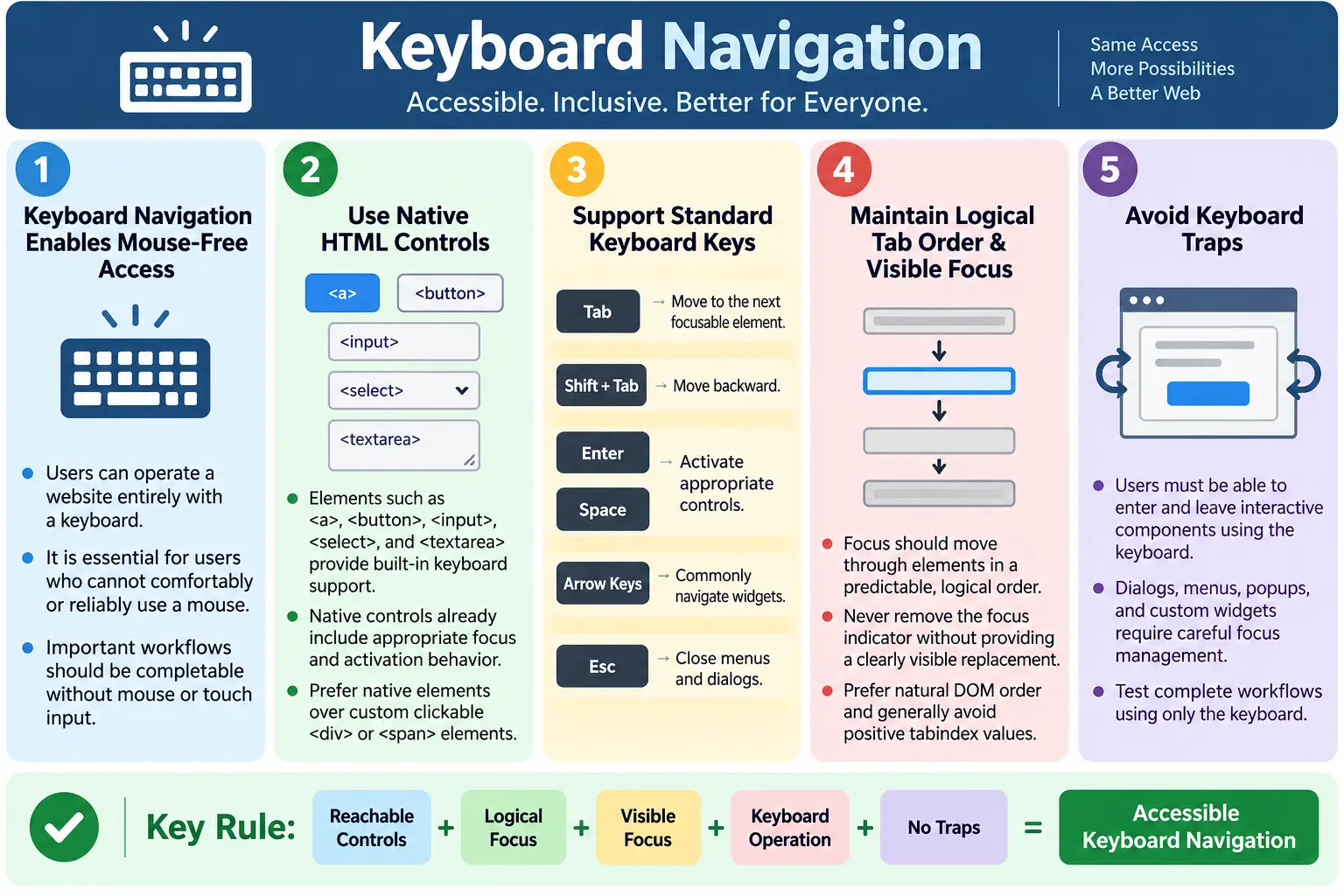
Keyboard Navigation is the ability to use a website or web application entirely with a keyboard, without requiring a mouse or touch input. It is one of the most important aspects of web accessibility because many users cannot use a mouse comfortably or at all. A website may look polished, but if important controls cannot be reached, focused, or activated from the keyboard, the site is not fully accessible. Keyboard navigation affects links, buttons, forms, menus, dialogs, popups, tabs, accordions, search interfaces, checkout flows, dashboards, and almost every interactive part of a modern website.
Many users rely on the keyboard because of visual, motor, or temporary impairments. Blind users often use screen readers and keyboard commands to move through pages. Users with limited hand movement may use a keyboard, switch device, voice control, or another input method that follows keyboard-like behavior. A person with a temporary injury may not be able to use a mouse. Power users may prefer keyboard navigation because it is faster. Accessibility requirements such as WCAG treat keyboard support as fundamental because the keyboard is one of the most universal input methods on the web.
A well-designed website allows users to navigate between elements, activate buttons and links, fill out forms, open menus, close dialogs, and complete tasks using only the keyboard. This does not mean every user must use the keyboard. It means the keyboard path must exist and must be reliable. The mouse, touch, keyboard, and assistive technology experiences should all lead to the same successful outcome.
What Is Keyboard Navigation?
Keyboard navigation means interacting with a webpage using keyboard keys instead of a mouse. The user moves focus from one interactive element to another, selects an element, and activates an action. Focus is the browser's way of identifying which element is currently ready to receive keyboard input.
Keyboard
  |
  v
Move Focus
  |
  v
Select Element
  |
  v
Activate Action
For example, a user may press Tab to move to a link, press Enter to open it, press Tab again to move to a button, press Space to activate it, then continue to a form field and type text. The user should be able to perform every important function without touching a mouse. If a feature works only when hovering or clicking with a mouse, it creates a barrier.
Why Keyboard Navigation Is Important
Many users cannot use a mouse. Blind users using screen readers rely heavily on keyboard commands. Users with limited hand movement, tremors, paralysis, or pain may not be able to move a mouse precisely. Some users operate computers through switch devices or voice software. Others may temporarily lose mouse access because of injury, environment, device setup, or hardware failure.
Without keyboard support, these users may be unable to use the website. A checkout form that cannot be submitted by keyboard blocks purchases. A menu that opens only on mouse hover blocks navigation. A dialog that cannot be closed with the keyboard traps users. A focus indicator that is removed leaves users unsure where they are. Keyboard navigation is not an enhancement; it is a requirement for equal access.
Keyboard navigation also improves quality for everyone. Clear focus order, meaningful controls, and predictable interaction make interfaces easier to test and maintain. If a page works well with the keyboard, it usually has a stronger semantic structure and more reliable interaction model.
HTML's Role
HTML provides built-in keyboard support for many native elements. Links, buttons, inputs, selects, textareas, and summaries are naturally focusable or interactive in ways browsers understand. When developers use these elements correctly, they get keyboard behavior automatically.
<a href="courses.html">
  Courses
</a>

<button>
  Submit
</button>

<input type="text">
A real link can receive focus and activate with Enter. A real button can receive focus and activate with Enter or Space. A real input can receive focus and accept typing. A select can be opened and changed with keyboard controls. Native elements are the safest starting point for keyboard accessibility because browser behavior, focus behavior, and assistive technology support are already built in.
Problems often appear when developers use generic elements such as <div> and <span> for interactive controls. CSS can make a <div> look like a button, but the browser does not automatically treat it like a button. The developer must add focusability, keyboard event handling, ARIA role, state management, and visible focus styling. In most cases, using the native element is simpler and more robust.
Browser Workflow
The browser manages focus movement through focusable elements. When the user presses Tab, the browser moves focus to the next focusable element in the tab order. When the user presses Shift + Tab, focus moves backward. When the focused element is activated with Enter or Space, the browser performs the element's default action where appropriate.
Press Tab
  |
  v
Browser Moves Focus
  |
  v
Highlighted Element
  |
  v
Press Enter
  |
  v
Action Performed
This workflow is predictable when HTML structure is logical. Users can move from header navigation to main content, through forms, into buttons, and onward to footer links. When developers disrupt the natural order with poor markup, hidden controls, positive tabindex values, or custom scripts, keyboard navigation becomes confusing.
Common Keyboard Keys
Several keys are central to keyboard navigation. Tab moves to the next focusable element. Shift + Tab moves to the previous focusable element. Enter activates links and buttons. Space activates buttons and checkboxes. Arrow keys are used in menus, radio groups, sliders, tabs, and other composite widgets. Esc often closes dialogs, menus, or popups.
| Key | Purpose |
|---|---|
| Tab | Move to the next focusable element |
| Shift + Tab | Move to the previous focusable element |
| Enter | Activate links and buttons |
| Space | Activate buttons and checkboxes |
| Arrow Keys | Navigate menus, radio buttons, sliders, tabs, and similar controls |
| Esc | Close dialogs, menus, or pop-ups |
Users build expectations around these keys. A custom component should follow familiar keyboard behavior. If a dropdown, tab list, or dialog behaves in a surprising way, users may not know how to operate it. Native controls already follow expected patterns, which is another reason to prefer them when possible.
Focus
Focus indicates which element currently receives keyboard input. When a user tabs through a form, focus may move from Name to Email to Password to Submit. At each point, the focused element is the one that will respond to typing, Enter, Space, or other relevant keyboard input.
Name
  |
  v
Email
  |
  v
Password
  |
  v
Submit
Focus is essential for keyboard users because it replaces the pointing function of a mouse. A mouse user can see the cursor and click a target. A keyboard user needs focus to show the active target. If focus order is logical and focus is visible, the user can move confidently. If focus is hidden or jumps unexpectedly, the user becomes disoriented.
Focus Indicator
Browsers display a visible focus outline by default. This outline helps users know where they are on the page. Removing it is one of the most common and damaging accessibility mistakes.
+----------------------+
| Submit Button        |
+----------------------+
Do not remove focus indicators unless you replace them with an equally visible alternative. Designers sometimes remove outlines because they do not like the default appearance. A custom focus style is fine if it remains highly visible. It should have enough contrast, be easy to see, and not depend only on subtle color changes.
:focus {
  outline: 2px solid blue;
}
A strong focus indicator benefits keyboard users, screen magnifier users, low-vision users, and anyone navigating without a mouse. It also makes testing easier because testers can see focus movement clearly.
Natural Keyboard Support
Several HTML elements already support keyboard interaction naturally. These include <a>, <button>, <input>, <select>, <textarea>, and <summary>. Developers should use these elements whenever they match the intended purpose.
<button>
  Save
</button>
Pressing Enter or Space activates the button automatically. The button can receive focus, exposes the correct role to assistive technologies, and behaves consistently across browsers. Replacing it with a clickable <div> creates unnecessary work and potential accessibility defects.
Logical Tab Order
Users expect focus to move in a logical order that follows the structure and visual flow of the page. Good tab order usually follows the DOM order. For a form, focus should move from First Name to Last Name to Email to Submit, not jump randomly between fields.
First Name
  |
  v
Last Name
  |
  v
Email
  |
  v
Submit
A poor order might place Submit before Email or jump from the header to the footer and back into the form. This confuses users and increases the chance of mistakes.
Submit
  |
  v
Email
  |
  v
First Name
The best practice is to arrange HTML elements in the order users should navigate them. CSS should not be used to create a visual order that conflicts with the DOM order unless the keyboard order still remains logical.
Using tabindex
The tabindex attribute controls whether an element can receive keyboard focus and sometimes its position in the tab order. It is powerful but should be used carefully.
<input tabindex="1">
<input tabindex="2">| Value | Meaning |
|---|---|
0 | Included in the normal tab order |
-1 | Can receive focus programmatically but is skipped by the Tab key |
| Positive value | Specifies an explicit tab order, generally discouraged |
Use the natural HTML order whenever possible. Use tabindex="0" when making a custom interactive element focusable, though a native element is usually better. Use tabindex="-1" when an element should receive focus through script, such as a dialog heading after opening a modal or an error summary after failed form submission.
Avoid positive tabindex values because they create a separate focus order that can become confusing and hard to maintain. If a page needs positive tabindex to work, the HTML structure likely needs improvement.
Skip Navigation Links
Large websites often include repeated navigation before the main content. Keyboard users should not have to tab through every navigation link on every page before reaching the article, form, or tool they came to use. A Skip to Main Content link solves this problem.
<a href="#main">
  Skip to Main Content
</a>
The link points to the main content area. It is usually visible when focused, so keyboard users can activate it immediately. Skip links are especially useful on education sites, documentation pages, news sites, dashboards, and any page with large navigation blocks.
A skip link should move focus or navigation to the main content reliably. The target should exist and be focusable or reachable. A skip link that appears visually but does not move users correctly is not useful.
Keyboard Accessibility for Forms
Forms must be fully usable with the keyboard. Users should move through fields with Tab and Shift + Tab, type values, select options, check boxes, choose radio buttons, and submit using the keyboard.
Name
  |
  v
Email
  |
  v
Password
  |
  v
Submit
Form fields should have visible labels, logical order, and clear focus styles. Custom widgets such as date pickers, autocomplete inputs, and custom select boxes need special care. If a native input can solve the problem, it is usually preferable. If a custom widget is required, it must support keyboard patterns that users expect.
Keyboard Navigation in Menus
Menus should be usable without a mouse. A simple navigation menu made of links is naturally keyboard accessible when the links are real <a> elements. Users can Tab through Home, Courses, Contact, and other links.
Tab
  |
  v
Home
  |
  v
Courses
  |
  v
Contact
Dropdown menus are more complex. They often need support for arrow keys, Enter, Space, and Esc. Users should be able to open the menu, move through items, activate an item, and close the menu. Menus should not open only on mouse hover because keyboard users cannot hover.
For many websites, a simple link-based navigation is more robust than a complex custom menu. If a custom menu is necessary, it should be tested with keyboard and screen reader workflows.
Custom Controls
Native elements already support keyboards. A native button is usually better than a custom button.
<button>
  Login
</button>
If a developer uses a generic element as a custom control, the developer must add keyboard focus and keyboard activation.
<div role="button" tabindex="0">
  Login
</div>
This custom control still needs JavaScript to support Enter and Space. It also needs a visible focus indicator and correct disabled behavior if disabled states are used. Custom controls require more testing than native controls because the browser does not provide all behavior automatically.
Keyboard Traps
A keyboard trap occurs when users can move focus into an area but cannot move focus out using the keyboard. This is a serious accessibility problem because the user becomes stuck.
Open Dialog
  |
  v
Focus Stuck
  |
  v
Cannot Exit
Dialogs, menus, popups, embedded widgets, and custom components can accidentally create keyboard traps. Users should always be able to move focus appropriately or close the component. For modal dialogs, focus may intentionally remain inside the dialog while it is open, but the user must be able to close the dialog and return to the previous context. That is focus management, not a trap.
Dialogs and Popups
Dialogs and popups need careful keyboard behavior. When a modal dialog opens, focus should move into the dialog. The user should be able to move through controls inside it, activate buttons, and close it with a clear control. Esc often closes dialogs when appropriate. After closing, focus should usually return to the control that opened the dialog.
If focus remains behind the dialog, keyboard users may interact with content they cannot see or that should be inactive. If focus enters the dialog but cannot leave and no close path exists, the user is trapped. Dialogs should be tested thoroughly because they are common sources of keyboard accessibility defects.
Real-World Example
On a shopping website, the entire purchase should be possible without a mouse. A user should be able to Tab to search, enter a query, navigate categories, open a product, choose options, add to cart, proceed to checkout, fill shipping and payment forms, review the order, and submit it.
Shopping Website
  |
  v
Search
  |
  v
Categories
  |
  v
Product
  |
  v
Add to Cart
  |
  v
Checkout
If any step requires a mouse, the workflow is incomplete. A keyboard user should not be blocked by a hover-only menu, unreachable button, hidden focus indicator, inaccessible date picker, or keyboard trap in a payment dialog.
Accessibility Best Practices
Ensure every interactive element is keyboard accessible. Maintain a logical tab order. Keep focus indicators visible. Use semantic HTML elements. Avoid keyboard traps. Support standard keyboard shortcuts. Provide a Skip to Main Content link on larger pages. Test using only the keyboard.
Use native HTML controls where possible. Avoid positive tabindex values. Do not hide focus styles. Make custom controls focusable and operable only when a native element cannot be used. Manage focus carefully in dialogs, menus, and dynamic views.
Keyboard accessibility should be tested as part of normal development. It is much easier to build correctly from the start than to retrofit after a complex custom interface has already been built.
Common Mistakes
Removing focus outlines is a common mistake.
:focus {
  outline: none;
}
A better approach is to provide a visible custom focus style.
:focus {
  outline: 2px solid blue;
}
Using <div> instead of <button> is another common problem. A real button should be used for button actions. Incorrect tab order can confuse users. Keyboard traps can block users. Mouse-only menus prevent users from reaching important navigation. These issues often appear in custom components and should be caught during review and testing.
Selenium Perspective
Automation testers often verify tab order, keyboard navigation, focus visibility, dialog behavior, skip links, keyboard shortcuts, and form completion using only the keyboard. Selenium can send keyboard events to elements and inspect which element is currently active.
WebElement button = driver.findElement(By.id("submit"));

button.sendKeys(Keys.ENTER);
Selenium can also simulate the Tab key.
driver.switchTo()
  .activeElement()
  .sendKeys(Keys.TAB);
Automated keyboard tests are useful, but they should be combined with manual keyboard testing. A script may confirm that focus moves, but a human tester can judge whether the order makes sense, whether focus is visible, and whether the workflow feels usable.
Testing Keyboard Navigation
A practical keyboard test begins by putting the mouse aside. Load the page and use only Tab, Shift + Tab, Enter, Space, Arrow keys, and Esc. Check whether focus starts in a logical place and moves through the page predictably. Confirm that focus indicators are visible and that hidden elements do not receive focus unexpectedly.
Test each major workflow. Can the user open menus, select options, fill forms, submit data, handle errors, close dialogs, use search, and reach main content? Can the user go backward with Shift + Tab? Can the user escape from popups? Can the user complete the business goal?
Keyboard testing should be repeated after responsive layout changes because mobile menus and collapsed navigation often introduce new keyboard issues. It should also be repeated after major JavaScript changes because dynamic components frequently affect focus behavior.
Design System Guidance
Design systems should define keyboard behavior for shared components. Buttons, links, inputs, modals, menus, tabs, accordions, tooltips, dropdowns, and alerts should all have documented keyboard expectations. If shared components are accessible, product teams can reuse them safely. If shared components are not accessible, the same defects spread across the site.
Design specifications should include focus states, hover states, disabled states, error states, and keyboard interaction notes. A component is not complete if it only has a visual design. It also needs interaction behavior and accessibility requirements.
Developers, designers, and testers should agree on the expected keyboard model before building complex components. This avoids late rework and inconsistent behavior across pages.
Keyboard Navigation and Screen Readers
Keyboard navigation and screen reader accessibility are closely connected. Many screen reader users navigate web pages through a combination of browser focus, screen reader shortcuts, and keyboard commands. They may move by headings, landmarks, links, buttons, form fields, tables, or regions. If the page uses semantic HTML, these navigation methods become much more effective.
A screen reader user may not press Tab through every single piece of content. Instead, the user may jump directly to the main heading, list all links, move to the next form field, or jump to the main landmark. However, when the user reaches an interactive control, keyboard support is still required. A button must activate. A menu must open and close. A dialog must manage focus. A form must be completable.
This means that semantic structure and keyboard interaction must work together. A page can have good headings and labels but still fail if controls cannot be operated. A page can have focusable controls but still be confusing if the structure is meaningless. Strong accessibility requires both understandable structure and reliable keyboard behavior.
Keyboard Navigation in Single Page Applications
Single Page Applications can create special keyboard challenges because content changes without a full page reload. When a route changes, a dialog opens, a panel expands, or a list updates, keyboard users need a logical focus experience. If focus remains on a removed element or stays in a location that no longer makes sense, users can become disoriented.
After a major view change, focus may need to move to the new page heading or main content region. After a validation failure, focus may need to move to the error summary or the first invalid field. After a modal closes, focus should usually return to the control that opened it. These details help users understand the result of their actions.
Single Page Applications should also avoid placing hidden inactive content in the tab order. If a menu is closed, its hidden links should not receive focus. If a tab panel is inactive and hidden, its controls should not be reachable until the panel becomes active. Keyboard focus should match what the user can actually interact with.
Hidden Content and Focus
Hidden content can cause keyboard problems when it remains focusable. A visually hidden menu, off-screen drawer, collapsed accordion, or inactive modal should not allow keyboard focus to move into controls that users cannot see or use. If focus moves into hidden content, keyboard users may feel lost because the visible focus indicator may disappear or appear in an unexpected place.
Developers should ensure that hidden interactive content is removed from the tab order or hidden in a way that prevents interaction. The exact approach depends on the component. Content hidden with the native hidden attribute is not normally focusable. Content hidden only by moving it off-screen may still be reachable if not handled carefully.
When content becomes visible again, focus should be managed intentionally if the user action expects it. For example, opening a mobile navigation drawer may move focus to the first link or keep focus on the menu button depending on the design. The key is that the behavior should be predictable and testable.
Roving Tabindex
Some complex widgets use a pattern called roving tabindex. In this pattern, only one item inside a group is in the normal tab order at a time, usually with tabindex="0". Other items receive tabindex="-1". Arrow keys move focus within the group. This is common in custom tab lists, toolbars, menus, grids, and similar composite widgets.
The benefit is that the user does not have to press Tab through every internal option in a large widget. Tab moves into the widget, arrow keys move within it, and Tab moves out. This matches many accessibility patterns for composite controls.
Roving tabindex should be implemented only when the team understands the expected keyboard behavior. For simple navigation links or basic forms, normal tab order is usually better. Complex keyboard models should be documented, tested, and consistent with user expectations.
Keyboard Shortcuts
Some applications provide keyboard shortcuts beyond standard browser navigation. Shortcuts can improve productivity, especially in dashboards, editors, email clients, design tools, and developer tools. However, shortcuts should be implemented carefully because they can conflict with browser shortcuts, assistive technology shortcuts, or user expectations.
Keyboard shortcuts should be discoverable. Users should not need to guess them. Provide a help panel, tooltip, or settings area when shortcuts are important. Avoid single-key shortcuts that trigger actions unexpectedly while users are typing in form fields. Provide a way to disable or customize shortcuts if the application is complex.
Standard keys should keep standard meanings. Tab should move focus. Esc should close dismissible overlays where appropriate. Enter and Space should activate controls according to their roles. Custom shortcuts should enhance the experience, not replace basic keyboard accessibility.
Keyboard Navigation Review Checklist
A practical review should start with native structure. Are links real links? Are actions real buttons? Are form controls native where possible? Are custom controls necessary? Then review focus behavior. Is every interactive element reachable? Is focus visible? Is the tab order logical? Are hidden elements skipped?
Next, review interaction. Can buttons, links, checkboxes, radio buttons, menus, dialogs, accordions, tabs, and forms be operated with expected keys? Can users go backward with Shift + Tab? Can users close menus and dialogs? Are there any keyboard traps? Does focus return to a sensible place after closing overlays?
Finally, review complete tasks. It is not enough to test individual controls. Users must be able to complete real workflows. Test registration, login, search, checkout, contact forms, filters, downloads, and any other important tasks using only the keyboard.
Common Real-World Defects
Real keyboard accessibility defects often appear in predictable places. Mobile menus may open but not let focus enter them. Dropdown menus may open on hover but not on keyboard focus. Custom buttons may be focusable but not activate with Space. Modals may open but leave focus behind the overlay. Date pickers may require mouse clicks. Error messages may appear but focus remains at the bottom of the form.
Another common defect is invisible focus. The user can technically tab through the page, but there is no visible indication of where focus is. This makes the site practically unusable for keyboard users. A third common defect is focus moving into hidden or disabled content. This happens when CSS hides content visually but interactive elements remain in the DOM tab order.
These defects are often easy to find with manual keyboard testing. They are also easier to prevent when teams use native elements and accessible shared components from the start.
Comparison Table
| Good Keyboard Navigation | Poor Keyboard Navigation |
|---|---|
| Logical tab order | Random tab order |
| Visible focus indicator | Hidden focus |
| Native HTML controls | Custom controls without keyboard support |
| No keyboard traps | Focus becomes trapped |
| Entire site usable by keyboard | Mouse required for some actions |
Common Interview Questions
What is keyboard navigation? Keyboard navigation is the ability to use a website entirely through keyboard input without requiring a mouse.
Why is keyboard navigation important? It enables users who cannot use a mouse to navigate and interact with websites effectively.
Which HTML elements support keyboard navigation by default? Examples include <a>, <button>, <input>, <select>, <textarea>, and <summary>.
What is a keyboard trap? A keyboard trap is a situation where users can move focus into an element or component but cannot move it out using the keyboard.
What is tabindex? tabindex controls whether an element can receive keyboard focus and, in some cases, its position in the tab order.
Should developers use positive tabindex values? Generally, no. Using the natural DOM order provides a more predictable and maintainable keyboard navigation experience.
Interview-Ready Answer
Keyboard Navigation is the ability to operate a website using only the keyboard. It is a fundamental accessibility requirement under WCAG and allows users with visual, motor, or other impairments to navigate webpages without a mouse. Native HTML elements such as links, buttons, inputs, and selects provide built-in keyboard support, while custom components must implement focus management and keyboard interaction manually. Good keyboard navigation includes a logical tab order, visible focus indicators, support for standard keys such as Tab, Enter, Space, and Esc, and the absence of keyboard traps.
One-Line Insight
If a user cannot complete your website using only a keyboard, your accessibility work is not finished.