Input Types – Overview
Introduction
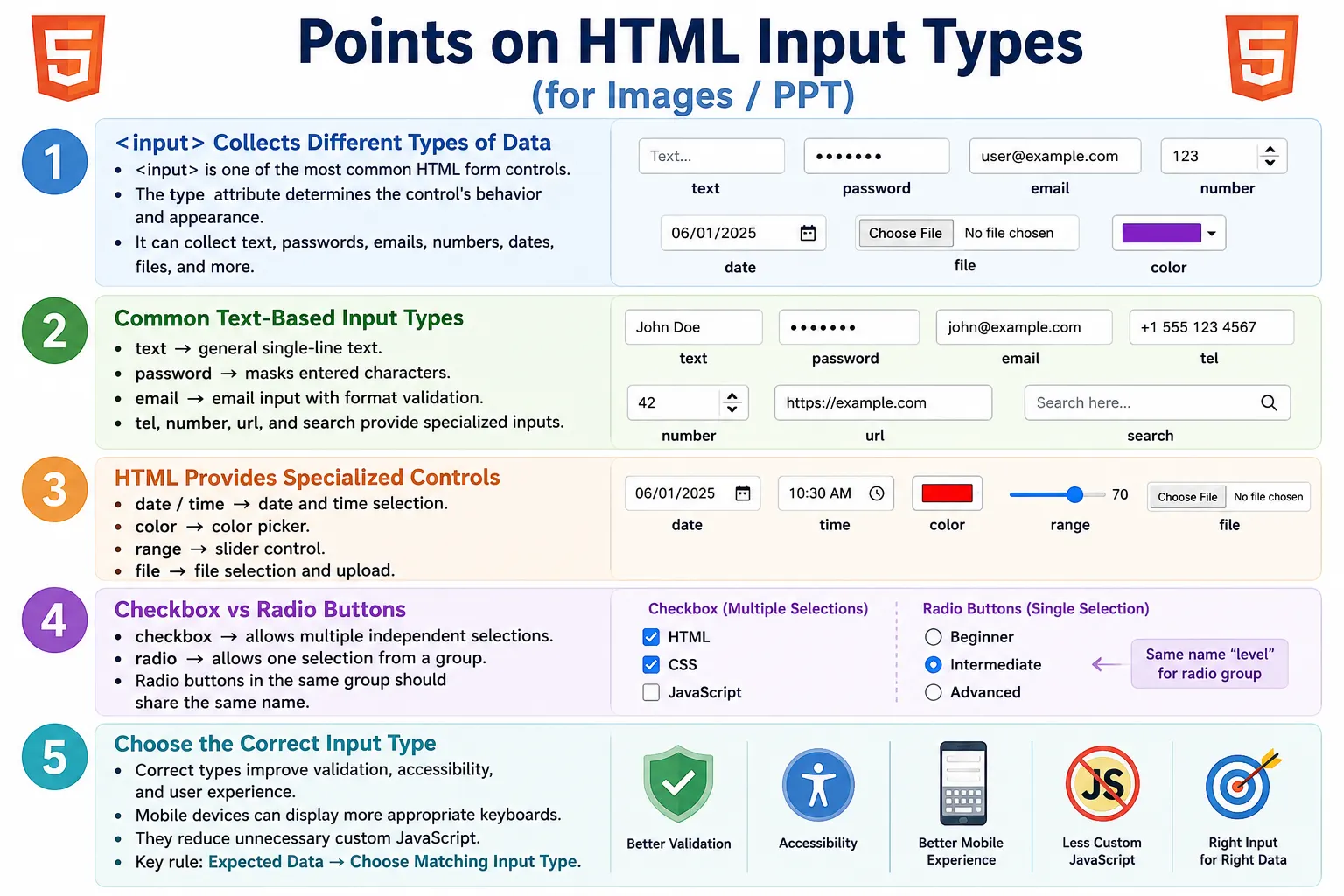
The <input> element is the most commonly used form control in HTML. It allows users to enter different kinds of information such as names, passwords, email addresses, numbers, dates, files, colors, search keywords, phone numbers, and more. A single HTML element becomes many different controls depending on the value of its type attribute.
This flexibility makes <input> one of the most important elements in web forms. The same tag can display a plain text box, a password field, a date picker, a file upload control, a checkbox, a radio button, a color picker, a slider, or a submit button. The browser changes the control's appearance, behavior, validation rules, and sometimes the mobile keyboard based on the input type.
Choosing the correct input type is not just a small coding detail. It improves user experience, accessibility, mobile usability, built-in validation, and form reliability. It also reduces the need for unnecessary custom JavaScript because the browser can provide many useful behaviors automatically.
What Is the input Element?
The <input> element creates an interactive field where users can enter or select data. It is usually placed inside a form, although it can also exist outside a form in modern HTML when associated with a form or used by JavaScript.
<input type="text">This basic syntax creates a single-line text box. The type attribute tells the browser what kind of input control should be displayed. If the type is text, the browser creates a text field. If the type is password, the browser creates a masked password field. If the type is date, supporting browsers show a date picker.
The input element is usually combined with attributes such as name, value, placeholder, required, min, max, checked, disabled, and readonly. However, the type attribute is the most important attribute for determining the core behavior.
Why Are Input Types Needed?
Different types of information require different controls. A user's name is best entered in a text box. A password should be hidden while typing. An email address should be checked for email format. A birthday is easier to select with a date picker. A resume requires a file upload control. A favorite color can be selected through a color picker. A volume setting can be adjusted with a slider.
Name
  ↓
Text Box

Password
  ↓
Password Field

Birthday
  ↓
Date Picker

Resume
  ↓
File Upload
Using the correct input type improves user experience because the control matches the expected data. It improves accessibility because assistive technologies can understand the purpose of the field more accurately. It improves mobile experience because mobile browsers can show a suitable keyboard. It improves validation because browsers can check common formats such as email and URL.
General Syntax
The general syntax of an input element uses the type attribute and usually includes a name attribute. The name is important because it identifies the field when the form is submitted.
<input type="input-type" name="fieldName">For example, an email input may be written like this:
<input type="email" name="email">When the form is submitted, the browser sends the value associated with the field name. If the user enters john@example.com, the submitted data includes the name-value pair for the email field.
Common Input Types
HTML provides many input types, each designed for a specific purpose. Some types collect text, some collect dates, some create buttons, and some allow selection from predefined choices.
| Input Type | Purpose |
|---|---|
text | Single-line text |
password | Password entry |
email | Email address |
number | Numeric input |
tel | Telephone number |
url | Website URL |
search | Search field |
date | Date picker |
time | Time picker |
datetime-local | Date and time picker |
month | Month picker |
week | Week picker |
color | Color picker |
range | Slider control |
checkbox | Multiple selections |
radio | Single selection from a group |
file | File upload |
hidden | Hidden value |
submit | Submit button |
reset | Reset form |
button | Generic button |
image | Image submit button |
Text Input
The text input is the default and most basic input type. It is used for single-line text values such as name, address, city, username, or short answers.
<input type="text">The browser displays a simple text box. It does not automatically validate email, numbers, dates, or special formats. For general text, this is appropriate. For specific data types, a more specific input type is usually better.
Password Input
The password input is used for secret values such as passwords and PINs. It masks characters while the user types.
<input type="password">Output:
********Masking protects the value from casual viewing on the screen. It does not encrypt the data by itself. Password forms still require secure transmission using HTTPS and proper server-side security.
Email Input
The email input is designed for email addresses.
<input type="email">Browsers can provide built-in email format validation, and mobile devices often show an email-friendly keyboard with symbols such as @ and .. A valid example is:
john@example.comUsing type="email" is better than using a plain text input for email because it communicates the expected data more clearly.
Number and Telephone Inputs
The number input is used for numeric values such as age, quantity, rating, or count.
<input type="number">Many browsers display increment and decrement controls. Number inputs can also work with attributes such as min, max, and step.
The telephone input is useful for phone numbers, mobile numbers, and contact details.
<input type="tel">Phone numbers are not always purely numeric because they may include country codes, spaces, hyphens, and parentheses. That is why tel is often better than number for phone fields. Mobile browsers often display a numeric keypad for telephone inputs.
URL and Search Inputs
The URL input is used for website addresses.
<input type="url">A valid URL may look like this:
https://softwaretips4u.comBrowsers can validate URL format when the form is submitted. The search input is designed for search boxes.
<input type="search">Some browsers provide search-specific UI features such as a clear button. Search inputs are useful for site search, product search, filtering, and keyword entry.
Date and Time Inputs
HTML includes several input types for date and time selection. The date input displays a date picker in supporting browsers.
<input type="date">Example:
2026-07-20The time input allows users to select a time.
<input type="time">Example:
10:30The datetime-local input allows users to select both a date and a time.
<input type="datetime-local">The month input allows month selection, and the week input allows selection of a calendar week.
<input type="month">
<input type="week">
Color and Range Inputs
The color input displays a color picker.
<input type="color">This is useful for theme selection, design tools, color preferences, and customization features.
The range input displays a slider control.
<input type="range" min="0" max="100">0 -----●------100Range inputs are useful for settings such as volume, brightness, rating, zoom level, and percentage selection. The user can adjust a value visually instead of typing it manually.
Checkbox Input
The checkbox input allows users to select one or more independent options.
<input type="checkbox">☑ HTML
☑ CSS
☐ JavaScriptCheckboxes are appropriate when multiple selections are allowed. They are also used for yes/no options such as agreeing to terms or enabling preferences.
Radio Input
The radio input allows users to select one option from a group. Radio buttons work as a group when they share the same name attribute.
<input type="radio">○ Male
● Female
○ OtherRadio buttons are appropriate for mutually exclusive choices. If only one answer should be selected, use radio buttons instead of checkboxes.
File and Hidden Inputs
The file input opens the file picker and allows users to select files from their device.
<input type="file">It is used for documents, images, videos, PDFs, resumes, profile photos, and uploads. File upload forms usually require method="post" and enctype="multipart/form-data".
The hidden input is not visible to users but is submitted with the form.
<input type="hidden" value="12345">Hidden inputs are commonly used for identifiers, tokens, session-related values, and internal form data. They should not be used to store sensitive values that must be protected from users because hidden inputs can still be inspected in the browser.
Submit, Reset, Button, and Image Inputs
The submit input submits the form.
<input type="submit" value="Submit">The reset input restores form controls to their initial values.
<input type="reset" value="Clear">The button input creates a generic button. Unlike type="submit", it performs no action by default and is often used with JavaScript.
<input type="button" value="Click">The image input displays an image that acts as a submit button.
<input type="image" src="submit.png">Browser Workflow
When the browser reads an input element, it checks the type attribute, creates the proper control, allows the user to interact with it, collects the data, and submits the value with the form when required.
Read Input Type
    ↓
Create Proper Control
    ↓
User Interacts
    ↓
Collect Data
    ↓
Submit Form
This workflow explains why the type attribute matters so much. It directly controls the browser's behavior.
Choosing the Correct Input Type
The correct input type should match the expected data. This improves the experience for users and reduces errors.
| Scenario | Recommended Type |
|---|---|
| Name | text |
| Password | password |
email | |
| Phone | tel |
| Age | number |
| Website | url |
| Search | search |
| Birthday | date |
| Resume | file |
| Terms Agreement | checkbox |
| Gender | radio |
| Volume | range |
| Favorite Color | color |
Benefits of Using the Correct Input Type
Using the correct input type provides better user experience, mobile-friendly keyboards, built-in browser validation, improved accessibility, cleaner code, and reduced JavaScript validation. For example, an email input can reject invalid email formats. A date input can provide a calendar picker. A number input can restrict values to numbers. A telephone input can show a phone-friendly keyboard on mobile devices.
These built-in behaviors reduce the amount of custom code required. They also make forms more predictable because users interact with controls that match the requested data.
Common Mistakes
A common mistake is using text input for email addresses.
<input type="text">A better choice is:
<input type="email">Another mistake is using text input for numbers.
<input type="text">A better choice is:
<input type="number">Using checkboxes for a single-choice question is also incorrect. If only one option can be selected, radio buttons should be used. Another mistake is using type="button" when the button should submit a form. A generic button does not submit automatically. Use type="submit" when the button should submit the form.
Real-World Example
A registration form may use several input types together.
<form>
    <input type="text" placeholder="Name">
    <input type="email" placeholder="Email">
    <input type="password" placeholder="Password">
    <input type="date">
    <input type="file">
    <input type="submit" value="Register">
</form>
Each field has a type that matches the data it collects. This makes the form easier to use and easier to validate.
Selenium Perspective
Automation testers often verify input fields because forms are critical user workflows. Selenium can locate an input field, enter text, read attributes, and validate behavior.
WebElement name =
driver.findElement(By.name("username"));
Text can be entered using sendKeys.
name.sendKeys("John");The input type can be verified using getAttribute.
String type =
name.getAttribute("type");

System.out.println(type);
Automation testers commonly validate input type, placeholder text, enabled or disabled state, validation messages, entered values, default values, required behavior, and whether incorrect input is rejected.
Quick Reference Table
| Input Type | Primary Purpose |
|---|---|
text | Text entry |
password | Secure password input |
email | Email address |
number | Numeric values |
tel | Phone number |
url | Website address |
search | Search field |
date | Date picker |
time | Time picker |
datetime-local | Date and time |
month | Month picker |
week | Week picker |
color | Color picker |
range | Slider |
checkbox | Multiple selections |
radio | Single selection |
file | File upload |
hidden | Hidden form value |
submit | Submit form |
reset | Reset form |
button | Generic button |
image | Image submit button |
Common Interview Questions
What determines the behavior of an <input> element? The type attribute determines the behavior.
Which input type is used for passwords? The password type is used for passwords.
Which input type validates email addresses? The email type provides built-in email format validation.
Which input type allows file uploads? The file type allows file uploads.
Which input type is used for sliders? The range type is used for sliders.
What is the difference between checkbox and radio? Checkboxes allow multiple selections, while radio buttons allow only one selection within the same group.
Does type="button" submit a form? No. Use type="submit" when the button should submit a form.
Interview-Ready Answer
The <input> element is a versatile HTML form control whose behavior is determined by its type attribute. HTML provides many input types such as text, password, email, number, date, file, checkbox, and radio, each designed for a specific kind of user input. Choosing the correct input type improves user experience, enables built-in browser validation, provides appropriate mobile keyboards, enhances accessibility, and reduces the need for custom JavaScript validation.
One-Line Insight
The type attribute transforms a single <input> element into dozens of specialized controls, making forms smarter, easier to use, and more reliable.