Image Tag (<img>) Explained
Introduction
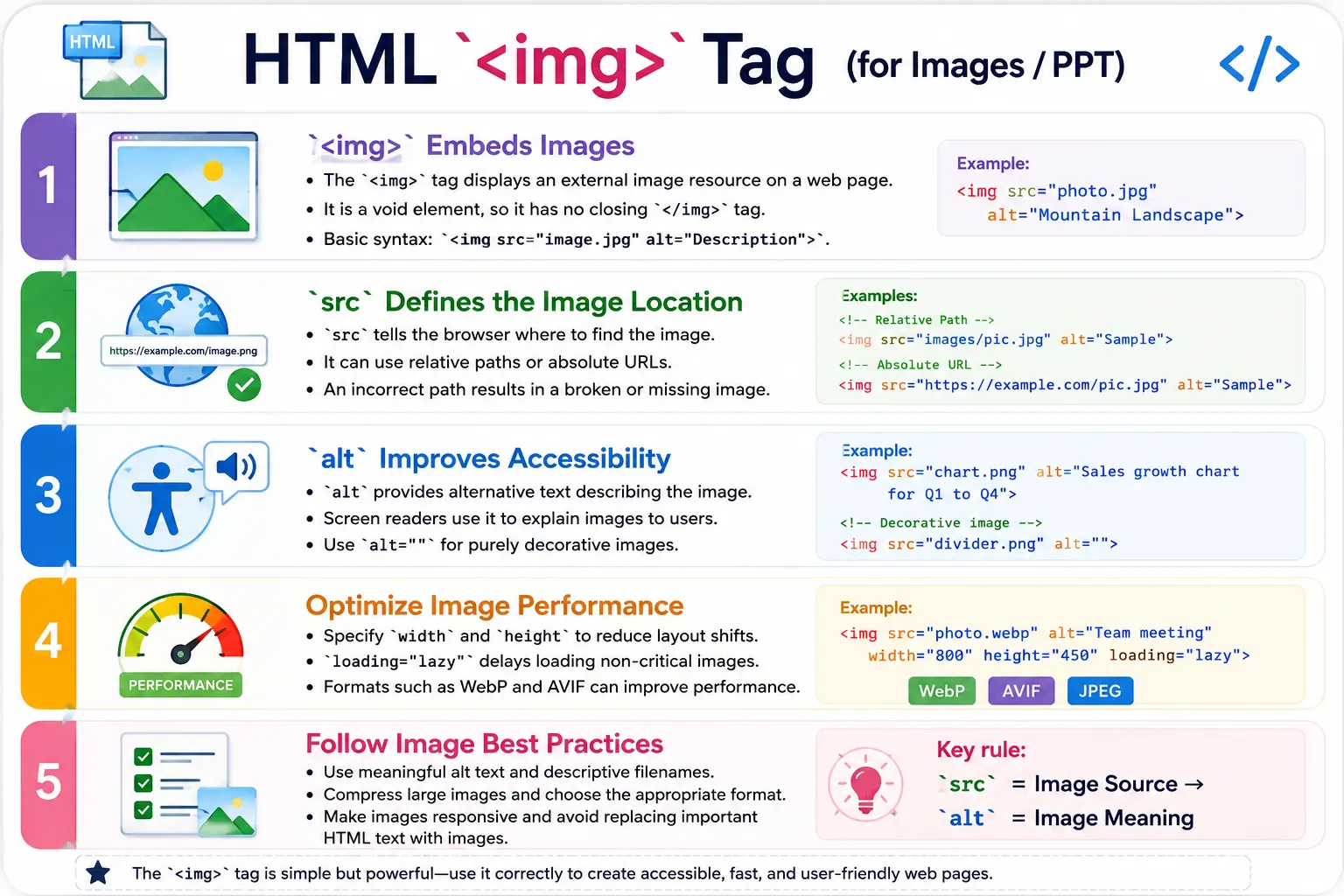
The <img> tag is an HTML element used to embed images into a web page. Images enhance visual appeal, improve user engagement, explain concepts, display products, and make content easier to understand. A page that contains only text can still be useful, but images often make the message clearer and more memorable.
Unlike most HTML elements, the <img> tag does not have a closing tag because it is a void element. A void element does not wrap content between an opening tag and a closing tag. Instead, the image element points the browser to an external image resource and asks the browser to display that resource at a specific place in the document.
<img src="logo.png" alt="Company Logo">This example displays an image of the company logo. The image data is not inside the HTML file. The HTML contains a reference to the file, and the browser downloads and renders that file.
What Is the img Tag?
The <img> tag tells the browser to load an image and display it at that location in the page. It does not contain image data itself. Instead, it references an external image file through the src attribute.
HTML
    ↓
<img>
    ↓
Image File
    ↓
Browser Displays Image
This separation is important. The HTML document describes the page structure. The image file is a separate resource. When the browser reads the HTML and finds an image element, it sends a request for the referenced image file, downloads it, decodes it, and displays it.
Why Images Are Important
Images make web pages more attractive, easier to understand, more engaging, more informative, and more professional. They can communicate ideas faster than text in many situations. A product photo helps users inspect an item. A diagram explains a concept. A profile picture identifies a person. A logo reinforces branding.
Common image examples include company logos, product photos, icons, banners, profile pictures, diagrams, infographics, charts, advertisements, and illustrations. In learning websites, images can show screenshots, workflows, code output, architecture diagrams, and UI examples. In e-commerce, images are often central to the buying decision.
Basic Syntax
The basic syntax of the image tag uses src and alt.
<img src="image.jpg" alt="Description">A real example might look like this:
<img src="nature.jpg" alt="Beautiful Nature">The browser displays the image named nature.jpg. If the image cannot be loaded, the alternative text can provide fallback information. The src attribute points to the image file, and the alt attribute describes the image.
Structure of the img Tag
The <img> tag can use several attributes. The most important are src and alt, but modern websites also commonly use width, height, loading, title, and decoding.
img
 │
 ├── src
 ├── alt
 ├── width
 ├── height
 ├── loading
 ├── title
 └── decoding
Each attribute has a specific role. Some affect accessibility, some affect layout, some affect performance, and some affect user experience. A professional image implementation considers all these areas, not only whether the image appears visually.
Why img Is a Void Element
Most common HTML elements can contain text or other elements. For example, a paragraph has opening and closing tags.
<p>Hello</p>The image element contains no text and no inner content. Therefore, it has no closing tag.
<img src="photo.jpg" alt="Photo">There is no </img> closing tag. The information needed by the browser is provided through attributes.
How Browsers Load Images
When the browser parses HTML and finds an image, it starts loading the image resource.
<img src="flower.jpg" alt="Flower">The browser process can be summarized like this:
HTML Parser
      ↓
Finds <img>
      ↓
Reads src Attribute
      ↓
Requests flower.jpg
      ↓
Downloads Image
      ↓
Displays Image
After download, the browser decodes the image data into pixels and paints it on the screen. Large images can slow this process, which is why file size and loading strategy matter.
The src Attribute
The src attribute specifies the location of the image file. Without src, no image can be displayed.
<img src="logo.png" alt="Logo">This means load logo.png. The source can be a relative path, a path to a folder, or an absolute URL. If the path is wrong, the browser shows a broken image icon or fallback text depending on the browser and context.
Image File Types
Different image formats are useful for different situations.
| Format | Use Case |
|---|---|
| JPG / JPEG | Photographs |
| PNG | Logos and transparent images |
| GIF | Simple animations |
| SVG | Icons and scalable graphics |
| WebP | Modern compressed images |
| AVIF | High-quality modern image format |
<img src="photo.webp" alt="Mountain">Choosing the right format affects quality, transparency, scalability, and performance.
Relative Image Paths
If the image is in the same folder as the HTML file, the path can be simple.
<img src="logo.png" alt="Logo">project/
index.html
logo.pngIf the image is inside a folder, include the folder name.
<img src="images/logo.png" alt="Logo">project/
index.html
images/
logo.pngRelative paths are common for project assets because they keep the website portable across development and production environments.
Absolute Image URLs
An image can also be loaded from another website using an absolute URL.
<img src="https://example.com/logo.png"
     alt="Logo">
In this case, the browser downloads the image from another domain. External images can be useful, but they depend on the external server. If that server is slow, unavailable, or changes the image, your page is affected.
The alt Attribute
The alt attribute provides alternative text for the image.
<img src="dog.jpg"
     alt="Golden Retriever">
If the image cannot load, the text Golden Retriever may be shown instead. More importantly, screen readers can announce the alt text to users who cannot see the image. The alt attribute helps screen readers, visually impaired users, search engines, and users in situations where images fail to load.
Accessibility Example
Good alt text describes the image in a useful way.
<img src="book.jpg"
     alt="HTML Programming Book">
A screen reader may announce:
Image
HTML Programming Book
If an image is purely decorative and adds no useful information, an empty alt attribute can be used.
<img src="decorative-line.png" alt="">This tells assistive technologies that the image can be ignored.
SEO Benefits
Search engines cannot see images exactly like humans. They use file name, alt text, surrounding content, captions, and page context to understand images.
<img src="html-course.jpg"
     alt="HTML Beginner Course">
This helps search engines understand that the image is related to an HTML beginner course. Descriptive filenames and meaningful alt text are better than generic names such as img001.jpg.
Width and Height Attributes
The width attribute controls image width.
<img src="car.jpg"
     width="300"
     alt="Car">
The height attribute controls image height.
<img src="car.jpg"
     height="200"
     alt="Car">
Width and height can be used together.
<img src="car.jpg"
     width="300"
     height="200"
     alt="Car">
Specifying dimensions helps the browser reserve layout space, reduce layout shifts, and improve page stability while images load.
The title Attribute
The title attribute can display a tooltip in some browsers when the user hovers over the image.
<img src="logo.png"
     alt="Company Logo"
     title="SoftwareTips4U Logo">
Hovering over the image may show SoftwareTips4U Logo. However, title text should not replace alt text. The alt attribute is more important for accessibility.
The loading Attribute
The loading attribute controls image loading behavior.
<img src="banner.jpg"
     alt="Banner"
     loading="lazy">
Possible values include lazy and eager. Lazy loading means the browser can delay loading the image until it is close to entering the viewport. This can improve page load speed, reduce bandwidth usage, and improve performance for long pages with many images.
Eager loading means the image should load immediately. This is useful for important images above the fold, such as a hero image or logo that should appear right away.
The decoding Attribute
The decoding attribute controls image decoding behavior.
<img src="photo.jpg"
     alt="Photo"
     decoding="async">
Common values are sync, async, and auto. In many cases, async allows the browser to decode the image without blocking other work. This can improve perceived performance, especially on image-heavy pages.
Responsive Images
A simple responsive image might use a percentage width.
<img src="banner.jpg"
     alt="Banner"
     width="100%">
Modern responsive design usually uses CSS instead of relying only on the width attribute.
img {
    max-width: 100%;
    height: auto;
}
This allows images to shrink within their containers while preserving aspect ratio. For advanced responsive images, HTML also supports features such as srcset and picture, but the basic <img> tag remains the foundation.
Image as a Link
An image can be placed inside an anchor tag to make it clickable.
<a href="index.html">
  <img src="logo.png"
       alt="Home">
</a>
Clicking the image navigates to the homepage. This pattern is common for website logos. The alt text should describe the link purpose, not only the image appearance. For a logo that links home, alt text such as Home or SoftwareTips4U Home can be useful.
Figure and Caption
Images often include captions. HTML provides <figure> and <figcaption> for this pattern.
<figure>
  <img src="mountain.jpg"
       alt="Mountain">

  <figcaption>
    Beautiful Mountain Landscape
  </figcaption>
</figure>
The figure groups the image and caption together. This is useful for articles, tutorials, reports, and educational content.
Common Image Uses
Images are used for company logos, product images, course thumbnails, user profile pictures, advertisements, icons, diagrams, charts, and illustrations. Each use case has different requirements. A product image needs detail and clarity. A logo needs reliable loading and meaningful alt text. A decorative icon may need empty alt text. A chart may need supporting text so users who cannot see it still understand the data.
Common Mistakes
A common mistake is missing alt text.
<img src="logo.png">A better version is:
<img src="logo.png"
     alt="Company Logo">
Another mistake is a broken image path.
<img src="imgaes/logo.png"
     alt="Logo">
The folder name is misspelled, so the browser cannot find the image. Very large images are another common issue. Uploading an 8000 by 6000 pixel image for a small thumbnail wastes bandwidth and slows the page.
Using images for large blocks of text is also a poor practice. Search engines and screen readers cannot interpret text embedded in images as effectively as real HTML text. Missing width and height can also cause layout shifts while the image loads.
Real-World Example
A common real-world use case is a website logo inside a header.
<header>
  <a href="index.html">
    <img src="logo.png"
         alt="SoftwareTips4U Logo"
         width="180"
         height="50">
  </a>
</header>
This image has a source, meaningful alt text, width, height, and link behavior. It is accessible, stable, and useful.
Accessibility Best Practices
Always provide meaningful alt text for informative images. Use empty alt="" for purely decorative images. Avoid phrases like image of or picture of unless necessary because screen readers already identify the content as an image. Ensure sufficient contrast if text appears over images. Do not rely solely on images to convey important information.
SEO Best Practices
Use descriptive filenames such as html-course.jpg instead of img001.jpg. Write meaningful alt text. Compress images for faster loading. Use modern formats such as WebP or AVIF when appropriate. Specify image dimensions. Use lazy loading for non-critical images. These practices improve performance, search understanding, and user experience.
Selenium Perspective
From a Selenium automation perspective, an image can be located with the img tag.
WebElement image =
driver.findElement(
  By.tagName("img")
);
The image source can be read from the src attribute.
String src =
image.getAttribute("src");
The alternative text can be checked through the alt attribute.
String alt =
image.getAttribute("alt");
Visibility can be checked with isDisplayed().
if(image.isDisplayed())
{
    System.out.println("Image Visible");
}
Automated tests can verify that important images are present, visible, and have meaningful alt text.
Comparison Table
| Attribute | Purpose |
|---|---|
| src | Specifies the image location |
| alt | Alternative text for accessibility and fallback |
| width | Sets image width |
| height | Sets image height |
| title | Displays a tooltip |
| loading | Controls lazy or eager loading |
| decoding | Controls image decoding behavior |
Common Interview Questions
A common interview question is: what is the purpose of the <img> tag? The answer is that it displays an image on a web page.
Another question is whether <img> is a container element. No. It is a void element. Interviewers may ask which attribute is mandatory. The src attribute is required to load an image, and practically, alt should always be provided for accessibility.
They may ask why the alt attribute is important. It improves accessibility, provides fallback text if the image cannot load, and helps search engines understand the image. They may also ask what loading="lazy" does. It delays loading the image until it is close to entering the viewport, improving performance.
Interview-Ready Answer
The <img> tag is a void HTML element used to embed images in a web page. The src attribute specifies the image source, while the alt attribute provides alternative text for accessibility and SEO. Additional attributes such as width, height, loading, and title improve layout stability, performance, and user experience.
Key Takeaway
The <img> tag does not contain an image. It tells the browser where to find one and how it should be presented. A professional image implementation includes a correct source path, meaningful alt text, appropriate dimensions, efficient loading behavior, and suitable file format.
Images should improve content, not harm accessibility or performance. Use them thoughtfully, describe them clearly, optimize them properly, and avoid replacing important text with images.
One-Line Insight
The <img> tag does not contain an image; it tells the browser where to find one and how it should be presented.