Image Formats (JPEG, PNG, SVG, WebP)
Introduction
Web browsers support multiple image formats, and each format is designed for different use cases. Choosing the right format improves website performance, image quality, SEO, user experience, page loading speed, and storage efficiency. A visually identical image can have very different file sizes depending on the format, compression settings, and image content.
The most commonly used image formats in modern web development are JPEG, PNG, SVG, and WebP. Each format has unique characteristics, advantages, and limitations. A photograph, a company logo, a transparent icon, and a modern responsive banner should not necessarily use the same format. Choosing the wrong format can make images blurry, increase page weight, reduce quality, or slow down loading.
Understanding image formats is not only a design topic. It is also a performance and front-end engineering topic. Developers should know when to use JPEG, when PNG is appropriate, why SVG is ideal for logos and icons, and why WebP is widely used for modern websites.
Why Multiple Image Formats Exist
No single image format is suitable for every situation. Different image types have different needs. A photograph contains many colors, gradients, and details. A logo often needs sharp edges and scalability. An icon may need transparency. A modern website may need the smallest possible file size without unacceptable quality loss.
Photograph
      ↓
JPEG

Company Logo
      ↓
SVG

Transparent Icon
      ↓
PNG

Modern Website Images
      ↓
WebP
Different formats solve different problems. The best format is the one that matches the image content and the website requirement.
Overview of Image Formats
A quick comparison helps clarify the major differences.
| Format | Best For | Transparency | Animation | Scalable |
|---|---|---|---|---|
| JPEG | Photographs | No | No | No |
| PNG | Logos, screenshots | Yes | No | No |
| SVG | Icons, logos, illustrations | Yes | Limited | Yes |
| WebP | Modern web images | Yes | Yes | No |
The table shows why format choice matters. JPEG is strong for photos, PNG is strong for transparent graphics, SVG is strong for scalable graphics, and WebP is strong for compressed modern web images.
JPEG (JPG)
JPEG stands for Joint Photographic Experts Group. It is one of the oldest and most widely used image formats on the web. JPEG files commonly use the extensions .jpg and .jpeg.
JPEG is excellent for photographs because it supports millions of colors and compresses complex images into relatively small file sizes. It uses lossy compression, which means some image information is removed to reduce file size. This is usually acceptable for photographs because small losses may not be obvious to the human eye.
<img src="mountain.jpg"
     alt="Mountain">
JPEG is best for nature photos, travel images, product photographs, blog images, social media photos, and other detailed raster images.
JPEG Advantages and Disadvantages
The main advantages of JPEG are small file size, fast loading, excellent photo quality, and universal browser support. It has been supported by browsers for decades, so compatibility is not a concern.
The disadvantages are important too. JPEG does not support transparent backgrounds. It can lose quality after repeated compression. It is not suitable for logos, icons, screenshots with sharp text, or graphics that need clean edges. A logo saved as JPEG may show compression artifacts and blurry edges.
JPEG Compression
JPEG compression removes some image information to reduce file size.
Original Image
      ↓
Compression
      ↓
Smaller File
This is called lossy compression. The more aggressive the compression, the smaller the file becomes, but the more visible the quality loss may be. The goal is to find a balance between acceptable quality and fast loading.
PNG
PNG stands for Portable Network Graphics. It is a lossless image format designed for high-quality graphics. PNG files use the .png extension.
PNG is known for sharp edges, transparency support, and quality preservation. It is excellent for logos, icons, UI elements, screenshots, transparent images, and graphics containing text. Unlike JPEG, PNG does not lose quality through compression in the same way.
<img src="logo.png"
     alt="Company Logo">
The main tradeoff is file size. PNG files can be much larger than JPEG or WebP, especially for large photographic images.
PNG Advantages and Disadvantages
The advantages of PNG include transparent backgrounds, high-quality graphics, no quality loss, and excellent results for text and logos. If an image needs crisp edges or transparency, PNG is often a reliable choice.
The disadvantage is that PNG is not ideal for large photographs because file sizes can become very large. A vacation photo saved as PNG may be much heavier than the same photo saved as JPEG or WebP. Large PNG images can slow pages and waste bandwidth.
PNG Transparency
PNG supports transparent backgrounds. This is useful for logos and icons placed on colored or patterned backgrounds.
Company Logo

(No White Background)
Without transparency, a logo might appear inside an unwanted white rectangle. With PNG transparency, the logo can blend into the surrounding page design.
SVG
SVG stands for Scalable Vector Graphics. It is an XML-based vector image format that uses mathematical shapes instead of fixed pixels. SVG files use the .svg extension.
SVG is resolution independent, which means it can scale up or down without becoming blurry. This makes it perfect for company logos, icons, simple charts, diagrams, and illustrations.
<img src="logo.svg"
     alt="Company Logo">
Because SVG is text-based, it can be edited with code editors and styled with CSS in many situations. Simple SVG graphics can have extremely small file sizes.
SVG Advantages and Disadvantages
SVG advantages include perfect scaling, tiny file size for simple graphics, editability with text editors, and support for CSS and JavaScript. A logo can be displayed at 50 pixels, 500 pixels, or 5000 pixels and remain sharp.
The main disadvantage is that SVG is not suitable for detailed photographs. A complex photo represented as vector shapes would be extremely large and inefficient. Complex artwork can also become large or difficult to maintain.
SVG Scaling
Raster images such as JPEG and PNG are made of pixels. If a small raster image is enlarged too much, it becomes blurred. SVG behaves differently.
Raster Image:
Small
↓
Large
↓
Blurred

SVG:
Small
↓
Large
↓
Always Sharp
For example, a company logo can scale from 50 pixels to 500 pixels to 5000 pixels while remaining sharp if it is SVG. This is why SVG is usually the best choice for logos and icons.
WebP
WebP is a modern image format developed by Google. WebP files use the .webp extension. It is designed to provide excellent quality with smaller file sizes than traditional formats in many cases.
WebP supports lossy compression, lossless compression, transparency, and animation. This makes it flexible for modern websites. It can often replace JPEG for photos and PNG for transparent raster images while reducing file size.
<img src="banner.webp"
     alt="Website Banner">
WebP is best for modern websites, product images, blog images, landing pages, and responsive layouts where performance matters.
WebP Advantages and Disadvantages
The advantages of WebP are smaller file sizes than JPEG and PNG in many situations, transparency support, animation support, and excellent quality. Smaller images usually mean faster websites, lower bandwidth usage, and better user experience.
The main disadvantage was historically browser support. Today, all major modern browsers support WebP, so this is mostly a historical concern. However, developers working with older systems may still need fallback strategies.
WebP Compression
WebP offers better compression for many web images.
Better Compression
      ↓
Smaller File
      ↓
Faster Website
This is why WebP is common in modern websites. It helps reduce page weight while keeping image quality high enough for users.
Lossy vs Lossless Compression
Lossy compression removes some image data. JPEG and lossy WebP are examples. Lossy compression creates smaller files but may reduce quality.
Lossless compression keeps all image data. PNG and lossless WebP are examples. Lossless compression preserves quality but may produce larger files. The right choice depends on the image. Photos usually tolerate lossy compression. Logos and text-heavy graphics often benefit from lossless quality or vector formats.
File Size Comparison
The same image can have very different file sizes depending on format and compression.
| Format | Approximate File Size |
|---|---|
| PNG | 900 KB |
| JPEG | 350 KB |
| WebP | 220 KB |
| SVG | 10-50 KB for simple graphics |
SVG sizes vary greatly depending on graphic complexity. A simple icon may be tiny, but a complex illustration may be much larger.
Quality Comparison
Different formats perform differently depending on image type.
| Format | Photo Quality | Graphic Quality |
|---|---|---|
| JPEG | Excellent | Limited |
| PNG | Good | Excellent |
| SVG | Not suitable | Excellent |
| WebP | Excellent | Good |
Transparency and Animation Support
Transparency support matters when images must blend with different backgrounds. JPEG does not support transparent backgrounds. PNG, SVG, and WebP do. Animation support is also different. JPEG and PNG do not support animation in the typical web sense. SVG can support limited animation through CSS or JavaScript. WebP supports animation.
| Format | Transparency | Animation |
|---|---|---|
| JPEG | No | No |
| PNG | Yes | No |
| SVG | Yes | Limited |
| WebP | Yes | Yes |
Browser Support
JPEG, PNG, SVG, and WebP are supported by all major modern browsers. JPEG and PNG have the longest history. SVG is standard for vector graphics in modern web development. WebP is now widely supported and commonly used for performance-focused websites.
When working on modern websites, WebP is usually safe. When supporting older browsers or special embedded systems, fallback formats may still be considered.
Choosing the Right Format
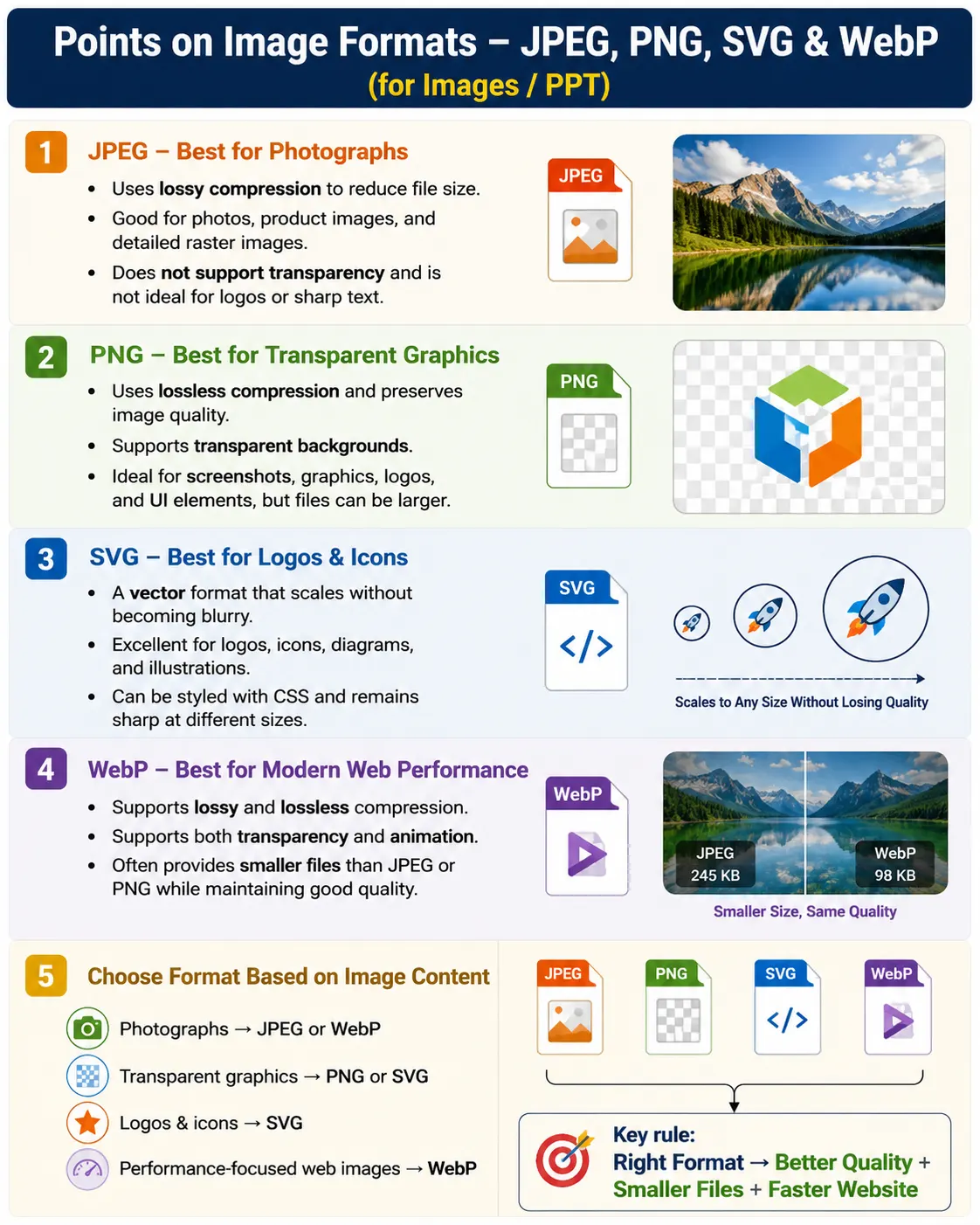
For photographs, use JPEG or WebP. For a company logo, use SVG when possible. For transparent icons, use PNG or SVG. For product images, use WebP when browser support is acceptable. For technical diagrams, use SVG if the graphic is vector-friendly.
Photograph: JPEG or WebP
Company Logo: SVG
Transparent Icon: PNG or SVG
Product Image: WebP
Technical Diagram: SVG
The correct format depends on content, quality needs, transparency, scalability, and performance goals.
Real-World Examples
A SoftwareTips4U logo should usually use SVG if the logo is vector-based.
<img src="logo.svg"
     alt="SoftwareTips4U Logo">
A course thumbnail can use WebP for performance.
<img src="html-course.webp"
     alt="HTML Course">
A profile photo can use JPEG.
<img src="profile.jpg"
     alt="Instructor Photo">
A screenshot can use PNG when sharp text and UI details are important.
<img src="selenium.png"
     alt="Selenium Output">
Performance Best Practices
Use WebP where possible for photos and general web images. Use SVG for icons and logos. Use PNG only when transparency or lossless quality is required. Use JPEG for photographs if WebP is unavailable. Compress images before uploading. Avoid serving images larger than needed. Use loading="lazy" for images below the fold.
Performance matters because images are often the largest resources on a page. A few unoptimized images can make a page feel slow, especially on mobile networks.
Common Mistakes
A common mistake is using PNG for large photos.
<img src="vacation.png">This can produce a large file. A better choice is:
<img src="vacation.webp">or:
<img src="vacation.jpg">Another mistake is using JPEG for logos.
<img src="logo.jpg">The logo may appear blurry with compression artifacts. SVG is usually better.
<img src="logo.svg">Using SVG for complex photos is also wrong because SVG is not intended for photographic images. Uploading uncompressed 8000 by 6000 pixel images for small thumbnails is another major performance mistake.
Selenium Perspective
From a Selenium perspective, an image can be located with the img tag.
WebElement image =
driver.findElement(
  By.tagName("img")
);
The source can be checked with the src attribute.
String src =
image.getAttribute("src");
Printing the source can reveal the file type.
System.out.println(src);Example output may include:
logo.svg
banner.webp
profile.jpg
Tests can verify that expected image formats are used for key assets, such as SVG for logos and WebP for banners.
Comparison Table
| Feature | JPEG | PNG | SVG | WebP |
|---|---|---|---|---|
| Best For | Photos | Graphics and transparency | Logos and icons | Modern web images |
| Compression | Lossy | Lossless | Vector | Lossy / Lossless |
| Transparency | No | Yes | Yes | Yes |
| Scalable | No | No | Yes | No |
| Animation | No | No | Limited | Yes |
| Typical File Size | Small | Large | Very small for simple graphics | Smallest for many raster images |
Common Interview Questions
A common interview question is: which format is best for photographs? The answer is JPEG or WebP. JPEG is traditional and widely supported, while WebP often provides better compression.
Another question is which format is best for logos. The answer is SVG because it scales without losing quality. Interviewers may ask which formats support transparency. PNG, SVG, and WebP support transparency. They may ask which format is scalable without losing quality. The answer is SVG.
They may also ask which format generally provides the best web performance. WebP is a strong answer because it offers excellent quality with smaller file sizes in many cases.
Interview-Ready Answer
JPEG is ideal for photographs because it provides high compression with good visual quality. PNG is best for graphics requiring transparency or lossless quality. SVG is a vector format that scales infinitely without losing quality, making it perfect for logos and icons. WebP is a modern format that supports both lossy and lossless compression, transparency, and animation while typically producing smaller files than JPEG or PNG, making it an excellent choice for modern websites.
Key Takeaway
Image format choice should be based on image content. Use JPEG or WebP for photos, PNG for transparent raster graphics or screenshots, SVG for scalable logos and icons, and WebP for high-performance modern web images.
The right format improves performance, quality, SEO, and user experience. The wrong format can create large files, blurry logos, missing transparency, and slow page loads.
One-Line Insight
Choose the image format based on the content: JPEG or WebP for photos, PNG for transparent graphics, and SVG for scalable logos and icons.