HTML5 Feature Detection
Introduction
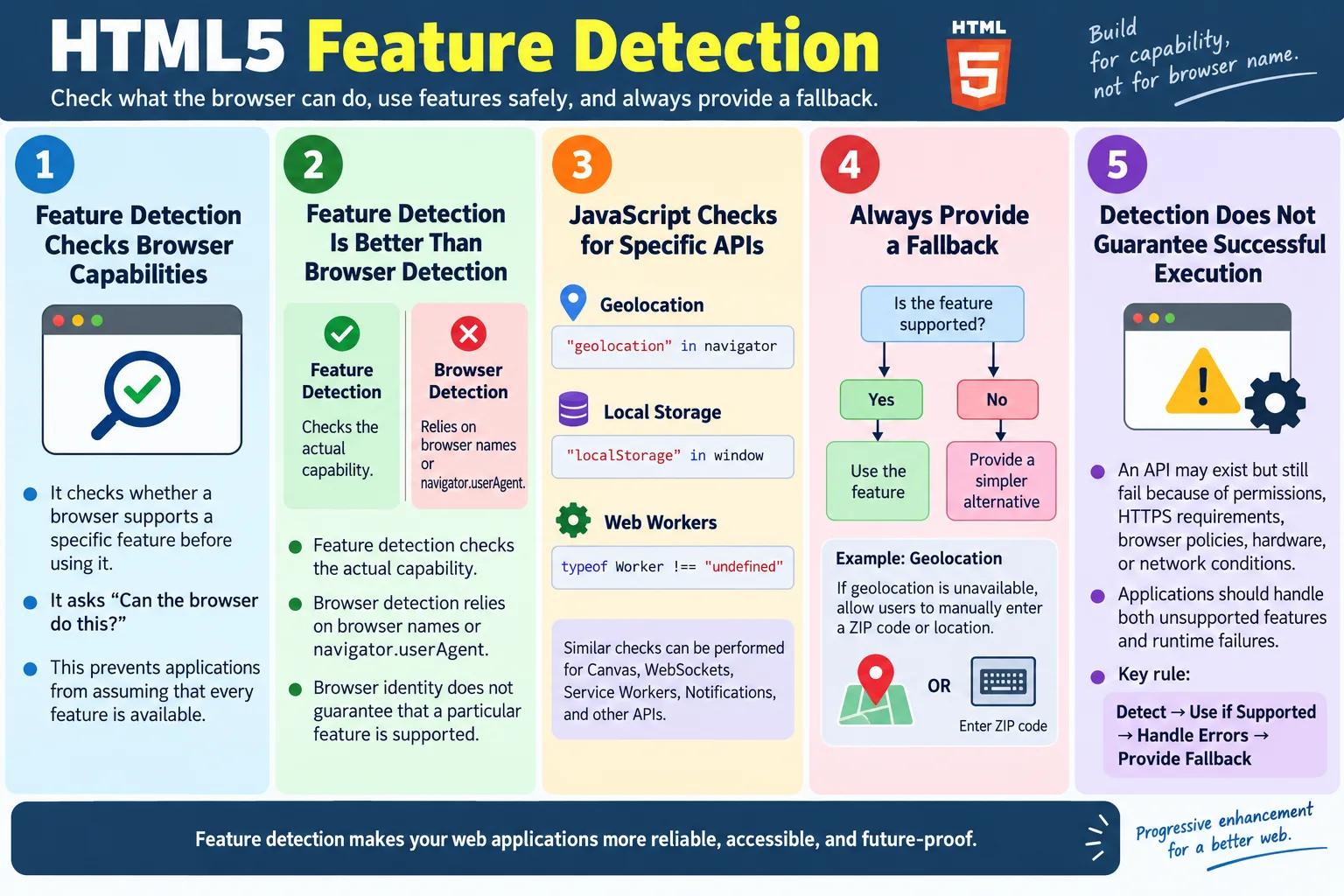
HTML5 Feature Detection is the process of checking whether a browser supports a specific HTML5 feature before using it. Modern web applications run across many browsers, operating systems, devices, privacy settings, enterprise restrictions, and browser versions. Even when two users open the same page, the capabilities available to the application may not be identical. One browser may support geolocation, another may block it. One device may support canvas rendering smoothly, another may fail under specific conditions. One environment may allow local storage, while another may disable it because of privacy mode or policy restrictions.
Feature detection helps developers build reliable, compatible, and user-friendly web applications. Instead of assuming that a feature exists, the application checks for support and then decides what to do. If the feature is available, the application uses it. If the feature is unavailable, the application can provide a fallback, show a helpful message, use a simpler alternative, or disable only the affected part of the interface. This avoids runtime errors and creates a better experience for users.
Commonly detected HTML5 and browser features include the Geolocation API, Local Storage, Session Storage, Canvas, Web Workers, Drag and Drop, WebSockets, Service Workers, and Notifications. These features are powerful, but they are not equally available in every environment. Feature detection is the practical technique that lets developers use modern browser capabilities without breaking the application for users who do not have them.
What Is Feature Detection?
Feature detection means checking whether a browser supports a particular capability. The important point is that the code checks the capability itself, not the browser name. Instead of asking "Which browser is this?", feature detection asks "Can this browser do this?" That small change makes the approach much more reliable.
A simple feature detection workflow looks like this. The website loads. JavaScript checks whether the required feature exists. If the feature is supported, the application uses it. If the feature is not supported, the application uses an alternative. This workflow protects the application from calling APIs that do not exist.
Website
  |
  v
Check Feature
  |
  v
Supported?
  |
  +-- Yes -> Use Feature
  |
  +-- No  -> Use Alternative
For example, a nearby-store page may use geolocation to find the user's location. Before calling navigator.geolocation.getCurrentPosition(), the page can check whether geolocation exists in navigator. If it exists, the page can request the user's location. If it does not exist, the page can show a ZIP code input instead. The page continues working either way.
Why Feature Detection Is Important
Different browsers and browser versions may support different features. Even modern browsers do not behave identically in every situation. Support also depends on device capabilities, security context, permissions, privacy mode, and user settings. A feature may exist in one browser but require HTTPS. A feature may be available but blocked by the user. A feature may be present but behave differently on mobile and desktop.
Without feature detection, an application can fail suddenly. Imagine a website that calls geolocation immediately. If the browser does not support geolocation, JavaScript may throw an error, and the rest of the script may stop. The user sees a broken page or an incomplete workflow. The problem is not that the feature is modern. The problem is that the application assumed support without checking.
Website
  |
  v
Uses Geolocation
  |
  v
Browser Does Not Support It
  |
  v
Application Error
With feature detection, the same scenario becomes controlled. The page checks support, chooses the proper path, and keeps the user moving. The fallback may not be as advanced as the modern feature, but it is better than a broken experience.
Website
  |
  v
Check Support
  |
  v
Supported?
  |
  +-- Yes -> Use Feature
  |
  +-- No  -> Show Fallback
This makes applications more robust. Robust applications do not depend on perfect browser conditions. They make a reasonable plan for both supported and unsupported environments.
Browser Detection vs Feature Detection
Browser detection tries to identify the browser by reading information such as navigator.userAgent. Historically, many websites used this approach. They checked whether the user was using Chrome, Firefox, Safari, Internet Explorer, or another browser, and then enabled or disabled features based on that identity. This approach is fragile.
if (navigator.userAgent.includes("Chrome")) {
  // Use feature
}
This code assumes that every Chrome version supports the feature and that non-Chrome browsers do not. Both assumptions may be wrong. A different browser may fully support the feature. An older Chrome version may not support it correctly. A privacy tool may modify the user agent. Some browsers include names of other browsers in their user agent string for compatibility reasons. User agent parsing can become a collection of exceptions and guesses.
Feature detection avoids these problems by checking the actual capability. For geolocation, the code checks whether geolocation exists in navigator.
if ("geolocation" in navigator) {
  // Use Geolocation
}
This is the recommended mindset. The application does not need to know which browser is being used. It only needs to know whether the required feature is available. Feature detection is more direct, more accurate, and easier to maintain.
Detecting Geolocation
The Geolocation API allows a web application to request the user's location. Since this feature may be unavailable or blocked, the application should check before using it.
if ("geolocation" in navigator) {
  console.log("Supported");
} else {
  console.log("Not Supported");
}
If supported, the application may call navigator.geolocation.getCurrentPosition(). If not supported, the application can ask the user to enter a ZIP code, city, address, or region manually. This is a practical fallback because the user's goal is usually not "use geolocation"; the user's goal is to find nearby stores, restaurants, services, delivery availability, or location-specific information.
It is important to understand that feature detection does not mean permission is granted. The browser may support geolocation, but the user may deny permission. The page must handle both cases. First check whether the API exists. Then request permission through the API. Then handle success, denial, timeout, and error responses.
Detecting Local Storage
Local Storage allows a page to store string data in the browser with no automatic expiration. It is commonly used for simple preferences such as theme choice, language setting, recently viewed items, or small client-side state.
if (typeof Storage !== "undefined") {
  console.log("Storage Supported");
}
A more specific check is to verify whether localStorage exists on window.
if ("localStorage" in window) {
  console.log("Local Storage Available");
}
In real applications, local storage detection should be paired with error handling. Some environments expose localStorage but restrict writing to it, especially in private browsing modes, embedded contexts, or locked-down enterprise environments. A robust application may attempt a small test write inside a try block before relying on it.
If local storage is unavailable, the application can use a default theme, store preferences on the server after login, or keep the setting only in memory for the current page session. The right fallback depends on the importance of the stored data.
Detecting Session Storage
Session Storage is similar to Local Storage, but its data is scoped to a browser tab or session. It is useful for temporary state such as multi-step form progress, temporary filters, or session-specific UI preferences.
if ("sessionStorage" in window) {
  console.log("Session Storage Supported");
}
As with local storage, support checks should not be the only protection. Code that writes to session storage should handle exceptions. Storage may be full, disabled, restricted, or unavailable in certain contexts. A fallback can keep temporary values in JavaScript memory or ask the user to continue without saved progress.
Detecting Canvas
The <canvas> element provides a drawing surface for graphics, charts, games, image manipulation, and visualizations. Feature detection usually checks whether a created canvas element has a getContext method.
const canvas = document.createElement("canvas");

if (canvas.getContext) {
  console.log("Canvas Supported");
}
If canvas is supported, the application can render dynamic graphics. If canvas is not supported, the application can show a static image, a table of data, or a simplified message. For example, a dashboard chart can use canvas when available and display a static chart image or data table otherwise.
Canvas detection should also consider the specific context needed. A browser may support 2D canvas but not WebGL. If an application requires WebGL, it should test for that context directly rather than assuming that general canvas support is enough.
Detecting Web Workers
Web Workers allow JavaScript to run background tasks outside the main UI thread. This helps keep the interface responsive when performing expensive work such as parsing large data, processing images, or running calculations.
if (typeof Worker !== "undefined") {
  console.log("Web Workers Supported");
}
If Web Workers are supported, the application can offload heavy work. If not, it may run a smaller version of the task on the main thread, process data in chunks, show a loading state, or disable the advanced operation. Feature detection helps prevent the application from attempting to create a worker in an unsupported environment.
Detecting Drag and Drop
HTML5 Drag and Drop allows users to drag elements or files into an interface. It is used in file upload areas, kanban boards, sortable lists, and visual builders. A simple detection approach checks whether the draggable property exists on an element.
const div = document.createElement("div");

if ("draggable" in div) {
  console.log("Drag and Drop Supported");
}
If drag and drop is not supported or is difficult to use on a device, the application should still provide an alternative. A file upload area should include a normal file input. A sortable list may include move up and move down buttons. A visual builder may provide keyboard-accessible controls. Feature detection should support usability, not only technical compatibility.
Detecting WebSockets
WebSockets provide a persistent two-way communication channel between browser and server. They are commonly used for chat, live dashboards, collaborative apps, notifications, and real-time updates.
if ("WebSocket" in window) {
  console.log("WebSocket Supported");
}
If WebSockets are supported, the application can create a real-time connection. If not, the fallback may use polling, long polling, server-sent events, or a manual refresh pattern. The fallback depends on how real-time the application needs to be.
Feature detection confirms the browser API exists, but it does not guarantee that the connection will succeed. Firewalls, network proxies, server configuration, and authentication can still affect WebSocket behavior. Good applications handle connection failure as well as feature absence.
Detecting Service Workers
Service Workers are used for offline support, caching strategies, push notifications, and progressive web app behavior. They require secure contexts, usually HTTPS, except for local development on localhost.
if ("serviceWorker" in navigator) {
  console.log("Supported");
}
If supported, the application can register a service worker. If not supported, the site can continue as a normal website without offline behavior. The page should not fail just because service workers are unavailable. Progressive enhancement is the right model: provide a working baseline first, then add advanced behavior where supported.
Detecting Notifications
The Notifications API allows a web application to show system-level notifications. It is useful for messaging apps, reminders, task updates, and other timely events.
if ("Notification" in window) {
  console.log("Notifications Supported");
}
As with geolocation, detection only confirms that the API exists. Notifications also require user permission. The user may deny permission, dismiss the prompt, or later revoke permission. The application should handle all of these states. If notifications are not available, the fallback may be an in-app message, badge, email alert, or normal page update.
Browser Workflow
The browser workflow for feature detection is predictable. The page loads. JavaScript checks whether a feature exists. If the feature is supported, the application uses it. If not, it takes a fallback path. This may happen during page initialization or at the moment when the user tries to use the feature.
Load Page
  |
  v
JavaScript Checks Feature
  |
  v
Supported?
  |
  +-- Yes -> Use HTML5 Feature
  |
  +-- No  -> Fallback
Some checks are best performed early. For example, a page may check service worker support when initializing a progressive web app. Other checks are better performed when needed. For example, geolocation permission should usually be requested after a user action, not immediately on page load. The timing should respect user experience and browser permission rules.
Using Fallbacks
Feature detection is only useful when the application has a plan for unsupported environments. That plan is called a fallback. A fallback does not always need to be equal to the full feature. It only needs to preserve the core user goal as much as possible.
if ("geolocation" in navigator) {
  navigator.geolocation.getCurrentPosition(success);
} else {
  alert("Geolocation is not supported.");
}
This example shows a basic fallback message. A better production fallback might display a ZIP code form, location search box, or manual city selector. The goal is to keep the workflow usable. If the feature is optional, the fallback can be a simple message. If the feature is central to the task, the fallback should offer another path.
Good fallbacks are user-focused. They do not blame the browser. They explain what the user can do next. They also avoid blocking the entire application when only one feature is unavailable.
Real-World Examples
For geolocation, a nearby-store page can use the user's current location when supported. If not supported, it can ask for a ZIP code. The business goal remains the same: help the user find nearby stores. Feature detection only chooses the best available method.
For local storage, a website can save a theme preference when storage is available. If storage is unavailable, it can use the default theme or keep the theme setting only for the current page view. The site still works even if the preference is not persisted.
For canvas, a data dashboard can display an interactive chart when canvas is supported. If not supported, it can display a static image or table. The user still receives the information, even if the interaction is reduced.
For notifications, a messaging app can show system notifications when supported and permitted. If not, it can show in-app alerts or badges. The user still sees updates inside the application.
Why Browser Detection Is Discouraged
Browser detection is discouraged because browser identity does not guarantee feature support. Suppose a website checks only for Chrome and enables canvas. Another browser may also support canvas perfectly, but the site incorrectly excludes it. An older Chrome version may have incomplete support, but the site incorrectly enables it. A user agent string may be misleading, modified, or difficult to parse.
Feature detection is more reliable because it tests the actual capability. If the application needs canvas, test for canvas. If it needs geolocation, test for geolocation. If it needs WebSockets, test for WebSockets. The code becomes clearer because each condition matches the feature being used.
There are rare cases where browser detection may still be used for known browser-specific bugs or analytics reporting. Even then, it should not be the main method for deciding whether a feature exists. Feature detection should be the default approach for capability checks.
Modernizr
Modernizr is a JavaScript library that became popular because it automatically detects support for many HTML5 and CSS features. Instead of writing every detection manually, developers could use properties such as Modernizr.canvas.
if (Modernizr.canvas) {
  // Canvas supported
}
Modernizr was especially useful during the period when HTML5 and CSS3 support varied widely across browsers. It also added classes to the HTML element, allowing CSS to apply different styles based on support. For example, a page could style differently when a feature was available or unavailable.
Today, browser support is broader for many common features, and developers often use native JavaScript feature detection directly. However, Modernizr remains an important concept because it represents the feature detection mindset. It checks capabilities rather than browser names.
Feature Detection and Progressive Enhancement
Feature detection fits naturally with progressive enhancement. Progressive enhancement means building a baseline experience first, then adding advanced features when the browser supports them. The page should remain useful even without every modern capability.
For example, a file upload form should work with a normal file input. If drag and drop is supported, the page can add a drag-and-drop zone. A chart can have a data table baseline. If canvas is supported, the page can render an interactive chart. A location form can accept a ZIP code. If geolocation is supported and permitted, the page can fill location automatically.
This approach is more resilient than building the entire page around one advanced feature. Users with older browsers, restricted devices, slow networks, blocked permissions, or assistive technologies still get a usable experience.
Feature Detection and Permissions
Some browser features require user permission. Geolocation and Notifications are clear examples. A feature detection check may confirm that the API exists, but that does not mean the user has granted permission. The application still needs to request permission at the right time and handle the result.
This distinction matters in both development and testing. A condition such as "geolocation" in navigator only answers whether the browser exposes the geolocation API. It does not answer whether the user will allow access. A robust application handles success, denial, timeout, and unexpected errors.
Permission prompts should also be used respectfully. Asking for location or notifications immediately on page load can feel intrusive. It is usually better to request permission after the user takes an action that clearly requires the feature, such as clicking "Find nearby stores" or "Enable notifications."
Feature Detection and Secure Contexts
Some modern features require secure contexts. In practice, that usually means HTTPS. Service Workers, certain storage behaviors, geolocation in many browsers, and other advanced APIs may be restricted when the page is not served securely. A feature may work on localhost during development but fail on an insecure production URL.
Feature detection should be combined with deployment awareness. If a feature is missing, the cause may be lack of support, insecure context, blocked permission, browser policy, or user settings. Good error handling should avoid assuming only one cause.
For production applications, HTTPS is no longer optional for many modern browser capabilities. Feature detection helps the application respond gracefully, but correct deployment is still required.
Common Mistakes
A common mistake is using browser detection instead of feature detection. Code that checks the user agent often makes incorrect assumptions. It may exclude browsers that support the feature or include browsers that do not support it correctly.
Another mistake is assuming every browser supports HTML5 fully. Modern browsers support many features, but not every feature is available everywhere or in every context. Applications should check when a feature is important to the workflow.
Forgetting fallbacks is also common. A developer may write a support check and then do nothing useful in the unsupported branch. The unsupported path should still provide a clear user experience. If a feature is optional, the fallback can be simple. If the feature is essential, the fallback needs more thought.
Developers also sometimes ignore permission requirements. Feature detection confirms that an API exists. It does not guarantee that the user has granted permission, that the device has the needed hardware, or that the runtime operation will succeed. Good code handles both feature absence and feature failure.
Selenium Perspective
Automation testers often verify feature availability, application behavior when features are unavailable, browser compatibility, graceful fallback behavior, and permission request handling. Feature detection is not only a developer concern. It directly affects test design because a cross-browser application must behave predictably in different environments.
For example, a tester may verify that the application shows a ZIP code field when geolocation is unavailable. Another test may verify that a static chart is displayed if canvas cannot be used. A notification feature may require tests for permission granted, permission denied, and notification API unavailable scenarios.
Selenium tests can execute JavaScript to inspect browser capabilities when needed. They can also validate visible fallback behavior. The most important testing question is not only "Does the feature work in a supported browser?" It is also "Does the application fail gracefully when the feature is unavailable?"
Testing Strategy
A practical testing strategy begins by identifying which features are critical. Not every HTML5 API needs special testing. Focus on features that affect core user workflows. If a checkout flow depends on local storage, test storage failure. If a delivery page depends on geolocation, test manual location fallback. If a dashboard depends on canvas, test the fallback view.
Tests should cover supported, unsupported, permission denied, and runtime failure cases where applicable. For geolocation, this may include supported and allowed, supported but denied, unsupported, and timeout. For notifications, this may include default permission, granted permission, denied permission, and unsupported API. For storage, this may include available storage and write failure.
Testers should also check the quality of the fallback. A fallback that merely says "Not supported" may be technically correct but not user-friendly. A good fallback helps the user continue. Quality testing should evaluate whether the user can still complete the task.
Best Practices
Use feature detection before calling APIs that may not exist. Prefer capability checks over browser-name checks. Keep the detection close to the feature usage so the code remains readable. Provide fallbacks that support the user's real goal. Handle permission denial and runtime errors, not only missing APIs.
Use progressive enhancement. Build a baseline experience first, then enhance it with modern features when supported. Avoid blocking the entire application because one optional feature is unavailable. Communicate clearly with users when a feature cannot be used.
When using storage, workers, service workers, notifications, geolocation, or real-time connections, remember that feature existence does not guarantee successful operation. Network conditions, permissions, security requirements, quotas, and device settings can still affect behavior. Robust code checks support and handles failure.
Writing Reusable Detection Helpers
In small examples, feature detection is often written directly where the feature is used. That is fine for simple pages. In larger applications, repeated checks can become scattered across many files. A better approach is to create small helper functions that clearly describe the capability being checked.
function supportsGeolocation() {
  return "geolocation" in navigator;
}

function supportsCanvas() {
  const canvas = document.createElement("canvas");
  return !!canvas.getContext;
}
These helper functions make the application code easier to read. Instead of seeing low-level browser checks everywhere, developers see meaningful names such as supportsGeolocation() or supportsCanvas(). This also centralizes the detection logic. If the detection needs to become more precise later, the team can update the helper in one place.
Reusable helpers are especially useful when detection is more complex than a single property check. Storage detection may need a test write. Canvas detection may need a specific context. Service worker detection may need a secure context check. A helper can hide that complexity and return a clear true or false result to the rest of the application.
Handling Partial Support
Feature detection is not always a simple yes or no decision. Some browsers may support a feature partially. A browser may expose an API but miss a newer method. A browser may support canvas but not a specific rendering context. A browser may support notifications but not the full behavior expected by the application.
For this reason, developers should detect the specific capability they need. If the application needs local storage, checking Storage may be enough for a basic case. If the application needs to write values reliably, the code should also test a write operation. If the application needs WebGL, checking for basic canvas support is not enough. The code should request a WebGL context.
Partial support also matters for CSS features and media features. A browser might support a general layout method but not a newer option. The same principle applies: test the exact feature that affects the application. Do not assume that one related feature proves all related features are available.
Runtime Failure vs Missing Feature
A missing feature is only one category of failure. A feature can exist and still fail at runtime. Geolocation may exist, but the user may deny permission. Local storage may exist, but writes may fail because storage is disabled or full. WebSockets may exist, but the connection may fail because of network conditions. Service workers may exist, but registration may fail because of scope or security problems.
Good feature-aware code handles both checks. First, it asks whether the feature exists. Second, it handles the result of trying to use the feature. This is why robust code often combines feature detection with try blocks, permission checks, success callbacks, error callbacks, and user-friendly fallback messages.
This distinction is important in interviews. Feature detection confirms capability availability. It does not guarantee successful execution. A professional answer should mention that some APIs also depend on permissions, HTTPS, user settings, browser policies, hardware, or network conditions.
Feature Detection in Responsive Applications
Responsive applications must adapt not only to screen size, but also to device capability. A touch device may handle drag and drop differently from a desktop browser. A low-powered device may support canvas but struggle with heavy rendering. A mobile browser may support a feature only under specific user gestures. Feature detection helps the application choose the best behavior for the environment.
For example, a file upload component can support drag and drop on desktop while still keeping a normal file input for all users. A map page can use geolocation when supported, but also provide manual search. A notification feature can use system notifications when available and in-app badges when not available. The interface becomes adaptive without becoming dependent on one browser or one device type.
This is where feature detection supports user experience. It is not only a technical check. It helps the product provide the most capable interface that the current browser can safely support.
Graceful Degradation
Feature detection is often discussed with progressive enhancement, but it also supports graceful degradation. Progressive enhancement starts with a basic working experience and adds advanced features when possible. Graceful degradation starts with a richer experience and ensures that it still works acceptably when some features are unavailable.
In practice, modern applications often use both ideas. A dashboard may be designed with interactive charts, offline caching, and real-time updates. If canvas is unavailable, it can show tables. If service workers are unavailable, it can operate online only. If WebSockets fail, it can poll for updates. The best version appears where supported, but the application does not collapse when one feature is missing.
Graceful degradation is important for business applications because users may work in restricted environments. Corporate browsers, managed devices, privacy settings, extensions, and network policies can change browser behavior. Feature detection allows the application to respond with controlled alternatives instead of uncontrolled failures.
Documentation and Team Standards
Teams should document important feature decisions. If an application depends on service workers for offline mode, the documentation should explain what happens when service workers are unavailable. If a charting page depends on canvas, the documentation should explain the fallback. If geolocation improves the experience but is not required, that should be clear to developers, testers, and product owners.
Documentation also helps QA teams. Testers can design cases around supported and unsupported paths only when they know the intended behavior. A feature detection strategy should identify which fallbacks are required, which features are optional, and which browsers or device categories are officially supported.
Without documentation, unsupported-feature behavior may become accidental. One developer may show an alert, another may hide a button, and another may let the page fail. A shared standard keeps the user experience consistent across the application.
Practical Review Checklist
When reviewing code that uses HTML5 features, ask whether the feature is checked before use. Ask whether the unsupported path is meaningful. Ask whether runtime errors are handled. Ask whether permissions are considered. Ask whether the feature requires HTTPS or another deployment condition. Ask whether the fallback still allows the user to complete the main task.
Also ask whether browser detection is being used unnecessarily. If code checks navigator.userAgent, verify whether a capability check would be more appropriate. Browser detection may still appear in legacy code, but new feature support decisions should normally use feature detection.
Finally, review the user-facing message. A fallback should be clear and helpful. "Feature not supported" may be technically accurate, but it may not guide the user. "Enter your ZIP code to find nearby stores" is more useful than "Geolocation unavailable."
Comparison Table
| Feature Detection | Browser Detection |
|---|---|
| Checks browser capabilities | Checks browser identity |
| More reliable | Less reliable |
| Works across browsers | Can make incorrect assumptions |
| Recommended approach | Generally discouraged for feature support decisions |
Example: "geolocation" in navigator | Example: navigator.userAgent |
Common Interview Questions
What is HTML5 feature detection? It is the process of checking whether a browser supports a specific HTML5 feature before using it.
Why is feature detection important? It prevents errors and allows applications to provide fallbacks when features are unavailable.
Is feature detection better than browser detection? Yes. Feature detection checks whether a capability exists, while browser detection only identifies the browser, which does not guarantee feature support.
What is Modernizr? Modernizr is a JavaScript library that detects support for HTML5 and CSS features.
Does feature detection guarantee that a feature will work? No. It confirms that the API is available, but some features also require permissions, secure contexts, hardware support, network access, or other runtime conditions.
Interview-Ready Answer
HTML5 Feature Detection is the practice of checking whether a browser supports a specific HTML5 feature before using it. Rather than identifying the browser, feature detection tests for the presence of APIs such as navigator.geolocation, localStorage, or canvas.getContext(). This approach improves compatibility, prevents runtime errors, and enables developers to provide fallback behavior when features are unavailable. It is considered more reliable than browser detection because it verifies actual capabilities instead of making assumptions based on browser names.
One-Line Insight
Feature detection asks "Can the browser do this?" instead of "Which browser is this?"