HTML Traps for Beginners
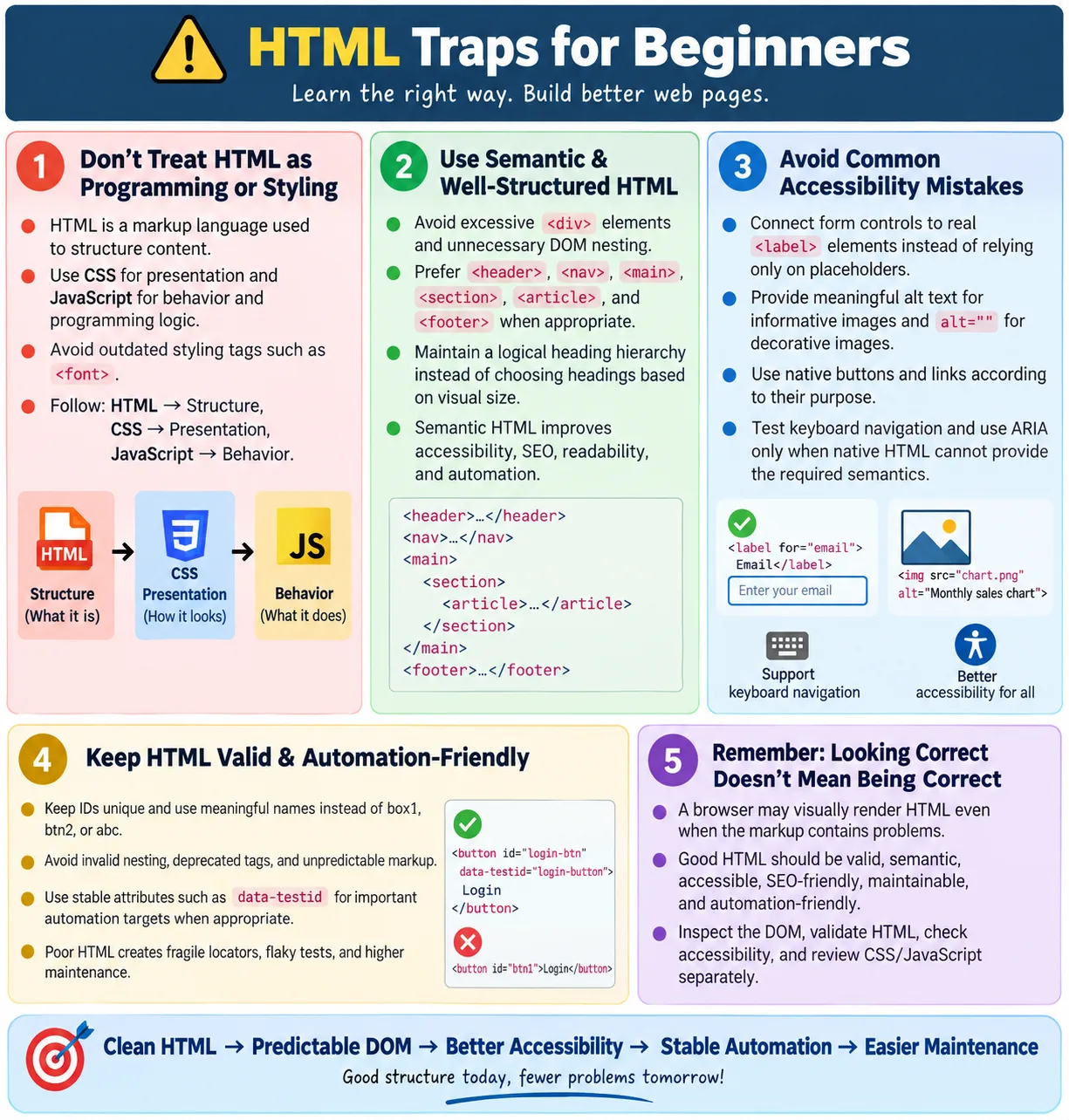
Introduction
HTML traps for beginners are common mistakes and misconceptions that new web developers and automation testers frequently make while learning HTML. These mistakes usually happen because HTML looks simple at first. A beginner can write a few tags, open the file in a browser, and see something on the screen. That quick result is useful, but it can also create a false impression that any HTML is acceptable as long as the page appears to work.
In real projects, good HTML is more than visible output. It must be valid, semantic, accessible, maintainable, SEO-friendly, and automation-friendly. A browser may display invalid markup by silently repairing it. A page may look correct while still missing labels, using duplicate IDs, skipping heading levels, or producing an unstable DOM for automation. These hidden problems become expensive later.
Understanding beginner traps early helps you build better habits. Clean HTML benefits developers, users, search engines, assistive technologies, browsers, and test automation tools. For testers, knowing these traps also helps explain defects clearly and identify why automation scripts become flaky.
Why Beginners Make These Mistakes
Most beginners focus first on making the webpage look correct. That is natural because visual feedback is immediate. If the heading appears, the image loads, and the button shows up, it feels like the work is done. But HTML should also describe meaning, support accessibility, follow standards, and provide predictable structure.
- Semantic
- Accessible
- Valid
- Maintainable
- Automation-friendly
Another reason beginners make mistakes is that browsers are forgiving. If a closing tag is missing, the browser may still render the page. If elements are nested incorrectly, the browser may rearrange the DOM. If old tags are used, the browser may still support them for compatibility. This tolerance helps users, but it hides quality problems from learners.
Trap 1: Thinking HTML Is a Programming Language
A common beginner misconception is thinking HTML is a programming language. HTML is not used for programming logic. It does not provide variables, loops, conditional statements, functions, or algorithms. HTML is a markup language used to structure content.
The correct mental model is simple: HTML describes what content exists and how it is organized. CSS controls how that content looks. JavaScript or server-side languages handle programming logic and behavior. When beginners understand this separation, they stop expecting HTML to do tasks it was not designed to do.
This distinction is also useful in interviews. If someone asks whether HTML is a programming language, the best answer is not just "no". Explain that HTML is a markup language for structure, while programming logic belongs to JavaScript or backend languages.
Trap 2: Using HTML for Styling
Another major beginner trap is using HTML for styling. Older examples on the internet may still show tags such as <font>, but modern HTML separates structure from presentation. HTML should describe meaning. CSS should define visual appearance.
<font color="red">Welcome</font>A better modern approach is to write meaningful HTML and apply CSS through a class.
<p class="welcome">Welcome</p>.welcome {
color: red;
}This makes the page easier to maintain. If the color changes later, you update CSS instead of editing many HTML files. This is the separation of concerns principle: HTML provides structure, CSS provides presentation, and JavaScript provides behavior.
Trap 3: Using Too Many Div Elements
Beginners often use <div> for everything because it is flexible and easy. A div is not wrong, but overusing it creates div soup: a page filled with generic containers that do not communicate meaning. This makes HTML harder to read, harder to maintain, and less useful for accessibility and SEO.
<div>
  <div>
    <div>
      <h1>Welcome</h1>
    </div>
  </div>
</div>
A better version uses a semantic element when the content clearly represents a header.
<header>
  <h1>Welcome</h1>
</header>
Semantic elements reduce unnecessary wrappers and help tools understand the page. Use divs when no semantic element fits, but do not use them as the default answer to every layout problem.
Trap 4: Ignoring Semantic HTML
Semantic HTML uses elements according to their meaning. Beginners may create navigation using <div class="menu">, but a better choice is often <nav>. The semantic element tells browsers, screen readers, search engines, developers, and testers that the region contains navigation links.
<div class="menu">
  ...
</div>
<nav>
...
</nav>Semantic HTML improves accessibility, SEO, readability, and automation. It gives structure to the page. For beginners, the rule is practical: when an element exists that describes the purpose of the content, use it instead of a generic container.
Trap 5: Skipping Heading Levels
Heading levels should describe document structure, not visual size. Beginners sometimes jump from <h1> to <h4> because the default <h4> style looks smaller. This creates a weak heading hierarchy.
<h1>Main Title</h1>
<h4>Subtopic</h4>
A better structure moves logically from the main title to sections and subtopics.
<h1>Main Title</h1>
<h2>Section</h2>
<h3>Subtopic</h3>
Screen reader users often navigate by headings. Search engines also use headings to understand structure. If you need a heading to look smaller or larger, use CSS instead of choosing the wrong heading level.
Trap 6: Missing Form Labels
Forms are one of the easiest places for beginners to create accessibility problems. An input without a label may look acceptable if there is a placeholder, but placeholders are not a replacement for labels. A real label identifies the field and improves usability.
<input type="email">A better version connects the label and input using matching for and id values.
<label for="email">
  Email
</label>

<input
  id="email"
  type="email">
Labels help screen readers announce the purpose of fields. They also make forms easier to click and test. For automation, labels and stable IDs make field behavior easier to understand.
Trap 7: Forgetting Alt Text
Images that communicate meaning need alternative text. Beginners often write an image tag with only a source path. The page may look fine visually, but screen reader users and users with failed image loading lose information.
<img src="logo.png">A better version includes meaningful alt text.
<img
  src="logo.png"
  alt="Company Logo">
If an image is purely decorative, use an empty alt attribute: alt="". The key is to make an intentional decision. Non-decorative images need meaningful alt text. Decorative images should not create unnecessary noise for assistive technologies.
Trap 8: Using Duplicate IDs
IDs must be unique within a page. Beginners sometimes copy an input or component and forget to change the ID. Duplicate IDs can break labels, JavaScript, CSS targeting, anchor navigation, and automation locators.
<input id="email">

<input id="email">
A better version gives each input a unique ID.
<input id="personalEmail">

<input id="workEmail">
Duplicate IDs are especially harmful in automation. A Selenium locator such as By.id("email") may find the first matching element, which may not be the intended one. Unique IDs keep the DOM predictable.
Trap 9: Using Random Names
Beginners often use names like box1, btn2, abc, or test. These names may work temporarily, but they do not explain purpose. As the project grows, unclear names make code harder to read and maintain.
<div class="box1">
  ...
</div>

<button id="btn2">
  Buy
</button>
Better names describe what the element represents or does.
<div class="product-card">
  ...
</div>

<button id="checkoutButton">
  Buy
</button>
Good names help developers, testers, and future maintainers. They are also useful in automation because test code becomes easier to read when locators describe business purpose.
Trap 10: Ignoring HTML Validation
Some beginners assume that if the browser shows the page, the HTML must be correct. This is not always true. Browsers often repair invalid HTML automatically. The rendered page may hide source-level errors.
Validation checks HTML against standards and reports issues such as invalid nesting, missing attributes, duplicate IDs, deprecated tags, and structural errors. Linting can also enforce coding style and project-specific rules. Beginners should use validation and linting early because tools catch mistakes before they become habits.
Trap 11: Invalid Nesting
Invalid nesting happens when elements are placed inside other elements in a way that violates HTML rules. A common example is putting a block-level div inside a paragraph.
<p>
  <div>
    Hello
  </div>
</p>
A correct structure puts the paragraph inside a block container.
<div>
  <p>
    Hello
  </p>
</div>
Invalid nesting can cause the browser to create a DOM that differs from the source code. This is confusing for both developers and automation testers. Always follow HTML content rules.
Trap 12: Forgetting Closing Tags
Missing closing tags can create confusing structure. Some HTML tags have optional closing behavior, but beginners are better served by writing clear closing tags consistently. It makes the code easier to read and reduces unexpected nesting.
<ul>
  <li>HTML
  <li>CSS
</ul>
A clearer version closes each list item.
<ul>
  <li>HTML</li>
  <li>CSS</li>
</ul>
Clean closing makes DOM inspection easier and helps beginners understand exactly where each element begins and ends.
Trap 13: Using Deprecated Tags
Deprecated tags are older HTML tags that are no longer recommended in modern web development. Beginners may find them in old tutorials or legacy code. Examples include <font>, <center>, and <big>.
Modern HTML uses semantic elements for structure and CSS for presentation. If you need centered text, use CSS. If you need larger text, use CSS or a semantic heading when appropriate. If you need color, use CSS. Avoid copying outdated examples into new projects.
Trap 14: Thinking HTML and the DOM Are the Same
HTML and the DOM are related, but they are not the same. HTML is the source markup. The DOM is the browser's object representation after parsing the HTML. JavaScript can also change the DOM after the page loads.
<button>
  Login
</button>
HTML
?
Browser Parses
?
DOMAutomation tools interact with the DOM, not the raw HTML source. This is why View Source and Inspect Element can show different results. View Source shows original HTML. Inspect Element shows the live DOM after browser parsing and JavaScript updates.
Trap 15: Ignoring Accessibility
Beginners sometimes treat accessibility as an advanced topic to learn later. That is a mistake. Accessibility is part of good HTML from the beginning. Missing labels, missing alt text, poor heading hierarchy, no keyboard support, and unclear link text create barriers for real users.
- Missing labels
- Missing alt text
- Poor heading hierarchy
- No keyboard support
- Unclear link text
Learning semantic HTML, labels, alt text, and keyboard-friendly elements early prevents many accessibility defects. Native HTML elements already provide many accessible behaviors when used correctly.
Trap 16: Hardcoding Everything
Beginners may duplicate the same markup repeatedly and hardcode every value. This works for tiny examples but does not scale. Modern applications often generate repeated content dynamically using templates, components, loops, or data-driven rendering.
<button>
  Buy Product 123
</button>
The trap is not that hardcoded content is always wrong. Static tutorial pages and simple websites naturally contain fixed content. The problem appears when repeated structures are copied manually many times. If the structure changes, every copy must be updated. Reusable patterns and templates reduce this maintenance cost.
Trap 17: Mixing HTML, CSS, and JavaScript
Beginners often mix structure, styling, and behavior in one element. Inline styles and inline event handlers may look easy, but they become difficult to maintain in larger projects.
<button
  style="color:red"
  onclick="save()">
  Save
</button>
A better approach separates responsibilities. HTML defines the button, CSS styles it, and JavaScript handles behavior through an external script or organized event listener.
- HTML: Structure
- CSS: Styling
- JavaScript: Behavior
This separation improves maintainability, testing, readability, and reuse.
Trap 18: Ignoring Mobile Devices
Many beginners build pages only on a desktop browser and forget mobile users. A basic mobile requirement is the viewport meta tag. Without it, mobile browsers may render the page at a desktop layout width and scale it down poorly.
<meta
  name="viewport"
  content="width=device-width, initial-scale=1.0">
Mobile-friendly HTML also means using correct input types, responsive images, logical content order, and accessible touch targets. A page should not only look good on the developer's screen. It should work across realistic devices.
Trap 19: Forgetting Automation
Beginners who focus only on visual output may not think about test automation. In real projects, important UI elements often need stable locators. A button with only visible text may be enough in simple cases, but stable attributes make automation easier and more reliable.
<button>
  Submit
</button>
A more automation-friendly version may include a stable test attribute.
<button data-testid="submit-button">
  Submit
</button>
Not every element needs a test ID, but important actions, fields, and workflow checkpoints should be easy to locate. Automation-friendly HTML reduces flaky tests.
Trap 20: Believing If It Looks Right, It Is Right
This is the biggest beginner trap. Good HTML is more than appearance. A page can look correct while still being invalid, inaccessible, hard to maintain, weak for SEO, or difficult to automate. Visual output is only one quality signal.
- Valid
- Semantic
- Accessible
- SEO-friendly
- Maintainable
- Automation-friendly
A browser may display invalid HTML, but that does not make it correct. Beginners should learn to inspect the DOM, validate markup, test keyboard behavior, review labels and alt text, and think about long-term maintainability.
Browser Workflow
Understanding the browser workflow helps explain why bad HTML can still appear to work. The browser parses the HTML, builds the DOM, applies CSS, runs JavaScript, and renders the page. During parsing, the browser may repair invalid markup.
Write HTML
  ?
Browser Parses
  ?
DOM
  ?
Render Page
The browser's goal is to show something useful to the user. A developer's goal should be to provide clean and valid input. If the browser has to guess what you meant, the DOM may not match your intention.
Selenium Perspective
Poor HTML creates difficult locators, unstable automation, more maintenance, and flaky tests. Automation tools need a predictable DOM. If the HTML has duplicate IDs, random names, invalid nesting, or dynamic structure with no stable attributes, automation becomes fragile.
- Difficult locators
- Unstable automation
- More maintenance
- Flaky tests
Clean HTML provides stable DOM structure, better locators, easier debugging, and reliable automation. This is why automation testers should learn HTML deeply, not just Selenium commands. Selenium can only interact with the structure the application provides.
Common Mistakes Summary
| Beginner Mistake | Correct Approach |
|---|---|
| Using HTML for styling | Use CSS |
Too many <div> elements |
Use semantic HTML |
| Missing labels | Add <label> elements |
| Missing alt text | Use meaningful alt attributes |
| Duplicate IDs | Keep IDs unique |
| Invalid nesting | Follow HTML content rules |
| Deprecated tags | Use modern HTML and CSS |
| Inline JavaScript | Use external JavaScript |
| Ignoring accessibility | Follow WCAG best practices |
| Skipping validation | Validate and lint HTML |
Best Practices
The best way to avoid HTML traps is to build clean habits from the beginning. Use semantic HTML. Keep IDs unique. Add labels to forms. Add meaningful alt text. Validate HTML. Follow proper heading hierarchy. Avoid deprecated tags. Separate HTML, CSS, and JavaScript. Use meaningful names. Think about accessibility from the beginning.
- Use semantic HTML.
- Keep IDs unique.
- Add labels to forms.
- Add meaningful alt text.
- Validate HTML.
- Follow proper heading hierarchy.
- Avoid deprecated tags.
- Separate HTML, CSS, and JavaScript.
- Use meaningful names.
- Think about accessibility from the beginning.
How Beginners Should Practice
Beginners should practice by writing small pages and then inspecting them with browser developer tools. Look at the Elements panel and compare the live DOM with the source code. Validate the HTML. Try navigating the page with only the keyboard. Check whether form fields have labels and whether images have meaningful alt text.
Another useful practice is to rewrite bad examples into good examples. Replace div soup with semantic HTML. Replace inline styling with CSS classes. Replace duplicate IDs with unique IDs. Replace missing labels with connected labels. This kind of practice builds practical judgment.
Trap 21: Using Placeholder as a Label
A common beginner mistake is using only placeholder text to identify an input field. Placeholder text may look like a label before the user types, but it disappears once the field has a value. It can also be difficult to read for some users and is not a reliable replacement for a real label.
<input
  type="email"
  placeholder="Email">
A better version uses a real label. A placeholder can still be used as an example or hint, but the label should remain available.
<label for="email">Email</label>
<input
  id="email"
  type="email"
  placeholder="name@example.com">
This improves accessibility, usability, and testing. A tester can clearly identify the field, a screen reader can announce it, and automation can locate it more reliably.
Trap 22: Using Links as Buttons and Buttons as Links
Beginners sometimes use links and buttons interchangeably because both can be clicked. This creates semantic and accessibility problems. A link should navigate to another location. A button should perform an action on the current page, such as opening a dialog, submitting a form, or saving data.
If clicking takes the user to another page or URL, use <a>. If clicking triggers an action, use <button>. Native elements provide expected keyboard behavior and accessibility semantics. Replacing a button with a clickable div or a fake link usually creates extra work and more defects.
This distinction matters in automation too. A test can reason more clearly about a real button than about a generic element with a click handler. Correct elements make the UI more predictable.
Trap 23: Writing Unclear Link Text
Another beginner trap is using vague link text such as "click here", "read more", or "more". This may seem harmless visually, but it becomes weak for accessibility, SEO, and usability. Users should understand where a link goes from the link text itself.
Instead of writing "click here", write "Read the HTML forms tutorial" or "Download the accessibility checklist". Descriptive link text helps screen reader users who navigate by links. It also helps search engines understand relationships between pages.
For testers, unclear link text can make defects harder to describe. A page with five "read more" links is harder to inspect and automate than a page with descriptive anchors.
Trap 24: Adding ARIA Too Early
ARIA is powerful, but beginners often use it before understanding native HTML. This can make accessibility worse. Native HTML elements already include built-in semantics and keyboard behavior. A real button is usually better than a div with role="button". A real label is better than trying to patch an unlabeled input with ARIA.
The rule is: use native HTML first, then use ARIA only when needed. ARIA should enhance semantic HTML, not replace it. If you use ARIA, you must understand the expected keyboard behavior and accessible name rules.
For beginners, the safest path is to master semantic HTML, forms, labels, headings, buttons, links, and landmarks before relying on ARIA. Most beginner accessibility problems can be solved with correct native HTML.
Trap 25: Not Testing Keyboard Navigation
Beginners often test only with a mouse. This misses important accessibility and usability issues. Many users navigate with a keyboard, switch device, screen reader, or other assistive technology. Interactive elements should be reachable and usable with the keyboard.
A simple practice is to use the Tab key to move through the page. Can you reach all links, buttons, and form fields? Is the focus indicator visible? Can you activate controls with Enter or Space where appropriate? Can you escape from dialogs or menus?
If keyboard navigation fails, the HTML structure may be wrong or JavaScript behavior may be incomplete. Real buttons and links usually work better than custom clickable divs because native elements come with keyboard behavior.
Trap 26: Hiding Important Content Incorrectly
Beginners sometimes hide content with CSS without understanding the effect on accessibility and SEO. Some hidden content is legitimate, such as collapsed menus or modal content before it opens. But important content should not be hidden in a way that makes it unavailable to users or assistive technologies.
Hiding content also affects automation. A test may find an element in the DOM but fail to interact with it because it is hidden or overlapped. Beginners should understand the difference between content that exists in the DOM, content that is visible, content that is focusable, and content that is accessible to screen readers.
When hiding content, use patterns appropriate to the component. Menus, dialogs, tabs, accordions, and tooltips all have accessibility expectations. Do not hide and show content randomly without understanding the interaction model.
Trap 27: Ignoring Error Messages
Form error messages are often added late or handled poorly. Beginners may show a red border or red text without connecting the message to the field. Color alone is not enough to communicate an error, and an error message should be understandable.
A good error message tells the user what went wrong and how to fix it. For example, "Enter a valid email address" is better than "Invalid". The markup should also support accessibility, ideally connecting the error message to the field through appropriate attributes where needed.
Automation testers also need stable ways to verify validation errors. Clean HTML makes it easier to locate error messages and confirm the correct behavior.
Trap 28: Copying Code Without Understanding It
Beginners often copy snippets from tutorials, forums, or old projects. Copying can help learning, but it becomes a trap when the developer does not understand the code. Old snippets may include deprecated tags, inline JavaScript, inaccessible patterns, or security problems.
Whenever you copy HTML, inspect it. Does it use semantic elements? Are form controls labeled? Are IDs unique? Are links meaningful? Is styling separated into CSS? Does it rely on outdated tags? If you cannot explain the markup, do not paste it into a real project unchanged.
Learning HTML well means learning to evaluate examples, not just reproduce them.
Trap 29: Forgetting That HTML Changes Affect Tests
Beginners working near automation may not realize how small HTML changes affect tests. Changing a class may not matter if tests do not use it. Changing a data-testid, ID, visible text, element type, or DOM hierarchy can break many tests.
This does not mean HTML should never change. It means changes should be intentional and communicated. If a locator must change, automation code may need updates. If a button becomes a link, both behavior and tests may need review. Stable HTML contracts help development and testing teams work together.
For SDET roles, this is a key insight: automation stability begins with application markup quality.
Trap 30: Skipping Code Review
Beginners may think HTML is too simple to need code review. That is incorrect. HTML review catches missing labels, duplicate IDs, invalid nesting, poor heading hierarchy, broken links, missing metadata, and automation problems. Many of these issues are easier to fix before the code is merged.
A useful review checklist includes structure, semantics, headings, forms, accessibility, SEO, performance, automation locators, validity, and maintainability. Reviewing HTML builds better habits and prevents repeated beginner mistakes from entering the project.
How These Traps Affect Real Projects
In a small practice file, a missing label or duplicate ID may not seem important. In a real application, the same mistake can affect users, tests, and future maintenance. A duplicate ID can cause a label to focus the wrong input. A missing alt attribute can block a screen reader user from understanding content. A fragile XPath can break during a redesign. A skipped heading level can make a long page harder to navigate.
These traps also create technical debt. The page may work today, but future developers must spend time understanding unclear names, cleaning invalid markup, replacing deprecated tags, and fixing accessibility defects. Good HTML habits reduce that cost.
Beginner Debugging Workflow
When something looks wrong, beginners should follow a steady debugging workflow. First, inspect the element in browser DevTools. Check whether the DOM matches the source code. Then validate the HTML. Look for missing tags, duplicate IDs, invalid nesting, and unexpected wrappers. Next, check CSS separately to see whether the issue is structural or visual.
Inspect DOM
  ?
Validate HTML
  ?
Check Accessibility Basics
  ?
Review CSS and JavaScript
  ?
Fix the Root Cause
This workflow prevents guessing. It also teaches the difference between HTML structure problems, CSS presentation problems, and JavaScript behavior problems.
Learning Path to Avoid Traps
A good learning path starts with document structure, semantic elements, headings, paragraphs, links, images, lists, tables, and forms. After that, learn accessibility basics, responsive HTML, metadata, validation, and DOM inspection. Then learn how automation tools use locators and how HTML changes affect tests.
Do not rush into advanced frameworks before understanding the HTML they generate. React, Angular, Vue, and other frameworks still produce HTML in the browser. If the underlying HTML is poor, the final application will still have accessibility, SEO, and testing problems.
Quick Self-Review Checklist
Before considering a beginner HTML page complete, ask a few practical questions. Does the page have a clear structure? Are headings logical? Are forms labeled? Are images described? Are IDs unique? Does it validate? Can it be used with a keyboard? Are important elements easy to locate for testing?
- Does the page use semantic HTML where appropriate?
- Are headings in a logical order?
- Do form fields have labels?
- Do images have appropriate alt text?
- Are IDs unique?
- Is the HTML valid?
- Are deprecated tags avoided?
- Is styling handled in CSS?
- Can keyboard users operate the page?
- Are important controls automation-friendly?
Common Interview Questions
What is the most common beginner HTML mistake? A common answer is using HTML for presentation instead of using CSS. This shows misunderstanding of separation of concerns.
Why should IDs be unique? Unique IDs ensure reliable JavaScript, CSS targeting, accessibility relationships, anchor navigation, and automation.
Why avoid excessive <div> elements? Excessive divs make HTML harder to read, maintain, navigate, and automate. Semantic elements communicate meaning more clearly.
Why are labels important? Labels improve accessibility, usability, and form interaction. They help screen readers and make fields easier to click and understand.
Why validate HTML? Browsers may render invalid HTML, but validation ensures standards compliance and helps avoid unexpected behavior.
Why should automation testers understand these mistakes? Poor HTML often leads to unstable locators, difficult DOM inspection, and unreliable automation tests.
Interview-Ready Answer
Common HTML traps for beginners include treating HTML as a programming language, using HTML for styling, overusing <div> elements, ignoring semantic HTML, creating duplicate IDs, omitting form labels and image alt text, using deprecated tags, skipping HTML validation, mixing HTML with CSS and JavaScript, and neglecting accessibility. Avoiding these mistakes results in clean, semantic, standards-compliant HTML that is easier to maintain, improves accessibility and SEO, and provides a predictable DOM for UI automation.
One-Line Insight
Write HTML for meaning, not just appearance; clean, semantic markup benefits developers, users, search engines, and automation alike.