HTML Templates
Introduction
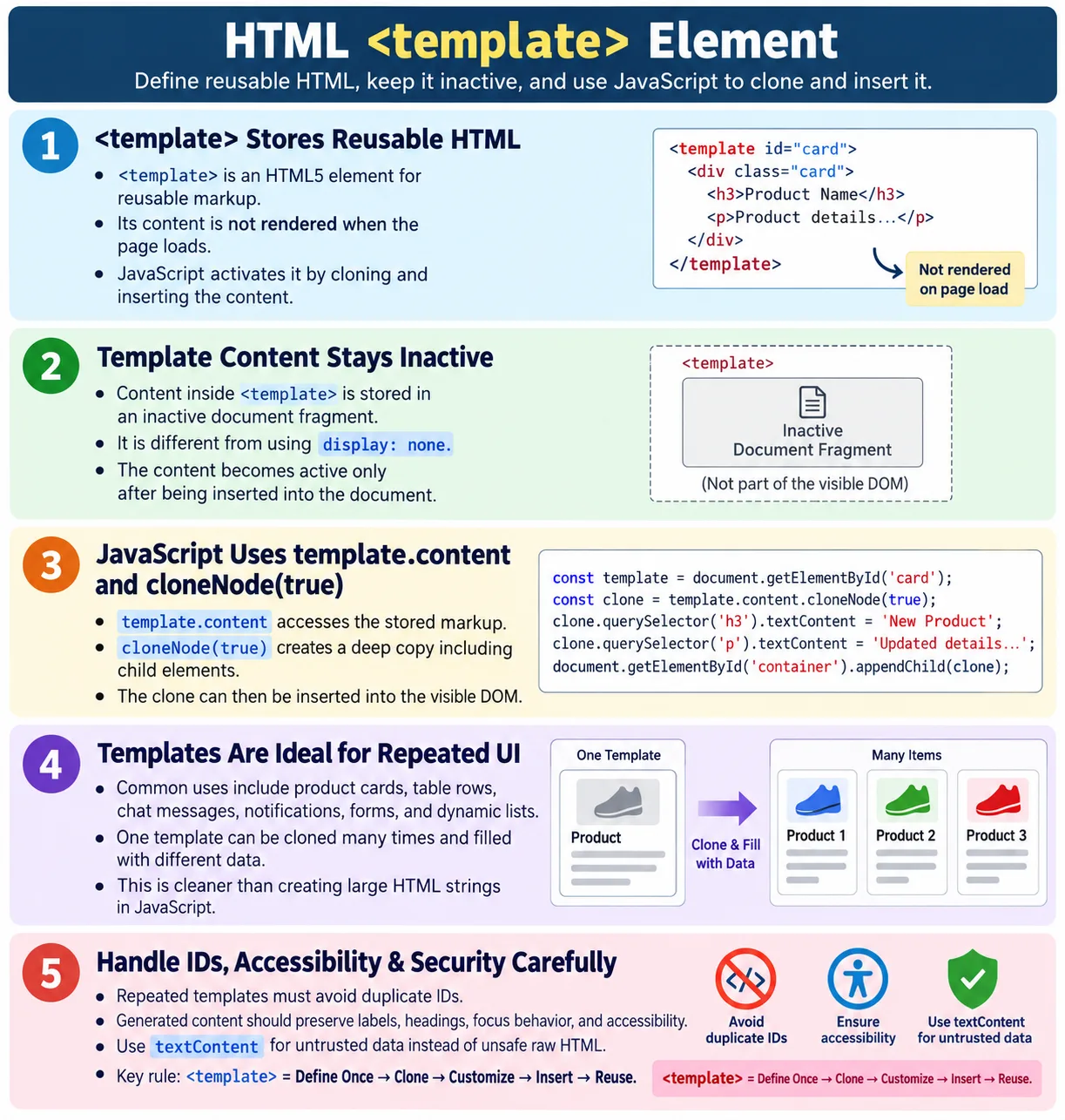
The <template> element is an HTML5 element used to store reusable HTML markup that is not rendered when the page loads. The content inside a template remains inactive until JavaScript copies it and inserts it into the document. This makes templates useful for creating repeated interface patterns without building large chunks of HTML as strings inside JavaScript.
Templates allow developers to define HTML once and reuse it multiple times. A product card, table row, user profile, chat message, notification, dashboard widget, or list item can be written as normal HTML inside a template. JavaScript can then clone the template, fill in data, and insert the result where needed. This keeps the markup readable and makes dynamic pages easier to maintain.
The <template> element is commonly used in dynamic lists, product cards, user profiles, chat messages, tables, dashboards, single page applications, web components, and lightweight vanilla JavaScript interfaces. It is a native browser feature, so it can be used without installing a framework.
What Is the Template Element?
The <template> element stores HTML that is not immediately displayed. Its syntax is simple.
<template>
  ...
</template>
The browser loads the template but does not render its contents as part of the visible page. The content is stored in an inactive document fragment. Scripts inside the template do not run just because the page loads. Images inside the template are not displayed as normal page images. Form controls inside the template are not active controls on the page until the template is cloned and inserted.
This inactive behavior is the main reason templates are useful. They let developers keep reusable HTML in the document without showing it or activating it too early.
Why Were Templates Introduced?
Before HTML templates, developers often created HTML using JavaScript strings. For example:
const html =
  "<div>" +
  "<h2>HTML</h2>" +
  "</div>";
This approach works, but it becomes difficult to read and maintain as the markup grows. Quotes must be escaped correctly. Nested elements become hard to see. Mistakes can break the generated HTML. Designers and developers cannot easily read the structure because it is hidden inside strings.
Templates solve this by allowing developers to write normal HTML markup. Instead of assembling strings, the reusable structure is written exactly like HTML. JavaScript only clones and customizes it.
HTML's Role
HTML stores reusable markup. The browser keeps it hidden and inactive until JavaScript asks for it.
HTML Template
  ↓
Hidden
  ↓
JavaScript Copies
  ↓
Displayed on Page
This division keeps responsibilities clear. HTML defines the reusable structure. JavaScript decides when to use it, how many copies to create, what data to place inside each copy, and where to insert the result.
Basic Template Example
A basic template can store a course card.
<template id="card">
  <div>
    <h2>HTML Course</h2>
  </div>
</template>
When the page loads, nothing appears. The content is stored but remains inactive. The heading inside the template is not visible to the user. It is not part of the displayed page until JavaScript clones and inserts it.
When the page loads:

Nothing Appears
Browser Workflow
The browser reads the HTML and stores the template content separately. It does not render the template content. It waits for JavaScript to clone and insert the content.
Read HTML
  ↓
Store Template
  ↓
Do Not Render
  ↓
Wait for JavaScript
This is different from hiding an element with CSS. A hidden div exists as an active element in the rendered DOM but is visually hidden. A template stores inactive content that is not rendered until used.
Using a Template
JavaScript retrieves the template by ID.
const template =
document.getElementById(
  "card"
);
The template content is copied with cloneNode(true).
const clone =
template.content.cloneNode(true);
The copied content is inserted into the page.
document.body.appendChild(
  clone
);
Now the content becomes visible. The template remains available, so JavaScript can clone it again later. This is what makes templates reusable.
Complete Example
The following example shows a template that becomes visible after a button click.
<!DOCTYPE html>
<html>

<body>

<template id="course">
  <div>
    <h2>HTML Course</h2>
    <p>Beginner to Advanced</p>
  </div>
</template>

<button id="show">
  Show Course
</button>

<script>
const button =
document.getElementById("show");

button.onclick = function() {
  const template =
  document.getElementById("course");

  const clone =
  template.content.cloneNode(true);

  document.body.appendChild(clone);
};
</script>

</body>

</html>
Initially, the user sees only the Show Course button. After clicking the button, the page displays the course card with the heading "HTML Course" and the description "Beginner to Advanced."
Template Content
A template can contain text, images, tables, forms, lists, buttons, articles, sections, and entire page fragments. It can store almost any valid HTML that would normally appear in the document.
<template>
  <article>
    ...
  </article>
</template>
This flexibility makes templates useful for repeated UI blocks. For example, a list of products can be rendered by cloning one product-card template many times. A chat application can clone one message template for every incoming or outgoing message. A table can clone one row template for each data record.
Real-World Uses
Templates are widely used for product cards.
Template
  ↓
Product 1
  ↓
Product 2
  ↓
Product 3
They are also useful for chat messages.
Template
  ↓
Incoming Message
  ↓
Outgoing Message
User profile cards can be generated from one reusable template.
Template
  ↓
John
  ↓
Mary
  ↓
David
Dynamic tables can use templates for new rows, and notification systems can use templates for success, error, and warning messages.
Template Workflow
A typical template workflow follows a clear sequence. JavaScript finds the template, clones it, modifies the cloned content, inserts it into the document, and the browser displays it.
Template
  ↓
Clone
  ↓
Modify
  ↓
Insert
  ↓
Display
The modification step is important. A generic product card template may contain placeholders or target elements. JavaScript can fill those elements with product name, price, image, and link before inserting the clone.
Modifying Cloned Content
Templates become most useful when JavaScript modifies the cloned copy before inserting it. For example, a template may contain a heading and paragraph. JavaScript can change those values based on data.
<template id="courseTemplate">
  <article>
    <h2 class="title"></h2>
    <p class="level"></p>
  </article>
</template>
const clone =
template.content.cloneNode(true);
clone.querySelector(".title").textContent =
"Java Course";
clone.querySelector(".level").textContent =
"Beginner";
document.body.appendChild(clone);The original template remains unchanged. The clone is customized. This makes one template usable for many different data records.
Template vs Hidden Elements
Some developers hide reusable markup using CSS.
<div style="display:none">
  ...
</div>
This is not the same as a template.
| Hidden Element | Template |
|---|---|
| Exists in the rendered DOM | Inactive until cloned |
| May still affect scripts and layout calculations | Not rendered or active until inserted |
| Hidden using CSS | Hidden by browser behavior |
A hidden div is an actual element that has been visually hidden. A template is stored for later use. If the goal is reusable inactive markup, <template> is the cleaner choice.
Template vs JavaScript String
JavaScript strings can create HTML, but they are harder to maintain for complex markup.
const html =
  "<div>Hello</div>";
A template keeps the HTML readable.
<template>
  <div>
    Hello
  </div>
</template>
Templates are easier to format, inspect, and edit. They reduce quoting mistakes and make the structure visible in the HTML document. JavaScript can focus on data and behavior instead of string assembly.
Templates and Dynamic Lists
Dynamic lists are one of the most common template use cases. Suppose an application receives an array of courses from an API. Instead of building each item with a string, JavaScript can clone a list-item template for each course.
Course Data
  ↓
Clone Template for Each Course
  ↓
Fill Values
  ↓
Insert List Items
This pattern works for product grids, search results, comments, messages, notifications, dashboards, and many other repeated UI structures. The template defines the shape of each item, and JavaScript supplies the data.
Templates and Tables
Tables often need rows generated from data. A template can store a reusable table row.
<template id="rowTemplate">
  <tr>
    <td class="name"></td>
    <td class="score"></td>
  </tr>
</template>
JavaScript can clone the row for each record, fill the cells, and append the row to a table body. This keeps the table structure as real HTML rather than a string.
Templates and Forms
Templates can contain form controls. This is useful when users can add repeated form sections, such as multiple addresses, multiple phone numbers, multiple education records, or dynamic survey questions.
When cloning form controls, developers must be careful with IDs and labels. IDs should be unique in the final document. If the template contains id="email" and it is cloned many times, the page will have duplicate IDs. JavaScript should update IDs and matching for attributes where needed.
This is an important practical detail. Templates make cloning easy, but repeated content must still produce valid, accessible HTML.
Accessibility
Content inside a <template> is ignored by assistive technologies until it is inserted into the document. Once cloned and added to the DOM, it behaves like normal HTML. Developers should ensure that inserted content includes appropriate semantic elements, labels, headings, and accessibility attributes where needed.
If a template creates a form field, the cloned field should have a label. If it creates a notification, the notification may need an accessible status region. If it creates a card with buttons, those buttons need meaningful text. Accessibility should be designed into the template, not added after many clones are already generated.
Modern Frameworks
Many JavaScript frameworks provide their own templating systems. React uses JSX, Angular has templates, Vue has template syntax, and many server-side frameworks have their own rendering engines. Even so, the native <template> element remains useful for web components, vanilla JavaScript applications, lightweight dynamic interfaces, and browser-native examples.
Templates are especially important in Web Components, where they are commonly used with shadow DOM. A component can define its internal markup inside a template and clone it when the component is created. This makes templates part of modern browser-native component development.
Templates and Web Components
Web Components often use templates to define reusable component markup. A custom element can clone a template and attach it to its shadow root. This allows the component to create its internal structure from reusable HTML.
const template =
document.getElementById("cardTemplate");

const clone =
template.content.cloneNode(true);
The same basic cloning idea applies. The difference is that the cloned content may be placed inside a component's shadow DOM rather than directly into the main document. This is one reason the native template element remains relevant even when frameworks are popular.
Common Mistakes
A common mistake is expecting templates to display automatically.
Template
  ↓
Visible
This is incorrect. Templates remain hidden until JavaScript inserts them.
Another mistake is forgetting cloneNode(true). Without cloning deeply, child elements may not be copied. Developers also sometimes edit the original template instead of the cloned content. The original template should usually remain unchanged so it can be reused.
Another mistake is using templates without JavaScript. Templates are designed to work with JavaScript. Without JavaScript, their contents remain hidden. For critical content that must be available without JavaScript, do not place the only copy inside a template.
Performance Considerations
Templates can improve maintainability, but performance still depends on how they are used. Cloning one item is simple. Cloning thousands of items and inserting them one by one can be expensive. For large lists, developers should consider batching DOM updates, using document fragments, pagination, virtualization, or framework rendering strategies.
The template element itself is efficient because its content is inactive. But once content is cloned and inserted, it becomes normal DOM. Large DOM structures still have rendering and memory costs. Templates do not remove the need for thoughtful UI design.
Security Considerations
Templates make markup easier to manage, but they do not automatically make dynamic content safe. If user-provided data is inserted into a cloned template, use safe text insertion such as textContent when possible. Avoid injecting untrusted HTML with innerHTML.
clone.querySelector(".name").textContent =
  user.name;
This treats the value as text. It is safer than inserting raw HTML. When dynamic applications render user data, security and escaping still matter.
Selenium Perspective
Automation testers commonly verify that template content appears after user actions, dynamically inserted elements are present, buttons trigger template rendering, lists are generated from templates, and DOM updates happen correctly. Selenium interacts with the rendered elements, not the hidden template itself.
driver.findElement(
    By.id("show"))
    .click();
After insertion, Selenium can locate the visible heading.
WebElement heading =
driver.findElement(
    By.tagName("h2"));
Tests should verify the behavior that users see. The hidden template may exist in the DOM, but the important result is whether the cloned content appears correctly and behaves normally.
Testing Checklist
When testing templates, verify that the template content is not visible on initial page load, user actions clone and insert content correctly, repeated cloning works, inserted content contains the expected data, and event handlers work on inserted elements. If the template includes forms, verify unique IDs and label associations after cloning.
Accessibility checks should verify that inserted content has proper headings, labels, roles, focus behavior, and announcements if needed. Security checks should verify that user-provided data is inserted safely and not as unsafe raw HTML.
DocumentFragment and Template Content
The content of a template is exposed through the content property. This property returns a DocumentFragment. A document fragment is a lightweight container that can hold nodes without being part of the active document. This is why template content can exist in the page source without being rendered.
When JavaScript calls template.content.cloneNode(true), it creates a copy of that fragment and all child nodes. The cloned fragment can then be inserted into the visible DOM. Once inserted, the cloned nodes behave like normal HTML elements. They can be styled, clicked, focused, tested, and read by assistive technologies.
Understanding this helps explain why templates are different from hidden elements. A hidden div is already an element in the document. A template's content is stored separately until cloned. The fragment model makes templates efficient and predictable for reusable markup.
Deep Clone vs Shallow Clone
The cloneNode() method accepts a boolean argument. When the argument is true, it performs a deep clone, meaning it copies the element and all of its child nodes. When the argument is false, it performs a shallow clone, meaning child elements are not copied.
const deepClone =
template.content.cloneNode(true);

const shallowClone =
template.content.cloneNode(false);
For templates, developers almost always need cloneNode(true). Without a deep clone, the copied fragment may not include the actual markup inside the template. This is why interview questions often mention cloneNode(true). It is the step that copies the reusable HTML structure fully.
A shallow clone can be useful in some DOM operations, but it is rarely what beginners want when using templates for cards, rows, messages, or repeated UI blocks.
Rendering Multiple Items
Templates become especially useful when rendering multiple items from an array of data. For example, a course list may contain several course objects. JavaScript can loop through the array, clone the template for each course, fill in values, and append the result to a container.
const courses = [
  { title: "HTML", level: "Beginner" },
  { title: "CSS", level: "Beginner" },
  { title: "JavaScript", level: "Intermediate" }
];

courses.forEach(function(course) {
  const clone =
  template.content.cloneNode(true);

  clone.querySelector(".title").textContent =
    course.title;

  clone.querySelector(".level").textContent =
    course.level;

  list.appendChild(clone);
});
This pattern is cleaner than building a large string. The template keeps the HTML readable, and JavaScript focuses on filling data. It also helps designers and developers collaborate because the markup is not hidden inside quoted strings.
Event Handling with Templates
Elements inside a template are inactive until inserted into the document. If a button exists inside the template, it cannot be clicked while it remains in the template. After cloning and insertion, it becomes a normal button and can receive events.
Developers can attach event listeners after inserting the clone, or they can use event delegation. Event delegation is often useful for lists because one listener on the parent container can handle clicks from many inserted items.
list.addEventListener("click", function(event) {
  if (event.target.matches(".delete")) {
    event.target.closest("article").remove();
  }
});
This approach avoids attaching a separate listener to every cloned button. It also works for items inserted later because the parent container continues to listen for events.
Templates and Placeholders
Templates often use placeholder elements that JavaScript replaces with real data. These placeholders can be empty elements with classes, data attributes, or meaningful structure. For example, a product template may contain elements for name, price, image, and button.
<template id="productTemplate">
  <article class="product-card">
    <h2 class="product-name"></h2>
    <p class="product-price"></p>
    <button class="add-cart">Add to Cart</button>
  </article>
</template>
JavaScript can fill these placeholders before insertion. This keeps the template semantic and readable. The placeholders should be specific enough to make the update code clear. Generic class names such as .text or .value can become confusing in larger templates.
Templates and Data Attributes
Data attributes can work well with templates. A cloned product card might receive a data-product-id. A generated row might receive a data-user-id. These values can help event handlers identify which item was clicked.
const card =
clone.querySelector(".product-card");

card.dataset.productId =
  product.id;
This is useful because the generated DOM carries meaningful metadata. A later click handler can read event.target.closest(".product-card").dataset.productId and know which product the user selected.
As always, data attributes should not store sensitive information. They are visible in the browser and should contain only safe client-side metadata.
Templates and IDs
IDs inside templates require special care. If the template is cloned more than once and contains fixed IDs, the final document can end up with duplicate IDs. Duplicate IDs break HTML rules and can cause accessibility, CSS, JavaScript, and testing problems.
<template id="fieldTemplate">
  <label for="email">Email</label>
  <input id="email" type="email">
</template>
If this template is cloned three times, the page has three elements with id="email". A better approach is to generate unique IDs for each clone and update the label's for attribute accordingly.
This is one of the most important practical rules for templates: reusable markup must still produce valid markup after reuse. A template that is valid once may become invalid when cloned repeatedly if IDs are not handled properly.
Templates and Focus Management
When template content is inserted after a user action, focus behavior matters. If a user clicks "Add Address" and a new address form appears, should focus move to the first field? If a notification appears, should focus stay where it is? If a modal-like section is inserted, should focus move into it?
The answer depends on the UI pattern. Templates only provide markup. Developers must still manage focus for accessibility and usability. Inserting content without considering focus can confuse keyboard users and screen reader users.
For repeated form sections, moving focus to the first new input can be helpful. For background notifications, it may be better to leave focus unchanged and use an accessible status message. Template rendering should be part of a complete interaction design.
Templates and Progressive Enhancement
Templates require JavaScript to become visible. If JavaScript is disabled or fails to load, template content remains hidden. This is acceptable for many interactive components, but it matters for essential content. If a page's main article, legal information, or primary navigation exists only inside templates, users without JavaScript may not see it.
Use templates for dynamic enhancement, repeated UI, optional components, and JavaScript-driven interfaces. Avoid placing critical static content only inside a template unless the application intentionally requires JavaScript. For content-heavy websites, primary content should usually be normal HTML.
Progressive enhancement means the basic experience should remain useful where possible, and JavaScript should enhance it. Templates are excellent enhancement tools when used in the right place.
Templates in Single Page Applications
Single Page Applications often generate large parts of the interface dynamically. Frameworks usually provide their own templating layer, but native templates are still helpful in smaller SPAs or framework-free pages. They let developers define reusable markup without needing a build system.
A small dashboard can use templates for cards, notifications, rows, and empty states. A chat app can use templates for messages. A search page can use templates for results. These patterns make vanilla JavaScript applications cleaner and easier to read.
For very large SPAs, framework templating may offer stronger state management and rendering patterns. Native templates are best when the application is lightweight or when browser-native web components are being used.
When to Use Templates
Use templates when you have reusable markup that should not display immediately. Use them when the same structure will be generated multiple times from data. Use them when JavaScript strings would become hard to read. Use them for cards, rows, messages, notifications, repeated form groups, and web component internals.
Templates are also useful when the markup is easier to maintain as HTML than as JavaScript. If the structure has several nested elements, buttons, labels, and classes, a template is usually clearer than concatenated strings.
When Not to Use Templates
Do not use templates for content that should be visible immediately without JavaScript. Do not use templates just to hide content visually. Do not use them as a replacement for server-side rendering when SEO or initial content availability is critical. Do not clone templates repeatedly without considering performance, IDs, accessibility, and event handling.
If the page only needs one static block of content, normal HTML is simpler. If the UI is managed by a framework, use the framework's rendering system unless there is a clear reason to use native templates.
Practical Decision Checklist
Before using <template>, ask whether the markup is reusable. Ask whether it should be hidden until JavaScript inserts it. Ask whether the template will be cloned more than once. If yes, check for duplicate IDs. Ask whether inserted content needs focus management, labels, or accessible announcements.
Ask whether user data will be inserted. If yes, use safe text insertion and avoid unsafe raw HTML. Ask whether event handlers should be attached directly or handled through event delegation. Ask whether the content is essential without JavaScript. If yes, avoid hiding the only copy inside a template.
Template Cleanup and Re-rendering
When templates are used to render dynamic content, the page often needs to update that content later. A search result list may change when the user enters a new keyword. A shopping cart may change when an item is removed. A notification panel may change when messages are read. In these cases, the template is not the only important part of the implementation. The cleanup and re-rendering strategy also matters.
A simple approach is to clear the target container and append new clones. This works well for small lists and simple interfaces. For example, if a product list has ten items, clearing the container and rendering ten fresh clones is easy to understand and usually fast enough. The template remains the source structure, and JavaScript only replaces the displayed output.
For larger interfaces, developers should be more careful. Clearing hundreds or thousands of nodes repeatedly can cause unnecessary browser work. It may also remove focus, scroll position, and user input. In such cases, it is better to update only the items that changed, or to use a framework that manages efficient rendering. The <template> element gives the reusable structure, but it does not automatically solve state management.
Good template-based code usually separates three responsibilities. The data decides what should be displayed. The template decides the structure of each repeated item. The rendering function decides when and where clones are inserted. This separation keeps the page easier to maintain because the HTML structure is not scattered across many JavaScript functions.
Templates in Real Projects
In real projects, templates are rarely used in isolation. They usually work with data received from an API, data stored in the browser, or data already available in the page. For example, an online learning site may fetch a list of lessons from a JSON file and render each lesson using a lesson-card template. A dashboard may fetch statistics from an API and render metric cards using a reusable card template.
The main advantage is consistency. When every lesson card is created from the same template, the structure stays uniform. If the design changes later, the developer edits one template instead of updating many manually created elements. This reduces mistakes and makes the page easier to evolve.
Templates also help teams. Designers and frontend developers can understand template markup more easily than long JavaScript string concatenation. Testers can inspect the generated DOM and confirm that repeated components follow the expected structure. Content teams can see the intended shape of dynamic blocks because the HTML is still written as HTML.
Templates and Maintainability
Maintainability is one of the strongest reasons to use templates. Without templates, developers often create HTML using long strings such as "<div class='card'>" plus variables and more strings. This quickly becomes hard to read. Quotes must be escaped, nesting becomes confusing, and small markup changes become risky.
With a template, the markup remains visible in the document. Developers can indent it normally, add meaningful class names, include accessible attributes, and review the structure just like any other HTML. JavaScript then focuses on behavior: cloning, filling values, and inserting content. This makes both the HTML and JavaScript cleaner.
This is especially useful for repeated UI patterns. Product cards, table rows, message bubbles, search results, alerts, menu items, and profile blocks often share a common structure. Templates allow the common structure to be defined once and reused many times. The result is less duplication and fewer inconsistencies.
Templates and Server-Side Rendering
Templates can work alongside server-side rendering, but they serve a different purpose. Server-side rendering sends visible HTML from the server to the browser. This is useful for search engines, fast first content, and users who may not have JavaScript available. The <template> element stores inactive markup inside the page and depends on JavaScript to display it.
For important content that must be visible immediately, server-rendered HTML is usually better. For optional or interactive content that appears after a user action, templates are often a good fit. A page might render the main article on the server and use templates for comments, related links, notifications, or dynamically added form rows.
The key decision is whether the content is essential at page load. If it is essential, do not hide it inside a template as the only source. If it is generated later from user action or data changes, a template can make the implementation cleaner.
Debugging Template Issues
When a template does not appear on the page, the first thing to remember is that this is normal behavior until JavaScript inserts it. Developers should check whether the script is selecting the correct template, whether template.content is being cloned, and whether the clone is appended to a visible container.
Another common issue is selecting elements from the wrong place. If JavaScript tries to find an element inside the main document before cloning the template, it may fail because the template content is not part of the active DOM. The safer pattern is to clone the content first and then search inside the clone using methods such as querySelector.
Developers should also inspect the generated DOM after insertion. Browser developer tools show whether the cloned nodes were appended correctly, whether classes were applied, and whether text content was updated. If the generated content exists but is not visible, the issue may be CSS rather than the template itself.
Best Practices
Use clear template IDs so JavaScript can select the right template without confusion. Keep each template focused on one reusable structure. Avoid creating one large template that tries to represent many unrelated interface states. Smaller templates are easier to test, update, and reuse.
Prefer safe text insertion with textContent when adding user or API data. Use innerHTML only when the HTML is trusted and intentionally allowed. Review cloned templates for duplicate IDs, missing labels, and accessibility problems. Attach behavior after cloning, or use event delegation on a stable parent container.
Finally, keep templates readable. The main benefit of the element is that reusable markup can stay in HTML form. If the template becomes difficult to understand, split it into smaller templates or reconsider whether a framework component would be more appropriate.
Comparison Table
| Feature | <template> |
Hidden <div> |
|---|---|---|
| Rendered on page load | No | Yes, hidden with CSS |
| Active in the DOM | Stored as inactive content | Active DOM element |
| Requires JavaScript to display | Yes | Optional |
| Ideal for reusable markup | Yes | No |
Common Interview Questions
What is the <template> element? It stores reusable HTML that is not rendered until JavaScript inserts it into the page.
Is template content displayed automatically? No. The browser keeps it inactive until JavaScript clones and inserts it.
Why use templates? They make reusable HTML easier to maintain than building markup with JavaScript strings.
What does cloneNode(true) do? It creates a deep copy of the template content, including all child elements.
Can templates contain any HTML? They can contain almost any valid HTML markup, including forms, tables, articles, and images.
Interview-Ready Answer
The <template> element is an HTML5 element used to store reusable HTML markup that is not rendered when the page loads. Its content remains inactive until JavaScript accesses template.content, creates a copy using cloneNode(true), and inserts it into the document. Templates are commonly used for dynamically creating product cards, table rows, chat messages, notifications, and other repeated UI components. They provide a cleaner and more maintainable alternative to constructing HTML with JavaScript strings.
One-Line Insight
<template> lets you write HTML once, keep it hidden, and reuse it whenever JavaScript needs it.