HTML Media Best Practices
Introduction
HTML media elements such as <img>, <audio>, and <video> are powerful tools for delivering visual and multimedia content on the web. Images make pages easier to understand. Audio supports podcasts, lessons, pronunciation guides, and sound-based learning. Video supports tutorials, demonstrations, marketing content, and online courses. However, simply embedding media is not enough. Professional web development requires media to be fast, accessible, responsive, searchable, and maintainable.
Media files are often among the largest resources on a webpage. A single uncompressed image or video can slow down an otherwise well-built page. Poor media decisions can damage user experience, increase bandwidth usage, reduce search visibility, and create accessibility barriers. Good media practice is therefore not just a design concern. It is a performance, accessibility, SEO, and quality concern.
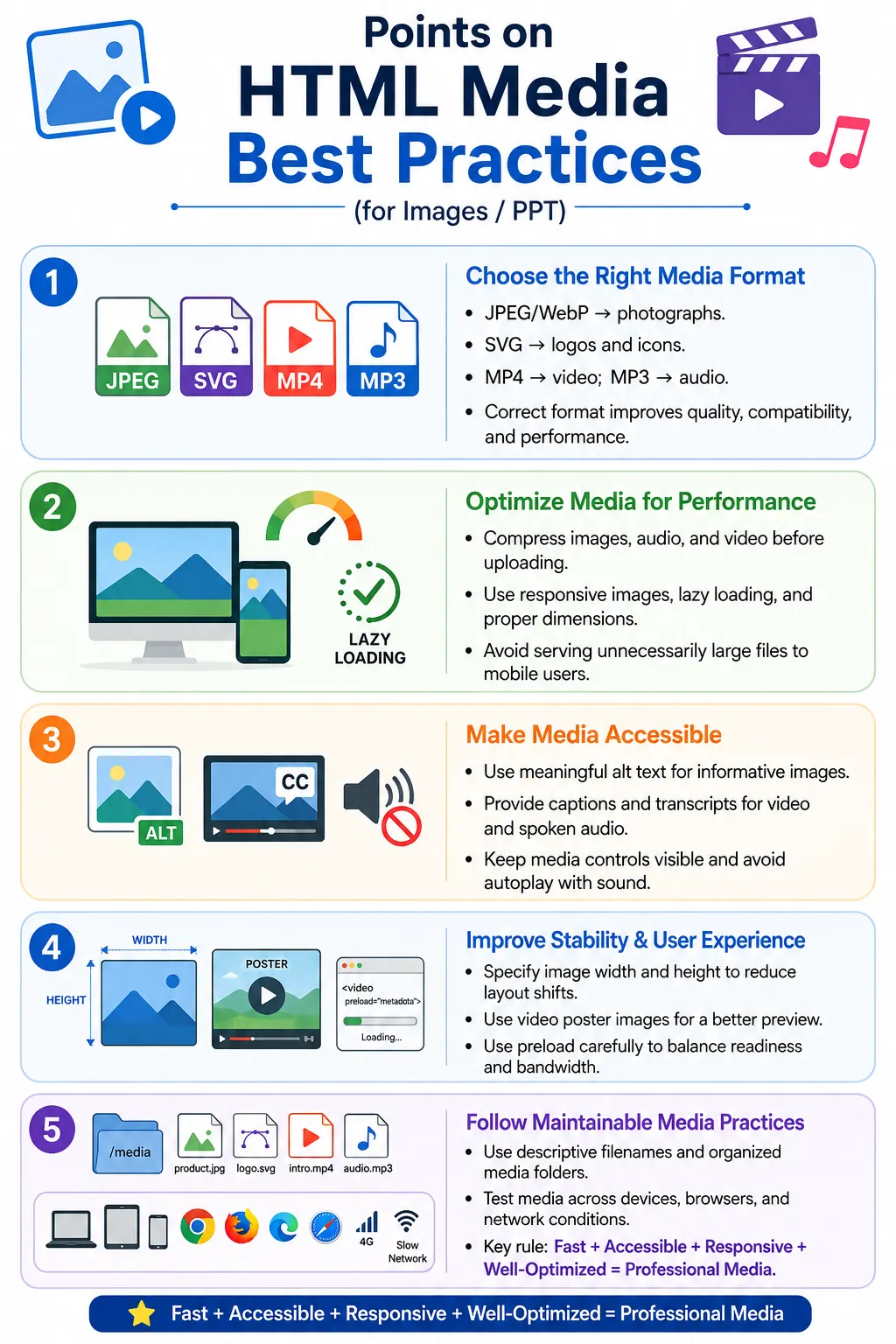
HTML media best practices focus on choosing the right formats, compressing files, using meaningful alternative text, providing responsive images, lazy-loading non-critical assets, adding captions and transcripts, avoiding disruptive autoplay, and organizing media files in a maintainable structure.
Why Media Best Practices Matter
Poorly optimized media can cause slow page loading, high bandwidth usage, poor mobile experience, accessibility issues, lower SEO rankings, and poor Core Web Vitals. These problems are especially visible on mobile devices and slower networks, where large media files can noticeably delay page rendering.
Large Images
     ↓
Slow Website
     ↓
Poor User Experience
     ↓
Lower Search Rankings
Following media best practices avoids these problems. Optimized media loads faster, consumes less data, adapts to different devices, remains accessible to users with disabilities, and gives search engines better context. The result is a page that looks good without sacrificing usability or performance.
Use the Correct Media Format
The first best practice is choosing the correct format for the media type. Different formats are designed for different purposes. A photograph, logo, icon, transparent graphic, video, and audio file should not all be treated the same way.
| Media Type | Recommended Format |
|---|---|
| Photographs | JPEG or WebP |
| Logos | SVG |
| Transparent Graphics | PNG or SVG |
| Icons | SVG |
| Modern Website Images | WebP |
| Videos | MP4 |
| Audio | MP3 |
Choosing the right format improves quality and performance. For example, SVG is ideal for logos because it scales cleanly at any size. WebP is often excellent for modern website images because it provides good compression. MP4 is widely supported for video, and MP3 remains a safe default for audio.
Optimize Media Before Uploading
Never upload original camera files directly to a website unless there is a very specific reason. A photo taken from a phone or camera may be 6000 by 4000 pixels and 12 MB in size. If the image is displayed at 1200 by 800 pixels on the page, the original file is unnecessarily large.
Bad

Photo
6000 x 4000 px
12 MB
Better
Compressed Photo
1200 x 800 px
150 KBOptimizing media before upload reduces file size, improves page speed, lowers bandwidth usage, and creates a better experience for users. This is especially important for course pages, product listings, blogs, galleries, and landing pages with many images.
Always Use Meaningful Alt Text
Every meaningful image should have useful alternative text. Alt text improves accessibility, SEO, and user experience. It allows screen readers to describe images to visually impaired users, provides fallback text when images fail to load, and gives search engines a text signal about the image content.
<img src="html-course.webp"
     alt="Student learning HTML">
A poor version would be:
<img src="html-course.webp"
     alt="Image">
The word "Image" does not explain anything useful. Good alt text communicates the information or purpose of the image. Decorative images should use an empty alt attribute, alt="", so assistive technologies can skip them.
Use Responsive Images
Responsive images help browsers choose the correct image size for the user's device and layout. Instead of sending one large image to every device, developers can provide multiple versions using srcset and sizes.
<img
src="banner.jpg"
srcset="
banner-400.jpg 400w,
banner-800.jpg 800w,
banner-1200.jpg 1200w"
sizes="100vw"
alt="Homepage Banner">
This reduces unnecessary downloads and improves mobile performance. A phone does not need the same image file as a large desktop monitor. Responsive images let the browser make a smarter decision before downloading.
Lazy Load Non-Critical Images
Lazy loading delays image downloads until images are close to entering the viewport. It is useful for galleries, product images, blog thumbnails, related articles, and other below-the-fold content.
<img
src="course.webp"
alt="HTML Course"
loading="lazy">
Lazy loading should not be applied blindly to every image. Logos, hero banners, and above-the-fold images should usually load eagerly because they are needed immediately. Lazy loading is best for non-critical images users may not see right away.
Specify Width and Height
Specifying image width and height helps browsers reserve layout space before the image finishes loading. This prevents layout shifts and improves page stability, which supports better Core Web Vitals.
<img
src="logo.png"
width="200"
height="80"
alt="Company Logo">
When dimensions are missing, the browser may not know how much space to reserve. Content can move suddenly when the image loads, frustrating users and making the page feel unstable.
Use Modern Image Formats
Modern image formats such as WebP and AVIF can reduce file sizes while preserving quality. These formats are often better choices than large PNG or unoptimized JPEG files when browser support and workflow allow.
WebP is widely used for modern websites because it offers strong compression and good visual quality. AVIF can provide even better compression in many cases, though workflow and compatibility should be considered. The goal is not to use a modern format blindly, but to choose the format that gives the best quality at the lowest reasonable file size.
Use SVG for Logos and Icons
SVG is usually the best format for logos and icons because it is vector-based. It scales infinitely without losing sharpness, often has a small file size, and looks crisp on high-DPI displays.
Instead of:
logo.png

Use:
logo.svg
For simple shapes, logos, and interface icons, SVG is usually more maintainable and flexible than bitmap formats. It also avoids the need for multiple image sizes for sharp rendering.
Avoid Text Inside Images
Placing entire paragraphs or important text inside images creates accessibility and SEO problems. Text inside images is harder for screen readers to access, harder to translate, harder to search, and harder to resize for users who need larger text.
Bad

Image Contains Entire Paragraph
Whenever possible, use real HTML text instead of embedding text inside images. If an image contains important text, the alt text or nearby HTML content should communicate that information clearly.
Provide Multiple Media Formats
Providing multiple formats improves browser compatibility for audio and video. The browser can choose the first supported source.
<audio controls>
    <source src="song.mp3"
            type="audio/mpeg">

    <source src="song.ogg"
            type="audio/ogg">
</audio>
<video controls>
<source src="lesson.mp4"
type="video/mp4">
<source src="lesson.webm"
type="video/webm">
</video>MP3 and MP4 are widely supported defaults, while OGG and WebM can be useful alternatives depending on project requirements.
Always Show Media Controls
Users need controls to play, pause, seek, and adjust volume. A media element without controls may be present in the page but not usable.
<video controls>
    <source src="lesson.mp4">
</video>
A poor version is:
<video>
    <source src="lesson.mp4">
</video>
If a project uses custom controls, those controls must be accessible and keyboard-friendly. For most normal pages, browser-native controls are reliable and efficient.
Use Poster Images for Videos
A poster image gives a video a clear thumbnail before playback begins. It improves visual presentation and perceived loading quality.
<video
controls
poster="thumbnail.jpg">
    <source src="course.mp4">
</video>
Without a poster image, the video player may display a blank area or an unhelpful frame. A good poster image makes the page look more intentional and helps users understand what the video is about.
Avoid Autoplay With Sound
Autoplay with sound is usually a bad experience. It can surprise users, interrupt assistive technologies, and annoy people in shared or quiet environments. Modern browsers often block autoplay with sound anyway.
<video autoplay>
    <source src="intro.mp4">
</video>
If autoplay is truly needed, muted autoplay is more acceptable:
<video autoplay muted>Autoplay should enhance the experience, not force it. Important content should remain accessible even if autoplay is blocked.
Use Captions and Transcripts
Captions and transcripts are essential for accessible multimedia. Captions help users who are deaf or hard of hearing, users in noisy places, users in quiet places, and users who prefer reading while watching.
<video controls>
    <source src="lesson.mp4">

    <track
    src="lesson.vtt"
    kind="captions"
    srclang="en"
    label="English">
</video>
For spoken content, transcripts are also valuable. They make audio and video content searchable, skimmable, translatable, and accessible when playback is not possible.
Use Meaningful File Names
Descriptive file names help both developers and search engines. A filename like IMG001.jpg gives no useful information. A filename like html-course-banner.webp is much clearer.
Bad:
IMG001.jpg

Good:
html-course-banner.webp
Meaningful filenames also make media libraries easier to maintain, especially when projects contain hundreds of files.
Organize Media Files
Well-organized media folders improve maintainability. A clear folder structure helps developers find assets, update files, and avoid duplicate or misplaced media.
project/
    images/
    logos/
    icons/
    audio/
    video/
    css/
    js/
    index.html
Organization matters more as the project grows. A small site can quickly become difficult to maintain if all files are placed in one directory.
Use Relative Paths When Appropriate
For local project assets, relative paths are often clearer and easier to maintain than unnecessary absolute URLs.
<img src="images/logo.svg">Absolute URLs are useful for external resources or CDN-hosted assets. For internal project files, relative paths keep the project portable and easier to move between environments.
Optimize Videos
Videos are often much larger than images, so optimization is critical. Compress videos before uploading, use MP4 with H.264 for broad compatibility, stream large videos instead of forcing complete downloads, and avoid unnecessarily high resolutions.
A training video does not always need to be uploaded at the highest possible resolution. Choose a quality level that matches the user's needs and device context. Large videos should be hosted and delivered with a strategy suitable for streaming and bandwidth efficiency.
Optimize Audio
Audio should also be compressed before upload. MP3 is widely supported and works well for most speech, podcast, and lesson content. Avoid very large audio files, and choose bitrates appropriate for your audience.
Speech content usually does not need the same bitrate as high-quality music. Choosing the right bitrate reduces file size while keeping the listening experience acceptable.
Provide Fallback Content
Fallback content helps older browsers or unsupported environments explain what happened when media cannot be played.
<video controls>
    <source src="lesson.mp4">
    Your browser does not support HTML5 video.
</video>
<audio controls>
<source src="lesson.mp3">
Your browser does not support HTML5 audio.
</audio>Modern browsers usually ignore fallback text when they support the media element, but fallback text still makes the markup more complete.
Test on Multiple Devices
Media should be tested on desktop, laptop, tablet, mobile phone, different browsers, and high-DPI displays. Images may look sharp on one device and blurry on another. Videos may behave differently on mobile browsers. Audio controls may appear differently across operating systems.
Testing across devices helps catch issues with responsiveness, playback controls, captions, layout shifts, and loading performance.
Consider Network Conditions
Large media files may load slowly on slower connections. Good practices include compressing assets, using responsive images, lazy-loading below-the-fold images, and streaming videos where appropriate.
A media-heavy page should still be usable on mobile networks. Performance should not be tested only on fast office Wi-Fi. Real users may have limited bandwidth, data caps, or unstable connectivity.
Security Considerations
Media security matters, especially in applications that accept uploads from users. Host media on trusted servers, avoid unreliable third-party media, validate uploaded files, and respect copyright and licensing.
Untrusted files can create security and compliance problems. User-uploaded media should be validated for file type, size, content policy, and storage safety. Public websites should also ensure that media usage follows licensing rules.
Accessibility Checklist
A strong accessibility checklist for media includes meaningful alt text, captions for videos, transcripts for spoken audio, visible controls, no autoplay with sound, and keyboard-accessible controls. These practices make media available to more users and reduce barriers created by visual-only or audio-only content.
SEO Checklist
An effective SEO checklist includes descriptive filenames, meaningful alt text, responsive images, compressed media, fast loading, and proper surrounding content. Search engines need context, and HTML around media provides that context.
Performance Checklist
A practical performance checklist includes using WebP or AVIF where appropriate, compressing images, using lazy loading for below-the-fold images, specifying width and height, optimizing videos, and minimizing unnecessary downloads. Performance work is not one single action. It is a set of consistent decisions across every media asset.
Common Mistakes
Common mistakes include uploading huge images, missing alt text, using PNG for large photos, autoplaying videos with sound, and forgetting captions. Each mistake has a clear cost. Huge images slow the page. Missing alt text harms accessibility. PNG photos can be unnecessarily large. Autoplay with sound frustrates users. Missing captions excludes users who cannot hear the audio.
<img src="logo.png">A better version is:
<img
src="logo.png"
alt="Company Logo">
Real-World Example
A SoftwareTips4U course page can combine several best practices in one image and one video example.
<img
src="html-course.webp"
srcset="
html-course-400.webp 400w,
html-course-800.webp 800w,
html-course-1200.webp 1200w"
sizes="
(max-width:768px) 100vw,
50vw"
alt="HTML Beginner Course"
loading="lazy"
width="800"
height="450">
<video
controls
poster="html-course.jpg"
preload="metadata"
playsinline>
<source src="html-intro.mp4"
type="video/mp4">
<track
src="html-en.vtt"
kind="captions"
srclang="en"
label="English">
Your browser does not support HTML5 video.
</video>The image uses WebP, responsive image candidates, sizes, meaningful alt text, lazy loading, and explicit dimensions. The video uses controls, a poster image, metadata preloading, inline playback, captions, source type, and fallback content.
Selenium Perspective
Automation testers commonly verify that media elements include important attributes. Selenium can inspect images, audio, and video elements just like any other HTML element.
WebElement image =
driver.findElement(By.tagName("img"));

System.out.println(
image.getAttribute("alt"));

System.out.println(
image.getAttribute("loading"));
For video, Selenium can check controls and poster attributes.
WebElement video =
driver.findElement(By.tagName("video"));

System.out.println(
video.getAttribute("controls"));

System.out.println(
video.getAttribute("poster"));
Typical validations include confirming that media loads successfully, images have alt text, videos have controls, posters are configured, responsive attributes exist where expected, and captions are present for important videos.
Common Interview Questions
Interviewers often ask why images should be compressed before uploading. The answer is to reduce page load time and bandwidth usage. They may ask why SVG is used for logos. SVG scales without losing quality and usually has a smaller file size for logos and icons.
Should every image have alt text? Every meaningful image should have descriptive alt text, while decorative images should use alt="". Why should videos include captions? Captions improve accessibility and help users who cannot hear or prefer reading. Why avoid autoplay with sound? It can disrupt users and is often blocked by modern browsers. Why specify image width and height? It reserves layout space, reducing layout shifts and improving user experience.
Media Best Practices Summary
| Best Practice | Benefit |
|---|---|
| Use correct media format | Better quality and performance |
| Compress media | Faster loading |
| Use meaningful alt text | Accessibility and SEO |
| Use responsive images | Better mobile experience |
| Lazy load below-the-fold images | Reduced initial page load |
| Specify image dimensions | Prevent layout shifts |
| Use captions for videos | Accessibility |
| Avoid autoplay with sound | Better user experience |
| Use descriptive filenames | Improved SEO and maintainability |
| Organize media folders | Easier project maintenance |
Interview-Ready Answer
HTML media best practices focus on delivering fast, accessible, and responsive content. This includes choosing the appropriate media format, compressing files, providing meaningful alt text, using responsive images with srcset and sizes, lazy-loading non-critical images, specifying image dimensions, including captions and transcripts for multimedia, avoiding autoplay with sound, and using descriptive filenames. Following these practices improves performance, accessibility, SEO, and the overall user experience.
One-Line Insight
Well-optimized media is not just about looking good; it loads quickly, works on every device, remains accessible to every user, and delivers a better overall web experience.