HTML Linting Tools
Introduction
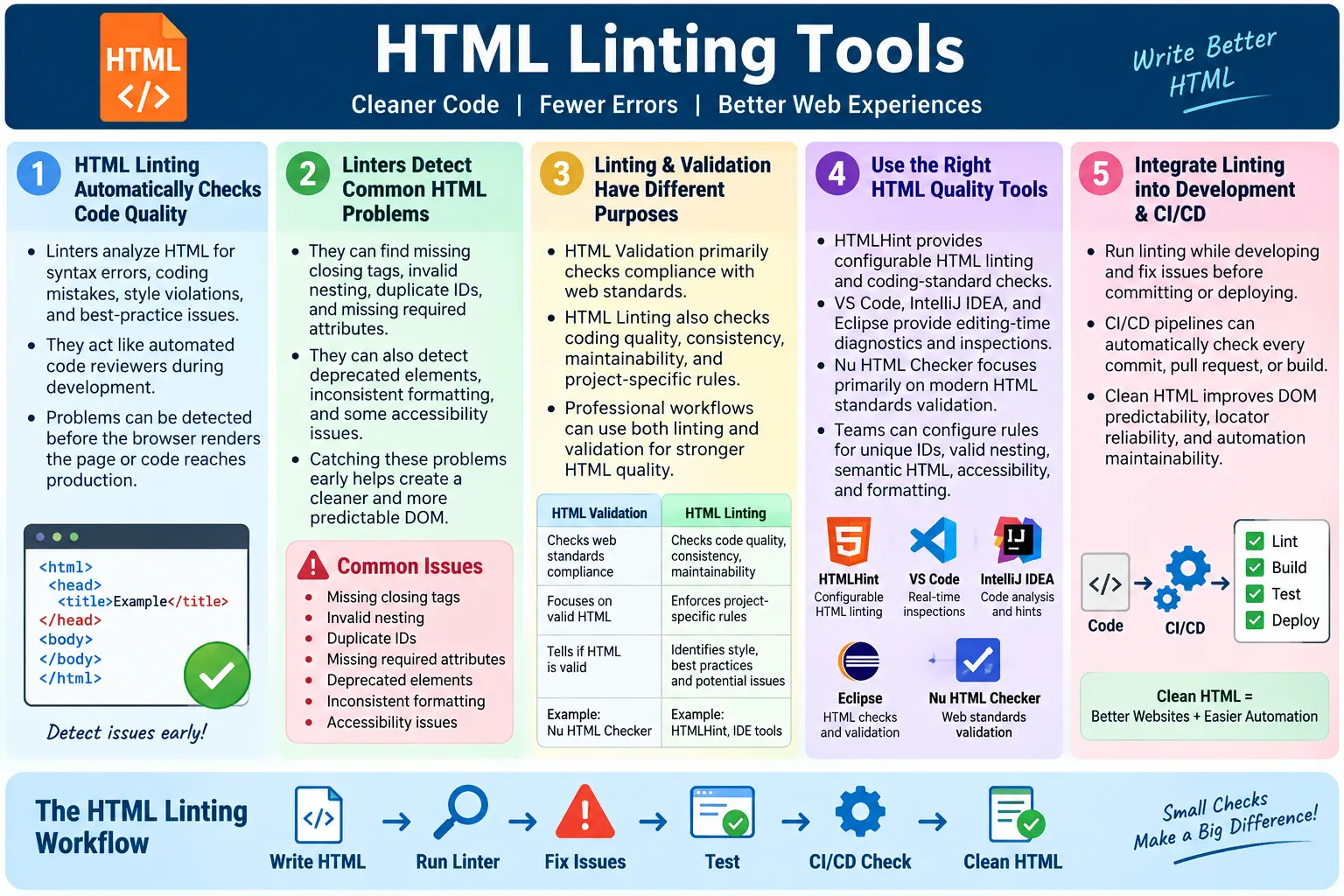
HTML linting tools are software tools that analyze HTML code for syntax errors, coding mistakes, style violations, best-practice issues, and potential problems before the code is executed in a browser. They act like automated code reviewers. Instead of waiting for a broken layout, failed accessibility check, or unstable automation test, a linter can identify many issues during development.
Browsers are forgiving by design. If HTML contains a missing closing tag, invalid nesting, duplicate IDs, or old markup, the browser will often try to recover and render something. This recovery behavior is useful for users because it prevents pages from failing completely. But it can hide problems from developers. A page may appear acceptable in one browser and behave differently in another because the markup was not clean in the first place.
Linting improves code quality, readability, maintainability, accessibility, consistency, browser compatibility, and UI automation reliability. It helps teams catch mistakes early, before those mistakes become production defects. For beginners, linting teaches better HTML habits. For professional teams, linting creates a shared quality gate.
What Is HTML Linting?
HTML linting is the process of automatically checking HTML against predefined rules and coding standards. These rules may come from a tool's default configuration, a team convention, a framework recommendation, or project-specific requirements. A linter scans HTML and reports problems such as missing tags, duplicate IDs, invalid attributes, inconsistent formatting, or accessibility concerns.
Write HTML
  ↓
HTML Linter
  ↓
Find Issues
  ↓
Fix Code
  ↓
Clean HTML
A linter is not a browser. It does not try to visually render the page for users. It analyzes the source and identifies code-level issues. This makes it useful before testing in the browser. The developer can fix structural and formatting problems early, then use the browser to verify rendering, layout, interaction, and behavior.
In practical terms, linting is a fast feedback mechanism. A developer writes HTML, runs the linter, reviews the messages, and fixes the code. This cycle is much cheaper than discovering the same problem after deployment.
Why Use HTML Linting?
Without linting, teams often discover HTML problems late. A developer writes markup, deploys it, and only then someone notices a broken section, missing image text, duplicate ID, invalid nesting, or inconsistent layout. Debugging later is more expensive because the issue may already be mixed with CSS, JavaScript, browser differences, and production data.
Without linting:

Write HTML
  ↓
Deploy
  ↓
Unexpected Problems
  ↓
Debug Later
With linting, common issues are caught before deployment. The developer receives feedback while the code is still fresh. The page is cleaner before manual testing, automation testing, accessibility review, or production release.
With linting:

Write HTML
  ↓
Run Linter
  ↓
Fix Problems
  ↓
Deploy
  ↓
Higher Quality Code
Linting does not replace testing, validation, accessibility audits, or code review. It complements them. It removes easy-to-detect problems so humans can focus on behavior, usability, content quality, and edge cases.
Linting vs Validation
HTML validation and HTML linting are related, but they are not identical. Validation checks whether HTML follows web standards. Linting can also check standards-related problems, but it often goes further by enforcing project conventions, formatting consistency, maintainability rules, accessibility recommendations, and code-quality preferences.
| HTML Validation | HTML Linting |
|---|---|
| Checks HTML against web standards | Checks coding quality and best practices |
| Focuses on syntax and standards compliance | Focuses on style, consistency, and potential mistakes |
| Ensures valid HTML | Helps enforce project coding standards |
Validation and linting complement each other. A page can be valid but still inconsistent with team standards. A page can pass a basic linter but still need standards validation. Mature teams often use both: a validator to check standards compliance and a linter to maintain code quality.
What HTML Linters Detect
HTML linters can detect a wide range of problems. The exact list depends on the tool and configuration, but common checks include missing closing tags, invalid nesting, duplicate IDs, missing required attributes, deprecated elements, empty elements, incorrect indentation, inconsistent formatting, accessibility issues, and project-specific rule violations.
- Missing closing tags
- Invalid nesting
- Duplicate IDs
- Missing required attributes
- Deprecated elements
- Empty elements
- Incorrect indentation
- Inconsistent formatting
- Accessibility issues depending on the tool
- Project-specific rule violations
These problems may look small, but they create real maintenance cost. Duplicate IDs can break labels, scripts, and automation. Invalid nesting can produce unpredictable DOM structures. Missing alt text can affect accessibility. Deprecated elements can weaken code quality. A linter helps catch these issues before they spread.
Example: Missing Closing Tag
Missing closing tags are common in hand-written HTML. Browsers may recover from them, but the resulting DOM may not match what the developer intended. A linter can report the issue clearly.
<ul>
  <li>HTML
  <li>CSS
</ul>
A linter may report that the <li> tags are not properly closed. The corrected version is clearer and more reliable.
<ul>
  <li>HTML</li>
  <li>CSS</li>
</ul>
Even when HTML allows optional closing tags in some cases, consistent explicit closing often improves readability and reduces confusion for beginners and teams.
Example: Duplicate IDs
IDs must be unique within a page. Duplicate IDs can cause serious problems because labels, JavaScript, CSS, anchor links, and automation locators may target the wrong element.
<input id="email">

<input id="email">
A linter can report duplicate ID usage. A better version gives each field a unique ID.
<input id="personalEmail">

<input id="workEmail">
This is especially important for forms. If two inputs share the same ID, a label may point to the wrong field, and automation code such as By.id("email") may behave unpredictably.
Example: Invalid Nesting
Invalid nesting happens when HTML elements are placed inside other elements in ways that violate HTML content rules. Browsers may automatically rearrange the DOM, which can make the final structure different from the source code.
<p>
  <div>
    Hello
  </div>
</p>
A linter can report invalid nesting because a <div> should not be placed inside a paragraph. A corrected structure uses a block container around the paragraph.
<div>
  <p>
    Hello
  </p>
</div>
Invalid nesting is one of the reasons browser rendering can differ from what developers expect. Clean nesting creates a predictable DOM.
Example: Missing Alt Attribute
Images should include meaningful alternative text when they communicate content. A linter with accessibility checks may report missing alt attributes.
<img src="logo.png">A better version provides meaningful alternative text.
<img
  src="logo.png"
  alt="Company Logo">
If the image is decorative, an empty alt attribute may be appropriate. The point is that the choice should be intentional. Linting can remind developers to make that decision.
Popular HTML Linting Tools
Several tools can help with HTML linting, inspection, and validation. Some are dedicated command-line linters. Others are built into editors and IDEs. Some tools focus on standards validation but are commonly used as part of an HTML quality workflow.
| Tool | Purpose |
|---|---|
| HTMLHint | HTML linting and coding standards |
| VS Code HTML Extensions | Real-time HTML diagnostics |
| IntelliJ IDEA | HTML inspection and linting |
| Eclipse | HTML validation and code inspection |
| Nu HTML Checker | Standards validation |
HTMLHint
HTMLHint is one of the most popular HTML linting tools. It can check HTML syntax, enforce style rules, support configurable rules, run from the command line, and integrate with editors or build systems. It is useful for projects that want explicit lint rules and automated checks.
- HTML syntax checking
- Style rule enforcement
- Configurable rules
- Command-line support
- IDE integration
Example rules may include tag pairing, attribute quoting, ID uniqueness, proper nesting, lowercase tags, and doctype requirements. The value of HTMLHint is that teams can decide which rules matter for their project and enforce them consistently.
VS Code HTML Validation and Extensions
Visual Studio Code provides strong HTML editing support. It can highlight syntax issues, provide formatting support, offer IntelliSense, and show diagnostics while developers type. Extensions can add additional linting, formatting, accessibility hints, and framework-specific checks.
This real-time feedback is useful because developers see problems immediately. Instead of running a separate check after writing a whole page, they can fix issues as they appear. For beginners, this is especially helpful because it teaches correct syntax and structure during development.
VS Code is not only an editor. With the right extensions and project settings, it becomes part of the quality workflow. It helps catch mistakes before code review and before CI/CD checks run.
IntelliJ IDEA
IntelliJ IDEA provides HTML inspection, syntax checking, auto-completion, formatting, and useful hints while editing. It is commonly used in Java, Kotlin, web, and full-stack projects. Its inspections can identify structural problems and help developers keep markup consistent.
In larger applications, IDE inspections are valuable because HTML may be mixed with templates, server-side rendering, frontend frameworks, or generated views. A good IDE helps developers understand the structure across files and reduces simple mistakes.
Eclipse
Eclipse and Eclipse-based tools provide HTML validation, syntax highlighting, error detection, and formatting support. Many enterprise teams still use Eclipse-based environments, especially in Java ecosystems. Built-in validation can help identify markup problems inside web applications and template files.
Like other IDEs, Eclipse is useful because feedback appears close to where developers write code. It may not replace a dedicated CI linter, but it helps reduce the number of problems before code reaches the shared repository.
Nu HTML Checker
The Nu HTML Checker is primarily a validator, but it is frequently used during development to identify standards-related HTML issues. It checks HTML5 compliance, structural errors, invalid elements, and invalid attributes. It is useful for confirming whether a page follows modern standards.
Because validation and linting complement each other, many teams use the Nu HTML Checker alongside a linter. The validator checks standards compliance, while the linter checks project-specific quality rules and consistency.
Browser Workflow
Linting improves code before the browser processes it. The ideal workflow is to write HTML, run the linter, fix issues, then let the browser parse the cleaner HTML into the DOM and render the page.
HTML
  ↓
Linter
  ↓
Fix Issues
  ↓
Browser
  ↓
DOM
  ↓
Render
This workflow reduces uncertainty. If the browser renders something strange, the team can investigate CSS, layout, JavaScript, and data with more confidence because basic HTML quality has already been checked.
HTML Linting Rules
Typical HTML linting rules include proper indentation, lowercase tag names, proper attribute quotes, closing tags, unique IDs, valid nesting, semantic HTML, and accessibility recommendations. Projects can often customize these rules based on team preferences and technical needs.
- Proper indentation
- Lowercase tag names
- Proper attribute quotes
- Closing tags
- Unique IDs
- Valid nesting
- Semantic HTML
- Accessibility recommendations
Rule configuration matters. A team should avoid making linting too weak, because then it catches little value. But it should also avoid making linting so strict that developers waste time on low-value rules. The best linting setup focuses on issues that improve quality, consistency, and maintainability.
Linting and Accessibility
Many linting tools can help identify accessibility-related problems. They may detect missing alt text, missing form labels, incorrect heading hierarchy, invalid ARIA usage, and accessibility best-practice violations. These checks are valuable, but they do not replace full accessibility testing.
- Missing alt text
- Missing form labels
- Incorrect heading hierarchy
- Invalid ARIA usage
- Accessibility best-practice violations
Linting catches static issues. It cannot fully judge usability, keyboard behavior, screen reader flow, focus management, color contrast in all states, or whether alt text is meaningful in context. Dedicated accessibility tools and manual testing are still needed. Linting is the first layer, not the final answer.
Linting and Automation
Clean HTML benefits automation by producing a predictable DOM structure. Unique IDs, stable attributes, valid nesting, and semantic elements make it easier to create reliable locators. A linter can catch duplicate IDs and structural problems that would otherwise create flaky tests.
- Predictable DOM structure
- Unique IDs
- Stable attributes
- Easier locator creation
- Fewer ambiguous elements
Automation frameworks themselves do not lint HTML, but they benefit from linted code. A Selenium locator such as By.id("loginButton") works more reliably when IDs are unique and consistently named. If the DOM is invalid or inconsistent, tests become harder to write and debug.
driver.findElement(
  By.id("loginButton"));
For SDET work, linting is a preventive quality practice. It reduces avoidable markup defects before automation even begins.
Linting in CI/CD
Many teams run HTML linting automatically during Continuous Integration. This means every commit, pull request, or build can be checked before deployment. If the linter finds serious issues, the pipeline can fail and prevent low-quality markup from entering production.
Developer Writes HTML
  ↓
Git Commit
  ↓
CI Pipeline
  ↓
HTML Linter
  ↓
Pass / Fail
  ↓
Deploy
CI/CD linting is valuable because it makes quality enforcement consistent. It does not depend on one developer remembering to run a command manually. It also gives teams a visible standard. If a rule is important, the pipeline can enforce it.
Linting in Code Review
Code review and linting work well together. A linter catches mechanical issues, while reviewers focus on meaning, maintainability, architecture, and user impact. If reviewers spend time pointing out missing closing tags or formatting inconsistencies, the team is wasting human review effort on problems a tool can detect.
When linting is part of the workflow, pull requests become cleaner. Reviewers can trust that common syntax and formatting checks have already passed. This lets them focus on whether the HTML is semantic, whether the content makes sense, whether accessibility is properly handled, and whether the page fits the overall design system.
Project-Specific Linting Rules
Many projects need rules beyond general HTML correctness. A team may require all images to include alt attributes, all interactive elements to use accessible names, all IDs to follow a naming convention, or all automation hooks to use data-testid. These project-specific rules help preserve consistency across a growing codebase.
Custom rules are especially useful for large teams. Without automation, conventions drift. One developer writes one style, another writes another style, and the codebase becomes inconsistent. Linting turns conventions into enforceable rules. This makes the project easier to maintain over time.
Linting Static HTML Sites
Static HTML sites can benefit greatly from linting because they often contain many individual HTML files. A small inconsistency can spread across pages if templates are copied manually. Linting helps catch missing footers, inconsistent structure, invalid nesting, missing attributes, and old markup before deployment.
For a tutorial site, linting can support content quality at scale. As more pages are added, consistent structure becomes harder to maintain manually. A linting step can help ensure every article page follows expected HTML quality rules and does not accidentally introduce broken markup.
Limitations of HTML Linting
Linting is useful, but it is not magic. A linter can detect many static problems, but it cannot fully judge user experience, content quality, visual design, business correctness, or dynamic runtime behavior. A page can pass linting and still have poor layout, confusing copy, weak accessibility, or broken JavaScript behavior.
Linting should be part of a broader quality strategy. Use linting for source quality, validation for standards compliance, browser testing for rendering, accessibility testing for inclusive behavior, automation for regression confidence, and manual review for real user judgment.
Configuring HTML Linting Rules
A linter becomes more useful when its rules match the project. Default rules are a good starting point, but real teams often need to tune them. Some projects may require strict attribute quoting, lowercase tag names, mandatory doctypes, unique IDs, and no inline styles. Other projects may need rules for template syntax, framework-specific attributes, or generated markup.
Good configuration balances quality and practicality. If rules are too weak, the linter does not catch enough. If rules are too strict, developers spend time fixing low-value issues and may start ignoring the tool. The best rule set catches problems that genuinely affect maintainability, readability, accessibility, or testing.
Teams should document why important rules exist. For example, enforcing unique IDs is not a personal style preference; it prevents broken labels, unstable JavaScript, and unreliable automation locators. Requiring alt attributes is not a formatting rule; it supports accessibility. When developers understand the reason behind a rule, they are more likely to respect it.
Introducing Linting into Legacy Projects
Adding linting to a new project is simple because the codebase starts clean. Adding linting to a legacy project can be more difficult. Older projects may contain hundreds of warnings from years of inconsistent markup. If the team turns on strict linting all at once, the first report may feel overwhelming.
A practical approach is to introduce linting gradually. Start by running the linter in report-only mode. Review the most common issues. Fix high-risk problems first, such as duplicate IDs, invalid nesting, missing required attributes, and deprecated tags. Then decide which rules should block new code. Many teams enforce linting for new files and modified files first, then clean older files over time.
This phased approach avoids stopping all development while still improving quality. It also prevents new debt from being added while old debt is being reduced. The goal is steady improvement, not a disruptive cleanup that nobody can finish.
Linting and Formatting
Linting and formatting are related but different. Formatting focuses on how code is arranged: indentation, line breaks, spacing, and consistent layout. Linting focuses on correctness, quality rules, and best practices. Some tools do both, while others specialize in one area.
Consistent formatting improves readability. When every file uses different indentation or attribute layout, developers spend more time reading structure. A formatter can standardize the appearance of HTML so the team does not argue about spacing during code review. The linter can then focus on more meaningful problems.
In many workflows, formatting runs automatically before linting. The formatter cleans layout, and the linter checks rules. This combination creates cleaner pull requests and reduces manual review noise.
Linting and Templates
Many real applications do not use plain static HTML only. They use templates from frameworks and server-side systems. HTML may be mixed with template expressions, loops, conditions, components, includes, or placeholders. This can make linting more complex because the source file may not look like final browser HTML.
For template-based projects, choose tools that understand the template language or lint the rendered output as part of the build. For example, a server-rendered page may be checked after it is generated. A component-based application may use framework-aware linting rules. The important point is that linting should match the actual development model.
If a linter produces many false warnings because it does not understand template syntax, developers will stop trusting it. Tool choice matters. Configure linting to support the technology stack instead of forcing a plain-HTML tool onto markup it cannot parse properly.
Linting and Accessibility Limits
Accessibility linting is valuable, but teams must understand its limits. A linter can detect whether an image has an alt attribute, but it cannot always decide whether the alt text is meaningful. A linter can detect whether a form input has a label, but it cannot fully judge whether the label is clear for users. A linter can report suspicious ARIA usage, but it cannot fully verify real screen reader experience.
This means linting should be treated as the first accessibility safety net. It catches obvious omissions and prevents repeated basic mistakes. After that, teams still need manual keyboard testing, screen reader checks, color contrast review, focus management testing, and real user-focused evaluation.
A clean lint report is a good sign, but it is not proof that the page is accessible. It means the page has avoided certain detectable problems. Accessibility quality requires deeper review.
Linting and Team Standards
HTML linting works best when it represents team standards rather than one person's preference. If the whole team agrees that IDs must be unique, class naming should be consistent, images need alt decisions, and deprecated tags should be avoided, the linter becomes a shared agreement in executable form.
This reduces repeated discussion. Instead of debating the same rule in every pull request, the linter applies the rule automatically. If the rule needs to change, the team updates the configuration. This keeps standards visible, repeatable, and fair.
For new team members, linting is also educational. The tool shows mistakes immediately and helps them learn the project's expectations. This is faster than waiting for code review comments after every commit.
Choosing the Right Linting Setup
The right linting setup depends on the project. A small static website may need a simple command-line tool and editor diagnostics. A large application may need framework-aware linting, CI integration, accessibility checks, and reporting. A content-heavy site may need checks for headings, images, links, and template consistency.
When choosing a tool, consider whether it supports your file types, integrates with your editor, runs in CI, allows configuration, produces readable messages, and has rules that match your quality goals. A tool that developers dislike or cannot understand will not be effective, even if it is technically powerful.
The best linting setup is one that developers actually use. It should be fast enough to run often, clear enough to fix quickly, and strict enough to prevent real problems.
Practical HTML Linting Checklist
A practical checklist helps teams apply linting consistently. Before committing HTML, developers can check whether the page has valid structure, unique IDs, meaningful attributes, accessible images and forms, no deprecated tags, and consistent formatting. The linter automates much of this, but the checklist reinforces the habit.
- Run linting before committing changes.
- Fix errors instead of relying on browser recovery.
- Review warnings and decide whether they matter.
- Keep lint rules aligned with project standards.
- Use CI to prevent regressions.
- Pair linting with validation and accessibility testing.
- Do not ignore duplicate IDs or invalid nesting.
- Review generated HTML when using templates.
This checklist keeps linting connected to real quality outcomes rather than treating it as a mechanical step.
Best Practices
Effective HTML linting starts with regular use. Run a linter during development, fix warnings early, use consistent formatting, follow semantic HTML practices, keep IDs unique, configure project-specific rules, and integrate linting into CI/CD pipelines.
- Run a linter regularly.
- Fix warnings early.
- Use consistent formatting.
- Follow semantic HTML practices.
- Keep IDs unique.
- Configure project-specific linting rules.
- Integrate linting into CI/CD pipelines.
The best time to fix lint issues is when the code is written. Delaying fixes creates cleanup work later. Treat lint warnings as useful feedback, not as annoying noise. If a rule is producing noise without value, adjust the rule. If a rule is catching real issues, keep it and fix the code.
Common Mistakes
One common mistake is ignoring warnings. Warnings often indicate maintainability, accessibility, or consistency issues. If teams ignore them long enough, the project becomes filled with warnings and developers stop trusting the linter.
Another mistake is inconsistent formatting. Different indentation styles, attribute ordering, and spacing choices reduce readability. Duplicate IDs are also common and should always be fixed. Invalid nesting should not be ignored because it can change the DOM structure. Missing accessibility attributes should be reviewed carefully because they affect real users.
A final mistake is adding linting too late and then expecting the whole legacy project to become clean immediately. In older projects, it may be better to introduce linting gradually, enforce rules for new files first, and clean old files incrementally.
Linting vs Browser
| Browser | Linter |
|---|---|
| Attempts to render HTML | Detects problems before rendering |
| May silently recover from errors | Reports issues explicitly |
| Focuses on displaying the page | Focuses on code quality |
The browser's job is to display a page for users. The linter's job is to help developers write cleaner source code. Both are useful, but they solve different problems.
Selenium Perspective
From a Selenium perspective, linted HTML provides a cleaner DOM, better locators, easier DOM inspection, reduced automation failures, and improved maintainability. Selenium does not care whether a linter ran, but the tests benefit from the cleaner output.
When IDs are unique, locators are more reliable. When nesting is valid, the DOM is more predictable. When attributes are consistent, Page Object Models become easier to maintain. When deprecated tags are avoided, testers work with modern patterns instead of legacy structures.
For automation teams, linting is one of the cheapest ways to prevent avoidable locator and DOM problems. It is not a replacement for good locator strategy, but it improves the foundation on which that strategy depends.
Common Interview Questions
What is HTML linting? HTML linting is the automated analysis of HTML code to detect syntax errors, coding issues, style violations, and best-practice problems.
How is linting different from validation? Validation checks standards compliance, while linting can also enforce coding standards, formatting, maintainability, and project-specific rules.
Name a popular HTML linter. HTMLHint is a common example. Developers also use VS Code extensions, IntelliJ inspections, Eclipse validation, and Nu HTML Checker for standards validation.
Why use HTML linting? It improves code quality, maintainability, accessibility, consistency, and reduces bugs before deployment.
Does linting improve automation? Indirectly, yes. Cleaner HTML produces a more predictable DOM, making automation scripts easier to build and maintain.
Can linting be automated? Yes. Most teams integrate linting into CI/CD pipelines so HTML is checked automatically during builds.
Interview-Ready Answer
HTML linting is the automated process of analyzing HTML code to detect syntax errors, coding mistakes, formatting issues, accessibility concerns, and violations of project coding standards. Unlike HTML validation, which focuses mainly on standards compliance, linting also improves readability, maintainability, consistency, and project-level quality. Popular tools include HTMLHint, IDE-based inspections in Visual Studio Code and IntelliJ IDEA, Eclipse validation features, and the Nu HTML Checker for standards validation.
Many development teams integrate HTML linting into CI/CD pipelines to catch issues early and ensure high-quality, automation-friendly HTML. Linting helps developers produce cleaner markup, testers work with a more predictable DOM, and teams maintain consistent HTML across the project.
One-Line Insight
HTML linting catches problems before the browser does, helping teams produce cleaner, more consistent, and more maintainable code.