HTML in UI Automation
Introduction
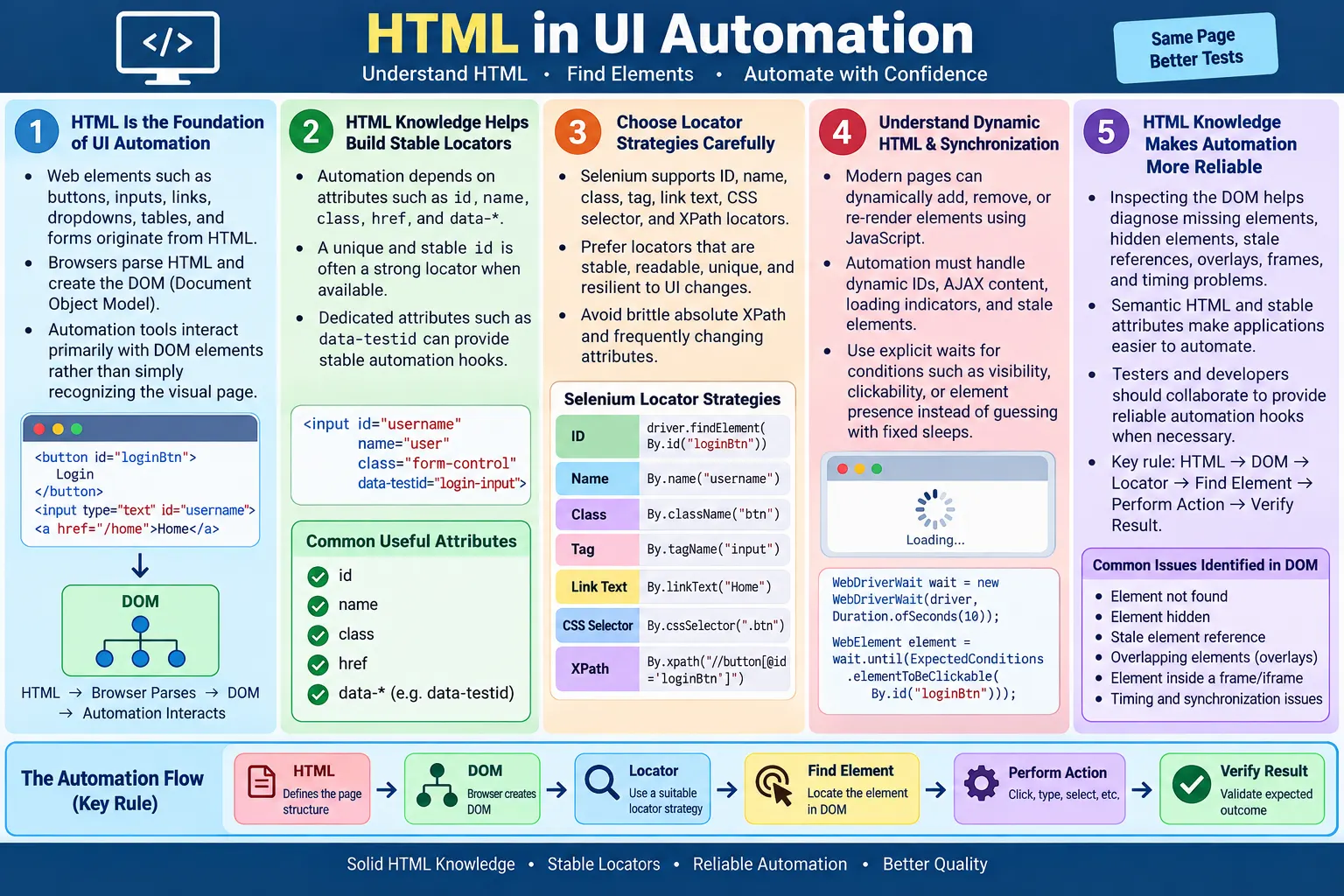
HTML is the foundation of UI Automation. Every element that automation tools interact with, such as buttons, text boxes, links, checkboxes, dropdowns, tables, images, frames, and forms, is defined in the HTML document. A tester may write automation code in Java, JavaScript, Python, C#, or another language, but the actual target of the test is still the webpage structure created from HTML. Without understanding that structure, reliable UI automation becomes difficult.
Automation frameworks like Selenium, Playwright, Cypress, Puppeteer, and Appium for mobile web locate HTML elements, read their attributes, perform user actions, and validate application behavior. When an automated test clicks a Login button, it is not clicking a visual object in the same way a human sees it. The tool finds a DOM element that represents the button and sends an interaction through the browser automation layer. When a test enters text into an email field, it identifies an input element and sets or types the value through browser-controlled actions.
Understanding HTML helps testers create stable locators, debug automation failures, handle dynamic pages, inspect element states, and communicate clearly with developers. A tester who understands the difference between id, name, class, type, href, and custom data-* attributes can choose better locator strategies. A tester who understands forms, tables, frames, and dynamic DOM updates can build test scripts that are more maintainable and less flaky.
Why HTML Is Important in UI Automation
Automation tools do not see webpages like humans. A human sees a page visually: colors, spacing, text, buttons, and layout. Automation tools interact with the DOM, which is the browser's object representation of the HTML. The browser parses HTML and creates the DOM. Automation tools then query the DOM, find elements, perform actions, and read results. This means the quality of automation depends heavily on the quality and stability of the underlying HTML.
HTML
  ↓
Browser
  ↓
DOM
  ↓
Automation Tool
  ↓
Find Element
  ↓
Perform Action
The automation tool works with the DOM, and the DOM originates from HTML. If the HTML uses clear, unique, stable attributes, automation becomes easier. If the HTML contains duplicate IDs, unstable generated attributes, deeply nested elements, missing labels, or inconsistent structure, automation becomes fragile. Many flaky tests are not caused by Selenium itself; they are caused by weak locators, dynamic markup, timing issues, or poor page structure.
HTML knowledge also helps testers inspect failures. If a test cannot find an element, the tester can open DevTools, inspect the DOM, check whether the element exists, verify whether it is visible, review its attributes, and understand whether JavaScript created it later. This turns debugging from guessing into analysis.
How UI Automation Works
A simple login page shows how UI automation depends on HTML. The page may contain an input field for username and a button for login. The automation script locates the input, enters text, locates the button, clicks it, and verifies the result. Every step depends on the tool being able to find the correct HTML element.
Example webpage:

<input
  id="username"
  type="text">

<button id="login">
  Login
</button>
Automation flow:
Locate Username
↓
Enter Text
↓
Locate Login Button
↓
Click Button
↓
Verify ResultIf the input has a stable id, the automation code can use that directly. If the button text is stable, the test may locate it by text or another attribute. If the application changes the ID on every build or hides the button until a script finishes, the test needs a better strategy. The automation flow is simple conceptually, but real-world reliability depends on the HTML and timing details.
HTML Elements Used in Automation
Automation tests commonly interact with standard HTML elements. Each element type usually maps to a common automation action. Inputs receive text. Buttons are clicked. Links are clicked. Select elements allow option selection. Textareas receive longer text. Tables are read and verified. Images are checked for display or attributes. Forms are submitted. Frames require context switching.
| HTML Element | Automation Action |
|---|---|
<input> |
Enter text |
<button> |
Click |
<a> |
Click link |
<select> |
Select option |
<textarea> |
Enter text |
<img> |
Verify image |
<table> |
Read table data |
<form> |
Submit form |
<label> |
Verify label |
<iframe> |
Switch frame |
A tester who knows these elements can reason about test design more accurately. For example, selecting an option from a real <select> element is different from selecting an option from a custom dropdown built with divs and JavaScript. A normal link has an href. A custom clickable element may need a different locator and different interaction strategy. HTML knowledge reveals these differences.
Locating Elements
Automation begins by locating HTML elements. A locator is a rule that tells the automation tool how to find an element in the DOM. Good locators are unique, stable, readable, and tied to the purpose of the element. Poor locators are brittle, overly long, dependent on layout details, or based on attributes that change frequently.
<input
  id="email"
  name="email"
  type="email">
driver.findElement(
By.id("email"));The id attribute is often one of the most reliable locators when it is unique and stable. A unique ID gives the test a direct way to identify the element. However, not every application provides good IDs. Some frameworks generate dynamic IDs that change between runs. In those cases, other stable attributes or custom testing attributes may be better.
HTML Attributes Used in Automation
Automation frequently relies on HTML attributes. Attributes provide identifiers, values, types, destinations, and additional metadata. A tester should understand which attributes are likely to be stable and which are likely to change. Styling-related classes may change during redesign. Dynamic IDs may change between sessions. Purpose-built data-* attributes are often more reliable for automation.
| Attribute | Purpose |
|---|---|
id |
Unique identifier |
name |
Form field identification |
class |
CSS-based locator |
type |
Input type |
value |
Current value |
placeholder |
Placeholder text |
href |
Link destination |
src |
Image or media source |
title |
Tooltip text |
data-* |
Custom automation-friendly attributes |
<input
  id="password"
  type="password"
  placeholder="Enter Password">
driver.findElement(
By.id("password"))
.sendKeys("admin123");Attributes are also useful for validation. Tests may verify that an image has the correct src, a link has the expected href, an input has the correct type, or a field contains the expected value. UI automation is not only clicking; it is also reading and verifying the DOM state.
Locators in Selenium
Selenium provides several locator strategies. Each strategy maps to a way of finding elements in the DOM. The best locator depends on the HTML. A stable ID is usually preferred when available. CSS selectors are powerful and commonly used. XPath can be useful for complex relationships, but brittle XPath should be avoided.
By.id()By.name()By.className()By.tagName()By.linkText()By.partialLinkText()By.cssSelector()By.xpath()
Locator choice affects maintainability. A readable locator based on a stable attribute is easier to debug than a long absolute XPath. Automation code should communicate intent. If a locator identifies the login button by data-testid="login-button", the purpose is clear. If it identifies it by /html/body/div[2]/div[3]/button[1], the test is tightly coupled to layout.
CSS Selector Example
CSS selectors locate elements using the same selector language used by CSS. They can target IDs, classes, attributes, element names, and relationships. CSS selectors are often faster, readable, and flexible enough for most automation needs.
HTML:

<button class="login-btn">
  Login
</button>

Automation:

driver.findElement(
  By.cssSelector(".login-btn"));
This selector finds an element with the class login-btn. This may be acceptable if the class is stable. If the class is only for styling and may change during redesign, a test-specific attribute may be better. The locator should reflect stability, not just convenience.
XPath Example
XPath locates elements by navigating the document tree. It can target text, attributes, ancestors, descendants, and relationships. XPath is powerful, especially when the HTML lacks IDs or data attributes. However, it can become brittle if written as an absolute path through many container elements.
HTML:

<button>
  Login
</button>

Automation:

driver.findElement(
  By.xpath("//button[text()='Login']"));
This XPath finds a button whose text is Login. It is more meaningful than an absolute XPath, but it can still break if the visible text changes. XPath should be used thoughtfully. Prefer simple, intention-revealing XPath expressions when CSS selectors or stable attributes are not enough.
Forms in Automation
Forms are common automation targets because many applications require login, registration, search, checkout, profile updates, and data entry. HTML form structure affects automation reliability. Inputs should have stable identifiers, labels should be associated correctly, buttons should be real buttons, and validation messages should be visible in the DOM.
<form>
  <input id="user">
  <input id="pass">
  <button>Login</button>
</form>
Enter Username
↓
Enter Password
↓
Click Login
↓
Verify Home PageAutomation scripts usually enter values, submit the form, and verify results. They may also test validation by leaving fields empty, entering invalid formats, or checking error messages. Understanding input types, form submission, labels, and validation attributes helps testers design better scenarios.
Tables
Tables are used to display structured data such as reports, search results, order histories, invoices, and dashboards. Automation may read rows, read columns, verify values, count rows, or locate a specific row based on cell content. A well-structured table with proper rows, cells, and headers is easier to automate.
<table>
  <tr>
    <td>Laptop</td>
  </tr>
</table>- Read rows
- Read columns
- Verify values
- Count rows
- Find a row by cell text
Dynamic tables require synchronization. Rows may load after an AJAX request, filters may update the DOM, and pagination may replace visible rows. Automation should wait for the table state that matters before asserting values.
Dropdowns
Dropdown automation depends on whether the dropdown is a real <select> element or a custom component. Selenium provides the Select class for real HTML select elements. Custom dropdowns built with divs, lists, and JavaScript require normal click-based interactions.
<select>
  <option>India</option>
</select>
Select select =
new Select(element);
select.selectByVisibleText("India");This is why inspecting HTML matters. If the element is a real select, use select-specific methods. If it is a custom dropdown, locate the trigger, click it, wait for options, and click the desired option. Treating custom dropdowns like native selects will fail.
Checkboxes and Radio Buttons
Checkboxes and radio buttons are common form controls. A checkbox allows independent selection, while radio buttons usually represent one choice from a group. Automation typically locates the input and clicks it, then verifies whether it is selected.
<input
  type="checkbox"
  id="agree">
driver.findElement(
By.id("agree"))
.click();Radio buttons often share the same name and differ by value or label. The locator should identify the correct option, not only the group. Labels are useful because users often click labels, and tests may use nearby text to locate the intended choice.
Images and Links
Automation may verify that images are displayed, that the image source is correct, and that alt text exists. Image checks are useful for logos, product images, banners, and accessibility-related validations. A good image has meaningful attributes when it conveys information.
<img
  src="logo.png"
  alt="Company Logo">
Links are also central to automation. A link should have an href and meaningful text. Selenium can locate links by visible text or by CSS selectors. Tests may click links, verify navigation, check URL changes, or validate that important links are present.
<a href="/home">
  Home
</a>

driver.findElement(
  By.linkText("Home"))
  .click();
Frames
Iframes create separate browsing contexts. Elements inside an iframe are not directly accessible from the main document until the automation tool switches into the frame. This is common in payment forms, embedded widgets, maps, reports, and third-party content.
<iframe id="paymentFrame">
</iframe>
driver.switchTo()
.frame("paymentFrame");After switching into a frame, the automation can locate elements inside it. When finished, the test must switch back to the default content if it needs to interact with the main page. Many frame-related automation failures happen because the test is in the wrong context.
Dynamic HTML
Modern web applications often update HTML dynamically using JavaScript. Elements may appear after AJAX calls, disappear after state changes, re-render after user actions, or receive new attributes during runtime. Automation testers must handle dynamic IDs, AJAX content, loading indicators, changing elements, and stale elements.
- Dynamic IDs
- AJAX content
- Loading indicators
- Changing elements
- Stale elements
Appropriate waits are commonly used to synchronize with these changes. Explicit waits are usually better than fixed sleeps because they wait for a specific condition, such as visibility, clickability, text presence, or element existence. Understanding dynamic HTML helps testers choose the right wait condition instead of guessing a delay.
Data Attributes
Many applications provide automation-friendly attributes such as data-testid, data-test, or data-cy. These attributes are not for visual styling. They exist to give automation stable hooks. Using dedicated testing attributes often results in more stable tests than relying on styling-related classes.
<button data-testid="login-button">
  Login
</button>
driver.findElement(
By.cssSelector(
"[data-testid='login-button']"));Data attributes are useful because they can remain stable even when the UI design changes. A button's class may change from primary-btn to brand-action, but data-testid="login-button" can remain the same. This separates test stability from visual styling.
Browser Workflow
The browser workflow for automation starts with HTML and ends with verification. The browser parses HTML into the DOM. The automation tool uses locators to find elements. It performs actions such as clicks, typing, selection, scrolling, or frame switching. Then it verifies results by reading text, attributes, URLs, visibility, state, or page changes.
HTML
  ↓
DOM
  ↓
Locator
  ↓
Find Element
  ↓
Perform Action
  ↓
Verify Result
This workflow explains why HTML quality affects automation quality. Clear HTML creates stable locators and predictable behavior. Unclear HTML forces tests to rely on fragile paths, timing assumptions, or visual guesses. Reliable automation begins with reliable markup.
Best Practices
Good UI automation locators are stable, readable, and resilient to UI changes. Prefer unique ID attributes when available. Use stable data-* attributes for automation when provided. Avoid brittle XPath expressions based on absolute page structure. Use explicit waits for dynamic content. Verify element visibility before interacting. Build locators that are resilient to UI changes.
- Prefer unique
idattributes when available - Use stable
data-*attributes for automation when provided - Avoid brittle XPath expressions based on absolute page structure
- Use explicit waits for dynamic content
- Verify element visibility before interacting
- Build locators that are resilient to UI changes
Good automation also requires collaboration. Testers can ask developers for stable attributes when the page lacks reliable hooks. This is not a shortcut; it is a maintainability practice. Applications that are designed with testability in mind are easier to automate and cheaper to maintain.
Choosing a Locator Strategy
A good locator strategy starts with stability. The best locator is not always the shortest locator, and it is not always the first locator that works. The best locator is one that is likely to remain correct when the UI changes in reasonable ways. If the design changes color, spacing, or class names, the test should not fail unless the behavior itself changed. This is why unique IDs and test-specific data attributes are so valuable.
A practical priority order is to use a stable ID when one exists, use a dedicated data-* attribute when provided, use accessible text or labels when they are part of the user contract, and use CSS selectors or relative XPath when structural relationships matter. Absolute XPath should be the last resort because it is tightly coupled to the exact page layout. Locators should represent intent, not incidental structure.
For example, a login button can be located by id="login", data-testid="login-button", or a meaningful button text depending on the application. A product row may need a locator based on product name and a related action button. A table cell may need to be found by row and column relationship. A modal close button may need a stable accessible label. The right strategy depends on what makes the element uniquely and meaningfully identifiable.
Teams should document locator conventions. If developers agree to provide data-testid for critical controls, tests become more consistent. If testers know when to use text, CSS, or XPath, automation code becomes easier to review. A shared locator strategy reduces random styles and long-term maintenance cost.
Debugging Automation Failures with HTML
When a UI automation test fails, HTML inspection is often the fastest path to the cause. If an element is not found, first check whether it exists in the DOM at the time of failure. If it exists but is hidden, the problem may be visibility, overlay, CSS state, or timing. If it does not exist yet, the test may need an explicit wait. If it existed earlier but later became stale, the application may have re-rendered that section and replaced the original node.
Common WebDriver errors become easier to understand with HTML knowledge. A NoSuchElementException often means the locator does not match the current DOM or the element has not loaded yet. A stale element error means the previously found element is no longer attached to the current DOM. An element click interception error may mean another element overlays the target. A timeout may mean the expected HTML state never appeared. Each error points to a DOM condition that can be inspected.
Debugging should include checking the element's attributes, text, visibility, enabled state, position, parent containers, frame context, and timing. DevTools can reveal whether an element is inside an iframe, shadow DOM, hidden tab, collapsed panel, or dynamically generated region. Screenshots help with visual state, but the DOM explains what the automation tool can actually access.
Good testers use both the browser view and the HTML view. The browser view shows what the user sees. The HTML view shows what the automation tool can locate. When those two views do not align, such as a visible-looking custom dropdown that is not a native select, the tester must adapt the automation approach.
HTML Quality and Testability
HTML quality directly affects testability. A page with stable identifiers, semantic controls, accessible labels, and predictable structure is easier to automate. A page with duplicate IDs, anonymous buttons, unstable generated classes, missing labels, and deeply nested generic containers is harder to automate. Testability should be considered part of frontend quality, not an afterthought.
Semantic HTML improves automation because elements behave predictably. A real button can be clicked like a button. A real input accepts text like an input. A real select can use select-specific methods. A link with an href supports normal navigation behavior. Custom components can still be automated, but they often require more careful locators and waits. When native HTML elements are appropriate, using them improves both accessibility and automation.
Accessibility attributes can also help automation, but tests should not misuse them. If an element has an accessible label because users need it, a test may reasonably locate or verify it. However, accessibility attributes should not be added only to satisfy automation while ignoring real accessibility meaning. Dedicated test attributes are better for purely automation-specific hooks.
Collaboration between testers and developers is important. If a critical element lacks a stable locator, the best fix may be to add a test-friendly attribute in the application code rather than writing a fragile XPath. This creates better long-term value for the whole team.
Common Mistakes
Using absolute XPath is a common mistake. A locator such as /html/body/div[2]/div[3]/... depends on the exact page structure. Small layout changes can break it even when the user-facing behavior is unchanged. Prefer stable attributes, meaningful CSS selectors, or relative XPath expressions.
Another mistake is depending on dynamic IDs. Some frameworks generate IDs that change between page loads, such as btn_12345 becoming btn_98765. Look for more stable attributes when possible. Styling classes can also be risky because class names may change during UI redesigns. Dedicated test attributes are often safer.
Ignoring waits is another major source of flaky tests. Interacting with elements before they are ready causes intermittent failures. Not understanding HTML structure is also a common weakness. Without HTML knowledge, locating elements becomes guesswork, and debugging failures takes much longer.
Interview Questions
Why is HTML important in Selenium? HTML is important because Selenium interacts with HTML elements through the browser's DOM. The DOM is created from the HTML document.
What HTML attributes are commonly used as locators? Common attributes include id, name, class, href, type, placeholder, and data-*.
Which locator is usually preferred? A unique and stable id is often preferred. When unavailable, dedicated data-* attributes or other stable locators are good alternatives.
Why are data-* attributes useful? They provide stable identifiers specifically intended for automation without affecting presentation.
What is the relationship between HTML and the DOM? The browser parses HTML and creates the DOM. Automation tools interact with the DOM rather than the raw HTML source.
Why should automation testers learn HTML? Understanding HTML helps testers create reliable locators, debug failures, inspect page structure, and write maintainable automation scripts.
HTML Elements vs Selenium Actions
| HTML Element | Selenium Action |
|---|---|
<input> |
sendKeys() |
<button> |
click() |
<a> |
click() |
<select> |
Select class methods |
<table> |
Read rows and cells |
<img> |
Verify display or attributes |
<iframe> |
switchTo().frame() |
<form> |
Fill and submit |
Interview-Ready Answer
HTML is fundamental to UI automation because every interactive element on a webpage is defined using HTML. Browsers parse HTML into the DOM, and automation tools such as Selenium, Playwright, and Cypress interact with the DOM to locate elements, perform actions, and verify application behavior. Automation relies on HTML attributes like id, name, class, and data-* to build locators.
A strong understanding of HTML enables testers to create stable locators, handle dynamic web pages, debug automation failures, and develop reliable, maintainable test scripts. It also helps testers choose the right locator strategy for forms, tables, dropdowns, frames, links, images, and dynamic components.
One-Line Insight
In UI automation, every click, type, and verification begins with understanding the HTML behind the webpage.