HTML File Size Optimization
Introduction
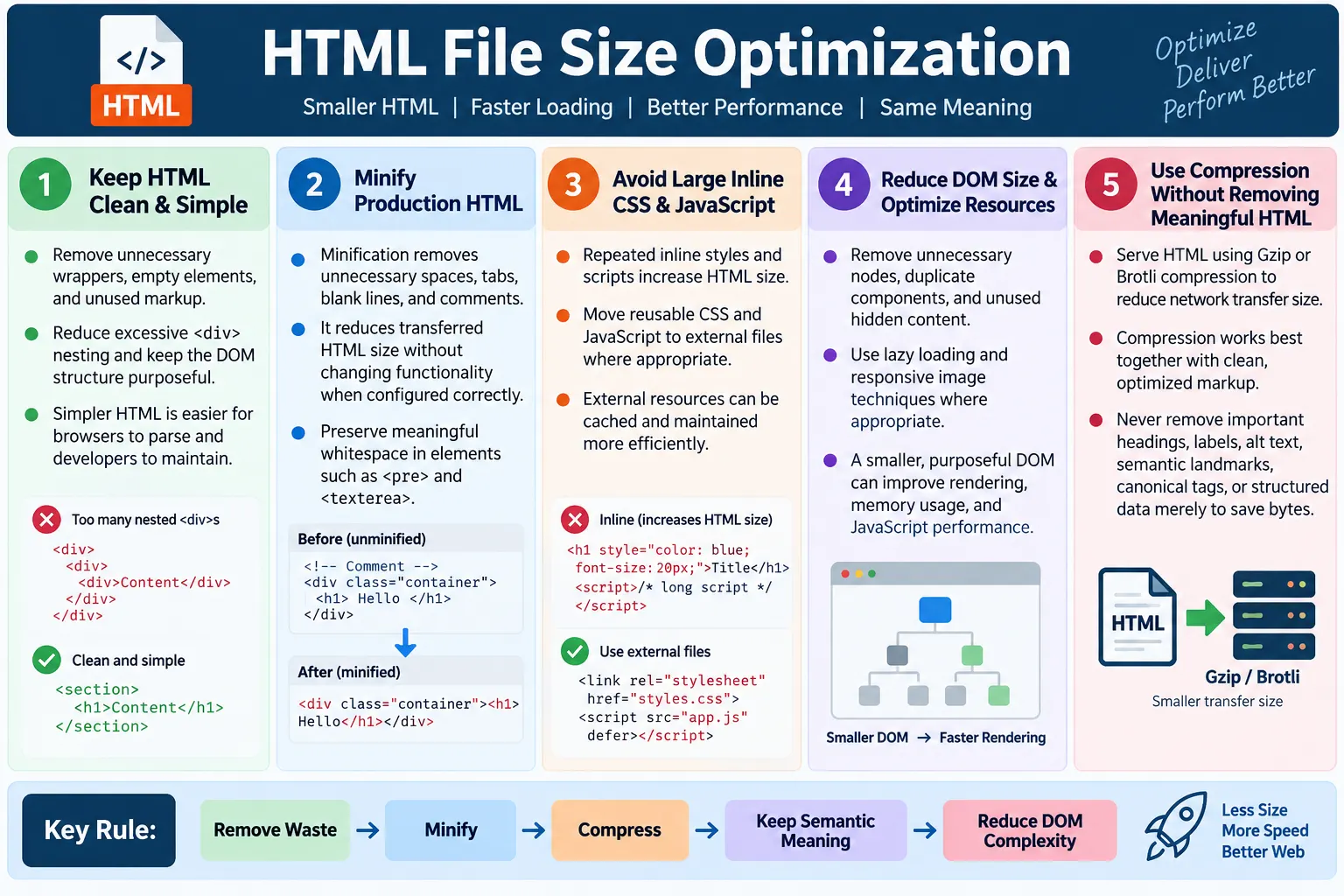
HTML File Size Optimization is the process of reducing the size of an HTML document without changing its functionality, meaning, or visible result. A well-optimized HTML file contains the markup needed to describe the page clearly, but it avoids unnecessary comments, repeated structures, empty elements, excessive nesting, large inline code blocks, and unused markup. The goal is not to make the page smaller by removing useful content. The goal is to make the same page cleaner, faster, easier to parse, and easier to maintain.
Smaller HTML files load faster, consume less bandwidth, improve rendering speed, and provide a better user experience. HTML is often smaller than images, videos, CSS bundles, and JavaScript files, so beginners sometimes ignore it during performance work. That is a mistake. Every webpage starts with HTML. Before the browser can discover most stylesheets, scripts, images, links, and structured content, it first downloads and parses the HTML document. If the HTML is bloated, the page begins with unnecessary delay and unnecessary complexity.
HTML optimization is especially important for large pages, static tutorial websites, e-commerce pages, dashboards, documentation portals, and websites with many visitors. A few extra kilobytes may not sound serious on one page, but multiplied across thousands of page views, slow mobile connections, repeated crawls, and large DOM trees, the impact becomes real. Optimized HTML contributes to faster page loading, better Core Web Vitals, improved user experience, lower bandwidth usage, and better crawl efficiency for search engines.
What Is HTML File Size Optimization?
HTML file size optimization means removing unnecessary data from an HTML document while preserving its content and behavior. The optimized page should still display the same meaningful content, expose the same important links, support the same accessibility features, and work the same way for users. The difference is that the browser receives a cleaner version of the document. It has fewer unnecessary characters to download, fewer useless nodes to parse, and fewer redundant structures to keep in memory.
Large HTML
  ↓
Optimization
  ↓
Smaller HTML
  ↓
Faster Loading
Optimization can happen at different levels. At the authoring level, developers write cleaner semantic markup and avoid waste. At the build level, tools minify HTML and remove comments or whitespace. At the server level, compression such as Gzip or Brotli reduces the transfer size before the page reaches the browser. At the design level, teams avoid building pages that contain thousands of hidden elements, repeated components, or large blocks of inline scripts and styles.
A good optimization process respects HTML's purpose. HTML is not just text to shrink. It is the structure of the document. If optimization removes labels, alt text, headings, navigation, semantic sections, or useful links, it damages the page. If it removes redundant wrappers, debug comments, empty tags, repeated inline style attributes, and obsolete markup, it improves the page. The skill is knowing the difference between meaningful structure and unnecessary weight.
Why HTML Size Matters
Every webpage begins by downloading the HTML. The browser requests the document, receives the response, parses the markup, creates the DOM, discovers resources, loads CSS and JavaScript, and then renders the page. HTML sits at the beginning of this process. If the document is large or messy, the browser may spend more time downloading and parsing before the user sees useful content.
Browser
  ↓
Download HTML
  ↓
Parse HTML
  ↓
Create DOM
  ↓
Load CSS and JavaScript
  ↓
Render Page
The HTML response also helps the browser discover other critical resources. Stylesheets, preload links, scripts, images, canonical tags, structured data, and navigation links are all exposed through HTML. A cleaner document allows these signals to be found and processed efficiently. A bloated document may still work, but it carries avoidable overhead.
HTML size also matters for mobile users. Mobile networks can have higher latency, weaker connections, and stricter data limits. Even when the file is compressed, large documents take more time to transfer and parse. Devices with limited processing power can also struggle with very large DOM trees. This is why performance work should not only focus on images and scripts. The document itself should be lean enough to support fast startup.
Benefits of Smaller HTML Files
Optimized HTML provides faster downloads because the browser receives fewer bytes. It provides faster parsing because the browser has less markup to process. It reduces network usage because repeated visits and crawls transfer less data. It improves mobile performance because smaller documents are friendlier to slower networks and lower-powered devices. It can also support SEO indirectly because performance and usability influence page experience.
- Faster downloads
- Faster parsing
- Lower network usage
- Better mobile performance
- Cleaner DOM structure
- Improved maintainability
- Better crawl efficiency for search engines
Another benefit is maintainability. Bloated HTML is usually harder to read and harder to update. Deeply nested markup, repeated inline styles, unused sections, and old commented code confuse developers and content editors. When a page is cleaner, future changes are safer. A performance improvement therefore becomes a code quality improvement as well.
Keep HTML Clean
The most practical form of HTML optimization is simply writing clean markup. Clean HTML uses the right element for the job, avoids unnecessary wrapper elements, keeps nesting reasonable, and includes only the content needed by the page. The browser does not need four nested <div> elements to display a simple paragraph. If the page needs a paragraph, use a paragraph. If it needs a navigation area, use <nav>. If it needs a header, use <header>.
Unnecessary markup increases file size and DOM size. The file becomes larger because every opening tag, closing tag, class name, attribute, and line break consumes bytes. The DOM becomes larger because every element becomes a node that the browser must manage. The bigger the DOM, the more work the browser may need to do for style calculation, layout, JavaScript queries, and updates.
Bad:

<div>
  <div>
    <div>
      <div>
        <p>Hello</p>
      </div>
    </div>
  </div>
</div>

Better:

<p>Hello</p>
Simpler HTML is usually faster, clearer, and more robust. It is easier for developers to read, easier for browsers to parse, easier for search engines to interpret, and easier for assistive technologies to navigate. File size optimization begins with this habit.
Remove Unnecessary Comments
Comments are useful during development. They can explain temporary work, mark sections, or help a team understand complex templates. However, many comments do not need to be shipped to production. Comments are not displayed to users, but they are still sent as part of the HTML document unless a build process removes them. Every unnecessary comment increases file size.
Development:

<!-- Header Starts -->
<header>
  ...
</header>
<!-- Header Ends -->

Production:

<header>
  ...
</header>
Section-marker comments such as <!-- Header Starts --> and <!-- Footer Ends --> are common in hand-written pages. They may help during early editing, but semantic elements already describe these regions. A <header> element says it is the header. A <footer> element says it is the footer. When the markup is semantic, many comments become unnecessary.
There is one important caution. Do not remove comments that are required by a framework, conditional processing, legal notice, or build workflow without understanding their purpose. Optimization should not break behavior. The correct approach is to remove comments that add no production value and keep comments that are genuinely required.
Avoid Empty Elements
Empty elements are another common source of waste. An empty <div>, <p>, or <span> often remains after a design experiment, content change, or copied template. If the element has no content, no accessibility purpose, no scripting purpose, and no styling purpose, it should usually be removed.
Bad:

<div></div>
<p></p>
<span></span>
Empty elements affect both file size and DOM size. A single empty element is not a major problem, but hundreds of unused elements across a large page create clutter. They also make maintenance harder because future developers may not know whether the elements are safe to remove. Clean code avoids this uncertainty.
Some empty elements are intentional. Decorative icons, placeholders controlled by JavaScript, ARIA live regions, and mount points for dynamic components can be empty at initial load. These should not be removed blindly. The question is whether the element has a real purpose. If it does, keep it. If it exists only because old code was never cleaned, remove it.
Reduce Deep Nesting
Deep nesting happens when elements are placed inside many layers of other elements. It is common in pages built from copied layouts, overly complex component systems, or excessive wrapper-based styling. Deep nesting increases file size because every level requires more tags and often more class names. It increases DOM complexity because the browser must represent every level as a node.
Bad:

<div>
  <div>
    <div>
      <div>
        <p>Welcome</p>
      </div>
    </div>
  </div>
</div>

Better:

<section>
  <p>Welcome</p>
</section>
Deep nesting also makes CSS harder. Selectors may become longer. Layout debugging becomes more difficult. JavaScript that searches or updates elements may become more fragile. Accessibility review can also become harder because the meaningful structure is hidden inside generic wrappers.
The best fix is to ask whether each wrapper has a clear responsibility. Does it provide layout? Does it group related content semantically? Does it serve as a necessary component boundary? If the answer is no, it may be unnecessary. Reducing nesting does not mean removing all containers. It means keeping containers that have a purpose and eliminating those that exist only because the markup grew without review.
Use Semantic HTML
Semantic HTML often produces cleaner and more understandable markup. Instead of using generic <div> elements for everything, semantic HTML uses elements such as <header>, <nav>, <main>, <section>, <article>, <aside>, and <footer> where appropriate. These elements describe the role of content, which helps browsers, assistive technologies, search engines, and developers.
Instead of:

<div class="header">
  <div class="menu">

Use:

<header>
  <nav>
Semantic HTML does not automatically make every file smaller in every situation, but it often reduces the need for extra classes, comments, and wrappers. It also improves readability. A developer scanning a page can understand the structure faster when the page uses meaningful elements. That clarity reduces accidental duplication and long-term markup bloat.
Semantic HTML is also a quality improvement beyond file size. It supports accessibility and SEO. A page that uses a real <nav> element gives assistive technologies a clearer navigation landmark. A page that uses a real <main> element identifies the primary content. A page that uses headings properly helps readers understand the document outline. Optimization should support meaning, not remove it.
Minify HTML
Minification is the process of removing unnecessary characters from production HTML without changing how the page works. These characters often include extra spaces, tabs, blank lines, and comments. During development, readable formatting is helpful. In production, the browser does not need most of that formatting. A minifier can reduce transfer size while preserving output.
Development:

<h1>
  HTML Tutorial
</h1>

Minified:

<h1>HTML Tutorial</h1>
Minification is most effective when applied consistently by a build process or deployment pipeline. Manual minification is not practical for large websites because it makes files harder to edit. Developers should work with readable source files and let tools produce optimized output when needed. Static sites can also be minified during deployment.
Minification must be configured carefully. Some whitespace is meaningful, especially inside <pre>, <textarea>, inline text, and code examples. A poor minification process can damage content if it removes meaningful spacing. Good minifiers understand these cases or allow configuration to protect sensitive sections.
Avoid Large Inline CSS
Inline CSS can be useful for tiny, one-off cases, but large repeated inline style attributes make HTML heavy and hard to maintain. If the same style appears on many elements, the HTML repeats the same bytes again and again. A shared CSS class is usually cleaner and smaller. External CSS files can also be cached by the browser, which is a major performance advantage across multiple pages.
Bad:

<p style="color:red;font-size:20px;">Hello</p>

Better:

<p class="error">Hello</p>

CSS:

.error {
  color: red;
  font-size: 20px;
}
Separating CSS improves maintainability. If you need to change the design, you update one CSS rule instead of editing many HTML elements. It also improves consistency because all elements using the class receive the same styling. From a file size perspective, the HTML becomes smaller because repeated style declarations move into a shared stylesheet.
There are exceptions. Critical CSS may sometimes be inlined to improve first render, especially for highly optimized performance workflows. Small inline styles may also appear in email templates or generated content. However, ordinary websites should avoid large, repeated inline style blocks unless there is a specific reason.
Avoid Large Inline JavaScript
Inline JavaScript can also increase HTML size. A small event handler may seem harmless, but repeated inline handlers across many buttons, links, and form controls create unnecessary duplication. Large script blocks inside the HTML document can delay parsing, reduce readability, and prevent effective browser caching across pages.
Bad:

<button onclick="saveData()">Save</button>

Better:

<button id="saveBtn">Save</button>

JavaScript:

document
  .getElementById("saveBtn")
  .addEventListener("click", saveData);
Moving JavaScript to external files allows the browser to cache the script and reuse it on other pages. It also keeps HTML focused on structure and content. This separation makes testing and debugging easier. Developers can update behavior in JavaScript files without touching the markup unless the structure itself changes.
As with CSS, there are exceptions. Some analytics snippets, critical bootstrapping scripts, or structured data blocks may be placed in HTML intentionally. Optimization is not a rule against all inline code. It is a rule against unnecessary, repeated, or oversized inline code that makes the document heavier than it needs to be.
Optimize Images Referenced by HTML
Images are not part of the HTML file size itself unless they are embedded as base64 data, but image-related markup strongly affects page performance. Large images can make HTML pages feel slow even when the document is small. HTML controls how images are requested, described, lazy-loaded, and selected for different devices. Good image markup is part of practical page optimization.
<img
  src="course.webp"
  loading="lazy"
  alt="HTML course">
Modern formats such as WebP and AVIF can reduce image transfer size when supported. Responsive images using srcset and sizes can help browsers choose the right image for the device. Meaningful alt text improves accessibility and SEO context. Width and height attributes help prevent layout shift because the browser can reserve space before the image loads.
Do not place large base64 images directly inside HTML unless there is a strong reason. Base64-encoded images can make the HTML document much larger and reduce caching flexibility. Separate image files are usually better because browsers can cache them independently and download them according to priority.
Lazy Load Images
Lazy loading delays the loading of off-screen images until they are needed. This does not reduce the raw HTML document size, but it improves the page loading experience because the browser does not immediately download every image on the page. For long tutorial articles, image galleries, product listings, and documentation pages, lazy loading can reduce initial network pressure.
<img
  src="html.png"
  loading="lazy"
  alt="HTML example">
Lazy loading is most useful for images below the fold. Important above-the-fold images should usually load normally because users need them immediately. If the first meaningful image is delayed unnecessarily, the page may feel slower. Optimization should match user experience, not blindly apply the same attribute everywhere.
When lazy loading is used, image dimensions still matter. Without width and height, the layout may shift when the image loads. Layout shift frustrates users and can affect performance metrics. A well-optimized image tag combines appropriate format, meaningful alt text, lazy loading where suitable, and stable dimensions.
Reduce DOM Size
HTML file size and DOM size are related but not identical. The HTML file is the text sent by the server. The DOM is the browser's object representation of that document. A page can have a moderate file size but a large DOM if it contains many small elements. A page can also have a larger file size because of text content, but still have a reasonable DOM. Both dimensions matter.
Bad:

5000 HTML elements

Better:

500 HTML elements
A large DOM can affect rendering, styling, JavaScript performance, memory usage, and maintainability. CSS selectors may need to evaluate across many nodes. JavaScript queries may search larger trees. Layout changes may involve more elements. Browser developer tools and performance tools often warn when DOM size becomes excessive.
Reducing DOM size starts with removing unnecessary wrappers, unused elements, duplicate components, hidden content that does not need to be present at initial load, and overly complex markup. It also involves choosing simpler component structures. The best DOM is not the smallest possible DOM; it is the smallest DOM that accurately represents the page and supports the required behavior.
Remove Unused Markup
Unused markup often accumulates over time. A page may contain hidden sections from an old design, obsolete forms, unused navigation blocks, commented templates, placeholder banners, duplicate footers, or temporary development code. This content may not be visible to users, but if it remains in the HTML response, the browser still downloads and parses it.
- Hidden sections that are never shown
- Obsolete forms
- Unused navigation blocks
- Temporary development code
- Duplicate components
- Old promotional content
Hidden content deserves careful review. Some hidden content is necessary for accessible UI patterns, tab panels, modals, or interactive controls. Other hidden content is simply unused. Removing unused hidden markup can improve both file size and clarity. The review should focus on whether the markup is still reachable, needed, and meaningful.
Static websites are especially vulnerable to unused markup because pages are often copied from older files. A copied template may carry old ads, old tracking snippets, old buttons, old inline styles, and old placeholder sections. A page-level cleanup before publishing prevents that clutter from spreading.
Use Compression
Compression reduces the size of HTML during network transfer. The server compresses the HTML response, sends the smaller compressed version, and the browser decompresses it before parsing. Common compression methods include Gzip and Brotli. Compression is one of the most effective ways to reduce transferred HTML bytes because HTML contains repeated patterns that compress well.
HTML
  ↓
Compression
  ↓
Network
  ↓
Browser
  ↓
Decompression
Compression does not replace clean markup. A huge, messy document may compress well, but the browser still has to decompress and parse the resulting HTML. Clean HTML plus compression is better than relying on compression alone. Compression reduces transfer size; clean markup reduces both transfer size and browser work.
Most production servers and hosting platforms support Gzip or Brotli. Brotli often compresses text files very efficiently, especially at higher quality levels. The exact setup depends on the server, CDN, and deployment environment. What matters from an HTML optimization perspective is that production HTML should usually be served compressed.
Cache HTML Appropriately
HTML caching must be handled more carefully than caching static assets. CSS, JavaScript, images, and fonts can often be cached for a long time when their file names include version hashes. HTML pages may change more frequently, so caching policies are usually shorter. Still, thoughtful caching can reduce repeated downloads and improve performance for returning users.
The right caching strategy depends on how often the page changes. A static tutorial page may be safe to cache for a reasonable period if updates are not frequent. A personalized dashboard should be cached very carefully or not cached publicly. A news homepage may need short caching. A CDN can also help serve cached HTML quickly when the content is public and stable.
Caching does not reduce the HTML file itself, but it reduces how often users need to download it. Combined with compression and clean markup, caching supports faster repeat visits and lower server load.
Browser Workflow and HTML Optimization
Understanding the browser workflow explains why HTML optimization matters. The server sends the HTML response. The browser downloads it, decompresses it if needed, parses it, builds the DOM, discovers resources, applies CSS, runs scripts, lays out the page, and paints pixels. HTML is near the front of this chain, so problems in HTML affect the beginning of the rendering process.
Server
  ↓
Compressed HTML
  ↓
Browser Downloads
  ↓
Parse HTML
  ↓
Build DOM
  ↓
Render Page
If the HTML is bloated with unnecessary elements, the browser's DOM work increases. If the HTML contains large inline scripts, parsing may be interrupted or delayed. If the HTML contains huge inline styles, the document becomes heavier and less cache-friendly. If the HTML contains too many images without lazy loading or dimensions, the page may request too much too early and shift during rendering.
Optimization is therefore not only about a smaller file number. It is about helping the browser start quickly, discover the right resources, build a reasonable DOM, and render a stable page. Users do not care how many kilobytes were saved in theory. They care whether the page appears quickly, stays stable, and responds smoothly.
Best Practices
Good HTML file size optimization combines writing habits, review habits, and deployment tools. Developers should keep HTML simple, remove unnecessary comments, remove empty elements, reduce DOM size, avoid excessive nesting, and use semantic HTML. They should move repeated CSS to external stylesheets, move repeated JavaScript to external files where appropriate, optimize image markup, and avoid embedding large data directly in the page.
- Keep HTML simple
- Remove unnecessary comments
- Remove empty elements
- Minify production HTML
- Reduce DOM size
- Avoid excessive nesting
- Use semantic HTML
- Move CSS to external stylesheets where appropriate
- Move JavaScript to external files where appropriate
- Enable Gzip or Brotli compression
- Optimize image markup
Teams should also make optimization repeatable. A checklist helps during manual review. Build tools help with minification. Server configuration handles compression. Performance tools such as Lighthouse, browser performance panels, and network inspectors help measure results. For a static learning website, periodic scans can verify that pages include required metadata, footers, navigation, scripts, and clean content structure.
Common Mistakes
One common mistake is excessive nesting. Developers sometimes wrap content in multiple containers to solve layout problems, then never simplify the structure. This leads to a larger DOM and harder maintenance. A second mistake is huge inline styles. Repeated style attributes make HTML larger and prevent efficient reuse. A third mistake is large inline JavaScript. Behavior should often live in external scripts so it can be cached and maintained separately.
Another common mistake is leaving debug comments in production. Comments that helped during development may expose implementation details or simply waste bytes. Unused HTML is also common. Old hidden sections, temporary components, and obsolete forms should not remain in production pages. Finally, developers sometimes rely only on compression and ignore source quality. Compression helps transfer size, but it does not make messy markup easier to maintain or reduce DOM complexity after decompression.
A more subtle mistake is optimizing too aggressively. Removing meaningful alt text, headings, labels, semantic landmarks, or structured data to reduce file size is bad optimization. Those elements serve users, search engines, and assistive technologies. The correct target is waste, not meaning.
SEO Benefits
Smaller HTML does not directly guarantee higher search rankings. Search engines do not reward a page simply because its HTML file is small. However, optimized HTML can indirectly support SEO by improving performance, user experience, crawl efficiency, and technical clarity. Faster pages are easier for users to access. Cleaner pages are easier for teams to maintain. Search crawlers can process efficient, well-structured pages more reliably.
- Faster page loading
- Better Core Web Vitals support
- Improved user experience
- Lower bandwidth consumption
- More efficient crawling
- Cleaner page structure
HTML optimization also supports SEO by reducing the chance of technical mistakes. When markup is clean, it is easier to verify titles, headings, canonical tags, robots tags, structured data, internal links, and image alt text. Bloated pages hide problems. Clean pages reveal them.
Selenium Perspective
Automation testers may verify several HTML optimization signals, although Selenium alone is not a complete performance tool. Selenium can load a page, check whether it renders, inspect DOM size, verify lazy-loaded images, identify hidden unused elements, and confirm that important attributes exist. It can also measure rough page load time, but browser performance tools provide a more complete view.
long start =
System.currentTimeMillis();

driver.get("https://example.com");

long end =
System.currentTimeMillis();

System.out.println(end - start);
A Selenium test can check whether images use loading="lazy" where appropriate, whether important content is present without excessive hidden duplicates, and whether the page structure includes required landmarks. It can also count elements in the DOM, although a high count should be interpreted carefully. Some complex applications legitimately need many nodes. The test should support a performance review, not replace human judgment.
For deeper analysis, testers should combine Selenium with Lighthouse, browser DevTools, network panels, coverage reports, and server response checks. HTML file size optimization crosses multiple layers: markup, build process, server compression, caching, and runtime behavior.
Common Interview Questions
What is HTML file size optimization? It is the process of reducing the size of HTML documents to improve loading speed, parsing, rendering, maintainability, and overall performance without changing the page's intended functionality.
Why should HTML be minified? Minification removes unnecessary whitespace, blank lines, tabs, and comments from production HTML. This reduces file size without changing functionality when done correctly.
Why avoid excessive nesting? Deep nesting increases HTML size, DOM complexity, maintenance difficulty, and browser processing work. Simpler structures are usually easier to render and easier to maintain.
Should CSS and JavaScript be placed inside HTML? Small inline code can be appropriate in specific cases, but large or repeated CSS and JavaScript should usually be moved to external files so browsers can cache them and developers can maintain them more easily.
Why use Gzip or Brotli? Gzip and Brotli compress HTML during network transfer, reducing download size and improving page load times. They are especially effective for text-based files such as HTML, CSS, and JavaScript.
Does smaller HTML improve SEO? Not directly by itself. Smaller HTML can improve performance, user experience, and crawl efficiency, which can indirectly support SEO outcomes.
Comparison Table
| Optimized HTML | Poor HTML |
|---|---|
| Minified production output | Excessive whitespace and comments |
| Semantic elements | Deep nested <div> structures |
| Small and purposeful DOM | Very large DOM with unused nodes |
| External reusable CSS and JavaScript | Large repeated inline CSS and JavaScript |
| Compressed with Gzip or Brotli | Uncompressed text transfer |
| Optimized image markup | Large unoptimized images loaded too early |
Interview-Ready Answer
HTML File Size Optimization is the process of reducing the size of an HTML document to improve download speed, parsing, rendering, and overall page performance without changing the intended functionality. Common techniques include removing unnecessary comments and empty elements, reducing deep nesting, using semantic HTML, minifying production HTML, moving repeated CSS and JavaScript to external files where appropriate, enabling Gzip or Brotli compression, optimizing image markup, lazy loading off-screen images, and reducing DOM size.
A strong interview answer should also mention that HTML optimization is not only about reducing bytes. It is also about preserving meaningful structure. Headings, labels, alt text, landmarks, canonical tags, structured data, and important links should not be removed just to make a file smaller. Good optimization removes waste while keeping content, accessibility, SEO signals, and behavior intact. While smaller HTML does not directly guarantee better rankings, it improves performance, Core Web Vitals support, user experience, maintainability, and crawl efficiency.
One-Line Insight
Smaller HTML means faster downloads, quicker parsing, cleaner rendering, and a better experience for both users and search engines.