How Browsers Work
Introduction
Understanding how browsers work is one of the most important foundations in web development, automation testing, and web performance optimization. Every webpage that appears on your screen goes through a complex but highly optimized series of steps before it becomes visible and interactive. When a user enters a URL, the browser does not simply “open a page.” It performs DNS resolution, sends network requests, receives responses from servers, parses HTML, builds the DOM, downloads CSS and JavaScript, constructs rendering structures, calculates layout, paints pixels, and finally displays the completed page.
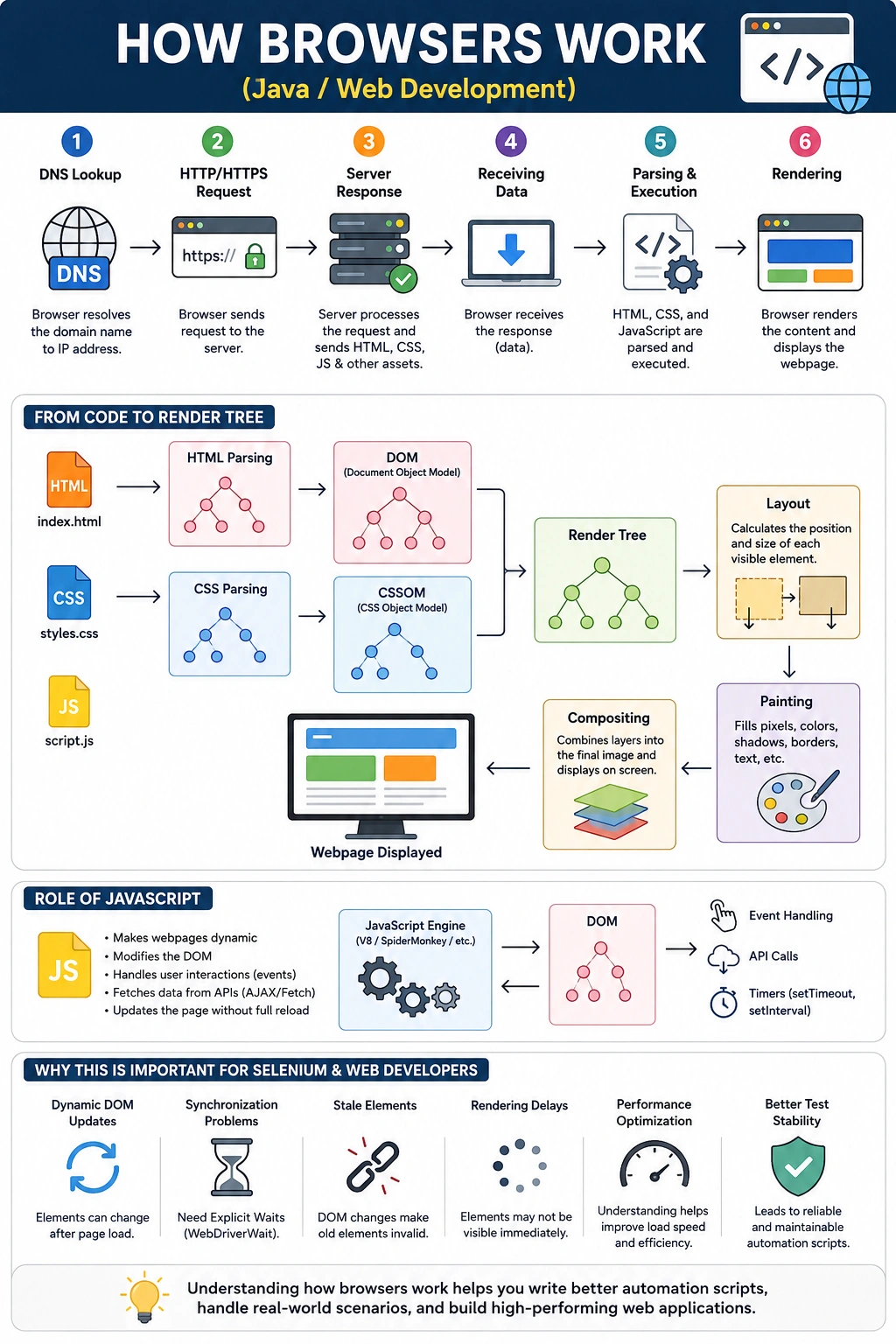
For beginners, a browser may seem like a simple application used to visit websites. But technically, a browser is a powerful software platform that combines networking, parsing, rendering, scripting, storage, security, caching, and user interface management. Modern browsers such as Google Chrome, Microsoft Edge, Mozilla Firefox, Safari, and Opera are highly sophisticated systems that transform code into interactive visual experiences.
This topic is important not only for HTML, CSS, and JavaScript learners but also for Selenium automation testers. Selenium does not interact with raw HTML files directly. It interacts with the browser’s rendered DOM. Therefore, understanding browser internals helps explain common automation issues such as ElementNotFoundException, StaleElementReferenceException, synchronization problems, dynamic loading delays, and the need for explicit waits.
What Is a Browser?
A browser is a software application that allows users to access and interact with web content. Its primary responsibility is to request resources from web servers and convert those resources into a visual webpage that humans can read, use, and interact with.
A browser performs several major functions. It sends requests to servers, receives HTML, CSS, JavaScript, images, fonts, and other assets, interprets those resources, builds internal representations of the page, executes JavaScript, renders the visual interface, and responds to user actions such as clicks, typing, scrolling, navigation, and form submissions.
Popular browsers include Google Chrome, Microsoft Edge, Mozilla Firefox, Safari, and Opera. Although these browsers may look different from the user’s perspective, their internal workflow is broadly similar. Each browser must understand web standards, process HTTP communication, parse HTML and CSS, execute JavaScript, and render pages accurately.
A browser is not just a viewer. It is an execution environment for modern web applications. Today’s browsers can run complex applications such as Gmail, Google Docs, YouTube, Netflix, online banking systems, dashboards, and cloud-based development tools.
High-Level Browser Workflow
When a user enters a URL such as:
https://www.softwaretips4u.comthe browser begins a multi-step process.
At a high level, the workflow looks like this:
User Enters URL
        ↓
DNS Lookup
        ↓
HTTP/HTTPS Request Sent
        ↓
Server Returns Response
        ↓
HTML Parsing
        ↓
DOM Creation
        ↓
CSS Parsing
        ↓
CSSOM Creation
        ↓
JavaScript Discovery and Execution
        ↓
Render Tree Creation
        ↓
Layout Calculation
        ↓
Painting
        ↓
Compositing
        ↓
Page Displayed
This entire process often happens very quickly, sometimes in milliseconds. However, each step plays a critical role in converting source code into a visible webpage.
Step 1: User Enters a URL
The process begins when a user types a URL into the browser’s address bar or clicks a link.
Example:
https://www.softwaretips4u.comThe browser must determine several things from this URL. It identifies the protocol, which is usually https. It identifies the domain name, such as softwaretips4u.com. It also determines the path, query parameters, and sometimes port information.
A URL is like an address. However, browsers cannot directly communicate with websites using domain names alone. They need the actual network address of the server, which is known as the IP address. This leads to the next step: DNS resolution.
Step 2: DNS Resolution
DNS stands for Domain Name System. It works like the internet’s phonebook. Humans prefer readable names such as softwaretips4u.com, but computers communicate using IP addresses.
For example:
softwaretips4u.com
        ↓
192.168.1.10
The browser asks the DNS system to convert the domain name into an IP address. Once the browser receives the IP address, it knows where to send the request.
DNS lookup may involve several layers, including browser cache, operating system cache, router cache, ISP DNS servers, and authoritative DNS servers. Modern browsers optimize DNS resolution heavily because slow DNS lookup can delay page loading.
Without DNS, users would need to remember numeric IP addresses instead of website names, which would make the web extremely difficult to use.
Step 3: Browser Sends an HTTP or HTTPS Request
After DNS resolution, the browser sends a request to the server.
A simplified HTTP request may look like this:
GET / HTTP/1.1
Host: softwaretips4u.com
This request means:
“Please send me the homepage of this website.”
If the site uses HTTPS, the browser also establishes a secure encrypted connection using TLS before transferring data. HTTPS ensures that communication between the browser and server is protected from interception and tampering.
The request may include many details, such as headers, cookies, accepted content types, language preferences, authentication tokens, and cache instructions. For a simple page load, the browser usually sends a GET request. For form submissions, login requests, and API calls, the browser may send POST, PUT, PATCH, or DELETE requests.
Step 4: Server Processes the Request
Once the request reaches the server, the server processes it and prepares a response.
The response depends on whether the website is static or dynamic.
For a static website, the server may simply return a stored HTML file.
Request
    ↓
HTML File
For a dynamic website, the server may perform multiple operations before generating a response. It may execute backend logic, query a database, call APIs, validate authentication, read session data, and generate HTML or JSON dynamically.
A dynamic site flow may look like this:
Request
    ↓
Server Logic
    ↓
Database
    ↓
HTML or JSON Response
For example, when a user opens an e-commerce product page, the server may fetch product details, pricing, inventory status, reviews, and recommendations before sending the response.
The browser does not usually know all backend details. It simply receives the final response from the server.
Step 5: Browser Receives the HTML Response
The server sends back a response. A simple HTML response may look like this:
<!DOCTYPE html>
<html>
<head>
    <title>SoftwareTips4U</title>
</head>
<body>
    <h1>Welcome</h1>
</body>
</html>
At this stage, the browser has received text. The page is not fully displayed yet. The browser must now interpret the HTML and convert it into internal structures it can use for rendering.
This is where parsing begins.
Step 6: HTML Parsing
HTML parsing is the process of reading HTML code and understanding its structure.
The browser reads HTML from top to bottom. It identifies tags, attributes, text content, nesting rules, parent-child relationships, and document structure.
For example:
<body>
    <h1>Welcome</h1>
    <p>Learning HTML</p>
</body>
The browser understands that h1 and p are children of the body element.
During parsing, browsers are forgiving. If HTML contains minor mistakes, the browser often attempts to correct them automatically. This is why invalid HTML may still appear on the screen. However, relying on browser correction is bad practice because it can create inconsistent behavior across browsers and may cause issues in automation testing.
Step 7: DOM Creation
As the browser parses HTML, it creates the Document Object Model, commonly called the DOM.
The DOM is a tree-like representation of the webpage.
For this HTML:
<body>
   <h1>Welcome</h1>
   <p>Learning HTML</p>
</body>
the DOM tree looks like this:
Document
   │
 html
   │
 body
 ├── h1
 └── p
The DOM is extremely important because it becomes the browser’s internal representation of the page. JavaScript uses the DOM to read, modify, add, or remove elements. Selenium also interacts with the DOM when finding and manipulating elements.
For example, when Selenium executes:
driver.findElement(By.tagName("h1"));it is searching the browser’s DOM, not the original HTML file.
This distinction is very important in modern applications because JavaScript can modify the DOM after the initial HTML is loaded.
Step 8: CSS Discovery
While parsing HTML, the browser discovers CSS resources.
Example:
<link rel="stylesheet" href="style.css">When the browser encounters this line, it sends another request to download style.css.
CSS may also be included in other ways, such as internal styles inside a <style> tag or inline styles directly on elements. However, external CSS files are common in real-world applications because they support cleaner code, reuse, and browser caching.
CSS is render-blocking in many cases. This means the browser usually needs CSS before it can correctly render the page. Without CSS, it would not know colors, layout rules, font sizes, margins, padding, and other visual properties.
Step 9: CSS Parsing and CSSOM Creation
After downloading CSS, the browser parses it and creates the CSS Object Model, known as the CSSOM.
Example CSS:
h1 {
    color: blue;
}
The browser converts this rule into an internal styling structure.
The CSSOM contains all styling information for the page. It tells the browser how each element should look. Like the DOM, the CSSOM is also tree-like, but it represents styles rather than document structure.
The browser must combine the DOM and CSSOM before it can render the page visually.
Step 10: JavaScript Discovery and Execution
While parsing HTML, the browser may encounter JavaScript.
Example:
<script src="app.js"></script>The browser downloads and executes the JavaScript file.
JavaScript is powerful because it can modify the page dynamically. It can change HTML content, update CSS classes, create new elements, remove elements, call APIs, validate forms, handle events, and update the DOM without reloading the page.
For example:
document.querySelector("h1").innerText = "New Title";This changes the heading text in the DOM.
JavaScript can also delay rendering if it is loaded synchronously. This is why developers often use defer or async attributes to optimize performance.
JavaScript plays a major role in modern web applications, especially single-page applications built with React, Angular, or Vue.
Step 11: Render Tree Creation
After the DOM and CSSOM are ready, the browser combines them to create the Render Tree.
The Render Tree contains only visible elements and their styles.
For example, if an element has:
display: none;it exists in the DOM but does not appear in the Render Tree.
The relationship can be summarized as:
DOM + CSSOM = Render TreeThe Render Tree tells the browser what should be displayed and how it should be styled.
This is a critical step because the browser does not paint every DOM node. It paints only renderable visual nodes.
Step 12: Layout Calculation
After the Render Tree is created, the browser performs layout calculation. This step is also called reflow.
During layout, the browser calculates:
- Width
- Height
- Position
- Margins
- Padding
- Borders
- Spacing
- Element flow
For example:
Header → Top
Sidebar → Left
Content → Center
Footer → Bottom
The browser determines exactly where every visible element should appear on the screen.
Layout calculation depends on many factors, including viewport size, CSS rules, font sizes, image dimensions, display properties, flexbox, grid, and positioning.
When the page changes dynamically, the browser may need to recalculate layout again. This is why excessive DOM changes can affect performance.
Step 13: Painting
After layout is calculated, the browser begins painting.
Painting means drawing visual parts of the page onto the screen.
The browser paints:
- Text
- Colors
- Borders
- Backgrounds
- Images
- Shadows
- Buttons
- Form controls
For example:
Draw Heading
Draw Paragraph
Draw Image
Draw Button
Painting converts layout information into actual pixels.
If CSS changes only visual properties such as color or background, the browser may repaint without performing full layout recalculation.
Step 14: Compositing
Modern browsers use layers to improve rendering performance.
For example:
Layer 1 → Background
Layer 2 → Content
Layer 3 → Animation
Compositing combines these layers and displays the final output on the screen.
This is especially useful for animations, scrolling, fixed headers, video playback, and GPU-accelerated effects.
Compositing helps browsers update parts of the page efficiently without repainting everything from scratch.
Browser Components
Modern browsers are built from multiple internal components working together.
User Interface
The user interface includes visible browser controls such as:
- Address bar
- Back button
- Forward button
- Refresh button
- Tabs
- Bookmarks
- Menu options
This is the part users directly see and interact with outside the webpage itself.
Browser Engine
The browser engine acts as a bridge between the browser’s user interface and the rendering engine.
It coordinates high-level operations such as navigation, page loading, and rendering requests.
Different browsers use different internal engines or engine families.
Rendering Engine
The rendering engine is responsible for converting HTML, CSS, and other resources into visual pages.
Common rendering engines include:
- Blink in Chrome and Edge
- Gecko in Firefox
- WebKit in Safari
The rendering engine handles parsing, DOM construction, CSSOM creation, layout, painting, and compositing.
JavaScript Engine
The JavaScript engine executes JavaScript code.
Examples include:
| Browser | JavaScript Engine |
|---|---|
| Chrome | V8 |
| Edge | V8 |
| Firefox | SpiderMonkey |
| Safari | JavaScriptCore |
JavaScript engines are highly optimized because modern applications rely heavily on JavaScript execution.
Networking Layer
The networking layer handles communication with servers.
It manages:
- HTTP
- HTTPS
- DNS
- TCP connections
- TLS encryption
- Resource downloads
This layer is responsible for fetching all web resources required by the page.
Storage Layer
Browsers provide local storage mechanisms.
These include:
- Cookies
- Local Storage
- Session Storage
- IndexedDB
- Cache
Storage allows websites to remember login sessions, preferences, temporary data, cached assets, and offline information.
What Happens When JavaScript Changes HTML?
Modern pages often change after initial loading.
Consider this JavaScript:
document.querySelector("h1").innerText = "New Title";When this executes, the browser updates the DOM.
The process may look like:
DOM Updated
      ↓
Layout Recalculated
      ↓
Repaint
      ↓
Compositing
If the change affects only text content, the browser may recalculate layout and repaint. If the change affects only color, it may only repaint. If the change affects animations or transform properties, compositing may handle it efficiently.
This dynamic behavior is what allows modern applications to update without full page reloads.
Browser Caching
Browsers improve performance through caching.
Caching means storing resources locally so they do not need to be downloaded again.
Common cached resources include:
- Images
- CSS files
- JavaScript files
- Fonts
- API responses
Example:
logo.png
style.css
app.js
On the next visit, the browser may load these from cache instead of downloading them again.
Benefits include:
- Faster page loading
- Reduced bandwidth usage
- Lower server load
- Better user experience
However, caching must be managed carefully. If outdated files are cached, users may not see the latest version of a website.
Why Browser Internals Matter for Web Developers
Web developers benefit greatly from understanding browser behavior.
When developers understand rendering, they can write better HTML, CSS, and JavaScript.
For example, they can avoid unnecessary layout recalculations, reduce blocking resources, use semantic HTML, optimize CSS delivery, defer JavaScript, and improve page performance.
Understanding browsers also helps developers debug issues such as:
- Page loading delays
- Broken layouts
- JavaScript errors
- CSS conflicts
- Slow rendering
- Responsive design problems
Browser DevTools are built around these concepts, allowing developers to inspect DOM, CSS, network requests, performance traces, storage, and console logs.
Why Browser Internals Matter for Selenium and Test Automation
For Selenium automation engineers, browser internals are extremely important.
Selenium interacts with the rendered DOM, not the raw HTML file received from the server.
This explains several common issues.
ElementNotFoundException
This may occur when Selenium searches for an element before the browser has created it in the DOM.
The element may exist in the expected HTML eventually, but not at the time Selenium searches for it.
StaleElementReferenceException
This happens when Selenium stores a reference to an element, but JavaScript later updates or replaces that DOM node.
The old reference becomes invalid because the browser has created a new element.
Timing Issues
Modern applications load data asynchronously using APIs.
A page may appear loaded, but key elements may still be waiting for data.
This is why explicit waits are essential.
Dynamic Element Loading
JavaScript frameworks often create elements after API responses arrive.
Selenium scripts must wait until those elements are present, visible, or clickable.
Understanding the browser lifecycle helps automation testers write stable scripts.
Browser Workflow and Performance
Performance optimization depends heavily on browser behavior.
A slow page may be caused by:
- Slow DNS lookup
- Large HTML files
- Render-blocking CSS
- Synchronous JavaScript
- Large images
- Excessive DOM size
- Frequent layout recalculations
- Inefficient animations
Developers optimize performance by:
- Minimizing CSS and JavaScript
- Using caching
- Compressing resources
- Deferring non-critical JavaScript
- Reducing DOM complexity
- Optimizing images
- Using lazy loading
- Avoiding unnecessary reflows
Understanding how browsers work makes performance optimization much more practical.
Interview-Ready Explanation
A concise interview answer would be:
A browser works by requesting resources from a server, resolving the domain through DNS, sending HTTP or HTTPS requests, receiving HTML, parsing it into the DOM, parsing CSS into the CSSOM, combining them into the Render Tree, calculating layout, painting pixels on the screen, executing JavaScript, and updating the page dynamically based on user interaction or application logic.
A stronger technical answer would be:
A browser is a software platform that uses networking, rendering, JavaScript execution, and storage components to convert web resources into interactive webpages. It fetches HTML, CSS, JavaScript, images, and other assets from servers, builds internal structures such as DOM and CSSOM, creates the Render Tree, performs layout and painting, and uses compositing to display the final page efficiently.
Key Takeaway
Browsers are powerful software systems that convert web code into visual, interactive experiences. They request resources from servers, resolve domain names through DNS, process HTTP and HTTPS communication, parse HTML into the DOM, parse CSS into the CSSOM, execute JavaScript, create the Render Tree, calculate layout, paint pixels, and composite layers onto the screen.
For web developers, understanding browsers improves coding quality, debugging ability, and performance optimization. For Selenium testers, it explains why waits, DOM stability, JavaScript execution, and rendering behavior matter so much. A strong understanding of browser internals is therefore essential for mastering HTML, CSS, JavaScript, Selenium, API testing, and modern web performance.
One-Line Insight
A browser is an HTML parser, CSS engine, JavaScript engine, networking client, rendering engine, and storage system working together to convert code into a visible and interactive webpage.