Headings (<h1>–<h6>) – Usage Rules
Introduction
Headings are among the most important elements in HTML because they define the structure, hierarchy, and meaning of webpage content. Many beginners think headings are used only to make text larger or bold, but that is a very limited understanding. In real web development, headings are not just visual elements. They are semantic elements that tell browsers, search engines, screen readers, and users how the content is organized.
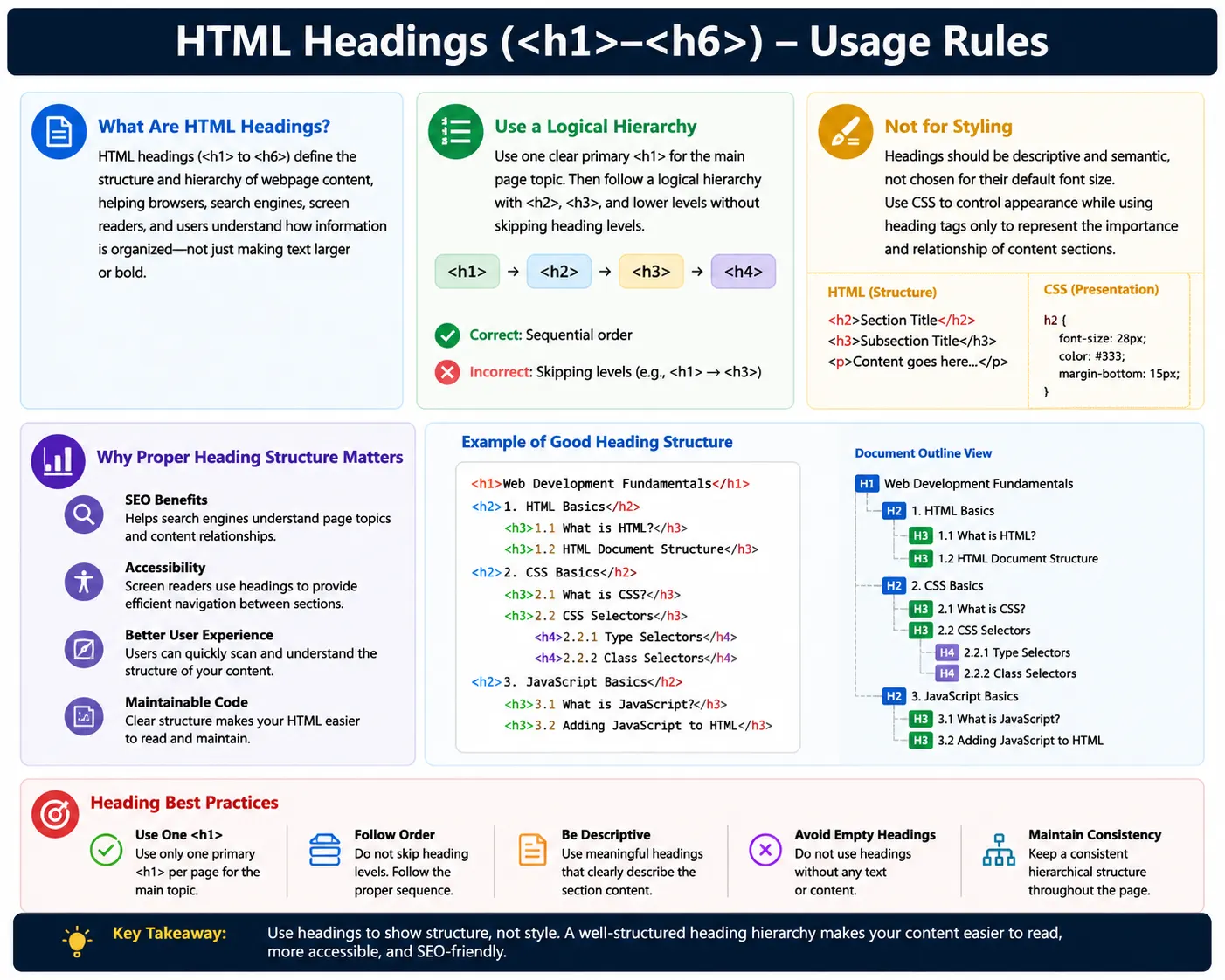
HTML provides six heading levels, from <h1> to <h6>. The <h1> element represents the highest-level heading, usually the main topic of the page. The <h2> element represents major sections under the main topic. The <h3> element represents subsections under <h2>, and this structure continues down to <h6>.
Example:
<h1>Heading Level 1</h1>
<h2>Heading Level 2</h2>
<h3>Heading Level 3</h3>
<h4>Heading Level 4</h4>
<h5>Heading Level 5</h5>
<h6>Heading Level 6</h6>
Browsers usually display these headings with different font sizes by default, but their real purpose is not styling. Their real purpose is meaning. Headings create a logical outline of the page, similar to chapters and subchapters in a book.
A well-structured heading system improves readability, SEO, accessibility, and automation validation. A poorly structured heading system can confuse users, search engines, screen readers, and developers maintaining the page.
What Are HTML Headings?
HTML headings are elements used to define titles and section headings in a webpage. They divide content into logical parts and help users understand the flow of information.
For example:
<h1>HTML Tutorial</h1>
<h2>Introduction</h2>
<h2>Forms</h2>
<h2>Tables</h2>
This tells the reader that the main topic is “HTML Tutorial,” and the page contains major sections such as “Introduction,” “Forms,” and “Tables.”
Without headings, a page becomes harder to scan. Users would need to read every paragraph to understand what the page contains. Headings act like signboards. They help readers quickly identify topics and navigate to the information they need.
Search engines also use headings to understand page structure. Assistive technologies such as screen readers use headings to provide navigation shortcuts for visually impaired users. Therefore, headings are important for both humans and machines.
Heading Hierarchy
Heading hierarchy means using heading levels in a logical order. The structure is similar to a book.
A book may have a title, chapters, sections, and sub-sections.
Conceptual structure:
Book Title
 ├── Chapter
 │     ├── Topic
 │     └── Topic
 │
 └── Chapter
Equivalent HTML structure:
<h1>Book Title</h1>
<h2>Chapter 1</h2>
<h3>Topic A</h3>
<h3>Topic B</h3>
<h2>Chapter 2</h2>
This hierarchy tells the browser and assistive technologies how the content is organized.
The <h1> represents the main topic. The <h2> elements represent major divisions. The <h3> elements represent smaller sections inside those divisions.
Good heading hierarchy makes a webpage feel organized and professional.
Understanding Each Heading Level
<h1> – Main Page Heading
The <h1> element represents the main heading of the page.
Example:
<h1>Learn HTML</h1>It should describe the primary topic of the page.
For a page about HTML basics, the <h1> might be:
<h1>HTML Basics for Beginners</h1>The <h1> is usually the most important heading on the page. Search engines and screen readers treat it as a strong signal of page purpose.
<h2> – Major Section Heading
The <h2> element represents major sections under the main topic.
Example:
<h2>HTML Forms</h2>If the main page topic is “HTML Tutorial,” then sections such as “HTML Forms,” “HTML Tables,” and “HTML Links” can be <h2> headings.
The <h2> headings divide the page into important content blocks.
<h3> – Subsection Heading
The <h3> element represents a subsection under an <h2> section.
Example:
<h3>Text Input Fields</h3>If the <h2> section is “HTML Forms,” then <h3> headings might include “Text Inputs,” “Radio Buttons,” “Checkboxes,” and “Submit Buttons.”
This creates a more detailed structure.
<h4> – Further Subdivision
The <h4> element is used when content needs another level of detail.
Example:
<h4>Username Field</h4>This may be used inside an <h3> section when the content is complex enough to require additional grouping.
<h5> and <h6> – Lower-Level Headings
The <h5> and <h6> elements are less commonly used, but they are valid heading levels.
Example:
<h5>Advanced Validation Rules</h5>
<h6>Technical Notes</h6>
Most normal webpages use only <h1>, <h2>, and <h3>. Documentation pages, technical manuals, legal documents, and long educational articles may use deeper levels.
Visual Hierarchy vs Semantic Meaning
By default, browsers display headings with different font sizes.
Usually:
H1  Largest
H2
H3
H4
H5
H6  Smallest
However, heading tags should not be chosen based on size.
The purpose of headings is semantic structure, not visual appearance.
CSS can make any heading large or small.
Example:
h1 {
    font-size: 24px;
}
Even if an <h1> is styled smaller, it still remains the main heading semantically.
Similarly, an <h3> can be styled larger than an <h1>, but semantically it is still a lower-level heading.
This distinction is very important.
Rule 1: Use One Clear Primary <h1> Per Page
A common best practice is to use one clear primary <h1> per page.
Example:
<h1>HTML Tutorial</h1>
<h2>Introduction</h2>
<h2>Forms</h2>
This makes the main topic clear.
Poor example:
<h1>HTML Tutorial</h1>
<h1>CSS Tutorial</h1>
<h1>JavaScript Tutorial</h1>
This creates ambiguity. The page appears to have multiple main topics.
Modern HTML technically allows multiple <h1> elements in some contexts, but for SEO, accessibility, clarity, and beginner-friendly structure, one primary <h1> is usually the safest and cleanest practice.
Rule 2: Follow Logical Hierarchy
Headings should follow a logical order.
Correct:
<h1>HTML</h1>
<h2>Forms</h2>
<h3>Input Fields</h3>
Incorrect:
<h1>HTML</h1>
<h4>Forms</h4>
Jumping directly from <h1> to <h4> creates a confusing structure. It suggests that intermediate sections are missing.
Logical hierarchy helps readers, search engines, and assistive technologies understand how topics relate to each other.
Rule 3: Do Not Skip Heading Levels
Skipping heading levels is one of the most common beginner mistakes.
Bad:
<h1>HTML</h1>
<h3>Forms</h3>
Here, <h2> is skipped.
Better:
<h1>HTML</h1>
<h2>Forms</h2>
<h3>Input Fields</h3>
Skipping levels may not visually break the page, but it weakens semantic structure.
Screen reader users often navigate pages by headings. A skipped level may make the page outline feel incomplete or confusing.
Rule 4: Use Headings for Structure, Not Styling
Headings should not be used simply because they look large.
Bad:
<h1>Important Text</h1>if the text is not actually the main page heading.
Better:
<p class="large-text">Important Text</p>Then use CSS:
.large-text {
    font-size: 32px;
    font-weight: bold;
}
HTML should define meaning. CSS should define appearance.
This separation makes code cleaner, more accessible, and easier to maintain.
Rule 5: Every Major Section Should Have a Relevant Heading
When a webpage contains distinct sections, each major section should have a meaningful heading.
Example:
<section>
    <h2>Contact Information</h2>
    <p>You can reach us through email or phone.</p>
</section>
This improves readability and gives users a clear understanding of the section’s purpose.
Headings also make long pages easier to scan.
For educational websites, documentation pages, blogs, and tutorials, section headings are especially important.
Rule 6: Keep Headings Descriptive
A heading should clearly explain the content that follows.
Good:
<h2>HTML Form Validation</h2>Poor:
<h2>Stuff</h2>Descriptive headings help users understand the page quickly.
They also help search engines identify subtopics.
A good heading should be specific, meaningful, and relevant.
Example of Proper Heading Structure
A clean heading structure may look like this:
<h1>HTML Tutorial</h1>
<h2>Introduction</h2>
<h2>Elements</h2>
<h3>Paragraphs</h3>
<h3>Headings</h3>
<h2>Forms</h2>
<h3>Text Inputs</h3>
<h3>Buttons</h3>
This creates a proper hierarchy.
Document outline:
HTML Tutorial (H1)
│
├── Introduction (H2)
│
├── Elements (H2)
│     ├── Paragraphs (H3)
│     └── Headings (H3)
│
└── Forms (H2)
      ├── Text Inputs (H3)
      └── Buttons (H3)
This structure is easy to understand for users, developers, search engines, and screen readers.
Headings and SEO
Headings are important for SEO because they help search engines understand content structure.
Example:
<h1>HTML Tutorial</h1>
<h2>HTML Forms</h2>
<h2>HTML Tables</h2>
This tells search engines that the page is mainly about HTML tutorials and includes subtopics such as forms and tables.
Search engines use many ranking signals, and headings are only one part of SEO. However, clear headings improve content organization and help search engines interpret page context.
Good heading structure can also improve user engagement because visitors can quickly find relevant information.
Headings and Accessibility
Headings are extremely important for accessibility.
Screen readers can generate a list of headings on a page.
Example:
Heading Level 1: HTML Tutorial
Heading Level 2: Forms
Heading Level 2: Tables
Heading Level 3: Table Rows
This allows visually impaired users to navigate the page efficiently.
Instead of reading the entire page from top to bottom, users can jump between sections using heading navigation.
Poor heading structure makes this experience difficult.
Headings and Screen Readers
Proper structure:
<h1>HTML Tutorial</h1>
<h2>Forms</h2>
<h3>Text Input</h3>
creates meaningful navigation.
Poor structure:
<h1>HTML Tutorial</h1>
<h5>Forms</h5>
may confuse users because the heading levels do not reflect a logical relationship.
For accessibility, headings should be meaningful, hierarchical, and not empty.
Headings and CSS
Headings can be styled using CSS like any other element.
Example:
<h1>HTML Tutorial</h1>CSS:
h1 {
    font-size: 24px;
    color: blue;
}
This changes the visual appearance but not the semantic meaning.
A heading remains a heading regardless of styling.
This is why developers should not choose heading levels based on default browser size.
Choose the correct heading level first, then use CSS for design.
Common Mistake: Using Headings for Size
Bad:
<h1>Large Text</h1>when the text is not a real heading.
This creates false document structure.
Correct approach:
<p class="large-text">Large Text</p>Then use CSS for size.
Semantic HTML and visual styling should remain separate.
Common Mistake: Skipping Levels
Bad:
<h1>HTML</h1>
<h4>Forms</h4>
This skips <h2> and <h3>.
Even if the page looks fine visually, the structure is incorrect.
Use:
<h1>HTML</h1>
<h2>Forms</h2>
<h3>Input Fields</h3>
when the content hierarchy requires it.
Common Mistake: Too Many Primary Headings
Bad:
<h1>Home</h1>
<h1>Products</h1>
<h1>Services</h1>
This makes every section look like a main page topic.
Better:
<h1>Company Website</h1>
<h2>Products</h2>
<h2>Services</h2>
This creates one main topic and clear major sections.
Common Mistake: Empty Headings
Bad:
<h2></h2>Empty headings provide no meaning.
They confuse screen readers and reduce document quality.
If a heading has no text, it should be removed or replaced with meaningful content.
Real-World Example
For a course website such as SoftwareTips4U, the heading structure may look like this:
<h1>SoftwareTips4U</h1>
<h2>HTML Course</h2>
<h3>HTML Basics</h3>
<h3>HTML Forms</h3>
<h2>CSS Course</h2>
<h3>Selectors</h3>
<h3>Flexbox</h3>
This clearly communicates the page structure.
The main site name is the primary heading. HTML and CSS courses are major sections. Their individual topics are subsections.
Headings and Selenium
Automation scripts often validate headings to confirm that the correct page or section has loaded.
Example:
WebElement heading =
driver.findElement(
By.tagName("h1")
);
Selenium can verify page headings, section titles, and content structure.
For example, after login, a test may check whether the dashboard page contains:
<h1>Dashboard</h1>This helps confirm successful navigation.
Good semantic headings make automation validation easier and more reliable.
Comparison of Heading Levels
| Tag | Purpose |
|---|---|
| <h1> | Main page topic |
| <h2> | Major section |
| <h3> | Subsection |
| <h4> | Sub-subsection |
| <h5> | Lower-level section |
| <h6> | Lowest heading level |
Most pages do not need all six levels. Use only as many as the content structure requires.
Common Interview Questions
A common question is: How many heading levels exist in HTML?
HTML provides six heading levels: <h1> to <h6>.
Another common question is: Which heading is the most important?
The <h1> heading is the most important because it usually represents the main topic of the page.
Should headings be used only for styling?
No. Headings should represent content hierarchy. CSS should be used for styling.
Why are headings important for SEO?
They help search engines understand the structure and topics of the page.
Why are headings important for accessibility?
Screen readers use headings for page navigation.
Interview-Ready Answer
HTML headings from <h1> to <h6> define the hierarchical structure of a webpage. The <h1> represents the main topic, while <h2> through <h6> represent progressively lower-level sections. Headings should be used logically, without skipping levels, and should describe the content clearly. They improve readability, SEO, accessibility, and navigation for both users and assistive technologies.
Key Takeaway
HTML headings are not just large or bold text. They are semantic elements that define the structure and meaning of webpage content. A good heading structure improves readability, helps search engines understand the page, supports screen reader navigation, and makes the document easier to maintain.
The best practice is to use one clear primary <h1>, follow logical hierarchy, avoid skipping levels, write descriptive headings, and use CSS for visual styling. When headings are used correctly, they make a webpage more organized, accessible, searchable, and professional.
One-Line Insight
Headings are not for making text bigger—they are for defining the structure and meaning of content.