<header> Element
Introduction
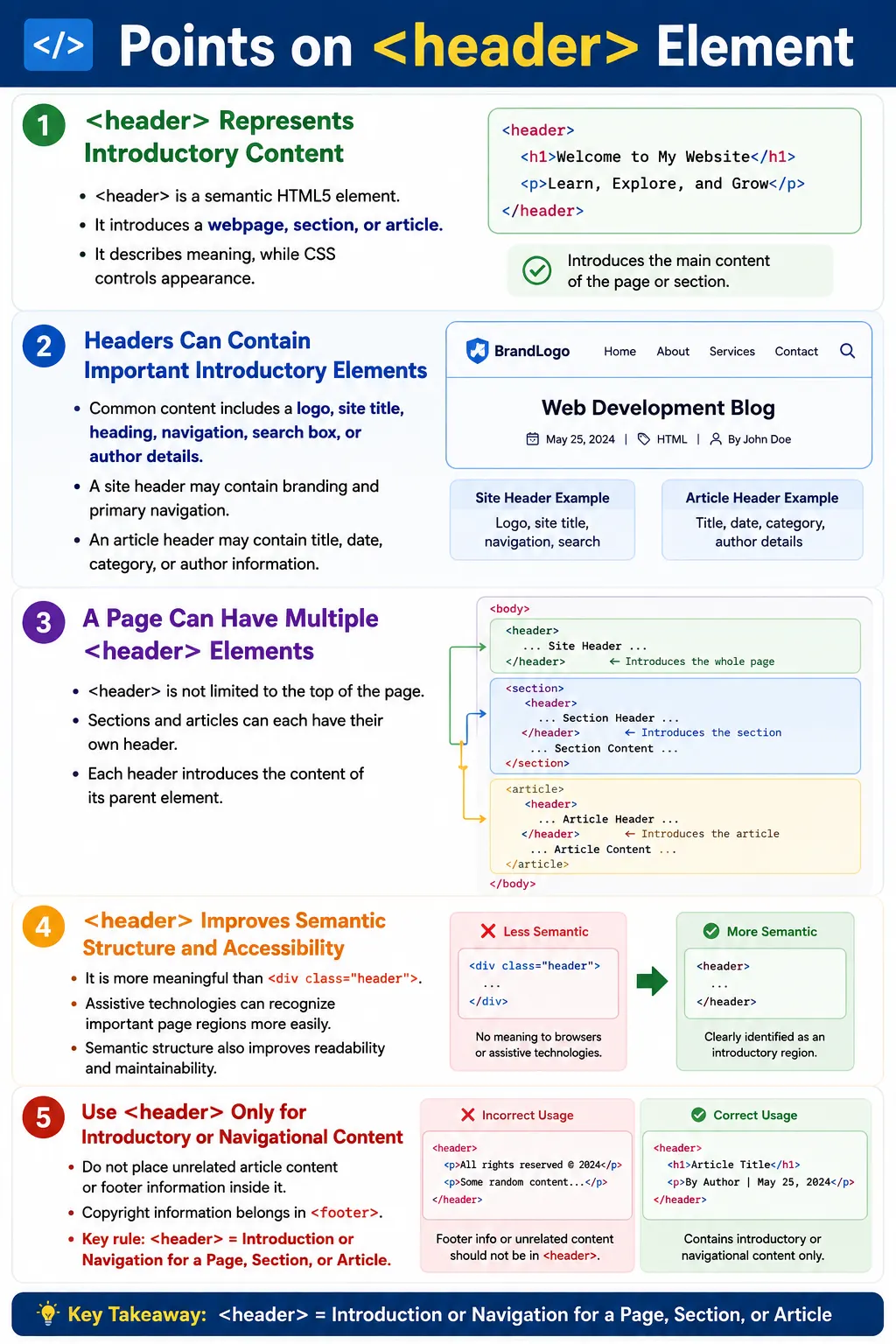
The <header> element is a semantic HTML5 element that represents introductory content for a webpage or for a section of a webpage. It gives meaning to the content it wraps by telling browsers, developers, search engines, and assistive technologies that the enclosed content introduces the page, article, or section that follows.
A header commonly contains a website logo, site title, main heading, navigation menu, search box, introductory text, login buttons, profile links, or author information. In an article, a header may contain the article title, publication date, category, author name, and short summary. In a section, it may contain the section heading and short introduction.
The <header> element is not chosen because of how it looks. It is chosen because of what its content means. CSS controls the visual appearance, while the HTML element communicates semantic structure. This distinction is central to modern HTML development.
What Is the Header Element?
The <header> element defines introductory or navigational content. Its basic syntax is simple.
<header>
  ...
</header>
Because <header> is a semantic element, it describes the purpose of its content rather than its default appearance. A browser does not need a class name such as header to understand that this region introduces something. The element name itself provides the meaning.
The header can introduce the entire page, or it can introduce a specific section, article, or content block. This flexibility is important because many pages contain more than one meaningful content area.
Why Use Header?
Before HTML5, developers often used generic <div> elements to create header areas.
<div class="header">
  ...
</div>
This can work visually, but the HTML itself does not clearly indicate that the content is the page header. The meaning depends on a class name written for styling or scripting.
With semantic HTML, the purpose becomes immediately clear.
<header>
  ...
</header>
Developers can read the code faster. Assistive technologies can recognize the region more effectively. Search engines can understand the page structure more clearly. The result is HTML that is not only functional but also meaningful.
Typical Content Inside a Header
A header commonly contains content that introduces the page or section. This may include a company logo, website name, main heading, navigation links, search form, user profile link, login and register buttons, tagline, author details, or publication information.
Logo
Website name
Navigation
Search
The specific content depends on the context. A site-level header may include branding and primary navigation. An article-level header may include article metadata. A section-level header may include a subsection title and short explanation.
The key question is: does this content introduce or help navigate the page or section? If yes, <header> may be appropriate.
Basic Example
A simple page header might include a main heading and a short tagline.
<header>
  <h1>SoftwareTips4U</h1>
  <p>Learn Software Testing</p>
</header>
In the browser, users may see the website name followed by the tagline.
SoftwareTips4U
Learn Software Testing
This header introduces the page or website. It is more meaningful than a generic container because the element itself describes the role of the content.
Header with Navigation
One of the most common website layouts places navigation links inside the header. The header contains the site identity, and the <nav> element contains navigation links.
<header>
  <h1>SoftwareTips4U</h1>

  <nav>
    <a href="#">Home</a>
    <a href="#">Courses</a>
    <a href="#">Contact</a>
  </nav>
</header>
This structure is common because the header often serves as the starting point for the user. It tells users where they are and provides links to important areas of the site.
Header
  |
Logo
  |
Navigation
  |
Search
Page-Level Header
A webpage usually contains a main header near the top of the body. This page-level header introduces the entire page or website.
<body>
  <header>
    Website Header
  </header>

  <main>
    ...
  </main>

  <footer>
    ...
  </footer>
</body>
This structure makes the page layout easy to understand. The header introduces the page, the main element contains the primary content, and the footer contains closing information.
Section-Level Header
The <header> element is not limited to the top of the page. It can also introduce a section.
<section>
  <header>
    <h2>Java Course</h2>
  </header>

  <p>Course Description</p>
</section>
Here, the header belongs only to the section. It introduces the Java Course section, not the entire page. This is useful when a page contains several major sections, each with its own heading and introductory content.
Header Inside an Article
An article can also have its own header. This is common in blogs, tutorials, news websites, documentation pages, and content cards.
<article>
  <header>
    <h2>HTML Basics</h2>
    <p>Published on July 10</p>
  </header>

  <p>Article Content...</p>
</article>
The article header contains introductory information for that article. It may include the title, date, author, category, or summary. This makes each article more self-contained and meaningful.
Multiple Headers
A page can contain multiple <header> elements. This is allowed and often correct. A page may have a main page header, several section headers, and multiple article headers.
Page header
  |
Section header
  |
Article header
Each header introduces its own parent content. The important point is context. A header inside the body may introduce the page. A header inside a section introduces that section. A header inside an article introduces that article.
This is a common interview point because beginners sometimes assume only one header is allowed. That is incorrect.
What Should Not Be Inside a Header?
A header should contain introductory or navigational content. Avoid placing unrelated content inside it. Entire articles, large unrelated forms, footer information, unrelated advertisements, and content that does not introduce the page or section should not be placed in a header.
For example, copyright information belongs in a footer, not in a header. A long article body belongs in an article or main content area, not inside the article header. Keeping content in the correct semantic region makes the document easier to understand and maintain.
Browser Workflow
When the browser reads the HTML, it identifies the <header> element as introductory content. It creates the DOM, exposes the structure to assistive technologies, applies CSS, and renders the page.
Read HTML
  |
<header>
  |
Identify introductory content
  |
Create DOM
  |
Render page
The header element does not need to look a certain way. It can be horizontal, vertical, sticky, minimal, large, dark, light, or responsive. CSS controls the visual style. The HTML controls the meaning.
Accessibility Benefits
Screen readers and other assistive technologies can recognize the <header> element as a landmark or meaningful region, depending on context. This helps users navigate between important parts of the page more efficiently.
Header
  |
Navigation
  |
Main content
Semantic structure is especially helpful for users who do not visually scan the page. Instead of moving through many generic containers, they can rely on meaningful regions such as header, navigation, main content, and footer.
SEO Benefits
Search engines analyze page structure to understand content. A header often contains important introductory information such as site branding, primary heading, and navigation. Using a semantic header contributes to a clearer document structure.
The <header> element alone does not guarantee better rankings. SEO depends on content quality, relevance, performance, metadata, links, and many other factors. However, semantic HTML helps search engines interpret the page more accurately and supports well-structured content.
Styling a Header
The <header> element can be styled using CSS like any other HTML element.
header {
  background-color: navy;
  color: white;
  padding: 20px;
}
This CSS changes the visual appearance, but it does not change the semantic role of the element. The element remains a header even if it is styled with a different background, layout, spacing, or typography.
Real-World Example
A SoftwareTips4U homepage header might include the site title, tagline, and navigation links.
<header>
  <h1>SoftwareTips4U</h1>
  <p>Learn Software Testing & Automation</p>

  <nav>
    <a href="#">Home</a>
    <a href="#">Java</a>
    <a href="#">Selenium</a>
    <a href="#">API Testing</a>
  </nav>
</header>
This is a clear page-level header. It introduces the website and provides navigation to major content areas.
Common Mistakes
A common mistake is using a generic div instead of a semantic header.
<div class="header">
  ...
</div>
A better version is:
<header>
  ...
</header>
Another mistake is assuming only one header is allowed. A page can have one page header and multiple section or article headers. Each header belongs to its parent section.
A third mistake is placing footer content inside the header.
<header>
  Copyright
</header>
Copyright information belongs in a footer.
<footer>
  Copyright
</footer>
Developers also sometimes use <header> only for styling. Choose it because it represents introductory content, not because it has a certain visual appearance.
Complete Example
The following complete HTML document shows a header, main content, and footer.
<!DOCTYPE html>
<html>
<head>
  <title>SoftwareTips4U</title>
</head>
<body>
  <header>
    <h1>SoftwareTips4U</h1>
    <p>Master Software Development & Testing</p>

    <nav>
      <a href="#">Home</a>
      <a href="#">Courses</a>
      <a href="#">Tutorials</a>
      <a href="#">Contact</a>
    </nav>
  </header>

  <main>
    <h2>Latest Courses</h2>
    <p>Learn HTML, CSS, Java, Selenium, and more.</p>
  </main>

  <footer>
    <p>© 2026 SoftwareTips4U</p>
  </footer>
</body>
</html>
This structure clearly separates the introductory region, main content, and footer content. It is easier to read and more meaningful than using generic containers for every part of the page.
Selenium Perspective
Selenium can locate the header element directly by tag name.
WebElement header =
driver.findElement(
    By.tagName("header"));
Automation can also verify heading text inside the header.
String title =
driver.findElement(
    By.tagName("h1"))
    .getText();

System.out.println(title);
Automation testers commonly verify header visibility, logo presence, navigation links, search box behavior, responsive layout, and heading text. Semantic HTML can make tests easier to understand because important regions are represented by meaningful elements.
Comparison Table
<header> |
<div> |
|---|---|
| Semantic element | Generic container |
| Represents introductory content | No inherent meaning |
| Improves accessibility | No semantic benefit by itself |
| Helps define page structure | Used mainly for layout or grouping |
Common Interview Questions
What is the purpose of the <header> element? It defines introductory or navigational content for a page or a section.
Can a page contain multiple <header> elements? Yes. Each section or article can have its own header.
Is <header> the same as the page header? No. A header can belong to the entire page or to an individual section or article.
What elements are commonly placed inside a header? Logo, headings, navigation menus, search forms, and introductory content are commonly placed inside a header.
Does <header> improve accessibility? Yes. It provides semantic structure that helps assistive technologies understand page regions.
Interview-Ready Answer
The <header> element is a semantic HTML5 element used to represent introductory or navigational content for a webpage or a section of a webpage. It commonly contains the website logo, headings, navigation menus, search forms, and introductory information. A page may contain multiple <header> elements, each associated with its parent section or article. Using <header> instead of a generic <div> improves accessibility, readability, and the semantic structure of the document.
One-Line Insight
<header> introduces a page or section, giving users and browsers a clear starting point for the content that follows.