Geolocation API (HTML Hook)
Introduction
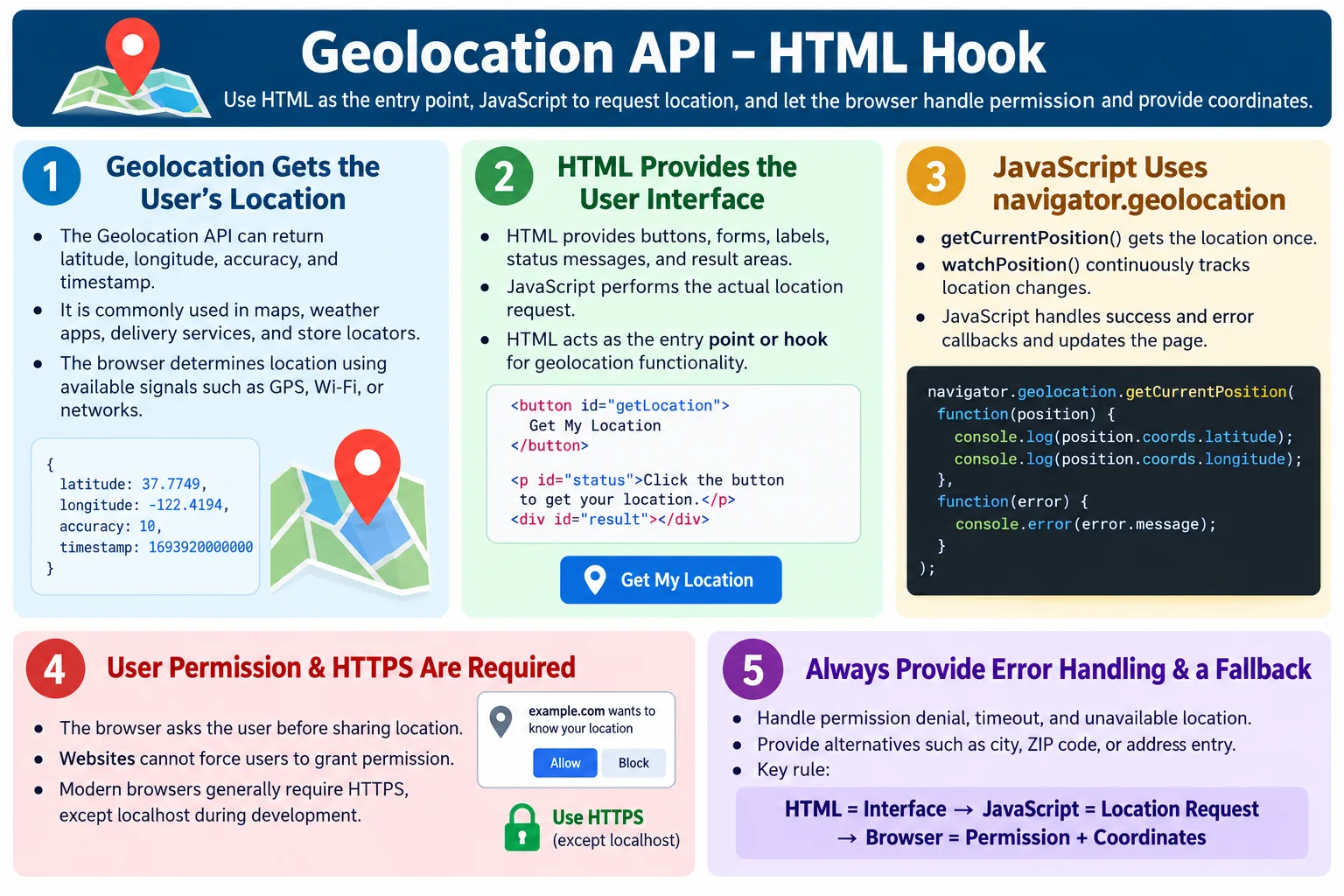
The Geolocation API is a browser API that allows web applications to request the user's geographic location, such as latitude and longitude, with the user's permission. It is commonly used in maps, navigation apps, food delivery services, ride-sharing applications, weather websites, nearby store locators, fitness applications, and other location-aware experiences.
Although the Geolocation API is a JavaScript feature, HTML plays an important role by providing the visible user interface. HTML supplies the buttons, forms, labels, messages, loading indicators, and display areas that allow the user to start a location request and see the result. In that sense, HTML acts as the entry point, or hook, for location-based functionality.
Geolocation is powerful because location data is personal. A browser does not silently give a website the user's location. The user must grant permission. Modern browsers also require secure conditions, usually HTTPS, before geolocation is allowed. A professional implementation must handle permission, privacy, errors, unavailable location data, and user trust carefully.
What Is the Geolocation API?
The Geolocation API enables a webpage to request the user's current location through the browser. The browser may determine the location using GPS, Wi-Fi, mobile networks, IP-based information, or a combination of available signals. The exact method depends on the device, browser, operating system, permissions, and available hardware.
User Opens Website
  ↓
Website Requests Location
  ↓
Browser Asks Permission
  ↓
User Allows
  ↓
Location Returned
The returned location typically includes latitude, longitude, accuracy, and timestamp. Some devices or browsers may provide additional information such as altitude, altitude accuracy, heading, or speed when available. Not every value is guaranteed, so applications must handle missing optional fields.
The API is exposed through navigator.geolocation. JavaScript calls methods such as getCurrentPosition() to request a single location or watchPosition() to receive updates as the location changes.
Why Is Geolocation Needed?
Many modern applications depend on the user's location to provide useful results. A maps application uses location to show where the user is and calculate routes. A ride-sharing application uses location to identify a pickup point. A food delivery app uses location to show nearby restaurants. A weather app uses location to display the local forecast. A store locator uses location to find nearby branches.
| Application | Uses Location For |
|---|---|
| Google Maps | Navigation |
| Uber | Pickup location |
| Swiggy / DoorDash | Nearby restaurants |
| Weather Apps | Local weather forecast |
| Store Locator | Nearby branches |
| Fitness Apps | Route tracking |
Location can make a generic web page feel personal and useful. Instead of asking the user to type a city, a weather site can request location and show the local forecast. Instead of asking for a full address, a store locator can show nearby options. The benefit is convenience, but that convenience must be balanced with privacy and permission.
HTML's Role in Geolocation
HTML does not determine the user's location. It does not access GPS directly. Its role is to provide the interface that starts the request and displays the outcome. A button can trigger the JavaScript call. A paragraph can show status text. A section can display coordinates, nearby results, or an error message.
HTML Page
  ↓
Button Click
  ↓
JavaScript Calls Geolocation API
  ↓
Browser Requests Permission
  ↓
Display Result
This is why the topic is described as an HTML hook. The user clicks an HTML element, and JavaScript responds by calling the browser API. The returned data is then placed back into the HTML so the user can see it.
Good HTML matters because geolocation requires user trust. A clear heading, meaningful button text, and helpful message can explain what the location request is for. A vague button such as "Continue" is less transparent than "Use My Current Location."
Basic HTML Example
A simple geolocation page needs a heading, a button, and an output area.
<!DOCTYPE html>
<html>

<head>
  <title>Geolocation Demo</title>
</head>

<body>

<h2>Find My Location</h2>

<button id="locationBtn">
  Get Location
</button>

<p id="result">
  Waiting...
</p>

<script src="script.js"></script>

</body>

</html>
The HTML provides the interface. JavaScript performs the actual location request. The button gives the user control, and the result area gives the application a place to show status, coordinates, or errors.
Checking Browser Support
Before requesting location, JavaScript should verify that the browser supports the Geolocation API. Most modern browsers support it, but checking support allows the application to show a graceful message when it is unavailable.
if (navigator.geolocation) {
  console.log("Supported");
}
If navigator.geolocation is missing, the page should not attempt to request location. Instead, it can show a message such as "Geolocation is not supported by this browser" and provide a manual input option, such as entering a city or address.
Requesting Location
To request the user's current location, JavaScript calls navigator.geolocation.getCurrentPosition(). The simplest form passes a success callback.
navigator.geolocation.getCurrentPosition(
  successFunction
);
When this method runs, the browser may show a permission dialog. The user can allow or deny the request. If the user allows it and the browser can determine the location, the success callback receives a position object.
In a real application, an error callback should also be provided. Location requests can fail for several reasons, and the user should receive a clear response.
Browser Permission Flow
User permission is required before sharing location data. The browser controls the permission prompt, not the website. The website can request location, but it cannot force permission.
Website Requests Location
  ↓
Browser Shows Permission Dialog
  ↓
Allow?
  ↓
Yes
  ↓
Return Location
  ↓
No
  ↓
Return Error
Permission may be remembered by the browser. If the user has already granted or denied permission for the site, the browser may use the saved choice depending on browser settings. The application should still be prepared for both success and failure every time it requests location.
Success Callback
The success callback receives a position object. The coordinates are available through position.coords.
function success(position) {
  console.log(position.coords.latitude);
  console.log(position.coords.longitude);
}
The latitude and longitude can be displayed on the page, sent to a backend service, or used to call another API such as a weather service or nearby stores endpoint. The success callback should update the interface so the user knows the request worked.
For example, a page might replace "Waiting..." with "Latitude: 12.97, Longitude: 77.59." A real application may convert coordinates into a human-readable address or use them to fetch nearby results.
Error Callback
An error callback should always be provided. It allows the application to handle permission denial, unavailable location data, timeout, and other failures gracefully.
navigator.geolocation.getCurrentPosition(
  success,
  error
);
function error() {
console.log("Location unavailable");
}Common reasons for errors include permission denied, location unavailable, and request timeout. A good application does not simply fail silently. It explains the problem and provides another path, such as manually entering a location.
Information Returned
Typical location data includes latitude, longitude, accuracy, and timestamp. Latitude and longitude identify the location. Accuracy tells how close the returned location is expected to be, usually in meters. Timestamp indicates when the location was captured.
Latitude

Longitude

Accuracy

Timestamp
Some browsers or devices may provide altitude, altitude accuracy, heading, or speed if available. Applications should not assume those values exist. Mobile devices with GPS may provide richer data than desktop browsers using Wi-Fi or network-based location.
Browser Workflow
The complete browser workflow connects HTML, JavaScript, the browser permission system, location sources, and page display.
HTML Button
  ↓
JavaScript
  ↓
Geolocation API
  ↓
Browser
  ↓
GPS / Wi-Fi / Network
  ↓
Coordinates
  ↓
Display on Page
This workflow shows why HTML and JavaScript work together. HTML gives the user a button and result area. JavaScript calls the API. The browser asks permission and gathers location data. The page then displays or uses the returned coordinates.
Real-World Example: Store Locator
A store locator is a common use case. The user opens the website and chooses to share location. The website retrieves coordinates and sends them to a store search service. The service returns nearby branches, and the page displays them.
User Opens Website
  ↓
Allow Location
  ↓
Website Finds Nearby Stores
  ↓
Display Results
This improves convenience because the user does not need to type a postal code or city. However, the site should still provide manual search because some users will deny permission or use browsers where location is unavailable.
Real-World Example: Weather Application
A weather application can request the user's location and then call a weather API with the returned coordinates.
Open Website
  ↓
Location Retrieved
  ↓
Weather API Called
  ↓
Local Weather Displayed
This pattern is useful because weather depends heavily on location. The page can show the local forecast immediately after permission is granted. If permission is denied, the page can let the user type a city name.
Real-World Example: Maps Application
A maps application can use geolocation to show the user's current location, calculate routes, or center the map around the user.
Open Maps
  ↓
Current Location
  ↓
Calculate Route
  ↓
Display Navigation
Maps and navigation applications often require more than a one-time location request. They may need continuous updates as the user moves. In that case, watchPosition() may be used instead of getCurrentPosition().
getCurrentPosition vs watchPosition
The getCurrentPosition() method requests the user's current location once. It is suitable for one-time actions such as finding nearby stores, showing local weather, or filling a current location field.
The watchPosition() method watches the user's location and calls the success callback when the location changes. It is useful for route tracking, navigation, delivery tracking, or fitness activities.
const watchId =
navigator.geolocation.watchPosition(
  success,
  error
);
When continuous tracking is no longer needed, it should be stopped.
navigator.geolocation.clearWatch(watchId);Continuous tracking can consume battery and may feel invasive, so it should be used only when necessary and clearly explained to the user.
Security Requirements
The Geolocation API is considered a powerful browser feature. User permission is mandatory. Most modern browsers also require a secure context, usually HTTPS, except for localhost during development. Without HTTPS or localhost, many browsers will block location access.
This requirement protects users. Location is sensitive personal information, and browsers enforce stronger security rules before exposing it. A production website should always use HTTPS when requesting location.
Privacy Considerations
Location data is personal information. Applications should request location only when necessary, explain why it is needed, avoid storing or sharing it without consent, and handle permission denial gracefully. The user should understand the benefit before being asked to share location.
A good interface might say, "Use your location to find nearby stores." That is clearer than immediately showing a browser permission prompt with no explanation. Users are more likely to trust a request when the purpose is obvious.
Applications should also avoid requesting location repeatedly. Repeated prompts are annoying and can reduce trust. Ask at the moment the user needs the feature, not automatically on every page load unless the product clearly requires it.
Accuracy and Reliability
Geolocation is not always exact. Accuracy depends on the device, environment, browser, network, and available sensors. A phone with GPS outdoors may provide accurate coordinates. A desktop computer on Wi-Fi may provide a less precise location. IP-based location may be approximate.
The accuracy value helps the application understand how reliable the coordinates are. If accuracy is poor, the application may show a wider search area, ask the user to refine the location, or allow manual correction.
Applications should not assume that geolocation always returns a perfect address. Coordinates are a starting point. For many workflows, users should be able to confirm or edit the detected location.
Handling Permission Denial
Users may deny location permission for many reasons. They may not trust the site, they may not see the need, they may be using a shared device, or they may simply prefer manual entry. Permission denial should be treated as a normal path, not as a failure that breaks the page.
A store locator can show a search field. A weather app can ask for a city. A delivery app can allow manual address entry. A maps app can let the user search manually. The application should continue to work with reduced convenience.
Good error messages are specific and helpful. Instead of only saying "Error," the page can say, "Location permission was denied. You can search by city or address instead."
Common Mistakes
A common mistake is assuming permission is automatic.
Open Website
  ↓
Location Automatically Available
This is incorrect. The browser asks for permission unless a previous choice is already stored. The application must handle both allowed and denied outcomes.
Another mistake is forgetting error handling. Always provide an error callback.
navigator.geolocation.getCurrentPosition(
  success,
  error
);
Using HTTP instead of HTTPS is another common issue. Most browsers block Geolocation requests on insecure websites. Continuously requesting location is also a mistake because it can annoy users and consume device resources. Request location only when needed.
Selenium Perspective
Selenium automation often tests location permission behavior, location-based content, nearby search results, maps behavior, and graceful handling when permission is denied. Some browsers allow Selenium or browser devtools configuration to simulate geographic coordinates for testing location-aware applications.
Automation testers usually verify the user-visible result. For example, a test may simulate a location, click "Get Location," and verify that nearby stores or weather results appear. Another test may deny permission and verify that the manual search fallback is shown.
Because browser permission dialogs can be browser-specific, tests often configure permissions in browser capabilities or use browser-specific tools rather than manually clicking native permission popups. The exact setup depends on browser and test framework.
Testing Checklist
When testing geolocation, verify browser support handling, permission allowed behavior, permission denied behavior, unavailable location behavior, timeout behavior, HTTPS requirement, displayed coordinates or results, and fallback options. Test both desktop and mobile scenarios where possible because accuracy and permission UI may differ.
Check that the application explains why location is needed before requesting it. Verify that location is not requested repeatedly without reason. Confirm that manual entry works when permission is denied. If continuous tracking is used, confirm that tracking stops when it is no longer needed.
Privacy checks should verify that location data is not stored or shared unexpectedly. If location is sent to a server, confirm that the application has a clear reason and proper consent flow.
Geolocation Options
The getCurrentPosition() and watchPosition() methods can accept an options object. These options help developers control accuracy, timeout, and cached location behavior. The common options are enableHighAccuracy, timeout, and maximumAge.
navigator.geolocation.getCurrentPosition(
  success,
  error,
  {
    enableHighAccuracy: true,
    timeout: 10000,
    maximumAge: 0
  }
);
enableHighAccuracy asks the browser to provide a more accurate location when possible. This may use more device resources and can take longer. timeout sets the maximum time the browser should spend trying to get a location. maximumAge controls whether a cached location is acceptable. A value of 0 asks for a fresh location.
These options should be chosen based on the use case. A weather website may not need extremely high accuracy. A navigation feature may need more precision. A store locator may accept a slightly older cached location if it improves speed. Good geolocation design balances accuracy, speed, battery usage, and user experience.
Accuracy vs Battery and Speed
High accuracy is not always the best choice. Requesting high accuracy can take longer and may use more battery, especially on mobile devices. If the application only needs city-level weather, high precision is unnecessary. If the application is tracking a running route, accuracy matters more.
A common beginner mistake is setting enableHighAccuracy: true for every request. This may slow the response and consume more resources without improving the actual user experience. The application should request only the level of accuracy needed for the feature.
For example, a nearby restaurant finder may need reasonably accurate coordinates. A country-level content recommendation feature may not need GPS-level precision at all. Developers should design around the minimum location precision required to complete the task.
Permission UX Design
Browsers show the actual permission prompt, but the website controls the surrounding experience. A good page explains why location is needed before calling the API. If the first thing a user sees is a browser permission prompt with no context, they may deny it. A short explanation builds trust.
<p>
  We use your location only to show nearby stores.
</p>

<button id="locationBtn">
  Find Stores Near Me
</button>
The button text should be specific. "Find Stores Near Me" is clearer than "Allow" or "Continue." The user understands the purpose of the request. If permission is denied, the page should not blame the user. It should provide a manual fallback.
Permission UX also includes timing. Do not request location immediately on page load unless the feature clearly requires it. It is usually better to request location after the user clicks a button that describes the benefit.
Manual Fallbacks
Every location-based feature should consider a manual fallback. Users may deny permission, use a browser that blocks geolocation, browse from a desktop with poor location accuracy, or use a network where location is unavailable. A fallback keeps the feature usable.
<label for="city">Enter your city</label>
<input id="city" name="city" type="text">

<button type="button">
  Search
</button>
For a weather app, the fallback can be city search. For a store locator, it can be postal code or address search. For a delivery app, it can be manual address entry. A fallback is not only an accessibility improvement; it is a reliability improvement.
Manual fallback also helps with accuracy. Even if geolocation succeeds, the detected location may be approximate. Letting users correct or refine the location improves trust and usability.
Mobile and Desktop Differences
Geolocation behavior can differ significantly between mobile and desktop. Mobile devices often have GPS and sensor access, so they can return more accurate results, especially outdoors. Desktop devices may rely on Wi-Fi, IP address, or network-based location, which can be less precise.
Permission UI also differs by browser and platform. A mobile browser may show a system-level permission prompt. A desktop browser may show a prompt near the address bar. Some users may have location services disabled at the operating system level, causing browser requests to fail even when the website code is correct.
Testing only on a desktop browser is not enough for important location-based features. Mobile testing is important because many geolocation use cases, such as ride-sharing, delivery, fitness, and navigation, are primarily mobile experiences.
Location and Backend APIs
Many applications use geolocation as the first step in a larger workflow. The browser returns coordinates. The web application then sends those coordinates to a backend API or third-party service. The service returns nearby stores, restaurants, weather data, route information, or delivery availability.
Coordinates
  ↓
Backend API
  ↓
Nearby Results
  ↓
Display on Page
When coordinates are sent to a server, privacy and security become even more important. The application should have a clear reason for sending location data. It should avoid sending more precision than needed. It should follow the site's privacy policy and applicable legal requirements.
From a testing perspective, this means verifying both the browser permission flow and the API behavior. A successful geolocation call is not enough if the backend returns incorrect nearby results.
Reverse Geocoding
The Geolocation API usually returns coordinates, not a full street address. If an application needs a readable address, it must use reverse geocoding through another service. Reverse geocoding converts latitude and longitude into a place name or address.
Latitude + Longitude
  ↓
Reverse Geocoding API
  ↓
Readable Address
For example, a delivery app may use geolocation to estimate the user's position, then reverse geocode it into an address suggestion. The user should still confirm or edit the address because automatic conversion may be incomplete or inaccurate.
This is an important interview distinction. The Geolocation API provides location coordinates. It does not automatically provide a postal address, city, or route. Those features require additional APIs or services.
Continuous Tracking Considerations
Continuous tracking with watchPosition() is useful for navigation, route tracking, and live delivery updates, but it has higher privacy and resource implications. The application should clearly explain why continuous location is needed and should stop tracking when it is no longer necessary.
For example, a fitness route tracker may start watching position when the user starts a workout and stop when the workout ends. A maps application may watch location during active navigation. A store locator usually does not need continuous tracking; a one-time location request is enough.
Continuous tracking should include cleanup with clearWatch(). Leaving a watcher active after the feature ends can waste resources and may surprise users.
Geolocation and Accessibility
Location-based features must still be accessible. The button that starts geolocation should be a real <button>, not a clickable div. Status messages should be visible and understandable. If the page is waiting for location, users should know that something is happening. If permission is denied, the error should be clear.
Keyboard users should be able to start the location request and use the manual fallback. Screen reader users should receive meaningful instructions and results. A map-only result may not be enough; nearby stores or addresses should also be available as text when possible.
Accessibility also includes not forcing location sharing. Users should be able to use a reasonable fallback if they choose not to share location.
Geolocation and SEO
Geolocation is usually a client-side user experience feature, not a direct SEO tool. Search engines generally need crawlable content that does not depend entirely on a user's live location. If a page displays all important content only after geolocation permission, crawlers and users who deny permission may see very little.
For local business pages, provide crawlable location content where appropriate. A store locator can use geolocation for convenience, but important store pages should still be reachable through normal links or search fields. Do not hide all useful content behind a permission prompt.
Implementation Pattern
A clean geolocation implementation separates the interface, request logic, success handling, error handling, and fallback. The HTML provides the button, result area, and manual input. JavaScript checks support, requests location, handles success, handles errors, and updates the page.
User Click
  ↓
Check Support
  ↓
Request Location
  ↓
Success or Error
  ↓
Update UI or Show Fallback
This structure is easier to test and maintain than mixing all behavior into one block without clear states. Each state should have a user-visible result: waiting, success, denied, unavailable, timeout, or fallback.
Practical Decision Checklist
Before using geolocation, ask whether location is truly needed. If the feature can work with manual entry, provide it. Ask whether the user understands why location is being requested. If not, add a clear explanation. Ask whether HTTPS is enabled. In production, geolocation should be expected to require secure context.
Ask whether the application handles denial, timeout, and unavailable location. Ask whether location is stored or sent to a server. If it is, review privacy requirements. Ask whether continuous tracking is necessary. If not, use a one-time request. Ask whether the feature works on mobile and desktop. Finally, ask whether automation tests cover allowed and denied permission paths.
Comparison Table
| HTML Role | JavaScript Role |
|---|---|
| Creates buttons, forms, and output areas | Calls navigator.geolocation |
| Displays location results | Requests the user's location |
| Provides the user interface | Processes success and error responses |
| Does not access GPS directly | Interacts with the browser's Geolocation API |
Common Interview Questions
What is the Geolocation API? The Geolocation API allows web applications to request the user's geographic location through the browser.
Does HTML provide the Geolocation API? No. HTML provides the interface, while JavaScript accesses the API through navigator.geolocation.
Is user permission required? Yes. The browser requests permission before sharing the user's location.
Does Geolocation require HTTPS? Yes. Most modern browsers require HTTPS, except for localhost during development.
What information does the API return? It typically returns latitude, longitude, accuracy, and timestamp.
What happens if the user denies permission? The error callback is executed, allowing the application to handle the situation gracefully.
Interview-Ready Answer
The Geolocation API is a browser API that enables JavaScript to obtain a user's geographic location, subject to the user's permission. HTML acts as the entry point by providing the interface, such as buttons and display areas, that trigger location requests. JavaScript accesses the API through navigator.geolocation, while the browser prompts the user for permission before returning information such as latitude, longitude, accuracy, and timestamp. Most browsers require HTTPS for Geolocation, making it suitable for location-based services such as maps, weather applications, ride-sharing, delivery platforms, and store locators.
One-Line Insight
HTML provides the interface, JavaScript requests the location, and the browser securely returns it only after the user grants permission.