<form> Tag Attributes
Introduction
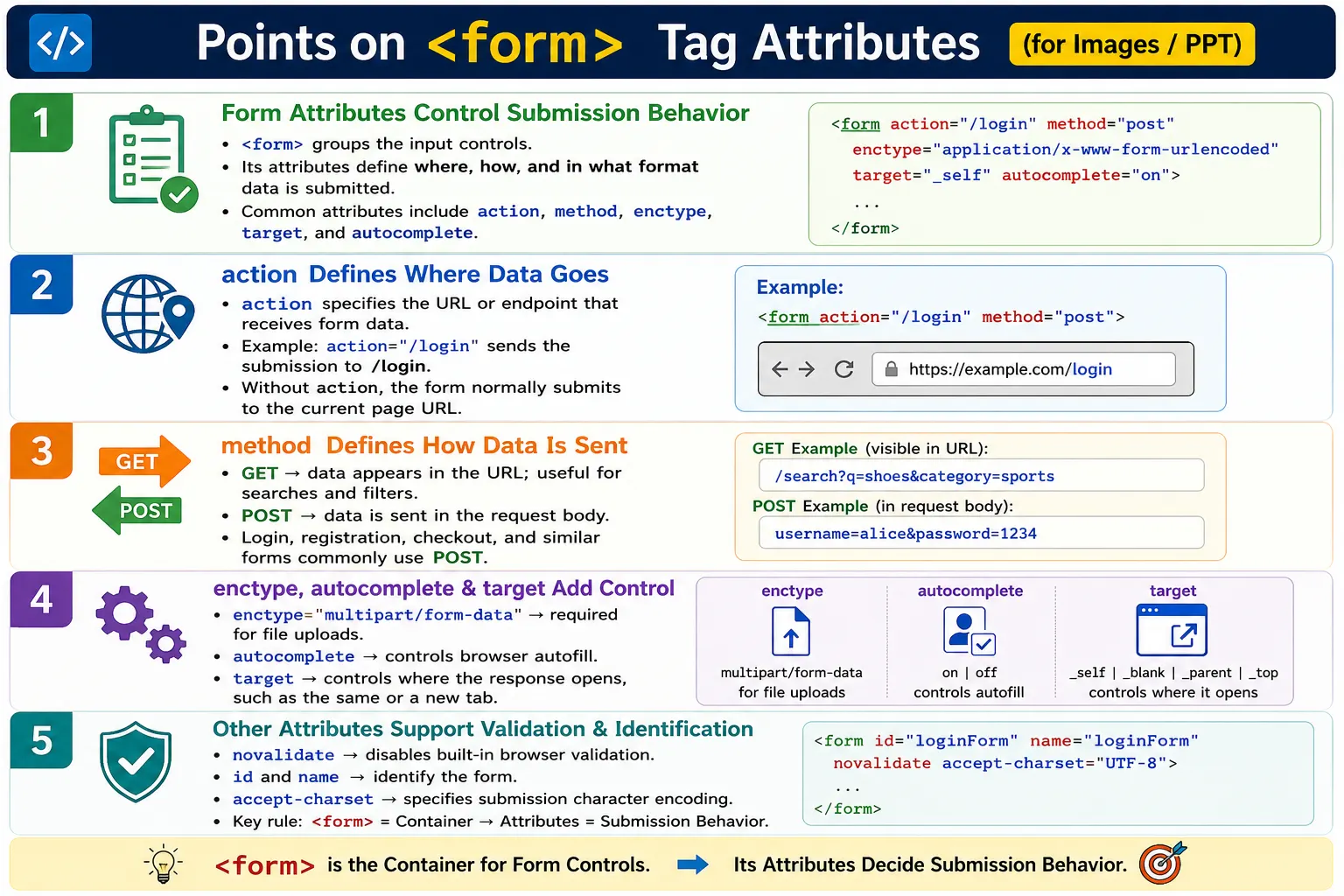
The <form> element is the container used to collect user input and submit it for processing. A form can contain text boxes, password fields, email fields, file inputs, radio buttons, checkboxes, dropdowns, text areas, and buttons. However, the form element itself does more than simply group controls together. Its attributes define the complete submission behavior.
Form attributes tell the browser where the form data should be sent, how it should be sent, how the data should be encoded, whether browser validation should run, whether autofill is allowed, and where the response should be displayed. Understanding these attributes is essential for building login pages, registration forms, search forms, checkout pages, contact forms, and file upload forms.
A developer who understands form attributes can design forms that behave predictably. A tester who understands form attributes can verify whether a form submits to the correct endpoint, uses the correct HTTP method, supports file upload correctly, validates data as expected, and works safely in real workflows.
What Is the form Tag?
The <form> element groups related form controls into a single unit. Everything inside the form is treated by the browser as part of the same form submission unless specific controls are associated with another form using advanced attributes.
<form>
    <input type="text">
    <button>Submit</button>
</form>
In this example, the input field and button belong to the same form. When the user clicks the submit button, the browser collects the values from the form controls and submits them according to the form's attributes.
The form element provides structure, but the attributes provide behavior. Without meaningful attributes, a form may still display correctly, but its submission behavior may not match the application's requirements.
Why Are Form Attributes Needed?
Without attributes, a form can collect data, but the browser may not know the intended destination or behavior clearly. It may submit to the current page by default, use a default method, or apply default validation and encoding behavior that may not match the application's needs.
Form
  ↓
Collect Data
  ↓
???
  ↓
Browser Does Not Know the Intended Destination
Attributes tell the browser where to send data, how to send data, whether validation should occur, how the submitted data should be encoded, and where the response should appear. This makes form submission predictable and controllable.
For example, a search form may send data using GET because search URLs are shareable and bookmarkable. A login form should use POST because usernames and passwords should not appear in the URL. A file upload form must use a special encoding type so that file data is transmitted correctly.
Common form Attributes
The most common <form> attributes are action, method, autocomplete, target, enctype, novalidate, name, id, and accept-charset. Each one controls a specific part of form behavior.
| Attribute | Purpose |
|---|---|
action |
Specifies where form data is sent |
method |
Specifies how data is sent |
autocomplete |
Enables or disables autofill |
target |
Specifies where the response is displayed |
enctype |
Specifies how form data is encoded |
novalidate |
Disables browser validation |
name |
Assigns a name to the form |
id |
Uniquely identifies the form |
accept-charset |
Specifies the character encoding used when submitting the form |
The action Attribute
The action attribute specifies the URL that receives the submitted form data. It is one of the most important form attributes because it defines the destination of the submission.
<form action="/login">
    ...
</form>
When the user submits this form, the browser sends the form data to /login. The server route or endpoint at that URL processes the request and returns a response.
User
  ↓
Submit Form
  ↓
/login
  ↓
Server Processes Request
A registration form may send data to a registration endpoint.
<form action="register.php">
    <input type="text">
    <button>Register</button>
</form>
If the form is submitted, the browser sends the data to register.php. If action is missing, the browser typically submits the form to the current page URL. That may be intentional in some applications, but it should not happen accidentally.
The method Attribute
The method attribute specifies how the form data is sent. The two most common values are get and post.
<form method="post">
    ...
</form>
The method matters because it affects visibility, size, bookmarking, caching, and security expectations. Choosing the wrong method can expose sensitive data or make a form harder to use.
GET Method
With the GET method, form data is appended to the URL as query parameters. This is suitable for searches, filters, and other read-only operations where sharing or bookmarking the result is useful.
<form method="get">
    ...
</form>
A search form might produce a URL like this:
search.html?q=HTMLGET data appears in the URL, can be bookmarked, can be shared, and is generally suitable for non-sensitive data. However, URL length is limited, and sensitive values should not be sent using GET because they may be visible in browser history, logs, and shared links.
POST Method
With the POST method, form data is sent in the HTTP request body rather than the URL. This is commonly used for login forms, registration forms, checkout forms, profile updates, comments, and file uploads.
<form method="post">
    ...
</form>
POST is suitable for sensitive or large data because the submitted values are not displayed in the URL. It also supports larger payloads than GET. However, POST does not make data automatically secure by itself. Sensitive forms still require HTTPS and proper server-side security.
GET vs POST
GET and POST are both form submission methods, but they serve different purposes. GET is best for retrieving or filtering information. POST is best for submitting data that changes server state or contains sensitive values.
| GET | POST |
|---|---|
| Data appears in URL | Data is sent in request body |
| Good for search | Good for form submission |
| Can be bookmarked | Cannot be bookmarked with submitted body data |
| Limited size | Supports much larger payloads |
The autocomplete Attribute
The autocomplete attribute controls whether the browser suggests previously entered values. It can improve user experience by helping users fill forms faster, especially on login, checkout, and registration pages.
<form autocomplete="on">
    ...
</form>
Autocomplete can also be disabled when suggestions are not appropriate.
<form autocomplete="off">
    ...
</form>
Browser behavior usually follows this pattern:
User Types
  ↓
Browser Suggests
  ↓
Previous Entries
Autocomplete is useful, but it should be used thoughtfully. For some sensitive workflows, teams may choose stricter behavior. For ordinary forms, enabling autofill often improves usability.
The target Attribute
The target attribute specifies where the server response should open after form submission. By default, the response opens in the same browsing context.
<form target="_blank">
    ...
</form>
Common values include _self, _blank, _parent, and _top.
| Value | Meaning |
|---|---|
_self |
Same tab, default behavior |
_blank |
New tab or window |
_parent |
Parent frame |
_top |
Entire browser window |
<form action="result.html" target="_blank">
    ...
</form>
In this example, the response opens in a new tab or window.
The enctype Attribute
The enctype attribute specifies how form data is encoded before submission. This attribute is especially important when uploading files.
| Value | Purpose |
|---|---|
application/x-www-form-urlencoded |
Default encoding |
multipart/form-data |
Required for file uploads |
text/plain |
Plain text, rarely used |
<form enctype="multipart/form-data">
    ...
</form>
Without multipart/form-data, file uploads will not work correctly. File data needs a different encoding format because it is not ordinary text-only form data.
File Upload Example
A file upload form commonly uses method="post" and enctype="multipart/form-data".
<form method="post" enctype="multipart/form-data">
    <input type="file">
    <button>Upload</button>
</form>
This combination tells the browser to send the file in a format the server can process. File upload forms are common in profile photo uploads, resume submissions, document verification, support tickets, and admin dashboards.
The novalidate Attribute
The novalidate attribute disables the browser's built-in HTML form validation. It is a Boolean attribute, so its presence is enough to activate it.
<form novalidate>
    ...
</form>
When this attribute is present, the browser submits the form without applying built-in validation rules such as required fields, email format checks, or number range checks.
User Clicks Submit
  ↓
No Built-In Validation
  ↓
Form Submitted
This is typically used when validation is handled entirely by JavaScript or by the server. It should not be used casually. Disabling validation without implementing another validation layer can allow invalid data to be submitted.
The name Attribute
The name attribute assigns a name to the form. It can be useful for JavaScript, legacy scripts, and identifying forms in certain contexts.
<form name="loginForm">
    ...
</form>
Modern projects often rely more heavily on id, classes, data attributes, and JavaScript selectors, but name remains part of form behavior and can still be useful.
The id Attribute
The id attribute provides a unique identifier for the form. It is commonly used by CSS, JavaScript, Selenium, and accessibility-related code.
<form id="registrationForm">
    ...
</form>
An id should be unique within the page. This makes it a stable way to target the form. Automation tests often prefer stable identifiers because they make locators more reliable.
The accept-charset Attribute
The accept-charset attribute specifies the character encoding used when the form is submitted.
<form accept-charset="UTF-8">
    ...
</form>
UTF-8 is the standard choice for modern web applications because it supports virtually all modern languages and symbols. This matters for global applications where users may submit names, addresses, comments, or messages in different languages.
Complete Form Example
The following example combines several important form attributes.
<form
    action="/register"
    method="post"
    autocomplete="on"
    enctype="multipart/form-data"
    id="registerForm"
    name="registerForm"
    accept-charset="UTF-8">

    <input type="text" name="username">
    <input type="file" name="photo">
    <button>Register</button>
</form>
This form sends data to /register, uses POST, allows autocomplete, supports file upload, provides both an ID and name, and submits using UTF-8 encoding. Each attribute contributes to the complete behavior of the form.
Browser Submission Workflow
When a form is submitted, the browser follows the form attributes to decide what to do. It reads the action destination, reads the method, encodes the data, applies validation unless disabled, sends the request, waits for the server response, and displays the result according to the target behavior.
User Fills Form
  ↓
Read action
  ↓
Read method
  ↓
Encode Data
  ↓
Validate
  ↓
Send Request
  ↓
Server Processes
  ↓
Response Displayed
This workflow shows why form attributes are not optional details. They define the browser's submission path.
Common Attribute Combinations
Different form types commonly use different attribute combinations. A login form usually submits to a login endpoint using POST.
<form action="/login" method="post">A search form commonly uses GET so that the search query appears in the URL.
<form action="/search" method="get">A file upload form must use POST and multipart encoding.
<form method="post" enctype="multipart/form-data">A form can open its response in a new tab by using target="_blank".
<form target="_blank">Common Mistakes
A common mistake is missing the action attribute without understanding the default behavior. If action is missing, the browser submits the form to the current page URL by default. This may or may not be intended.
<form>Another serious mistake is using GET for passwords or login forms. With GET, submitted values appear in the URL. Passwords should never be placed in URLs.
<form method="get">Use POST for login forms instead.
method="post"Another common mistake is forgetting enctype="multipart/form-data" for file uploads. Without it, file data will not be encoded correctly.
Using novalidate without a reason is also risky. If built-in validation is disabled, JavaScript or server-side validation must handle invalid input correctly.
Real-World Example
A SoftwareTips4U registration form may use action, method, autocomplete, and id attributes.
<form action="/register" method="post" autocomplete="on" id="registerForm">
    <label>Email</label>
    <input type="email" name="email">

    <label>Password</label>
    <input type="password" name="password">

    <button>Create Account</button>
</form>
This form sends registration data to the server using POST. It allows browser autofill and provides an ID that can be used by CSS, JavaScript, or Selenium tests.
Selenium Perspective
Automation testers often verify form attributes because incorrect attributes can break real workflows. Selenium can locate the form and read its attributes directly.
WebElement form =
driver.findElement(By.tagName("form"));
The action attribute can be read to verify the submission endpoint.
String action =
form.getAttribute("action");
The method attribute can be checked to confirm whether the form uses GET or POST.
String method =
form.getAttribute("method");
Autocomplete can also be verified.
String autocomplete =
form.getAttribute("autocomplete");
Automation teams commonly verify correct action URL, correct HTTP method, file upload encoding, validation behavior, form submission, and expected success or error messages. Form attributes are small details, but they can cause major functional defects when configured incorrectly.
Comparison Table
| Attribute | Purpose |
|---|---|
action |
Destination URL for submitted data |
method |
HTTP method used for submission |
autocomplete |
Enables or disables browser autofill |
target |
Specifies where the response is displayed |
enctype |
Defines form data encoding |
novalidate |
Disables browser validation |
name |
Assigns a form name |
id |
Uniquely identifies the form |
accept-charset |
Specifies character encoding for submission |
Common Interview Questions
What is the purpose of the action attribute? It specifies the URL where the form data is submitted.
What is the purpose of the method attribute? It specifies the HTTP method, usually GET or POST, used to submit the form.
Which encoding is required for file uploads? File uploads require multipart/form-data.
What does the autocomplete attribute do? It enables or disables the browser's autofill suggestions.
What is the purpose of novalidate? It disables the browser's built-in HTML form validation.
Which method is recommended for login forms? POST is recommended because sensitive information should not be included in the URL.
Interview-Ready Answer
The <form> element uses attributes to control how form data is submitted and processed. The action attribute specifies the destination URL, method determines whether data is sent using GET or POST, enctype defines how data is encoded especially for file uploads, autocomplete controls browser autofill, target determines where the response is displayed, and novalidate disables built-in browser validation. Attributes such as id, name, and accept-charset provide identification and character encoding support.
One-Line Insight
The <form> tag is the container, but its attributes define the complete submission behavior, from where the data goes to how the browser sends it.