Form Accessibility (ARIA Basics)
Introduction
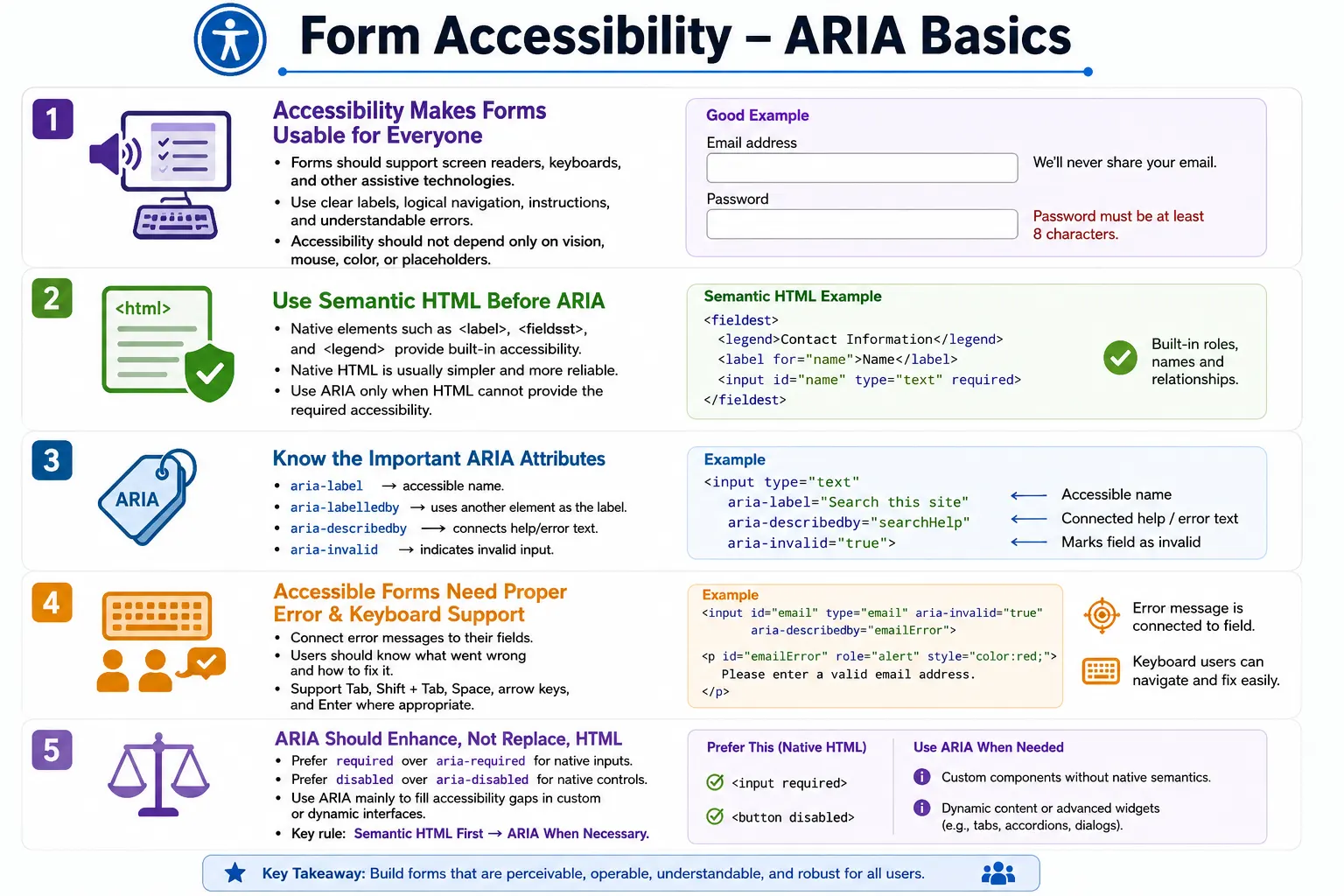
Accessibility ensures that everyone, including people with disabilities, can use web forms effectively. Forms are one of the most important parts of a website because they allow users to log in, register, search, contact support, buy products, submit applications, update settings, and complete business workflows. If a form is not accessible, some users may be blocked from completing essential tasks.
HTML already provides many built-in accessibility features through semantic elements such as <label>, <fieldset>, and <legend>. These elements give form controls proper names, group related controls, and help assistive technologies explain the form structure. In many cases, well-written native HTML is enough to create a strong accessible form foundation.
ARIA, which stands for Accessible Rich Internet Applications, can provide additional information to assistive technologies like screen readers. It is useful when native HTML cannot fully describe a custom control, dynamic error message, or special state. However, the most important principle is simple: use native HTML first, and use ARIA only when native HTML cannot provide the required accessibility.
What Is Accessibility?
Accessibility means designing websites and applications so they can be used by people with different abilities, devices, and interaction methods. Some users navigate forms using a mouse. Others use only the keyboard. Some use screen readers, voice control software, screen magnifiers, switch devices, or other alternative input tools.
User
  |
Screen reader
  |
Reads form
  |
User completes form
An accessible form should not depend on vision alone, mouse control alone, color alone, or placeholder text alone. It should provide clear labels, logical keyboard navigation, readable instructions, understandable error messages, and semantic structure that assistive technologies can interpret.
Accessibility improves the experience for everyone. Clear labels help screen reader users, but they also help mobile users and new users. Good error messages help users with disabilities, but they also reduce frustration for all users. Keyboard accessibility helps people who cannot use a mouse, but it also helps power users who prefer keyboard navigation.
Why Form Accessibility Is Important
Without accessibility, a form may look acceptable visually but fail for users relying on assistive technology. For example, an input without a proper label may be announced by a screen reader only as "edit text." The user hears that a text field exists, but not what information should be entered.
Form
  |
No labels
  |
Screen reader
  |
"Edit Text"
  |
User confused
With proper accessibility, the same input can be announced clearly. If the field has a label such as "Email Address," the screen reader can announce "Email Address, edit text." The user understands the field immediately.
Form
  |
Proper labels
  |
Screen reader
  |
"Email Address, Edit Text"
  |
User understands
Form accessibility also affects quality. If users cannot understand fields, reach controls using the keyboard, identify errors, or recover from mistakes, the form is not reliable. In real applications, inaccessible forms can lead to lost conversions, support issues, legal risk, and poor user trust.
What Is ARIA?
ARIA is a specification that provides additional accessibility information to assistive technologies. It can describe form controls, buttons, error messages, dynamic content, custom widgets, expanded or collapsed states, invalid fields, disabled custom controls, and relationships between elements.
<input type="text" aria-label="Username">In this example, the input receives an accessible name through aria-label. A screen reader can announce "Username, edit text." This can be useful when there is no visible label, such as a compact search field with only an icon.
ARIA is powerful, but it must be used carefully. It does not automatically add keyboard behavior, validation behavior, or visual design. It only communicates information to assistive technologies. If a developer creates a custom button using a <div> and adds ARIA, the developer must still implement keyboard support. Native HTML elements already provide much of that behavior for free.
Native HTML Before ARIA
The preferred way to label an input is to use a real <label> element.
<label for="email">Email</label>
<input type="email" id="email">
This is generally better than using only aria-label.
<input type="email" aria-label="Email">A real label benefits all users because it is visible on the page, clickable in many browsers, and programmatically associated with the input. aria-label may provide an accessible name for assistive technologies, but it does not provide visible text for sighted users.
The principle is not "never use ARIA." The principle is "do not use ARIA when native HTML already solves the problem better." Semantic HTML is usually simpler, more reliable, easier to test, and more consistent across browsers and assistive technologies.
Common ARIA Attributes for Forms
Several ARIA attributes are commonly used with forms. Each has a specific purpose, and each should be used only when it improves the accessibility of the control.
| Attribute | Purpose |
|---|---|
aria-label | Provides an accessible name |
aria-labelledby | Uses another element as the accessible name |
aria-describedby | Associates descriptive help text |
aria-required | Indicates that a field is required, mainly for custom controls |
aria-invalid | Indicates that the current value is invalid |
aria-disabled | Indicates that a custom control is unavailable |
These attributes should support the form experience, not replace good markup. Labels, fieldsets, legends, real buttons, real inputs, and native validation attributes should remain the foundation.
aria-label
The aria-label attribute provides an accessible name when no visible label exists. It is commonly used for compact controls where visible text is not present, such as a search input represented by an icon-only design.
<input type="search" aria-label="Search Courses">A screen reader can announce "Search Courses, search box." This tells the user what the input does even if no visible label appears on the page.
Use aria-label carefully. If a visible label can be provided, that is usually better. Visible labels help everyone, including users who do not use assistive technology.
aria-labelledby
The aria-labelledby attribute uses another visible element as the accessible label. It points to the id of the element that should label the control.
<h2 id="loginTitle">Login</h2>
<input type="text" aria-labelledby="loginTitle">
In this example, the screen reader uses the text of the heading as the input's accessible name. It may announce "Login, edit text."
aria-labelledby is useful when existing visible text already labels a control or group. It is often preferable to aria-label because it uses text that is visible on the page rather than hidden only in an attribute.
aria-describedby
The aria-describedby attribute associates additional instructions, help text, or error messages with a form control. It does not replace the label. Instead, it adds more descriptive context.
<label for="password">Password</label>
<input
  type="password"
  id="password"
  aria-describedby="pwdHelp">

<p id="pwdHelp">
  Must contain at least 8 characters.
</p>
When the user reaches the password field, a screen reader can announce both the label and the help text. The label tells the user what the field is. The description tells the user how to complete it correctly.
This attribute is especially useful for password rules, format instructions, hint text, validation messages, character limits, and warnings.
aria-required
The aria-required attribute indicates that a field is required. For native HTML inputs, the standard required attribute is usually better.
<input type="text" aria-required="true">This communicates the required state to assistive technologies, but it does not provide the same native browser validation behavior as the HTML required attribute.
<input type="text" required>For native inputs, prefer required because it provides both validation and accessibility support. Use aria-required primarily for custom controls where the native required attribute is not applicable.
aria-invalid
The aria-invalid attribute indicates that the current value of a form control is invalid. It is often used after validation fails.
<input type="email" aria-invalid="true">When a screen reader encounters the field, it can announce that the value is invalid. This helps users understand that the field needs correction.
aria-invalid works best when combined with an associated error message using aria-describedby. The invalid state tells the user there is a problem, while the error message explains what the problem is and how to fix it.
aria-disabled
The aria-disabled attribute indicates that a custom control is unavailable. It is useful when a control is not a native HTML button or input.
<div role="button" aria-disabled="true">
  Submit
</div>
For native controls like <button> or <input>, use the standard disabled attribute instead.
<button disabled>Submit</button>The native attribute provides the correct browser behavior. aria-disabled communicates state to assistive technologies, but it does not automatically prevent clicks or keyboard interaction. Developers must implement that behavior for custom controls.
Labels Are Still Essential
Labels remain the preferred way to identify form controls. A visible label helps users understand what the field collects, and a properly associated label gives assistive technologies a reliable accessible name.
<label for="email">Email</label>
<input type="email" id="email">
This simple structure is often more accessible than a visually empty input with only ARIA. It also improves usability for sighted users, keyboard users, mobile users, and users correcting errors after submission.
Fieldset and Legend
For related controls, especially radio buttons and checkboxes, use <fieldset> and <legend>. The fieldset groups the controls, and the legend provides the group label.
<fieldset>
  <legend>Gender</legend>

  <label>
    <input type="radio" name="gender">
    Male
  </label>

  <label>
    <input type="radio" name="gender">
    Female
  </label>
</fieldset>
A screen reader can announce the group context before the option, such as "Gender, Male, radio button." This is much clearer than hearing "Male, radio button" without knowing the question.
Error Messages
Error messages must be connected to the fields they describe. A visible error message near the field is helpful, but screen readers also need a programmatic relationship.
<input
  type="email"
  aria-invalid="true"
  aria-describedby="emailError">

<span id="emailError">
  Please enter a valid email address.
</span>
With this structure, users can hear that the field is invalid and also hear the specific error message. The message explains how to correct the problem.
Good error handling is one of the most important parts of accessible forms. Users should know which field has a problem, what the problem is, and what action is needed to fix it.
Keyboard Accessibility
Accessible forms should support complete keyboard navigation. Users should be able to press Tab to move to the next field, Shift + Tab to move to the previous field, Space to toggle checkboxes, arrow keys to move through radio groups where appropriate, and Enter to activate submit buttons.
Tab
  |
Next field
  |
Shift + Tab
  |
Previous field
  |
Space
  |
Checkbox
  |
Enter
  |
Submit button
Every interactive control should be reachable using the keyboard. Avoid creating clickable <div> elements unless keyboard support and appropriate roles are implemented. Whenever possible, use native elements such as <button>, <input>, <select>, and <textarea>.
Real-World Example
The following form uses labels, required fields, and descriptive help text.
<form>
  <label for="email">Email Address</label>
  <input
    type="email"
    id="email"
    required
    aria-describedby="emailHelp">

  <p id="emailHelp">
    We'll never share your email.
  </p>

  <br><br>

  <label for="password">Password</label>
  <input
    type="password"
    id="password"
    required
    aria-describedby="pwdHelp">

  <p id="pwdHelp">
    Minimum 8 characters.
  </p>

  <button type="submit">Register</button>
</form>
This form does not overuse ARIA. It uses native labels and native required fields, then adds aria-describedby to connect help text to the relevant controls. This is a good pattern because ARIA fills a real gap instead of replacing semantic HTML.
Common Accessibility Mistakes
One common mistake is using placeholder text instead of a label.
<input placeholder="Email">Placeholders disappear when users type and should not replace labels. A better approach is to use a label and, if useful, a placeholder as a hint.
Another mistake is adding ARIA when native HTML already solves the problem.
<input type="email" aria-required="true">For a native input, this is usually better:
<input type="email" required>Missing error associations are also common. An error message that appears visually near an input is not enough if assistive technologies cannot connect it to the field.
<input aria-describedby="error">
<p id="error">Invalid email</p>
Finally, custom clickable elements are a frequent source of accessibility defects. A clickable <div> may not support keyboard navigation, focus, or correct announcement unless extra work is done. Native controls are usually the better choice.
Accessibility Best Practices
Use <label> for every form control. Use <fieldset> and <legend> for related controls. Use native HTML elements whenever possible. Use required instead of aria-required for native inputs. Use aria-describedby for help text and error messages. Ensure full keyboard navigation. Use descriptive button text such as "Create Account" or "Submit Application" instead of vague text when possible.
Accessible forms should be easy to understand before submission, during typing, after validation errors, and while using keyboard or assistive technology. Accessibility should be designed into the form, not patched after the layout is complete.
Selenium Perspective
Automation testers often verify labels, required fields, error messages, keyboard navigation, focus order, and accessibility attributes. Selenium can read ARIA attributes using getAttribute().
WebElement email =
driver.findElement(By.id("email"));

String desc =
email.getAttribute("aria-describedby");

System.out.println(desc);
Required fields can also be checked by reading the native attribute.
String required =
email.getAttribute("required");
Automation can verify the presence of attributes, but accessibility quality also requires thoughtful checks. Testers should confirm that labels are meaningful, error messages are associated correctly, keyboard navigation works, focus order is logical, and native elements are used where appropriate.
Quick Reference Table
| Feature | Native HTML | ARIA |
|---|---|---|
| Field label | <label> | aria-label, aria-labelledby when needed |
| Required field | required | aria-required mainly for custom controls |
| Help text | Visible text | aria-describedby |
| Invalid state | Browser validation | aria-invalid if needed |
| Disabled state | disabled | aria-disabled mainly for custom controls |
Common Interview Questions
What is ARIA? ARIA, or Accessible Rich Internet Applications, is a specification that provides additional accessibility information to assistive technologies.
Should ARIA replace semantic HTML? No. Use semantic HTML first and ARIA only when necessary.
What does aria-label do? It provides an accessible name when no visible label exists.
What does aria-describedby do? It associates descriptive help text or error messages with a form control.
What does aria-invalid="true" mean? It indicates that the current value of a form control is invalid.
Which is better for a native input: required or aria-required? required is better because it provides both browser validation and accessibility support.
Interview-Ready Answer
Form accessibility ensures that all users, including those using screen readers or keyboard navigation, can complete forms successfully. Native HTML elements such as <label>, <fieldset>, and <legend> provide strong built-in accessibility. ARIA attributes such as aria-label, aria-labelledby, aria-describedby, and aria-invalid add additional information when native HTML is insufficient, particularly for custom controls. The best practice is to use semantic HTML first and add ARIA only when necessary.
One-Line Insight
Build accessible forms with semantic HTML first, then use ARIA only to fill the gaps that native HTML cannot cover.