<footer> Element
Introduction
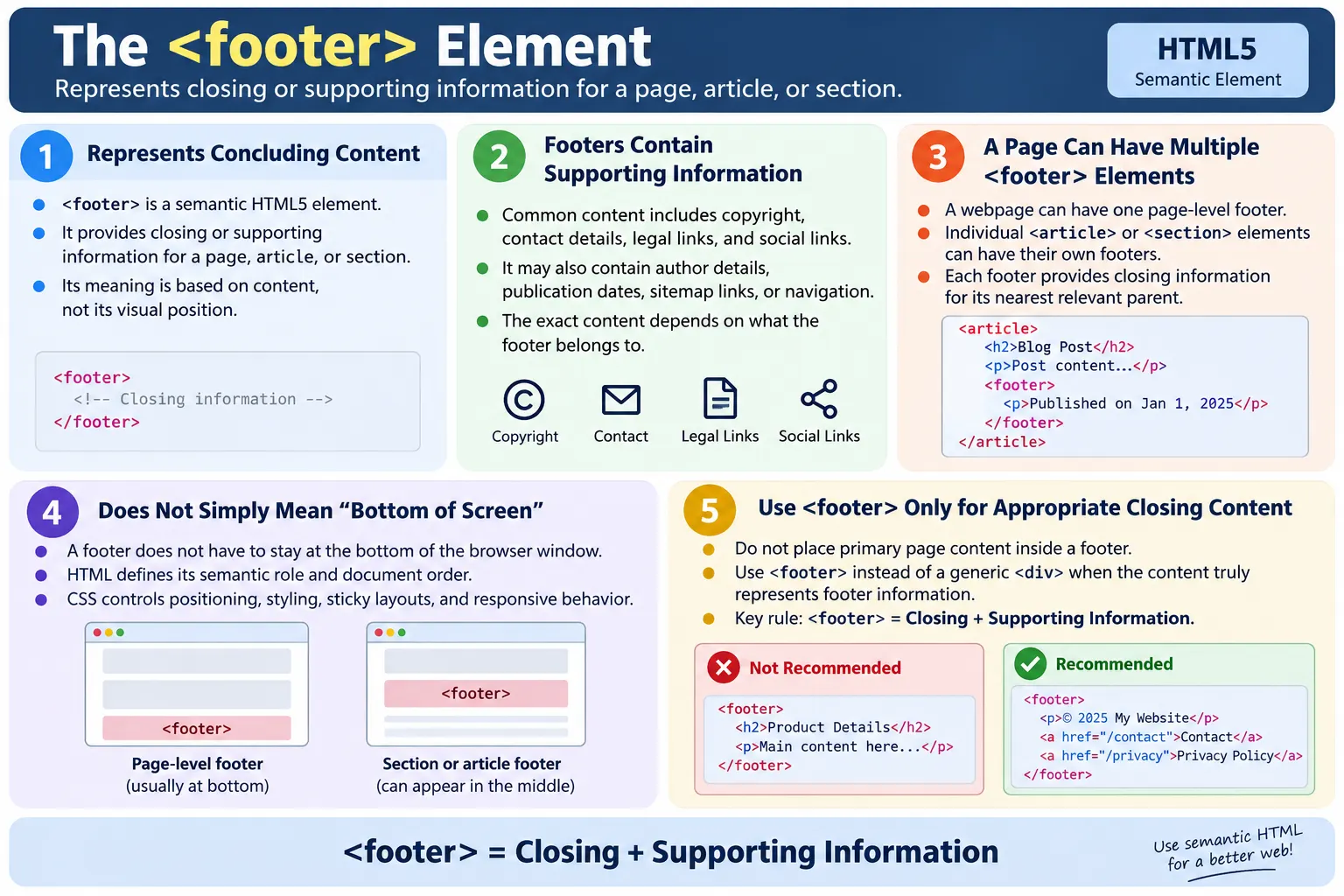
The <footer> element is a semantic HTML5 element used to represent concluding or supporting information for a webpage, article, section, or another meaningful part of a document. In everyday web pages, the footer is usually the area where users expect to find copyright information, privacy policy links, terms and conditions, contact information, social links, sitemap links, author details, and other supporting resources. It is the closing part of a page or section, but it is not limited to the very bottom of the browser window.
Many beginners think of a footer only as the dark strip at the bottom of a website. That visual idea is common, but it is incomplete. In HTML, <footer> is not mainly about color, position, or layout. It is about meaning. The element tells browsers, search engines, assistive technologies, developers, and automated tools that the content inside it provides closing information for the nearest relevant parent section.
This semantic meaning is important because modern HTML is not only written for visual display. It also creates a document structure. A well-structured page is easier to understand, easier to test, easier to maintain, and more accessible. When a developer uses <footer> instead of a generic <div class="footer">, the HTML communicates intent directly. The page becomes more than a collection of styled boxes; it becomes a meaningful document.
What Is the Footer Element?
The <footer> element represents concluding content for its nearest sectioning content or sectioning root. In simple terms, it provides information that belongs at the end of a page, article, section, or related content block. It may summarize ownership, authorship, legal information, navigation, contact details, publication dates, or references.
The basic syntax is simple:
<footer>
  ...
</footer>
Think of it as the closing section of a document. A book chapter may end with notes, references, or author comments. A website page may end with copyright details, links to legal documents, or contact information. An article may end with author details or publication metadata. In each case, the footer gives useful closing information related to what came before it.
The footer element does not automatically create special visual styling. Browsers display it as a block-level element by default, but the appearance is controlled through CSS. A footer can be dark, light, wide, compact, centered, multi-column, sticky, or simple. The semantic role stays the same regardless of how it is styled.
Why Use Footer?
Before HTML5, developers commonly created footer areas with generic containers.
<div class="footer">
  ...
</div>
This works visually. CSS can style the div, users can see the content, and links can still be clicked. However, the HTML does not tell the browser that this region is a footer. The meaning exists only in the class name, and class names are mainly for developers and CSS. A browser does not treat class="footer" with the same semantic clarity as the <footer> element.
Using the semantic element is clearer:
<footer>
  ...
</footer>
This communicates that the content is concluding or supporting information. It improves document structure, makes the code easier to read, helps assistive technologies identify page regions, and helps future developers understand the page without guessing. In a small project this may look like a minor improvement. In a larger website with hundreds of pages, semantic consistency makes maintenance much easier.
Another practical reason to use <footer> is testing. Automation testers can locate footers by tag name or by landmark role patterns instead of depending only on fragile class names. Accessibility testers can verify whether page-level footer information is exposed correctly. SEO reviewers can see that legal and supporting links are structurally separated from the main content.
What Belongs Inside a Footer?
A footer commonly contains copyright information, contact details, author information, privacy policy links, terms and conditions, social media links, sitemap links, related navigation, newsletter signup forms, company address, last updated information, publication date, licensing notes, and acknowledgements. The exact content depends on the parent element to which the footer belongs.
A page-level footer for a website may contain company-wide information. It might show the brand name, copyright notice, contact email, privacy policy, terms of service, about page, and social links. This footer supports the whole page or site. It tells users where to find administrative, legal, and contact information.
An article footer is different. It may contain the author name, published date, updated date, category, tags, citation links, or a short note about the article. This footer supports only that article, not necessarily the entire website. A section footer may contain a "last updated" note or a link related only to that section.
Here is a simple page-level footer:
<footer>
  <p>© 2026 SoftwareTips4U</p>
  <nav aria-label="Footer navigation">
    <a href="privacy-policy.html">Privacy Policy</a>
    <a href="terms.html">Terms</a>
    <a href="mailto:softwaretips4uu@gmail.com">Contact</a>
  </nav>
</footer>
The content is not the main topic of the page. It provides closing site information and useful supporting links. That makes it appropriate for a footer.
Basic Example
The simplest footer can contain only one paragraph.
<footer>
  <p>© 2026 SoftwareTips4U</p>
</footer>
In the browser, the user sees a copyright notice. The important part is not the visual output alone. The HTML says that this copyright notice is footer information. A screen reader, a developer reading the source, or an automated test can understand the role more clearly.
For a beginner, this is the easiest way to remember the footer element. If the content explains ownership, conclusion, legal information, supporting links, or final information for a page or section, it is a candidate for <footer>.
Typical Page Structure
A common HTML page structure contains a header, navigation, main content, and footer. The footer usually appears after the main content in the source order.
<body>
  <header>
    ...
  </header>

  <nav>
    ...
  </nav>

  <main>
    ...
  </main>

  <footer>
    ...
  </footer>
</body>
The structure can be understood as a flow: the header introduces the page, navigation helps users move around, main contains the primary content, and footer closes the page with supporting information. This structure is familiar to users and easy for developers to maintain.
However, the footer does not have to be visually attached to the bottom edge of the viewport. If the content is short, the footer may appear high on the screen unless CSS creates a sticky footer layout. If the content is long, the footer appears after the content. HTML defines meaning and order; CSS handles positioning.
Footer with Navigation
Footers often contain navigation links. These links usually lead to pages such as About, Privacy Policy, Terms, Contact, Sitemap, Careers, Help, or social media profiles. This is footer navigation because it supports the site and provides secondary paths, not because it replaces the main navigation menu.
<footer>
  <nav aria-label="Footer navigation">
    <a href="about.html">About</a>
    <a href="privacy-policy.html">Privacy Policy</a>
    <a href="terms.html">Terms</a>
    <a href="contact.html">Contact</a>
  </nav>
</footer>
The <nav> element inside the footer is appropriate because the links form a navigation group. The aria-label helps distinguish this navigation from the main navigation. Without a label, a screen reader may announce multiple navigation landmarks without enough context. Clear labels make the page easier to navigate.
Footer navigation should not become a dumping ground for every link on the website. It should be organized and predictable. Users visit footers when they are looking for legal information, contact details, company information, support, or broad site navigation. A cluttered footer can be as confusing as a cluttered header.
Footer Inside an Article
A footer can belong to an individual article. This is one of the most important points learners often miss. A web page can have a page footer, but an article can also have its own footer. The article footer provides concluding information about the article, not the whole website.
<article>
  <header>
    <h2>HTML Basics</h2>
  </header>

  <p>Article content appears here.</p>

  <footer>
    <p>Author: John Doe</p>
    <p>Published: July 2026</p>
  </footer>
</article>
In this structure, the footer belongs only to the article. It may include the author, published date, tags, categories, or related article metadata. It should not contain the entire website copyright notice unless that copyright notice is specifically part of the article information.
This pattern is common in blogs, news articles, documentation entries, tutorials, and content cards. A page that lists multiple articles may contain multiple article footers. Each footer closes its own article. The page itself may still have a separate site footer at the end.
Footer Inside a Section
A section can also have a footer. This is useful when the section has its own concluding note, updated date, reference link, or summary information.
<section>
  <h2>Java Course</h2>
  <p>This section explains the course details.</p>

  <footer>
    <p>Last Updated: July 2026</p>
  </footer>
</section>
The footer here does not close the whole page. It closes the Java Course section. That is why it is important to understand parent-child relationships in HTML. The same element can have different scope depending on where it is placed.
Section footers are less common than page footers and article footers, but they are valid and useful when the section has its own supporting information. They should be used only when the closing content truly belongs to that section.
Multiple Footers
A page may contain multiple <footer> elements. This is correct HTML. There can be one main page footer, several article footers, and several section footers. Each footer belongs to its nearest relevant parent.
<main>
  <article>
    <h2>First Article</h2>
    <p>Content...</p>
    <footer>Written by Team A</footer>
  </article>

  <article>
    <h2>Second Article</h2>
    <p>Content...</p>
    <footer>Written by Team B</footer>
  </article>
</main>

<footer>
  <p>© 2026 SoftwareTips4U</p>
</footer>
The two article footers close their articles. The final footer closes the page. This is not duplication or a mistake. It is a natural use of semantic HTML. The mistake would be assuming that a page can have only one footer because visually a website often has one bottom footer.
Browser Workflow
When a browser reads an HTML document, it parses elements and builds the Document Object Model. When it encounters a <footer>, it creates a footer element node in the DOM. The browser then applies default styles and any CSS rules that target the footer. The browser does not automatically add copyright text, legal links, or layout columns. Those must be written by the developer.
The workflow is simple: the browser reads the HTML, identifies the footer element, adds it to the DOM, applies CSS, and renders it on the page. Assistive technologies can use this structure to expose meaningful regions. Search engines can also understand that footer content is supporting page information rather than primary article content.
This is why semantic HTML matters even when the visual result looks the same. A <div> and a <footer> may be styled identically, but their document meaning is not identical.
Accessibility Benefits
A page-level <footer> can be exposed as a content information landmark. This helps users of assistive technologies understand and navigate the page. A screen reader user can move between major regions such as header, navigation, main content, and footer. This is much easier than listening through a long page without clear landmarks.
Accessibility is not only about screen readers. Clear footer structure also helps keyboard users, users with cognitive disabilities, users who rely on browser tools, and testers who audit page structure. A predictable footer gives users a reliable place to find legal links, contact information, and support resources.
Footer accessibility also depends on the content inside it. Links should have meaningful text. Social media icons should have accessible names. Color contrast should be sufficient. Focus indicators should be visible. The footer should not hide important links behind mouse-only interactions. If the footer contains a newsletter form, labels and validation messages must be accessible.
For example, this is clearer than icon-only links without labels:
<footer>
  <nav aria-label="Social links">
    <a href="https://example.com/profile">Follow SoftwareTips4U on LinkedIn</a>
  </nav>
</footer>
If icons are used visually, accessible text can still be provided. The goal is to make footer information available to every user, not only users who can visually interpret icons.
SEO Benefits
Search engines use many signals to understand a page. Semantic HTML is not a magic ranking factor by itself, but it helps clarify structure. A footer tells search engines that the content inside is supporting information. Legal links, contact links, copyright notices, and site-wide navigation are expected in footers.
This helps separate primary content from repeated site content. On a tutorial page, the article should be the main focus. Footer links may appear on every page, but they should not be confused with the main article body. Using a footer element supports that distinction.
Good footer SEO is also about user experience. Footer links should be crawlable, accurate, and relevant. Broken privacy links, outdated contact links, or misleading footer navigation create poor quality signals. A footer can help search engines discover important pages such as About, Contact, Privacy Policy, Terms, and Sitemap, but it should not be overloaded with keyword-stuffed links.
Footer with Contact Information
Contact information is commonly placed in footers because users often look there when they need support or business details. A simple footer can contain an email address, phone number, physical address, or support link.
<footer>
  <p>Email: support@softwaretips4u.com</p>
  <p>Phone: +1-123-456-7890</p>
</footer>
When displaying contact details, make them useful. Email addresses can use mailto: links. Phone numbers can use tel: links. Physical addresses may be placed in an <address> element when they represent contact information for the page or organization.
<footer>
  <address>
    Contact us at
    <a href="mailto:softwaretips4uu@gmail.com">softwaretips4uu@gmail.com</a>
  </address>
</footer>
The <address> element should not be used for every postal address in a document. It represents contact information for the nearest article or body. Inside a footer, it can be useful when the footer provides contact details for the page or site.
Footer with Legal Links
Legal links are one of the most common footer patterns. These include Privacy Policy, Terms of Service, Cookie Policy, Disclaimer, Refund Policy, and Accessibility Statement. Users expect these links to be available and consistent across the site.
<footer>
  <nav aria-label="Legal links">
    <a href="privacy-policy.html">Privacy Policy</a>
    <a href="terms.html">Terms and Conditions</a>
    <a href="accessibility.html">Accessibility Statement</a>
  </nav>
</footer>
Legal footer links should be easy to find and should not depend on JavaScript to appear. If a user disables scripts or an automation tool reads the page, the core legal links should still be present in the HTML. This is especially important for static content sites, educational platforms, e-commerce websites, and SaaS applications.
Footer with Social Links
Social media links are often placed in footers because they are useful but secondary. They should not distract from the main content, but they should be available for users who want to follow the organization or author.
If social links are represented by text, accessibility is straightforward. If they are represented by icons, each link still needs an accessible name. A link that contains only an icon without alternative text may be announced poorly by screen readers.
<footer>
  <nav aria-label="Social media">
    <a href="https://www.linkedin.com/">LinkedIn</a>
    <a href="https://www.youtube.com/">YouTube</a>
  </nav>
</footer>
Footer social links should also open in a predictable way. If external links open in a new tab, use appropriate security attributes such as rel="noopener noreferrer" with target="_blank". This is not unique to footers, but footers often contain many external links, so it matters.
Styling Footer
The footer can be styled like any other HTML element. CSS controls background color, text color, spacing, layout, columns, borders, alignment, and responsive behavior.
footer {
  background: #222;
  color: white;
  padding: 20px;
  text-align: center;
}
This CSS creates a simple dark footer. However, styling should not be the reason for choosing the element. Use <footer> because the content is concluding or supporting information. Then use CSS to make it look appropriate.
Large sites often use multi-column footers. One column may contain company links, another may contain product links, another may contain resources, and another may contain legal or social links. This is acceptable when the grouping is clear. Headings can help users scan the footer.
<footer>
  <section>
    <h2>Company</h2>
    <a href="about.html">About</a>
    <a href="contact.html">Contact</a>
  </section>

  <section>
    <h2>Legal</h2>
    <a href="privacy-policy.html">Privacy</a>
    <a href="terms.html">Terms</a>
  </section>
</footer>
When using headings inside footers, keep the heading level logical within the page. Footer headings usually do not need to be visually large. CSS can make them compact while preserving structure.
Sticky Footer vs Semantic Footer
A sticky footer is a layout pattern where the footer stays at the bottom of the viewport when the page content is short. This is a CSS behavior, not a different HTML element. The semantic footer remains the same.
For example, a page may use flexbox to push the footer to the bottom:
body {
  min-height: 100vh;
  display: flex;
  flex-direction: column;
}

main {
  flex: 1;
}
This layout makes the main content take available space, so the footer appears near the bottom when content is short. It does not change what <footer> means. The element still represents closing information. The layout simply improves visual presentation.
Do not confuse sticky footers with fixed footers. A fixed footer stays visible at the bottom of the screen while the user scrolls. Fixed footers can be useful in some applications, but they can also cover content, reduce mobile screen space, and create accessibility problems if not implemented carefully. Most content websites use normal or sticky page footers rather than fixed footers.
Footer and Reading Order
The footer usually appears after the main content in the HTML source. This reading order is logical because users typically consume the main content before reaching closing information. If a footer is placed before the main content in source order and moved visually with CSS, screen reader users and keyboard users may encounter footer links too early.
There are rare layouts where a footer-like element appears inside a card or section before other content, but the semantic question remains the same: does it close its parent content? If not, it may not be a footer. A footer should conclude or support the content that precedes it within its parent.
For most pages, use a simple order: header, navigation, main, footer. This order is predictable, accessible, and easy to test. Predictability is valuable because users learn where to look for information across a site.
Real-World Website Footer
A real website footer usually contains more than a copyright line. It may combine brand identity, legal links, support links, social links, and contact information. The challenge is to include useful information without turning the footer into a cluttered link archive.
<footer>
  <p>© 2026 SoftwareTips4U</p>

  <nav aria-label="Footer navigation">
    <a href="about.html">About</a>
    <a href="privacy-policy.html">Privacy Policy</a>
    <a href="terms.html">Terms of Service</a>
    <a href="mailto:softwaretips4uu@gmail.com">Contact</a>
  </nav>

  <p>Follow us for software testing, automation, and HTML tutorials.</p>
</footer>
This footer supports the entire website. It gives users ownership information, legal links, contact access, and a short brand message. It is simple, but it communicates the main purpose of a footer clearly.
Footer in Cards and Components
In design systems, cards often have footers. A product card may have a price and action button at the bottom. A blog card may have author and date information. A notification card may have action links. Whether these should use the HTML <footer> element depends on whether they conclude a meaningful section or article.
For example, a blog preview represented as an <article> can have a footer containing the author and date.
<article class="post-card">
  <h2>Understanding Semantic HTML</h2>
  <p>A short preview of the article appears here.</p>

  <footer>
    <p>By SoftwareTips4U Team</p>
    <p>Updated July 2026</p>
  </footer>
</article>
This is a meaningful use because the footer closes the article card. However, if a card footer is only a visual row for buttons and does not represent concluding information, a <div> may be enough. Again, the decision should come from meaning, not appearance.
Common Mistakes
A common mistake is using <div> instead of <footer> for obvious footer content. This loses semantic meaning.
<div class="footer">
  ...
</div>
A better structure is:
<footer>
  ...
</footer>
Another mistake is putting main content inside the footer. A complete tutorial, product description, or primary article belongs inside <main>, <article>, or an appropriate section, not inside the footer.
<footer>
  Complete HTML Tutorial
</footer>
This is incorrect because the tutorial is primary content. The footer should contain closing or supporting information.
Some developers also assume only one footer is allowed. That is incorrect. A page can contain a page footer and multiple article or section footers. The important rule is that each footer should belong to its parent element and should provide appropriate concluding information.
Another mistake is using footer only for styling. If the purpose is merely to create a dark area, a border, or a layout row, the semantic element may not be appropriate. Choose <footer> because the content is footer content, then style it as needed.
Footer link quality is another common issue. Broken legal links, vague link text, missing focus states, inaccessible social icons, and outdated copyright years all reduce trust. A footer is often one of the most repeated components on a website, so small mistakes can appear across many pages.
Footer vs Div
The difference between <footer> and <div> is semantic meaning. A <div> is a generic container. It does not say what the content means. A <footer> says that the content is concluding or supporting information for a page or section.
<footer> |
<div> |
|---|---|
| Semantic element | Generic container |
| Represents concluding information | No inherent meaning |
| Improves accessibility | No semantic benefit by itself |
| Helps define page structure | Used mainly for layout or grouping |
Use <div> when no semantic element fits. Use <footer> when the content truly functions as footer information. This is the general principle of semantic HTML: choose the most meaningful element available.
Footer vs Header
The <header> element introduces content. The <footer> element concludes or supports content. A page header may contain a logo, page title, top navigation, or introductory information. A page footer may contain copyright, legal links, contact links, or concluding information.
An article can also have both. The article header can contain the article title and introductory metadata, while the article footer can contain author information, tags, or publication details. These elements are complementary. One starts or introduces a content area; the other closes or supports it.
Footer vs Aside
The difference between <footer> and <aside> is also important. A footer provides closing information for its parent. An aside provides supplementary information related to the main or surrounding content. A related articles block may be an aside. A copyright and legal links block is usually a footer.
Sometimes the distinction depends on context. A "Related Resources" block at the end of an article could be placed in an aside because it supplements the article. If the same end area also contains author details and publication date, those details may belong in an article footer. Good HTML structure comes from understanding the role of the content.
Complete Example
The following complete example shows a simple page with a header, main content, and footer.
<!DOCTYPE html>
<html>
<head>
  <title>SoftwareTips4U</title>
</head>
<body>
  <header>
    <h1>SoftwareTips4U</h1>
  </header>

  <main>
    <h2>HTML Mastery</h2>
    <p>Learn HTML step by step.</p>
  </main>

  <footer>
    <p>© 2026 SoftwareTips4U</p>
    <nav aria-label="Footer navigation">
      <a href="privacy-policy.html">Privacy Policy</a>
      <a href="terms.html">Terms</a>
      <a href="contact.html">Contact</a>
    </nav>
  </footer>
</body>
</html>
This example keeps the primary content inside <main> and the closing support links inside <footer>. The page has a clear beginning, middle, and end.
Selenium Perspective
Selenium testers often verify footer content because footer links appear on many pages and are easy to overlook during manual checks. A broken privacy link or missing copyright text may affect every page on a site.
The footer can be located by tag name:
WebElement footer =
driver.findElement(
    By.tagName("footer"));
The copyright text can be read from the footer:
String copyright =
footer.getText();

System.out.println(copyright);
Footer links can be located with a CSS selector:
List<WebElement> links =
driver.findElements(
    By.cssSelector("footer a"));
Automation testers commonly verify footer visibility, copyright information, legal links, contact details, social media links, responsive layout, keyboard accessibility, and whether footer links navigate to the correct destination. If the footer is shared across many pages, it is a good candidate for reusable automated checks.
For responsive testing, verify that footer columns stack properly on mobile screens, links remain tappable, and no content overlaps. Footers often contain dense link groups, so mobile usability matters.
Testing Checklist
When testing a footer, verify that it appears on all required pages, contains the correct copyright year, includes working Privacy, Terms, About, and Contact links, and does not contain outdated information. Check that email links and phone links work as expected. If social icons are present, verify both the URL and the accessible name.
Accessibility checks should include keyboard navigation, visible focus indicators, link text clarity, color contrast, and landmark behavior. If there are multiple navigation sections on the page, footer navigation should have a meaningful label. If the footer contains a newsletter form, labels, validation messages, and submission behavior must be tested.
SEO checks should confirm that important site links are crawlable and that the footer is not overloaded with spammy keyword links. Visual checks should confirm that the footer does not cover content, does not create horizontal scrolling, and adapts properly on different screen sizes.
Practical Decision Checklist
Before using <footer>, ask whether the content provides closing or supporting information for a page, article, section, or component. If the answer is yes, the footer element is likely appropriate. If the content is part of the primary explanation, product description, tutorial body, or main business workflow, it probably belongs somewhere else.
Ask whether the footer belongs to the whole page or only to a smaller parent element. If it contains site-wide links and copyright information, it should usually be placed near the end of the body as the page footer. If it contains author details for a blog post, it should be placed inside the article. If it contains a last updated note for a specific section, it can belong inside that section.
Ask whether the footer contains navigation. If it does, a nested <nav> element with a clear label can make the structure more accessible. Ask whether the footer contains contact details. If it does, consider whether an <address> element is appropriate. Ask whether the same footer appears on many pages. If it does, make sure the links are stable, reusable, and easy to maintain.
Finally, ask whether the footer remains usable on mobile devices. Footer links are often placed close together, and dense link groups can become difficult to tap on small screens. A footer should close the page cleanly, but it should still be readable, accessible, and comfortable to use.
Common Interview Questions
What is the purpose of the <footer> element? It represents concluding or supporting information for a webpage, article, section, or related content block.
Can a page contain multiple <footer> elements? Yes. A page can have a main page footer, and articles or sections can have their own footers.
What content is commonly placed inside a footer? Copyright information, contact details, legal notices, navigation links, author information, publication dates, social media links, and sitemap links are common examples.
Is the footer always at the bottom of the webpage? Not necessarily. A footer belongs to its parent element. An article or section can have its own footer wherever that article or section appears in the page.
Does <footer> improve accessibility? Yes. A page-level footer can provide a semantic landmark that helps assistive technologies identify concluding content.
Should a footer contain main content? No. Main content belongs inside <main>, <article>, or appropriate sections. The footer should contain closing or supporting information.
What is the difference between <footer> and <div class="footer">? The footer element has semantic meaning, while the div is generic and depends on class naming for developer understanding.
Interview-Ready Answer
The <footer> element is a semantic HTML5 element used to represent concluding or supporting information for a webpage, article, section, or other meaningful content area. It commonly contains copyright information, contact details, navigation links, legal notices, author information, publication dates, sitemap links, and social media links. A page can have one main footer, while articles and sections can also have their own footers. Using <footer> instead of a generic <div> improves document structure, accessibility, maintainability, and helps browsers and search engines understand the role of the content.
One-Line Insight
<footer> provides the closing information for a page or section, helping users know they have reached the end of that content.