Fieldset & Legend
Introduction
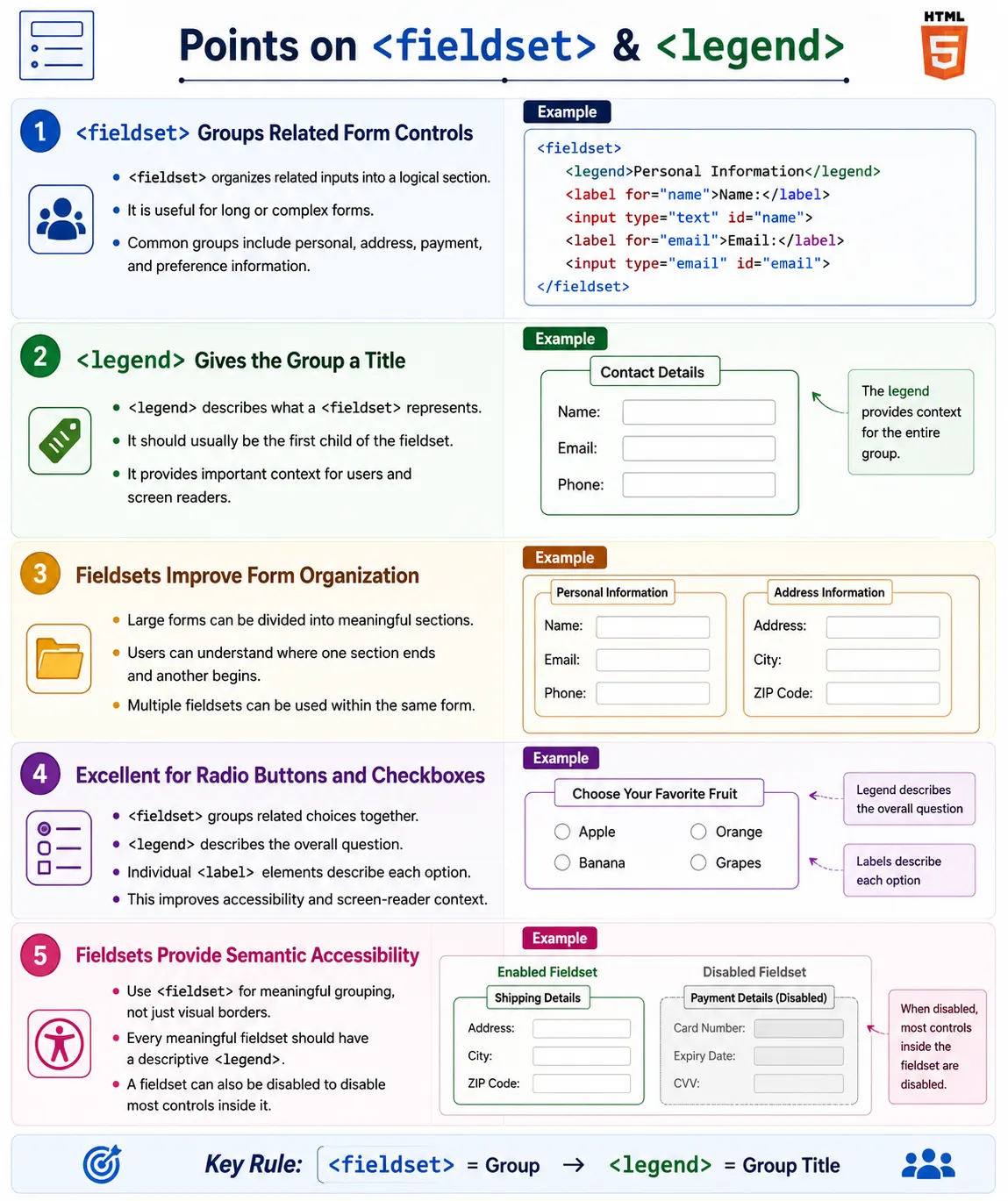
The <fieldset> and <legend> elements are HTML form elements used to group related form controls together. They are especially useful in forms that contain many inputs, multiple sections, repeated questions, radio button groups, checkbox groups, or complex data collection flows. Instead of presenting a long list of unrelated fields, these elements help divide the form into meaningful sections.
Good form design is not only about collecting data. It is also about helping users understand what information is being requested, where one section ends, where another begins, and how related controls belong together. A long form without grouping can feel confusing and tiring. A form with clear groups, section titles, and logical structure is easier to scan, complete, test, and maintain.
<fieldset> and <legend> improve form organization, user experience, accessibility, screen reader support, and readability of large forms. They are commonly used for personal information, address details, payment information, shipping details, preferences, survey questions, account settings, medical forms, banking forms, employee applications, and checkout pages.
What Is Fieldset?
The <fieldset> element groups related form controls into a logical section. It tells the browser, assistive technologies, developers, and testers that the controls inside the fieldset belong together.
<fieldset>
  ...
</fieldset>
Most browsers display a default border around the grouped controls. This visual border helps users recognize that the controls form a section. The exact appearance depends on the browser and CSS, but the semantic purpose is the same: the fieldset creates a meaningful group inside a form.
A fieldset should not be used only because a border is desired. CSS can create borders around any element. The real value of <fieldset> is semantic grouping. Use it when the controls are logically related, not merely for decoration.
What Is Legend?
The <legend> element provides a title or caption for a <fieldset>. It describes what the group of controls represents. The legend should usually be the first child of the fieldset.
<fieldset>
  <legend>Personal Information</legend>
  ...
</fieldset>
In the browser, the legend is commonly shown as a caption integrated into the fieldset border.
+------------------------------+
 Personal Information

 Name
 ________________

 Email
 ________________
+------------------------------+
The legend is important because it names the group. Without a legend, users may see a border but not understand what the grouped controls represent. Screen reader users also lose important context when a fieldset has no descriptive legend.
Why Fieldsets Are Needed
Forms can quickly become difficult to understand when many fields are displayed one after another. Consider a form that asks for name, email, phone, street, city, ZIP, country, card number, and CVV. Without grouping, users must mentally decide where personal information ends, where address information begins, and where payment information starts.
Name
Email
Phone
Street
City
ZIP
Country
Card Number
CVV
This layout may be acceptable for very short forms, but it becomes weak for longer forms. With fieldsets, the same form becomes easier to understand.
Personal Information
  Name
  Email
  Phone

Address
  Street
  City
  ZIP

Payment
  Card Number
  CVV
The user can move through the form section by section. The structure is clearer, and the form feels less like a long list of disconnected fields.
Basic Example
A basic fieldset contains a legend and related form controls.
<form>
  <fieldset>
    <legend>Personal Information</legend>

    <label for="name">Name</label>
    <input type="text" id="name">

    <label for="email">Email</label>
    <input type="email" id="email">
  </fieldset>
</form>
This example groups name and email fields under the title "Personal Information." A user can immediately understand that both controls belong to the same section. A developer reading the markup can also understand the structure without relying on CSS class names alone.
Browser Appearance
Most browsers apply default styling to fieldsets and legends. The fieldset usually has a border, and the legend appears near the top of that border.
+---------------------------+
 Personal Information

 Name
 ____________

 Email
 ____________
+---------------------------+
The default appearance is functional, but many sites customize it with CSS to match the design system. Styling can change border color, spacing, typography, padding, margins, and legend placement. However, styling should not remove the semantic relationship between the fieldset and legend.
Multiple Fieldsets
A form can contain multiple fieldsets. In fact, this is one of the most common uses of the element. Large forms are easier to complete when divided into meaningful groups.
<form>
  <fieldset>
    <legend>Personal Information</legend>
    ...
  </fieldset>

  <fieldset>
    <legend>Address</legend>
    ...
  </fieldset>

  <fieldset>
    <legend>Payment</legend>
    ...
  </fieldset>
</form>
Each fieldset gives users a clear section boundary. This structure is useful in registration forms, checkout pages, survey forms, application forms, and settings screens.
Real-World Example
A real-world account form might group account details and contact details separately.
<form>
  <fieldset>
    <legend>Account Details</legend>

    <label for="username">Username</label>
    <input type="text" id="username">

    <label for="password">Password</label>
    <input type="password" id="password">
  </fieldset>

  <fieldset>
    <legend>Contact Details</legend>

    <label for="email">Email</label>
    <input type="email" id="email">

    <label for="phone">Phone</label>
    <input type="tel" id="phone">
  </fieldset>
</form>
The section titles make the form easier to scan. Users know which fields are related to login and which fields are related to communication.
Fieldset and Radio Buttons
<fieldset> is especially useful when grouping related radio buttons. Radio buttons usually represent one question with multiple mutually exclusive answers. The legend can provide the question, and each radio button label can provide an answer.
<fieldset>
  <legend>Gender</legend>

  <label>
    <input type="radio" name="gender" value="male">
    Male
  </label>

  <label>
    <input type="radio" name="gender" value="female">
    Female
  </label>

  <label>
    <input type="radio" name="gender" value="other">
    Other
  </label>
</fieldset>
Without the fieldset and legend, screen reader users may hear each radio button label but miss the question that connects them. With the legend, the group context is clear. Users understand that all radio buttons belong to the same question.
Fieldset and Checkboxes
Fieldsets are also useful for checkbox groups. Unlike radio buttons, checkboxes usually allow multiple selections. The legend describes the overall group, and the labels describe each option.
<fieldset>
  <legend>Skills</legend>

  <label>
    <input type="checkbox" name="skills" value="html">
    HTML
  </label>

  <label>
    <input type="checkbox" name="skills" value="css">
    CSS
  </label>

  <label>
    <input type="checkbox" name="skills" value="javascript">
    JavaScript
  </label>
</fieldset>
This structure makes the relationship between options clear. The options are not random checkboxes; they are answers to the "Skills" group.
Accessibility Benefits
Accessibility is one of the strongest reasons to use fieldsets and legends correctly. Screen readers can announce the legend as context for the controls inside the fieldset. For example, a screen reader may announce "Gender, radio button, Male" instead of only "Radio button, Male."
Gender
Radio Button
Male
This context is extremely important when a form contains several groups of radio buttons or checkboxes. Without the legend, users may hear an option but not know which question it answers.
Fieldsets also help keyboard and screen reader users understand form structure. Even when visual styling changes, the semantic grouping remains available to assistive technologies.
Browser Workflow
When the browser loads a form, it parses the fieldset, reads the legend, displays the group, and allows the user to complete the section. Assistive technologies can use this structure to provide extra context.
Load form
    |
Read fieldset
    |
Read legend
    |
Display group
    |
User completes section
This workflow shows that fieldsets are not only a visual feature. They are part of the document structure and accessibility model.
Nested Fieldsets
Fieldsets can be nested when appropriate. For example, an account section may contain a smaller login information section.
<fieldset>
  <legend>Account</legend>

  <fieldset>
    <legend>Login Information</legend>
    ...
  </fieldset>
</fieldset>
While nested fieldsets are valid, deep nesting should be avoided. Too many nested groups can make forms harder to understand for both visual users and assistive technology users. Use nesting only when it reflects a real hierarchy in the form.
Disabled Fieldset
A fieldset can be disabled using the disabled attribute. Disabling a fieldset disables most of its descendant form controls.
<fieldset disabled>
  <legend>Premium Features</legend>
  <input type="text">
  <input type="checkbox">
</fieldset>
Users cannot interact with the contained controls while the fieldset is disabled. This is useful when a whole section should be unavailable, such as premium features, optional shipping details, conditional settings, or fields that become active only after a previous step is completed.
Disabled fieldset
    |
Child controls
    |
Disabled
Styling Fieldsets
Fieldsets can be styled with CSS. A simple style might change the border, padding, and legend weight.
fieldset {
  border: 2px solid gray;
  padding: 20px;
}

legend {
  font-weight: bold;
}
Modern design systems often customize fieldsets so they fit visually with the rest of the application. Some designs remove the default border and use spacing, headings, and subtle dividers instead. If the semantic relationship is still useful, keeping the fieldset and legend in the markup can preserve accessibility while allowing flexible visual styling.
Common Uses
Use <fieldset> for registration forms, checkout forms, survey sections, medical forms, banking forms, employee applications, settings pages, preference panels, and any form where related controls need a clear group.
It is particularly useful when multiple controls answer one question. Radio groups and checkbox groups benefit heavily from fieldsets because the legend gives the question and the labels give the possible answers.
Common Mistakes
A common mistake is using a generic <div> instead of a fieldset for a meaningful group.
<div>
  Personal Information
</div>
A better structure is:
<fieldset>
  <legend>Personal Information</legend>
  ...
</fieldset>
The fieldset provides semantic meaning that a plain div does not. Another mistake is creating a fieldset without a legend.
<fieldset>
  ...
</fieldset>
Every meaningful fieldset should have a descriptive legend. Without it, the group may not communicate enough context.
Very large fieldsets are also a problem. Avoid placing an entire page or an entire long form inside one fieldset. Divide the form into logical sections instead. Deep nesting is another issue because multiple levels can make the form harder to understand.
Complete Example
The following example shows a form divided into personal information and address sections.
<form>
  <fieldset>
    <legend>Personal Information</legend>

    <label for="name">Name</label>
    <input type="text" id="name" required>

    <label for="email">Email</label>
    <input type="email" id="email" required>
  </fieldset>

  <fieldset>
    <legend>Address</legend>

    <label for="city">City</label>
    <input type="text" id="city">

    <label for="country">Country</label>
    <input type="text" id="country">
  </fieldset>

  <button type="submit">Submit</button>
</form>
This form is more readable than one long list of fields. Each section has a clear purpose, and the form structure is meaningful to both users and tools.
Selenium Perspective
Selenium automation can locate fieldsets and legends to verify form organization. A fieldset can be located by tag name when the page contains a simple form.
WebElement fieldset =
driver.findElement(
    By.tagName("fieldset"));
A legend can also be located and its text can be verified.
WebElement legend =
driver.findElement(
    By.tagName("legend"));

System.out.println(
legend.getText());
Automation testers commonly verify section headings, grouped controls, disabled fieldsets, correct form organization, accessibility expectations, and whether related radio buttons or checkboxes are grouped under the right legend. For larger forms, XPath or CSS selectors can locate controls inside a specific fieldset.
Comparison Table
<fieldset> |
<legend> |
|---|---|
| Groups related form controls | Provides the group's title |
| Improves form organization | Describes the group |
| Creates semantic structure | Improves accessibility |
| Can contain many controls | Usually the first child of a fieldset |
Common Interview Questions
What is the purpose of the <fieldset> element? It groups related form controls into a logical section.
What is the purpose of the <legend> element? It provides a title or caption for a fieldset.
Why are fieldsets important? They improve form organization, accessibility, screen reader support, and readability.
Can a form contain multiple fieldsets? Yes. Large forms often contain several fieldsets for different sections.
Can a fieldset be disabled? Yes. Using the disabled attribute disables most of the form controls inside it.
Why are fieldsets useful for radio buttons? They provide a clear group label, helping users and assistive technologies understand that the radio buttons belong to the same question.
Interview-Ready Answer
The <fieldset> element is used to group related form controls into logical sections, making forms easier to understand and navigate. The <legend> element provides a descriptive title for the group and should generally be the first child of the fieldset. Together they improve form organization, accessibility, and screen reader support, especially for related controls such as radio buttons and checkboxes. A fieldset can also be disabled, which disables most of the controls it contains.
One-Line Insight
<fieldset> groups related form elements, while <legend> tells users and assistive technologies what that group represents.