Drag and Drop (HTML Role)
Introduction
Drag and Drop is a user interaction feature where users can click and hold an element, move it to another location, and release it. It is common in modern web applications because it feels direct and visual. A user can move a task card from one column to another, drag a file into an upload area, reorder a list, place a product into a cart, or rearrange dashboard widgets without filling a form or clicking several buttons.
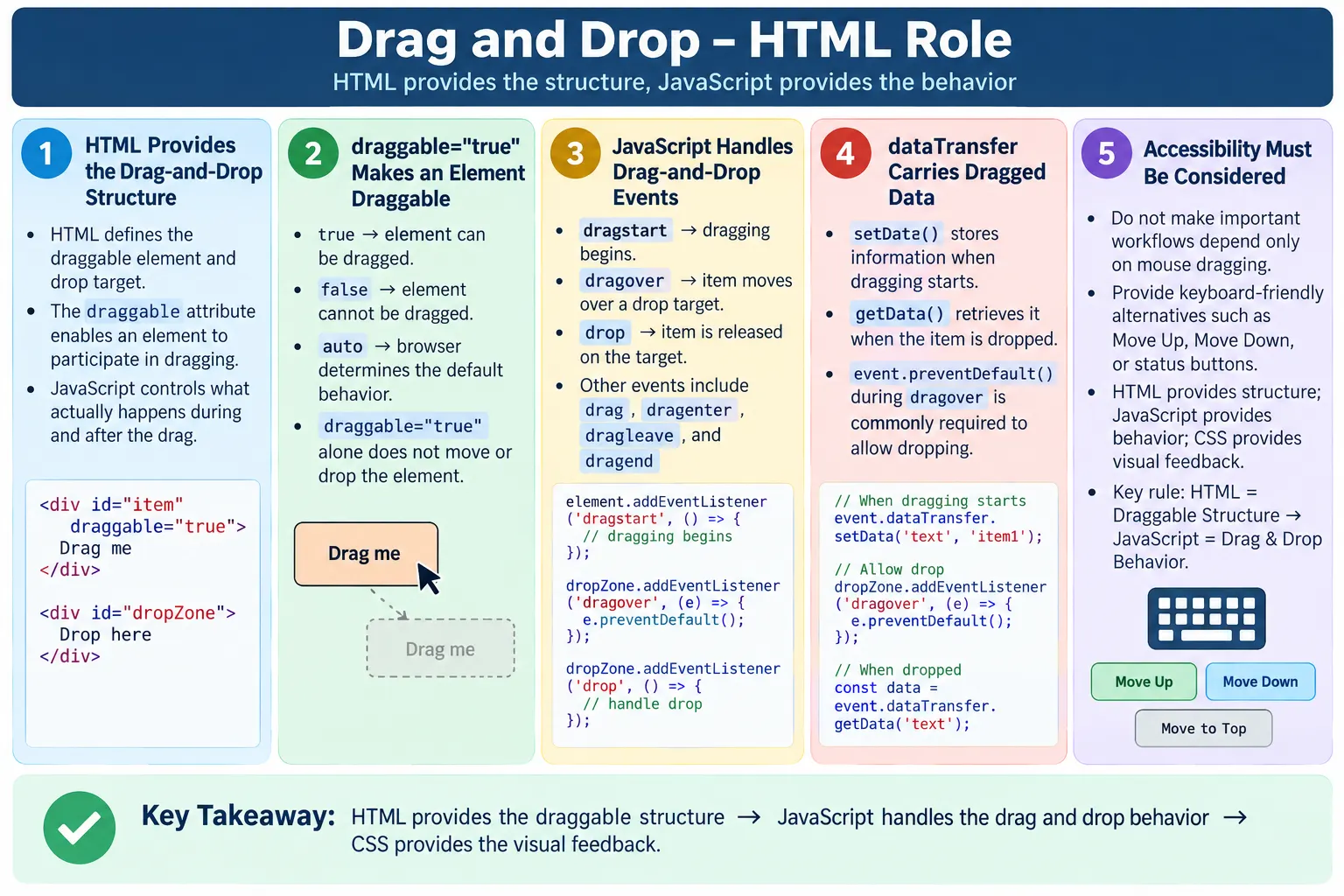
HTML5 introduced native support for drag-and-drop interactions through specific attributes and JavaScript events. HTML provides the basic structure and the draggable attribute, while JavaScript handles the actual behavior. This distinction is important. HTML can say that an element is draggable, but HTML alone does not decide what happens after the element is dropped. The movement, validation, data transfer, and UI update logic are controlled by JavaScript.
Drag and drop is powerful, but it must be designed carefully. Mouse users may find it natural, but keyboard users and assistive technology users can struggle if there is no accessible alternative. A professional implementation should combine HTML structure, JavaScript behavior, visual feedback, keyboard alternatives, and testing. This article focuses on the HTML role in drag and drop and explains how the feature works from a web development and automation testing perspective.
What Is Drag and Drop?
Drag and drop allows users to move items visually from one place to another. The user starts by selecting an item, dragging it, and releasing it over a target area. The application then decides whether the drop is allowed and what should happen next.
Task Card
  ↓
Drag
  ↓
Drop into Completed Column
Common examples include moving files into upload areas, reordering list items, moving tasks between kanban columns, dragging products into a cart, rearranging dashboard widgets, dragging calendar events to a new date, and moving items between selected and available lists.
In each of these examples, the visual movement is only one part of the interaction. The application also needs to know which item was dragged, where it was dropped, whether the drop target accepts it, and how the underlying data should change. HTML creates the elements involved in the interaction. JavaScript connects the interaction to application logic.
HTML Role in Drag and Drop
HTML mainly provides the element to drag, the drop target area, and the draggable attribute. The draggable element is the item the user can move. The drop target is the area where the item may be released. The attribute tells the browser whether the element can participate as a draggable item.
HTML provides:

Element to Drag
  ↓
Drop Target Area
  ↓
draggable Attribute
JavaScript provides the drag events, data transfer, validation, movement, and drop logic.
JavaScript provides:

Drag Events
  ↓
Data Transfer
  ↓
Drop Logic
This division is the key concept. HTML defines the structure. JavaScript defines the behavior. CSS can provide visual feedback such as highlighting the drop zone, changing opacity, or showing a cursor style. A complete drag-and-drop feature usually uses all three technologies together.
The Draggable Attribute
The draggable attribute tells the browser whether an element can be dragged by the user.
<p draggable="true">
  Drag Me
</p>
The attribute supports three values.
| Value | Meaning |
|---|---|
true | Element can be dragged |
false | Element cannot be dragged |
auto | Browser decides default behavior |
Some content, such as images and links, may have default drag behavior depending on the browser. For custom draggable interface elements, developers usually set draggable="true" explicitly.
<div draggable="true">
  Drag this item
</div>
This makes the element draggable, but it does not complete the feature. The element can be dragged, but dropping it somewhere useful still requires JavaScript.
Basic Drag Element
A basic draggable element can be any suitable HTML element. A div, list item, card, image, or button-like component may be made draggable, depending on the design.
<div id="dragItem" draggable="true">
  Drag this item
</div>
At this point, the browser recognizes that the element can be dragged. However, without event handlers, the application does not yet know what data to carry during the drag or how to respond when the user drops the item. A draggable attribute is only the starting point.
Developers sometimes assume that draggable="true" automatically moves the item. It does not. It enables the drag operation. The application must still define the drop behavior.
Drop Target
A drop target is the area where the dragged item can be released. HTML creates this area just like any other element.
<div id="dropZone">
  Drop here
</div>
The element can be styled to look like a drop area, but JavaScript must allow dropping and handle the drop event. By default, many elements do not accept dropped content. That is why drag-and-drop implementations usually listen for the dragover event and call event.preventDefault().
The drop target should also communicate its purpose to users. A clear label such as "Drop files here" or "Move task here" is better than an empty box. Visual feedback during dragging can improve usability by showing which targets are valid.
Important Drag and Drop Events
Drag and drop behavior is controlled through events. These events fire at different stages of the interaction.
| Event | Purpose |
|---|---|
dragstart | Fires when dragging starts |
drag | Fires while dragging |
dragenter | Fires when dragged item enters a drop zone |
dragover | Fires when dragged item is over a drop zone |
dragleave | Fires when dragged item leaves a drop zone |
drop | Fires when item is dropped |
dragend | Fires when dragging ends |
A typical implementation uses dragstart to store information about the item being dragged, dragover to allow the drop target to accept the item, and drop to perform the final action.
Complete Basic Example
The following example shows a simple draggable item and a drop zone. The item is moved into the drop zone when it is dropped.
<!DOCTYPE html>
<html>
<head>
  <title>Drag and Drop Demo</title>
</head>
<body>

<div
  id="dragItem"
  draggable="true">
  Drag Me
</div>

<div
  id="dropZone"
  style="width:200px; height:100px; border:1px solid black;">
  Drop Here
</div>

<script>
const dragItem =
  document.getElementById("dragItem");

const dropZone =
  document.getElementById("dropZone");

dragItem.addEventListener("dragstart", function(event) {
  event.dataTransfer.setData("text/plain", event.target.id);
});

dropZone.addEventListener("dragover", function(event) {
  event.preventDefault();
});

dropZone.addEventListener("drop", function(event) {
  event.preventDefault();

  const id =
    event.dataTransfer.getData("text/plain");

  const item =
    document.getElementById(id);

  dropZone.appendChild(item);
});
</script>

</body>
</html>
This example demonstrates the core flow. The draggable element stores its ID during dragstart. The drop zone allows dropping during dragover. The drop handler retrieves the ID and moves the element into the target.
Why event.preventDefault() Is Needed
By default, many elements do not allow dropped content. Calling event.preventDefault() inside the dragover handler tells the browser that this area accepts dropped content.
event.preventDefault();Without this call, the drop event may not fire as expected. This is one of the most common mistakes when learning drag and drop. Developers add draggable="true", write a drop handler, and then wonder why dropping does not work. The missing piece is often the dragover handler with preventDefault().
Data Transfer Object
The dataTransfer object stores data during a drag-and-drop operation. It allows the drag source and drop target to communicate. During dragstart, data can be stored.
event.dataTransfer.setData(
  "text/plain",
  "dragItem"
);
Later, during the drop event, the data can be retrieved.
event.dataTransfer.getData(
  "text/plain"
);
This helps identify which item was dragged. The stored value might be an element ID, a task ID, a product ID, a file reference, or another piece of data needed by the application.
For security and consistency, keep the transferred data simple. The drop handler should validate the data and decide whether the drop is allowed. Do not assume that drag data is automatically trustworthy.
Common Use Cases
Drag and drop appears in many real applications. File upload areas allow users to drag files from the desktop into the browser. Kanban boards allow users to move tasks from To Do to In Progress or Done. Sorting interfaces allow users to reorder list items. Shopping experiences may allow users to drag products into a cart. Dashboards may allow users to rearrange widgets.
| Use Case | Example |
|---|---|
| File Upload | Drag file into upload box |
| Kanban Board | Move task from To Do to Done |
| Sorting | Reorder list items |
| Shopping Cart | Drag product into cart |
| Dashboard | Rearrange widgets |
These use cases have different complexity levels. File upload drag and drop often deals with files from the operating system. Kanban boards update application state. Sorting interfaces need careful ordering logic. Dashboard widgets may require persistence so the layout remains after refresh.
File Upload Drop Areas
File upload is one of the most familiar drag-and-drop examples. A user drags a file into a drop area, and the browser provides access to the dropped files through the event. HTML creates the drop zone, and JavaScript reads the file list.
<div id="uploadZone">
  Drop files here
</div>
The drop handler can inspect event.dataTransfer.files. A production implementation should validate file size, type, number of files, and upload errors. It should also provide a traditional file input alternative because drag-and-drop upload alone is not enough for accessibility or device compatibility.
Sorting and Reordering
Sorting lists with drag and drop is common, but it can be more complex than it looks. The application must determine where the item was dropped, update the visual order, update the underlying data, and often save the new order to a server or browser storage.
HTML can make list items draggable, but JavaScript must calculate the new position. For accessible design, the interface should also provide buttons such as Move Up and Move Down. Keyboard users should not be blocked from reordering items just because they cannot drag with a mouse.
Kanban Board Example
A kanban board is a strong example of drag and drop. Each task card can be draggable, and each column can be a drop target. When a task is dropped into a new column, the application updates the task status.
To Do
  ↓
In Progress
  ↓
Done
The HTML structure might contain columns and cards. The cards use draggable="true". The columns listen for dragover and drop events. JavaScript identifies the task and updates its status. A real application may then call an API to persist the change.
The accessible alternative might include actions such as "Move to In Progress" or "Move to Done" on each task card. This gives users another way to complete the same workflow.
Visual Feedback
Drag-and-drop interfaces should provide visual feedback. Users need to know which item is being dragged, which drop zones are valid, and what will happen when they release the item. CSS classes are often added during dragenter and removed during dragleave or drop.
.drop-zone--active {
  border-color: #0b5d8b;
  background: #eef8ff;
}
Good visual feedback reduces errors. It also makes the interface feel responsive. However, do not rely only on color. Text, icons, outlines, and instructions can make the state clearer for more users.
Accessibility Concern
Native drag and drop is often difficult for keyboard users. A mouse-only drag-and-drop interface creates accessibility problems because not everyone can drag with a pointer. Some users navigate with keyboards, switch devices, voice control, screen readers, or other assistive technologies.
Good accessible design should provide keyboard alternatives, buttons for moving items, clear instructions, focus management, and ARIA support where required. For example, instead of requiring a user to drag a task to the Completed column, the application can provide a button or menu option.
Move Up

Move Down

Move to Completed
Do not rely only on mouse dragging. Drag and drop can be a helpful enhancement, but it should not be the only way to complete an important workflow.
Keyboard-Friendly Alternatives
A keyboard-friendly alternative gives users the same result without requiring pointer movement. For a sortable list, provide Move Up and Move Down buttons. For a kanban task, provide a status menu. For a dashboard widget, provide actions such as Move Left, Move Right, Move to Top, or Move to Bottom.
The alternative should update the same underlying data as the drag-and-drop interaction. It should not be a separate feature with different behavior. If dragging a card updates its status, the keyboard action should update the same status. This keeps the application consistent and testable.
Focus management is also important. After an item is moved, focus should remain in a logical place. If focus is lost, keyboard users may become disoriented. A good implementation preserves or intentionally moves focus after the action.
ARIA and Drag and Drop
ARIA can help communicate state and instructions, but it should be used carefully. Native HTML and clear controls should come first. If an interface provides buttons for moving items, those buttons may be more reliable than trying to make a complex drag-and-drop pattern fully understandable through ARIA alone.
When using ARIA, ensure that attributes match the actual state of the interface. Incorrect ARIA can be worse than no ARIA. If a drop zone is described as available, it should actually accept the item. If an item is selected or grabbed through a keyboard pattern, the state should be updated accurately.
Accessible drag-and-drop design should be tested with keyboard navigation and assistive technology, not only by inspecting code. The goal is not to add attributes mechanically. The goal is to make the workflow usable.
Common Mistakes
The first common mistake is only adding draggable.
<div draggable="true">
  Drag Me
</div>
This only enables dragging. It does not define what happens after dropping. JavaScript is required to handle the drag events and update the page.
The second mistake is forgetting dragover.preventDefault(). Without it, the browser may block the drop action, and the drop event may not work as expected.
The third mistake is providing no accessibility alternative. Mouse-only drag and drop excludes users who cannot use pointer dragging. Important actions should also be possible through keyboard-friendly controls.
The fourth mistake is using drag and drop for simple actions. If the user only needs to select an item or move one item once, a button may be easier, faster, and more accessible than drag and drop.
Another mistake is failing to validate drop targets. Not every dragged item should be accepted everywhere. The application should reject invalid drops clearly and safely.
Security and Validation
Drag-and-drop data should not be trusted blindly. The drop handler should validate what was dropped and whether the drop is allowed. If files are dropped, validate file type, size, and number. If an item ID is transferred, verify that the item exists and that the action is allowed.
Client-side validation improves user experience, but server-side validation is still required for important actions. For example, moving a task to Done may need permission checks on the server. The browser interaction should not be the only enforcement mechanism.
Drag-and-Drop Lifecycle
A drag-and-drop interaction has a lifecycle. It begins before the item moves, continues while the user drags, enters and leaves possible drop zones, and ends when the user releases the item or cancels the operation. Understanding this lifecycle helps developers decide where each piece of logic belongs.
The dragstart event is usually the best place to store transfer data and apply a visual dragging state. The dragenter and dragover events are useful for highlighting valid targets. The dragleave event can remove visual feedback when the item leaves a target. The drop event performs the actual action, such as moving an item, uploading a file, or updating a list. The dragend event is useful for cleanup, whether the drop succeeded or failed.
dragstart
  ↓
drag / dragenter / dragover
  ↓
drop
  ↓
dragend
Separating responsibilities across events keeps the code easier to maintain. If all logic is placed in one handler, bugs become harder to diagnose. A clean lifecycle makes it clear what happens at each stage.
Persisting Drag-and-Drop Changes
Many drag-and-drop interactions change application state. Moving a task to Done changes its status. Reordering a list changes item order. Rearranging dashboard widgets changes a layout. If those changes should survive page refreshes, the application must persist them somewhere.
For small client-side preferences, browser storage may be enough. For business data, the new state should usually be saved to a server through an API. For example, after a task card is dropped into the Completed column, the application may send a request to update the task status in the database.
Drop Task
  ↓
Update UI
  ↓
Call API
  ↓
Save New Status
The interface should also handle failure. If the server rejects the update, the application may need to move the item back, show an error message, or allow the user to retry. A professional drag-and-drop feature is not only about moving elements visually; it must keep UI state and data state consistent.
Drag and Drop on Touch Devices
Native HTML drag and drop was designed primarily around pointer and mouse interactions, and behavior on touch devices can be inconsistent depending on browser and platform. Many mobile interfaces use pointer events, touch events, or specialized libraries instead of relying only on native drag-and-drop behavior.
This matters because a feature that works on desktop may not work well on a phone or tablet. Users may scroll the page instead of dragging the item. Long press behavior may conflict with browser gestures. Drop targets may be too small. Visual feedback may be unclear on small screens.
For mobile-friendly design, provide large touch targets, clear instructions, and alternatives such as buttons or menus. In many cases, a simple action menu is easier on mobile than drag and drop. For example, a task card can provide a menu with "Move to In Progress" and "Move to Done" options. This may be faster and more accessible than dragging across a small screen.
Pointer Events and Custom Dragging
Some applications implement custom drag behavior using pointer events instead of the native HTML drag-and-drop API. Pointer events can unify mouse, pen, and touch input. They give developers more control over movement, animations, and touch behavior. However, they also require more work because the developer must implement much of the behavior manually.
Native drag and drop is useful for many simple desktop interactions and file drops. Custom pointer-based dragging may be better for sliders, canvas interactions, custom sortable lists, games, drawing tools, or complex mobile-friendly interfaces. The right choice depends on the feature.
Even when using custom dragging, HTML still matters. The page needs meaningful elements, clear labels, keyboard alternatives, and accessible controls. Custom pointer behavior should not erase semantic structure.
Drag and Drop vs Buttons
Drag and drop is not always the best interaction. It is visually appealing, but it can be slower and less precise than a button for simple actions. If the user only needs to move one item to one obvious location, a button may be clearer. If there are many possible destinations and the spatial layout helps users understand the action, drag and drop may be useful.
For example, a kanban board naturally maps tasks to columns, so dragging a task card makes sense. A simple "mark as completed" action does not need dragging; a button is easier. A dashboard layout editor may benefit from drag and drop because users are arranging visual positions. A form field that chooses one option should use a native form control, not drag and drop.
Good interface design chooses the simplest interaction that completes the task. Drag and drop should add clarity, not complexity.
Instructions and Discoverability
Users should not have to guess that something is draggable. A draggable item should have clear visual cues, text instructions, a drag handle, or an obvious layout pattern. Without cues, users may never discover the feature. This is especially true for desktop web pages where drag-and-drop support is not always expected.
A drag handle can make the interaction clearer. For example, a small icon or label can indicate that a list item can be moved. The application can also show helper text such as "Drag tasks between columns" or "Drop files here to upload." Clear instructions reduce mistakes and support users who are unfamiliar with the interface.
Instructions should also be available to assistive technologies. Visual-only hints are not enough. If drag and drop is important, the page should explain the available keyboard alternative as well.
Valid and Invalid Drop Targets
Not every drop target should accept every item. A kanban board may allow a task to move from To Do to In Progress, but not from Done back to To Do without permission. A file upload area may accept images but reject PDFs. A shopping cart may accept products but not category headers.
The application should communicate invalid targets clearly. Visual feedback can show that a target is not allowed. The drop handler should also validate the operation and avoid updating state when the drop is invalid.
dropZone.addEventListener("drop", function(event) {
  event.preventDefault();

  const type =
    event.dataTransfer.getData("text/type");

  if (type !== "task") {
    return;
  }

  // Accept the dropped task.
});
Validation should happen at the UI level and, for important business rules, at the server level. Client-side validation improves experience, but it is not a security boundary.
Data Model and DOM Movement
Moving an element in the DOM is not always enough. In a small demo, appendChild() can move the dragged item into the drop zone. In a real application, the underlying data model must also be updated. If the UI moves but the data does not, the change may disappear on refresh or conflict with later updates.
For example, moving a task card should update the task's status. Reordering a list should update the order values. Rearranging dashboard widgets should update layout coordinates or positions. The DOM should reflect application state, and application state should reflect the user's action.
This is especially important in front-end frameworks. Direct DOM movement may conflict with framework rendering if the framework owns the UI. In those cases, the drop handler should update component state, and the framework should re-render the list. The implementation pattern depends on the architecture.
Performance Considerations
Drag events can fire frequently, especially while the user moves an item. Heavy work inside drag handlers can make the interface feel slow. Avoid expensive calculations, layout thrashing, large DOM updates, or network calls during continuous drag movement. Save heavier work for the drop event when possible.
Visual feedback should be lightweight. Adding and removing a small class is usually better than recalculating large layouts repeatedly. For complex sorting interfaces, optimized algorithms and requestAnimationFrame patterns may be needed. Smooth drag-and-drop behavior depends on keeping the main thread responsive.
Performance testing should include realistic numbers of items. A drag-and-drop list with five items may work well, while a list with five hundred items may lag. Real-world usage matters.
Progressive Enhancement
Drag and drop should often be treated as progressive enhancement. The page should still provide a basic way to complete the task without dragging. Then drag and drop can enhance the experience for users who can and want to use it.
For file uploads, provide a standard file input along with the drop zone. For sorting, provide move buttons or a menu. For task boards, provide status controls. This approach improves accessibility, mobile support, testability, and resilience.
<input type="file" id="fileInput">

<div id="dropZone">
  Drop files here or use the file picker.
</div>
The file input is the reliable baseline. The drop zone is the enhanced interaction. Users get both options.
Selenium Perspective
Drag and drop is commonly tested using the Selenium Actions class. Selenium can locate the source element and target element, then perform a drag-and-drop action.
WebElement source =
driver.findElement(By.id("dragItem"));

WebElement target =
driver.findElement(By.id("dropZone"));

Actions actions =
new Actions(driver);

actions.dragAndDrop(source, target).perform();
Automation testers verify that the item is draggable, the drop zone accepts the item, the item moves correctly, the UI updates after drop, invalid drop areas reject the item, and application state is saved correctly. For drag-and-drop upload, testers may use file input alternatives because browser-level file drag interactions can be difficult to automate consistently.
Testing should also include non-mouse alternatives. If the application provides Move Up or Move to Completed buttons, automation should verify those paths as well. Accessibility alternatives are not secondary; they are part of the required behavior.
Testing Checklist
When testing drag and drop, verify that draggable elements have the expected behavior, valid drop zones accept items, invalid drop zones reject items, visual feedback appears during dragging, and the final state is correct after dropping. Check whether the underlying data changes, not only whether the element visually moved.
Test page refresh behavior if the new order or status should persist. Test multiple items, repeated dragging, dragging outside valid zones, cancelling drag, and dropping quickly. If files are involved, test valid files, invalid files, large files, multiple files, and empty drops.
Accessibility checks should include keyboard alternatives, focus management, clear instructions, and screen reader usability. A feature is not complete if it works only for mouse users.
Comparison: HTML and JavaScript Responsibilities
| HTML | JavaScript |
|---|---|
| Provides draggable element | Handles drag events |
| Provides drop target structure | Allows or rejects drops |
Uses draggable attribute | Uses dataTransfer |
| Defines visible content | Updates UI and state |
| Supports semantic structure | Implements behavior |
Common Interview Questions
What does draggable="true" do? It allows an element to be dragged by the user.
Is HTML alone enough for drag and drop? No. HTML enables draggable elements, but JavaScript is required to handle events and drop behavior.
Which event is required to allow dropping? The dragover event, with event.preventDefault(), is required to allow many drop targets to accept dropped content.
What is dataTransfer? It is an object used to store and retrieve data during a drag-and-drop operation.
Why is drag-and-drop accessibility important? Mouse-only drag and drop may not work for keyboard or assistive technology users, so alternative controls are necessary.
Interview-Ready Answer
HTML5 drag and drop allows elements to be dragged using the draggable attribute. However, HTML only provides the structure and drag capability; JavaScript is required to handle events such as dragstart, dragover, and drop. The dataTransfer object is used to pass data during the drag operation. For accessibility, drag-and-drop interfaces should also provide keyboard-friendly alternatives such as move buttons, status menus, clear instructions, and proper focus management.
One-Line Insight
HTML makes an element draggable, but JavaScript decides what happens when it is dropped.