Download Links
Introduction
A download link is an HTML hyperlink that allows users to download a file instead of simply viewing or navigating to it. Download links are commonly used for PDF files, ZIP archives, images, documents, software installers, Excel spreadsheets, e-books, reports, templates, and source code bundles. They are a normal part of websites that provide learning materials, invoices, brochures, resumes, product manuals, media files, and offline resources.
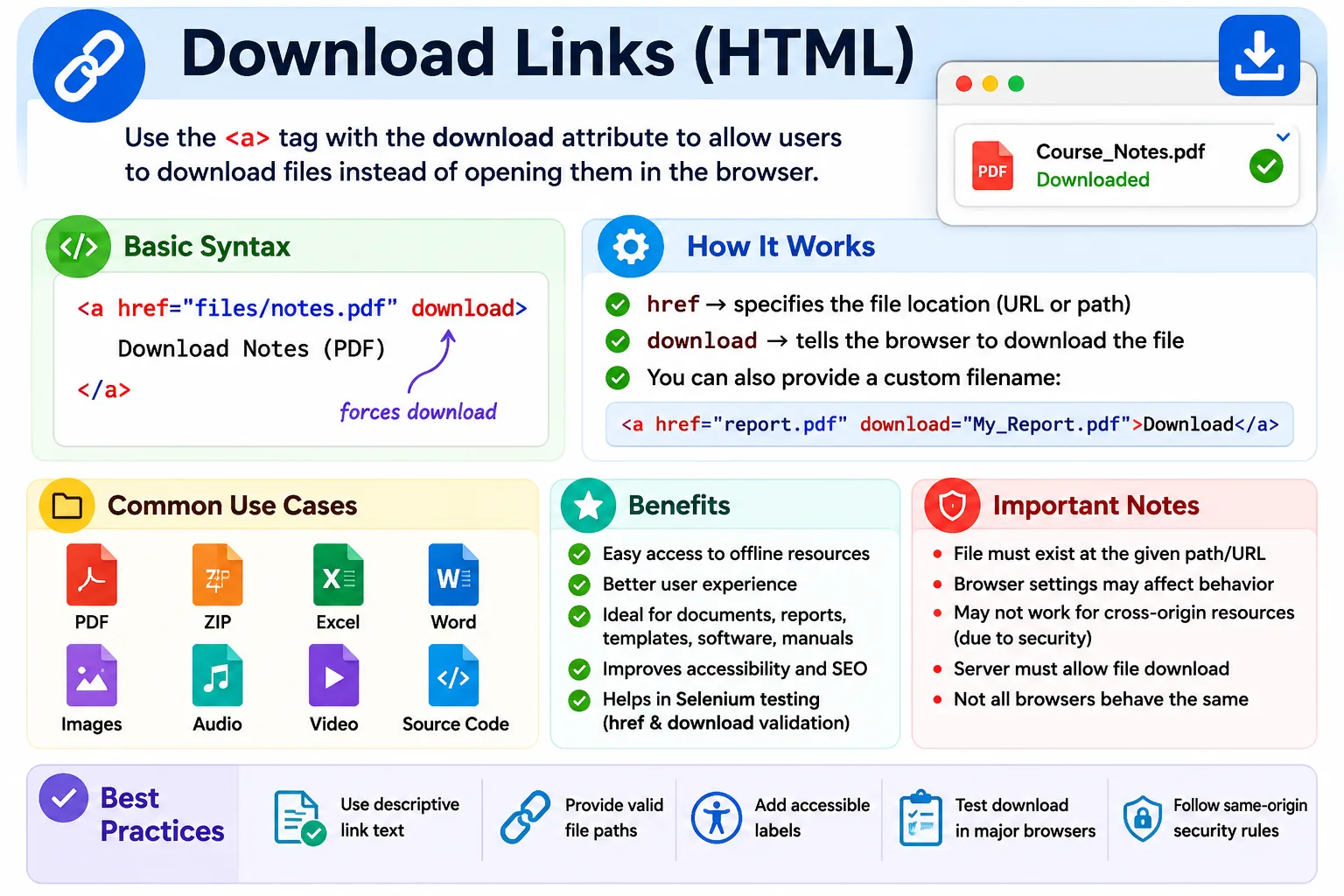
HTML provides this functionality through the anchor element and the download attribute. The anchor tag still provides the destination through href, but the download attribute tells the browser that the linked resource should preferably be saved to the user's device. This changes the intent of the link from "open this resource" to "download this resource."
Download links are simple to write, but they are not always as absolute as beginners expect. Browser settings, file type, server headers, same-origin rules, and security restrictions can influence what actually happens. A PDF may open in the browser in one situation and download in another. A server can force downloads with HTTP headers. Some browsers may ignore the download attribute for certain cross-origin files. Because of this, professional developers should understand both the HTML attribute and the broader browser behavior around file downloads.
What Is a Download Link?
A download link instructs the browser to save a file to the user's device. It is created with an anchor tag, a file path in href, and the download attribute.
<a href="html-guide.pdf" download>
  Download HTML Guide
</a>
When the user clicks this link, the browser attempts to download html-guide.pdf instead of navigating to the file. The exact result depends on the browser and server, but the developer's intent is clear: this link is meant to trigger a file download.
Why Use Download Links?
Without the download attribute, a link to a file behaves like a normal link. For example, a PDF link may open directly inside the browser.
<a href="html-guide.pdf">
  HTML Guide
</a>
That behavior may be acceptable when the user only needs to read the PDF. But if the goal is to help the user save the file, the download attribute communicates that intent more clearly.
<a href="html-guide.pdf" download>
  Download HTML Guide
</a>
Now the browser attempts to save the file to the device. This improves user experience on pages where resources are meant to be kept offline, shared, printed, or reused later.
Basic Syntax
The basic syntax of a download link is straightforward. The href attribute points to the file, and the download attribute marks the link as a download action.
<a href="file-name.ext" download>
  Download File
</a>
A simple example for course notes might look like this:
<a href="course-notes.pdf" download>
  Download Notes
</a>
The link text should describe the file clearly. Download Notes is better than Click Here because it explains the action.
How Download Links Work
When a user clicks a download link, the browser reads the href, detects the download attribute, requests the file, receives the response, and then attempts to save the file locally.
User Clicks Link
        ↓
Browser Reads href
        ↓
Detects download Attribute
        ↓
Download Starts
        ↓
File Saved Locally
This flow is similar to opening a normal link until the browser decides how to handle the response. The download attribute nudges the browser toward saving the file instead of rendering it.
Simple Download Example
A common use case is downloading a course PDF.
<a href="html-course.pdf" download>
  Download HTML Course PDF
</a>
If the file exists at the specified path, the browser attempts to download html-course.pdf. If the path is wrong, the user may receive a 404 Not Found error. The download attribute cannot fix an incorrect file path.
Downloading Images
Images can be downloaded through anchor links. For example, a logo file can be offered as a downloadable asset.
<a href="logo.png" download>
  Download Logo
</a>
This is useful for brand kits, image galleries, certificates, icons, wallpapers, and media resource pages. If the image is meant to be viewed in the page instead of downloaded, a normal image element is more appropriate. If the user should save the file, a download link is clearer.
Downloading ZIP Files
ZIP files are commonly offered for source code, software packages, resource bundles, project files, and compressed documents.
<a href="project.zip" download>
  Download Project
</a>
ZIP downloads are common in tutorials because a course may provide starter code, completed code, templates, assets, or exercises in one compressed file. A clear download link helps users understand exactly what they are getting.
Downloading Documents and Spreadsheets
Download links are also useful for documents such as resumes, reports, forms, agreements, and templates.
<a href="resume.docx" download>
  Download Resume
</a>
Excel files and spreadsheets are also common downloadable resources.
<a href="report.xlsx" download>
  Download Report
</a>
Whenever a website offers a file for offline use, the link text should identify the file type and purpose clearly.
The Download Attribute
The download attribute can be used in its basic form without a value. This tells the browser that the resource should be downloaded using the file's original name.
<a href="guide.pdf" download>
  Download Guide
</a>
In this case, if the file is named guide.pdf, the downloaded file normally keeps that name. The attribute communicates that the link should prefer downloading instead of normal navigation.
Custom File Names
The download attribute can also specify a custom file name. This is useful when the original file name is short, technical, unclear, or generated by a system.
<a href="guide.pdf"
   download="HTML-Tutorial.pdf">
  Download Guide
</a>
In this example, the source file is guide.pdf, but the downloaded file name is suggested as HTML-Tutorial.pdf. Another example might rename notes.pdf to a clearer file name.
<a href="notes.pdf"
   download="HTML_Notes.pdf">
  Download Notes
</a>
Custom names can improve organization for users. A file called report-final-v2.pdf may be clearer if downloaded as Sales_Report_2026.pdf, depending on the context.
Relative File Downloads
A download link can use a relative path. The browser resolves the file location relative to the current page.
<a href="downloads/html-guide.pdf"
   download>
  Download Guide
</a>
In this example, the browser looks for html-guide.pdf inside the downloads folder. Relative paths are common for files stored within the same website.
Absolute File Downloads
A download link can also use an absolute URL.
<a href="https://example.com/files/html-guide.pdf"
   download>
  Download Guide
</a>
This points to a complete URL. However, developers should be aware that the download attribute may be ignored for some cross-origin resources. Browser security rules and server headers can influence whether the file downloads or opens normally.
Downloading Multiple File Types
The same pattern works for many file types. A PDF download can be written like this:
<a href="manual.pdf" download>
  Download PDF
</a>
A ZIP file can be offered like this:
<a href="source.zip" download>
  Download ZIP
</a>
An image can be offered like this:
<a href="logo.jpg" download>
  Download Image
</a>
Audio and video files can also be linked for download.
<a href="music.mp3" download>
  Download Audio
</a>

<a href="tutorial.mp4" download>
  Download Video
</a>
Downloading Using an Image
An image can be placed inside a download link. This makes the image behave like a clickable download button.
<a href="guide.pdf" download>
  <img src="download.png" alt="Download Guide">
</a>
The alt text is important because it becomes the accessible name of the image link. A vague alt value such as Download is less helpful than Download Guide if the image is the only visible content inside the link.
Download Button Example
Download links are often styled to look like buttons. The HTML remains an anchor because the action is still navigation to a file resource.
<a href="ebook.pdf" download>
  Download E-Book
</a>
CSS can make the link look like a button.
a {
  background: blue;
  color: white;
  padding: 10px;
  text-decoration: none;
}
Styling should not change the semantic purpose. If the element downloads a resource, an anchor tag is appropriate because it points to a URL.
Download Link vs Normal Link
A normal link opens or navigates to a resource.
<a href="guide.pdf">
  Open Guide
</a>
A download link suggests saving the resource.
<a href="guide.pdf" download>
  Download Guide
</a>
The same file can be used in both ways. One page may offer an Open Guide link for reading in the browser and a Download Guide link for saving offline. The link text should make the difference clear.
| Feature | Normal Link | Download Link |
|---|---|---|
Uses <a> | Yes | Yes |
| Opens Resource | Usually yes | Usually no |
| Downloads File | Usually no | Yes |
| Supports Custom Filename | No | Yes |
Uses download Attribute | No | Yes |
Cross-Origin Download Behavior
The download attribute works best for same-origin resources, meaning files served from the same website origin as the page. Some browsers may ignore the attribute for cross-origin resources. For example, a link to a file on another domain may open normally instead of downloading.
<a href="https://another-site.com/file.pdf" download>
  Download External File
</a>
This behavior exists for security and privacy reasons. If you need reliable download behavior for external files, server-side headers and correct file hosting configuration may be required.
Server-Controlled Downloads
Servers can force downloads using HTTP headers. The most common header is Content-Disposition: attachment. When the server returns this header, it tells the browser to download the file even if the HTML link does not include the download attribute.
Content-Disposition: attachmentThis server-controlled approach is often used for protected downloads, generated reports, invoices, exports, and files that should always be saved instead of displayed. The HTML download attribute is convenient, but server headers can be more authoritative.
Download Progress Flow
A download is still an HTTP request and response process. The user clicks the download link, the browser sends a request, the server returns the file, the browser receives it, and a save dialog or download shelf may appear depending on browser settings.
User Clicks Download
          ↓
HTTP Request Sent
          ↓
Server Returns File
          ↓
Browser Receives File
          ↓
Save Dialog Appears
If the server cannot find the file, the user receives an error. If the network fails, the download may fail. If the browser blocks a file for security reasons, the user may see a warning.
Accessibility Considerations
Download links should tell users what they are downloading. Good link text includes the action, file purpose, file type, and sometimes file size.
<a href="guide.pdf" download>
  Download HTML Guide (PDF, 2 MB)
</a>
This is much better than a vague link.
<a href="guide.pdf" download>
  Click Here
</a>
Descriptive download links help screen reader users, keyboard users, mobile users, and anyone deciding whether to download a file. File size is especially helpful for users with limited bandwidth.
SEO Considerations
Search engines can discover downloadable files through links. Descriptive anchor text helps search engines and users understand what the file contains.
<a href="html-guide.pdf" download>
  Download HTML Tutorial PDF
</a>
A meaningful link is better than a generic one because it explains the file. If downloadable content is important to the website, it should be linked clearly and placed in a logical page structure.
Real-World Examples
A course page might provide downloadable notes:
<a href="html-notes.pdf" download>
  Download HTML Notes
</a>
A programming tutorial might provide source code:
<a href="project.zip" download>
  Download Source Code
</a>
A portfolio page might provide a resume:
<a href="resume.pdf" download>
  Download Resume
</a>
In each case, the link text explains the purpose of the file and the download attribute indicates the intended browser behavior.
Common Mistakes
A common mistake is adding download without an href. Without a file path, there is nothing to download.
<a download>
  Download
</a>
Another common mistake is using the wrong file path.
<a href="guid.pdf" download>
  Download Guide
</a>
If the real file is guide.pdf, this link produces a 404 error. The attribute does not validate the file path.
Generic link text is another issue.
<a href="report.pdf" download>
  Click Here
</a>
A better version is:
<a href="report.pdf" download>
  Download Sales Report
</a>
Finally, developers sometimes assume that the browser will always obey the download attribute. In reality, file type, browser settings, server configuration, and cross-origin restrictions can affect the outcome.
Selenium Perspective
From a Selenium automation perspective, download links can be validated before actually downloading the file. A test can locate the link by visible text.
WebElement download =
driver.findElement(By.linkText("Download Guide"));
The test can read the file URL from the href attribute.
String fileUrl =
download.getAttribute("href");
It can also verify the presence or value of the download attribute.
String value =
download.getAttribute("download");
Testing actual file downloads requires browser download configuration and filesystem checks. In many UI tests, validating the link path and attribute is enough. In end-to-end tests, teams may configure a download folder and verify that the expected file appears after clicking.
Common Interview Questions
A common interview question is: what is the purpose of the download attribute? The answer is that it forces or suggests downloading a linked file instead of navigating to or opening it directly.
Another common question is whether a custom filename can be specified. Yes, the download attribute can take a value such as download="HTML_Guide.pdf". Interviewers may also ask which HTML element is used for download links. The answer is the anchor element, <a>.
They may ask whether the download attribute works for PDFs. Yes, it can be used for PDFs, but browser and server behavior can affect the final result. They may also ask whether the browser always obeys the attribute. The answer is no. Browser settings, server configuration, file type, and cross-origin rules can influence behavior.
Interview-Ready Answer
A download link is created using the <a> element and the download attribute. It allows users to download files such as PDFs, ZIP archives, images, documents, spreadsheets, audio, and video instead of opening them directly in the browser. The download attribute can also specify a custom filename for the downloaded file, although browser and server behavior may affect the final result.
Key Takeaway
The download attribute transforms a normal hyperlink into a file download trigger. It is useful when users are expected to save a resource, such as a guide, report, source code bundle, resume, e-book, template, or media file. Good download links use correct paths, clear link text, useful file names, and accessible descriptions.
Remember that downloads depend on more than HTML. Browser settings, same-origin rules, server headers, and file availability all matter. Use the attribute to express intent, and use server configuration when download behavior must be enforced.
One-Line Insight
The download attribute transforms a normal hyperlink into a file download trigger.