DOM Inspection for Testers
Introduction
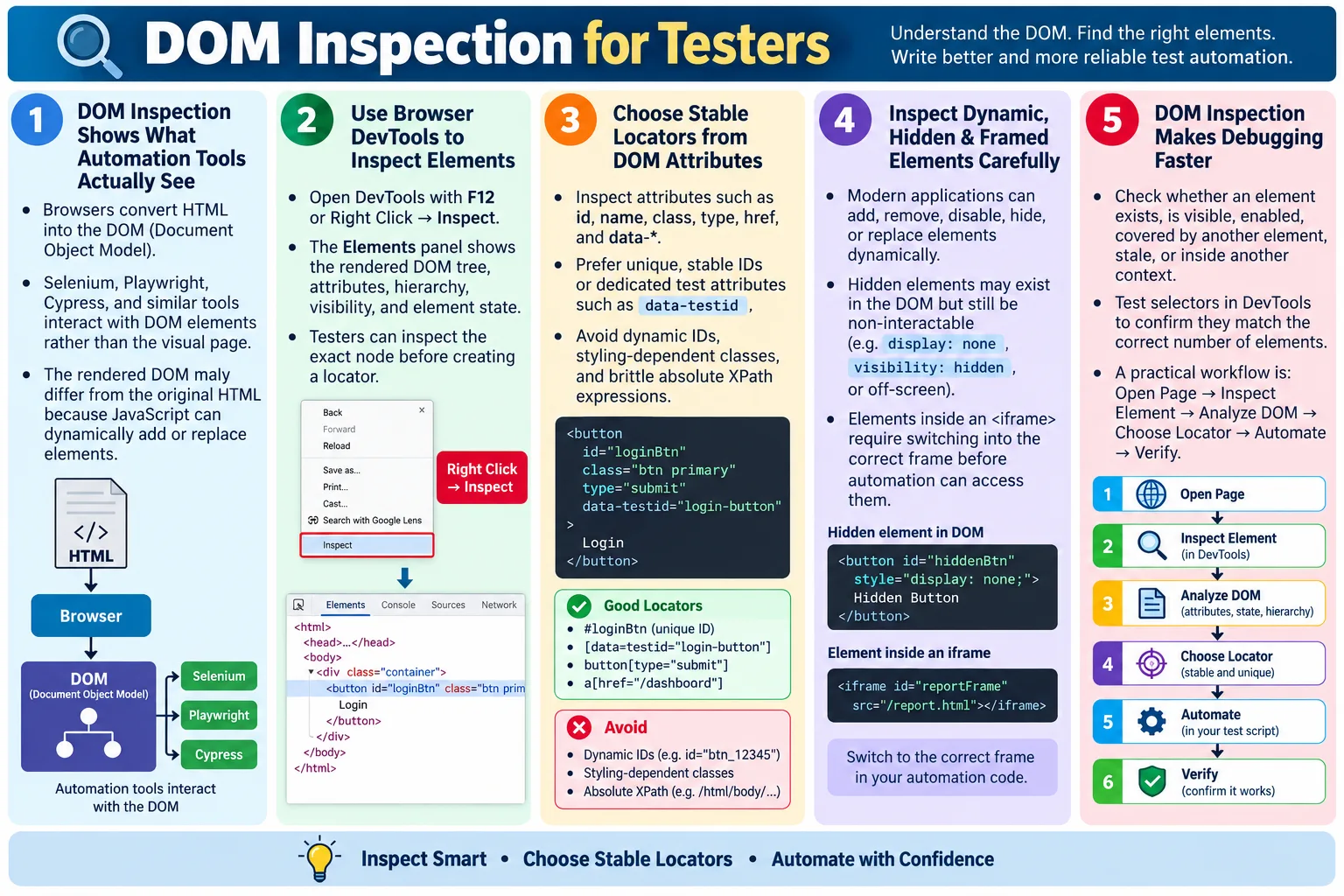
DOM Inspection is the process of examining a webpage's Document Object Model using browser developer tools to understand its structure, locate elements, identify attributes, and analyze how the page changes during execution. For testers, this is not just a developer skill. It is one of the most practical skills required for reliable UI automation, frontend debugging, accessibility review, and web testing. If a tester can inspect the DOM confidently, they can understand what the automation tool sees instead of guessing from the visual page alone.
Automation testers use tools such as Selenium, Playwright, Cypress, and Puppeteer to interact with web pages. These tools do not interact with the page as a human eye sees it. They interact with DOM elements created by the browser after parsing HTML. A button may look clear on the screen, but automation needs a locator that identifies the actual DOM node. A text box may be visible, but it may be disabled, readonly, hidden behind a container, or inside an iframe. DOM inspection reveals these facts.
DOM inspection helps testers locate elements, create reliable locators, understand page structure, debug automation failures, analyze dynamic content, and verify HTML attributes. It also helps testers communicate better with developers because they can point to exact elements, attributes, states, and structural issues. A tester who understands DOM inspection can move from "the test failed" to "the button is re-rendered after the AJAX call, so the old element reference becomes stale."
What Is the DOM?
When a browser loads HTML, it converts it into a Document Object Model, usually called the DOM. The DOM is a tree-like representation of the webpage. Each HTML element becomes part of that tree. Scripts, styles, automation tools, and browser features interact with this representation. The DOM is live, meaning it can change after the initial page load when JavaScript adds, removes, or updates elements.
Example HTML:

<body>
  <h1>HTML Tutorial</h1>
  <button id="login">
    Login
  </button>
</body>

DOM Tree:

Document
  ↓
html
  ↓
body
  ├── h1
  └── button
Automation tools interact with this DOM tree. When a Selenium script uses By.id("login"), Selenium searches the DOM for an element whose ID is login. When a Playwright test clicks text, it resolves that instruction against the DOM and accessibility-related information. When Cypress queries an element, it evaluates selectors against the current document.
This means that the DOM can be different from the original HTML source. The page source may show the initial response from the server, while the DOM may include elements added later by JavaScript. For testers, the rendered DOM in DevTools is usually more important than the raw page source because automation interacts with the current DOM.
Why DOM Inspection Is Important
Without inspecting the DOM, testers often guess locators from the visible page. Guessing leads to unstable automation. A tester may choose a class that later changes, an absolute XPath that breaks when layout changes, or a visible text locator that matches multiple elements. DOM inspection replaces guessing with evidence. It shows the tag name, attributes, hierarchy, visibility state, and dynamic behavior of the element.
Without DOM Inspection:

Webpage
  ↓
Guess Locator
  ↓
Unstable Automation

With DOM Inspection:

Webpage
  ↓
Inspect DOM
  ↓
Identify Attributes
  ↓
Create Reliable Locator
Understanding the DOM leads to more stable and maintainable automation scripts. If the element has a unique stable ID, the locator can be simple. If the ID is generated dynamically, the tester can avoid it. If a custom data attribute exists, it may be the best automation hook. If the element is inside an iframe, the tester knows to switch context before locating it. If the element appears after a spinner disappears, the tester knows to use an explicit wait.
DOM inspection is also critical for debugging. When a test fails, the tester can inspect whether the element exists, whether it is visible, whether it is disabled, whether another element overlays it, whether it moved inside a different container, or whether it was replaced by a new node. This makes failure analysis faster and more accurate.
Browser Developer Tools
Modern browsers provide built-in developer tools for inspecting pages. Chrome DevTools, Microsoft Edge DevTools, Firefox Developer Tools, and Safari Web Inspector all provide ways to inspect the DOM, view styles, observe network requests, review accessibility information, and debug JavaScript. The names and layouts differ slightly, but the core inspection ideas are similar.
- Chrome DevTools
- Microsoft Edge DevTools
- Firefox Developer Tools
- Safari Web Inspector
Shortcut:

F12

or

Right Click
  ↓
Inspect
The fastest way to inspect a specific element is usually to right-click it and choose Inspect. DevTools opens and highlights the corresponding DOM node. Testers can then review the element's tag, attributes, parent containers, text, event listeners, styles, and accessibility information. The element picker tool can also be used to select elements directly from the page.
Developer tools are not only for developers. For automation testers, they are part of the daily workflow. A tester should be comfortable opening DevTools, searching the DOM, copying selectors carefully, checking visibility, and confirming frame context.
Elements Panel
The Elements panel displays the DOM. It shows nodes in a tree structure, allowing testers to expand and collapse sections. This is where testers inspect the actual rendered structure of the page. The Elements panel also highlights the selected element on the page, which helps confirm that the selected DOM node matches the visible target.
<body>
  <header>
    <h1>
      HTML Course
    </h1>
  </header>
</body>
In the Elements panel, testers can expand nodes, collapse nodes, view attributes, edit HTML temporarily, and highlight elements. Temporary editing is useful for investigation but does not change the actual application source. If a tester edits a class or attribute in DevTools, the change disappears after refresh. This makes DevTools safe for experimentation.
The Elements panel also helps reveal nested structure. A button may be inside a form, inside a modal, inside a panel, inside a page section. Understanding this hierarchy helps testers build relative selectors and diagnose why an element is or is not interactable.
Inspecting an Element
When inspecting an element, testers should look beyond the visible label. The useful information includes tag name, attributes, parent element, child elements, text, position in the DOM, visibility, enabled state, and whether the element belongs to a frame or dynamic component. A locator should be based on stable facts, not accidental details.
<input
  id="email"
  name="email"
  type="email"
  placeholder="Enter Email">
Inspection reveals the tag name input, the ID email, the name email, the input type email, and the placeholder text. A tester might choose By.id("email") if the ID is stable and unique. They might verify that the type is email because mobile browsers and validation behavior depend on it. They might also inspect the associated label for accessibility.
Good inspection is systematic. First identify the real target element. Then inspect its attributes. Then check whether those attributes are unique and stable. Then consider timing, visibility, and context. Only after that should the locator be written.
HTML Attributes
Automation testers commonly inspect HTML attributes because attributes often become locators or validation targets. The most useful attributes include id, name, class, type, value, placeholder, href, src, title, and custom data-* attributes. Each attribute has a different meaning and stability profile.
| Attribute | Purpose |
|---|---|
id |
Unique locator |
name |
Form field locator |
class |
CSS locator |
type |
Input type |
value |
Current value |
placeholder |
Hint text |
href |
Link destination |
src |
Image source |
title |
Tooltip |
data-* |
Custom test attributes |
Not all attributes are equally reliable. A class may be intended only for styling and can change during redesign. A placeholder may change when copy is updated. A generated ID may change on every page load. A dedicated data-testid is often more stable because it is intentionally provided for testing.
Finding Stable Locators
Stable locators are the foundation of maintainable UI automation. A stable locator continues to identify the same intended element even when the layout changes in reasonable ways. Unique IDs are often excellent when they are stable. Custom data attributes are also strong because they are usually independent of styling and layout.
Good:

<button id="loginBtn">
  Login
</button>

Locator:

By.id("loginBtn")
A less stable option might be a styling class. Classes can be useful, but they often exist for CSS. During a redesign, btn btn-primary may become button button-brand. If the test depends on the styling class, it fails even though the user-facing behavior still works.
Less stable:

<button class="btn btn-primary">
  Login
</button>
When choosing a locator, testers should ask whether the attribute is unique, stable, readable, and tied to the element's purpose. If the answer is yes, the locator is likely maintainable. If the locator depends on visual layout or generated values, it is likely fragile.
Parent and Child Relationships
Inspecting parent and child elements helps testers build better XPath and CSS selectors. Sometimes an element does not have a unique attribute, but its relationship to nearby elements makes it identifiable. For example, a button inside a specific form or a link inside a particular table row can be located through its context.
<div>
  <form>
    <input>
    <button>
    </button>
  </form>
</div>

Hierarchy:

div
  ↓
form
  ├── input
  └── button
Understanding relationships is useful for relative locators. Instead of selecting the first button on the page, the test can select the button inside the login form. Instead of selecting a delete button by position, the test can locate the row containing a specific user name and then find the delete button inside that row. This makes tests more meaningful.
Parent-child understanding also helps debug failures. If an element is inside a collapsed panel, hidden modal, or iframe, the relationship explains why the element may exist but not be interactable.
Dynamic DOM
Modern web applications update the DOM dynamically. Single Page Applications often show a spinner, make an AJAX request, receive data, and then add new elements. Some frameworks re-render components when state changes, replacing old DOM nodes with new ones. Testers must inspect the DOM after content has loaded, not only the initial HTML.
Page Loads
  ↓
Spinner
  ↓
AJAX Request
  ↓
New Elements Added
Dynamic DOM behavior affects waiting strategies. If an element appears after an API response, the test should wait for that element or for the loading state to complete. If a framework replaces an element, a previously stored WebElement may become stale. If a button becomes enabled only after validation, the test should wait for the enabled state rather than clicking immediately.
DOM inspection helps testers see these transitions. They can observe whether elements are added, removed, hidden, disabled, or replaced. This information leads to better synchronization and fewer flaky tests.
Hidden Elements
An element may exist in the DOM but not be visible or interactable. Hidden elements are common in modals, tabs, dropdowns, menus, validation messages, templates, and components that appear later. DOM inspection helps determine whether an element exists, is hidden, is visible, or is disabled.
<div style="display:none">
  Hidden Content
</div>
Automation tools usually cannot interact with hidden elements as a user would. A user cannot click a hidden button. If a test tries to click an element that exists but is not displayed, it may fail. The correct test should perform the user action that makes the element visible, then interact with it.
Hidden elements also cause locator confusion. If the page contains two matching elements and one is hidden, the test may locate the wrong one. Inspecting visibility and using locators scoped to the active region can prevent this problem.
CSS Selectors and XPath
DOM inspection helps testers verify whether CSS selectors and XPath expressions uniquely identify the desired element. A CSS selector such as .username targets elements with a class of username. An XPath such as //button[text()='Login'] targets a button with the text Login. Both can be useful when written carefully.
CSS example:

<input class="username">

CSS locator:

.username

XPath example:

<button>Login</button>

XPath:

//button[text()='Login']
Before using a selector in automation, test it in DevTools. The DOM search box can show whether it matches one element, multiple elements, or no elements. A locator that matches multiple elements may still work accidentally if Selenium returns the first match, but that is fragile. A good locator should identify the intended element clearly.
Absolute XPath expressions should be avoided unless there is no alternative. They depend on exact page structure and break easily when layout changes. Relative XPath or CSS selectors based on stable attributes are usually better.
Verifying Element State
DOM inspection also helps verify element state. An input may be disabled, readonly, checked, selected, required, or hidden. A button may be disabled until the form is valid. A field may have a value after user input. These states affect whether automation can interact with the element and what assertions should be made.
<input disabled>

<input readonly>
Automation can verify these states before interacting. For example, a test may assert that the Submit button is disabled before required fields are completed and enabled afterward. A test may verify that a readonly field displays server-generated data but does not allow editing. These checks are based on HTML state and browser behavior.
Tables and Frames
Tables are common in reports, dashboards, search results, and admin screens. Inspecting tables helps testers identify rows, columns, cell structure, and header relationships. A table test may need to find a row by text, verify a value in a specific column, count rows, or check sorting results.
<table>
  <tr>
    <td>Laptop</td>
  </tr>
</table>
Frames require special attention. An iframe creates a separate document context. Automation must switch into the frame before locating elements inside it. If a tester inspects an element and sees it inside an iframe, the automation code must include frame switching.
<iframe id="paymentFrame">
</iframe>
Many payment providers, maps, embedded tools, and third-party widgets use iframes. Frame context is a common cause of element-not-found failures. DOM inspection reveals whether the target element is in the main document or inside a frame.
Common DevTools Features
DevTools provides many features useful for testers. The element picker helps select visible elements. The DOM tree viewer shows structure. Computed styles explain why an element is visible, hidden, positioned, or sized a certain way. Event listeners show attached JavaScript behavior. The accessibility tree helps review names, roles, and states. Box model visualization shows spacing and dimensions. Search within the DOM helps test selectors.
- Element picker
- DOM tree viewer
- Computed styles
- Event listeners
- Accessibility tree
- Box model visualization
- Search within the DOM
Testers do not need to master every DevTools feature at once. They should start with the Elements panel, selector search, attributes, visibility, and frame context. Over time, styles, event listeners, network requests, and accessibility inspection become valuable additions.
Best Practices
Good DOM inspection leads to good automation decisions. Prefer unique ID attributes when available. Use data-* attributes for automation if provided. Understand parent-child relationships. Inspect elements after dynamic content loads. Verify visibility and state before interacting. Avoid relying on fragile locators.
- Prefer unique
idattributes when available - Use
data-*attributes for automation if provided - Understand parent-child relationships
- Inspect elements after dynamic content loads
- Verify visibility and state before interacting
- Avoid relying on fragile locators
It is also useful to inspect before writing code, not after the test fails. A few minutes of DOM inspection can prevent hours of flaky test debugging. Strong testers develop the habit of inspecting the page, choosing a locator intentionally, and verifying it before adding it to the test suite.
Common Mistakes
One common mistake is inspecting the wrong element. A tester may click a nearby container instead of the actual button or input. This leads to incorrect locators that may not behave like the user-facing control. Always confirm that the highlighted DOM node is the real interactive element.
Another mistake is using dynamic IDs. Some applications generate IDs such as user_12345, which may change on every page load. These IDs make tests unreliable. Ignoring hidden elements is another problem. An element may exist in the DOM but not be visible or interactable. Building absolute XPath is also risky because small layout changes can break the locator.
Single Page Applications often replace or update DOM elements without reloading the page. Ignoring these dynamic updates can cause stale element failures or timing issues. Testers should inspect how the DOM changes during interaction, not only how it looks at first load.
Selenium Perspective
DOM inspection is the first step before choosing the appropriate Selenium locator. The tester inspects the element, identifies useful attributes, decides whether the element is stable, and then writes the locator. Selenium then uses that locator to find the element in the DOM.
Example HTML:

<input id="username">

Automation:

driver.findElement(
  By.id("username"))
  .sendKeys("admin");

Example CSS selector:

driver.findElement(
  By.cssSelector(".login-btn"));

Example XPath:

driver.findElement(
  By.xpath("//button[text()='Login']"));
Selenium failures often become easier to diagnose after DOM inspection. If Selenium cannot find an element, inspect whether the element exists. If it exists but is inside an iframe, switch into the frame. If it appears after loading, use an explicit wait. If it becomes stale, locate it again after the DOM update. The DOM explains the failure pattern.
DOM Inspection Workflow
A practical workflow makes DOM inspection repeatable. Open the page, open DevTools, inspect the element, analyze the DOM, choose a locator, write the automation script, and execute the test. If the test fails, return to the DOM and verify the assumptions.
Open Page
  ↓
Open DevTools
  ↓
Inspect Element
  ↓
Analyze DOM
  ↓
Choose Locator
  ↓
Write Automation Script
  ↓
Execute Test
This workflow keeps automation grounded in evidence. It also helps new testers learn faster because they connect visible behavior with HTML structure and automation code.
Debugging Examples
DOM inspection becomes most valuable when a test fails. Consider a login button that Selenium cannot click. The page may show the button visually, but DevTools may reveal that another transparent overlay is covering it, the button is disabled until validation completes, or the visible text belongs to a child span while the clickable parent is a different element. Without DOM inspection, the tester may keep changing locators randomly. With inspection, the tester can identify the real reason for the failure.
Another common example is a dropdown failure. A tester may assume the control is a normal <select> element and try to use Selenium's Select class. DOM inspection may show that the dropdown is actually a custom component made of buttons, divs, list items, and JavaScript. In that case, the correct automation flow is to click the dropdown trigger, wait for the option list to appear, and click the desired option. The HTML structure determines the automation strategy.
A third example is a stale element failure. A test locates a Save button, then the application updates the section after an API call, replacing the old button with a new button that looks identical. The original WebElement reference is no longer attached to the DOM. DOM inspection and an understanding of dynamic rendering help the tester realize that the element must be located again after the update. The fix is not a longer sleep; the fix is synchronizing with the DOM change.
Frame-related failures are also common. The tester may inspect a payment input and see it visually on the page, but Selenium cannot find it from the main document. DevTools may reveal that the input is inside an iframe. The test must switch into the iframe before locating the field, then switch back to the main document when finished. This is a structural issue, not a locator typo.
Practical Locator Review
Before committing a locator to an automation framework, review it like production code. Ask whether the locator is unique, stable, readable, and meaningful. A locator that works today but depends on a layout position is likely to break. A locator that uses a test-specific data attribute is usually more maintainable. A locator that reads like the user's intent is easier for future testers to understand.
Good locator review also checks for duplicate matches. A selector may match several hidden and visible elements. If the automation tool returns the first match, the test may pass today and fail tomorrow when DOM order changes. Use DevTools search to confirm match count. If multiple elements match, narrow the selector through a parent container, stable attribute, role, label, or visible text depending on the situation.
Finally, locators should be reviewed when UI changes are made. If a redesign changes class names, spacing, or component structure, tests that depend on those details may become fragile. Stable automation hooks should be preserved deliberately. Treat testability as part of the HTML contract between developers and testers.
HTML Elements vs Inspection Focus
| HTML Element | What Testers Inspect |
|---|---|
<input> |
ID, name, type, placeholder, value |
<button> |
Text, ID, class, data attributes |
<a> |
Link text, href |
<img> |
src, alt |
<table> |
Rows, columns, headers |
<form> |
Controls, labels, validation |
<iframe> |
Frame ID or name |
<select> |
Options and selected value |
Common Interview Questions
What is DOM inspection? DOM inspection is the process of examining the browser's Document Object Model to understand webpage structure and locate elements for automation or debugging.
Why is DOM inspection important in Selenium? It is important because Selenium interacts with DOM elements rather than the visual page.
Which browser tool is commonly used? Chrome DevTools is commonly used, though Edge DevTools, Firefox Developer Tools, and Safari Web Inspector provide similar capabilities.
Which HTML attributes are most useful for locating elements? Useful attributes include id, name, data-*, class, and type.
Why avoid dynamic IDs? Dynamic IDs may change every time the page loads, making automation tests unreliable.
What should testers inspect before writing locators? Testers should inspect element attributes, parent-child relationships, visibility, frame context, dynamic behavior, and stability of identifiers.
Interview-Ready Answer
DOM Inspection is the process of examining a webpage's Document Object Model using browser developer tools to understand its structure, attributes, and dynamic behavior. Automation testers use DOM inspection to identify stable locators, analyze parent-child relationships, verify element states, detect frame context, and debug test failures.
Since tools like Selenium, Playwright, Cypress, and Puppeteer interact with the DOM rather than the visual UI, strong DOM inspection skills are essential for creating reliable and maintainable automation scripts. A good tester inspects the DOM before choosing locators, verifies whether identifiers are stable, and accounts for dynamic content before interacting with elements.
One-Line Insight
A good automation script starts with a good DOM inspection because the better you understand the DOM, the better your locators will be.