Disabled vs Readonly
Introduction
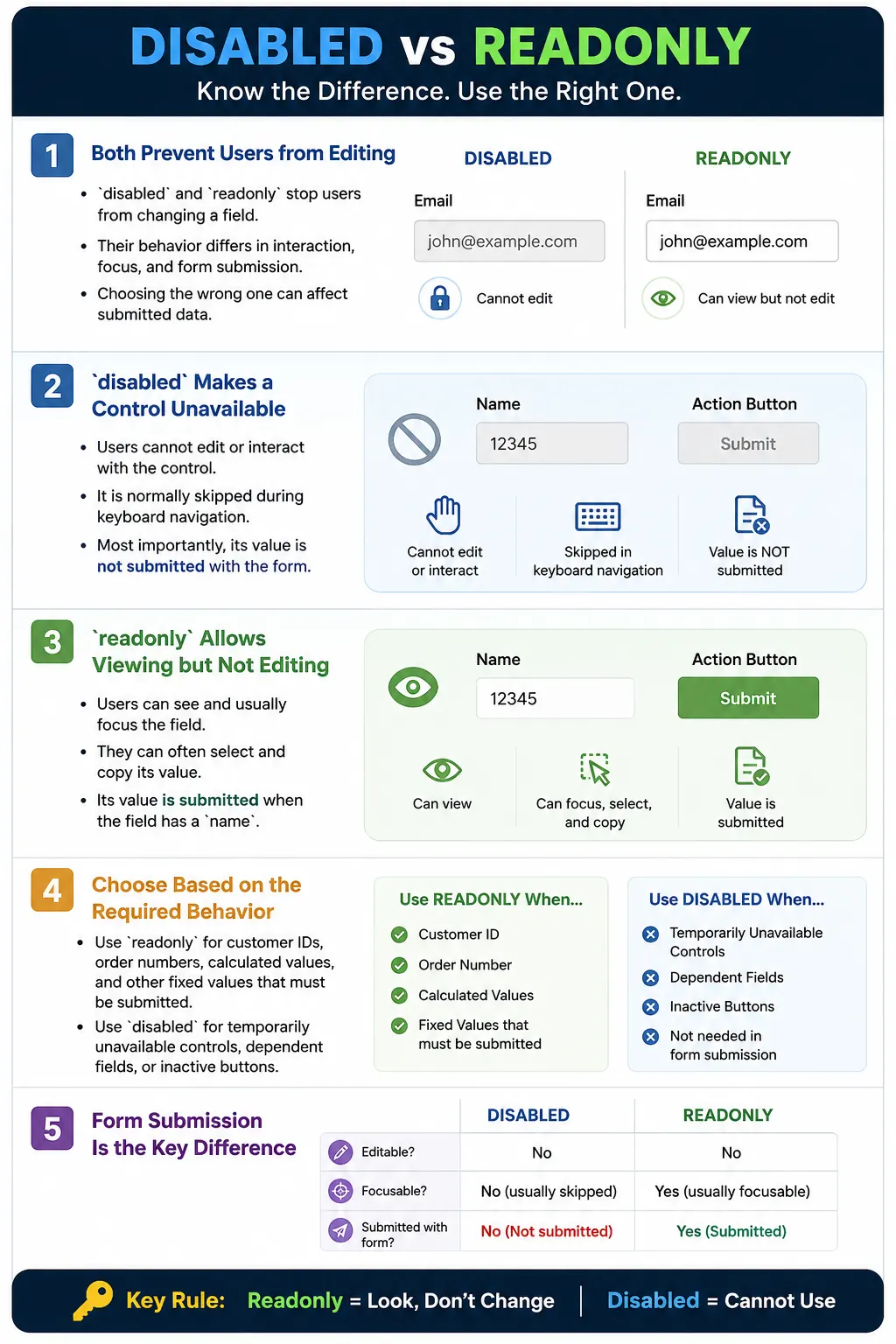
The disabled and readonly attributes are used to prevent users from modifying form controls. At first glance, they appear similar because both can stop a user from changing a value. However, they behave very differently, especially when the form is submitted. This difference is important in real applications, automation testing, accessibility, and HTML interviews.
A common interview question is: what is the difference between disabled and readonly? The short answer is that a disabled control is unavailable and is not submitted with the form, while a read-only control cannot be edited but is still submitted. This difference can affect backend data, user experience, and test results.
Understanding these attributes helps developers design better forms. It also helps testers identify defects where required values are not sent to the server, fields are incorrectly blocked, buttons cannot be used, or a supposedly read-only value is implemented as disabled and disappears from submitted data.
What Is the Disabled Attribute?
The disabled attribute makes a form control completely unavailable for user interaction. A disabled field usually appears grayed out, cannot be clicked, cannot be edited, cannot receive keyboard focus, and is skipped during tab navigation.
<input type="text" value="John" disabled>In the browser, the value may still be visible, but the control behaves as unavailable.
John
(gray and unavailable)
The user cannot click into the field, type in it, select it normally, or focus it using the keyboard. Most importantly, the value of a disabled control is not included when the form is submitted. This is the biggest practical difference between disabled and readonly.
What Is the Readonly Attribute?
The readonly attribute allows users to view a value but prevents them from editing it. A read-only field usually looks like a normal field, can often receive focus, and allows users to select or copy the text. The user simply cannot change the value.
<input type="text" value="John" readonly>The value remains visible and readable. In most browsers, the user can focus the field, place the cursor in it, and copy the value. But typing does not modify the field.
Unlike disabled fields, read-only fields are included in form submission. If the field has a name attribute, its value is sent to the server. This makes readonly useful for values that must be displayed to the user, protected from editing, and still included in the submitted data.
Why These Attributes Are Needed
Forms often contain values that users should see but should not change. For example, a customer ID, order number, invoice number, account number, generated username, or calculated total may need to appear on the screen. The user should be able to read it, and the server may need it during submission, but the user should not edit it. This is a good use case for readonly.
Customer ID
    |
Visible to user
    |
Should not change
    |
Still submitted
Other controls should be temporarily unavailable. For example, a submit button may remain disabled until required fields are valid. A premium feature may be shown but disabled until the user upgrades. A dependent dropdown may be disabled until another selection is made. This is a good use case for disabled.
Premium feature
    |
Not available yet
    |
Disabled
    |
Cannot be used
Disabled Example
A disabled text input might look like this:
<label for="username">Username</label>
<input
  id="username"
  type="text"
  value="John"
  disabled>
The field appears disabled and cannot be edited or focused. If a user attempts to click it, the browser ignores the interaction. If the user navigates with the keyboard, the field is usually skipped.
This behavior is useful when the control is not available at all. However, it should not be used when the backend still needs the field value during form submission.
Readonly Example
A read-only text input might look like this:
<label for="username">Username</label>
<input
  id="username"
  type="text"
  value="John"
  readonly>
The field remains visible and selectable but cannot be changed. The user may be able to focus the field, select the value, and copy it. If the form is submitted, the value is included, assuming the control has a name attribute.
This behavior is useful when the value must be shown and submitted, but the user should not be allowed to modify it.
Browser Workflow
When the browser sees a disabled field, it treats the control as unavailable. User interactions are ignored, keyboard focus skips the field, and the field is omitted from form submission.
Disabled:

User clicks
    |
Interaction ignored
When the browser sees a read-only field, it allows the field to be viewed and usually focused, but it blocks editing.
Readonly:

User clicks
    |
Field receives focus
    |
Editing prevented
This difference affects both user experience and testing. A disabled field should feel unavailable. A read-only field should feel readable but protected.
Form Submission Behavior
The most important practical difference appears during form submission. Consider this form:
<form>
  <input name="country" value="India" readonly>
  <input name="city" value="Delhi" disabled>
  <button>Submit</button>
</form>
When this form is submitted, only the read-only field is included.
country=IndiaThe disabled field, city=Delhi, is not submitted. This can surprise beginners and can cause real application bugs. If the server expects the city value, using disabled is the wrong choice. Use readonly if the value must be protected from editing and still submitted.
Visual Difference
Disabled controls usually appear grayed out or visually muted. Read-only controls often appear normal. The exact appearance depends on the browser and CSS, but the general expectation is that disabled controls look unavailable while read-only fields look available for viewing.
Disabled:
Gray appearance
Cannot click
Not submitted

Readonly:
Normal appearance
Cannot edit
Submitted
Visual styling can be customized with CSS, but styling should not mislead users. A disabled control should communicate that it is unavailable. A read-only field should communicate that the value is fixed but visible.
Keyboard Behavior
Keyboard behavior is another important difference. Disabled fields are generally skipped when the user presses the Tab key. Read-only fields usually remain in the tab order and can receive focus.
Disabled:
Tab
  |
Field skipped

Readonly:
Tab
  |
Field receives focus
This matters for accessibility and keyboard-only users. If a value is important for the user to review, making it read-only may be better because the user can still reach it. If a control is truly unavailable, disabling it is appropriate.
Accessibility
Disabled controls and read-only controls communicate different states to assistive technologies. A disabled control indicates unavailable functionality. It is generally skipped by keyboard navigation and may be announced as disabled. A read-only control remains available for reading and may be announced as read-only by screen readers.
Use these states intentionally. If a feature is unavailable, disabled is semantically correct. If a field contains fixed information that users should review, readonly is often more appropriate. Users should not be forced to guess whether a value is unavailable, fixed, optional, or omitted.
If a field is disabled conditionally, provide a clear explanation. For example, if a submit button is disabled until all required fields are valid, the interface should make it clear what users need to complete. A disabled button with no explanation can be frustrating.
Common Uses of Readonly
Use readonly for values that must be displayed, protected from editing, and submitted with the form. Common examples include customer ID, order number, invoice number, generated username, calculated values, pre-filled account information, reference numbers, and system-generated identifiers.
Order number
    |
Automatically generated
    |
Cannot change
    |
Submitted with form
For example, an order number might be generated by the system and shown to the user for confirmation. The user should not modify it, but the backend may still need it when the form is submitted.
Common Uses of Disabled
Use disabled for controls that should not be available for interaction. Common examples include features not yet available, inactive controls, buttons waiting for valid input, fields enabled only after another selection, unavailable plan features, and temporary states during loading.
<button disabled>Submit</button>Users cannot click this button until it is enabled. This pattern is common in forms where the submit button becomes active only after validation passes or required agreements are checked.
Enabling with JavaScript
Disabled controls are often enabled dynamically using JavaScript. A field may start disabled and become editable after another condition is satisfied.
<input id="name" disabled>Later, JavaScript can enable it.
document
  .getElementById("name")
  .disabled = false;
After this change, the field becomes interactive. Dynamic enable and disable behavior is common in multi-step forms, dependent dropdowns, checkout flows, search filters, and admin screens. Testers should verify both the initial disabled state and the condition that enables the field.
Unsupported and Limited Usage
The readonly attribute is intended for text-based controls such as text, password, email, number, search, url, tel, date-related inputs, and textarea. It does not apply meaningfully to controls such as checkboxes, radio buttons, buttons, or select elements.
The disabled attribute applies more broadly to form controls, including inputs, buttons, selects, textareas, options, option groups, and fieldsets. This makes disabled the correct attribute for controls that should be unavailable, while readonly is more specific to editable text-like values that should become non-editable.
Common Mistakes
A common mistake is using disabled instead of readonly for values that the server still needs.
<input name="country" value="India" disabled>If the backend expects country=India, this is wrong because disabled fields are not submitted. The better choice is:
<input name="country" value="India" readonly>Another mistake is assuming read-only fields are not submitted. They are submitted when they have a name attribute. This can be useful, but it also means the backend must still validate the value. A malicious user can modify requests manually, so readonly is not a security control.
Developers also sometimes apply readonly to unsupported controls such as checkboxes or select elements. If those controls need to be unavailable, disabled is usually the correct attribute, along with hidden fields or backend logic if the value still needs to be submitted.
Complete Example
The following example shows a read-only customer ID and a disabled premium code field.
<form>
  <label for="customerId">Customer ID</label>
  <input
    id="customerId"
    name="customerId"
    type="text"
    value="CUS1001"
    readonly>

  <br><br>

  <label for="premiumCode">Premium Code</label>
  <input
    id="premiumCode"
    name="premiumCode"
    type="text"
    disabled>

  <br><br>

  <button type="submit">Submit</button>
</form>
When the form is submitted, the customer ID is included because it is read-only. The premium code is not included because it is disabled. This is correct if the premium code is unavailable and should not participate in submission.
Selenium Perspective
Selenium automation often needs to verify whether a field is enabled, disabled, read-only, editable, submitted, or dynamically changed. To check if a field is enabled, Selenium provides isEnabled().
WebElement field =
driver.findElement(By.id("username"));

System.out.println(
field.isEnabled());
For disabled controls, isEnabled() usually returns false. For read-only fields, the element is usually still enabled, so isEnabled() may return true. To check whether a field is read-only, read the attribute directly.
String readonly =
field.getAttribute("readonly");

System.out.println(readonly);
Automation testers commonly verify enabled and disabled states, read-only behavior, whether typing is prevented, form submission behavior, keyboard accessibility, and dynamic enable or disable functionality. For form submission defects, testers should pay close attention to whether disabled fields are intentionally omitted from submitted data.
Comparison Table
| Feature | disabled |
readonly |
|---|---|---|
| Editable | No | No |
| Focusable | No | Usually yes |
| Submitted with form | No | Yes |
| User can select or copy text | Generally no | Yes |
| Typical appearance | Usually grayed out | Usually normal |
| Common use | Temporarily unavailable control | Display fixed but submitted value |
Common Interview Questions
What is the difference between disabled and readonly? A disabled control cannot be edited, focused, or submitted, while a read-only control cannot be edited but can usually receive focus and is submitted with the form.
Is a disabled field submitted with the form? No. Disabled fields are excluded from form submission.
Is a read-only field submitted with the form? Yes, if it has a name attribute.
Can users focus a disabled field? No. Disabled fields are generally skipped during keyboard navigation.
Can users focus a read-only field? Usually yes. The value can often be selected and copied, but not edited.
Which attribute is appropriate for displaying an order number that must be submitted? Use readonly.
Which attribute is appropriate for temporarily unavailable controls? Use disabled.
Interview-Ready Answer
The disabled and readonly attributes both prevent users from editing form controls, but they behave differently. A disabled control cannot receive focus, cannot be interacted with, and is not included in form submission. A read-only control allows users to view, focus, and usually copy the value, but prevents editing, and its value is included when the form is submitted. Use readonly for values that must be displayed and submitted, and use disabled for controls that should be temporarily unavailable.
One-Line Insight
readonly means "look but do not change"; disabled means "you cannot use this control at all."