Debugging HTML Issues
Introduction
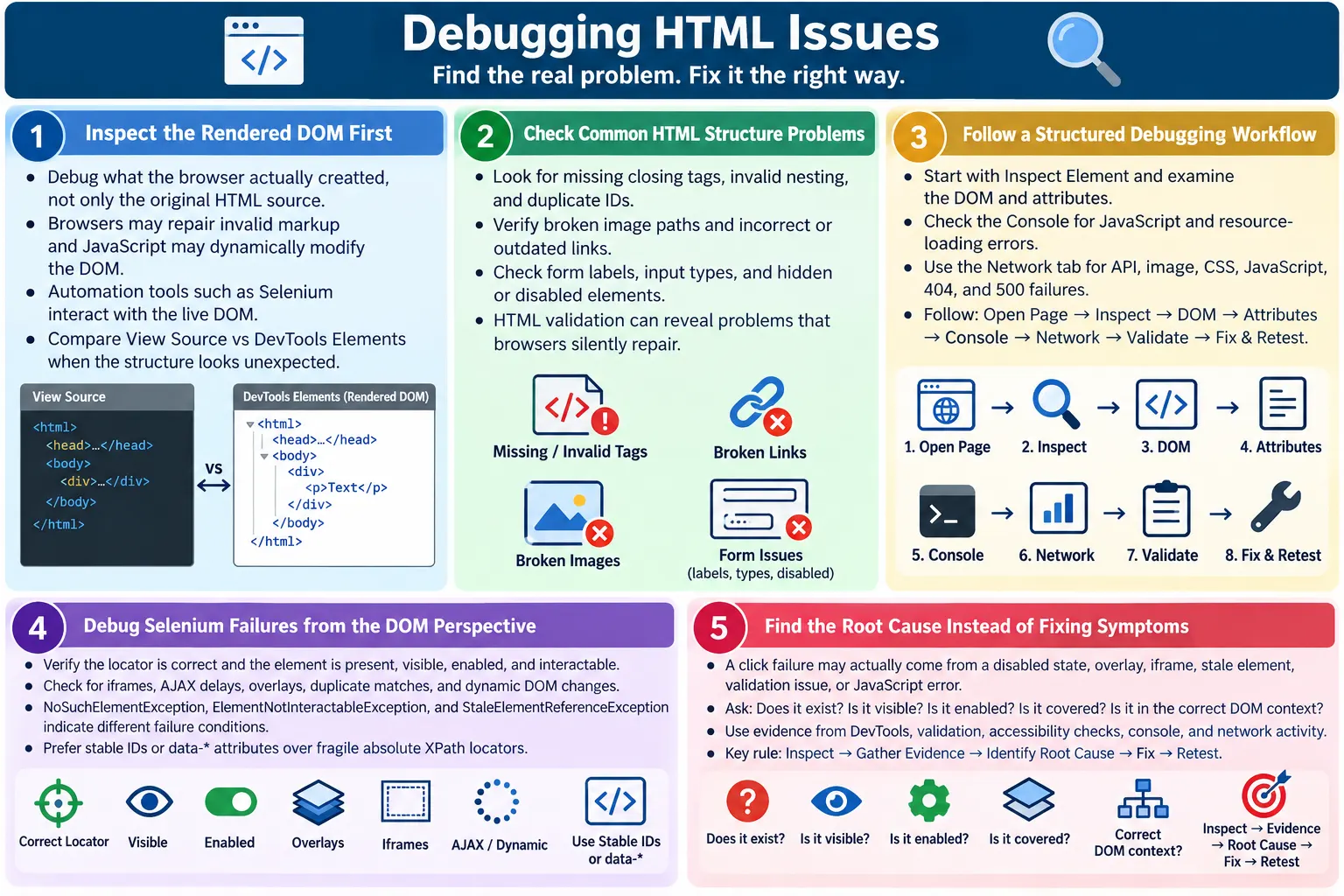
Debugging HTML issues means finding and fixing problems in HTML structure, attributes, nesting, accessibility, rendering, SEO tags, or automation locators. HTML issues can look simple at first, but they often affect many layers of a web application. A missing label may look like a small markup issue, but it can hurt accessibility and form usability. A duplicate ID may seem harmless, but it can break JavaScript, CSS targeting, labels, and Selenium locators. A missing viewport tag may make a page unusable on mobile.
HTML bugs may appear as broken layout, missing content, buttons not working, forms not submitting, images not loading, accessibility problems, SEO metadata missing, or Selenium locator failures. The visible symptom is not always the root cause. A button may fail because it is disabled, hidden, covered by another element, inside an iframe, dynamically replaced, or selected by the wrong locator. Debugging requires a structured workflow.
The most important debugging principle is this: inspect what the browser actually created, not only what you wrote in the source file. Browsers parse HTML, repair some invalid structures, build the DOM, run JavaScript, and render the final page. Automation tools interact with the rendered DOM, so testers and developers must learn to debug the live DOM.
Why HTML Debugging Matters
Browsers often try to fix invalid HTML automatically. This behavior protects users because pages continue to render even when the markup is imperfect. However, it can mislead developers. A page may look normal, while the actual DOM differs from the intended source structure.
HTML Written
  ?
Browser Parses
  ?
DOM Created
  ?
Issue Appears
This matters because CSS, JavaScript, accessibility tools, search engines, and automation frameworks operate on the DOM. If the DOM is not what you expected, the page may behave unpredictably. A missing closing tag can change where content appears. Invalid nesting can cause the browser to move elements. Duplicate IDs can cause scripts and tests to target the wrong element.
For automation testers, this distinction is critical. Selenium, Playwright, and Cypress do not interact with the original source text. They interact with elements available in the browser context. Debugging automation failures often begins by inspecting the live DOM and verifying that the expected element actually exists, is visible, is enabled, and is not stale or covered.
Common HTML Issue: Missing Closing Tags
Missing closing tags are one of the most common beginner and maintenance errors. Browsers may infer the missing tag, but the final DOM may not match what the developer intended. Lists, table structures, paragraphs, and nested containers are common places where missing tags create confusion.
<ul>
  <li>HTML
  <li>CSS
</ul>
A clearer and safer version closes each list item explicitly.
<ul>
  <li>HTML</li>
  <li>CSS</li>
</ul>
When debugging, inspect the DOM tree in DevTools. If an element appears nested under the wrong parent, a missing closing tag may be the cause. Validation tools can also identify these issues quickly.
Common HTML Issue: Invalid Nesting
Invalid nesting occurs when elements are placed inside other elements in a way that violates HTML content rules. A classic example is placing a block-level div inside a paragraph. The browser may automatically close the paragraph before the div, changing the DOM structure.
<p>
  <div>Hello</div>
</p>
A better structure is:
<div>
  <p>Hello</p>
</div>
Invalid nesting can cause layout problems, unexpected CSS behavior, and automation failures. If a locator depends on a specific parent-child relationship, invalid nesting may cause the test to fail because the browser changed the structure during parsing.
Common HTML Issue: Duplicate IDs
IDs must be unique within a document. Duplicate IDs can confuse CSS, JavaScript, accessibility tools, anchor navigation, and automation. If a script uses document.getElementById("email"), it may return only the first matching element. If Selenium uses By.id("email"), it may interact with the wrong field.
<input id="email">
<input id="email">
A better version gives each field a unique ID:
<input id="personalEmail">
<input id="workEmail">
When debugging duplicate IDs, search the DOM for the ID value. DevTools search and linting tools can help. Duplicate IDs should be fixed at the source, not worked around in automation with fragile positional locators.
Common HTML Issue: Broken Images
Broken images often come from incorrect paths, wrong file names, missing files, wrong extensions, server case sensitivity, blocked resources, or network failures. An image tag can be syntactically correct but still fail to load.
<img src="logo1.png" alt="Logo">If logo1.png does not exist at the expected path, the browser cannot display it. When debugging, check the image path, file name, extension, network response, and server case sensitivity. On some servers, Logo.png and logo.png are different files.
- Correct file path
- Correct file name
- Correct extension
- Network response
- Case sensitivity on server
The Network tab is especially useful for image debugging because it shows whether the browser received a 200, 404, 403, or other response.
Common HTML Issue: Broken Links
Broken links create poor user experience and can hurt SEO. A link may be broken because the target page moved, the route changed, the file name is wrong, the extension is missing, or the URL is relative to the wrong directory.
<a href="/old-page">HTML Course</a>If /old-page no longer exists, users may see a 404 error. Debug links by checking the actual href value, clicking the link, inspecting the Network tab, and verifying the target route. For internal links in static sites, file names and relative paths must be exact.
Common HTML Issue: Missing Form Labels
Missing form labels are common accessibility and usability issues. An input may appear next to visible text, but unless the label is properly associated, assistive technologies may not announce the field correctly.
<input type="email">A better version connects the label and input:
<label for="email">Email</label>
<input id="email" type="email">
When debugging forms, inspect whether each input has a label and whether the label's for value matches the input's id. Also check if placeholders are being incorrectly used as labels.
Common HTML Issue: Wrong Input Type
Wrong input types reduce usability and validation quality. For example, an email field should use type="email", not a generic text input. Correct input types help browsers provide built-in validation and better mobile keyboards.
<input type="text">For email input, use:
<input type="email">When debugging form behavior, check the type attribute. If validation does not work as expected or mobile keyboard behavior feels wrong, the input type may be part of the problem.
Common HTML Issue: Hidden or Disabled Elements
An element may exist in the DOM but still not be usable. It may be disabled, hidden with CSS, offscreen, covered by another element, inside a collapsed panel, or waiting for JavaScript state to change.
<button disabled>Submit</button><button style="display:none">Submit</button>Selenium may find the element but fail to click it. Debug by checking whether the element is displayed, enabled, in the viewport, and not covered. In DevTools, review computed styles such as display, visibility, opacity, pointer-events, and layout position.
Debugging Workflow
A structured debugging workflow prevents guessing. Start by opening the page and inspecting the element. Then check the DOM, attributes, console, network, validation results, and related behavior. Fix the root cause and retest.
Open Page
  ?
Inspect Element
  ?
Check DOM
  ?
Check Attributes
  ?
Check Console
  ?
Check Network
  ?
Validate HTML
  ?
Fix and Retest
This sequence works because many HTML issues are connected. A missing element may actually be caused by a failed API call. A disabled button may be caused by invalid form state. A locator failure may be caused by a dynamic DOM update. Debugging should follow evidence.
Step 1: Inspect the Element
Browser DevTools is the first debugging tool for HTML. Use right-click and Inspect, or press F12, to open the developer tools. The Elements panel shows the rendered DOM and allows you to inspect tags, attributes, parents, children, styles, event listeners, and layout.
- Tag name
- Attributes
- Parent element
- Child elements
- Visibility
- Styles
- Event listeners
When an element does not behave as expected, confirm that you are inspecting the exact element the user or test is interacting with. Many pages have duplicate-looking buttons, hidden mobile versions, template copies, or overlay elements.
Step 2: Compare Source HTML and DOM
The original source HTML and the rendered DOM may differ. View Page Source shows the original HTML returned by the server. The DevTools Elements panel shows the live DOM after browser parsing and JavaScript updates.
View Page Source
  ?
Original HTML

DevTools Elements Panel
  ?
Rendered DOM
For automation testing, the rendered DOM is more important because automation tools interact with the live browser state. If JavaScript adds a button after an API response, it may not appear in View Source but will appear in the DOM. If the browser repairs invalid markup, DevTools will show the repaired structure.
Step 3: Check Browser Console
The Console tab may show JavaScript errors, failed resource loading, CORS issues, warnings, or framework errors. A JavaScript error can prevent dynamic HTML from rendering. A failed script can stop menus, forms, or buttons from working.
- HTML warnings
- JavaScript errors
- Failed resource loading
- Accessibility hints
- CORS issues
When a page section is missing, do not assume the HTML is wrong immediately. Check whether a script failed before rendering that section. Console errors often point to the real cause.
Step 4: Check Network Tab
The Network tab shows resource and API activity. It can reveal broken HTML responses, missing CSS, missing JavaScript, failed image loads, API failures, redirects, 404 errors, 500 errors, and blocked resources. Many UI issues are caused by resources that never loaded.
- HTML response status
- CSS loading
- JavaScript loading
- Image loading
- API responses
- 404 or 500 errors
If an image is broken, check its request. If a form does not populate data, check the API response. If styling is missing, check the CSS file. Network evidence prevents guessing.
Step 5: Validate HTML
Validation tools catch problems that browsers may silently repair. Use W3C Markup Validator, Nu HTML Checker, HTMLHint, browser DevTools, or IDE inspections to detect invalid nesting, duplicate IDs, deprecated tags, missing attributes, and syntax errors.
- W3C Markup Validator
- Nu HTML Checker
- HTMLHint
- Browser DevTools
- IDE inspections
Validation is especially useful when a layout behaves strangely or the DOM does not match your expectations. Fix validation issues before building complicated workarounds in CSS or automation.
Step 6: Debug Forms
Form debugging requires checking both HTML structure and behavior. Confirm that the form exists, the action and method are correct, input names are present when needed, labels are connected, required fields are marked, disabled fields are intentional, and validation messages are understandable.
- Form tag exists
- Action attribute
- Method attribute
- Input name attributes
- Labels
- Required fields
- Disabled fields
- Validation messages
<form action="/login" method="post">
  <input name="email" type="email">
  <button type="submit">Login</button>
</form>
If form submission fails, check whether the submit button has the correct type, whether JavaScript prevents submission, whether required fields are invalid, and whether the network request is sent.
Step 7: Debug Automation Failures
Automation failures require DOM-focused debugging. If Selenium fails, verify whether the locator is still valid, the element is visible, the element is enabled, the element is inside an iframe, the element appears after AJAX, another element covers it, or the locator matches multiple elements.
- Locator is still valid
- Element is visible
- Element is enabled
- Element is inside an iframe
- Element appears after AJAX
- Element is covered by another element
- Locator is not matching duplicate elements
Common Selenium errors include NoSuchElementException, ElementNotInteractableException, and StaleElementReferenceException. Each points to a different class of problem. NoSuchElement often means the locator does not match or the element is not yet present. ElementNotInteractable often means the element exists but cannot be used. StaleElementReference means the DOM changed after the element reference was captured.
Step 8: Check Responsive HTML Issues
Some elements behave differently on mobile. A desktop menu may be replaced by a mobile menu. A table may scroll. An image may load from a different source. A button may move into a collapsed panel. Responsive issues require testing across screen sizes.
<meta name="viewport" content="width=device-width, initial-scale=1.0">Also test mobile menu behavior, touch targets, responsive images, and hidden desktop or mobile elements. In automation, make sure the viewport size matches the scenario you are testing. A locator that works on desktop may not find the mobile version if the DOM changes.
Step 9: Check Accessibility Issues
Accessibility debugging looks beyond visual appearance. Check missing alt text, missing labels, poor headings, hidden focus, incorrect ARIA, and keyboard traps. Use tools such as Lighthouse, Axe, WAVE, and Accessibility Insights, but also perform manual keyboard testing.
- Missing alt
- Missing labels
- Poor headings
- Hidden focus
- Incorrect ARIA
- Keyboard traps
Accessibility tools can catch many issues, but they cannot fully judge whether alt text is meaningful, link text is clear, or a workflow is understandable. Manual review remains important.
Debugging SEO Metadata
HTML debugging also includes SEO-related tags. If a page is not appearing correctly in search results or social previews, inspect the title, meta description, canonical link, robots tag, structured data, Open Graph tags, and important content presence.
An accidental noindex robots tag can prevent indexing. A wrong canonical link can point search engines to the wrong URL. Duplicate titles and descriptions can weaken page clarity. Missing structured data may affect rich results. These issues are not visual, so they require source and metadata inspection.
Debugging Iframes
Iframes are a frequent source of confusion in automation and UI debugging. An element inside an iframe belongs to a different document context. Selenium cannot interact with it until the test switches into the iframe. DevTools also shows iframe content as a nested document.
If a locator looks correct but Selenium cannot find the element, check whether the element is inside an iframe. Also check whether the iframe has loaded, whether cross-origin restrictions apply, and whether the iframe has a useful title for accessibility.
Debugging Dynamic DOM Changes
Modern applications often update the DOM dynamically. Elements may appear after API calls, disappear during loading, re-render after state changes, or be replaced by framework updates. This can cause automation failures and visual timing issues.
If an element appears only after AJAX, use proper waits in automation. If an element becomes stale, locate it again after the DOM update. If a component renders different markup depending on state, test each relevant state. Debugging dynamic DOM issues requires understanding timing as well as structure.
Common Debugging Tools
| Tool | Purpose |
|---|---|
| DevTools Elements | Inspect DOM |
| DevTools Console | JavaScript and loading errors |
| DevTools Network | Resource and API failures |
| W3C Validator | HTML validation |
| HTMLHint | HTML linting |
| Lighthouse | Performance, SEO, accessibility |
| Axe | Accessibility testing |
Selenium Debugging Examples
When debugging Selenium locators, first check how many elements match the locator. If the count is zero, the locator is wrong, the element is not present yet, or the element is in a different context such as an iframe. If the count is more than one, the locator may be ambiguous.
List<WebElement> buttons =
driver.findElements(By.cssSelector("[data-testid='login-button']"));

System.out.println(buttons.size());
Next, check visibility and enabled state:
WebElement button =
driver.findElement(By.cssSelector("[data-testid='login-button']"));

System.out.println(button.isDisplayed());
System.out.println(button.isEnabled());
These checks help separate locator problems from interaction problems. A found element may still be hidden, disabled, covered, or stale.
Best Practices
Good HTML debugging is disciplined. Inspect the rendered DOM, not only source code. Validate HTML regularly. Keep IDs unique. Use semantic HTML. Avoid excessive nesting. Use stable data-* locators. Check console and network errors. Test across browsers and screen sizes. Fix root causes, not only symptoms.
- Inspect the rendered DOM, not only source code.
- Validate HTML regularly.
- Keep IDs unique.
- Use semantic HTML.
- Avoid excessive nesting.
- Use stable
data-*locators. - Check console and network errors.
- Test across browsers and screen sizes.
- Fix root causes, not only symptoms.
Common Debugging Mistakes
A common mistake is debugging only the source file and ignoring the rendered DOM. Another mistake is assuming the locator is wrong before checking visibility, timing, iframe context, or overlays. Developers may also fix symptoms with CSS or waits without correcting invalid HTML or unstable structure.
Another mistake is ignoring validation. If the HTML is invalid, browser repairs may create confusing DOM behavior. Fixing validation issues often removes multiple downstream problems. Finally, do not ignore console and network errors. A missing script, failed API call, or blocked resource can create an HTML symptom even when the markup itself looks correct.
Debugging Layout Problems
Layout problems often look like CSS issues, but the root cause may be HTML structure. A missing closing tag can place content inside the wrong container. Invalid nesting can cause the browser to move elements. Extra wrapper elements can interfere with flex or grid layouts. Hidden elements can occupy space unexpectedly if they are visually hidden in a way that still affects layout.
When debugging layout, inspect the parent chain. Check which element controls the width, height, display mode, positioning, and overflow. In DevTools, hover over elements to see their boxes. If an element appears outside the expected container, inspect the DOM hierarchy and confirm the source markup is valid.
Do not immediately add more CSS to force the layout into place. First verify that the HTML structure is correct. Fixing one missing closing tag can solve a layout issue more cleanly than adding multiple CSS overrides.
Debugging Missing Content
Missing content can have several causes. The HTML may not include the content. The content may be generated by JavaScript that failed. The API response may be empty. The content may be hidden by CSS. The content may be present in the DOM but outside the visible viewport. The user may not have permission to see it.
A disciplined workflow starts with the Elements panel. Search the DOM for the expected text or element. If it is not present, check View Source and Network responses. If it is present but invisible, inspect computed styles. Look for display:none, visibility:hidden, opacity:0, collapsed parent containers, or overlays.
If the content is rendered dynamically, check the Console and Network tabs. A JavaScript error or failed API call can prevent content from appearing. Debugging missing content requires checking both static HTML and dynamic rendering.
Debugging Button Problems
Buttons can fail for many reasons. The element may not be a real button. It may be disabled. It may be hidden. It may be covered by another element. It may not have an event listener. It may be inside a form where the button type behaves differently than expected. It may be replaced after a framework re-render.
Inspect the button and confirm the tag name. If the control performs an action, a real <button> is usually appropriate. Check the disabled attribute. Check computed styles. Check event listeners in DevTools. If the button is inside a form, confirm whether it should be type="submit", type="button", or type="reset".
For automation, do not only ask whether the element exists. Ask whether a real user can interact with it. Selenium may locate a hidden or disabled button, but clicking it will fail. Debugging should always include existence, visibility, enabled state, and interaction readiness.
Debugging Form Submission Problems
When a form does not submit, the issue may be in HTML, JavaScript, validation, or the backend request. Start by checking whether the form element exists and whether the submit button is actually submitting the form. A button without an explicit type inside a form defaults to submit, but a button with type="button" will not submit unless JavaScript handles it.
Check required fields and validation constraints. Browser validation can prevent submission if fields are invalid. Check whether disabled fields are expected to submit data; disabled controls are generally not submitted. Check whether inputs have name attributes when the server expects form data.
Then inspect the Network tab. If no request is sent, the problem is likely client-side. If the request is sent but fails, inspect the status code and response body. A form issue may appear as an HTML problem but actually be a server validation or route problem.
Debugging CSS Selector and XPath Problems
Locator debugging begins with confirming whether the selector matches the intended element. In DevTools, use the search feature in the Elements panel or run selector checks in the console. For CSS selectors, document.querySelectorAll() can show how many elements match. For XPath, browser DevTools can evaluate XPath expressions.
If a locator matches zero elements, verify spelling, attribute values, timing, iframe context, and whether the element exists only after interaction. If it matches multiple elements, make the locator more specific. If it matches the wrong element, inspect similar elements and choose a more stable attribute.
Avoid fixing selectors by making them longer and more fragile. A long absolute XPath may work today but break after a small layout change. A stable data-testid or unique ID is usually better than a deeply nested path.
Debugging Stale Elements
A stale element happens when automation stores a reference to an element and the DOM later replaces that element. This is common in modern frameworks. The button may look identical after re-rendering, but it is a different DOM node. Selenium reports StaleElementReferenceException because the old reference is no longer valid.
The fix is usually to locate the element again after the DOM update. Do not keep old element references across page transitions, AJAX updates, modal openings, table refreshes, or component re-renders. Use waits that align with the expected state.
From the HTML debugging perspective, stale elements reveal dynamic DOM behavior. Inspect whether the application replaces nodes instead of updating them. Automation code should be written with that behavior in mind.
Debugging Overlay and Click Interception Issues
Sometimes an element is visible and enabled, but a click still fails because another element covers it. This can happen with loading spinners, sticky headers, cookie banners, modals, invisible overlays, or animation layers. Selenium may report that another element would receive the click.
Use DevTools to inspect the element at the click location. Check z-index, position, overlays, and active modals. If a loading overlay is present, wait for it to disappear before clicking. If a sticky header covers the target after scrolling, adjust the scroll behavior or click strategy.
Do not solve overlay problems by adding random sleeps. Identify which overlay blocks the click and wait for the correct condition. Good HTML and predictable state classes make this easier.
Debugging Metadata Problems
Metadata problems do not always affect the visible page, so they are easy to miss. A page can render correctly while having a missing title, duplicate description, wrong canonical link, missing viewport tag, incorrect Open Graph data, or accidental noindex directive. These issues affect SEO, sharing, mobile rendering, and analytics.
Inspect the <head> section. Confirm that metadata exists once and has the correct values. Use SEO tools, browser extensions, or page source inspection. For static sites, make sure templates generate correct metadata for each page and do not copy the same title and description everywhere.
When debugging search or social preview problems, remember that crawlers may cache old metadata. Fixing HTML is the first step, but external tools may need time or manual refresh to reflect the change.
Debugging Accessibility with the Accessibility Tree
Modern browser DevTools can show accessibility information for elements. This includes accessible names, roles, states, and relationships. This is useful when a button, link, or form control is not announced correctly by assistive technologies.
For example, if an icon-only button has no accessible name, inspect it and check whether it has visible text, aria-label, aria-labelledby, or another naming source. If an input is not labeled, inspect whether the label is connected correctly. If a custom widget has the wrong role, check whether native HTML could replace it.
Accessibility debugging should not rely only on automated reports. Inspect the accessibility tree and test keyboard behavior. Tools point to likely problems, but human review confirms whether the experience makes sense.
Debugging Across Browsers
HTML issues can appear differently across browsers. Modern browsers follow standards closely, but differences still exist in form controls, media handling, default styles, validation messages, and recovery from invalid markup. If a bug appears only in one browser, compare the DOM and computed styles in both browsers.
Start by validating the HTML. Invalid markup can trigger different recovery behavior across browsers. Then check browser-specific console errors, unsupported attributes, and CSS differences. For form controls, remember that browsers may render native controls differently.
Cross-browser debugging is easier when the HTML is standards-compliant. The more invalid or outdated the markup is, the more likely browser differences become.
Debugging Production-Only HTML Issues
Some HTML issues appear only in production. Causes may include minification, CDN caching, case-sensitive servers, missing deployed assets, different base paths, analytics or ad scripts, feature flags, or environment-specific templates. A page may work locally and fail after deployment because production paths and build steps differ.
When debugging production-only issues, compare local and production HTML output. Check the Network tab for missing resources. Inspect whether minification removed or changed something unexpectedly. Verify that file names match case exactly. Clear caches when needed, but do not assume caching is the root cause without evidence.
Production debugging should be careful. Avoid making quick changes without understanding the cause, especially on pages with ads, analytics, SEO metadata, or critical user flows.
Root Cause Thinking
Good debugging focuses on root cause, not symptoms. If a button is not clickable, the symptom is click failure. The root cause may be a disabled attribute, validation state, overlay, iframe, stale DOM reference, or JavaScript error. Fixing the wrong layer creates fragile workarounds.
Ask a sequence of questions. Does the element exist? Is it in the expected DOM context? Is it visible? Is it enabled? Is it covered? Is JavaScript attached? Did a network request fail? Does validation block the action? Did the browser change the DOM because the HTML is invalid?
This questioning method turns debugging into investigation rather than guessing. It is especially valuable for testers because it helps produce precise defect reports.
Writing Better Bug Reports for HTML Issues
When reporting HTML issues, include the observed behavior, expected behavior, browser, viewport size, steps to reproduce, affected element, relevant attributes, screenshots, console errors, and network failures. If the issue affects automation, include the locator and whether the element was present, visible, and enabled.
A strong report might say: "The email input has no associated label. The visible text appears above the field, but the label is not connected with for and id. This affects screen reader users and form accessibility." This is much stronger than "email field accessibility issue".
Precise reports help developers fix root causes faster. HTML debugging knowledge improves defect quality.
Interview-Ready Answer
Debugging HTML issues involves inspecting the rendered DOM, checking element attributes, validating HTML structure, reviewing console and network errors, and testing accessibility, responsiveness, and automation behavior. Common issues include missing closing tags, invalid nesting, duplicate IDs, broken links, missing labels, hidden elements, incorrect input types, iframe context, dynamic DOM changes, and unstable locators.
Browser DevTools, validators, linters, Lighthouse, Axe, and Selenium checks are commonly used to identify and fix these problems. The key is to debug what the browser actually created, not only what was written in the source file.
One-Line Insight
Debug HTML by inspecting what the browser actually created, not only what you wrote in the source file.