Datalist
Introduction
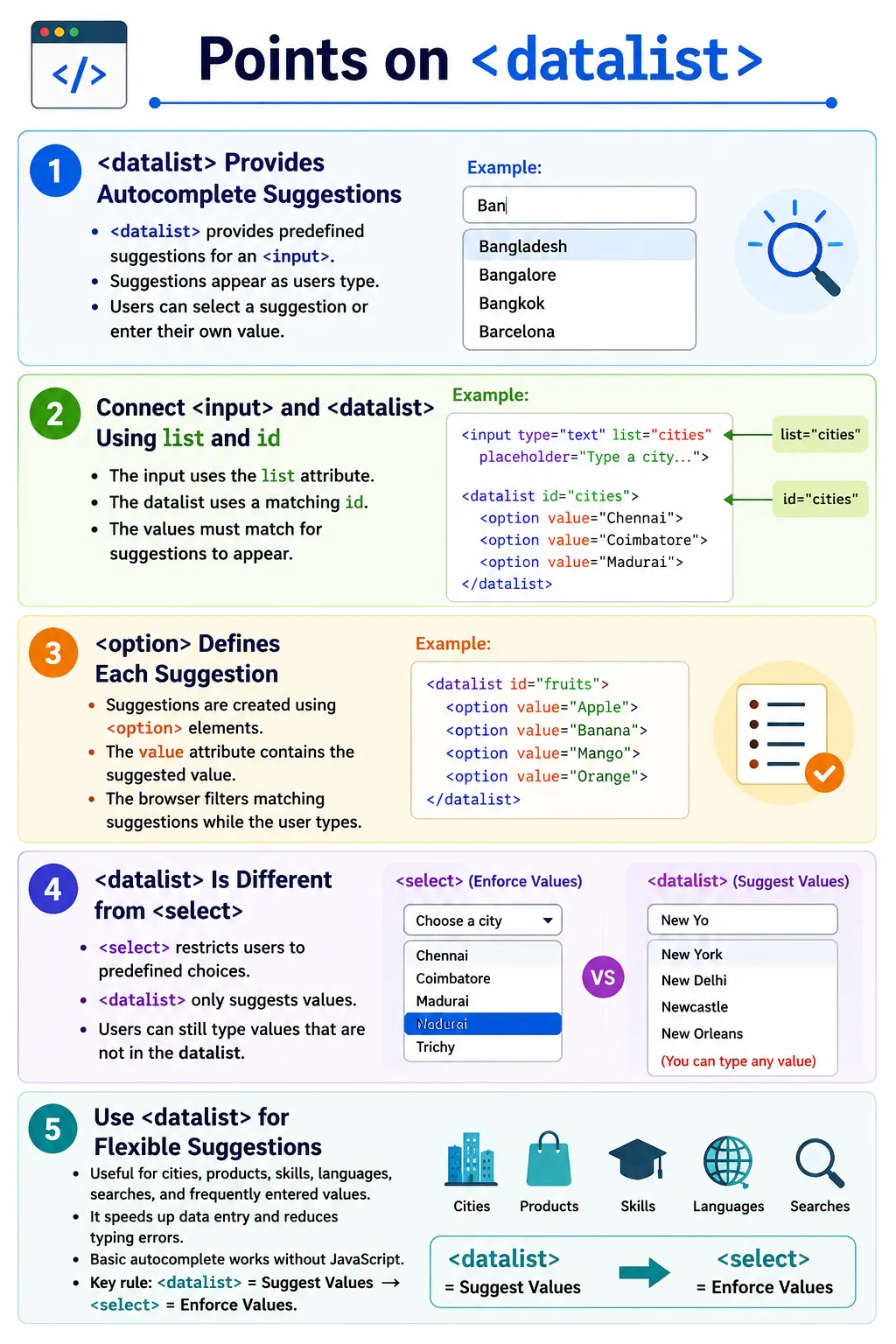
The <datalist> element is an HTML5 feature that provides autocomplete suggestions for an <input> element. It helps users enter values faster by displaying a predefined list of suggestions while still allowing them to type their own custom values. This makes it useful when a form field has common expected values but should not strictly force the user to choose only from those values.
A datalist is commonly used for country suggestions, city names, browser names, product names, programming languages, search suggestions, frequently entered values, course names, job titles, tags, and internal codes. In these situations, suggestions speed up entry and reduce typing mistakes, but the user may still need the freedom to enter a value that is not already listed.
The key point is that <datalist> is not the same as <select>. A select element restricts users to predefined options. A datalist provides suggestions but still allows custom input. This distinction is one of the most important things to understand when choosing between the two elements.
What Is a Datalist?
A <datalist> is a container that holds predefined suggestions for an input field. The datalist itself is not normally shown as a standalone visible element. Instead, it works together with an input element.
<datalist>
</datalist>
The input is connected to the datalist using the list attribute. The value of the input's list attribute must match the id of the datalist. Once this connection is made, the browser can show the datalist options as suggestions while the user types.
Each suggestion inside the datalist is represented using an <option> element. The option's value is the suggested value that can be inserted into the input.
Why Datalist Is Needed
Without suggestions, users must remember and type the entire value themselves. This is fine for simple fields, but it becomes inefficient when the form expects values that are long, repeated, commonly known, or easy to mistype.
Without suggestions:

User types
    |
Must remember value
With a datalist, the browser helps the user by showing matching suggestions. The user can choose one of them or continue typing another value.
With datalist:

User types
    |
Suggestions appear
    |
Choose or continue typing
This improves data entry speed and reduces typing errors. It also improves discoverability because users can see common values without needing a separate dropdown control.
Basic Structure
A datalist usually consists of four parts: an <input> element, a list attribute on that input, a <datalist> element, and multiple <option> elements inside the datalist.
<label for="browser">Choose a Browser</label>
<input
  type="text"
  id="browser"
  list="browsers">

<datalist id="browsers">
  <option value="Chrome">
  <option value="Firefox">
  <option value="Edge">
  <option value="Safari">
</datalist>
In this example, the input has list="browsers", and the datalist has id="browsers". Because these values match, the browser associates the input with the datalist. When the user types in the input, the browser can display browser name suggestions.
Browser Behavior
Initially, the input appears like a normal text field. When the user starts typing, the browser filters the suggestions based on the entered text. For example, if the user types Ch, the browser may show Chrome as a suggestion.
User types:
Ch

Suggestion:
Chrome
The user can select Chrome, or the user can continue typing a completely different value. The datalist does not force a choice. It simply assists the user by suggesting likely values.
The exact appearance of the suggestion popup depends on the browser and operating system. Chrome, Edge, Firefox, Safari, and mobile browsers may display datalist suggestions differently. This is normal because the suggestion UI is controlled by the browser.
How Datalist Works
The workflow is simple. The user focuses the input and starts typing. The browser reads the input's list attribute, finds the datalist with the matching id, filters matching options, and displays suggestions. The user can select a suggestion or keep typing.
User types
    |
Browser reads list attribute
    |
Find matching datalist
    |
Show suggestions
    |
User selects or continues typing
This built-in behavior requires no JavaScript for basic autocomplete suggestions. That is one of the biggest benefits of datalist. A developer can provide helpful suggestions using plain HTML.
Input and List Connection
The connection between an input and a datalist is made by matching the input's list attribute with the datalist's id.
<input list="countries">

<datalist id="countries">
  <option value="India">
  <option value="United States">
</datalist>
If the values do not match, suggestions will not appear. This is a common beginner mistake. The browser does not guess the relationship. The connection must be exact.
Because the datalist depends on this association, developers should use clear, unique IDs. Avoid duplicate IDs on the page, and make sure the input references the correct datalist.
Multiple Suggestions
A datalist can contain multiple suggestions. For example, a programming language field may suggest common languages.
<input list="languages">

<datalist id="languages">
  <option value="HTML">
  <option value="CSS">
  <option value="JavaScript">
  <option value="Java">
  <option value="Python">
</datalist>
If the user types Ja, the browser may show Java and JavaScript. The user can select either suggestion or type another value entirely.
This makes datalist useful for fields where users often enter one of several common values, but the allowed values are not limited to that list.
Using Labels in Options
An option inside a datalist can include a label attribute to provide additional descriptive text.
<datalist id="cars">
  <option value="BMW" label="Germany">
  <option value="Toyota" label="Japan">
  <option value="Ford" label="USA">
</datalist>
Some browsers display the label alongside the value, while others display only the value. Because support and display behavior vary, the value should always contain the actual text that must be inserted into the input. The label should be treated as additional helpful information, not as the primary submitted value.
Datalist vs Select
The difference between <datalist> and <select> is fundamental. A select element presents a fixed list of choices and restricts the user to those choices. A datalist presents suggestions but allows the user to enter a custom value.
select:
User must choose one listed option

datalist:
User may choose a suggestion or type another value
Use <select> when the set of allowed values is fixed and the user must choose one of them. Use <datalist> when suggestions are helpful but custom values are allowed.
For example, if a form asks for a country and the business rule requires a valid country from a fixed list, a select or custom validated control may be appropriate. If the form asks for a search keyword, product name, skill, or city where new values may be valid, a datalist can provide useful suggestions without restricting input.
Real-World Example: Country Suggestions
A country field is a common datalist example. It can suggest frequently selected countries while still allowing users to type another country that is not in the short list.
<label for="country">Country</label>
<input
  type="text"
  id="country"
  list="countries">

<datalist id="countries">
  <option value="India">
  <option value="United States">
  <option value="Canada">
  <option value="Australia">
  <option value="Japan">
</datalist>
Users can select India from the suggestions, or they can type Brazil even though it is not listed. This flexibility is the main value of datalist.
Search Box Example
A search field can use a datalist to suggest common courses or topics.
<label for="search">Search Course</label>
<input
  type="search"
  id="search"
  list="courses">

<datalist id="courses">
  <option value="HTML">
  <option value="CSS">
  <option value="Java">
  <option value="Selenium">
  <option value="API Testing">
</datalist>
If the user types Se, the browser may suggest Selenium. The user can select it quickly instead of typing the full word.
Common Attributes
The input connected to a datalist can use normal input attributes such as list, name, id, placeholder, and required. The list attribute connects the input to the datalist, name identifies the value during submission, id provides a unique identifier, placeholder displays hint text, and required makes the field mandatory.
The datalist itself mainly needs an id. This ID is referenced by the input's list attribute. Each option typically uses a value attribute. The optional label attribute can provide extra descriptive text, although browser support for displaying labels varies.
| Element | Attribute | Purpose |
|---|---|---|
<input> | list | Connects the input to a datalist |
<input> | name | Form field name |
<input> | placeholder | Displays hint text |
<datalist> | id | Identifier referenced by the input |
<option> | value | Suggested value inserted into the input |
<option> | label | Additional descriptive text |
Advantages of Datalist
Datalist provides faster data entry, autocomplete suggestions, reduced typing errors, flexible custom input, simple HTML implementation, and basic suggestion behavior without JavaScript. It is a lightweight option when a project needs helpful suggestions but not a full custom autocomplete component.
Because users can still enter custom values, datalist works well when the suggestion list is helpful but incomplete. This is common in search boxes, skill fields, product fields, and frequently entered values. It supports convenience without over-restricting users.
Limitations of Datalist
Datalist also has limitations. Suggestions are not mandatory selections. Styling options are limited because the suggestion popup is controlled by the browser. Browser appearance varies. Advanced searching, remote loading, grouping, rich option templates, and complex filtering are not supported by basic datalist behavior. Support for displaying the label attribute also differs across browsers.
If the application needs advanced autocomplete behavior, custom rendering, remote API search, keyboard-managed option groups, or strict validation against a database, a custom component may be required. Datalist is best for simple browser-native suggestions.
Common Mistakes
A common mistake is confusing datalist with select. A datalist does not force the user to choose one of the listed values. It only provides suggestions. If users must choose from a fixed list, use a <select> element or add validation.
Another mistake is forgetting the list attribute on the input.
<input>

<datalist id="cities">
  <option value="Chennai">
</datalist>
In this example, the input is not connected to the datalist. The correct version is:
<input list="cities">Mismatched IDs are another frequent problem.
<input list="cars">
<datalist id="vehicles"></datalist>
No suggestions appear because cars and vehicles do not match. The input's list value must match the datalist's id.
Complete Example
The following example shows a complete favorite language field using datalist suggestions.
<form>
  <label for="language">Favorite Language</label>
  <input
    type="text"
    id="language"
    name="language"
    list="languages"
    placeholder="Start typing...">

  <datalist id="languages">
    <option value="HTML">
    <option value="CSS">
    <option value="JavaScript">
    <option value="Java">
    <option value="Python">
  </datalist>

  <br><br>

  <button type="submit">Submit</button>
</form>
When the user begins typing, the browser displays matching suggestions from the datalist. The selected or typed value is submitted through the input field named language.
Selenium Perspective
Selenium can locate the input associated with a datalist and type into it like any normal input.
WebElement language =
driver.findElement(By.id("language"));

language.sendKeys("Ja");
Selecting a datalist suggestion is browser-dependent because datalist suggestions are part of the browser's native UI, not standard HTML elements in the DOM. Testers often simulate keyboard actions such as arrow keys and Enter, or use browser-specific approaches when automation is required.
Automation testers commonly verify the presence of the list attribute, the correct datalist association, available suggested values, the ability to submit custom values, and browser compatibility. They may also verify that the input still accepts values not present in the datalist when that behavior is required.
Comparison Table
| Feature | <datalist> |
<select> |
|---|---|---|
| Purpose | Suggests values | Restricts users to predefined values |
| User can enter custom value | Yes | No |
| Autocomplete | Yes | No |
| Requires input | Yes | No |
| Uses option | Yes | Yes |
Common Interview Questions
What is the purpose of the <datalist> element? It provides autocomplete suggestions for an input field.
Which attribute connects an input to a datalist? The list attribute connects the input to the datalist.
Does a datalist restrict users to the listed options? No. Users can enter their own values unless additional validation is implemented.
What is the difference between <select> and <datalist>? A select restricts users to predefined options, while a datalist only suggests options and still allows custom input.
Can a datalist be used without an input? No. It must be associated with an input element using the list attribute.
Interview-Ready Answer
The <datalist> element is an HTML5 feature that provides autocomplete suggestions for an <input> field. It is linked to the input using the list attribute, and each suggestion is defined using an <option> element. Unlike a <select> element, a datalist does not restrict users to predefined values. Users can choose a suggestion or enter their own value. It improves user experience by speeding up data entry while maintaining flexibility.
One-Line Insight
<datalist> suggests values, while <select> enforces values.