Data Attributes
Introduction
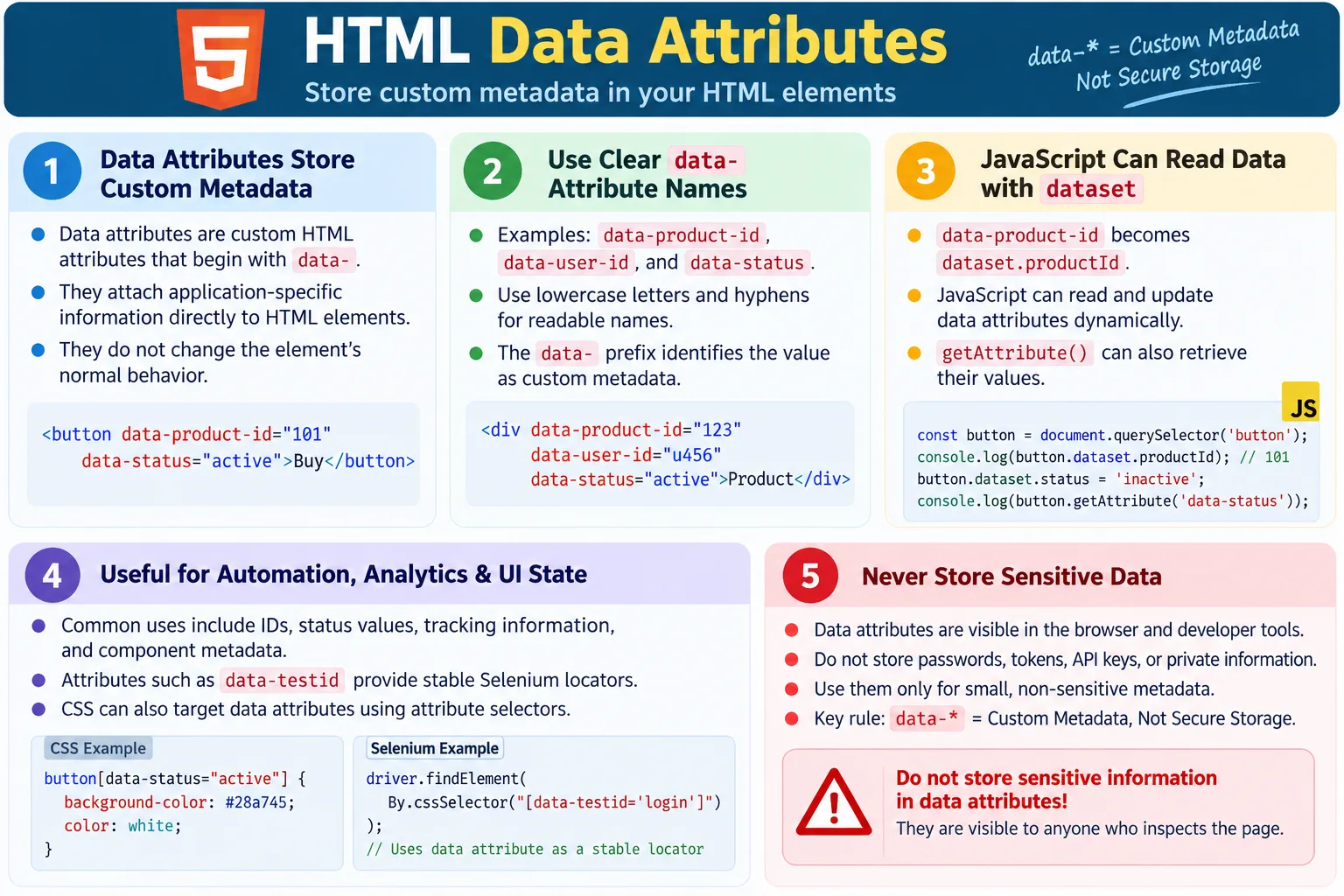
Data attributes are custom HTML attributes that allow developers to store extra information directly on HTML elements. They are defined using the data- prefix and are commonly used by JavaScript, CSS, Selenium automation, front-end frameworks, analytics tools, tracking systems, and reusable UI components. They provide a standard way to attach small pieces of application-specific metadata to an element without changing the element's default behavior.
Unlike standard HTML attributes such as id, class, href, src, type, or alt, data attributes are intended for custom information that belongs to the application. A button might store a product ID. A row might store a status. A tab might store the panel it controls. A test automation team might add data-testid so automated tests can locate an element reliably without depending on visual CSS classes.
Data attributes are useful because they keep element-specific metadata close to the element itself. Instead of creating hidden fields, global JavaScript variables, or fragile class name conventions, developers can store small values directly in the markup. JavaScript can then read those values when the user interacts with the page.
What Are Data Attributes?
A data attribute is any HTML attribute whose name starts with data-. The part after data- is chosen by the developer. The value is stored as a string in the HTML.
data-attribute-name="value"Here is a simple example:
<button data-id="101">
  Buy Now
</button>
In this example, the attribute name is data-id and the value is 101. The user sees only the button text, "Buy Now." The data attribute is not displayed on the page by default, but scripts, CSS selectors, browser developer tools, and automation tools can access it.
Data attributes are part of HTML5 and are valid when they follow the custom data attribute rules. They are not random attributes. The data- prefix is what makes them a standardized way to store custom metadata.
Why Are Data Attributes Needed?
Sometimes developers need to associate additional information with a specific HTML element. For example, a product card may need a product ID, price, category, inventory status, discount code, or analytics label. This data may not be visible to the user, but it may be needed when the user clicks a button or when JavaScript updates the page.
Product Card
  ↓
Product ID
  ↓
Price
  ↓
Category
Without data attributes, developers might store this information in hidden input fields, JavaScript objects, class names, or non-standard custom attributes. Those approaches can become messy. Data attributes provide a clean, valid, and predictable solution for small pieces of element-specific data.
For example, a Buy button can carry the product ID directly:
<button data-product-id="1001">
  Buy
</button>
The browser displays only "Buy." The value 1001 is available to JavaScript when the button is clicked. This keeps the connection between the button and the product clear.
Basic Example
A data attribute can be added to almost any HTML element. The browser does not show it visually by default.
<button data-product-id="1001">
  Buy
</button>
The displayed output is simply:
BuyThe attribute still exists in the DOM. JavaScript can read it. CSS can select it. Selenium can locate it. A developer can inspect it in browser developer tools. This makes data attributes useful for behavior, styling decisions, testing, and metadata.
Common Syntax
An element can contain multiple data attributes. Each one stores a separate value.
<div
  data-name="HTML"
  data-level="Beginner"
  data-course-id="101">
  HTML Course
</div>
In this example, the element stores a course name, course level, and course ID. The visible text is "HTML Course," but scripts can read the metadata and use it for filtering, tracking, display updates, or user interaction.
Data attributes should be used for small pieces of metadata. They are not intended to hold large JSON documents, private credentials, complete business objects, or sensitive records. If the data becomes large or complex, it usually belongs in JavaScript state, an API response, a database, or another structured data source.
Naming Rules
Data attribute names must start with data-. After that prefix, developers should use lowercase letters and hyphens to separate words. This convention keeps attributes readable in HTML and works well with the JavaScript dataset API.
data-user-id
data-product-name
data-price
These are good names because they follow the custom data attribute convention. They are lowercase, descriptive, and hyphen-separated.
dataUser
product-id
mydata
These are bad examples. dataUser does not use the required data- prefix. product-id looks custom but is not a valid custom data attribute. mydata gives no standard signal that the value is custom metadata. Always use the data- prefix for custom data.
Browser Workflow
When a browser parses HTML, it creates DOM nodes and stores attributes on those nodes. Data attributes become ordinary attributes in the DOM, but they also have a convenient JavaScript interface through dataset.
HTML Element
  ↓
Read Data Attribute
  ↓
JavaScript
  ↓
Use Value
The browser does not attach special visual behavior to data attributes. A button with data-product-id still behaves like a button. A div with data-status still behaves like a div. The data attribute simply provides extra metadata that scripts and tools can use.
Reading Data Attributes with JavaScript
JavaScript can read data attributes using the dataset property. The dataset API converts hyphenated data attribute names into camelCase property names.
<button id="buy" data-product-id="1001">
  Buy
</button>
const button =
document.getElementById("buy");
console.log(
button.dataset.productId
);The output is:
1001Notice the conversion. The HTML attribute data-product-id becomes dataset.productId in JavaScript. Hyphenated names become camelCase when accessed through dataset.
data-product-id
↓
dataset.productIdUpdating Data Attributes
JavaScript can also update data attributes through dataset. When a dataset value is changed, the corresponding HTML attribute is updated in the DOM.
button.dataset.productId = "2002";After this update, the element behaves as if the attribute is:
data-product-id="2002"This is useful when the UI state changes. For example, a row can move from data-status="pending" to data-status="completed". A tab can change from inactive to active. A cart button can update its product or quantity metadata. Since data attributes are strings, values should be converted manually when numeric or boolean behavior is needed.
Reading with getAttribute()
Data attributes can also be accessed with getAttribute(). This method reads the attribute exactly by name.
button.getAttribute(
"data-product-id"
);The output is:
1001Both dataset and getAttribute() can access data attributes. The dataset API is convenient for normal JavaScript use, while getAttribute() is useful when you want to read the exact attribute name or when working with generic attribute handling.
Common Real-World Uses
Data attributes are used widely in modern web development. Product IDs are a common example.
<button data-product-id="500">
Buy
</button>User IDs can be stored on profile elements or table rows.
<div data-user-id="200">
John
</div>Course information can be attached to course cards.
<div data-course="HTML" data-level="Advanced">
HTML Course
</div>Status values can be stored on rows or cards.
<tr data-status="completed">
...
</tr>Analytics tools often use data attributes to identify events.
<button data-event="signup">
Register
</button>When the user clicks the button, JavaScript can read data-event and send the correct tracking event. This keeps analytics metadata close to the element that triggers it.
CSS and Data Attributes
CSS can select elements based on data attributes using attribute selectors. This is useful when styling depends on state or metadata stored in HTML.
[data-status="active"] {
font-weight: bold;
}With this HTML:
<div data-status="active">
Available
</div>The style applies only to elements with data-status="active". This pattern can be useful for badges, tabs, filters, selected states, expanded states, validation states, and other UI conditions.
However, CSS state should be managed carefully. Native states such as :checked, :disabled, and [aria-expanded="true"] may be more meaningful in some cases. Data attributes are useful, but they should not replace native semantics or accessibility states when those states already exist.
Data Attributes vs Custom Attributes
Developers should not invent random custom attributes without the data- prefix.
<button product-id="101">
Buy
</button>This is not the standard custom data attribute pattern. The correct version is:
<button data-product-id="101">
Buy
</button>The data- prefix tells browsers, developers, validators, and tools that the attribute is custom application data. It keeps the HTML valid and predictable.
Data Attributes and Semantic HTML
Data attributes add metadata, but they do not replace semantic HTML. The element itself should still be chosen based on meaning. For example, if the content is a page header, use <header>. If the content is a button action, use <button>. Data attributes can add metadata to those elements, but they should not be used to fake semantics.
<header data-page="home">
...
</header>This is fine because <header> provides the semantic meaning, and data-page adds extra metadata. A bad approach would be using a generic div with data attributes instead of a meaningful element when a semantic element clearly fits.
Data Attributes and State
Data attributes are often used to represent UI state, such as active, selected, open, closed, loading, completed, or pending. This can work well for styling and scripting, but developers should consider accessibility. If a state affects users, it may also need an ARIA attribute or native HTML state.
<button data-state="open" aria-expanded="true">
Menu
</button>Here, data-state may help JavaScript or CSS, while aria-expanded communicates the state to assistive technologies. Data attributes alone do not automatically provide accessibility meaning.
Data Attributes in Front-End Frameworks
Front-end frameworks often use data attributes for test hooks, analytics, state markers, hydration hints, or component metadata. Many teams intentionally add attributes such as data-testid, data-test, data-cy, or data-qa to important elements.
These attributes are useful because CSS classes may change during redesigns and IDs may be generated dynamically. Test-specific data attributes can remain stable even when the visual design changes. This helps automated tests focus on user-facing behavior rather than implementation details.
<button data-testid="login-button">
Login
</button>This attribute is not meant for visual styling. It exists so tests can locate the element reliably.
Selenium Perspective
Data attributes are widely used in automation because they are often more stable than CSS classes or dynamically generated IDs. A class may change because a designer updates the layout. An ID may change because a framework generates it. A test-specific data attribute can be intentionally kept stable.
<button data-testid="login-button">
Login
</button>Selenium can locate the element using a CSS selector.
WebElement login =
driver.findElement(
By.cssSelector(
"[data-testid='login-button']"));The value can also be read.
String id =
login.getAttribute(
"data-testid");
System.out.println(id);Automation testers commonly verify the presence of data attributes, correct attribute values, stable element locators, dynamic updates to data attributes, and test-specific attributes such as data-testid. These attributes can make tests more reliable and less dependent on visual styling.
Advantages of Data Attributes
Data attributes allow developers to store custom data directly on elements. They are easy to access with JavaScript, easy to update dynamically, valid in HTML5, useful for automation testing, helpful for analytics, framework-friendly, and selectable with CSS. They provide a simple bridge between HTML markup and application behavior.
They are especially valuable when the metadata belongs naturally to the element. A product ID belongs to a product button. A course level belongs to a course card. A status belongs to a table row. A test ID belongs to the element that tests need to locate. In these cases, data attributes keep the markup understandable.
Limitations of Data Attributes
Data attributes are not a database, not a secure storage mechanism, and not a replacement for application state management. They store string values in the DOM. Anyone can inspect them with browser developer tools. JavaScript can modify them. Users can see them. Automated tools can read them. This visibility is useful for debugging, but it means sensitive information should never be stored there.
Data attributes should also not become a dumping ground for large objects. If an element contains many data attributes with complex values, the markup becomes hard to read and maintain. A few clear metadata values are useful. A large hidden data model inside HTML is usually a design smell.
Security Considerations
Never store passwords, API keys, authentication tokens, session secrets, personal sensitive information, or private business data in data attributes. Data attributes are visible in the browser's developer tools. They are part of the client-side document.
<div data-password="Admin123">
...
</div>This is unsafe. Data attributes should contain only non-sensitive metadata that is acceptable to expose to the browser. If data must remain private, it should stay on the server or be protected through proper application security design.
Common Mistakes
A common mistake is using random custom attributes instead of the data- prefix.
<div course="HTML">A better version is:
<div data-course="HTML">Another mistake is storing sensitive information. Data attributes are visible, so they should never contain passwords, tokens, API keys, or private user data.
Overusing data attributes is also a problem. Do not store large amounts of application data in HTML. Data attributes are intended for small pieces of metadata associated with an element.
Another mistake is using data attributes instead of semantic HTML. Data attributes can add metadata, but they do not replace meaningful elements such as <button>, <nav>, <main>, or <article>.
Complete Example
The following complete example shows a button with product metadata and JavaScript that reads the data attributes.
<!DOCTYPE html>
<html>
<head>
<title>Data Attributes Demo</title>
</head>
<body>
<button
id="buy"
data-product-id="1001"
data-category="Books">
Buy Now
</button>
<script>
const button =
document.getElementById("buy");

console.log(
  button.dataset.productId
);
console.log(
button.dataset.category
);
</script>
</body>
</html>The output is:
1001
Books
This example shows the basic pattern: HTML stores metadata, JavaScript reads it, and the user interface remains simple.
Data Attributes vs Standard Attributes
| Feature | Data Attributes | Standard Attributes |
|---|---|---|
| Purpose | Store custom metadata | Define HTML behavior |
| Prefix | data- | None |
| JavaScript Access | dataset or getAttribute() | DOM properties or getAttribute() |
| CSS Selectable | Yes | Yes |
| Common Use | IDs, status, test hooks, metadata | href, src, id, class, type |
Choosing Good Data Attribute Names
Good data attribute names are descriptive, stable, and specific enough to explain their purpose. A vague attribute such as data-id may be acceptable in a very small component, but data-product-id, data-user-id, or data-course-id is usually clearer. The name should explain what kind of value is stored.
For automation, choose names that describe the testing purpose rather than the visual appearance. For example, data-testid="submit-login" is more stable than data-testid="blue-button". The first name describes what the element does. The second name describes how the element looks, and that may change during a redesign.
Teams should also agree on naming conventions. One project may use data-testid, another may use data-test, another may use data-cy, and another may use data-qa. Any of these can work if the team is consistent. Inconsistent naming creates confusion and makes tests harder to maintain.
<button data-testid="checkout-submit">
  Place Order
</button>
This is a useful test attribute because it identifies the element's role in the user workflow. It is not tied to the button color, layout, text casing, or CSS framework.
Data Attributes for Filtering and Sorting
Data attributes are often used for client-side filtering and sorting. A list of cards can store category, level, price, or status values. JavaScript can read those values and decide which elements to show or hide.
<div class="course-card"
     data-category="web"
     data-level="beginner"
     data-price="free">
  HTML Basics
</div>

<div class="course-card"
     data-category="automation"
     data-level="advanced"
     data-price="paid">
  Selenium Framework
</div>
When the user chooses a filter such as "beginner," JavaScript can inspect data-level and show only matching cards. This keeps the metadata close to the displayed content. It is simple and effective for small lists.
For large datasets, however, data attributes may not be the best place to store all information. A large product catalog should usually be driven by structured data from an API or state management layer. Data attributes are best for small, element-specific values, not for replacing application data architecture.
Data Attributes for Analytics
Analytics tools often need to know what a user clicked, which campaign a button belongs to, which page area produced an interaction, or which component generated an event. Data attributes provide a clean way to attach this metadata to elements.
<button
  data-event="signup"
  data-location="hero"
  data-plan="free">
  Start Free
</button>
When the button is clicked, JavaScript can read these values and send a tracking event. This is clearer than hardcoding event metadata in multiple JavaScript files. The HTML element carries the event context, and the tracking code can remain generic.
Analytics data should still be reviewed carefully. Do not store personal information or sensitive values in tracking attributes. Keep event names stable and meaningful. If analytics attributes become inconsistent across pages, reports become harder to trust.
Data Attributes for Component State
Some components use data attributes to represent state. Tabs may use data-active, menus may use data-state, accordions may use data-open, and filters may use data-selected. CSS and JavaScript can then respond to the state.
<div class="tab" data-active="true">
  Overview
</div>

<div class="tab" data-active="false">
  Details
</div>
This can be useful, but state that affects accessibility should also be expressed through native or ARIA attributes. For example, a disclosure button should use aria-expanded. A selected tab may need aria-selected when implementing a proper tab pattern. Data attributes can support scripts and styling, but they do not automatically communicate accessibility state.
<button
  data-state="open"
  aria-expanded="true">
  Filters
</button>
In this example, data-state can support styling, while aria-expanded communicates meaning to assistive technologies. Both have a role, but they are not interchangeable.
Data Attributes in CSS Selectors
Attribute selectors are powerful, but they should be used carefully. Styling based on data attributes can make CSS expressive when the attribute represents state or metadata. For example, a status badge can use data-status.
[data-status="success"] {
  color: green;
}

[data-status="error"] {
  color: red;
}
This is readable because the CSS directly maps to the status value. However, using data attributes for every style variation can become hard to manage. For purely visual variants, classes may be clearer. For meaningful state or metadata, data attributes can be a good fit.
Another consideration is selector stability. If tests and CSS both depend on the same data attributes, changing the value may break both style and automation. Some teams reserve data-testid only for tests and avoid using it in CSS. That separation keeps test selectors stable even when styling changes.
Data Attributes and JSON Values
Because data attribute values are strings, developers sometimes try to store JSON inside them. This can work for small values, but it quickly becomes difficult to read and maintain.
<div
  data-options='{"level":"beginner","price":"free"}'>
  HTML Course
</div>
JavaScript can read the string and parse it with JSON.parse(), but this approach has downsides. Quotes must be escaped correctly. Large values make the HTML messy. Debugging becomes harder. If the object grows, it is usually better to store data in JavaScript state or fetch it from an API.
As a practical rule, use data attributes for simple scalar values such as IDs, names, statuses, flags, event names, and short labels. Avoid storing large nested objects unless there is a strong reason and the team understands the tradeoff.
Data Attributes and Forms
Data attributes can help form behavior. A field may include validation metadata, tracking labels, or UI hints. For example, a form field can store a validation group or analytics name.
<input
  type="email"
  id="email"
  data-field-name="email"
  data-validation-group="signup">
However, data attributes should not replace native validation attributes such as required, minlength, maxlength, pattern, or input types like email. Native attributes provide browser behavior and accessibility support. Data attributes can add application-specific metadata on top of native HTML.
For example, use required to indicate that a field is required, not only data-required="true". The native attribute communicates meaning to the browser. A custom data attribute may help your JavaScript, but it does not provide the same built-in behavior.
Data Attributes and Maintainability
Data attributes improve maintainability when they are used consistently. They make metadata visible in the markup and reduce hidden coupling between HTML and JavaScript. A developer inspecting a button can see its product ID, event name, or test hook immediately.
They can also harm maintainability when overused. If every element has many data attributes, the HTML becomes noisy. If data attributes contain duplicated business rules, values may become stale. If different teams use different naming conventions, tests and scripts become inconsistent.
The maintainable approach is to document the purpose of common attributes. For example, a team might define data-testid for automation, data-event for analytics, and data-state for component state. Clear conventions prevent data attributes from becoming a random collection of metadata.
Data Attributes vs Classes
Classes are primarily used for styling and grouping, although JavaScript can also use them. Data attributes are intended for custom data. The distinction matters because a class name may change during a redesign, while metadata may need to remain stable.
<button class="btn btn-primary" data-testid="save-profile">
  Save
</button>
In this example, btn and btn-primary describe styling. data-testid describes a stable test hook. If the button design changes, the classes may change, but the test ID can remain the same. This separation helps keep tests from breaking when the visual design changes.
Do not use data attributes as a complete replacement for classes. CSS classes remain the standard tool for styling. Use data attributes when the value represents metadata, state, analytics context, or a stable testing hook.
Data Attributes vs IDs
The id attribute uniquely identifies an element in the document. It is useful for labels, anchors, JavaScript access, and ARIA relationships. Data attributes do not need to be unique unless your application convention requires it.
For testing, IDs can be useful when they are stable and meaningful. However, in many modern applications, IDs are generated dynamically or used for accessibility relationships. In those cases, a dedicated data attribute may be a better automation locator.
<button id="submit-12345" data-testid="submit-order">
  Submit Order
</button>
If the ID changes between builds, tests that depend on it become brittle. The data attribute can provide a stable selector that reflects the user workflow instead of generated implementation details.
Best Practices
Use data attributes for small, non-sensitive metadata associated with an element. Use clear names. Use lowercase and hyphens. Keep values simple. Use dataset for convenient JavaScript access and getAttribute() when exact attribute names matter. Keep test attributes stable and avoid using test-specific attributes for styling.
Do not store passwords, tokens, API keys, or private information. Do not store large data models in HTML. Do not use data attributes instead of semantic HTML. Do not replace native form attributes or ARIA states with data attributes when user-facing meaning is needed.
Finally, document team conventions. A short convention such as "Use data-testid for automation hooks and keep values stable across UI redesigns" can prevent many maintenance problems.
Team Conventions for Data Attributes
Data attributes become most valuable when a team uses them consistently. Without conventions, one developer may use data-test, another may use data-testid, another may use data-qa, and another may use classes for automation. The application may still work, but automation and maintenance become harder. A clear convention gives developers, testers, and reviewers a shared language.
A team can decide that data-testid is reserved only for automated tests, data-event is reserved for analytics, and data-state is used only for component state when a native or ARIA state is not enough. These rules do not need to be complicated. A short guide in the project documentation is often enough.
Code reviews should check that data attributes are meaningful. A test ID such as data-testid="button1" is less useful than data-testid="login-submit". A state value such as data-status="x" is less clear than data-status="completed". Good values make the DOM easier to inspect and tests easier to understand.
Teams should also decide when data attributes are not allowed. Sensitive values should be rejected immediately. Large JSON payloads should be questioned. Attributes that duplicate server-side secrets or private user data should not pass review. Data attributes are visible, so they should be treated as public client-side information.
Debugging with Data Attributes
Data attributes can make debugging easier because they expose useful metadata directly in the DOM. When a user reports that a product button behaves incorrectly, a developer can inspect the button and confirm the product ID, category, event name, or test hook. This is faster than searching through unrelated JavaScript files to guess which data belongs to the element.
For example, if a filter is not working, a developer can inspect the cards and check whether data-category and data-level contain the expected values. If an analytics event is wrong, the developer can inspect the clicked element and verify data-event. If an automated test fails to find an element, the tester can inspect whether the expected data-testid is still present.
Browser developer tools also allow searching the DOM for data attributes. A developer can search for data-testid="checkout-submit" or inspect all elements with data-status. This makes data attributes practical during debugging, test creation, and UI review.
When Not to Use Data Attributes
Data attributes are useful, but they are not always the right tool. Do not use them when a standard HTML attribute already exists. For example, use disabled for a disabled form control, not only data-disabled="true". Use href for a link destination, not data-url when the element is meant to navigate. Use alt for image alternative text, not a custom data attribute.
Do not use data attributes to hide content from users while depending on it for important functionality. If the information is important for users, it may need to be visible or accessible in another way. Do not use them as a private storage layer. Anything in HTML can be read by users and tools.
Do not use data attributes to avoid proper application state management. In a small script, storing state on an element may be fine. In a complex application, state often belongs in a framework store, component state, server response, or application model. Data attributes should support the application, not become an uncontrolled data store.
Testing Checklist
When testing data attributes, verify that important attributes are present, values are correct, and dynamic updates happen when expected. If data attributes are used for test automation, confirm that they are stable and not tied to visual styling. If they are used for analytics, confirm that the expected event names or metadata values are present.
Also verify that sensitive information is not exposed. Inspect the DOM and confirm that passwords, tokens, private user information, or secret keys are not stored in data attributes. If the attribute affects accessibility state, verify that appropriate native or ARIA attributes are also present.
Common Interview Questions
What are data attributes? Data attributes are custom HTML attributes that store extra information using the data- prefix.
What prefix is required? The required prefix is data-.
How are data attributes accessed in JavaScript? They can be accessed using the dataset property or getAttribute().
Can CSS use data attributes? Yes. CSS attribute selectors can target elements based on data attribute values.
Why are data attributes useful in Selenium? They provide stable and meaningful locators that are less likely to change than classes or generated IDs.
Should sensitive data be stored in data attributes? No. They are visible in the browser and should only contain non-sensitive metadata.
Interview-Ready Answer
Data attributes are HTML5 custom attributes that begin with the data- prefix and allow developers to store additional, application-specific information on HTML elements. They do not affect the element's default behavior but can be easily accessed using JavaScript through the dataset property or getAttribute(). Data attributes are widely used for metadata, analytics, UI state, and stable Selenium locators such as data-testid. They should only store non-sensitive information, as their values are visible in the browser.
One-Line Insight
Data attributes let you attach custom, non-sensitive metadata to HTML elements without changing their standard behavior.