Custom Data Attributes
Introduction
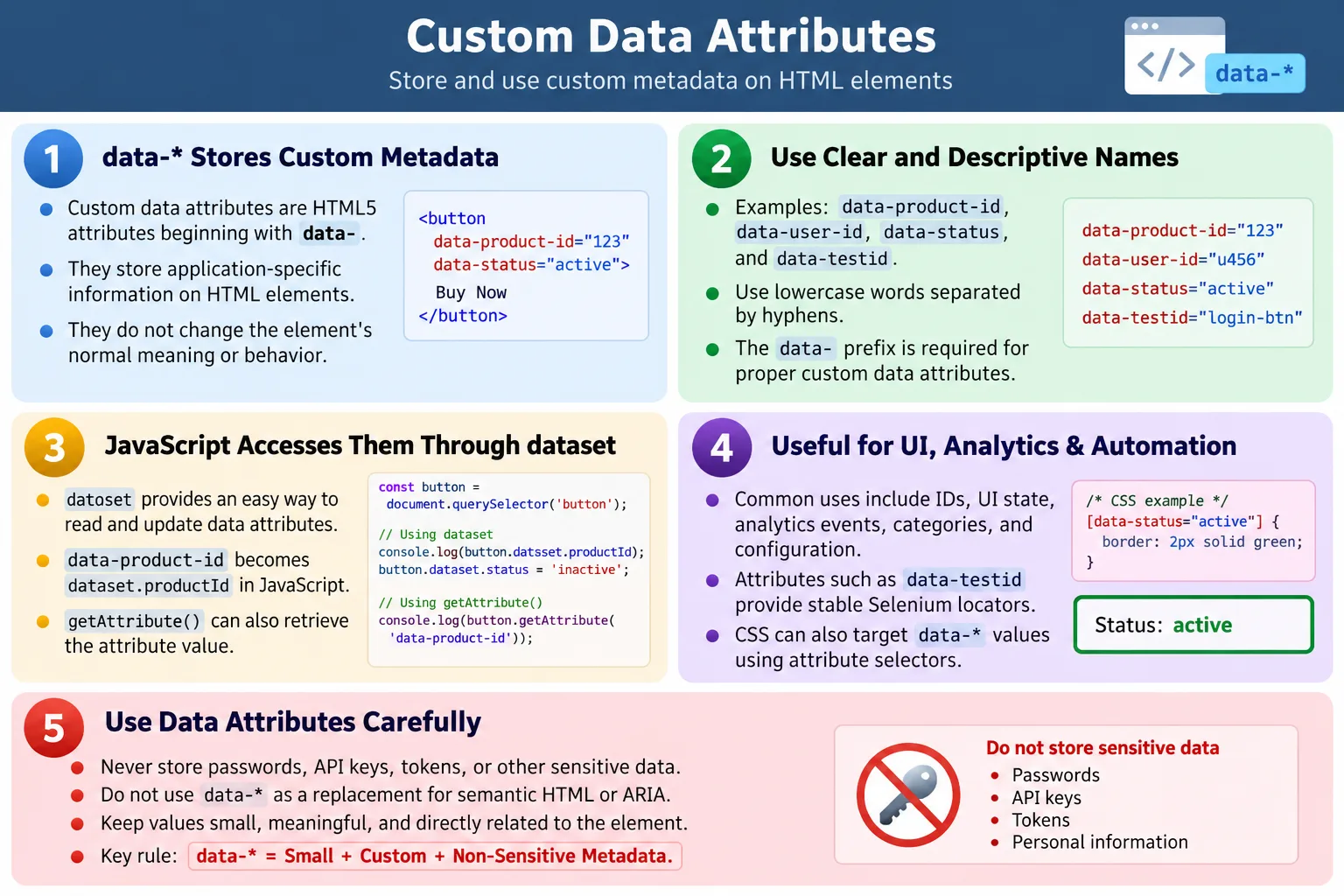
Custom Data Attributes are HTML5 attributes that allow developers to store custom, application-specific data directly on HTML elements. They always begin with the data- prefix and provide a standard way to attach extra information without changing the default meaning or behavior of the element. A button remains a button, a row remains a row, and a link remains a link, but each of them can carry small pieces of metadata that JavaScript, CSS, automation tools, analytics scripts, or front-end frameworks can read later.
This idea is simple, but it solves an important real-world problem. Web applications often need extra information connected to a particular element. A product card may need a product ID. A table row may need an order status. A button may need an analytics event name. A form field may need a testing locator. Before HTML5 standardized custom data attributes, developers sometimes invented random attributes such as product-id, userId, or track-event. Those attributes might work in browsers, but they were not a clean HTML standard. The data-* convention gives developers a valid and predictable way to store that metadata.
Custom data attributes are widely used in JavaScript applications, CSS selectors, Selenium automation, analytics tracking, UI state management, and front-end frameworks. They are especially useful when a small piece of data belongs closely to a specific element. The data is visible in the HTML source and available in the DOM, but it is not displayed to the user unless code reads it and uses it. This makes custom data attributes a practical bridge between static markup and dynamic behavior.
What Are Custom Data Attributes?
A custom data attribute is any valid HTML attribute whose name starts with data-. The part after data- describes the meaning of the value. For example, data-product-id can store a product identifier, data-status can store a state value, and data-testid can store a stable locator for automated testing.
data-name="value"A simple example is a buy button that stores the product ID connected to that button.
<button data-product-id="101">
  Buy Now
</button>
In this example, the attribute name is data-product-id and the value is 101. The browser does not display the value beside the button. The visible text is still only Buy Now. However, JavaScript can read the product ID when the user clicks the button, and automation tools can use the attribute to locate or verify the element.
Custom data attributes are called custom because developers define the name after the data- prefix. They are still standard because HTML5 defines the data-* mechanism. This distinction matters. A random attribute like product-id is not the same as data-product-id. The second follows the HTML custom data attribute convention and is the correct approach.
Why Are Custom Data Attributes Needed?
HTML already provides many standard attributes. Links use href, images use src and alt, form controls use name, type, value, required, and many other built-in attributes. These attributes define standard browser behavior or standard semantic information.
Applications, however, often need information that is specific to business logic. A product card may need a product ID, category, price, stock status, discount flag, or analytics label. A user row may need a user ID, role, and account status. A dashboard widget may need a refresh interval or data source key. None of these values are universal HTML attributes, so they should not be invented as random attributes.
Custom data attributes provide a clean place for this kind of small metadata. They keep the metadata close to the element that needs it. The code that handles a click, expands a section, submits a form, or tracks an event can read the data directly from the element involved in the action. This often makes the code simpler than maintaining a separate mapping object elsewhere.
For example, a list of products may render several buttons. Each button looks visually similar, but each button represents a different product. By storing a data-product-id value on each button, the click handler can identify which product the user selected. The UI stays clean, and the JavaScript logic stays connected to the element that triggered the action.
Basic Example
A basic data attribute example can be placed on almost any HTML element.
<div data-course="HTML" data-level="Beginner">
  HTML Course
</div>
The visible output is still only HTML Course. The values HTML and Beginner are not shown automatically. They are stored as metadata. JavaScript can use them to filter courses, build a detail panel, record analytics, or show additional information later.
This pattern is common in modern pages. A course card may store course difficulty, course ID, instructor ID, and category. A button may store action name and tracking code. A table row may store database ID and status. The attribute values are small, directly related to the element, and easy to access.
Naming Rules
Custom data attribute names must begin with data-. After that prefix, developers should use lowercase letters and hyphens to separate words. Good names are readable and descriptive. Examples include data-user-id, data-order-number, data-course-name, data-status, and data-testid.
<div data-user-id="25">User</div>
<div data-order-number="ORD-101">Order</div>
<div data-course-name="HTML">Course</div>
Names such as dataUser, course-id, and myData should be avoided. They do not follow the standard custom data attribute convention. The most important rule is that custom data attributes should use the data- prefix. Without that prefix, the attribute is not a proper HTML custom data attribute.
Readable naming also improves maintainability. A future developer should understand why the attribute exists. data-user-id is clearer than data-id if several different IDs appear in the same component. data-testid is clearer than data-x for automation. Attribute names should describe the purpose without being unnecessarily long.
Multiple Data Attributes
One element can contain multiple data attributes. This is useful when an element needs several related pieces of metadata.
<div
  data-id="101"
  data-name="Laptop"
  data-price="799"
  data-stock="25">
  Laptop
</div>
This product element stores an ID, name, price, and stock value. A script can read these values when the user selects the item. A CSS selector can style the item based on a value such as availability. A test can verify that the expected data is attached to the correct element.
However, multiple data attributes should still be used carefully. They are best for small, element-specific values. If an element needs a large object with many nested properties, that information usually belongs in JavaScript state, an API response, or a structured data store rather than in HTML attributes.
Browser Workflow
When the browser parses HTML, it treats data attributes as normal attributes that are valid on the element. They do not create visible content, and they do not change built-in behavior by themselves. Instead, they become part of the DOM representation of the element.
The workflow is straightforward: the HTML element is parsed, the data attributes are stored in the DOM, JavaScript or CSS reads them, and application logic uses the values. A button with data-product-id does not automatically buy a product. The attribute simply gives the script a reliable product ID to use when the click happens.
This separation is useful because HTML describes the element and stores the small metadata, while JavaScript decides what should happen. CSS can also use the metadata for styling. Automation tools can use it for stable selectors. The same attribute can support several layers of the application when used carefully.
Accessing Data Attributes in JavaScript
The most common way to access custom data attributes in JavaScript is through the dataset property. The dataset property provides a convenient object-like interface for reading and writing data-* values.
<button id="buy" data-product-id="1001">
  Buy
</button>
const button = document.getElementById("buy");
console.log(button.dataset.productId);The output is 1001. Notice the naming conversion. The HTML attribute is written as data-product-id, but JavaScript reads it as dataset.productId. Hyphenated names become camelCase properties in the dataset API.
This conversion is one reason naming matters. data-order-number becomes dataset.orderNumber. data-course-name becomes dataset.courseName. The HTML remains readable, and the JavaScript remains natural for developers who use camelCase property names.
Using getAttribute()
Data attributes can also be accessed with the standard getAttribute() method. This method reads the exact attribute name as written in HTML.
button.getAttribute("data-product-id");This also returns 1001. Both dataset and getAttribute() are valid. The dataset API is usually more convenient for custom data attributes, while getAttribute() is useful when the full attribute name is dynamic or when code needs to work with attributes generically.
For automation testing, getAttribute() is often used because tools like Selenium expose attribute values through similar methods. A tester may locate an element and then verify that data-testid, data-status, or data-user-id has the expected value.
Updating Data Attributes
Data attributes can be updated from JavaScript. When a script assigns a new value through dataset, the corresponding HTML attribute changes in the DOM.
button.dataset.productId = "2002";After this assignment, the element has data-product-id="2002". This can be useful for UI state changes. For example, a button may move from data-state="idle" to data-state="loading", and CSS can style it differently based on that value.
Updating data attributes is practical when the value is part of the element's current state. However, developers should avoid treating data attributes as the main storage layer for complex application data. For large state management, JavaScript objects, framework state, or server data are usually better.
CSS and Custom Data Attributes
CSS can target elements based on data attributes using attribute selectors. This is useful when style depends on a simple state value stored in HTML.
[data-status="active"] {
background: green;
color: white;
}<div data-status="active">
Available
</div>In this example, any element with data-status="active" receives the matching styles. This can be used for labels, badges, filters, tabs, selected items, validation states, and UI indicators. A row with data-status="shipped" can look different from a row with data-status="pending".
CSS data selectors are powerful, but they should not replace semantic classes in every situation. If a style is purely visual, a class may be clearer. If the style is connected to a meaningful state that JavaScript also reads, a data attribute can be appropriate. The decision should be based on clarity and maintainability.
Real-World Examples
Product pages commonly use custom data attributes to store product IDs. A buy button can include data-product-id="500". When the user clicks the button, JavaScript reads the ID and sends it to the cart logic. The user sees only the button text, but the application knows which product is involved.
<button data-product-id="500">
Buy
</button>User interfaces often use data attributes for user information. A profile card may store data-user-id="200". An admin table may store user roles, account status, or record IDs. This helps click handlers, menus, and actions operate on the correct user record.
<div data-user-id="200">
John
</div>Order management screens may store order status on table rows. A row can use data-status="shipped", and CSS or JavaScript can handle it appropriately. Analytics scripts often use values such as data-event="signup" to identify what should be tracked when a user interacts with a button.
<button data-event="signup">
Register
</button>Testing hooks are another major use. Many modern web applications intentionally include attributes such as data-testid, data-test, data-cy, or data-qa. These attributes give automated tests stable selectors that are less likely to change when designers update classes or layout styles.
Common Uses
Custom data attributes are commonly used for product IDs, user IDs, categories, prices, UI state, analytics events, framework configuration, and Selenium locators. They work best when the data is short, non-sensitive, and directly related to the element.
In a filtering interface, data attributes can store categories or tags. In a tab component, they can store the target panel ID. In a dashboard, they can store metric keys. In a test suite, they can store stable element identifiers. In analytics, they can store event names or campaign codes.
This flexibility is useful, but it also requires discipline. If every piece of application data is pushed into HTML attributes, the markup becomes overloaded. The best use of custom data attributes is targeted and intentional.
Selenium Perspective
Automation testers frequently use custom data attributes because they tend to be more stable than CSS classes or dynamically generated IDs. Classes often change when styling changes. IDs may be generated by frameworks or reused inconsistently. Text may change due to content updates or localization. A deliberate testing attribute can remain stable even when the UI design evolves.
<input data-testid="email-input">A Selenium test can locate the element with a CSS selector.
WebElement email = driver.findElement(
By.cssSelector("[data-testid='email-input']")
);The test can also read the attribute value.
String value = email.getAttribute("data-testid");
System.out.println(value);Popular testing attributes include data-testid, data-test, data-cy, and data-qa. Teams usually choose one naming convention and use it consistently. Consistency matters because test code becomes easier to search, review, and maintain.
For testers, custom data attributes make locators more reliable. A selector such as [data-testid='login-button'] communicates intent clearly. It is also less fragile than a selector based on a deep CSS path such as .container > div > div > button. Stable locators reduce false test failures and improve automation confidence.
Data Attributes for Analytics
Analytics tools often need to know which user action occurred. A page may have several buttons that all look similar, but each button represents a different event. Custom data attributes can store event names, locations, categories, or campaign references.
<button data-event="signup" data-location="hero">
Get Started
</button>When the user clicks the button, JavaScript can read dataset.event and dataset.location. The analytics code does not need to guess based on button text or layout. This improves tracking consistency and makes the markup self-descriptive.
However, analytics data should also be reviewed for privacy. Do not store sensitive personal information in data attributes. Values such as event names and UI locations are usually fine. Passwords, tokens, email addresses, payment details, and private identifiers should not be placed in visible HTML metadata unless there is a clear and safe reason.
Data Attributes for UI State
Custom data attributes can represent simple UI state. For example, an accordion item can use data-expanded="true", a tab can use data-active="true", and a badge can use data-status="success". JavaScript can update the value, and CSS can style the element based on the current state.
<button data-expanded="false">
Details
</button>This approach can make state visible in the DOM, which is helpful during debugging. A developer can inspect the element and immediately see the current state. It also keeps style selectors expressive when the style is tied directly to state.
Still, data attributes should not replace accessibility attributes. If a button expands a panel, it should use appropriate attributes such as aria-expanded when the state affects assistive technology. A custom data-expanded value may help internal logic, but it does not automatically provide accessibility semantics. Use the right semantic and ARIA attributes for user-facing meaning.
Custom Data Attributes and Frameworks
Front-end frameworks often use their own systems for state, props, and component rendering. Even so, custom data attributes remain useful. React, Vue, Angular, Svelte, and other frameworks can render data-* attributes into the final DOM. Test tools and analytics scripts can then read them in the browser.
Framework applications often use data attributes for test locators because component structure and CSS classes may change frequently. A component can render data-testid="submit-button", and tests can continue working even if the internal markup changes slightly. Cypress commonly uses data-cy, while other teams use data-test or data-testid.
Data attributes may also pass small configuration values to JavaScript behavior in server-rendered applications. A server can render data-page-size="20", and a client-side script can read that value when initializing a widget. This is useful when the server knows configuration that the client-side script needs.
Advantages
Custom data attributes are valid HTML5. This is one of their most important advantages. They provide a standard method for storing custom metadata without inventing invalid or unclear attributes. They are easy to access from JavaScript, easy to select with CSS, and helpful for automation.
They are also framework-friendly. Most modern tools preserve data-* attributes in rendered HTML. This makes them useful across plain HTML, server-rendered pages, and component-based applications. They are simple enough for beginners and practical enough for enterprise applications.
Another advantage is maintainability. A meaningful data attribute can explain the role of an element in a way that a generic class cannot. data-testid="login-button" is more explicit for testing than class="btn primary large". data-status="pending" communicates state clearly. When used well, custom data attributes make the DOM easier to inspect and understand.
Common Mistakes
A common mistake is creating random attributes instead of using the data- prefix. For example, product-id="101" may appear to work, but it is not the correct HTML5 custom data attribute pattern. The correct version is data-product-id="101".
<button product-id="101">Buy</button><button data-product-id="101">Buy</button>Another serious mistake is storing sensitive data. Data attributes are visible in the browser. Anyone can inspect the HTML and see the values. Never store passwords, API keys, tokens, credit card numbers, or private security data in data attributes.
<div data-password="Admin123"></div>This is unsafe. Data attributes should contain only non-sensitive metadata. If a value should not be exposed to the user, it should not be placed in the DOM.
Overloading HTML is also a mistake. Data attributes are not meant to store large amounts of application data. If an entire object or large JSON string is placed inside an attribute, the markup becomes difficult to read and maintain. Store large data in JavaScript state, a server response, or a proper data store.
Developers should also avoid using data attributes instead of semantic HTML. If the page needs a header, use <header>, not <div data-header="true">. Semantic elements describe structure. Data attributes provide additional metadata. They are not replacements for semantic markup.
Complete Example
The following example shows a button with multiple data attributes and JavaScript that reads them.
<!DOCTYPE html>
<html>
<head>
<title>Custom Data Attributes</title>
</head>
<body>
<button
id="buy"
data-product-id="1001"
data-category="Books">
Buy Now
</button>
<script>
const button = document.getElementById("buy");

console.log(button.dataset.productId);
console.log(button.dataset.category);
</script>
</body>
</html>The output is 1001 and Books. The HTML stores the metadata. JavaScript reads it through dataset. The visible button remains simple for the user.
Data Attributes vs Standard HTML Attributes
Standard HTML attributes have predefined meanings. The href attribute tells the browser where a link goes. The src attribute tells the browser where an image or media resource is located. The alt attribute gives alternative text for an image. These attributes are part of the HTML language and often influence browser behavior directly.
Custom data attributes are different. They do not define built-in browser behavior. They store extra metadata that application code can use. A browser does not know what data-product-id should do. It simply makes the value available in the DOM.
This difference helps developers choose the right tool. If HTML already provides a meaningful attribute, use it. If the information is custom metadata for application logic, a data-* attribute may be appropriate.
Security Considerations
The biggest security rule is simple: do not store secrets in custom data attributes. Data attributes are client-side HTML. They can be viewed through browser developer tools, page source, network responses, and automation scripts. Anything placed in a data attribute should be considered public to the user of that page.
Developers should also be careful when using data attribute values to build HTML. If a value comes from user input or an untrusted source, it should not be inserted with unsafe HTML APIs. Use safe text insertion and validation. A data attribute by itself is not dangerous, but careless use of its value can become a problem.
Security-sensitive decisions should not depend only on data attributes. For example, a button with data-role="admin" does not prove that the user is an admin. The server must enforce authorization. Client-side metadata can guide the UI, but it cannot be trusted as a security boundary.
Accessibility Considerations
Custom data attributes do not provide accessibility meaning by themselves. A screen reader does not treat data-status="active" the same way it treats semantic HTML or ARIA attributes. If the state affects users, the page should expose that state through accessible markup.
For example, if a button opens and closes a panel, aria-expanded is the correct accessibility attribute. A custom data-expanded value may help JavaScript or CSS, but it does not replace aria-expanded. If a field is invalid, use appropriate validation messaging and accessibility attributes rather than only data-error="true".
The best approach is to use semantic HTML first, ARIA when needed, and custom data attributes only for application-specific metadata. This keeps the page meaningful for users, assistive technologies, developers, and automation tools.
Performance Considerations
Small data attributes generally have minimal performance impact. Browsers handle them easily, and reading a few values through dataset or getAttribute() is normal. Problems usually appear only when developers misuse data attributes by storing very large strings or by performing excessive DOM queries.
If a page contains thousands of elements with many data attributes, the HTML becomes larger and the DOM becomes heavier. This may affect load time, memory usage, and maintainability. The solution is not to avoid data attributes completely, but to use them intentionally and keep values small.
When selecting elements with CSS or JavaScript, use efficient selectors where possible. Attribute selectors are useful, but deeply nested selectors or repeated full-page scans can slow large interfaces. Store references when appropriate and use event delegation for repeated elements.
Best Practices
Use custom data attributes for small, non-sensitive metadata that belongs to a specific element. Choose clear names that begin with data-. Use lowercase words separated by hyphens. Keep values simple and readable. Prefer one consistent testing attribute convention across the project.
Do not use data attributes as a replacement for semantic HTML, standard attributes, ARIA attributes, or secure server-side logic. Do not store secrets. Do not overload attributes with large JSON payloads unless there is a strong reason and the team understands the tradeoff.
For JavaScript, use dataset when working with known data attributes. Use getAttribute() when the exact attribute name is dynamic or when code needs generic attribute handling. For Selenium and other automation tools, prefer stable attributes such as data-testid, data-test, data-cy, or data-qa when the project supports them.
Testing Checklist
When reviewing custom data attributes, check whether the names follow the data- convention. Confirm that values are non-sensitive. Verify that JavaScript reads the correct values and handles missing values gracefully. Check whether CSS selectors based on data attributes still work after state changes.
For automation, confirm that data attributes used as locators are stable and meaningful. A locator such as data-testid="button1" is less useful than data-testid="login-button". Good test attributes should describe the element's role in the workflow.
Also verify that data attributes are not being used to hide accessibility problems. If the UI state matters to users, semantic HTML or ARIA may also be required. Testing should cover both developer-facing metadata and user-facing behavior.
Designing a Data Attribute Strategy
In small pages, developers may add data attributes only when a specific need appears. In larger projects, it is better to define a simple strategy. A strategy does not need to be complicated. It should answer a few practical questions: which data attributes are allowed, which naming style should be used, which attributes are reserved for testing, and which types of values should never be stored in the DOM.
For example, a team may decide that data-testid is used only for automated tests, data-track is used only for analytics, and data-state is used only for simple UI state. This avoids confusion. If every developer invents a new naming style, the markup becomes inconsistent and harder to maintain. A consistent strategy makes the codebase easier to search and easier to test.
A good strategy also separates user-facing meaning from internal metadata. If something affects accessibility, use semantic HTML or ARIA. If something controls styling, consider whether a class or a state attribute is clearer. If something is only needed by test automation, make that purpose explicit through a test-specific attribute. This keeps the DOM understandable instead of turning it into a collection of unclear metadata.
Documentation helps here. A short team note that says "use data-testid for automation locators and never use visible text as the primary locator for important workflows" can prevent many unstable tests. Another note that says "do not store secrets or large JSON payloads in data attributes" can prevent security and maintainability problems.
Data Attributes and Event Delegation
Custom data attributes work very well with event delegation. Event delegation means attaching one event listener to a parent element instead of attaching separate listeners to every child element. When a user clicks a child element, the parent listener checks which element was clicked and reads its data attributes.
This pattern is common in lists, menus, tables, and dynamically rendered content. Imagine a product list with many buy buttons. Instead of adding a click listener to every button, a script can add one listener to the product list container. When a click happens, the script checks whether the clicked element has a data-product-id value. If it does, the script knows which product the user selected.
<div id="products">
  <button data-product-id="101">Buy</button>
  <button data-product-id="102">Buy</button>
</div>
document.getElementById("products").addEventListener("click", function (event) {
const button = event.target.closest("[data-product-id]");
if (!button) {
return;
}
console.log(button.dataset.productId);
});This approach is efficient and clean. It also works for elements added later by JavaScript, because the listener is attached to the parent container. Data attributes provide the metadata needed to identify the action without relying on fragile class names or text content.
Data Attributes in Dynamic Rendering
Dynamic rendering often creates HTML based on data from an API or a local JavaScript array. In such cases, data attributes can connect the rendered element back to the original data record. A card rendered from a product object can include data-product-id. A row rendered from an order object can include data-order-id. A user item rendered from a user object can include data-user-id.
This connection is useful when the user interacts with the rendered element. If the user opens a menu on a row, the application can read the row's data attribute and load the correct record. If the user deletes an item, the application can identify the item through a data attribute. If the user clicks a notification, the app can read the notification ID and mark it as read.
At the same time, developers should remember that data attributes duplicate a small part of the application's data. If the underlying data changes, the DOM value may need to be updated too. For example, if an order changes from pending to shipped, data-status should be updated if CSS or JavaScript depends on it. Otherwise, the UI may show stale metadata.
Choosing Between Class, ID, and Data Attribute
Beginners sometimes wonder whether they should use a class, an ID, or a data attribute. The answer depends on the purpose. Use an ID when an element needs a unique document identifier. Use a class when grouping elements for styling or shared behavior. Use a data attribute when storing custom metadata connected to an element.
A class such as btn-primary describes visual style. An ID such as loginForm identifies one specific element. A data attribute such as data-user-id="42" stores application data. These tools can be used together, but they should not be confused.
For test automation, data attributes are often better than classes because classes are usually owned by design and styling. A designer may rename a class during a visual refresh, causing tests to fail even though the feature still works. A dedicated data-testid communicates that the attribute exists for test stability. This separation of concerns keeps styling and testing from interfering with each other.
Maintenance Problems to Watch For
The biggest maintenance problem with data attributes is inconsistency. One developer may use data-test-id, another may use data-testid, and another may use data-qa. All of them can work technically, but the project becomes harder to search and automate. Teams should choose one convention and apply it consistently.
Another problem is stale data. If JavaScript updates visible text but forgets to update related data attributes, tests or analytics may read incorrect values. This can happen when a page is partially re-rendered. A clear rendering function should update both visible content and related metadata together.
Data attributes can also become misleading if names are too generic. An attribute such as data-id may be unclear when a component contains several possible IDs. Is it a product ID, user ID, order ID, or database record ID? A more specific name such as data-product-id prevents confusion.
Comparison Table
| Feature | Custom Data Attributes | Standard HTML Attributes |
|---|---|---|
| Prefix | data- | None |
| Purpose | Store custom metadata | Define built-in HTML behavior |
| JavaScript Access | dataset / getAttribute() | DOM properties / getAttribute() |
| CSS Selectable | Yes | Yes |
| Common Use | IDs, status, analytics, test hooks | href, src, id, class, type |
Common Interview Questions
What are custom data attributes? They are HTML5 attributes beginning with data- that store application-specific metadata on HTML elements.
Why do they start with data-? The data- prefix is the HTML5 standard for custom, non-standard metadata that should remain valid HTML.
How are they accessed in JavaScript? They can be accessed using the dataset property or the getAttribute() method.
Can CSS use data attributes? Yes. CSS attribute selectors can match elements based on data attribute names and values.
Why are data attributes popular in Selenium? They provide stable, meaningful locators that are less likely to change than styling classes or generated IDs.
Should sensitive information be stored in data attributes? No. Data attributes are visible in the browser and should contain only non-sensitive metadata.
Interview-Ready Answer
Custom Data Attributes are HTML5 attributes that begin with the data- prefix and allow developers to store application-specific metadata directly on HTML elements. They do not change the element's default behavior, but they can be accessed using JavaScript through the dataset property or getAttribute(), selected with CSS attribute selectors, and used by testing tools such as Selenium. They are ideal for storing non-sensitive information such as product IDs, UI state, analytics values, and test identifiers.
One-Line Insight
Custom Data Attributes provide a standard, HTML5-compliant way to attach application-specific metadata to HTML elements.