Cross-Browser HTML Issues
Introduction
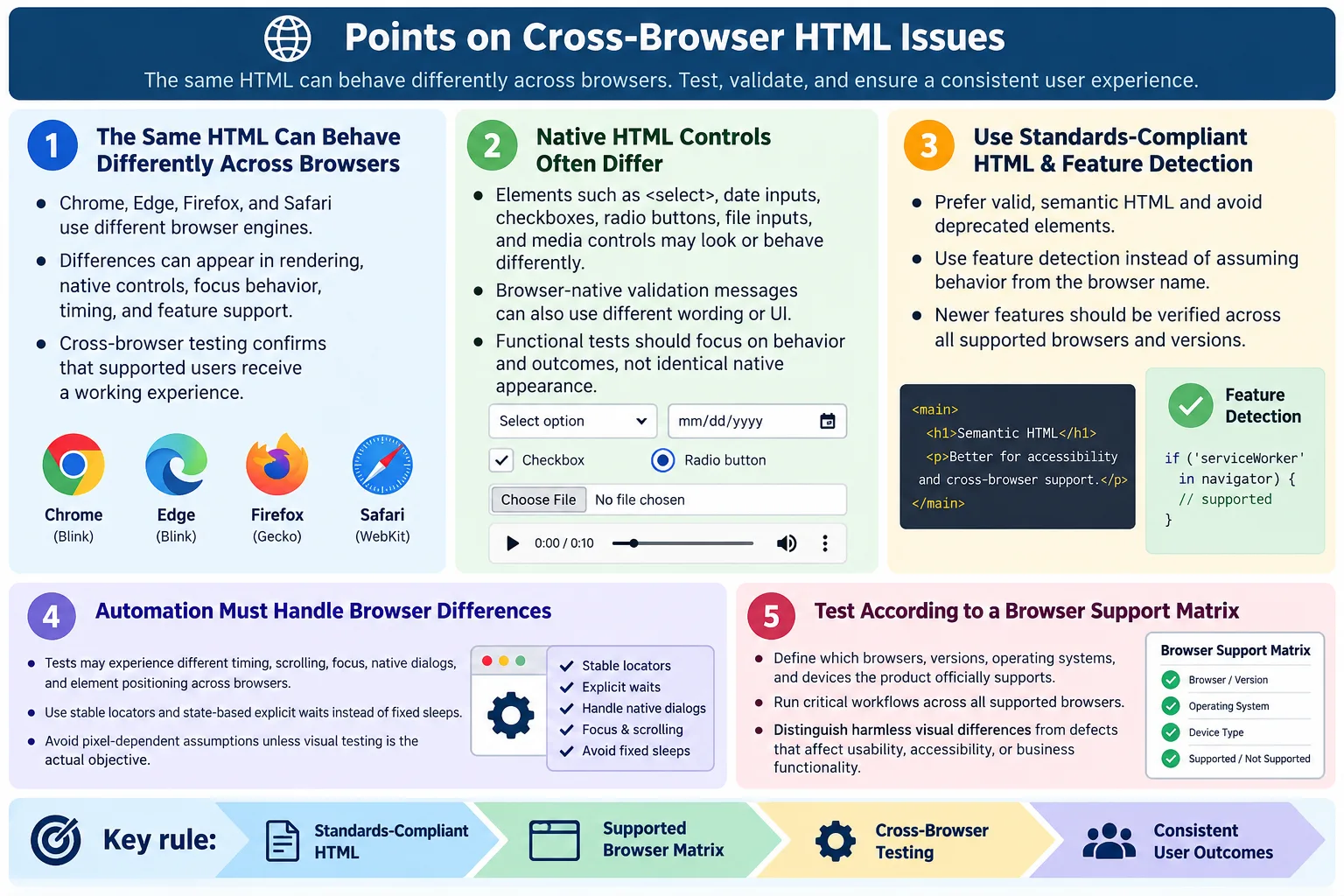
Cross-browser HTML issues are differences in how various web browsers interpret, render, or interact with the same HTML document. Modern browsers follow the HTML Living Standard, but they are not identical products. They use different browser engines, ship features at different times, apply different default styles, and integrate with different operating system controls. Because of these differences, the same HTML can sometimes look, behave, or test differently across Chrome, Edge, Firefox, and Safari.
For UI automation testers, cross-browser differences are important because a test may pass in one browser and fail in another. The application may work perfectly in Chrome but show a form control differently in Safari. A Selenium test may click a button successfully in Edge but fail in Firefox because of timing, focus, scroll behavior, or native control rendering. Cross-browser testing proves that the application works in the browsers the project officially supports.
Common browsers include Google Chrome, Microsoft Edge, Mozilla Firefox, and Safari. Chrome and Edge use the Blink engine. Firefox uses Gecko. Safari uses WebKit. These engines are standards-based, but they still have implementation differences. Understanding those differences helps developers write more portable HTML and helps testers design better browser coverage.
Why Cross-Browser Issues Occur
Every browser has its own rendering engine. The engine parses HTML, creates the DOM, processes CSS, runs JavaScript, computes layout, paints pixels, and responds to user interaction. Even when the same standard is followed, implementation details can differ. One browser may support a feature earlier than another. One browser may render a native date input differently because it uses platform-specific controls. One browser may apply a slightly different default margin or focus outline.
Chrome
  ↓
Blink
  ↓
HTML Rendering

Firefox
  ↓
Gecko
  ↓
HTML Rendering

Safari
  ↓
WebKit
  ↓
HTML Rendering
These differences do not always indicate that one browser is wrong. Some differences are allowed by standards. Some are caused by operating system integration. Some are caused by feature maturity or browser version. Cross-browser testing exists because compatibility cannot be assumed only from reading HTML. It must be verified in the environments users actually use.
Browser Rendering Process
The browser rendering process begins when HTML is received. The browser parses the HTML and creates the DOM. It parses CSS and creates style information. It calculates layout, paints visual output, and creates the user interface. JavaScript may then modify the DOM, causing additional layout and paint work. Small differences during any of these stages can produce different results.
HTML
  ↓
DOM Creation
  ↓
CSS Parsing
  ↓
Layout
  ↓
Paint
  ↓
User Interface
For testers, this process matters because automation usually interacts with the final DOM and rendered state, not merely the original source. If a browser creates slightly different native controls, handles focus differently, or delays rendering differently, automation results can vary. A good test suite uses stable locators and appropriate waits to reduce these browser-specific failures.
Common Causes of Cross-Browser HTML Issues
Cross-browser issues often arise from different browser engines, default browser styles, HTML feature support, form control rendering, font rendering, JavaScript interaction, and browser-specific behavior. A page can be valid HTML and still produce slight differences across browsers because browsers have different built-in UI and platform integration.
- Different browser engines
- Default browser styles
- HTML feature support
- Form control rendering
- Font rendering
- JavaScript interaction
- Browser-specific behavior
The risk is higher when a page depends heavily on native controls, experimental features, browser-specific APIs, or exact pixel-level rendering. The risk is lower when the page uses standards-compliant HTML, semantic elements, feature detection, responsive design, and tested browser support targets.
1. Default Browser Styles
Browsers apply their own default CSS styles to HTML elements. A plain button, input, heading, paragraph, list, or form may look slightly different in Chrome, Firefox, Safari, and Edge before custom CSS is applied. Button padding, border style, font rendering, focus outline, and input spacing can vary.
<button>
  Login
</button>
Chrome and Firefox may display this button with slightly different padding, border thickness, font, or focus behavior. Developers commonly use CSS resets or normalization stylesheets to reduce these differences. A reset removes many default browser styles. A normalization stylesheet keeps useful defaults but makes them more consistent.
For automation, default style differences usually matter only if tests perform visual validation or rely on exact element positions. Functional tests should avoid depending on pixel-perfect default rendering unless visual testing is the explicit goal.
2. HTML5 Feature Support
Most common HTML5 features are widely supported today, but support for newer features can vary depending on browser version. A feature may work in the latest Chrome but not in an older Safari version. A feature may exist but behave differently across platforms.
<input type="date">Some browsers provide a rich calendar picker for date inputs, while others may provide a simpler text-like input depending on platform and version. The HTML is valid, but the user experience differs. Tests that interact with native date pickers must account for these differences.
Before relying on newer HTML features, teams should verify browser compatibility for the project's supported browsers. Feature detection is safer than assuming support based on browser name alone.
3. Form Controls
Native form controls are a major source of cross-browser differences. Select boxes, checkboxes, radio buttons, file inputs, range sliders, date inputs, color inputs, and number inputs can render differently because browsers and operating systems provide native UI behavior.
<select>
  <option>India</option>
</select>
Differences may include dropdown appearance, arrow icons, focus behavior, default spacing, keyboard interaction, and popup rendering. These differences are often acceptable if the control remains usable. However, they matter in visual testing and sometimes in automation interaction.
Automation tests should focus on the selected value and behavior rather than the exact visual appearance of native controls, unless the project specifically requires visual consistency.
4. Input Validation
HTML form validation is standardized, but the validation UI is browser-specific. An email input with required will enforce validation, but the popup style, wording, icons, and timing may differ across browsers.
<input
  type="email"
  required>
One browser may show a message saying one thing, while another browser shows slightly different wording. The validation rules remain standardized, but the user interface differs. Automation tests should be careful when validating built-in browser validation messages. Testing the existence of validation state is usually more portable than asserting exact browser-native wording.
5. Placeholder Rendering
Placeholder text can render differently across browsers. Differences may include color, opacity, font smoothing, and contrast. The HTML is the same, but each browser applies its own default placeholder style unless custom CSS overrides it.
<input placeholder="Enter Email">Functional automation tests generally should not fail because placeholder color differs. But usability and accessibility testing should still review placeholder contrast and behavior. Placeholder text should not replace proper labels because placeholders disappear when the user types and may not provide reliable accessible names in all contexts.
6. Autofill Behavior
Browsers implement autofill differently. An input with autocomplete="email" may show different suggestions, highlight colors, stored credential behavior, or security prompts depending on the browser and user profile.
<input autocomplete="email">Autofill can affect automation if test environments use real browser profiles with stored data. It can also affect visual layout if autofilled fields receive browser-specific styling. Test environments often use fresh profiles or disable autofill to reduce unpredictable behavior.
7. HTML Dialog Support
The <dialog> element is supported in modern browsers, but older browser versions may need a polyfill. Even when supported, focus handling, backdrop behavior, and styling details should be tested across supported browsers.
<dialog>
  Welcome
</dialog>
Dialogs are important because they involve focus management, keyboard behavior, modal interaction, and accessibility. A dialog that works visually in one browser may behave differently with keyboard navigation in another. Cross-browser testing should include opening, closing, tab navigation, escape behavior, and focus return when dialogs are part of critical workflows.
8. Media Elements
HTML media elements such as <video> and <audio> use native controls when the controls attribute is present. These controls differ across browsers and operating systems.
<video controls>
  <source src="lesson.mp4" type="video/mp4">
</video>
Button style, volume control, fullscreen UI, captions behavior, playback controls, and supported codecs can vary. Automation tests should verify that media loads and basic controls work where required, but exact native control appearance should not be assumed identical across browsers.
9. Drag and Drop
Drag-and-drop behavior is standardized, but browser implementations and event handling may differ slightly. HTML elements can use draggable="true", and JavaScript can respond to drag events. However, automation of drag and drop can be more fragile across browsers than simple clicks and typing.
<div draggable="true">
  Drag me
</div>
Tests should verify drag-and-drop behavior across supported browsers if the feature is important. Browser differences can appear in event sequence, mouse movement handling, drop target recognition, and native data transfer behavior.
10. Shadow DOM
Modern web components often use Shadow DOM. Shadow DOM encapsulates markup inside a shadow root. This can affect automation because regular DOM traversal may not reach inside shadow roots unless the tool supports shadow piercing or the test explicitly accesses the shadow root.
<custom-button>
  Shadow Root
    ↓
  <button>Save</button>
</custom-button>
Automation tools require special handling to access elements inside shadow roots. Support differs by framework and browser. Testers should understand whether the application uses open or closed shadow roots and whether the automation tool supports the required interaction.
11. Browser-Specific Features
Some web APIs have varying support depending on browser version. Examples include Web Bluetooth, File System Access API, Web Serial API, and other newer browser capabilities. These features are not purely HTML, but they often appear in web applications that begin with HTML markup and then call browser APIs through JavaScript.
Before relying on such features, teams should verify compatibility. If a feature is available only in Chromium-based browsers, the application may need fallback behavior for Firefox or Safari. Browser-specific features should be introduced deliberately, not accidentally.
12. Accessibility Differences
Accessibility behavior can differ depending on browser, operating system, and screen reader software. A screen reader may announce an element differently in Chrome on Windows than in Safari on macOS. These differences matter for accessibility testing because real users rely on specific browser and assistive technology combinations.
Semantic HTML, labels, accessible names, landmarks, and proper ARIA usage improve consistency, but they do not remove the need for testing. Accessibility should be tested across supported environments, especially for forms, dialogs, navigation menus, dynamic updates, and custom controls.
Browser Workflow
Each browser processes the same HTML using its own engine. The workflow begins with HTML and moves through the browser engine, DOM creation, rendering, and final user interface. The same markup can produce slightly different output because each engine has its own implementation details.
HTML
  ↓
Browser Engine
  ↓
DOM
  ↓
Rendering
  ↓
User Interface
This workflow explains why standards-compliant HTML is necessary but not always sufficient. Standards reduce differences, but testing confirms compatibility. A project should define supported browsers and verify behavior in those browsers.
Cross-Browser Testing
Cross-browser testing verifies that the same application works in the browsers supported by the project. Common targets include Chrome, Firefox, Edge, and Safari. The exact list depends on user analytics, business requirements, device support, and platform constraints.
- Chrome
- Firefox
- Edge
- Safari if supported
Same HTML
  ↓
Chrome
  ↓
Firefox
  ↓
Edge
  ↓
Safari
  ↓
Compare Results
Testing should cover critical workflows, forms, navigation, dialogs, media, responsive layouts, and any browser-sensitive features. It is not enough to test only in the browser used by developers. Real users may use different browsers.
Selenium Perspective
Selenium supports multiple browsers through browser-specific drivers. The same test logic can run in Chrome, Firefox, Edge, and Safari when the framework is configured properly. This makes Selenium useful for detecting browser-specific issues.
Chrome:

WebDriver driver =
  new ChromeDriver();

Firefox:

WebDriver driver =
  new FirefoxDriver();

Edge:

WebDriver driver =
  new EdgeDriver();
The same automation script can run across browsers, but testers should expect some differences. Timing behavior, native dialogs, scrolling, focus, element positions, and browser UI may vary. Stable locators and explicit waits help reduce browser-specific failures.
Selenium Challenges
Automation testers commonly encounter different element positions, different timing behavior, different native dialogs, different browser UI, and slight rendering differences. These issues do not always mean the test is wrong or the browser is wrong. They mean the test must be designed with cross-browser behavior in mind.
- Different element positions
- Different timing behavior
- Different native dialogs
- Different browser UI
- Slight rendering differences
A good cross-browser automation suite avoids hardcoded sleeps, pixel-dependent locators, styling-dependent selectors, and assumptions about native control appearance. It uses stable locators, waits for meaningful states, and validates behavior rather than incidental rendering details.
HTML Best Practices
Cross-browser compatibility begins with good HTML. Use valid HTML. Use semantic HTML. Test on all supported browsers. Use feature detection instead of browser detection where possible. Avoid deprecated HTML elements. Validate HTML regularly. Follow web standards. These practices reduce browser-specific surprises.
- Use valid HTML
- Use semantic HTML
- Test on all supported browsers
- Use feature detection instead of browser detection where possible
- Avoid deprecated HTML elements
- Validate HTML regularly
- Follow web standards
Feature detection is especially important. Browser detection asks what browser is being used. Feature detection asks whether the needed capability exists. The second question is usually more reliable because browser versions and capabilities change over time.
Common Cross-Browser Issues
| Issue | Description |
|---|---|
| Default styles | Different button, input, and form appearance |
| Form controls | Different native rendering |
| Validation messages | Browser-specific UI |
| Media controls | Different video and audio controls |
| Font rendering | Slight visual differences |
| Placeholder styling | Browser-specific appearance |
| Autofill | Different implementations |
| New HTML features | Support varies by browser version |
Common Mistakes
Testing only in Chrome is a common mistake. Chrome is widely used, but it is not the only browser. Applications should be tested in all browsers officially supported by the project. Another mistake is using deprecated HTML. Deprecated elements may behave inconsistently or be unsupported. Ignoring browser compatibility is also risky when using newer features.
Browser detection is another common problem. Avoid writing browser-specific logic whenever possible. Prefer feature detection, which checks whether a browser supports a required feature instead of assuming support based on the browser name. Also avoid assuming identical rendering. Even standards-compliant browsers may render controls slightly differently.
Browser Comparison
| Browser | Rendering Engine |
|---|---|
| Chrome | Blink |
| Edge | Blink |
| Firefox | Gecko |
| Safari | WebKit |
HTML Issues vs Automation Impact
| HTML Issue | Automation Impact |
|---|---|
| Dynamic rendering | Timing issues |
| Shadow DOM | Special locator handling required |
| Validation UI differences | Browser-specific verification |
| Form rendering | Visual differences |
| HTML feature support | Browser compatibility testing |
Practical Testing Strategy
A practical cross-browser strategy begins by defining supported browsers. The project should not test every browser version ever released. It should test the browsers and versions that matter to users and business requirements. Analytics, contracts, customer environments, and platform policies can guide this decision.
After support is defined, tests should be divided by risk. Critical workflows should run across all supported browsers. Lower-risk checks may run in a smaller set. Visual tests may be executed on representative browsers. Manual exploratory checks may focus on browser-sensitive features such as forms, media, dialogs, and responsive behavior.
Automation should use stable locators and explicit synchronization. Avoid tests that depend on exact native control appearance unless visual comparison is the purpose. Cross-browser tests should validate behavior, data, navigation, and user outcomes.
Planning a Browser Support Matrix
A browser support matrix defines which browsers, versions, operating systems, and devices the application officially supports. This matrix is important because cross-browser testing without scope can become endless. A public website may need broad coverage across Chrome, Edge, Firefox, Safari, Android browsers, and iOS Safari. An internal enterprise application may support only Chrome and Edge on managed Windows machines. The testing strategy should match the real user base.
A good matrix should be based on evidence. Website analytics can show which browsers visitors actually use. Product requirements can identify contractual browser support. Customer support tickets can reveal compatibility pain points. Business stakeholders can define minimum support expectations. Once the matrix is clear, testers can decide which browser combinations need full regression, smoke checks, visual checks, or occasional exploratory testing.
The matrix should also be reviewed periodically. Browser usage changes, browser versions update, and old versions become unsupported. A matrix that was correct two years ago may no longer match reality. Keeping it current prevents unnecessary testing on irrelevant environments and prevents missing important environments that users depend on.
Functional Testing vs Visual Testing
Cross-browser testing includes both functional and visual concerns, but they should not be mixed carelessly. Functional testing asks whether the feature works: can the user log in, submit a form, play media, open a dialog, complete checkout, or download a file? Visual testing asks whether the page looks correct: are elements aligned, is spacing correct, are colors consistent, and is content not overlapping?
Many browser differences are visual but not functional. A native select dropdown may look different in Safari than in Chrome, but if the user can select the right option and the application saves it correctly, the functional behavior may be acceptable. On the other hand, a layout issue that hides the Submit button in one browser is both visual and functional because it blocks the workflow.
Automation should be designed accordingly. Functional tests should avoid asserting exact pixels unless necessary. Visual regression tools can compare screenshots when visual consistency is important. Manual exploratory testing can evaluate whether browser-specific native controls are acceptable. Clear separation prevents functional tests from failing because of harmless rendering differences.
Debugging Cross-Browser Failures
When a test passes in one browser and fails in another, the first step is to identify whether the failure is caused by the application, the browser, the automation code, or the test environment. A locator failure may mean the DOM differs across browsers, the element loads at a different time, or the test searched too early. A click failure may mean the element is covered, offscreen, disabled, or handled differently by that browser.
Debugging should begin with the live DOM and browser console. Inspect the element in the failing browser. Compare its attributes, visibility, size, position, and state with the passing browser. Check whether JavaScript errors appear in one browser but not another. Check network requests if dynamic content is missing. Browser-specific JavaScript errors can prevent HTML from being rendered as expected.
It is also important to reproduce the issue manually. If the feature fails manually in the browser, the problem is likely an application compatibility defect. If the feature works manually but automation fails, the problem may be locator strategy, synchronization, scrolling, focus, or action simulation. Separating product defects from automation defects keeps bug reports accurate.
Responsive Design and Browser Differences
Responsive design adds another layer to cross-browser testing. The same HTML may render differently based on viewport width, device pixel ratio, browser UI, operating system, and zoom level. A layout that works on desktop Chrome may wrap differently on mobile Safari. A navigation menu may collapse into a hamburger menu on one viewport but remain expanded on another.
Responsive issues often appear as overlapping text, hidden buttons, horizontal scrolling, cut-off content, or controls that are too small to tap. These are not always pure HTML issues, because CSS plays a major role, but the HTML structure influences how responsive layouts behave. Semantic, well-structured HTML is easier to adapt across breakpoints than deeply nested, layout-dependent markup.
Automation should account for viewport differences. If a test runs in a desktop viewport, it may not cover mobile navigation. If the project supports mobile browsers, tests should include mobile-sized viewports or real mobile browser coverage. Cross-browser testing and responsive testing often overlap in real projects.
Feature Detection vs Browser Detection
Browser detection tries to identify the browser by name or user agent. This is often fragile because user agent strings can be misleading, browser capabilities change over time, and Chromium-based browsers may share similar behavior while still differing in details. Feature detection asks a better question: does this browser support the feature the application needs?
For example, instead of assuming a browser supports a feature because it is Chrome, the application can check whether the relevant API exists. If the feature is available, use it. If not, provide a fallback. This approach is more robust because it adapts to actual capability rather than browser identity.
For testers, feature detection changes what should be verified. Tests should confirm both the enhanced path and the fallback path when the application supports multiple capability levels. A feature may work differently in browsers with and without support, and both experiences should be intentional.
Cross-Browser Issues in Forms
Forms deserve special attention because they combine HTML controls, validation, keyboard behavior, focus management, autocomplete, and accessibility. Native controls such as date inputs, number inputs, file inputs, and select dropdowns may behave differently across browsers. Validation messages may be worded differently. Autofill may appear differently. Keyboard navigation can vary slightly.
Tests should verify the business outcome of forms: required validation works, valid data submits, invalid data is rejected, values are saved correctly, and users can complete the flow with keyboard and mouse. Avoid relying on exact native validation message text unless the application provides custom validation messages. Browser-native messages are not meant to be identical across browsers.
Labels are also important. Proper <label> elements improve accessibility and make form controls easier to locate. Placeholder-only forms can behave inconsistently and are weaker for both users and tests. Good form HTML reduces cross-browser uncertainty.
Cross-Browser Issues in Automation Timing
Different browsers can have different timing behavior. One browser may render a component slightly faster. Another may delay layout or execute JavaScript differently under the same test conditions. Network, driver implementation, and machine load can also affect timing. Tests that use fixed sleeps are especially vulnerable because a sleep that works in Chrome may not be enough in Firefox or Safari.
Explicit waits are a better solution. Instead of waiting for a fixed number of seconds, the test should wait for a meaningful condition: element visible, button enabled, request completed, modal opened, or text present. This makes tests more resilient across browsers because they adapt to actual page state.
Timing issues should not be solved by adding longer and longer sleeps. That makes test suites slow and still unreliable. Stable locators plus state-based waits are the better pattern for cross-browser automation.
When Differences Are Acceptable
Not every cross-browser difference is a defect. Native controls are allowed to look different. Font rendering can vary slightly. Focus outlines can differ. Scrollbar appearance can differ. The key question is whether the difference affects usability, accessibility, branding requirements, or business functionality.
A slightly different dropdown arrow is usually acceptable. A dropdown that cannot be opened is not acceptable. A browser-specific validation popup with different wording may be acceptable. A form that accepts invalid data in one browser is not acceptable. A different video control style may be acceptable. A video that fails to play in a supported browser is not acceptable.
This distinction helps testers write better bug reports. The report should explain user impact, not merely state that two browsers look different. Cross-browser testing is about supported user experience, not forcing every browser to be visually identical in every minor detail.
Common Interview Questions
What are cross-browser HTML issues? They are differences in how browsers interpret, render, or interact with the same HTML document.
Why do browsers behave differently? They use different rendering engines and may implement features differently while following web standards.
Which browsers are commonly tested? Chrome, Firefox, Edge, and Safari are commonly tested depending on project support requirements.
Should HTML be browser-specific? No. HTML should follow web standards so it works consistently across supported browsers.
Why use feature detection? Feature detection checks whether a browser supports a required feature instead of assuming support based on browser name.
Does Selenium support multiple browsers? Yes. Selenium supports Chrome, Firefox, Edge, Safari, and others through browser-specific drivers.
Interview-Ready Answer
Cross-browser HTML issues are differences in how browsers render or interpret the same HTML document. Although modern browsers follow the HTML Living Standard, variations in rendering engines, default styles, native form controls, feature support, and browser-specific implementations can lead to different behavior.
Automation testers should validate applications across all supported browsers, use standards-compliant HTML, prefer feature detection over browser detection, and create stable locators with appropriate synchronization to ensure reliable cross-browser UI testing.
One-Line Insight
Write standards-compliant HTML, then verify it across browsers; compatibility is confirmed through testing, not assumed.