Common Table Mistakes
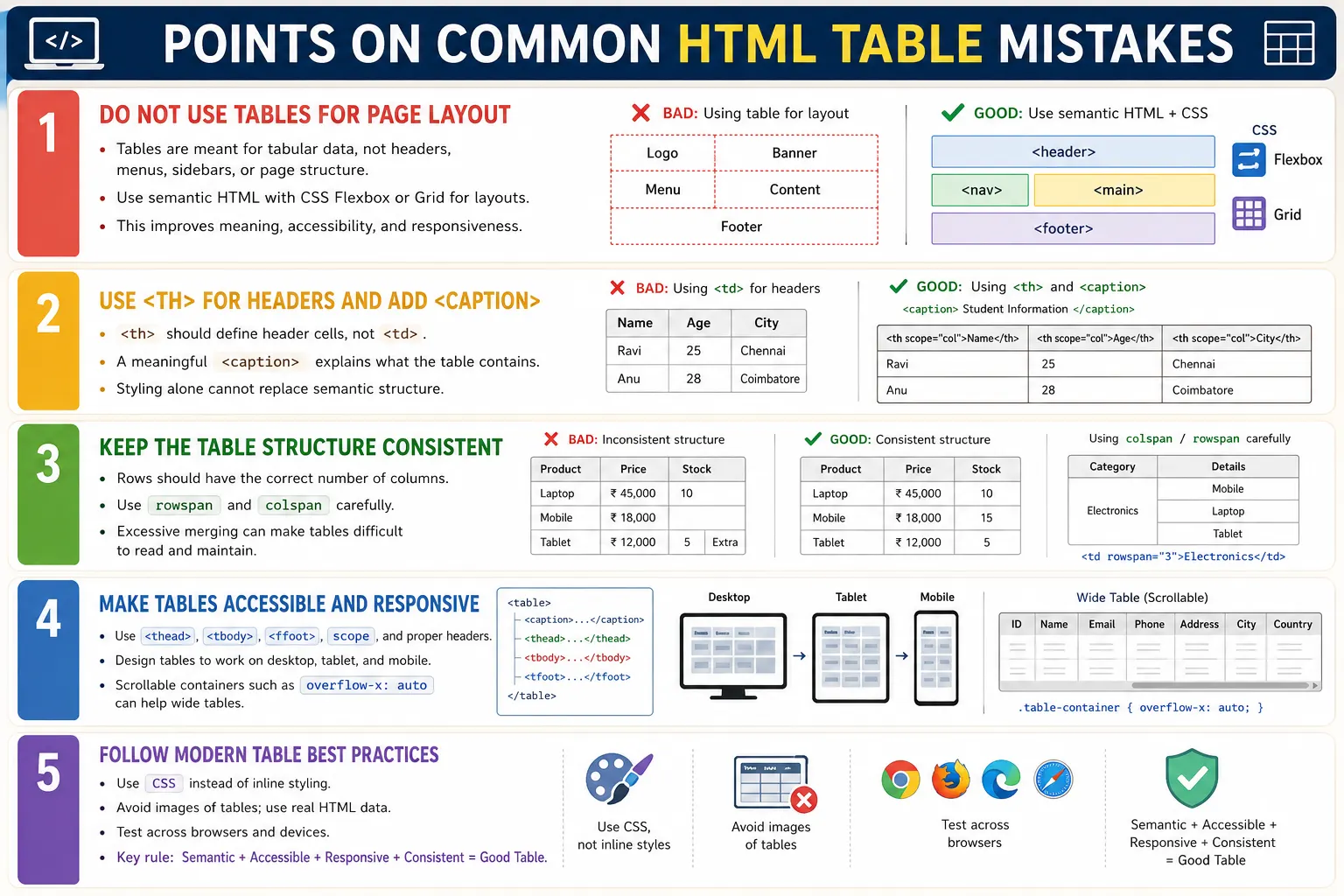
Introduction
HTML tables are designed to display structured tabular data. They are useful when information naturally belongs in rows and columns, such as employee records, student marks, financial reports, product pricing, schedules, invoices, and comparison data. Although creating a basic table is straightforward, writing a professional table requires more care than simply placing values inside <tr> and <td> elements.
Developers often make table mistakes that lead to poor accessibility, inconsistent layouts, difficult maintenance, invalid HTML, weak responsiveness, and confusing data presentation. Some mistakes happen because developers focus only on how the table looks visually. Other mistakes happen because they do not understand the semantic meaning of table elements such as <th>, <caption>, <thead>, <tbody>, <tfoot>, scope, rowspan, and colspan.
Understanding common table mistakes helps you write cleaner, more meaningful, more accessible, and more maintainable HTML. A well-designed table should make data easy to read, easy to compare, easy to navigate, and easy to test across different devices and browsers.
Why Avoid Table Mistakes?
Poorly designed tables can confuse users and make important information difficult to understand. A table may look acceptable on a developer's desktop screen but fail for users on mobile devices, screen readers, or smaller browser windows. If table structure is weak, users may not understand which values belong to which headers. If markup is invalid, the browser may still render something, but the output can become unpredictable.
Bad table design can cause confusing data presentation, accessibility problems, broken layouts, difficult maintenance, responsive design issues, and poor user experience. Good table design does the opposite. It makes data clear, preserves relationships between headers and cells, supports assistive technologies, works across screen sizes, and allows developers and testers to reason about the structure confidently.
Tables often contain business-critical data. A banking table may show balances. A medical table may show test results. A student result table may show grades. A pricing table may influence purchase decisions. When table markup is poor, the impact is not merely cosmetic. It can affect user trust, decision-making, and product quality.
Mistake 1: Using Tables for Page Layout
The most common and important table mistake is using tables for page layout. This was common in the early web because CSS layout tools were limited. Developers used tables to create headers, sidebars, menus, and content columns. Today, this approach is considered incorrect.
<table>
    <tr>
        <td>Header</td>
    </tr>
    <tr>
        <td>Content</td>
    </tr>
</table>
This code may visually create a page structure, but semantically it says the page is a data table. That is misleading. Tables are intended for reports, price lists, student records, financial data, schedules, and other tabular information. They are not intended for navigation menus, headers, sidebars, footers, or entire page layouts.
Modern websites should use semantic HTML elements such as <header>, <nav>, <main>, <section>, <aside>, and <footer>, combined with CSS Flexbox or CSS Grid. This approach keeps HTML meaningful and allows CSS to control layout.
Mistake 2: Using td Instead of th
Another common mistake is using <td> for header cells. A normal data cell and a header cell are not the same. Header cells describe the meaning of other cells, while data cells contain the actual values.
<tr>
    <td>Name</td>
    <td>Age</td>
</tr>
This may look like a header row when styled in bold, but it does not communicate header meaning to browsers or assistive technologies. The correct approach is to use <th>.
<tr>
    <th>Name</th>
    <th>Age</th>
</tr>
The <th> element identifies header cells. This improves accessibility and makes the table easier to understand programmatically. Styling alone cannot replace semantic meaning.
Mistake 3: Missing Caption
A table caption tells users what the table contains. Without a caption, users may have to inspect the headers and data before understanding the table's purpose. This becomes harder when a page contains multiple tables.
<table>
    ...
</table>
A better version includes a meaningful caption.
<table>
    <caption>Employee Information</caption>
    ...
</table>
The caption should be descriptive. A caption such as "Table" is not helpful. A caption such as "Monthly Sales Report" or "Employee Information" immediately explains the purpose of the data.
Mistake 4: Ignoring thead, tbody, and tfoot
Small tables can render without <thead>, <tbody>, and <tfoot>, but omitting them in larger or professional tables often makes the structure less clear. These elements organize the table into logical sections.
<table>
    <tr>...</tr>
    <tr>...</tr>
</table>
A better structure separates the header, body, and footer.
<table>
    <thead>
        ...
    </thead>
    <tbody>
        ...
    </tbody>
    <tfoot>
        ...
    </tfoot>
</table>
This improves organization, styling, accessibility, and JavaScript selection. It also makes the table easier to maintain because each section has a clear purpose.
Mistake 5: Unequal Number of Columns
Every row in a simple table should have a consistent number of columns. A common mistake is accidentally creating rows with different numbers of cells.
<tr>
    <td>John</td>
    <td>25</td>
</tr>

<tr>
    <td>Alice</td>
</tr>
This creates a broken or unclear table structure. The browser may still render the table, but the relationship between columns becomes inconsistent. Every row should align with the overall column structure unless rowspan or colspan is intentionally used.
Inconsistent columns also make automation and data extraction harder. A tester reading cell values row by row may get unexpected results if one row has missing cells.
Mistake 6: Incorrect rowspan and colspan
The rowspan and colspan attributes are useful when a cell needs to span multiple rows or columns. However, incorrect values can break the table layout.
<td colspan="3">Total</td>If the table only has two columns, a colspan of three does not match the actual structure. Developers should always count the table grid carefully. A merged cell occupies multiple positions, and the rest of the row must still align with the table's column structure.
The same principle applies to rowspan. A cell that spans multiple rows affects the structure of later rows. If developers forget this, the table can become visually confusing and semantically difficult to interpret.
Mistake 7: Overusing Cell Merging
Cell merging should be used only when it improves the meaning of the table. Overusing rowspan and colspan can make tables hard to read, hard to maintain, and difficult for screen readers.
rowspan="8"
colspan="10"
Large merged areas may look visually impressive, but they often make the structure harder to understand. If a table requires many merged cells, consider whether the data can be split into smaller tables or simplified. A clear table is usually better than a complex table that tries to show everything at once.
Mistake 8: Empty Cells Without Purpose
Empty cells can confuse users because it is not always clear whether the data is missing, not applicable, intentionally blank, or accidentally omitted.
<td></td>When appropriate, use a meaningful placeholder such as N/A or a dash.
<td>N/A</td>The placeholder should match the meaning of the data. If the value is not applicable, N/A may be useful. If the value is zero, use zero. If the value is unknown, the table should communicate that clearly.
Mistake 9: Missing scope in Header Cells
The scope attribute helps define whether a header applies to a row or column. In simple tables, browsers can often infer relationships, but adding scope improves clarity, especially for assistive technologies.
<th>Name</th>A better version identifies the header as a column header.
<th scope="col">Name</th>For row headers, use scope="row". This is especially useful in tables where the first cell of each row identifies the row's subject.
Mistake 10: Using Complex Tables Unnecessarily
Complex tables are sometimes necessary, but they should not be the default choice. Deeply nested headers, multiple grouped sections, and heavy merging can make tables difficult to understand.
Header
  ↓
Nested Header
  ↓
Nested Header
  ↓
Nested Header
If users need to work hard to understand the structure, the table may be too complex. In many cases, several smaller tables are clearer than one large table with many layers. Simpler structures are easier to read, test, style, and make accessible.
Mistake 11: No Responsive Design
Large tables may look good on desktop screens but fail on mobile devices. Without responsive design, users may experience horizontal overflow, clipped data, or unreadable columns.
Desktop
  ↓
Looks Good

Mobile
  ↓
Horizontal Overflow
Responsive techniques such as wrapping the table in a scrollable container can improve usability on smaller screens.
.table-container {
    overflow-x: auto;
}
Responsive design should be considered early, not added only after users report problems. Every table should be checked on desktop, tablet, and mobile widths.
Mistake 12: No Accessibility Consideration
A table may be visually readable but inaccessible. Accessibility requires semantic structure, meaningful headers, captions, and clear relationships between cells.
<table>
    <tr>
        <td>Name</td>
    </tr>
</table>
A better version uses caption, table head, and header cells.
<table>
    <caption>Employee Details</caption>
    <thead>
        <tr>
            <th scope="col">Name</th>
        </tr>
    </thead>
</table>
Accessibility should be considered from the start. It is harder to fix table accessibility after a complex structure has already been built incorrectly.
Mistake 13: Inline Styling
Another mistake is mixing styling directly into table markup. Older HTML often used attributes such as border, or inline styles on individual cells.
<table border="1">
<td style="color:red;">Failed</td>
A better approach is to keep HTML focused on structure and use CSS for presentation.
table {
    border-collapse: collapse;
}
Separating structure from presentation makes code easier to maintain. If the design changes, developers can update CSS instead of editing many table cells individually.
Mistake 14: Very Large Tables Without Pagination
Very large tables can create serious performance and usability problems. A table with 20,000 rows may be slow to render, hard to search, and difficult to navigate.
20,000 Rows
  ↓
Slow Rendering
  ↓
Difficult Navigation
Better approaches include pagination, lazy loading, filtering, sorting, and virtual scrolling. These techniques reduce the amount of data shown at one time and help users find what they need faster.
Large enterprise systems often combine several techniques. A report may load paginated rows, allow searching by date or user, and provide export functionality for full datasets.
Mistake 15: Poor Data Organization
A table must organize related information consistently. If values appear without clear structure, users cannot easily understand the relationship between them.
John
25
IT
5000
Alice
HR
30
This sequence is confusing because the relationship between values is unclear. A proper table groups each record consistently, with headers explaining each column. Good data organization is the foundation of a useful table.
Mistake 16: Using Images Instead of Text
Sometimes table data is inserted as an image. This is a serious mistake when the data should be readable, searchable, accessible, and responsive.
Image
  ↓
Contains
Entire Table
Images of tables create multiple problems. Screen readers cannot interpret the rows and columns. Users cannot select or copy the text. Search engines cannot understand the data as clearly. The image may not scale well on mobile devices. Real data should be presented as real HTML table markup.
Mistake 17: Missing Footer for Totals
Some tables contain summary values such as totals, averages, counts, or final balances. A common mistake is placing data rows without a clear summary.
January  500
February 600
March    700
A better version includes a table footer when a summary is appropriate.
<tfoot>
    <tr>
        <td>Total</td>
        <td>1800</td>
    </tr>
</tfoot>
The <tfoot> element makes the summary section clear and helps separate totals from normal data rows.
Mistake 18: Not Testing Across Browsers
Tables should be tested across browsers and devices. A table that appears correct in Chrome on desktop may have spacing, scrolling, or responsive issues in another browser or on a mobile device. Testing should include Chrome, Firefox, Edge, Safari, desktop, tablet, and mobile screens where possible.
Different screen sizes may reveal layout issues that are invisible during desktop development. Long text, many columns, merged cells, and nested structures can all behave differently when space is limited.
Mistake 19: Missing Meaningful Captions
Adding a caption is useful, but the caption must be meaningful. A caption that simply says "Table" does not help users understand the data.
<caption>Table</caption>A better caption clearly describes the table.
<caption>Monthly Sales Report</caption>The caption should be short but specific. It should tell users what the table is about before they read the details.
Mistake 20: Ignoring Semantic HTML
A well-structured table follows a logical semantic flow. It begins with a caption when appropriate, then a header section, then the body, and finally a footer if summary information is present.
Caption
  ↓
Header
  ↓
Body
  ↓
Footer
Semantic markup improves readability, accessibility, maintainability, and testability. Browsers and assistive technologies can interpret the table correctly when the structure is clear.
Browser Perspective
From the browser's perspective, a poorly structured table provides weak information. The browser may still render it, but the meaning is unclear. A well-structured table communicates its purpose through caption, headers, body rows, and optional footer.
Poor table:
Unknown Structure

Well-structured table:
Caption
  ↓
Header
  ↓
Body
  ↓
Footer
This structure is also useful for screen readers, CSS styling, JavaScript selection, and automated testing.
Real-World Example
The following employee report follows modern table best practices. It includes a meaningful caption, semantic table sections, header cells with scope, body rows, and a footer summary.
<table>
    <caption>Employee Details</caption>
    <thead>
        <tr>
            <th scope="col">Name</th>
            <th scope="col">Department</th>
        </tr>
    </thead>
    <tbody>
        <tr>
            <td>John</td>
            <td>IT</td>
        </tr>
    </tbody>
    <tfoot>
        <tr>
            <td colspan="2">Total Employees: 1</td>
        </tr>
    </tfoot>
</table>
This table is much better than a collection of unstructured rows and cells. It communicates meaning to users, browsers, assistive technologies, and automation scripts.
Selenium Perspective
Automation testers commonly validate table quality by checking header presence, caption text, row count, column count, cell values, and accessibility-related attributes. Selenium can locate table headers using the <th> tag.
List<WebElement> headers =
driver.findElements(By.tagName("th"));
Testers can also verify caption text.
String caption =
driver.findElement(By.tagName("caption"))
      .getText();
Row count can be checked using <tr> elements.
List<WebElement> rows =
driver.findElements(By.tagName("tr"));
Good table markup makes automated tests easier to write and easier to understand. Poor markup forces tests to rely on brittle positions, unclear structures, and fragile locators.
Best Practices Checklist
Use tables only for tabular data. Use <th> for header cells. Add a meaningful <caption>. Organize large tables with <thead>, <tbody>, and <tfoot>. Use scope where appropriate. Keep the number of columns consistent. Use rowspan and colspan carefully. Make tables responsive. Style tables with CSS instead of inline attributes. Test tables across devices and browsers.
These practices are not difficult, but they require discipline. Good table markup is intentional. It treats the table as structured information, not just visual boxes on a screen.
Summary Table
| Mistake | Better Practice |
|---|---|
| Using tables for layouts | Use Flexbox or Grid |
Using <td> for headers |
Use <th> |
Missing <caption> |
Add a descriptive caption |
| Omitting semantic sections | Use <thead>, <tbody>, and <tfoot> |
| Inconsistent columns | Keep the table structure consistent |
| Excessive rowspan or colspan | Merge cells only when necessary |
| Ignoring responsiveness | Make tables mobile-friendly |
| Inline styling | Use CSS |
| Missing accessibility | Use semantic markup and appropriate attributes |
| Skipping browser testing | Test across browsers and devices |
Common Interview Questions
What is the biggest mistake developers make with tables? The biggest mistake is using tables for page layouts instead of using them for tabular data.
Why should <th> be used instead of <td> for headers? The <th> element provides semantic meaning and improves accessibility by identifying header cells.
Why should tables include a <caption>? A caption helps users and screen readers understand the purpose of the table before reading the data.
Should tables always be responsive? Yes. Tables should remain usable on smaller screens using responsive design techniques such as horizontal scrolling or other appropriate patterns.
Why should inline styling be avoided? Inline styling mixes presentation with structure and makes code harder to maintain. CSS should handle styling.
Interview-Ready Answer
Common HTML table mistakes include using tables for page layouts, using <td> instead of <th> for headers, omitting <caption>, ignoring semantic elements like <thead>, <tbody>, and <tfoot>, creating inconsistent row structures, overusing rowspan and colspan, neglecting accessibility, failing to make tables responsive, using images instead of real table text, and mixing styling with HTML. Following semantic HTML and CSS best practices results in tables that are more accessible, maintainable, responsive, and user-friendly.
One-Line Insight
A well-designed table presents data clearly, remains accessible to all users, adapts to different devices, and uses semantic HTML instead of layout hacks.