Common List Accessibility Issues
Introduction
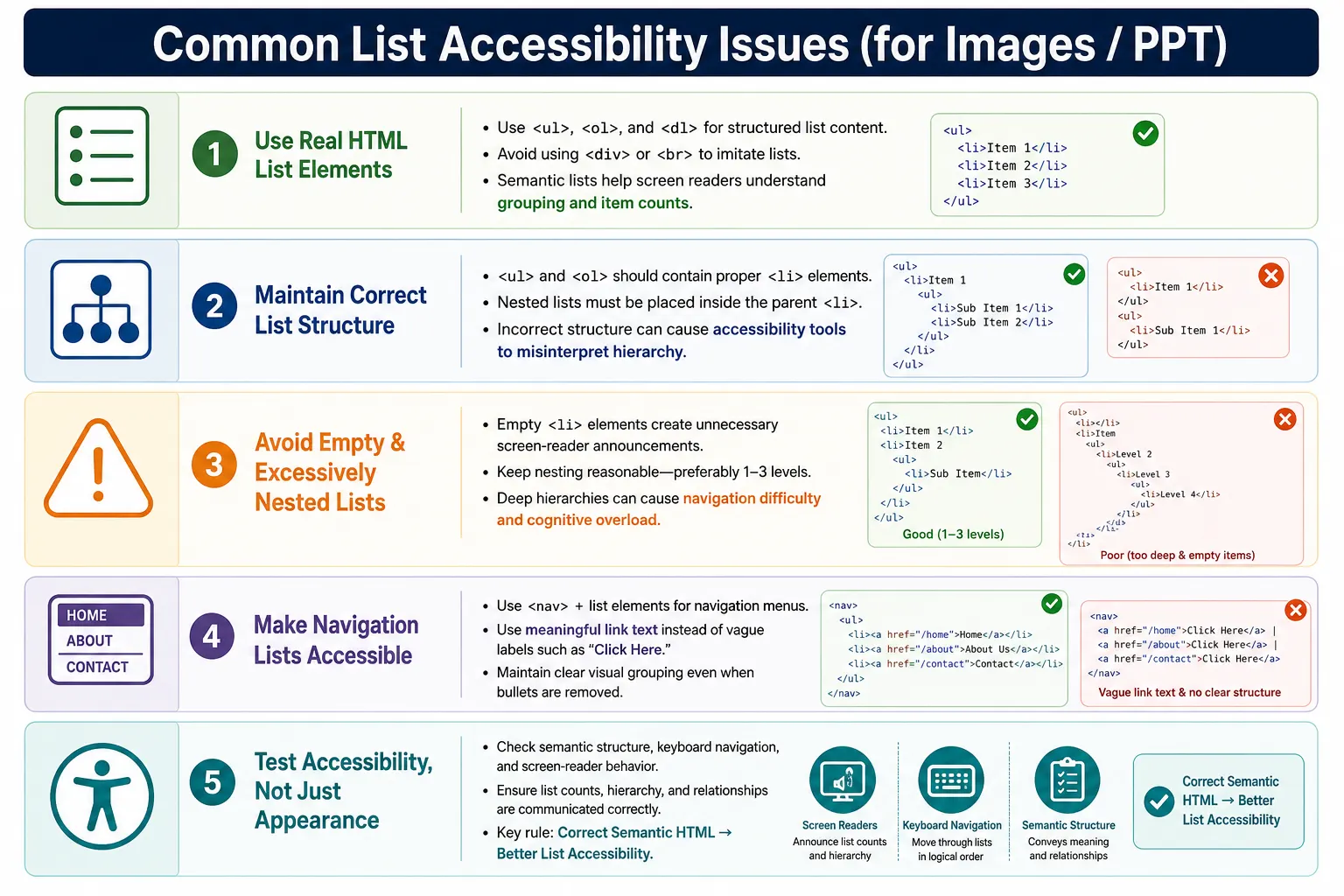
Lists such as <ul>, <ol>, and <dl> are inherently accessible HTML elements when they are used correctly. They communicate grouped content, item counts, ordered sequences, and term-description relationships. However, many websites introduce accessibility problems by using lists improperly, replacing them with non-semantic elements, nesting them incorrectly, or using them only for layout.
List accessibility issues can affect screen reader users, keyboard-only users, users with cognitive disabilities, and users relying on assistive technologies. A list that looks correct visually may still be difficult to understand if the HTML structure is wrong. A navigation menu may look polished but fail to communicate that it is a navigation region. A group of topics may look like a list but be announced as unrelated text if developers use <br> or <div> instead of real list elements.
Understanding these issues helps create websites that are usable by everyone. Accessibility is not only about adding ARIA attributes or using automated tools. It starts with choosing the correct HTML element for the content. For lists, that means using real list elements when content is grouped, ordered, nested, or structured as term-description pairs.
Why List Accessibility Matters
Lists communicate structure. A simple unordered list tells assistive technologies that the items belong together.
<ul>
  <li>HTML</li>
  <li>CSS</li>
  <li>JavaScript</li>
</ul>
A screen reader may announce:
List with 3 items

HTML
CSS
JavaScript
This provides context that would otherwise be lost. The user does not hear three unrelated words. The user hears that the words are part of a list, and that the list contains three items. This helps with navigation, memory, and comprehension.
How Screen Readers Interpret Lists
Screen readers use HTML structure to explain page content. For example:
<ul>
  <li>Home</li>
  <li>Courses</li>
  <li>Contact</li>
</ul>
A screen reader may announce:
List with 3 items

Home
Courses
Contact
The user immediately understands that these items belong together. If the same content is written as plain text, the grouping is not communicated as strongly. This is why semantic HTML is the first layer of accessibility.
Issue 1: Using br Instead of Lists
A common mistake is using line breaks to create something that visually looks like a list.
HTML<br>
CSS<br>
JavaScript
The visual output is:
HTML
CSS
JavaScript
This may look correct visually, but no list semantics exist. A screen reader may read the words without indicating that they form a grouped list. The correct approach is to use real list elements.
<ul>
  <li>HTML</li>
  <li>CSS</li>
  <li>JavaScript</li>
</ul>
Now assistive technologies understand the structure. The browser, screen reader, and automated accessibility tools can identify the content as a list.
Issue 2: Using Divs Instead of Lists
Another common mistake is replacing list elements with generic <div> elements.
<div>HTML</div>
<div>CSS</div>
<div>JavaScript</div>
The visual result may look like a list, especially after CSS is applied. The accessibility problem is that the content is not recognized as a list. A <div> is a generic container. It does not communicate item grouping.
<ul>
  <li>HTML</li>
  <li>CSS</li>
  <li>JavaScript</li>
</ul>
This version provides real list semantics. Styling can still make the list look however the design requires.
Issue 3: Removing List Semantics
Some developers accidentally weaken list semantics with CSS. For example, this is fine:
ul {
    display: block;
}
The list remains a list. However, some CSS values can cause assistive technologies to lose list semantics in certain browser and screen reader combinations.
ul {
    display: contents;
}
In some environments, display: contents; can remove the element's box in a way that also affects how accessibility trees represent the element. The result may be that screen readers do not detect the list properly. This is why developers should be careful when using advanced CSS display values on semantic elements.
Issue 4: Empty List Items
Empty list items create confusion for assistive technology users.
<ul>
  <li></li>
  <li></li>
  <li></li>
</ul>
A screen reader may announce:
List with 3 items
Blank
Blank
Blank
This creates unnecessary noise and confusion. If list items exist, they should contain meaningful content.
<ul>
  <li>HTML</li>
  <li>CSS</li>
  <li>JavaScript</li>
</ul>
Issue 5: Using Lists for Layout Only
Lists should represent related content, not layout tricks. A fake list used only for spacing creates false semantic meaning.
<ul>
  <li></li>
  <li></li>
  <li></li>
</ul>
Screen readers may think the page contains a real list when it does not. This can make the page harder to understand. If the goal is layout, use CSS layout tools such as flexbox or grid.
display: flex;
display: grid;
HTML should communicate meaning. CSS should control layout.
Issue 6: Missing List Item Elements
List containers should contain list item elements. This is incorrect:
<ul>
HTML
CSS
JavaScript
</ul>
A browser may try to repair invalid markup, but accessibility tools may behave inconsistently. The correct approach is:
<ul>
  <li>HTML</li>
  <li>CSS</li>
  <li>JavaScript</li>
</ul>
The <li> element identifies each list item. Without it, the list structure is incomplete.
Issue 7: Incorrect Nesting
Nested lists must be placed inside the parent <li>. This is incorrect:
<ul>
  <li>Frontend</li>
  <ul>
    <li>HTML</li>
  </ul>
</ul>
The problem is invalid structure. Some assistive technologies may misinterpret the hierarchy. The correct approach is:
<ul>
  <li>
    Frontend
    <ul>
      <li>HTML</li>
    </ul>
  </li>
</ul>
This clearly communicates that HTML belongs under Frontend.
Issue 8: Excessive Nesting
Nested lists are useful, but excessive nesting can become difficult to navigate.
Level 1
  Level 2
    Level 3
      Level 4
        Level 5
          Level 6
Screen readers may need to announce each level, and users can become lost. Deep nesting also creates cognitive overload for sighted users. A better approach is to keep hierarchy reasonable, preferably one to three levels whenever possible.
If content requires many levels, consider breaking it into sections, adding headings, using accordions carefully, or splitting the content across multiple pages.
Issue 9: Navigation Menus Without Proper Structure
A navigation menu written with generic containers loses important meaning.
<div>
  <a href="#">Home</a>
  <a href="#">Courses</a>
  <a href="#">Contact</a>
</div>
The visual appearance may be:
Home Courses ContactThe accessibility problem is that there is no navigation landmark and no list structure. A better approach is:
<nav>
  <ul>
    <li><a href="#">Home</a></li>
    <li><a href="#">Courses</a></li>
    <li><a href="#">Contact</a></li>
  </ul>
</nav>
This communicates a navigation region containing a list of related links.
Issue 10: Generic Link Text Inside Lists
List structure alone is not enough if the link text is unclear. This is weak:
<ul>
  <li>
    <a href="html.html">
      Click Here
    </a>
  </li>
</ul>
A screen reader user may hear Click Here without enough context. A better version uses descriptive link text.
<ul>
  <li>
    <a href="html.html">
      HTML Tutorial
    </a>
  </li>
</ul>
The screen reader output is clearer because HTML Tutorial tells the user where the link leads.
Issue 11: Description Lists Used Incorrectly
Description lists should represent term-description relationships. This is incomplete:
<dl>
  <dt>HTML</dt>
  <dt>CSS</dt>
  <dt>JavaScript</dt>
</dl>
The descriptions are missing. Screen readers expect term-description relationships. The correct approach is:
<dl>
  <dt>HTML</dt>
  <dd>Markup Language</dd>
</dl>
Use <dt> for the term and <dd> for the detail.
Issue 12: Using Tables Instead of Lists
Tables should represent tabular data, not simple lists.
<table>
  <tr>
    <td>HTML</td>
  </tr>
  <tr>
    <td>CSS</td>
  </tr>
</table>
This creates data table semantics instead of list semantics. If the content is simply a list, use a list.
<ul>
  <li>HTML</li>
  <li>CSS</li>
</ul>
Issue 13: Removing Visible Markers Without Visual Cues
Removing bullets does not remove list semantics, but visual design still matters.
ul {
    list-style: none;
}
If spacing is poor, the items may appear unrelated. A better approach is to provide spacing or another visual indicator.
li {
    margin-bottom: 10px;
}
Users who rely on visual scanning still need clear grouping. Accessibility includes visual clarity as well as screen reader structure.
Issue 14: Very Long Lists
Very long lists can create usability and accessibility problems. A list with 200 or more items may be technically semantic, but it can still be difficult to navigate.
200+ ItemsProblems include difficult navigation, cognitive overload, and screen reader fatigue. Better solutions include search, filtering, grouping, pagination, and categorization. Long lists should be organized so users can quickly find what they need.
Issue 15: Dynamic Lists Without Announcements
Modern websites often update lists dynamically with JavaScript.
list.appendChild(item);If new items are added after the page loads, screen reader users may not know that the list changed. When dynamic updates are important, use ARIA live regions carefully.
<div aria-live="polite">
  ...
</div>
This can notify assistive technologies that content has changed without interrupting the user aggressively.
Accessibility Best Practices
Use proper list elements. If content is a related group, use <ul>. If content is sequential, use <ol>. If content contains term-description pairs, use <dl>, <dt>, and <dd>.
Use lists only when appropriate. Do not use lists for layout-only spacing. Keep nesting reasonable, preferably one to three levels. Use meaningful text, especially for links. Avoid vague labels such as Click Here and Read More when they do not provide enough context.
Maintain logical structure. Parent <li> elements must contain child lists. Test with screen readers when possible and verify that list count, hierarchy, and relationships are announced correctly.
Practical Testing Checklist
A practical list accessibility review should start with the source structure. Check whether grouped items use real list elements. Check whether each <ul> or <ol> contains proper <li> children. Check whether every description list has meaningful <dt> and <dd> relationships.
Next, inspect the rendered page. If bullets or numbers are removed, confirm that spacing, borders, icons, or layout still make the items visually understandable. If the list is used as navigation, confirm that it is inside a meaningful navigation region and that every link has descriptive text. If the list is dynamic, confirm that users receive appropriate feedback when items are added or removed.
Finally, test the experience with keyboard navigation and at least one accessibility tool. Keyboard users should be able to move through interactive list items logically. Screen reader output should identify list structure, item count, and nested hierarchy in a way that matches the visual page. Automated tools are useful, but they cannot replace human judgment about whether the list actually helps users understand the content.
Accessibility Comparison
| Problem | Impact | Solution |
|---|---|---|
| <br> Instead of List | No semantics | Use <ul> or <ol> |
| Divs Instead of List | Structure lost | Use list elements |
| Empty <li> | Confusing | Add meaningful content |
| Incorrect Nesting | Broken hierarchy | Nest inside <li> |
| Excessive Nesting | Difficult navigation | Simplify structure |
| Generic Links | Poor context | Use descriptive text |
| Fake Lists for Layout | Misleading semantics | Use CSS layout tools |
| Missing <dd> in <dl> | Broken relationships | Use proper term-description pairs |
Selenium Perspective
From a Selenium perspective, list structure can be checked by locating list items.
List<WebElement> items =
driver.findElements(
  By.tagName("li")
);

System.out.println(
  items.size()
);
Navigation menus can also be checked by locating the navigation region.
WebElement nav =
driver.findElement(
  By.tagName("nav")
);
Accessibility testing tools often verify list structure, list count, nested hierarchy, and semantic usage. Selenium can support these checks by confirming that expected HTML elements exist, while dedicated accessibility tools can inspect deeper accessibility tree behavior.
Common Interview Questions
A common interview question is: why are semantic lists important for accessibility? The answer is that screen readers can announce item counts and list structure.
Another question is why <div> elements should not replace lists. Divs provide no list semantics. Interviewers may also ask the most common list accessibility mistake. A common answer is using non-semantic elements such as <div> or <br> instead of real list elements.
They may ask why nested lists should be placed inside <li>. The answer is to maintain proper parent-child relationships. They may also ask whether removing bullets harms accessibility. No, list semantics remain, but visual cues should be replaced appropriately.
Interview-Ready Answer
The most common list accessibility issues include using <div> elements instead of semantic list elements, incorrect nesting, empty list items, excessive nesting, and using lists purely for layout. Proper use of <ul>, <ol>, <dl>, and <li> ensures that screen readers can accurately communicate list structure, item counts, and relationships to users.
Key Takeaway
A list is accessible because it uses the correct semantic HTML structure, not because it visually has bullets or numbers. Bullets can be hidden, colors can change, and layout can be adjusted, but the list remains meaningful when the underlying HTML is correct.
Use real list elements for real lists, avoid fake lists for layout, keep nesting logical, provide meaningful content, and test important patterns with assistive technologies. These habits make list-based content easier to understand for everyone.
One-Line Insight
A list is accessible not because it has bullets or numbers, but because it uses the correct semantic HTML structure.