Common Accessibility Violations
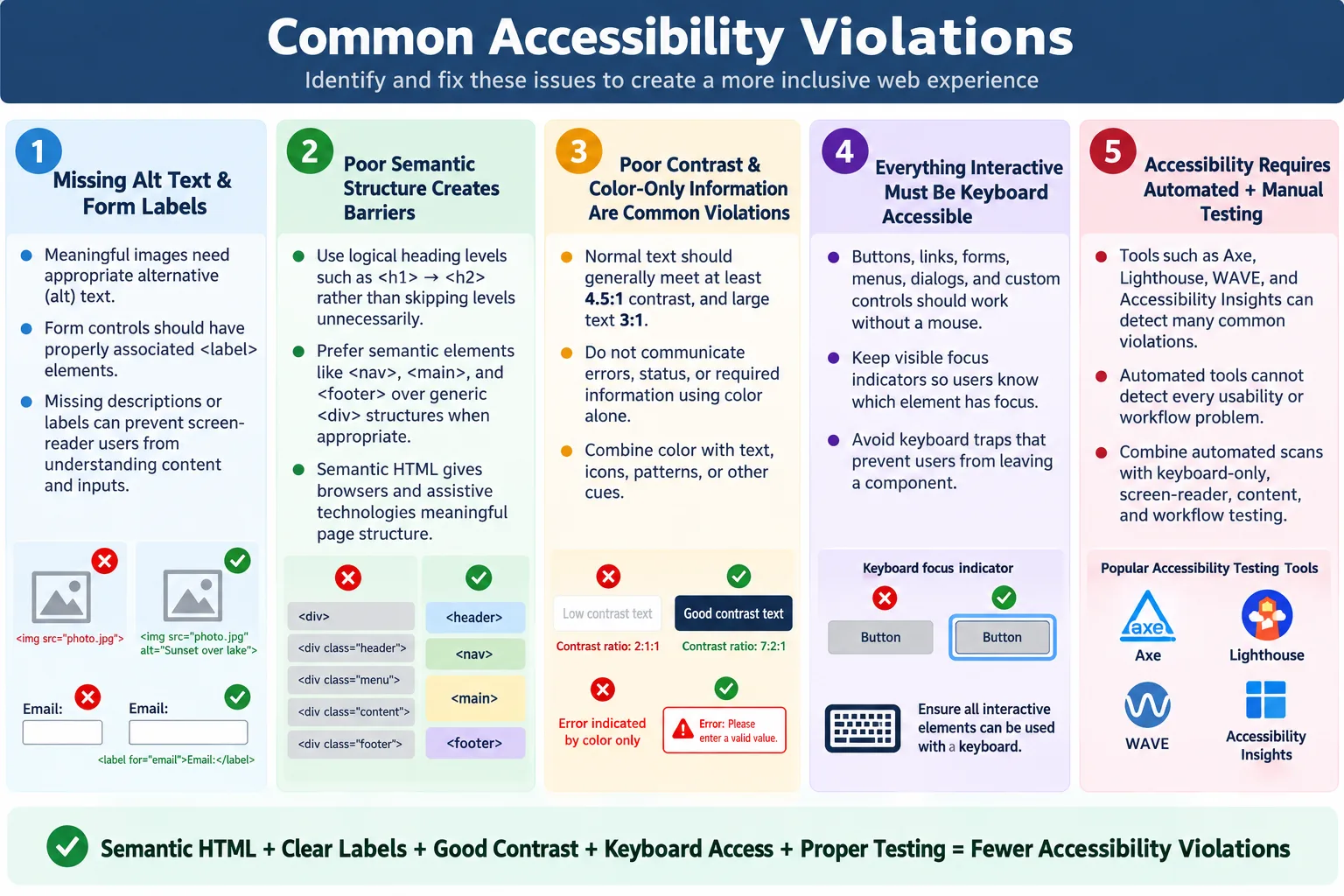
Introduction
Accessibility violations are mistakes in the design or implementation of a website that make it difficult or impossible for people with disabilities to use the site effectively. These issues often prevent users who rely on screen readers, keyboards, screen magnifiers, voice control software, switch devices, or other assistive technologies from accessing content or completing tasks. A website can look complete to a sighted mouse user and still fail for users who interact with it differently.
Most accessibility violations occur because developers overlook basic HTML semantics, remove important browser behavior, rely too heavily on visual styling, or do not follow WCAG, the Web Content Accessibility Guidelines. The good news is that many common violations are preventable. Correct use of HTML elements, visible focus indicators, clear labels, sufficient contrast, keyboard support, and meaningful text can eliminate a large percentage of accessibility problems before testing begins.
Accessibility violations matter because the web is used for essential activities. Users need websites to read content, fill out forms, purchase products, apply for services, watch lessons, manage accounts, and communicate. When accessibility defects block those tasks, the problem is not only technical. It becomes a real barrier to participation.
What Are Accessibility Violations?
An accessibility violation is any issue that creates a barrier for users with disabilities. It may be a missing label, missing image description, poor heading structure, low color contrast, keyboard trap, mouse-only menu, incorrect ARIA role, or video without captions. The common pattern is that the website does not provide the information or interaction path a user needs.
Website
  |
  v
Accessibility Issue
  |
  v
User Cannot Complete Task
These violations reduce usability and may cause websites to fail accessibility audits. Automated tools can detect many of them, but manual testing is also needed because some barriers depend on user workflow, screen reader experience, keyboard behavior, and whether content is understandable in context.
Why Accessibility Violations Matter
Accessibility problems can prevent users from reading content, navigating pages, filling out forms, watching videos, purchasing products, or accessing online services. For example, a missing form label may cause a screen reader to announce only "edit text." The user then does not know what information to enter.
Missing Form Label
  |
  v
Screen Reader
  |
  v
Unknown Input Field
Violations can also create frustration and increase abandonment. A user who cannot operate checkout with a keyboard may leave without buying. A student who cannot access captions may miss educational content. A job applicant who cannot submit a form may lose an opportunity. Accessibility issues are quality issues with direct human impact.
HTML's Role
Most accessibility violations originate from incorrect or incomplete HTML. Good HTML gives browsers and assistive technologies meaningful structure. Poor HTML hides meaning behind visual styling. A properly labeled input is clear to screen readers and easier for all users.
<label for="email">
  Email
</label>

<input id="email" type="email">
A poor version omits the label.
<input type="email">Semantic HTML significantly reduces accessibility issues. Real headings, landmarks, links, buttons, labels, lists, and tables communicate meaning without requiring extra custom code. When developers use generic containers for everything, the visual page may look fine, but assistive technologies receive less useful information.
Missing Alternative Text
Missing alternative text is one of the most common accessibility violations. If an image communicates meaning, users who cannot see the image need a text alternative. Without alt text, a screen reader may announce only the file name, announce that an image exists, or provide no useful information.
<img src="logo.png">A better version provides a meaningful description.
<img src="logo.png" alt="SoftwareTips4U Logo">Alt text should match the image's purpose. A product image may describe the product. A logo may identify the brand. A decorative image should usually use an empty alt attribute so assistive technologies can skip it. The violation is not simply "every image must have long text." The real requirement is that meaningful images need meaningful alternatives.
Missing Form Labels
Missing form labels are serious because forms are task-oriented. Users must know what each field expects. Without a label, a screen reader user may hear only "edit text" or "combo box" without context.
<input type="text">A better version associates a label with the field.
<label for="name">
  Full Name
</label>

<input id="name" type="text">
Labels also help sighted users and mouse users because clicking the label can focus the control. Placeholders should not replace labels because they disappear when typing and may not provide reliable accessibility support.
Poor Heading Structure
Headings help users understand page structure and navigate quickly. Screen reader users often jump between headings to scan content. A poor heading hierarchy can make the page outline confusing.
<h1>Title</h1>
<h4>Section</h4>
A better structure uses logical heading levels.
<h1>Title</h1>
<h2>Section</h2>
Heading levels should describe structure, not visual size. If a heading needs to look smaller or larger, CSS should handle presentation. HTML headings should remain logical and meaningful.
Using div Instead of Semantic HTML
Using <div> for everything is a common accessibility violation. Generic containers do not communicate purpose. A navigation area built as a <div class="navigation"> may be visually clear, but the semantic meaning is weaker than a real <nav>.
<div class="navigation">
  ...
</div>
A better version uses semantic HTML.
<nav>
  ...
</nav>
Semantic elements such as <header>, <nav>, <main>, <article>, <section>, <aside>, and <footer> provide meaningful structure. They help screen reader users navigate and help developers maintain clearer code.
Poor Color Contrast
Poor color contrast makes text difficult to read. Light gray text on a white background is a common example. Low contrast affects users with low vision, older users, mobile users in sunlight, and anyone using a low-quality display.
Light Gray Text
  |
  v
White Background
A high-contrast example is black text on a white background.
Black Text
  |
  v
White Background
WCAG recommends a minimum contrast ratio of 4.5:1 for normal text and 3:1 for large text. Buttons, icons, borders, and focus indicators also need enough contrast to be distinguishable.
Color Used as the Only Indicator
Using color alone to communicate meaning is a violation because some users cannot perceive color differences reliably. A red border around a field may not be enough to communicate an error.
Red Border
  |
  v
Error
A better approach uses text, icons, or patterns in addition to color.
Error:
Email is required.
Color can still be used as a supporting cue, but it should not be the only cue. Error messages, status badges, charts, and required indicators should remain understandable without relying only on color.
Keyboard Inaccessibility
Every interactive element should be usable with the keyboard. Mouse-only interactions exclude users who cannot use a mouse. Menus, buttons, links, forms, dialogs, dropdowns, and custom controls should all support keyboard operation.
Tab
  |
  v
Button
  |
  v
Submit
Native elements such as links, buttons, inputs, selects, and textareas provide keyboard support automatically. Custom components need deliberate implementation and testing. A custom button that responds only to mouse clicks is a violation.
Hidden Focus Indicator
Keyboard users need a visible focus indicator to know where they are on the page. Removing focus outlines without replacing them is a common violation.
:focus {
  outline: none;
}
A better version provides a clear focus style.
:focus {
  outline: 2px solid blue;
}
Focus indicators should be visible against the component and the page background. A subtle color change may not be enough. Focus visibility is essential for users who navigate with Tab, Shift + Tab, Enter, Space, and arrow keys.
Keyboard Traps
A keyboard trap occurs when users can move focus into an element or component but cannot move out using the keyboard. Dialogs, popups, embedded widgets, and custom menus can accidentally create traps.
Open Dialog
  |
  v
Cannot Exit
Users should always be able to leave dialogs using the keyboard, for example with Esc or by reaching a close button. A modal dialog may intentionally keep focus inside while open, but it must provide a clear keyboard path to close and return focus.
Meaningless Link Text
Links should describe their destination or action. Vague link text such as "Click Here" is unhelpful when read out of context, especially because screen reader users can navigate by a list of links.
<a>
  Click Here
</a>
A better link describes the destination.
<a>
  Download HTML Guide
</a>
Descriptive link text improves accessibility, usability, and SEO. It helps all users scan and understand navigation choices.
Missing Button Text
Button text should describe the action. A button labeled "Go" may be unclear when the surrounding context is not obvious. A button labeled "Submit Order" is more specific.
<button>
  Go
</button>
<button>
Submit Order
</button>Icon-only buttons need accessible names. If a button shows only a trash icon, screen reader users still need to know whether it means Delete item, Remove file, or Clear cart. Meaningful names prevent mistakes.
Placeholder Instead of Label
Placeholder text should supplement labels, not replace them. A placeholder disappears when users type, may have poor contrast, and may not be announced consistently in all contexts.
<input placeholder="Email">A better version uses a real label and optional placeholder.
<label for="email">Email</label>
<input id="email" placeholder="Enter Email">
Visible labels provide persistent context. This helps screen reader users, users with cognitive disabilities, and anyone reviewing a completed form before submission.
Missing Table Headers
Tables should use header cells when presenting tabular data. Headers help screen readers understand relationships between data cells and categories.
<table>
  <tr>
    <td>Name</td>
  </tr>
</table>
A better version uses <th>.
<th>
  Name
</th>
Complex tables may require additional structure such as scopes, captions, or careful grouping. Tables should be used for data relationships, not for page layout.
Missing Language Declaration
The language declaration helps screen readers pronounce content correctly. A page missing the lang attribute may be read with the wrong pronunciation rules.
<html>A better version declares the language.
<html lang="en">Pages with multiple languages may also need language changes marked on specific sections. This helps assistive technologies switch pronunciation appropriately.
Missing Skip Navigation Link
Large pages with repeated navigation should provide a Skip to Main Content link. This allows keyboard users to bypass repetitive navigation and reach the main content faster.
<a href="#main">
  Skip to Main Content
</a>
The skip link should become visible when focused and should move the user to the main content area. It is especially helpful on tutorial sites, documentation pages, dashboards, and pages with large menus.
Autoplay Media Without Controls
Automatically playing audio or video can interfere with screen readers, distract users, and create cognitive overload. If media starts unexpectedly, users may not know where the sound is coming from or how to stop it.
Provide controls and avoid autoplay unless there is a strong reason. Users should be able to pause, stop, mute, or control media playback. This is especially important for users who rely on assistive technology or need more time to process content.
Missing Captions for Videos
Videos containing speech should provide captions for users who are deaf or hard of hearing. Captions also help users in noisy environments, quiet offices, and situations where audio cannot be used.
Captions should include spoken content and meaningful audio information when relevant. Transcripts can also help users review content, search within material, and access information in a text format.
Incorrect ARIA Usage
ARIA can improve accessibility when used correctly, but incorrect ARIA can create new problems. A common mistake is adding role="button" to a <div> without adding keyboard support.
<div role="button">
  Submit
</div>
A native button is better whenever possible.
<button>
  Submit
</button>
ARIA should enhance HTML, not replace it. If native HTML provides the correct semantics and behavior, use native HTML first. Incorrect roles, missing states, and broken keyboard behavior can mislead assistive technology users.
Browser Workflow
Browsers parse HTML and create the DOM. From that DOM, they expose an accessibility tree that assistive technologies use. Well-structured HTML improves the accessibility tree and the overall user experience.
HTML
  |
  v
Browser
  |
  v
Accessibility Tree
  |
  v
Screen Reader
  |
  v
User
When HTML is incomplete or misleading, the accessibility tree can be incomplete or misleading too. This is why accessibility work starts with markup, not only with visual design.
Real-World Example
Consider a shopping website. In a poor experience, product images have no alt text, checkout requires mouse-only interaction, form fields are unlabeled, and payment errors are shown only with red borders. A screen reader or keyboard user may not be able to buy anything.
Image
  |
  v
No Alt Text
  |
  v
Checkout
  |
  v
Mouse Only
In a better experience, product images have useful alt text, checkout is keyboard accessible, fields have labels, errors have text, and buttons have meaningful names.
Alt Text
  |
  v
Keyboard Navigation
  |
  v
Accessible Checkout
Accessibility Best Practices
Use semantic HTML. Add alt text to meaningful images. Associate every form control with a label. Maintain logical heading order. Ensure sufficient color contrast. Make all interactive elements keyboard accessible. Keep focus indicators visible. Use descriptive links and buttons. Test with screen readers and keyboard navigation.
Also avoid color-only communication, provide captions for videos, declare page language, include skip links for large pages, and use ARIA only when necessary. Accessibility should be built into components, reviewed during development, and tested before release.
Common Testing Tools
Developers and testers commonly use Axe, Lighthouse, WAVE, Accessibility Insights, and browser DevTools accessibility features. These tools can detect many common violations, such as missing labels, missing alt text, contrast failures, invalid ARIA, and structural issues.
Automated tools are valuable, but they cannot detect everything. They may not know whether alt text is meaningful, whether link text is clear in context, whether keyboard navigation feels logical, or whether a screen reader workflow is understandable. Manual testing remains important.
Selenium Perspective
Automation testers often verify alt text, labels, heading hierarchy, keyboard navigation, focus management, ARIA attributes, and landmark elements. Accessibility tools are frequently integrated with Selenium to automate checks for common WCAG violations.
Selenium can drive the application into states that need testing. It can open dialogs, submit forms, reveal validation errors, navigate menus, and then run accessibility scans. This helps catch issues that appear only after interaction.
Testers should also perform keyboard-only and screen reader checks for critical workflows. Automation can find many defects, but human judgment is needed for usability and context.
Prioritizing Violations
Not all violations have the same impact. Issues that block task completion should be fixed first. An inaccessible login form, checkout flow, payment button, or service application form is high impact. Issues that appear in shared components should also be prioritized because one fix can improve many pages.
Violations should be evaluated by user impact, frequency, and business importance. A missing label in a critical form is more urgent than a minor landmark issue in a rarely used page. However, small issues can accumulate and create a poor overall experience, so teams should track and resolve them systematically.
Preventing Violations
The best way to handle accessibility violations is to prevent them. Use accessible component libraries. Include accessibility acceptance criteria in user stories. Review designs for contrast, focus states, and form behavior. Use semantic HTML during development. Run automated scans in CI. Test important workflows with keyboard navigation.
Prevention is cheaper than repair. Fixing accessibility after a site is built often requires reworking components, layouts, content, and JavaScript behavior. Building correctly from the start produces better quality and less rework.
Workflow-Level Violations
Some accessibility violations are easy to identify on a single element. A missing alt attribute, missing label, or low-contrast text can often be detected quickly. Other violations appear only when testing a full workflow. A page may have labels and headings, but the checkout process may still fail if a payment dialog cannot be operated with the keyboard or if focus disappears after an error.
Workflow-level testing asks whether a user can complete a real task. Can a user register for an account, log in, search for a product, add it to the cart, complete checkout, submit a contact form, download a document, or recover from a validation error? If the answer is no for keyboard or screen reader users, the site has an accessibility violation even if individual elements look acceptable.
These issues are common in Single Page Applications and dynamic interfaces. A search result list may update without notifying users. A modal may open visually while focus stays behind it. A route may change without moving focus to the new page heading. These workflow violations require manual testing and real user-path thinking.
Component-Level Violations
Many repeated accessibility violations come from shared components. If a button component removes focus outlines, every button using that component has a problem. If a modal component does not return focus after closing, every modal has the same issue. If a custom select component cannot be operated with arrow keys or announced properly by screen readers, every form using it inherits the violation.
Component-level violations are important because they multiply. Fixing one component can improve many pages, but ignoring one component can spread defects across the site. This is why design systems and shared UI libraries should be reviewed for accessibility before broad adoption.
A component review should include semantic structure, accessible names, keyboard behavior, focus management, color contrast, error states, disabled states, and screen reader output. It should also test responsive behavior because a component may behave differently in mobile menus, drawers, or compact layouts.
Content-Level Violations
Accessibility violations are not only code defects. Content can also be inaccessible. Vague headings, unclear instructions, repeated "Read More" links, unexplained abbreviations, confusing error messages, and images of text all create barriers. Users need understandable information, not only valid markup.
For example, an error message that says "Invalid" may be technically visible, but it does not help the user recover. A better message says what is invalid and how to fix it. A link that says "Click Here" may work technically, but it does not describe its destination. A video may have captions, but if the captions are inaccurate or incomplete, the content is still not fully accessible.
Content reviews should check whether headings describe sections, links describe destinations, instructions are clear, and error messages are actionable. Good accessibility depends on both structure and language.
Design-Level Violations
Some violations begin in design before any code is written. Low contrast color palettes, hover-only menus, missing focus states, small touch targets, crowded layouts, and color-only status indicators are design decisions that become accessibility defects during implementation. Developers may implement the design accurately and still produce an inaccessible interface.
Design reviews should check contrast, focus indicators, responsive behavior, form states, error states, disabled states, selected states, and keyboard-visible interactions. A design specification should show more than the default screen. It should include hover, focus, active, error, loading, disabled, and empty states.
When accessibility is reviewed at design time, teams avoid expensive rework. A low-contrast brand color can be adjusted before it spreads through dozens of components. A missing focus style can be defined before development begins. A complex custom menu can be simplified before it creates keyboard problems.
False Confidence from Automated Tools
Automated accessibility tools are useful, but they can create false confidence if teams assume a clean report means the page is fully accessible. Tools can detect many issues, but they cannot fully understand meaning, context, or user workflow. They may know that an image has alt text, but they cannot always know whether the alt text is meaningful. They may find no missing labels, but they cannot guarantee that a checkout flow is understandable.
Automated scans should be treated as one layer of testing. They are excellent for catching repeated structural issues and preventing regressions. They should be combined with keyboard-only testing, screen reader checks, content review, design review, and workflow testing.
A practical rule is simple: automated tools can tell you many things that are definitely wrong, but they cannot prove everything is right. Human review remains necessary for quality accessibility.
Accessibility Regression
Accessibility can regress over time. A page may be accessible when first built, then become inaccessible after a redesign, component update, content change, or JavaScript refactor. A developer may remove a label while changing layout. A new brand theme may introduce low contrast. A modal update may break focus return. A new icon button may ship without an accessible name.
Regression prevention requires process. Automated scans should run regularly. Shared components should have accessibility tests. Pull requests should review semantic HTML, labels, focus behavior, and ARIA usage. QA should retest key keyboard workflows after interface changes.
Accessibility should be part of ongoing maintenance, not a one-time audit. The web application changes continuously, so accessibility checks must also continue.
Practical Review Checklist
A practical accessibility violation review should start with HTML structure. Does the page have a language attribute? Does it use landmarks? Are headings logical? Are form fields labeled? Are images described correctly? Are tables marked up with headers when needed?
Next, review visual accessibility. Is contrast sufficient? Are links recognizable? Are errors communicated with text? Are focus indicators visible? Are icons and buttons readable in all states? Does the page work in responsive layouts and themes?
Finally, review interaction. Can users complete tasks with the keyboard? Are dialogs accessible? Are there keyboard traps? Does focus move correctly after validation and dynamic updates? Are videos captioned? Are custom controls announced and operated correctly? This layered review catches far more violations than checking markup alone.
Severity of Accessibility Violations
Accessibility violations should be classified by impact. A critical violation blocks users from completing an essential task. For example, a login form with unlabeled fields may prevent a screen reader user from accessing an account. A checkout dialog that traps keyboard focus may prevent a keyboard user from buying a product. A government application form that cannot be submitted without a mouse may prevent a user from accessing services.
High-impact violations affect major workflows but may have a workaround. A low-contrast warning message may be readable to some users but missed by others. A missing skip link may not block the entire page, but it can make navigation slow and frustrating on every visit. Medium and low issues may include minor heading inconsistencies, redundant ARIA, or non-critical decorative image handling. These should still be fixed, especially when they appear across many pages.
Severity should consider both technical impact and user impact. A small code issue can be severe if it blocks a major workflow. A visually minor issue can be serious if it prevents users from understanding content. Teams should avoid treating accessibility defects as cosmetic by default.
Real Project Examples
In a banking application, an unlabeled transfer amount field can be a critical violation. A screen reader user may not know whether the field expects amount, account number, or description. If the user enters data incorrectly, the result may affect money movement. The fix is straightforward: add a proper label, instructions, validation, and error messages.
In an education portal, videos without captions exclude deaf and hard-of-hearing students from lecture content. This is not only a media issue; it affects learning access. Captions, transcripts, and clear media controls help users access the same information in different ways.
In an e-commerce site, a product color selector that communicates availability only with color can confuse color-blind users. If out-of-stock options are only shown in red and available options in green, some users may not understand the difference. Text labels such as "Available" and "Out of stock" solve the problem more reliably.
Team Responsibilities
Preventing accessibility violations is a shared responsibility. Designers should define accessible color contrast, focus states, form states, and interaction patterns. Developers should use semantic HTML, native controls, correct ARIA when needed, and keyboard support. Testers should verify keyboard navigation, screen reader behavior, labels, contrast, and workflow completion. Content writers should create clear headings, descriptive links, useful alt text, and helpful error messages.
Product owners and stakeholders also matter. Accessibility should be part of requirements and acceptance criteria. If accessibility is not planned, teams may treat it as an optional cleanup task. When it is part of the definition of done, violations are caught earlier and fixed with less effort.
Large teams benefit from accessible design systems and component libraries. If buttons, dialogs, forms, menus, alerts, and tabs are accessible by default, individual pages are less likely to introduce repeated violations. Shared components should be tested and documented so teams know how to use them correctly.
Release Readiness
Accessibility should be considered during release readiness. Before release, teams should review critical workflows with keyboard-only navigation, run automated accessibility scans, check important pages for contrast and labels, verify media alternatives, and confirm that known high-impact violations are resolved.
A release can still contain minor accessibility debt, just as it may contain minor visual or technical debt, but teams should understand the risk. Critical blockers should not be deferred casually. If a defect prevents a group of users from completing an essential task, it should be treated as a serious release issue.
Accessibility release checks become easier when performed regularly. Waiting until the end of a project creates pressure and surprises. Continuous review, automated scans, component testing, and manual workflow checks keep violations manageable.
Comparison Table
| Good Accessibility | Common Violation |
|---|---|
| Images have alt text | Missing alt text |
| Form labels present | Unlabeled inputs |
| Semantic HTML | Generic <div> structure |
| Good color contrast | Low contrast |
| Keyboard navigation | Mouse-only interaction |
| Visible focus | Hidden focus |
| Descriptive links | "Click Here" links |
| Proper headings | Skipped heading levels |
Common Interview Questions
What is an accessibility violation? An accessibility violation is a problem that makes a website difficult or impossible for people with disabilities to use.
What is the most common accessibility issue? Missing alternative text for meaningful images is one of the most common issues.
Why are labels important? They help screen readers identify the purpose of form controls.
Should color alone indicate errors? No. Use text, icons, or other visual cues in addition to color.
Why is semantic HTML important? It provides meaningful structure that browsers and assistive technologies can understand.
Can automated tools detect all accessibility problems? No. Automated tools identify many common issues, but manual testing is still needed for keyboard usability, screen reader experience, and overall interaction.
Interview-Ready Answer
Common accessibility violations include missing alternative text for images, unlabeled form fields, poor heading hierarchy, low color contrast, keyboard-inaccessible controls, hidden focus indicators, missing captions for videos, misuse of ARIA, and relying only on color to communicate information. Most of these issues can be avoided by using semantic HTML, following WCAG guidelines, supporting keyboard navigation, and testing with both automated accessibility tools and manual techniques.
One-Line Insight
Most accessibility problems are caused by missing HTML semantics, and most can be prevented by following basic accessibility best practices from the start.