Color & Contrast (HTML Context)
Introduction
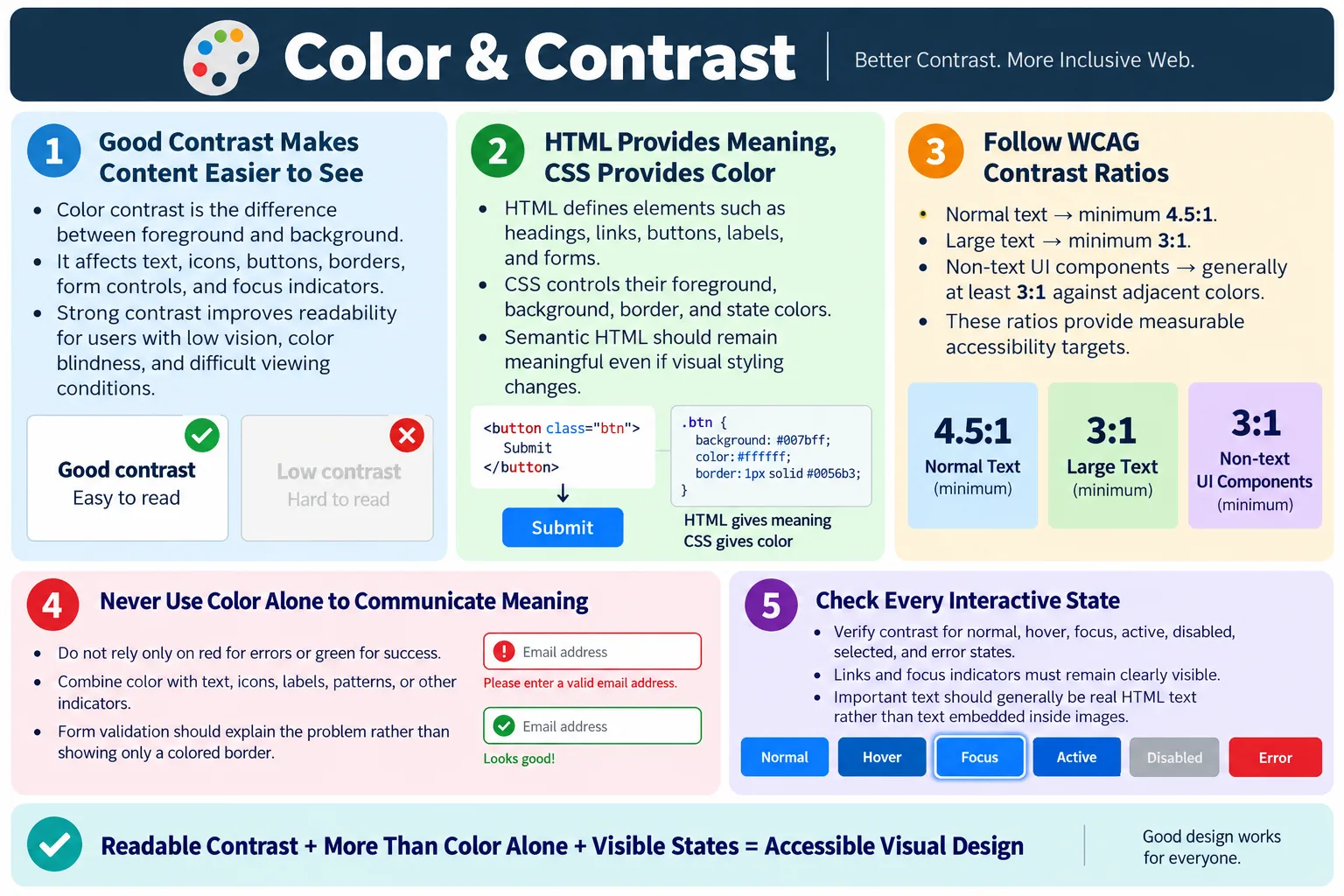
Color and Contrast are fundamental aspects of web accessibility. They ensure that text, icons, buttons, form controls, navigation items, status messages, and other visual elements are easy to see and read for all users. Good contrast matters for people with low vision, people with color blindness, older users with aging eyesight, mobile users reading in bright sunlight, users on poor-quality displays, and anyone working in difficult lighting conditions. A visually attractive interface is not enough if users cannot clearly perceive the content.
Although CSS controls colors and visual presentation, HTML plays an important role because it provides the semantic structure that CSS styles. HTML defines what the content is: headings, paragraphs, links, buttons, labels, images, forms, tables, and landmarks. CSS then defines how that content looks. Together, HTML and CSS create accessible, readable web pages. If the HTML structure is meaningful and the CSS provides sufficient contrast, users can perceive, understand, and interact with content more easily.
Good color contrast improves accessibility, readability, user experience, mobile usability, and overall content clarity. It also supports WCAG compliance. Contrast is not only a design preference. It is a usability requirement. If users cannot read text or identify controls, they cannot complete tasks. This makes color and contrast important for developers, designers, testers, content creators, and product owners.
What Is Color Contrast?
Color contrast is the difference in brightness and color between two elements. In web design, it usually refers to the difference between foreground and background. The most common examples are text and background, icons and background, buttons and background, borders and surrounding colors, and focus indicators against the page.
Black Text
  |
  v
White Background
  |
  v
High Contrast
A higher contrast generally makes content easier to read. Black text on a white background is a familiar high-contrast example. Dark blue text on a pale background can also work well. Light gray text on a white background usually creates poor contrast and can be hard to read, especially for low-vision users or users on mobile screens outdoors.
Contrast is not only about black and white. It is about whether users can distinguish one visual element from another. A button must stand out from its surrounding area. A border must be visible enough to identify a form control. An icon must be clear against its background. A focus indicator must be visible when a user tabs through the page.
Why Color Contrast Is Important
Users may have difficulty distinguishing colors because of low vision, color blindness, aging eyesight, bright sunlight, poor-quality displays, eye strain, or temporary environmental conditions. Poor contrast can make text difficult or impossible to read. Even users with typical vision may struggle when text is too light, too small, or placed on a busy background.
Light Gray Text
  |
  v
White Background
  |
  v
Hard to Read
When contrast is poor, users must work harder. Reading becomes slower. Mistakes increase. Important messages may be missed. Buttons may be hard to identify. Error states may not be clear. This affects both accessibility and business outcomes. A low-contrast checkout button, warning message, or form label can directly interfere with task completion.
Good contrast reduces effort. It makes scanning easier, improves comprehension, and helps users trust the interface. It is especially important on educational pages, forms, dashboards, tutorials, banking pages, healthcare portals, government forms, and any place where users must read carefully or make decisions.
HTML's Role
HTML provides the structure of the page. It identifies headings, paragraphs, labels, buttons, links, and other meaningful elements. CSS then applies colors to those elements. HTML does not normally define color in modern web development, but it determines what content receives styling and how assistive technologies understand it.
<h1>
  HTML Tutorial
</h1>

<p>
  Learn HTML easily.
</p>
CSS can then apply foreground and background colors.
h1 {
  color: black;
}

body {
  background: white;
}
HTML defines what the content is, while CSS defines how it looks. This separation is important. A heading should be an actual heading, not a colored large <div>. A button should be a real button, not only a colored box. Semantic HTML ensures that meaning remains available even if visual styling changes, fails, or is interpreted by assistive technologies.
Good vs Poor Contrast
Good contrast makes reading faster and more comfortable. Dark text on a light background or light text on a dark background can work well when the contrast ratio is strong. Poor contrast usually happens when foreground and background colors are too similar, such as light gray text on white, pale blue text on a light background, or dark gray text on a black background.
Good:
Black
  |
  v
White

Poor:
Light Gray
  |
  v
White
Designers sometimes choose low-contrast text to create a subtle visual style. This may look refined in a design mockup, but it often fails in real usage. Screens vary. Lighting varies. Eyesight varies. A color pair that looks barely readable on a designer's monitor may be unreadable for many users.
Good contrast does not mean every page must be black and white. It means the chosen foreground and background colors should meet readability needs. A strong palette can still be attractive and accessible.
WCAG Contrast Requirements
WCAG defines minimum contrast ratios for text and non-text components. These ratios help teams evaluate whether color choices meet accessibility expectations. Normal text should have a minimum contrast ratio of 4.5:1. Large text should have a minimum ratio of 3:1. Non-text UI components, such as buttons, form controls, and icons, should have at least 3:1 contrast against adjacent colors.
| Content | Minimum Contrast Ratio |
|---|---|
| Normal text | 4.5 : 1 |
| Large text | 3 : 1 |
| Non-text UI components | 3 : 1 against adjacent colors |
These ratios are minimums, not ideal targets. In many cases, stronger contrast is better, especially for body text, important actions, and error messages. Meeting contrast ratios improves readability for many users and helps teams make color decisions based on measurable criteria rather than personal preference.
Do Not Use Color Alone
Never rely only on color to communicate important information. Color can support meaning, but it should not be the only signal. A user with color blindness may not recognize red as error or green as success. A low-vision user may not see a subtle color difference. A user in bright sunlight may miss the color entirely.
Bad:
Red
  |
  v
Error
A better approach includes text, icons, patterns, or labels in addition to color.
Error:
Password is required.
For example, a form error can use a red border, an error icon, and a text message. The color attracts attention, the icon reinforces the state, and the text explains the problem. This combination supports more users than color alone.
Forms and Validation
Forms are one of the most common places where color-only communication creates barriers. A form might show a red border around an empty required field but provide no text message. A sighted user with typical color vision may infer that the field has an error. A color-blind user, screen reader user, or low-vision user may not understand the problem.
Bad:
Red Border Only
A better pattern includes an explanatory error message.
Error:
Email is required.
The red border can remain as a visual cue, but it should be paired with text. The message should explain what is wrong and how to fix it. The error should also be associated with the field programmatically when possible, such as through aria-describedby. Good validation design combines color, text, focus management, and semantic relationships.
Links
Links should be recognizable. A common mistake is making links blue but removing underlines in body text. Users with some types of color blindness may not distinguish the link from surrounding text if color is the only indicator. Low contrast between link color and text color can also make links hard to identify.
Bad:
Blue Link
  |
  v
No Underline
A better approach is to use an underline, provide a visible hover and focus state, and maintain sufficient contrast. Navigation menus may use different visual patterns, but inline body links should be distinguishable from regular text by more than color alone.
Focus states are especially important for links. Keyboard users need to see which link currently has focus. Hover styles help mouse users, but focus styles help keyboard users. Both should be considered.
Buttons
Buttons need sufficient contrast between text and button background. They also need enough contrast between the button shape and surrounding page so users can identify the control. A button with white text on a dark blue background is often readable if the ratio is strong.
White Text
  |
  v
Dark Blue Button
  |
  v
Easy to Read
Low-contrast buttons create usability problems. If the text blends into the button background, users may not read the action. If the button background blends into the page, users may not see that it is clickable. Disabled buttons also need careful design. They may be visually muted, but the state should remain understandable and not rely only on low contrast.
Primary actions, destructive actions, and checkout buttons deserve particular attention because they affect task completion. Contrast should be checked in normal, hover, focus, active, disabled, and error states.
Icons
Icons should also have sufficient contrast. A light gray icon on a white background may be difficult to see. A dark gray icon on a white background is usually clearer.
Bad:
Light Gray Icon
  |
  v
White Background

Better:
Dark Gray Icon
  |
  v
White Background
Icons should not be the only way to communicate important information unless they have accessible text or a visible label. A warning icon should be paired with text. A status icon should include a label. Icon-only buttons should have accessible names for screen readers, and their visual contrast should be strong enough for sighted users.
Images Containing Text
Important text should usually not be placed inside images. Real HTML text can scale better, be read by screen readers, adapt to user preferences, be translated more easily, and be indexed by search engines. Image text often becomes blurry when zoomed and may not respond to user contrast settings.
Bad:
Image
  |
  v
Contains Instructions
A better approach is to use real HTML text.
<h2>
  Instructions
</h2>

<p>
  ...
</p>
Images can still be useful for diagrams, screenshots, illustrations, and branding. But when the text is important for understanding or completing a task, real HTML text is usually the more accessible choice.
Browser Workflow
The browser workflow for color and contrast starts with HTML structure. CSS applies foreground colors, background colors, borders, shadows, and states. The browser renders the page, and the user reads and interacts with the content.
HTML
  |
  v
CSS Colors
  |
  v
Browser
  |
  v
User Reads Content
If the HTML structure is meaningful but the contrast is poor, the visual experience suffers. If the contrast is strong but the HTML is meaningless, assistive technology users may still struggle. Accessible pages need both meaningful structure and readable presentation.
Real-World Examples
A login form should have a light background, dark labels, readable input text, visible borders, clear focus states, and a button with strong contrast. If an error occurs, the message should use text and not only a red color. A user should be able to see the problem and understand the correction needed.
On a shopping website, product names should use dark text on a light background or another high-contrast combination. Price, discount, availability, and error messages should be readable. A payment failure message can use an icon and text, such as "Payment Failed. Please try again." This communicates meaning even if the user cannot distinguish the color.
A navigation menu with a dark navigation bar and white links can provide strong contrast. However, it should also include visible hover and focus states so users can identify the active or focused link. Good contrast applies to static content and interactive states.
HTML Accessibility Best Practices
Use semantic HTML elements. Keep text separate from images. Use meaningful headings. Ensure links remain recognizable. Label form fields clearly. Do not rely only on color to communicate meaning. These HTML practices support contrast and accessibility because they preserve meaning beyond visual styling.
When HTML is meaningful, CSS can style it accessibly. A real heading can be styled with readable color. A real link can receive underline and focus styles. A real button can receive contrast-aware states. A real label can be placed near its input and styled clearly. Good markup gives the design system reliable targets.
Common Mistakes
Light text on a light background is one of the most common contrast failures. Gray text on a white background may look subtle but can be hard to read. Color-only error messages are another common issue. A red border without explanatory text does not communicate enough information.
Low-contrast buttons create problems when users cannot distinguish text from the button background or the button from the page. Links without visual indicators may be missed if color is the only difference. Text inside images should be avoided when real HTML text can be used.
Another mistake is checking contrast only in the default state. Hover, focus, active, disabled, selected, error, and dark-mode states should also be checked. A button may pass in its normal state but fail when focused or disabled. A link may pass on a white background but fail on a tinted card.
Checking Contrast
Developers commonly use browser DevTools, WCAG contrast checkers, Axe, Lighthouse, and WAVE to verify contrast. These tools help compare foreground and background colors and report whether they meet WCAG recommendations.
Tools are helpful, but they require judgment. The tester must check the correct foreground and background pair. Text over gradients, images, shadows, transparency, and disabled states can be harder to evaluate. Automated tools may not catch every real-world contrast issue, especially when backgrounds are complex.
Manual review is also important. Try the page on different screen sizes, in dark mode if supported, at zoom levels, and under realistic lighting conditions. Contrast should remain usable across the states and contexts users actually experience.
Selenium Perspective
Automation testers often verify that error messages are not communicated by color alone, focus indicators remain visible, buttons and links are distinguishable, accessibility tools report acceptable contrast levels, and text remains readable across themes and devices. Color contrast is usually evaluated with accessibility tools rather than Selenium alone.
Selenium can still support contrast testing by navigating to pages, triggering states, submitting forms to reveal errors, switching themes, opening menus, focusing elements, and then running an accessibility scan. This is useful because many contrast problems appear only after interaction.
For example, an automated test can submit an empty form, reveal validation errors, and then run Axe or another tool to check contrast and accessibility issues. Selenium drives the state. The accessibility tool evaluates the visual and semantic output.
Color Blindness Considerations
Color blindness affects how users distinguish certain colors. Red and green combinations are a common problem, but color perception varies. A status system that uses only red for failed and green for passed can be unclear. Adding text labels such as "Failed" and "Passed" solves the problem more reliably.
Charts, badges, alerts, and form states should not rely only on color. Patterns, labels, shapes, icons, and text can provide additional cues. For example, a chart line can use a label and a pattern in addition to color. A form error can use an icon and message, not only a red border.
Designers should review palettes with color-blindness simulation tools when color carries meaning. The goal is not to avoid color. The goal is to ensure meaning survives when color perception differs.
Dark Mode and Themes
Dark mode and theme switching make contrast review more important. A color that works on a light background may fail on a dark background. A border that is visible in one theme may disappear in another. A focus indicator may be strong in light mode and weak in dark mode.
Each theme should be tested independently. Body text, headings, links, buttons, cards, form fields, borders, icons, focus indicators, selected states, and error messages should all remain readable. Theme variables should be chosen as a system, not as isolated colors.
When users select a high-contrast theme or system preference, the site should respect readability. Decorative color choices should not override user needs. A theme is successful only if it remains usable.
Focus Indicators and Contrast
Focus indicators are part of contrast accessibility. Keyboard users need to see which element currently has focus. A subtle focus ring with poor contrast can be as problematic as no focus ring at all. The focus indicator should stand out against the surrounding background and the component itself.
Buttons, links, inputs, custom controls, navigation items, and dialogs should all have visible focus states. If a page uses dark backgrounds and light cards, focus styles should be tested in both contexts. A single focus color may not work on every surface.
Removing focus outlines because they look unattractive is not acceptable unless a clearly visible replacement is provided. Focus visibility is essential for keyboard accessibility.
Design System Guidance
Design systems should define accessible color tokens for text, backgrounds, links, buttons, borders, icons, focus indicators, success states, warning states, and error states. These tokens should be tested for contrast in all supported themes. When teams use approved tokens, they are less likely to create low-contrast combinations accidentally.
A design system should also document which color combinations are allowed. For example, primary button text may be white only on approved dark backgrounds. Secondary text may require a minimum contrast ratio. Error text should have a color that passes contrast and should always be paired with explanatory text.
Contrast should be reviewed when adding new brand colors or themes. Brand identity matters, but accessibility must be preserved. A strong design system balances both.
Practical Review Checklist
A practical contrast review asks whether body text, headings, links, buttons, labels, placeholders, helper text, error messages, icons, borders, and focus indicators are readable. It checks normal, hover, focus, active, disabled, selected, and error states. It reviews both light and dark themes when supported.
The review also asks whether meaning depends only on color. Are errors explained with text? Are links recognizable without color alone? Are charts labeled? Are status badges understandable? Are required fields identified with more than red styling?
Finally, the review checks whether important text is real HTML text rather than embedded inside images. Real text scales, adapts, and can be interpreted by assistive technologies. This gives users more control and improves accessibility across devices.
Responsive Layouts and Contrast
Responsive design can change how contrast is experienced. A color combination that looks readable on a wide desktop screen may become harder to read on a small phone if text becomes smaller, spacing becomes tighter, or content appears over a different background. When layouts shift, backgrounds, cards, overlays, and images may also change position behind text.
Testing contrast only at one viewport size is not enough. Review mobile, tablet, and desktop layouts. Check whether text remains readable when navigation collapses, cards stack, menus open, and banners resize. A hero section with text over an image may pass on desktop but fail on mobile if the crop changes and the text sits over a lighter part of the image.
Responsive interfaces should use stable contrast strategies. Text over images may need solid overlays, background panels, or careful image selection. Buttons should remain readable at smaller sizes. Error messages should not become faint helper text on mobile. Accessibility must survive layout changes.
Disabled States and Contrast
Disabled states are often designed with low contrast to show that a control is unavailable. This can be acceptable when the disabled state is clearly communicated, but designers must be careful. If disabled text becomes too faint, users may not be able to read what the unavailable control is. If the reason for the disabled state is not explained, users may not know what to do next.
A disabled Submit button might be visually muted until required fields are completed. However, the form should still explain what is required. Users should not have to guess why the button is unavailable. Low contrast alone is not enough communication.
In many cases, it is better to keep the button readable and provide validation messages after interaction or guidance before submission. If disabled controls are used, the label and surrounding instructions should remain clear. The disabled appearance should communicate state without making essential information unreadable.
Placeholders, Helper Text, and Contrast
Placeholder text and helper text are common sources of contrast failures. Designers often make placeholder text light gray to distinguish it from entered text. If the placeholder is too light, users may not be able to read it. If a placeholder is being used as the only label, the problem becomes worse because users may lose the field's purpose once they start typing.
Helper text should also be readable. Password requirements, formatting examples, and field descriptions often appear in smaller text. Smaller text needs strong contrast because it is already harder to read. If helper text is important for completing the form correctly, it should not be visually treated as decorative or barely visible.
The best approach is to use visible labels, readable helper text, and placeholders only as optional examples. This improves accessibility, reduces errors, and makes forms easier to complete on mobile devices.
Data Visualization and Contrast
Charts, graphs, dashboards, and reports often use color to communicate categories, trends, warnings, and status. This can create accessibility problems if color is the only difference between data series. Users with color blindness may not distinguish lines, bars, or segments that rely only on hue. Low contrast between chart elements and the background can also make visual data hard to interpret.
Accessible data visualization uses labels, legends, patterns, shapes, direct annotations, and data tables when appropriate. A line chart can use different line styles in addition to colors. A bar chart can include labels. A status dashboard can use text such as "Healthy," "Warning," or "Failed" rather than only green, yellow, and red.
HTML can support accessible data visualization by providing real text labels, summaries, tables, and descriptions near the visual chart. The chart itself may be canvas, SVG, or an image, but the meaning should not be locked inside color alone.
User Preferences and High Contrast Modes
Some users enable high contrast settings, forced colors, dark mode, larger text, or browser extensions that change page colors. Accessible websites should be resilient when users adjust visual preferences. A design that depends on exact colors may fail when the user changes those colors.
Semantic HTML helps because it preserves structure when visual styles change. Real links, buttons, headings, and form controls remain meaningful even when colors are overridden. CSS should avoid fighting user preferences unnecessarily. For example, focus indicators and borders should remain visible in high contrast environments.
Testing with high contrast or forced color settings can reveal issues that ordinary screenshots miss. Icons may disappear, borders may vanish, and custom controls may lose visible state. These problems are easier to fix when components use semantic HTML and accessible design tokens.
Contrast in Component States
Components do not have only one visual state. Buttons may have default, hover, focus, active, loading, disabled, and destructive states. Inputs may have default, focus, error, success, readonly, and disabled states. Links may have default, visited, hover, and focus states. Each state needs enough contrast to remain understandable.
A common issue is a focus state that uses a pale outline on a light background. Another is a disabled state where text becomes unreadable. Error states may use red text that passes on white but fails on tinted backgrounds. Selected tabs may have weak contrast between selected and unselected states.
Reviewing only the static design is not enough. Teams should test interactive states by using the interface. Keyboard focus, form errors, open menus, selected options, and disabled controls should all be checked in context.
Team Workflow for Contrast
Contrast should be handled early in the design and development workflow. Designers should choose accessible color tokens before components are built. Developers should use those tokens consistently. Testers should verify contrast in real pages and states. Product owners should understand that low contrast is a usability defect, not only a visual preference.
Design handoff should include color values and approved combinations. Component documentation should show which text colors can appear on which backgrounds. Code reviews should catch hard-coded colors that bypass the design system. Accessibility scans should run during testing and before release.
When contrast issues are found late, they can affect many pages. Fixing the token or component at the design-system level is usually better than patching individual pages. This prevents the same low-contrast combination from returning elsewhere.
Comparison Table
| Good Accessibility | Poor Accessibility |
|---|---|
| High text contrast | Low text contrast |
| Text + icons for errors | Color-only errors |
| Underlined links | Color-only links |
| Readable buttons | Low-contrast buttons |
| Real HTML text | Text embedded in images |
Common Interview Questions
What is color contrast? Color contrast is the difference in brightness and color between foreground and background elements, making content easier to distinguish.
Why is color contrast important? It improves readability and accessibility, especially for users with low vision or color blindness.
Does HTML control colors? No. HTML provides structure, while CSS controls colors and visual presentation.
Can color alone communicate information? No. Important information should also be communicated through text, icons, patterns, or other visual cues.
What is the recommended WCAG contrast ratio for normal text? The recommended minimum contrast ratio for normal text is 4.5:1.
Why should important text not be placed inside images? Screen readers generally cannot read text embedded in images, and image text does not adapt well to scaling or user preferences.
Interview-Ready Answer
Color and Contrast are essential accessibility considerations that ensure text, icons, buttons, and other interface elements remain easy to see and read. HTML provides the semantic structure of the content, while CSS defines the colors and visual styling. According to WCAG, normal-sized text should have a minimum contrast ratio of 4.5:1, while large text should have at least 3:1. Developers should never rely solely on color to convey important information and should use text, icons, or other indicators alongside color. Good color contrast improves accessibility, readability, and the overall user experience for all users.
One-Line Insight
Accessible design is not just about choosing colors; it is about ensuring everyone can clearly perceive and understand your content.