Caption & Summary
Introduction
HTML tables often contain large amounts of data. A table may show employee details, monthly sales, course schedules, student marks, product prices, financial values, or report summaries. When users encounter a table, they should be able to understand its purpose quickly. They should not have to inspect every row and column before knowing what the table represents.
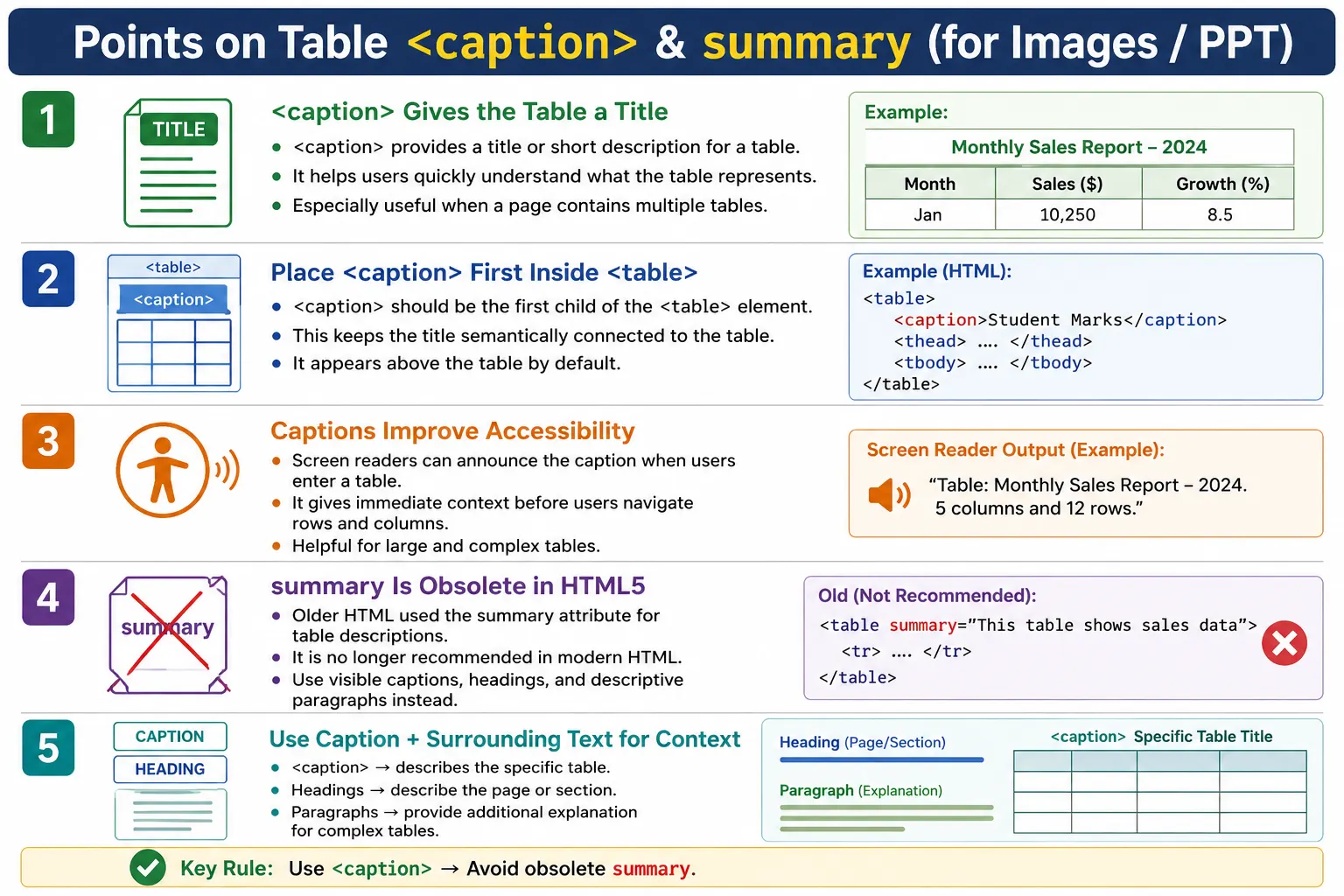
HTML provides the <caption> element to give a table a title or short description. Earlier versions of HTML also supported a summary attribute on the <table> element. However, the summary attribute is obsolete in HTML5 and should not be used in modern web development. Modern HTML favors visible, meaningful context through <caption>, headings, paragraphs, and proper table semantics.
The core idea is simple: use <caption> to tell users what the table is about, and use surrounding text when the table needs additional explanation. This approach helps sighted users, screen reader users, search engines, testers, and developers understand the table more clearly.
Why Captions Are Important
Imagine opening a page that contains several tables. Without captions, each table looks like a block of rows and columns with an unknown purpose. Users must inspect the headers and data before understanding what the table represents.
Without Captions

Table
  ↓
Unknown Purpose
With captions, the table's purpose is immediately clear. A caption such as "Employee Salary Report" or "Monthly Sales Report" gives users instant context before they read the data.
With Captions

Employee Salary Report
  ↓
Table
  ↓
Immediately Understand Purpose
Captions are especially important on pages with multiple tables. They allow users to scan the page, identify the table they need, and understand what each table is about.
What Is the <caption> Element?
The <caption> element defines a title or description for a table. It is directly associated with the table it belongs to.
<table>
    <caption>
        Employee Details
    </caption>
</table>
The browser displays the caption as part of the table. By default, most browsers place the caption above the table, but CSS can change its position and appearance.
A caption should describe the table, not the whole page. For example, "Student Marks" is a useful table caption. "Welcome to My Website" is not a useful table caption because it does not describe the table itself.
Where Should <caption> Be Placed?
The <caption> element should be the first child of the <table> element. This placement makes the table title available before the browser or assistive technology processes the rest of the table structure.
<table>
    <caption>
        Student Marks
    </caption>

    <thead>
        ...
    </thead>
</table>
An incorrect placement would put the caption after table sections such as <thead>.
<table>
    <thead>
        ...
    </thead>

    <caption>
        Student Marks
    </caption>
</table>
Keeping the caption first is the correct and professional pattern.
Browser Representation
When a table has a caption, the browser renders the caption along with the table. By default, the caption appears above the table.
Student Marks

+------------------------+
| Name | Math | Science |
| John | 95   | 90      |
+------------------------+
The exact visual appearance depends on browser defaults and CSS. Even when styling changes, the semantic relationship remains: the caption belongs to the table and describes it.
Why Use <caption>?
The <caption> element provides several benefits. It describes the table, improves accessibility, helps screen reader users, makes large pages easier to navigate, and provides semantic meaning.
A caption is better than placing plain text above a table without association because it is semantically connected to the table. A paragraph above a table can provide context, but a caption specifically identifies the table itself.
Captions are also useful for testing and maintenance. When a table has a clear caption, automation testers and developers can more easily understand what data the table is supposed to contain.
Employee Table Example
An employee table can use a caption to clearly identify its purpose.
<table>
    <caption>
        Employee Information
    </caption>

    <thead>
        <tr>
            <th>Name</th>
            <th>Department</th>
        </tr>
    </thead>

    <tbody>
        <tr>
            <td>John</td>
            <td>IT</td>
        </tr>

        <tr>
            <td>Alice</td>
            <td>HR</td>
        </tr>
    </tbody>
</table>
The caption tells users that the table contains employee information before they begin reading the rows.
Sales Report Example
A sales report is another strong use case because tables often appear inside reports with several data blocks.
<table>
    <caption>
        Monthly Sales Report
    </caption>

    <thead>
        <tr>
            <th>Month</th>
            <th>Sales</th>
        </tr>
    </thead>

    <tbody>
        <tr>
            <td>January</td>
            <td>$5000</td>
        </tr>

        <tr>
            <td>February</td>
            <td>$6200</td>
        </tr>
    </tbody>
</table>
The caption is short, meaningful, and specific. It tells users exactly what the table represents.
Browser and DOM Structure
A table with a caption and grouped sections has a clear structure. The caption appears first, followed by the table head, body, and footer.
Caption
  ↓
Header
  ↓
Body
  ↓
Footer
The DOM structure looks like this:
table
 |
 +-- caption
 +-- thead
 +-- tbody
 +-- tfoot
This order makes the table easier to understand and easier to process with CSS, JavaScript, accessibility tools, and automated tests.
Accessibility Benefits
Screen readers announce the caption before reading the table. For example, a caption such as "Course Schedule" helps a screen reader user understand the purpose of the table immediately.
<caption>
    Course Schedule
</caption>
A screen reader may announce that the user has entered a table, then read the caption, and may also announce the number of rows and columns. This gives users the same kind of context that sighted users get visually.
Table
Course Schedule
3 Columns
10 Rows
This is especially helpful for complex or large tables because users can decide whether the table is relevant before navigating through many cells.
Styling Captions
Captions can be styled with CSS like other HTML elements. A caption can be made larger, bold, spaced away from the table, or visually aligned with the surrounding content.
caption {
    font-size: 24px;
    font-weight: bold;
    margin-bottom: 10px;
}
Styling should make the caption clear without disconnecting it visually from the table. A caption should feel like part of the table, not like an unrelated heading.
Caption Position
By default, captions appear above the table. CSS allows the caption position to be changed using caption-side.
caption {
    caption-side: bottom;
}
This places the caption below the table.
Table
  ↓
Caption
The possible common values are top and bottom. The default is top. In most educational and report-style tables, the top position is easier because users see the purpose before reading the data.
What Was the summary Attribute?
Earlier versions of HTML supported a summary attribute on the <table> element. It was used to provide a description of the table's structure or purpose, mainly for assistive technologies.
<table summary="Employee salary report">
    ...
</table>
The intent was useful: provide extra table context. However, the attribute had serious practical problems and is no longer part of modern HTML best practice.
Why summary Was Removed
The summary attribute was removed from HTML5 because it was rarely used correctly, often duplicated information available elsewhere, and was hidden from most users. Modern HTML favors visible, meaningful descriptions instead of hidden metadata that only some users may receive.
When important context is hidden in an attribute, sighted users may not benefit from it. Developers may forget it exists. Content may become outdated. A visible caption and nearby paragraph are easier to review, easier to maintain, and useful to everyone.
Modern Alternatives to summary
Instead of using the obsolete summary attribute, modern HTML should use a combination of headings, paragraphs, captions, and proper semantic table markup.
<h2>Monthly Sales Report</h2>

<p>
    The table below shows monthly sales figures for 2025.
</p>

<table>
    <caption>
        Monthly Sales Report
    </caption>
    ...
</table>
This approach benefits both sighted users and screen reader users. The heading introduces the section, the paragraph provides detailed context, and the caption labels the specific table.
Long Table Descriptions
For complex tables, a caption alone may not be enough. A detailed paragraph before the table can explain how the data is organized or what users should look for.
<h2>Employee Salary Report</h2>

<p>
    The following table lists employee salaries grouped by department.
</p>

<table>
    <caption>
        Employee Salary Report
    </caption>
    ...
</table>
The caption gives the table title, while the paragraph gives additional explanation. This is the modern replacement for using a hidden summary attribute.
Caption vs Heading
A heading and a caption are related but not the same. A heading describes a page section. A caption describes a specific table.
<h2>Employee Report</h2>

<table>
    <caption>
        Employee Salary Details
    </caption>
    ...
</table>| Element | Purpose |
|---|---|
<h1> to <h6> |
Describes a page or section |
<caption> |
Describes a specific table |
They complement each other. A section may have a heading, and a table inside that section may have its own caption.
Caption vs <th>
A caption describes the whole table. A <th> element describes a column or row inside the table.
<caption>
    Student Results
</caption>

<th>
    Math
</th>| Element | Purpose |
|---|---|
<caption> |
Table title |
<th> |
Column or row header |
Browser Rendering
When a browser renders a table with a caption, it parses the table, finds the caption, displays it, and then renders the remaining table structure.
HTML Parser
    ↓
Find Table
    ↓
Find Caption
    ↓
Display Caption
    ↓
Render Header
    ↓
Render Body
    ↓
Render Footer
This rendering process keeps the caption visually and semantically tied to the table.
Common Mistakes
One common mistake is missing the caption entirely. A table without a caption may still render, but users may not immediately know what it represents.
<table>
    ...
</table>
A better version adds a meaningful caption:
<table>
    <caption>
        Employee Details
    </caption>
    ...
</table>
Another mistake is writing a caption that describes the entire page instead of the table. A vague caption such as "Table" is also poor. A better caption is specific, such as "Monthly Sales Report".
Using the obsolete summary attribute is another common mistake. Modern HTML should avoid it and use visible context instead.
Real-World Example
A course schedule can use a heading, a descriptive paragraph, and a table caption together.
<h2>Course Schedule</h2>

<p>
    The table below lists available courses and their durations.
</p>

<table>
    <caption>
        SoftwareTips4U Course Schedule
    </caption>

    <thead>
        <tr>
            <th>Course</th>
            <th>Duration</th>
        </tr>
    </thead>

    <tbody>
        <tr>
            <td>HTML</td>
            <td>30 Days</td>
        </tr>

        <tr>
            <td>CSS</td>
            <td>25 Days</td>
        </tr>
    </tbody>
</table>
This example gives users context before the table, a semantic caption for the table, and proper column headings inside the table.
Selenium Perspective
From a Selenium testing perspective, captions can be located and validated like other HTML elements. Automation testers may check whether important tables have captions and whether the caption text matches the expected table subject.
WebElement caption =
driver.findElement(By.tagName("caption"));
The caption text can be read with getText():
String text =
caption.getText();

System.out.println(text);
Automation testers commonly verify that a caption exists, the caption text is correct, table headings match the caption, and table content corresponds to the described subject. For reporting pages, this can prevent mismatches such as a "Monthly Sales Report" caption on a table that actually shows yearly totals.
Common Interview Questions
A common interview question is: what is the purpose of the <caption> element? It provides a title or description for a table. Where should <caption> be placed? It should be the first child inside the <table> element.
Is the summary attribute still valid in HTML5? No. The summary attribute is obsolete in HTML5. How should complex tables be described today? Use a combination of <caption>, nearby headings, descriptive paragraphs, and proper table semantics such as <thead>, <tbody>, and <th>. Can a table have multiple captions? No. Each table can have only one <caption> element.
Comparison Table
| Feature | <caption> |
summary Attribute |
|---|---|---|
| HTML5 Supported | Yes | No, obsolete |
| Visible to Users | Yes | No |
| Improves Accessibility | Yes | Historically yes |
| Used for Table Title | Yes | No |
| Recommended Today | Yes | No |
Interview-Ready Answer
The <caption> element provides a semantic title for an HTML table and should be placed as the first child of the <table> element. It improves accessibility by helping users and screen readers understand the table's purpose. The summary attribute, once used to describe tables for assistive technologies, is obsolete in HTML5. Modern best practice is to use a meaningful <caption> along with descriptive headings or paragraphs for additional context.
One-Line Insight
Use <caption> to tell users what the table is about; use surrounding text to explain why the table matters, and avoid the obsolete summary attribute in modern HTML.