Canvas Basics
Introduction
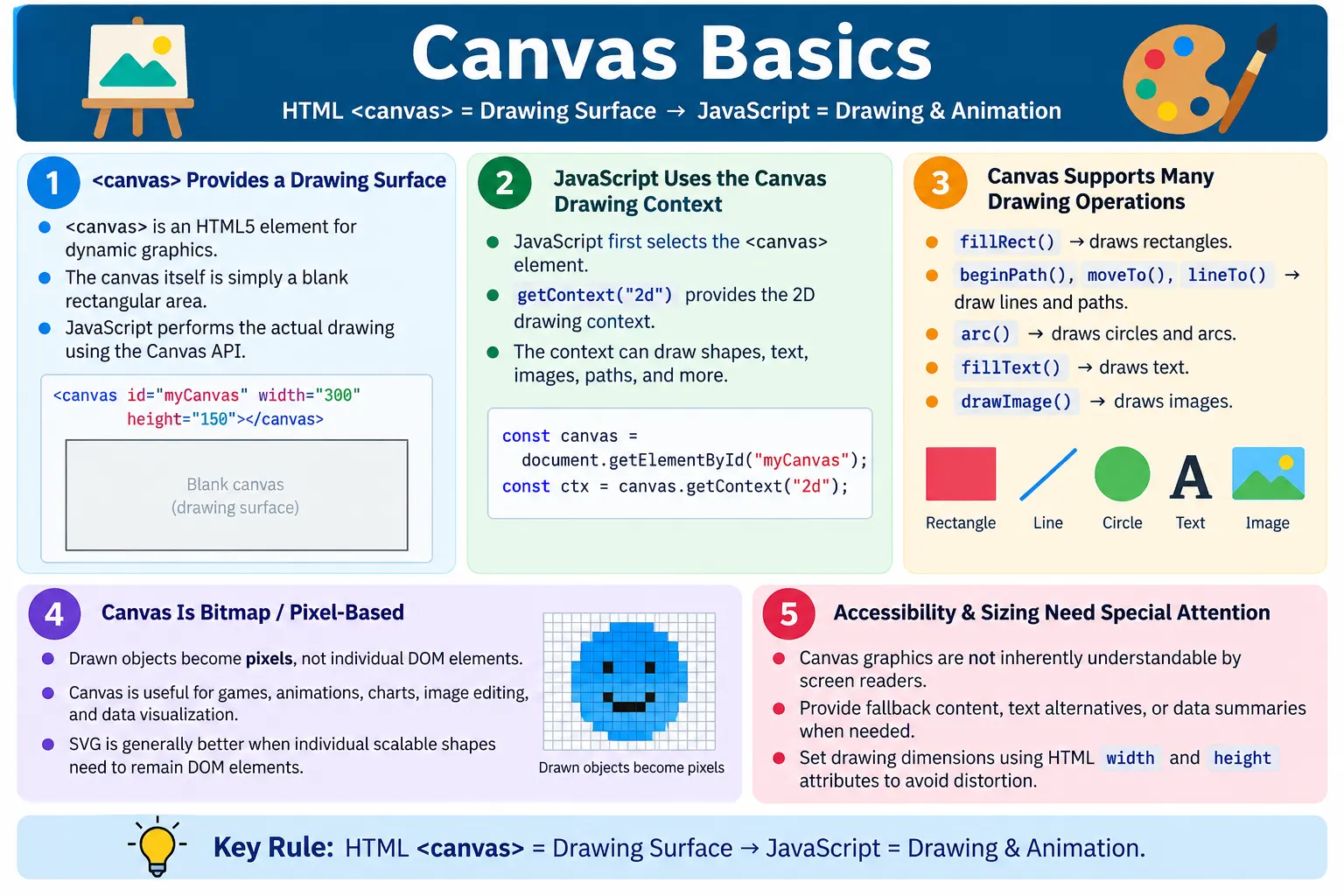
The <canvas> element is an HTML5 element that provides a drawing surface for creating graphics dynamically using JavaScript. Unlike ordinary image files, which are usually static once loaded, a canvas allows developers to draw shapes, text, images, animations, charts, visualizations, and even games directly in the browser. It is one of the features that helped the web move beyond static documents into interactive graphical applications.
The canvas element itself is simply a blank rectangular area. It does not draw anything by itself. All drawing is performed through JavaScript using the Canvas API. HTML creates the surface, JavaScript gets the drawing context, and then JavaScript issues drawing commands. This separation is important because beginners often expect <canvas> to show something immediately. A canvas without JavaScript is just an empty drawing area.
Canvas is widely used for charts and graphs, games, animations, drawing applications, image editing, data visualization, dashboards, interactive diagrams, and browser-based creative tools. It is especially useful when the application needs to update pixels quickly or draw many objects repeatedly.
What Is the Canvas Element?
The <canvas> element provides an area where JavaScript can draw graphics. The basic syntax is simple.
<canvas></canvas>By itself, the canvas displays nothing. It becomes useful only after JavaScript draws on it. A canvas can be thought of as a blank sheet of paper placed inside a webpage. HTML places the sheet on the page. JavaScript acts like the pen or brush that draws on that sheet.
Unlike regular HTML elements such as paragraphs, headings, lists, or tables, the individual drawings inside canvas do not become separate DOM elements. If JavaScript draws a rectangle, that rectangle is not an HTML node. It is pixels inside the canvas bitmap. This gives canvas performance advantages for certain graphics work, but it also has accessibility and testing implications.
Why Was Canvas Introduced?
Before HTML5, developers often relied on images, Flash, Java Applets, and third-party plugins to display complex graphics or interactive visual experiences. These approaches had limitations. Plugins added installation and security concerns. Static images could not easily support dynamic interaction. Complex graphical applications were harder to build with standard browser features.
HTML5 introduced the Canvas API so browsers could render graphics natively without plugins. Developers could draw directly in the browser using JavaScript. This made it possible to build browser games, charting tools, animation systems, image editors, and visualization dashboards using standard web technologies.
Canvas became useful because it gave developers pixel-level drawing control. Instead of relying only on HTML layout and static media, applications could generate graphics dynamically based on data, user input, time, or animation frames.
HTML's Role
HTML defines the drawing area. It tells the browser where the canvas exists in the page and what size the internal drawing surface should be. JavaScript performs the drawing.
HTML
  ↓
Canvas Element
  ↓
JavaScript
  ↓
Graphics
This means HTML and JavaScript work together. The canvas element belongs to the HTML document. The Canvas API belongs to JavaScript. CSS can style the canvas border, layout, and display size, but the actual graphics are drawn through JavaScript commands.
Basic Canvas Example
A basic canvas element usually includes an ID so JavaScript can find it, along with width and height attributes.
<canvas
  id="myCanvas"
  width="400"
  height="200">
</canvas>
This creates a blank drawing area measuring 400 pixels wide and 200 pixels high. It does not draw a rectangle, line, image, or text by itself. The browser simply reserves the drawing surface.
In production pages, fallback text can be placed inside the canvas element. Browsers that support canvas will show the canvas. Browsers that do not support canvas can show the fallback content.
Width and Height
Canvas dimensions should usually be specified using HTML attributes.
<canvas
  width="500"
  height="300">
</canvas>
If omitted, the default canvas size is 300 pixels wide and 150 pixels high.
Width : 300 px

Height : 150 px
Using CSS alone to resize a canvas can stretch or distort the drawing because CSS scales the already-rendered bitmap. The HTML attributes define the internal drawing surface. CSS defines how that surface is displayed. If the internal size and display size do not match, graphics may look blurry or stretched.
This is one of the most common beginner mistakes. For sharp output, set the canvas drawing dimensions intentionally and then style the canvas carefully.
Browser Workflow
The browser workflow starts with the HTML page. The browser parses the canvas element and creates a blank drawing surface. JavaScript finds the canvas, gets the drawing context, issues drawing commands, and the browser displays the output.
HTML Page
  ↓
Canvas Element
  ↓
JavaScript Gets Context
  ↓
Draw Graphics
  ↓
Browser Displays Output
The canvas drawing is immediate-mode. JavaScript draws pixels into the canvas. If the application needs to change the drawing, it usually clears and redraws part or all of the canvas. The browser does not remember separate shapes as editable objects.
Getting the Drawing Context
JavaScript must obtain the drawing context before drawing. For two-dimensional graphics, use getContext("2d").
const canvas =
document.getElementById("myCanvas");

const ctx =
canvas.getContext("2d");
The ctx object exposes drawing methods and properties. It can draw rectangles, lines, arcs, text, images, gradients, paths, and transformations. Without the context, JavaScript has no drawing tool for the canvas.
The string "2d" requests the two-dimensional drawing context. Canvas can also be used with WebGL for 3D graphics, but basic canvas lessons usually focus on the 2D context.
Drawing a Rectangle
A rectangle can be drawn with fillRect(). The method receives x position, y position, width, and height.
ctx.fillRect(
  20,
  20,
  100,
  50
);
This draws a filled rectangle starting 20 pixels from the left and 20 pixels from the top. The rectangle is 100 pixels wide and 50 pixels high.
+----------------------+

████████████

████████████

+----------------------+
Rectangles are useful for bars in charts, game objects, backgrounds, UI panels, and simple visual blocks.
Drawing a Line
Lines are drawn using paths. A path begins with beginPath(), moves to a starting point with moveTo(), draws a line to another point with lineTo(), and renders the line with stroke().
ctx.beginPath();

ctx.moveTo(20, 20);

ctx.lineTo(200, 20);

ctx.stroke();
This draws a straight horizontal line. Paths are also used for polygons, curves, outlines, and complex shapes. The path system is one of the core parts of the Canvas API.
Drawing a Circle
Circles are drawn using the arc() method. The method receives center x, center y, radius, start angle, and end angle.
ctx.beginPath();

ctx.arc(
  100,
  100,
  50,
  0,
  2 * Math.PI
);

ctx.stroke();
The angles are measured in radians. A full circle goes from 0 to 2 * Math.PI. Circles and arcs are useful for charts, gauges, game objects, particles, icons, and visual indicators.
Drawing Text
Canvas can render text directly onto the drawing surface. Set the font first, then draw text with fillText().
ctx.font =
"30px Arial";

ctx.fillText(
  "Hello Canvas",
  20,
  50
);
The text becomes pixels on the canvas. It is not selectable like normal HTML text, and screen readers cannot read it directly as page text. This is important for accessibility. If the text is essential, provide a text alternative outside the canvas or as fallback content.
Drawing Images
Images can be drawn onto a canvas with drawImage(). The image should be loaded before drawing.
const img =
new Image();

img.src = "logo.png";

img.onload = function() {
  ctx.drawImage(
    img,
    20,
    20
  );
};
Waiting for img.onload matters. If JavaScript tries to draw the image before it has loaded, the drawing may fail or show nothing. Once an image is drawn, canvas can also resize, crop, transform, or manipulate it.
Canvas Coordinate System
The canvas uses a coordinate system with the top-left corner as (0, 0). The x-axis increases to the right. The y-axis increases downward.
(0,0)

+------------------------>

|

|

|

↓
For example, (100, 50) means 100 pixels from the left and 50 pixels from the top. Understanding coordinates is essential because every drawing operation depends on positions and sizes.
This coordinate system differs from many mathematical graphs where y increases upward. In canvas and most screen graphics systems, y increases downward because the origin starts at the top-left of the screen.
Common Canvas Operations
The Canvas API supports drawing lines, rectangles, circles, polygons, text, images, gradients, patterns, transformations, animations, shadows, clipping regions, and pixel manipulation. These operations can be combined to build complex visual experiences.
Transformations such as rotate, scale, and translate allow developers to change the coordinate system before drawing. Gradients and patterns create more advanced fills. Pixel manipulation allows image processing effects. Animation can be created by repeatedly clearing and redrawing the canvas.
Real-World Uses
Canvas is commonly used for charts. A sales dashboard can convert data into a bar chart, line chart, or custom visualization.
Sales Data
  ↓
Bar Chart
Canvas is also used for games. A game loop can repeatedly update player position, enemy position, collisions, and animations.
Player
  ↓
Enemies
  ↓
Animation
Drawing applications use mouse or pointer input to draw freehand strokes on the canvas.
Mouse
  ↓
Canvas
  ↓
Freehand Drawing
Image editing tools can upload an image, draw it on canvas, crop it, rotate it, apply filters, and export the result.
Upload Image
  ↓
Canvas
  ↓
Crop
  ↓
Rotate
  ↓
Save
Data Visualization
Interactive dashboards often render graphs and visualizations using the Canvas API. Canvas is useful when there are many data points or frequent updates. Since canvas is bitmap-based, it can be efficient for drawing large numbers of visual marks when direct DOM elements would be expensive.
Canvas
  ↓
JavaScript
  ↓
Draw Objects
  ↓
Update Screen
  ↓
Animation
However, canvas visualizations need careful accessibility support. A chart drawn only on canvas may not expose its data to screen readers. Important chart values should be available as text, tables, summaries, or accessible descriptions.
Canvas vs SVG
Canvas and SVG are both used for graphics, but they work differently. Canvas is bitmap-based. It draws pixels. SVG is vector-based. It represents shapes as DOM elements.
| Canvas | SVG |
|---|---|
| Bitmap-based | Vector-based |
| Draws pixels | Draws shapes as DOM elements |
| Best for games and animations | Best for icons and diagrams |
| Faster for many objects | Easier to edit individual elements |
| Content is not directly accessible in the DOM after drawing | Shapes remain individual DOM elements |
Use canvas when you need pixel-level control, many fast updates, game rendering, image manipulation, or large dynamic graphics. Use SVG when you need scalable vector shapes, accessible individual elements, sharp icons, diagrams, or interactive shapes that remain in the DOM.
Canvas and Animation
Canvas animation is usually created by repeatedly updating the drawing. A typical animation loop clears the canvas, updates object positions, draws the new frame, and repeats. The browser method requestAnimationFrame() is commonly used for smooth animation.
function draw() {
  ctx.clearRect(0, 0, canvas.width, canvas.height);
  ctx.fillRect(x, 20, 50, 50);
  x += 2;
  requestAnimationFrame(draw);
}

draw();
This pattern is common in games, simulations, data animations, and interactive graphics. Since canvas does not remember objects as DOM elements, the application usually maintains its own object state and redraws frames.
Canvas and User Interaction
Canvas can respond to user interaction through normal DOM events on the canvas element, such as click, mousemove, pointerdown, pointermove, keydown, and touch events. The event gives coordinates relative to the page, and JavaScript can calculate where the user interacted inside the canvas.
This is how drawing applications, games, and interactive charts work. The canvas receives input events, JavaScript updates application state, and then the canvas is redrawn. Since individual shapes are not DOM elements, the application must determine manually which drawn object was clicked or dragged.
This manual hit detection is one of the tradeoffs of canvas. It gives performance and flexibility, but it requires more code for interaction compared with SVG or normal HTML elements.
High-DPI and Blurry Canvas Issues
On high-DPI screens, a canvas can appear blurry if its internal drawing size does not account for device pixel ratio. A common solution is to scale the internal canvas resolution while keeping the CSS display size stable.
For beginners, the key point is simple: canvas has an internal bitmap size and a displayed CSS size. If these do not align well, drawings may look blurry or stretched. Professional canvas applications often handle device pixel ratio explicitly to keep graphics sharp.
Exporting Canvas
Canvas content can often be exported as an image using methods such as toDataURL() or toBlob(). This is useful for drawing apps, image editors, signature pads, and chart export features.
const imageData =
canvas.toDataURL("image/png");
Export behavior can be affected by security rules. If a canvas draws an image from another origin without proper CORS permission, the canvas may become tainted, and exporting pixel data may be blocked. This protects users from cross-origin data leaks.
Accessibility Considerations
Canvas content is primarily graphical and is not inherently accessible to screen readers. A screen reader cannot automatically understand pixels drawn inside a canvas. Good practices include providing meaningful fallback content inside the <canvas> element, offering text alternatives for important graphics, using ARIA or accompanying descriptions where appropriate, and avoiding placing essential information only inside canvas.
<canvas id="chart">
  Your browser does not support HTML5 Canvas.
</canvas>
This fallback text is displayed if the browser cannot render canvas. For accessibility, developers may need more than fallback text. A chart should have a text summary or data table. A game should provide appropriate controls and instructions. A signature pad should provide labels and clear status messages.
Common Mistakes
A common mistake is forgetting JavaScript.
<canvas></canvas>A blank canvas appears. Nothing is drawn until JavaScript executes.
Another mistake is using CSS instead of HTML width and height to define the drawing surface.
canvas {
  width: 500px;
  height: 300px;
}
Prefer defining the drawing surface size with HTML attributes:
<canvas
  width="500"
  height="300">
</canvas>
Developers also forget getContext(). Without canvas.getContext("2d"), nothing can be drawn. Another common issue is drawing images before they load. Always wait for image.onload before drawing an image onto the canvas.
Another mistake is expecting canvas objects to remain editable. Once graphics are drawn, the canvas stores pixels, not separate shapes or objects. To change the drawing, the application usually clears and redraws the affected area.
Complete Example
The following complete example creates a canvas, gets the 2D context, draws a rectangle, and writes text.
<!DOCTYPE html>
<html>

<head>
  <title>Canvas Demo</title>
</head>

<body>

<canvas
  id="myCanvas"
  width="400"
  height="200">
  Your browser does not support Canvas.
</canvas>

<script>
const canvas =
document.getElementById("myCanvas");

const ctx =
canvas.getContext("2d");

ctx.fillRect(
  20,
  20,
  100,
  50
);

ctx.font =
"24px Arial";

ctx.fillText(
  "Canvas",
  20,
  120
);
</script>

</body>
</html>
This example shows the basic relationship between HTML and JavaScript. HTML creates the canvas. JavaScript draws on it.
Selenium Perspective
Automation testers usually verify that the canvas is displayed, the canvas size is correct, drawing operations complete, user interactions work, and export or download functionality behaves correctly. Since canvas graphics are pixel-based, Selenium cannot directly inspect shapes or text drawn on the canvas as DOM elements.
Testers often verify application behavior around the canvas, compare screenshots or images, use JavaScript to inspect canvas properties when appropriate, or validate output files. For example, a chart application can be tested by verifying the data input, checking that the canvas appears, and confirming that export produces an image.
For interactive canvas applications, testers may simulate clicks, drags, pointer movements, or keyboard actions. They should also test fallback content and accessible alternatives where important information is drawn on canvas.
Testing Checklist
When testing canvas, verify the canvas element exists, width and height are correct, JavaScript gets the proper context, drawing appears after load, images are drawn only after loading, animations run smoothly, and interactions work at expected coordinates. Test resizing behavior because CSS scaling can distort drawings.
Check accessibility alternatives. If the canvas displays a chart, verify that a text summary or data table is available. If the canvas supports drawing, verify that controls are labeled. If the canvas content is essential, make sure users who cannot see it have another way to understand or complete the task.
Canvas Drawing State
The 2D context has drawing state. Properties such as fill style, stroke style, line width, font, text alignment, shadow settings, and transformations affect future drawing operations. Once a property is changed, it remains active until changed again or until the context state is restored.
ctx.fillStyle = "blue";
ctx.fillRect(20, 20, 100, 50);

ctx.fillStyle = "red";
ctx.fillRect(140, 20, 100, 50);
The first rectangle is blue, and the second rectangle is red. This stateful behavior is convenient, but it can also cause bugs. If a developer changes the fill color or transformation and forgets to reset it, later drawings may appear with unexpected styles.
The save() and restore() methods help manage drawing state. save() stores the current state, and restore() returns to it. This is useful when drawing a temporary transformed or styled object without affecting the rest of the canvas.
ctx.save();
ctx.fillStyle = "green";
ctx.fillRect(20, 20, 100, 50);
ctx.restore();
Clearing and Redrawing
Canvas does not maintain a list of shapes. It stores pixels. If a rectangle is drawn and later needs to move, the canvas does not automatically know that the rectangle is an object. The application must clear the old pixels and draw the rectangle again in the new position.
ctx.clearRect(
  0,
  0,
  canvas.width,
  canvas.height
);
This clears the entire canvas. After clearing, JavaScript can redraw the current scene. In games and animations, this happens many times per second. The application maintains object positions in JavaScript variables and redraws the scene based on those variables.
This immediate-mode model is different from HTML and SVG. In HTML, an element remains in the DOM and can be updated directly. In canvas, the application must remember what exists and draw it again when needed.
Paths and Complex Shapes
Many canvas drawings are created with paths. A path can contain lines, curves, arcs, and closed shapes. Developers can use paths to draw triangles, polygons, custom icons, chart areas, or freehand strokes.
ctx.beginPath();
ctx.moveTo(50, 20);
ctx.lineTo(100, 100);
ctx.lineTo(20, 100);
ctx.closePath();
ctx.stroke();
This draws a triangle outline. If fill() is used instead of or along with stroke(), the inside of the triangle can be filled. Paths give developers flexible control over custom shapes.
Curves can also be drawn with methods such as quadraticCurveTo() and bezierCurveTo(). These are useful for smooth shapes, drawings, and graphics that need more than straight lines.
Transformations
Canvas supports transformations such as translation, rotation, and scaling. These transformations affect the coordinate system used for drawing. Translation moves the origin, rotation rotates the drawing context, and scaling changes size.
ctx.save();
ctx.translate(100, 100);
ctx.rotate(Math.PI / 4);
ctx.fillRect(0, 0, 80, 40);
ctx.restore();
This draws a rotated rectangle. The save() and restore() calls are important because transformations remain active until reset. Without restoring the context, later drawings may also be rotated or translated unexpectedly.
Transformations are common in games, simulations, image editors, charts, and custom visualizations. They allow developers to draw objects relative to their own positions instead of calculating every transformed coordinate manually.
Responsive Canvas
Making canvas responsive requires care. A normal HTML element can resize with CSS, but a canvas has an internal bitmap size. If CSS stretches the canvas without updating the internal drawing surface, graphics may look distorted. A responsive canvas should adjust both display size and drawing size intentionally.
For simple pages, developers may set a fixed canvas size. For responsive applications, JavaScript may read the container width, update the canvas width and height attributes, and redraw the content. Since changing the canvas width or height clears the drawing, redraw logic is required.
This is especially important for charts and dashboards. When the browser window changes size, the chart should redraw to fit the new space instead of simply stretching. A stretched chart can look blurry and may misrepresent data spacing.
Canvas Performance
Canvas can be fast, but performance depends on how it is used. Drawing thousands of objects, applying filters, manipulating pixels, or redrawing large areas repeatedly can become expensive. Developers should avoid unnecessary redraws and keep animation loops efficient.
Use requestAnimationFrame() for animations because it lets the browser schedule drawing at the right time. Avoid heavy calculations inside every frame when possible. Precompute values, reuse images, and redraw only what is needed for the current frame.
For very heavy processing, a Web Worker may help with calculations, while the main thread handles drawing. Canvas drawing itself usually happens on the main thread, but data preparation can sometimes be moved away from it.
Canvas for Games
Canvas is popular for browser games because games often require frequent redraws, sprite movement, collision detection, and animation. A game loop updates state and draws each frame. Player position, enemy movement, score, and background graphics can all be drawn onto the canvas.
Input
  ↓
Update Game State
  ↓
Clear Canvas
  ↓
Draw Frame
  ↓
Repeat
Since canvas is pixel-based, it can be efficient for this type of repeated rendering. However, the developer is responsible for managing game objects, hit detection, state, and redraw logic. Canvas provides the surface and drawing API; it does not provide a full game engine by itself.
Canvas for Charts
Canvas is useful for charts when there are many data points or frequent updates. A charting library may use canvas to draw bars, lines, points, labels, and axes. Canvas can perform well when rendering large datasets because it does not create a separate DOM element for every visual mark.
The tradeoff is accessibility and interactivity. Since the bars and points are pixels, they are not directly available as DOM elements. The library or application must provide tooltips, keyboard interaction, data tables, summaries, or other alternatives if the chart conveys important information.
For simple icons or small diagrams, SVG may be easier. For large animated datasets, canvas may be better. The right choice depends on the amount of data, interaction needs, accessibility requirements, and rendering performance.
Canvas for Image Editing
Canvas can draw images and manipulate pixels, which makes it useful for browser-based image editing. A user can upload an image, JavaScript can draw it on the canvas, and then the application can crop, rotate, resize, add filters, or export the result.
Image editing requires careful handling of image loading, canvas size, aspect ratio, and export security. If an image comes from another origin without proper CORS configuration, the canvas may become tainted, blocking pixel export. This is an important security behavior that protects users from cross-origin data leaks.
For basic editing tools, canvas is often enough. For advanced professional editing, applications may combine canvas with WebGL, workers, or specialized libraries.
When to Use Canvas
Use canvas when the page needs dynamic pixel-based graphics, frequent redraws, animations, games, image editing, or large visualizations. Canvas is a good fit when the application controls the whole visual scene and does not need every shape to exist as an individual DOM element.
Canvas is also useful when visual output is generated from data or user input. A drawing app, chart, game, signature pad, or custom visualization can all benefit from canvas. If the user sees a graphic that changes frequently and is controlled by JavaScript, canvas may be appropriate.
When Not to Use Canvas
Do not use canvas for ordinary text content, normal page layout, accessible documents, simple icons that can be SVG, or content that needs to be directly selectable, searchable, or readable by assistive technologies. If the content is mainly document structure, use HTML. If it is scalable vector artwork with individual parts, consider SVG.
Canvas can be overused. A page should not draw paragraphs, buttons, and menus on canvas unless there is a strong reason. Native HTML elements provide accessibility, keyboard support, focus behavior, and semantic meaning. Canvas requires developers to recreate much of that manually if they use it for interface controls.
Practical Decision Checklist
Before choosing canvas, ask whether the content is graphical and dynamic. If yes, canvas may fit. Ask whether individual shapes need to remain accessible or editable as DOM elements. If yes, SVG or HTML may be better. Ask whether the content is essential for understanding the page. If yes, provide a text alternative.
Ask whether the drawing must update frequently. If yes, canvas may be efficient. Ask whether the user needs to interact with individual visual objects. If yes, be prepared to implement hit detection and accessibility support. Ask whether the canvas should resize. If yes, plan redraw logic and high-DPI handling.
Comparison Table
| HTML Role | JavaScript Role |
|---|---|
Creates the <canvas> element | Draws graphics |
| Defines width and height | Uses the Canvas API |
| Provides fallback content | Handles animations and rendering |
| Supplies the drawing surface | Controls every pixel drawn |
Common Interview Questions
What is the <canvas> element? It is an HTML5 element that provides a drawable area for rendering graphics using JavaScript.
Can HTML draw on the canvas? No. HTML only creates the canvas element. JavaScript performs the drawing through the Canvas API.
What is getContext("2d")? It returns the 2D drawing context used to draw graphics on the canvas.
Is Canvas vector-based? No. Canvas is bitmap, or pixel, based.
What are common uses of Canvas? Games, animations, charts, drawing applications, image editing, and data visualization.
Can screen readers read Canvas drawings? Not directly. Developers should provide fallback content and appropriate text alternatives for accessibility.
Interview-Ready Answer
The <canvas> element is an HTML5 element that provides a rectangular drawing surface for graphics. HTML defines the canvas and its dimensions, while JavaScript uses the Canvas API, typically through getContext("2d"), to draw shapes, text, images, animations, and other graphics. Canvas is bitmap-based and is commonly used for games, charts, image editing, and data visualization. Since canvas content is not inherently accessible, developers should provide appropriate fallback content and alternative descriptions where necessary.
One-Line Insight
<canvas> provides the drawing surface, while JavaScript acts as the artist that paints on it.