Button Types
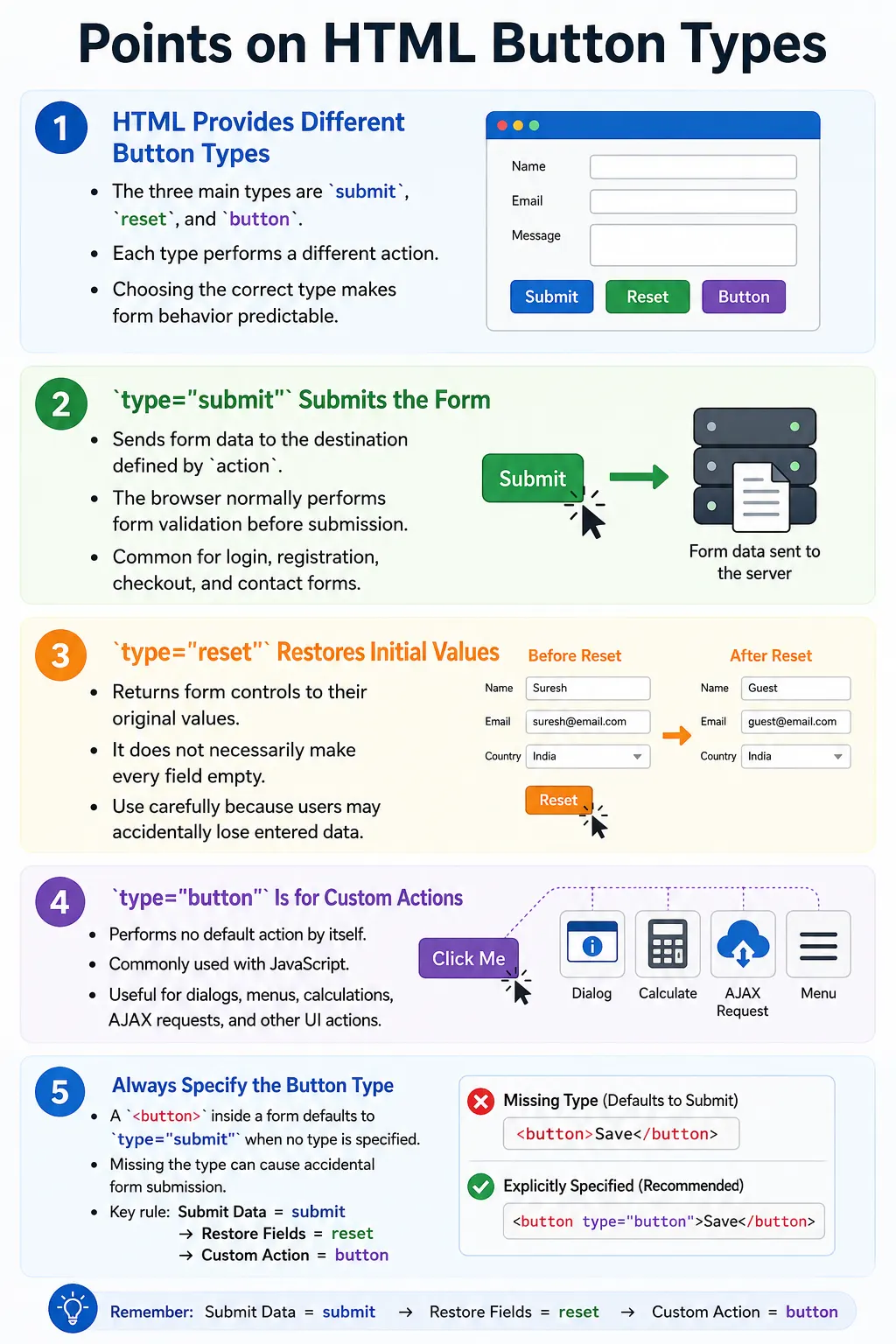
Introduction
Buttons are one of the most important elements in HTML forms and web interfaces. They allow users to submit forms, reset form fields, open dialogs, validate data, trigger JavaScript, start searches, save settings, expand sections, and perform many other actions. A button is often the final control that turns user input into application behavior.
HTML provides several button types, and each type has a different purpose. The most commonly used button types are submit, reset, and button. HTML also supports image-based submit buttons through <input type="image">. Choosing the correct button type matters because the browser assigns different default behavior to each type.
A common form defect happens when developers forget to specify the button type. Inside a form, a plain <button> defaults to type="submit". That means a button intended only to open a preview, toggle a menu, or run JavaScript may accidentally submit the entire form. Understanding button types prevents these mistakes and makes form behavior predictable.
Why Button Types Are Needed
Different actions require different button behavior. A registration form needs a button that submits data. A form may also need a reset button that restores initial values. A modern application may need a normal button that runs JavaScript without submitting the form.
User Clicks Button
  ↓
Submit Form

OR

Clear Form

OR

Run JavaScript
Instead of creating completely different elements for every action, HTML uses the type attribute to define what a button should do. This keeps the markup simple while giving developers clear control over behavior.
Ways to Create Buttons
HTML provides two common approaches for creating clickable buttons. The first approach uses the <button> element.
<button>Click Me</button>The second approach uses the <input> element with a button-related type.
<input type="submit" value="Submit">Both can create clickable controls. However, <button> is generally more flexible because it can contain text, icons, images, and other inline HTML elements. An input button uses its value attribute for visible text and cannot contain nested markup.
The button Element
The <button> element creates a clickable button. The basic syntax is simple.
<button>Submit</button>However, this simple syntax has an important behavior. Without a type attribute, a <button> inside a form behaves as type="submit" by default. This default is useful for submit buttons, but dangerous for buttons that are meant to do something else.
For this reason, it is a good practice to explicitly specify the button type. If the button should submit the form, write type="submit". If it should reset the form, write type="reset". If it should only run JavaScript or trigger a custom interaction, write type="button".
Button Types Overview
| Type | Purpose |
|---|---|
submit |
Submits the form |
reset |
Restores form fields to their initial values |
button |
Generic button for custom actions |
image |
Image used as a submit button with <input type="image"> |
Submit Button
A submit button submits the form to the destination specified by the form's action attribute. It is the most common button type in login forms, registration forms, contact forms, checkout pages, and search forms.
<button type="submit">Register</button>When the user clicks a submit button, the browser validates the form unless validation is disabled, collects the form data, sends it using the form's method, and displays the response.
User Clicks
  ↓
Validate Form
  ↓
Send Data
  ↓
Server
  ↓
Response
Submit Button Example
The following login form contains a text input and a submit button. Clicking the button submits the form to /login using POST.
<form action="/login" method="post">
    <input type="text" name="username">
    <button type="submit">Login</button>
</form>
This button has a clear purpose: send the entered data to the server. If required fields are missing or invalid, the browser may prevent submission and show validation messages.
Reset Button
A reset button restores all form controls to their initial values. It does not clear the form to blank values unless the original values were blank. It returns each control to the value it had when the page loaded.
<button type="reset">Clear</button>The browser workflow is simple.
User Changes Data
  ↓
Click Reset
  ↓
Original Values Restored
Reset buttons should be used carefully because users may click them accidentally and lose entered data. Many modern applications avoid reset buttons unless they provide a clear benefit.
Reset Example
In this example, the input has an initial value of John. If the user edits the field and clicks Reset, the field returns to John.
<form>
    <input type="text" value="John">
    <button type="reset">Reset</button>
</form>
This behavior is different from deleting all content. Reset means restore initial state, not necessarily empty the form.
Button Type
A generic button performs no default action. It is created with type="button".
<button type="button">Click Me</button>Nothing happens unless JavaScript, event listeners, or another script-based behavior is attached. This makes it ideal for custom UI actions that should not submit the form.
JavaScript Button Example
A generic button can run JavaScript when clicked.
<button type="button" onclick="alert('Hello')">
    Show Message
</button>
Clicking this button displays an alert. Because the type is button, it does not submit the form. This is the correct type for actions such as opening dialogs, showing menus, running calculations, triggering AJAX requests, toggling themes, and expanding sections.
Image Button
An image can also act as a submit button using <input type="image">.
<input type="image" src="submit.png" alt="Submit">Clicking the image submits the form. The alt attribute is important because it provides accessible text for the image button. Image buttons are less common in modern interfaces, but they are still part of HTML form behavior.
button vs input
A submit button can be created with either <button> or <input>.
<button type="submit">Submit</button><input type="submit" value="Submit">Both submit forms. The difference is flexibility. A <button> can contain text, icons, images, and inline HTML elements.
<button type="submit">
    <img src="save.png" alt="">
    Save
</button>
An input button cannot contain nested HTML. Its visible label comes from the value attribute. For modern UI work, <button> is often preferred because it gives designers and developers more flexibility.
Browser Behavior
When the user clicks a button, the browser reads the button type and performs the appropriate action. The action may be form submission, form reset, or no default action.
Button Click
  ↓
Read Type
  ↓
Submit?
  ↓
Reset?
  ↓
Custom Action?
This workflow explains why specifying the type matters. A missing type can produce unexpected behavior, especially inside forms.
Disabled Buttons
A button can be disabled using the disabled attribute.
<button disabled>Submit</button>A disabled button cannot be clicked or activated. Disabled buttons are often used while a form is incomplete, while a request is processing, or when a user lacks permission for an action.
Autofocus
The autofocus attribute automatically focuses a button when the page loads.
<button autofocus>Submit</button>This should be used carefully. Automatically moving focus can be helpful in controlled dialogs but may be disruptive on normal pages, especially for keyboard and screen reader users.
Common Button Attributes
| Attribute | Purpose |
|---|---|
type |
Defines button behavior |
disabled |
Prevents interaction |
autofocus |
Focuses the button on page load |
name |
Form field name |
value |
Submitted value, mainly for input buttons and optionally for button |
Complete Example
The following form includes all three main button types.
<form>
    <input type="text" placeholder="Name">

    <button type="submit">Submit</button>
    <button type="reset">Reset</button>
    <button type="button" onclick="alert('Saved')">Preview</button>
</form>
The submit button sends the form, the reset button restores initial values, and the button type runs a custom JavaScript action.
Browser Workflow
In a real form, the browser loads the controls, the user enters data, and then the clicked button determines the next step.
Load Form
  ↓
User Enters Data
  ↓
Click Button
  ↓
Read Button Type
  ↓
Perform Action
This behavior is automatic and built into the browser.
Accessibility Best Practices
Buttons should use clear, descriptive text. A button labeled Register is more helpful than a button labeled Click. Screen reader users and keyboard users benefit from labels that explain the action clearly.
<button type="submit">Register</button>Vague labels make interfaces harder to understand.
<button>Click</button>If a button uses only an icon, it should still have an accessible name through text, aria-label, or another appropriate method. Button purpose should never depend only on visual appearance.
Common Mistakes
A common mistake is forgetting the type attribute.
<button>Save</button>Inside a form, this defaults to submit. If Save is meant to run JavaScript without submitting, the better version is:
<button type="button">Save</button>Another mistake is using type="button" when the form should submit.
<button type="button">Login</button>This button will not submit the form automatically. Use type="submit" for real form submission.
Overusing reset buttons is another usability problem. Many users click Reset accidentally and lose their input. Modern applications often avoid reset buttons unless the reset action is clearly useful.
Missing accessible labels is also a problem. A button labeled Go may be unclear. A button labeled Search Products is more specific and helpful.
Real-World Example
A SoftwareTips4U registration form might use submit, reset, and custom action buttons.
<form action="/register" method="post">
    <input type="text" placeholder="Name">
    <input type="email" placeholder="Email">

    <button type="submit">Register</button>
    <button type="reset">Clear</button>
    <button type="button" onclick="previewForm()">Preview</button>
</form>
The Register button sends data to the server. The Clear button restores initial values. The Preview button runs JavaScript without submitting the form.
Testing Scenarios
Buttons should be tested for visibility, enabled or disabled state, correct type, click behavior, form submission, validation behavior, and navigation after click. A submit button should submit only when validation passes. A reset button should restore initial values. A generic button should not submit the form unless JavaScript explicitly does so.
Testing should also verify that disabled buttons cannot be clicked, button text is clear, and icon-only buttons have accessible names. If a button triggers asynchronous behavior, testers should verify loading states, duplicate-click prevention, and success or error messages.
Choosing the Correct Button Type
The easiest way to choose a button type is to ask what should happen when the user clicks it. If the click should send form data to the server or trigger normal form submission, use type="submit". If the click should restore fields to their original values, use type="reset". If the click should run a custom action without submitting the form, use type="button".
This decision becomes especially important in forms that contain several buttons. A registration form may have Register, Preview, Cancel, and Clear buttons. Register should usually be submit. Preview should usually be button. Clear may be reset if the business requirement truly needs reset behavior. Cancel may be a link or a button depending on whether it navigates away or triggers script behavior.
Clear button type choices make the form easier to understand for developers, easier to test for QA engineers, and safer for users. Ambiguous button behavior is a common cause of accidental submissions.
Duplicate Submission Prevention
In real applications, submit buttons often need special handling after they are clicked. If users click the same submit button multiple times, the application may send duplicate requests. This can create duplicate orders, duplicate registrations, duplicate comments, or repeated payments if the backend does not protect against it.
A common UI pattern is to disable the submit button after the first click and show a loading state while the request is being processed. This improves user experience and reduces accidental repeat submissions. However, frontend prevention is only one layer. The server should also handle duplicate requests safely.
Automation testers should verify this behavior in important workflows. For example, after clicking a payment button, the button may become disabled, the text may change to Processing, and the page should not allow repeated submissions while the request is pending.
Buttons Outside Forms
Buttons are not limited to forms. A button can be used anywhere a user needs to trigger an action. For example, a dashboard may use buttons to open filters, refresh data, export reports, switch tabs, or open modal dialogs. In these cases, type="button" is usually appropriate because there is no form to submit.
When a button is outside a form, the default submit behavior is less risky, but explicitly writing type="button" still makes intent clear. Clear intent matters in large codebases where components may be reused inside forms later.
Selenium Perspective
Selenium can locate a button, click it, and verify its type or state.
WebElement button =
driver.findElement(By.tagName("button"));
The button can be clicked using click.
button.click();The type attribute can be verified.
String type =
button.getAttribute("type");

System.out.println(type);
Automation testers commonly verify button visibility, enabled or disabled state, correct type, form submission, click functionality, navigation after click, and expected validation or success messages.
Comparison Table
| Button Type | Default Action | Common Use |
|---|---|---|
submit |
Submits the form | Login, registration, checkout |
reset |
Restores initial form values | Clearing form fields |
button |
No default action | JavaScript interactions |
image |
Submits the form | Image-based submit buttons |
Common Interview Questions
What are the three main button types in HTML? The main button types are submit, reset, and button.
What is the default type of a <button> inside a form? The default is submit.
What does type="submit" do? It validates the form unless validation is disabled and submits the data.
What does type="reset" do? It restores form fields to their initial values.
What does type="button" do? It performs no default action and is typically used with JavaScript.
Which button type should be used for opening a modal dialog? Use type="button".
Which button type should be used for submitting a registration form? Use type="submit".
Interview-Ready Answer
HTML provides several button types through the type attribute. type="submit" submits the form after browser validation, type="reset" restores form fields to their initial values, and type="button" performs no default action, making it suitable for JavaScript-driven functionality. Developers should explicitly specify the button type because a <button> inside a form defaults to type="submit" if no type is provided.
One-Line Insight
Always choose the button type based on its purpose: submit data with submit, restore fields with reset, and trigger custom actions with button.